Home Blog Page 90

3 Ways to Remove Hot Spots, Highlights, or Shine from Portraits in Photoshop

0

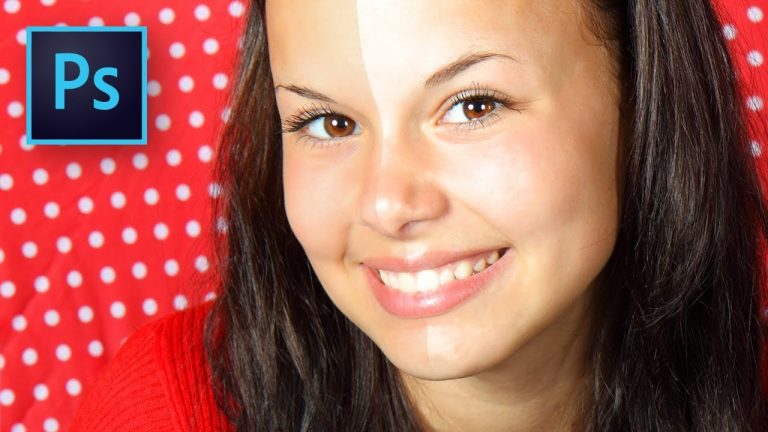
Discover 3 ways to get rid of the oily, extra-bright, or shiny skin in Photoshop in the most natural fashion. Learn how to combine the power of blend modes with intelligent cloning and curves to achieve a very natural skin by getting the super bright areas away, without destroying the skin texture.

In this tutorial we will be covering how to use the regular healing brush tool, the spot healing brush tool, the patch tool and curves combined with the powers of blend modes and blend-if to collectively form a super powerful recipe to tackle any kind of shining areas, hot spots or highlights in portraits. Hope this video helps you. Thank you for watching!

► MY VIDEO GEAR:
Camera: http://piximp.com/80D
Microphone: http://piximp.com/mic
Lens: http://piximp.com/50mm
Memory Card: http://piximp.com/sandisk64

NOTE: If you wish to support this channel, please use these links to buy anything from Amazon. You don’t have to pay extra. Amazon will pay us a small percentage of your purchase which will mean the world to me and will help keep PiXimperfect free for everyone, forever.

► CHECK OUT AMAZING BACKDROPS AT:
Kate Backdrop: http://katebackdrop.com/
The One Used in This Video:
Kate Abstract Yellow With Reddish Brown Oil Painting Texture Background Backdrops

► DOWNLOADS:
1. Sample Images: https://goo.gl/d54sZL

PiXimperfect is free, and will always be.
► SUPPORT the cause: https://www.patreon.com/piximperfect

► SHARE: https://goo.gl/IUhnUl

►LET’S CONNECT:
Facebook: http://facebook.com/piximperfect
Twitter: https://twitter.com/piximperfect
Instagram: https://www.instagram.com/piximperfect
Google+: https://plus.google.com/+UnmeshDinda

Leave No Blemish Unhealed with This Beauty Retouching Tip in Photoshop

0

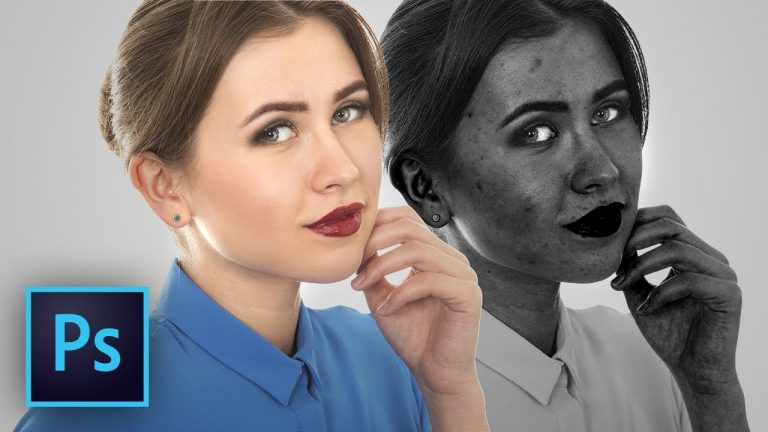
Professional Beauty Retouching Tip to Remove Blemishes in Photoshop! Learn how to extract and identify the blemishes using the power of Black and White Adjustment Layer.

We’ll also explore various tools, techniques, and tricks to remove the same, like some tips to work much faster with the Patch Tool, the right way to use the healing brush, the spot healing brush and even the clone stamp tool.

► MY VIDEO GEAR:
Camera: http://piximp.com/80D
Microphone: http://piximp.com/mic
Lens: http://piximp.com/50mm
Memory Card: http://piximp.com/sandisk64

NOTE: If you wish to support this channel, please use these links to buy anything from Amazon. You don’t have to pay extra. Amazon will pay us a small percentage of your purchase which will mean the world to me and will help keep PiXimperfect free for everyone, forever.

► DOWNLOADS:
1. Sample Image: https://goo.gl/D7sJt2
2. Finished PSD: https://goo.gl/uTJc1u (Only for our Patreon Family)

PiXimperfect is free, and will always be.
► SUPPORT the cause: https://www.patreon.com/piximperfect

► SHARE: https://goo.gl/IUhnUl

►LET’S CONNECT:
Facebook: http://facebook.com/piximperfect
Twitter: https://twitter.com/piximperfect
Instagram: https://www.instagram.com/piximperfect
Google+: https://plus.google.com/+UnmeshDinda
Remove Wrinkles from Clothes Using Frequency Separation in Photoshop

0

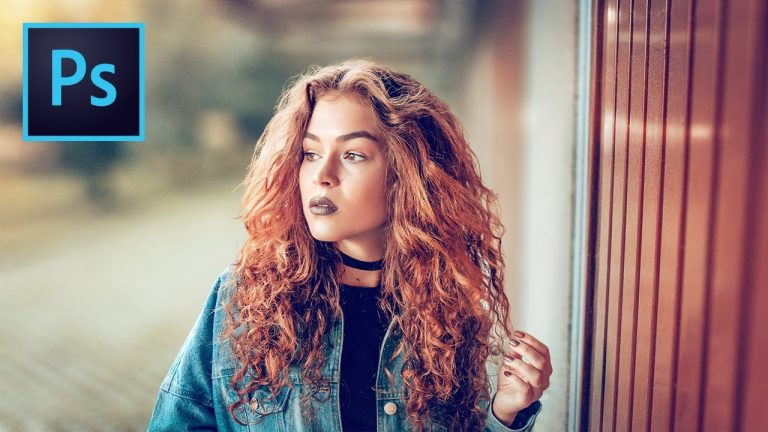
The Most Natural Way to Iron your Clothes and Get the Wrinkles Off the Fabric in Photoshop! Learn to use the amazing power of Frequency Separation to magically even out the creases without disturbing the texture of the fabric.

In this video, we will learn how to separate the image into wrinkles and fabric texture so that we can just work on the wrinkles and not affect the texture. Using the mixer brush, we will even out the wrinkles and creases, and eventually, remove the same from the garment. I hope this video helps you. Thanks for watching!

► MY VIDEO GEAR:
Camera: http://piximp.com/80D
Microphone: http://piximp.com/mic
Lens: http://piximp.com/50mm
Memory Card: http://piximp.com/sandisk64

NOTE: If you wish to support this channel, please use these links to buy anything from Amazon. You don’t have to pay extra. Amazon will pay us a small percentage of your purchase which will mean the world to me and will help keep PiXimperfect free for everyone, forever.

► DOWNLOADS:
1. Sample Images: https://goo.gl/YoYn7v
2. Finished PSDs: https://goo.gl/XB4FbL (Only for our Patreon Family)

PiXimperfect is free, and will always be.
► SUPPORT the cause: https://www.patreon.com/piximperfect

► SHARE: https://goo.gl/IUhnUl

►LET’S CONNECT:
Facebook: http://facebook.com/piximperfect
Twitter: https://twitter.com/piximperfect
Instagram: https://www.instagram.com/piximperfect
Google+: https://plus.google.com/+UnmeshDinda
How to Blur Background When Hair is Difficult to Select in Photoshop

0

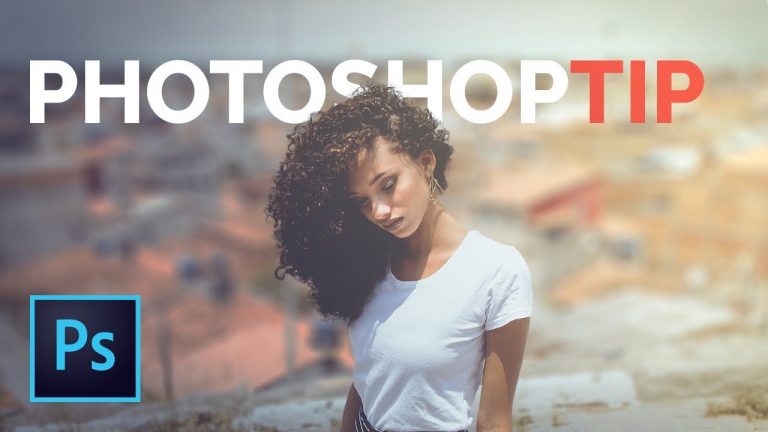
Build Realistic Shallow Depth-of-Field Even With Complex Hair and Busy Background in Photoshop CC 2018! Discover the amazing techniques to mask hair and methods to blur the background naturally. Using the more advanced and intelligent “Select and Mask” feature inside the new Photoshop and the non-destructive “Blur Gallery” with a variety of effects and hidden features, we will learn how to mimic expensive fast lenses and get the background out of focus.

Learning from the concept of “Focal Plane”, we will make sure that the Blur is gradual and realistic, and everything on the same focal plane as of the subject stays sharp. Hope this video helps you. Thanks for watching!

► STYLIZE YOUR PORTRAITS (Tutorial): https://youtu.be/kr0x7R3TFFE

► MY VIDEO GEAR:
Camera: http://piximp.com/80D
Microphone: http://piximp.com/mic
Lens: http://piximp.com/50mm
Memory Card: http://piximp.com/sandisk64

NOTE: If you wish to support this channel, please use these links to buy anything from Amazon. You don’t have to pay extra. Amazon will pay us a small percentage of your purchase which will mean the world to me and will help keep PiXimperfect free for everyone, forever.

► DOWNLOADS:
1. Sample Image: https://goo.gl/V8yXhm
2. Finished PSD: https://goo.gl/EQza7t (Only for our Patreon Family)

PiXimperfect is free, and will always be.
► SUPPORT the cause: https://www.patreon.com/piximperfect

► SHARE: https://goo.gl/IUhnUl

►LET’S CONNECT:
Facebook: http://facebook.com/piximperfect
Twitter: https://twitter.com/piximperfect
Instagram: https://www.instagram.com/piximperfect
Google+: https://plus.google.com/+UnmeshDinda
Are You Missing This Basic Photoshop Tip?

0

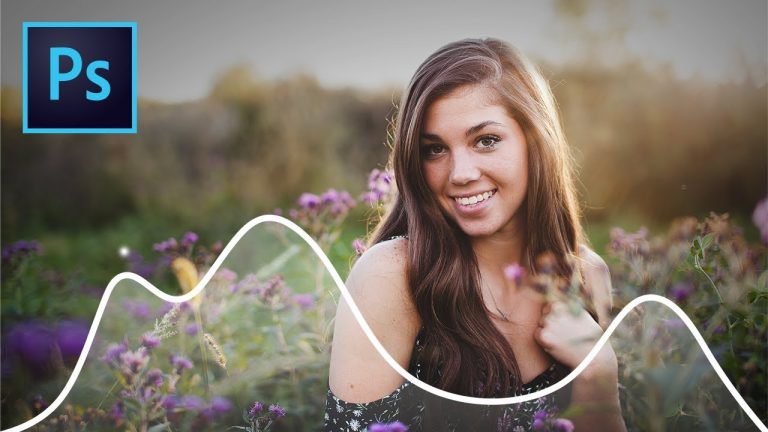
Extremely Simple Tip That Will Save You Tons of Time in Photoshop! Whether you are creating designs, images for social media like Facebook or Youtube, designing covers or simply Before & After images, learn how to do the same without having to disturb the original Photoshop document and a shortcut to quickly get whatever resolution, aspect ratio, or dimension you require.

In this tutorial, we will learn how to create a new document from a single layer/group, without having to mess with the original document. Also, we will learn some tips on getting the images to whatever aspect ratio or resolution you want for social media publishing, plus, a bonus new feature on Photoshop CC 2018. I hope this video helps you. Thanks for watching!

► MY VIDEO GEAR:
Camera: http://piximp.com/80D
Microphone: http://piximp.com/mic
Lens: http://piximp.com/50mm
Memory Card: http://piximp.com/sandisk64

NOTE: If you wish to support this channel, please use these links to buy anything from Amazon. You don’t have to pay extra. Amazon will pay us a small percentage of your purchase which will mean the world to me and will help keep PiXimperfect free for everyone, forever.

PiXimperfect is free, and will always be.
► SUPPORT the cause: https://www.patreon.com/piximperfect

► SHARE: https://goo.gl/IUhnUl

► LET’S CONNECT:
Facebook: http://facebook.com/piximperfect
Twitter: https://twitter.com/piximperfect
Instagram: https://www.instagram.com/piximperfect
Google+: https://plus.google.com/+UnmeshDinda
Difference Between Levels and Curves in Photoshop

0

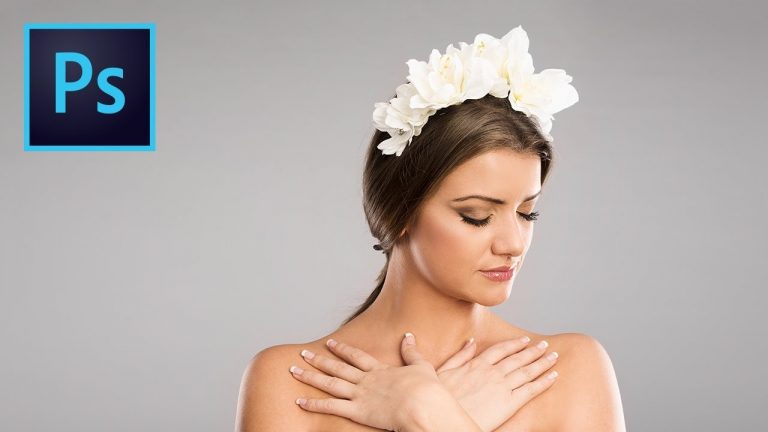
The Secret to the Difference Between Levels and Curves is the Similarity! Choosing either of the two in Photoshop can indeed be a matter of confusion. In this video, let us understand which tool does what and which one to use when. You would be surprised to see how both of these tools relate to each other in such similar ways.

In this tutorial, we are going to understand the differences between levels and curves with the help of CALCULATORS! I hope you enjoy the video. Thank you so much for watching!

► MY VIDEO GEAR:
Camera: http://piximp.com/80D
Microphone: http://piximp.com/mic
Lens: http://piximp.com/50mm
Memory Card: http://piximp.com/sandisk64

NOTE: If you wish to support this channel, please use these links to buy anything from Amazon. You don’t have to pay extra. Amazon will pay us a small percentage of your purchase which will mean the world to me and will help keep PiXimperfect free for everyone, forever.

► TUTORIALS ON CURVES:
https://goo.gl/iG38rN

PiXimperfect is free, and will always be.
► SUPPORT the cause: https://www.patreon.com/piximperfect

► SHARE: https://goo.gl/IUhnUl

►LET’S CONNECT:
Facebook: http://facebook.com/piximperfect
Twitter: https://twitter.com/piximperfect
Instagram: https://www.instagram.com/piximperfect
Google+: https://plus.google.com/+UnmeshDinda
4 Easy Steps to Add Rich Skin Tone in Photoshop

0

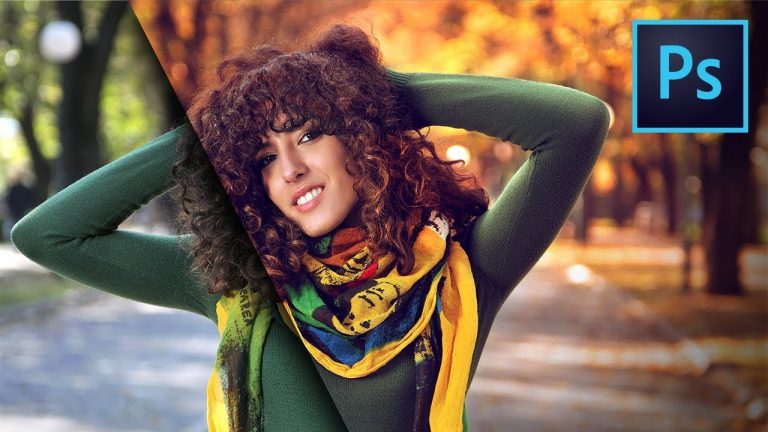
Make the Skin Pop and Add Color with 4 Easy Steps in Photoshop! Learn how to fix pale skins and add more vibrant skin tones to your portraits using the power of blend modes and simple masking. In this tutorial, we will also learn how to use blend-if to selective target the color according to luminosity. Sounds confusing? It’s actually pretty simple!

Hope this video helps you. Thank you so much for tuning in!

► MY VIDEO GEAR:
Camera: http://piximp.com/80D
Microphone: http://piximp.com/mic
Lens: http://piximp.com/50mm
Memory Card: http://piximp.com/sandisk64

NOTE: If you wish to support this channel, please use these links to buy anything from Amazon. You don’t have to pay extra. Amazon will pay us a small percentage of your purchase which will mean the world to me and will help keep PiXimperfect free for everyone, forever.

► DOWNLOADS:
1. Sample Images: https://goo.gl/WEf9Tk
2. Finished PSD: https://goo.gl/X5eWqT (Only for our Patreon Family)

PiXimperfect is free, and will always be.
► SUPPORT the cause: https://www.patreon.com/piximperfect

► SHARE: https://goo.gl/IUhnUl

►LET’S CONNECT:
Facebook: http://facebook.com/piximperfect
Twitter: https://twitter.com/piximperfect
Instagram: https://www.instagram.com/piximperfect
Google+: https://plus.google.com/+UnmeshDinda
Add Dreamy Colors of Autumn in 5 Steps | Photoshop Tutorial

0

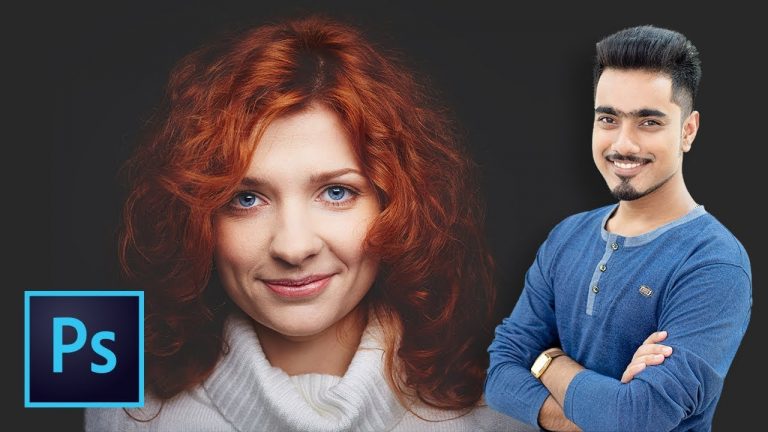
Create the Warm Autumn or Fall Look in Photoshop in just 5 Steps!
► FREE 7-DAY ACCESS TO IMAGES ON STORYBLOCKS: https://goo.gl/T4bwmr

Make your image pop with vibrant colors, light effects, and filters, and learn the magical techniques to apply them. From manually highlighting the hair to coloring the trees, from dodging and burning to adding custom vignettes, we are going to cover a lot of fun stuff.

► MY VIDEO GEAR:
Camera: http://piximp.com/80D
Microphone: http://piximp.com/mic
Lens: http://piximp.com/50mm
Memory Card: http://piximp.com/sandisk64

NOTE: If you wish to support this channel, please use these links to buy anything from Amazon. You don’t have to pay extra. Amazon will pay us a small percentage of your purchase which will mean the world to me and will help keep PiXimperfect free for everyone, forever.

► DOWNLOAD THE FINISHED PSD HERE:
https://goo.gl/XMvLyA (Only for our Patreon Family)

Starting with getting the light and the tone right, we will use curves to get a good starting point, and from there, we’ll go on adding non-destructive adjustment layers like Hue and Saturation, Levels, Color Lookup etc. along with masking to make up for all the 5 steps aimed to take care of colors, filters, dodging and burning, correction, light effects and more. I hope this video helps you!

PiXimperfect is free, and will always be.
► SUPPORT the cause: https://www.patreon.com/piximperfect

► SHARE: https://goo.gl/IUhnUl

►LET’S CONNECT:
Facebook: http://facebook.com/piximperfect
Twitter: https://twitter.com/piximperfect
Instagram: https://www.instagram.com/piximperfect
Google+: https://plus.google.com/+UnmeshDinda
Crazy Fast Way to Create Matte Effect in Photoshop | PiXimperfect

0

Take 5 Seconds to Create the Popular Faded Effect or the Matte Effect in Photoshop! Using a simple adjustment layer, nail the effect with just two sliders. We will also take this to the next level by incorporating masking and adding color tints!

Hope this video helps, thank you for watching!

► MY VIDEO GEAR:
Camera: http://piximp.com/80D
Microphone: http://piximp.com/mic
Lens: http://piximp.com/50mm
Memory Card: http://piximp.com/sandisk64

NOTE: If you wish to support this channel, please use these links to buy anything from Amazon. You don’t have to pay extra. Amazon will pay us a small percentage of your purchase which will mean the world to me and will help keep PiXimperfect free for everyone, forever.

► DOWNLOADS:
1. Sample Images: https://goo.gl/JKTVAE

PiXimperfect is free, and will always be.
► SUPPORT the cause: https://www.patreon.com/piximperfect

► SHARE: https://goo.gl/IUhnUl

►LET’S CONNECT:
Facebook: http://facebook.com/piximperfect
Twitter: https://twitter.com/piximperfect
Instagram: https://www.instagram.com/piximperfect
Google+: https://plus.google.com/+UnmeshDinda

“Soft” Style Dreamy Child Portrait Edit in Photoshop | PiXimperfect

0

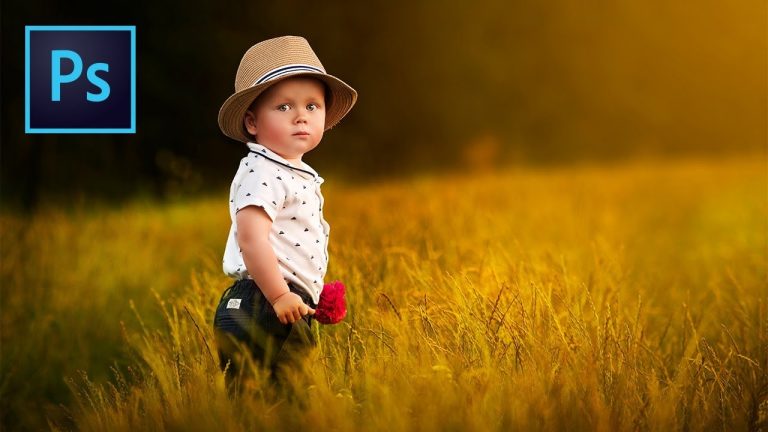
Complete Step-by-Step Tutorial to Retouch Photos of Children in the popular dreamy, vibrant, and soft fairytale style in Photoshop! Right from Softening the Skin, Adding the Amazing Vibrant Colors, to Dodging and Burning and much more! We are going to break everything down today to easy small steps.

► MY VIDEO GEAR:
Camera: http://piximp.com/80D
Microphone: http://piximp.com/mic
Lens: http://piximp.com/50mm
Memory Card: http://piximp.com/sandisk64

NOTE: If you wish to support this channel, please use these links to buy anything from Amazon. You don’t have to pay extra. Amazon will pay us a small percentage of your purchase which will mean the world to me and will help keep PiXimperfect free for everyone, forever.

► IMAGE CREDITS:
Katarzyna Ziętek
Instagram: @katarzyna_zietek
Facebook: https://goo.gl/Stfe1G

► DOWNLOADS:
1. Sample Image: https://goo.gl/Hd4pdg
2. Finished PSD: https://goo.gl/2soqYG (Only for our Patreon Family)

►TUTORIAL LINKS:
1. Skin Softening Action: https://youtu.be/H0lPIYERVlw
2. Retouching Hair: https://goo.gl/JFwX15
3. Sharpening Action: https://youtu.be/fyS_rdRd0KY

PiXimperfect is free, and will always be.
► SUPPORT the cause: https://www.patreon.com/piximperfect

► SHARE: https://goo.gl/IUhnUl

►LET’S CONNECT:
Facebook: http://facebook.com/piximperfect
Twitter: https://twitter.com/piximperfect
Instagram: https://www.instagram.com/piximperfect
Google+: https://plus.google.com/+UnmeshDinda