Home Blog Page 97

The FASTEST Way to Cut Out HAIR in Photoshop CC

0

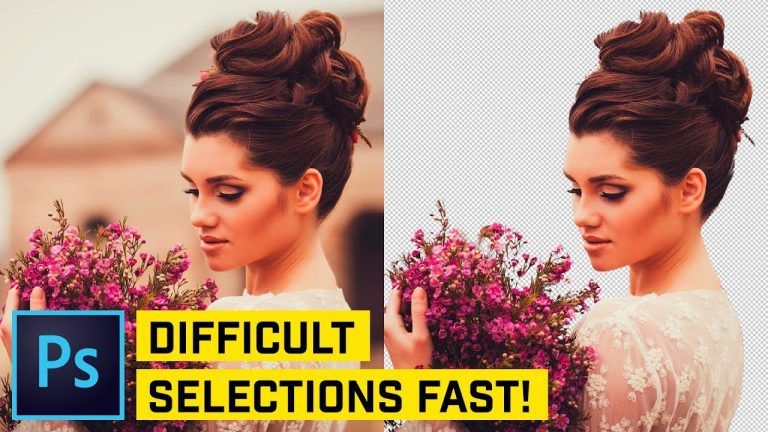
CUT OUT DIFFICULT HAIR FAST! | Using a combination of the Quick Selection, Select & Mask, and a special Brush trick, you’ll learn how to cut out even a difficult head of hair in minutes!

? Buy the Photoshop Course and Support the Channel → http://bit.ly/28NuwFy

? My Instagram: http://instagram.com/tutvid

? Subscribe for Daily Tutorials → https://goo.gl/DN4Nln

In this Photoshop tutorial, we’ll take a look at how to cut out a head of hair over a difficult and out of focus background just because we’re looking for a difficult to handle photo scenario. We’ll use the trusty Quick Selection tool, use Select & Mask to help us clean the edges up a bit, build back missing piece of the image, output a mask, drag this thing to a new image, and use a Brush tool with a Soft Light adjustment to help us manually defringe in, what I think, is currently the best way to do this in Photoshop. Hopefully you’ll be armed with the skills you need to cut out even the most complex heads of hair, furry animals, or really anything that is a challenge to make a selection of in Photoshop. Thanks for watching!

⚡️ written tutorial here: http://bit.ly/2rqyBOR

INSTAGRAM: http://instagram.com/tutvid
TWITTER: http://twitter.com/tutvid
FACEBOOK: https://www.facebook.com/tutvid
SNAPCHAT: tutvid.com

tutvid is a YouTube channel dedicated to creating the best Adobe Photoshop, Premiere Pro, Lightroom, and Illustrator tutorials. My goal is to create the best, most informative, and entertaining tutorials on the web. If you enjoy my videos, the best way to support what I do here is to purchase my course linked above or simply subscribe to the YouTube channel by pressing the red button.

✉️ business inquiries: nate@tutvid.com

Missing Head Photo Manipulation Photoshop CC

0

LEARN TO CREATE THIS COOL PHOTO MANIPULATION IN THIS PHOTOSHOP TUTORIAL! | Learn to use masking and clone tools to build out this cool little effect pretty quickly in Photoshop.

? Buy the Photoshop Course and Support the Channel → http://bit.ly/28NuwFy

? My Instagram: http://instagram.com/tutvid

? Subscribe for Daily Tutorials → https://goo.gl/DN4Nln

In this Photoshop Image Manipulation tutorial, we will look at how to remove the head of a model in a photo using a variety of photo manipulation tools in Photoshop. We will use cloning to wipe away the existing head and patch in the background. We will also cover patching in the inside of a shirt collar to give the model some depth and make the effect look realistic. To top things off, we’ll use a brush to paint in some smoke to make it look like *POOF* his head was gone. Thanks for watching!

⚡️ written tutorial here: http://bit.ly/2Dyf0Sf

INSTAGRAM: http://instagram.com/tutvid
TWITTER: http://twitter.com/tutvid
FACEBOOK: https://www.facebook.com/tutvid
SNAPCHAT: tutvid.com

tutvid is a YouTube channel dedicated to creating the best Adobe Photoshop, Premiere Pro, Lightroom, and Illustrator tutorials. My goal is to create the best, most informative, and entertaining tutorials on the web. If you enjoy my videos, the best way to support what I do here is to purchase my course linked above or simply subscribe to the YouTube channel by pressing the red button.

✉️ business inquiries: nate@tutvid.com

How to Make a Type Capture with Adobe Capture CC | Adobe Creative Cloud

0

Learn how to create a type style from handmade lettering in the wild, then use it for a thematically related design.

Tip: Picture yourself on a trip, documenting all of the beautiful, bespoke lettering you encounter, then coming back to the real world and using that inspiration in a branding project for a café (or product brand).

Start from scratch, or download practice files [http://learndownload.adobe.com/pub/learn/creative-cloud/make-type-capture.zip] for a head start. Steps below.

Prep your project:

1. Save the practice image (capture-source-image.jpg) provided here to the Camera Roll on your mobile device, or use your own.
2. Download the Adobe Capture CC mobile app from the App Store (https://itunes.apple.com/app/id1040200189) for your iOS device, or from the Play Store (https://play.google.com/store/apps/details?id=com.adobe.creativeapps.gather) for your Android. Open the app and sign in with your Adobe ID.
3. Tap the Library drop down at the top (the name of the library shown in the video is “Europe Trip”). Choose an existing library to use for the tutorial, or tap the “+” icon to create a new library.

Create a character style:

1. Tap “Type” from the top menu, tap the “+” icon at the bottom, then tap Camera Roll.
2. Choose a photo from your Camera Roll. Position the blue box around the text with the character style you want to copy. Drag the handles to re-size the blue box just around the text. Tap the checkmark when you’re done.
3. Scroll through the type options to find the closest match and tap Edit.

Tip: For the example in the video, we chose ModestoLite Expanded Regular.

4. Tap Font Style to choose the appropriate Font weight and style. Change other style properties as you like.

Tip: For the example in the video, we chose Modesto Text Lite and increased the Tracking to .3em.

5. When you are happy with the style, tap the Right arrow at the top, give the new style a name, then tap Save.

Apply style in Illustrator:

1. Open (File – Open) the provided (capture-type.ai) file, or use your own.
2. Choose the Selection tool and click on the text you want to modify.
3. Open the Libraries pane (Window – Libraries) and choose the Library where you save the character style.
4. Click on the character style and notice the selected text now matches the character style you created in Adobe Capture.
Note: You must apply the character style to individual text objects.
5. Optional: Select the background, then change the color to make the text stand out.

That’s it!

To learn more about Adobe Capture and Adobe’s other mobile apps, visit our Mobile apps Tutorials page: https://adobe.ly/2BgGZzR

Subscribe: https://www.youtube.com/user/adobecreativecloud?sub_confirmation=1

LET’S CONNECT
Facebook: http://facebook.com/adobecreativecloud
Twitter: http://twitter.com/creativecloud
Instagram: http://www.instagram.com/adobecreativecloud/

Adobe Creative Cloud gives you the world’s best creative apps so you can turn your brightest ideas into your greatest work across your desktop and mobile devices.

Create Minimal Wedding Titles in Adobe Premiere Pro – Tutorial

0

Best Music For YouTubers! Get your royalty free music at Artlist.io.
http://bit.ly/2t7xrrP

In this adobe premiere tutorial, learn how to easily create minimal wedding titles for your wedding videos! This premiere tutorial covers basic concepts when it comes to title design and animation. Learn how to easily animate multiple titles together and learn how to use typefaces to your benefit!

Great Wedding Titles Templates!
My Template For Download: http://www.sonduckfilm.com/product/5-wedding-titles-for-premiere-pro-after-effects/
14 Wedding Titles: http://bit.ly/2BpcXKy
Wedding Titles With Typography: http://bit.ly/2GapIMo

Social Media:
Drop a like on Facebook: https://www.facebook.com/sonduckfilm
Hit me up on Instagram: http://instagram.com/sonduckfilm
Follow me on Twitter: https://twitter.com/SonduckFilm
Connect with me on Linkedin: https://www.linkedin.com/in/joshnoel

Visit our website https://www.sonduckfilm.com for more tutorials, giveaways and film and photo gear!

How to Retouch Newborn Baby Skin in Photoshop

0

Aaron guarantees he can teach you to master Photoshop! Learn more here: https://phlearn.com/aaronwillteachyou2

Our quick guide to helping newborns look their best! Download the Sample Image here: https://phlearn.com/tutorial/retouch-newborns

Welcoming a new life into the world is a profound moment that deserves to be captured and shared. In this tutorial, we cover some of the common traits of newborns and how to apply some light retouching in Photoshop to help them look their best. From adjusting red, blotchy areas to cleaning up dry, flaky skin, we’ll walk you through some techniques that anyone can learn to help capture memories that will last a lifetime.

VISIT PHLEARN.COM FOR MORE FREE TUTORIALS

Homepage

SUBSCRIBE NOW FOR MORE FREE TIPS AND TRICKS
http://www.youtube.com/subscription_center?add_user=phlearnllc

LET’S BE FRIENDS!
Instagram ► https://www.instagram.com/phlearn/
Facebook ► https://facebook.com/phlearn
Twitter ► https://twitter.com/phlearn
Google+ ► https://plus.google.com/116791098059215639405
Phlearn ► https://phlearn.com

How to turn your app idea into a pitch-ready prototype | Adobe Creative Cloud

0

Learn how to use a wireframe designed for Adobe XD, and the Repeat Grid, to speed up your web and app prototype designs.

Download the wireframes:
1. Click the Wireframes link in the UI Kits section of the Adobe XD Welcome screen. Or, download them here (https://adobe.ly/2CfyiHz).
2. Click the Download kits link from the Behance profile page.
3. Unzip the wires.zip file and open the appropriate .xd file in Adobe XD.

Create a prototype:
1. Select the Zoom tool and drag across the correct artboards to view them in more detail.
2. Choose the Select tool, then click and drag to select the elements on the artboard you want, choose Edit – Copy, then File – New, choose the correct artboard size to create a new XD document, then Edit – Paste to paste the elements on to the new artboard.

Tip: You can also click an artboard title to select its contents. Then, copy and past to a new file.

3. Shift+click to select elements you do not want, right-click and choose Delete.

Tip: Depending on how the artboards are created, you may need to open the Layers panel (View – Layers), right-click a layer group, then select Ungroup to ungroup and properly select individual elements.

4. Drag remaining elements to rearrange as necessary.
5. Double-click a shape, such as a rectangle, to access individual, editable points. Drag individual points on a path to redefine the shape.
6. Create reusable character styles: Select a text element, style using the settings in the Text and Appearance sections of the Properties Inspector. Click the + icon next to Character Styles in the Assets panel (View – Assets) and reuse the style throughout your designs.
7. Create reusable symbols: Create a shape or design element (group elements if necessary). Click the + icon next to Symbols in the assets panel and reuse the symbol throughout your designs.
8. Create 2 more artboards: Select the Artboard tool. Click the appropriate artboard size. Do this twice.
9. Use the Select tool to drag and select the elements on the first artboard, click Repeat Grid, then drag the green handle on the right to repeat the artboard elements across the artboards. Place your cursor between the artboards and drag the pink guides until the margin is equal to the distance between artboards.
10. Drag 3 images from Finder or Explorer to fill the shapes.
11. Drag a text file with 3 lines for the headers to replace the placeholder text.
12. Deslect, then reselect, the Repeat Grid. Click Ungroup Grid to reveal the hidden content on the additional artboards.

Create a prototype:
1. Click the Prototype tab at the top.
2. Drag a wire from one artboard to the next.
3. Click the Play button at the top to use Desktop Preview to test the flow.

That’s it. To learn more, visit our Adobe XD tutorials page (https://adobe.ly/2C9id63).

Subscribe: https://www.youtube.com/user/adobecreativecloud?sub_confirmation=1

LET’S CONNECT
Facebook: http://facebook.com/adobecreativecloud
Twitter: http://twitter.com/creativecloud
Instagram: http://www.instagram.com/adobecreativecloud/

Adobe Creative Cloud gives you the world’s best creative apps so you can turn your brightest ideas into your greatest work across your desktop and mobile devices.

How to Make a New Character Pose with Adobe Illustrator | Adobe Creative Cloud

Learn how to use the Puppet Warp tool to create a variety of poses for your character or drawing.

Start from scratch, or download practice files [http://learndownload.adobe.com/pub/learn/illustrator/make-a-puppet-warp.zip] for a head start. Steps below.

1. Open your drawing, or use ours (puppet-warp-mantis.ai).
2. Choose the Selection Tool. Click and drag to select the character.
3. Choose the Puppet Warp tool. Click to add 3 pins along the mantis’s body, on the neck and head.

Tip: With the Puppet Warp tool selected, choose Window – Properties, then uncheck “Show Mesh” to hide the mesh guide for a clearer work surface.

4. Pose the head and neck: Click the pin close to the head and drag up to elongate the neck. Click the dotted line around the pin to adjust the tilt of the head.
5. Pose the upper arm: Add 2 pins to the upper arm. Move the top joint down and rotate to adjust the angle of the arm.
6. Pose the lower arm: Add 3 pins to the lower arm. Rotate the joint to adjust the angle. Shift+click the last 2 pins and reposition the arm.

That’s it!

To learn more, visit our Illustrator Tutorials page: https://adobe.ly/2lReJyb

Subscribe: https://www.youtube.com/user/adobecreativecloud?sub_confirmation=1

LET’S CONNECT
Facebook: http://facebook.com/adobecreativecloud
Twitter: http://twitter.com/creativecloud
Instagram: http://www.instagram.com/adobecreativecloud/

Adobe Creative Cloud gives you the world’s best creative apps so you can turn your brightest ideas into your greatest work across your desktop and mobile devices.

Animate Data-Driven Graphics in After Effects | Adobe Creative Cloud

Create data-driven animations of charts or graphs in Adobe After Effects CC without coding any graphics yourself. Import JSON data files to create a motion graphic, and then edit the data to update the graphic automatically.

To follow along with this tutorial (https://adobe.ly/2EQTdlf), download the Data-Driven Animation assets: https://adobe.ly/2BaDuuY

Subscribe: https://www.youtube.com/user/adobecreativecloud?sub_confirmation=1

LET’S CONNECT
Facebook: http://facebook.com/adobecreativecloud
Twitter: http://twitter.com/creativecloud
Instagram: http://www.instagram.com/adobecreativecloud/

Adobe Creative Cloud gives you the world’s best creative apps so you can turn your brightest ideas into your greatest work across your desktop and mobile devices.

Get to know Photoshop | Adobe Creative Cloud

0

This video, from the Adobe Learn team is the first in a series of free beginner tutorials that teach you the basic tools and techniques of Adobe Photoshop CC.

Download sample files: https://learndownload.adobe.com/pub/learn/photoshop/basics-fundamentals.zip

Original tutorial on Adobe website: https://helpx.adobe.com/photoshop/how-to/ps-basics-fundamentals.html

All Photoshop tutorials: https://helpx.adobe.com/photoshop/tutorials.html

Subscribe: https://www.youtube.com/user/adobecreativecloud?sub_confirmation=1

LET’S CONNECT
Facebook: http://facebook.com/adobecreativecloud
Twitter: http://twitter.com/creativecloud
Instagram: http://www.instagram.com/adobecreativecloud/

Adobe Creative Cloud gives you the world’s best creative apps so you can turn your brightest ideas into your greatest work across your desktop and mobile devices.

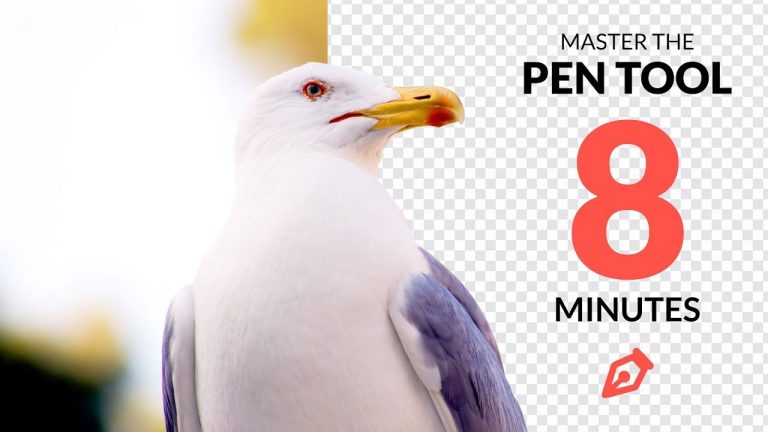
Master the Pen Tool in Under 8 Minutes (Photoshop)

0

The Pen Tool is the most accurate way to make selections in Photoshop. Finally, it’s yours to master! Download the sample image here: https://phlearn.com/tutorial/master-pen-tool/

The Pen Tool is a powerful and versatile tool that can be found in a variety of Adobe’s software products. In this tutorial, we break down the fundamentals, demonstrating how to use it to make elegant curves, perfect angles, and accurate selections. Whether you need to cut a subject out of a photo or create a precision shape or design, we’ve got you covered.

Get 10% off at Squarespace by mentioning PHLEARN! Whether you need a domain, website, or online store – make it with Squarespace! (We’re a real photography channel now) https://squarespace.com/phlearn

VISIT PHLEARN.COM FOR MORE FREE TUTORIALS

Homepage

SUBSCRIBE NOW FOR MORE FREE TIPS AND TRICKS
http://www.youtube.com/subscription_center?add_user=phlearnllc

LET’S BE FRIENDS!
Instagram ► https://www.instagram.com/phlearn/
Facebook ► https://facebook.com/phlearn
Twitter ► https://twitter.com/phlearn
Google+ ► https://plus.google.com/116791098059215639405
Phlearn ► https://phlearn.com