Home Blog Page 132

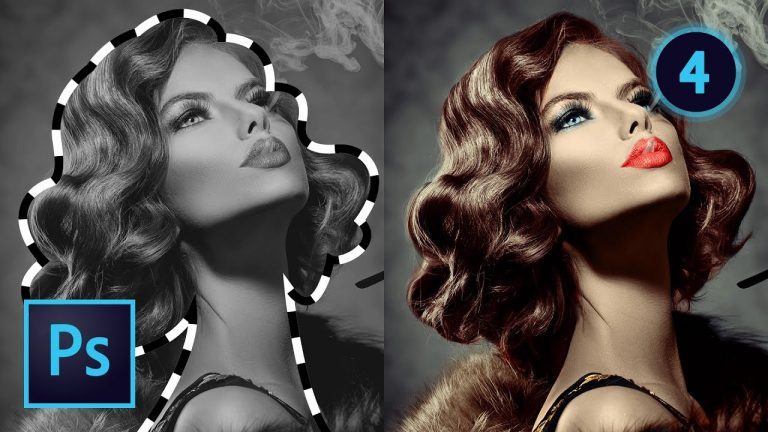
30 Techniques Every Photographer/Retoucher Needs to Know! (Pt. 4 of 4)

0

4-PART FREE MINI-COURSE ABOUT RETOUCHING AND LEARNING THE BASICS OF PHOTOSHOP! | We will cover techniques 19-27 in this video that you just have got to know as a retoucher in Photoshop.

DOWNLOAD THE LENS FLARES HERE: http://tutvid.com/photoshop-tutorials/make-colorful-custom-light-leaks-photoshop-tutorial/

Part 1: https://youtu.be/dk-GA1h4J4s
Part 2: https://youtu.be/y91ld8GKg9U
Part 3: https://youtu.be/Bh36v-FyZkw
Part 4: https://youtu.be/dfjVHyQa5Fs

? ↓ VIDEO GUIDE ↓ ?
01:00 28.) Content-Aware Everything!
12:42 29.) Smart Filters
18:04 30.) Replacing/Swapping a Face
25:34 31.) Smooth Wrinkles from Clothing
29:41 32.) Color Grading
34:03 33.) Colorize a Black and White Photo
44:34 34.) Extreme Lens Correction
51:55 35.) Lens Flares and Light Leaks
58:32 36.) Global and Selective Sharpening
01:05:49 37.) Cropping, Resizing and Saving Photos

? Subscribe for Daily Tutorials → https://goo.gl/DN4Nln

? Buy the Photoshop Course and Support the Channel → http://bit.ly/28NuwFy

In this Photoshop tutorial, we will finish up our 4-part series that will carry you through learning essential techniques and skills if you are a photographer. We will cover the ins and outs of the Content-Aware tools in Photoshop, also the power and advantage of using Smart Filters in Photoshop, and we will also talk about what I think might be the best face swapping technique to date when you’ve got to replace a face. I will also show you how to reduce and remove wrinkles from clothing, how to color grade images with Gradient Maps, how to colorize black and white photos, lens correction for extremely distorted photos (like architecture photography,) how to selectively sharpen your photos, and much more!

⚡️ written tutorial here: http://bit.ly/2qDGZbG

INSTAGRAM: http://instagram.com/tutvid
TWITTER: http://twitter.com/tutvid
FACEBOOK: https://www.facebook.com/tutvid
SNAPCHAT: tutvid.com

tutvid is a YouTube channel dedicated to creating the best Adobe Photoshop, Premiere Pro, Lightroom, and Illustrator tutorials. My goal is to create the best, most informative, and entertaining tutorials on the web. If you enjoy my videos, the best way to support what I do here is to purchase my course linked above or simply subscribe to the YouTube channel by pressing the red button.

✉️ business inquiries: nate@tutvid.com

CREDITS:
Social Icons in outro: http://www.freepik.com/free-vector/six-social-networking-icons-with-infographic-resources_982300.htm
Create a Mountain Graphic Illustration Illustrator Tutorial

0

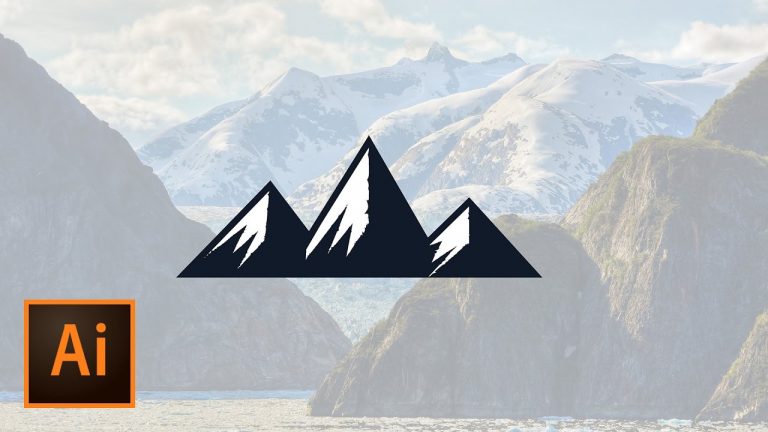
GREAT FOR SIMPLE GRAPHICS, LOGOS, ICONS, AND MORE! | Learn to create simple snow-capped mountains in this tutorial using simple shape tools!

? Subscribe for Daily Tutorials → https://goo.gl/DN4Nln

? Buy the Photoshop Course and Support the Channel → http://bit.ly/28NuwFy

In this Illustrator tutorial, we will look at using the Pen tool to draw a small mountain range and use path offsetting as well as smart guides and clipping masks to create a perfectly aligned set of simple snow-capped mountains. This is a pretty simple tutorial, but it’s fast-paced and I think you just might like it.

⚡️ written tutorial here: [LINK SOON]

INSTAGRAM: http://instagram.com/tutvid
TWITTER: http://twitter.com/tutvid
FACEBOOK: https://www.facebook.com/tutvid
SNAPCHAT: tutvid.com

tutvid is a YouTube channel dedicated to creating the best Adobe Photoshop, Premiere Pro, Lightroom, and Illustrator tutorials. My goal is to create the best, most informative, and entertaining tutorials on the web. If you enjoy my videos, the best way to support what I do here is to purchase my course linked above or simply subscribe to the YouTube channel by pressing the red button.

✉️ business inquiries: nate@tutvid.com

CREDITS:
Social Icons in outro: http://www.freepik.com/free-vector/six-social-networking-icons-with-infographic-resources_982300.htm
Red & White Polka Dot Lipstick Photoshop Tutorial

0

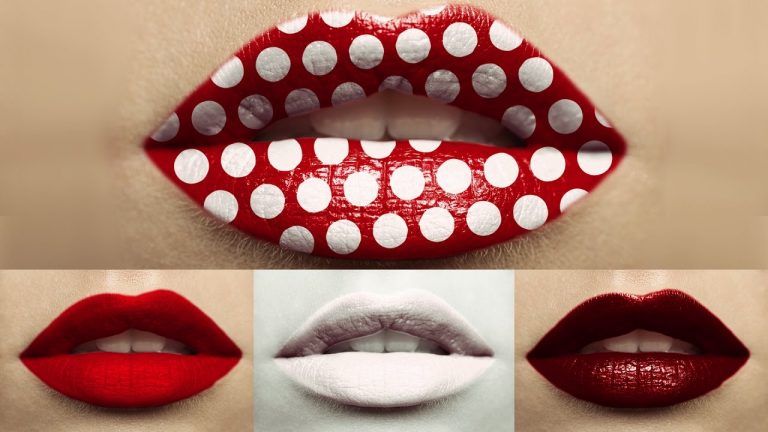
LEARN TO RETOUCH LIPS AND CREATE ANY COLOR POLKA DOT PATTERN YOU WANT! | Use Adjustment Layers and “Blend If” styles to create realistic and cool lip gloss effects.

Image used in this tutorial: https://stock.adobe.com/stock-photo/beautiful-natural-lips/67821248

? Subscribe for Daily Tutorials → https://goo.gl/DN4Nln

? Buy the Photoshop Course and Support the Channel → http://bit.ly/28NuwFy

In this Photoshop tutorial, we will learn to mask out some lips and apply a few adjustment layers to first convert the color of lips to anything you could ever imagine, and secondly to add a cool polka dot pattern to the lips. QUICK TIP: To get a black lipstick with white/silver polka dots, simply duplicate both adjustment layers that we created when we made the red and white lipstick effect by selecting both layers and hitting Cmd/Ctrl + J 2x. You may also have to darken the Lightness slider in each Hue/Saturation layer as well as boost the Red/Yellow channels on the Black White adjustment layer.

⚡️ written tutorial here: http://bit.ly/2qedbyA

INSTAGRAM: http://instagram.com/tutvid
TWITTER: http://twitter.com/tutvid
FACEBOOK: https://www.facebook.com/tutvid
SNAPCHAT: tutvid.com

tutvid is a YouTube channel dedicated to creating the best Adobe Photoshop, Premiere Pro, Lightroom, and Illustrator tutorials. My goal is to create the best, most informative, and entertaining tutorials on the web. If you enjoy my videos, the best way to support what I do here is to purchase my course linked above or simply subscribe to the YouTube channel by pressing the red button.

✉️ business inquiries: nate@tutvid.com

CREDITS:
Social Icons in outro: http://www.freepik.com/free-vector/six-social-networking-icons-with-infographic-resources_982300.htm
Create a Lower Third in After Effects & use it in Premiere Pro with Live Text Templates

0

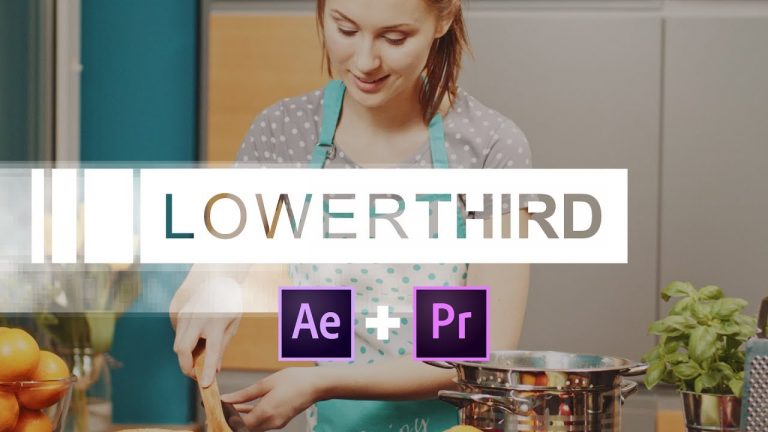
CREATE A SMOOTH LOWER THIRD IN AFTER EFFECTS! | We will also put the lower third in a video project in Premiere Pro and look at Text Templates in Premiere Pro.

⚡️ FREE AFTER EFFECTS LOWER THIRD HERE: http://bit.ly/2qUJ5C9
? Premiere Pro Starts at: 14:05

? Subscribe for Daily Tutorials → https://goo.gl/DN4Nln

? Buy the Photoshop Course and Support the Channel → http://bit.ly/28NuwFy

In this joint After Effects/Premiere Pro tutorial, we’ll look at create a beautiful and smooth lower third animation graphic in After Effects from scratch and then we’ll save the file out and import it into Premiere Pro and use the tools in Premiere Pro to load in and edit the text in the After Effects Composition and then talk about duplicate instances of the lower third so we can have multiple lower thirds across our video project, but also so all of our lower thirds automatically update if we change something in After Effects thanks to the Dynamic Link connection between After Effects and Premiere Pro. You’re going to love this tutorial! Remember to like and subscribe!

⚡️ written tutorial here: http://bit.ly/2qUJ5C9

INSTAGRAM: http://instagram.com/tutvid
TWITTER: http://twitter.com/tutvid
FACEBOOK: https://www.facebook.com/tutvid
SNAPCHAT: tutvid.com

tutvid is a YouTube channel dedicated to creating the best Adobe Photoshop, Premiere Pro, Lightroom, and Illustrator tutorials. My goal is to create the best, most informative, and entertaining tutorials on the web. If you enjoy my videos, the best way to support what I do here is to purchase my course linked above or simply subscribe to the YouTube channel by pressing the red button.

✉️ business inquiries: nate@tutvid.com

CREDITS:
Social Icons in outro: http://www.freepik.com/free-vector/six-social-networking-icons-with-infographic-resources_982300.htm
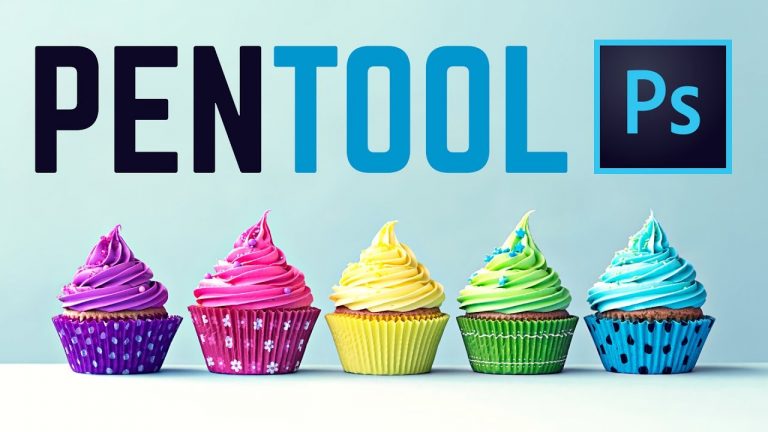
Learn to Use the Pen Tool in 5 Minutes!

0

INSTANT BEGINNER GUIDE TO THE PEN TOOL! | Learn to master creating perfect and editable selections with the Pen Tool.

? Buy the Photoshop Course and Support the Channel → http://bit.ly/28NuwFy

? My Instagram: http://instagram.com/tutvid

? Subscribe for Daily Tutorials → https://goo.gl/DN4Nln

Stock photo used in this tutorial: https://stock.adobe.com/stock-photo/colorful-cupcakes/140694555

In this Photoshop tutorial, we will break down how to create editable paths with the Pen Tool. How to work with anchor points, tangent handles, how to create smooth curves, sharp corners, smooth corners, and so much more!

⚡️ written tutorial here: http://bit.ly/2s45bpy

INSTAGRAM: http://instagram.com/tutvid
TWITTER: http://twitter.com/tutvid
FACEBOOK: https://www.facebook.com/tutvid
SNAPCHAT: tutvid.com

tutvid is a YouTube channel dedicated to creating the best Adobe Photoshop, Premiere Pro, Lightroom, and Illustrator tutorials. My goal is to create the best, most informative, and entertaining tutorials on the web. If you enjoy my videos, the best way to support what I do here is to purchase my course linked above or simply subscribe to the YouTube channel by pressing the red button.

✉️ business inquiries: nate@tutvid.com

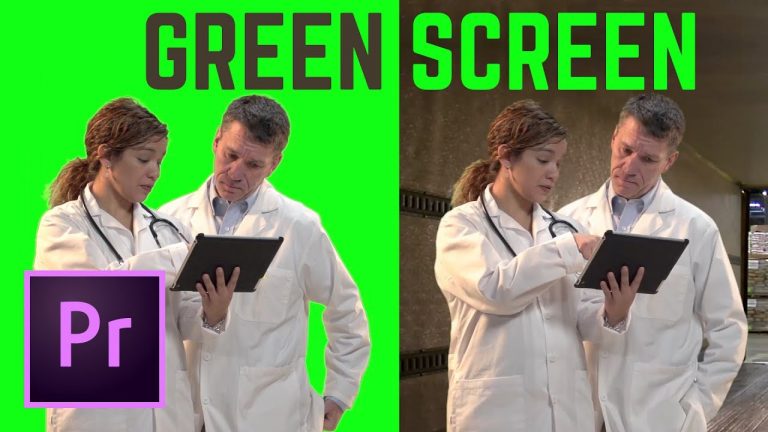
HOW TO Green Screen (Chromakey) Premiere Pro CC

0

GREEN SCREEN BACKGROUNDS AND SIGNS/SCREENS! | Learn to knock out entire backgrounds or smaller areas of green screen like screens or signs to create a perfect custom chromakey knockout.

? Buy the Photoshop Course and Support the Channel → http://bit.ly/28NuwFy

? My Instagram: http://instagram.com/tutvid

? Subscribe for Daily Tutorials → https://goo.gl/DN4Nln

In this Premiere Pro video editing tutorial, we’ll learn all about Chroma Keying and using Ultra Key to knock out and clean up the edges of a green screen background. If you need to work with a green screen, you’ll love this tutorial!

⚡️ written tutorial here: http://bit.ly/2tgPwU9

INSTAGRAM: http://instagram.com/tutvid
TWITTER: http://twitter.com/tutvid
FACEBOOK: https://www.facebook.com/tutvid
SNAPCHAT: tutvid.com

tutvid is a YouTube channel dedicated to creating the best Adobe Photoshop, Premiere Pro, Lightroom, and Illustrator tutorials. My goal is to create the best, most informative, and entertaining tutorials on the web. If you enjoy my videos, the best way to support what I do here is to purchase my course linked above or simply subscribe to the YouTube channel by pressing the red button.

✉️ business inquiries: nate@tutvid.com

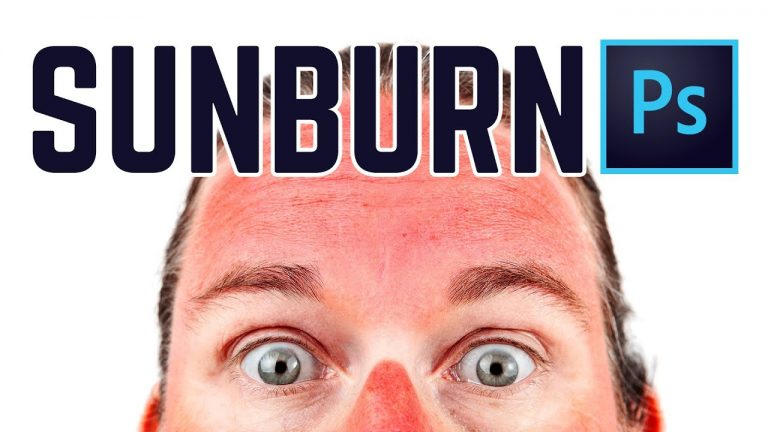
How to Get Rid of Sunburn (almost) Instantly!

0

FIX EXTREME REDNESS AND SUNBURN IN SECONDS! | Check out how to use Photoshop’s Camera RAW to correct skin burning.

? Buy the Photoshop Course and Support the Channel → http://bit.ly/28NuwFy

? My Instagram: http://instagram.com/tutvid

? Subscribe for Daily Tutorials → https://goo.gl/DN4Nln

In this Photoshop tutorial, we’ll quickly cover how to reduce or remove mild or extreme sunburn. Learn to use Smart Objects, Smart Filters, and the HSL sliders in Camera RAW to get the job done.

⚡️ written tutorial here: http://bit.ly/2sbJzaT

INSTAGRAM: http://instagram.com/tutvid
TWITTER: http://twitter.com/tutvid
FACEBOOK: https://www.facebook.com/tutvid
SNAPCHAT: tutvid.com

tutvid is a YouTube channel dedicated to creating the best Adobe Photoshop, Premiere Pro, Lightroom, and Illustrator tutorials. My goal is to create the best, most informative, and entertaining tutorials on the web. If you enjoy my videos, the best way to support what I do here is to purchase my course linked above or simply subscribe to the YouTube channel by pressing the red button.

✉️ business inquiries: nate@tutvid.com

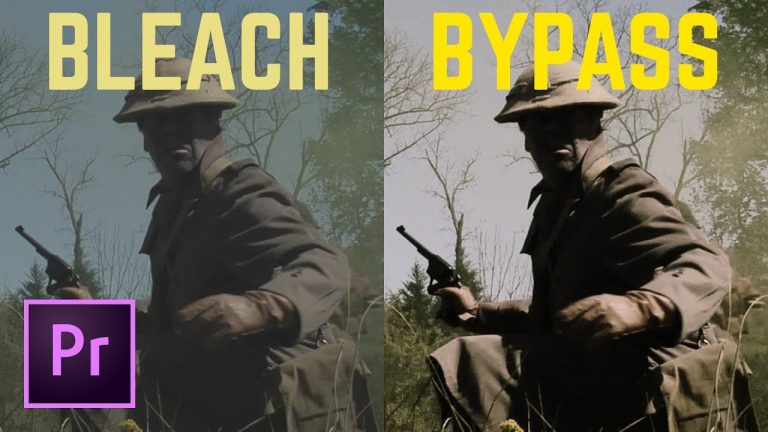
Bleach Bypass Color Grade Effect in Premiere Pro CC

0

CREATE A HIGH CONTRAST WASHED OUT BYPASS EFFECT! | Quickly create this bleach bypass effect in Premiere Pro CC.

? Buy the Photoshop Course and Support the Channel → http://bit.ly/28NuwFy

? My Instagram: http://instagram.com/tutvid

? Subscribe for Daily Tutorials → https://goo.gl/DN4Nln

In this Premiere Pro video editing tutorial, we’ll cover how to work with adjustment layers and video color effects to create a highly editable and flexible bleach bypass effect to color grade your footage.

⚡️ written tutorial here: [LINK SOON]

INSTAGRAM: http://instagram.com/tutvid
TWITTER: http://twitter.com/tutvid
FACEBOOK: https://www.facebook.com/tutvid
SNAPCHAT: tutvid.com

tutvid is a YouTube channel dedicated to creating the best Adobe Photoshop, Premiere Pro, Lightroom, and Illustrator tutorials. My goal is to create the best, most informative, and entertaining tutorials on the web. If you enjoy my videos, the best way to support what I do here is to purchase my course linked above or simply subscribe to the YouTube channel by pressing the red button.

✉️ business inquiries: nate@tutvid.com

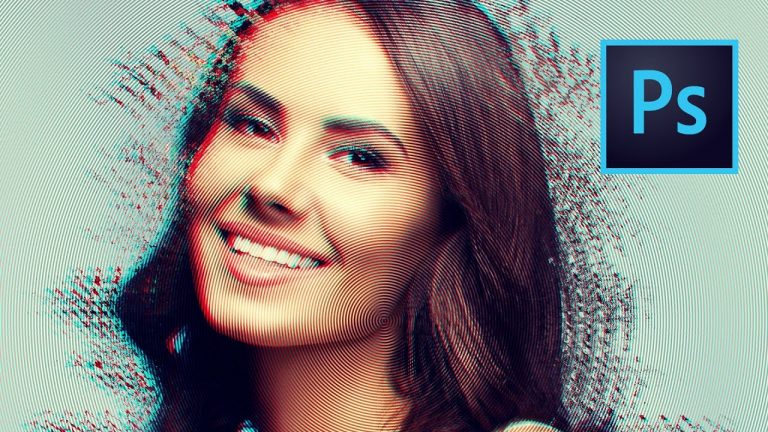
Concentric Circles Jitter Illusion Effect Photoshop Tutorial

0

EASY TO DO AND WORKS FOR ANY IMAGE! | Break down a photo and layer on smart filters to create a really cool scattered effect.

? Buy the Photoshop Course and Support the Channel → http://bit.ly/28NuwFy

? My Instagram: http://instagram.com/tutvid

? Subscribe for Daily Tutorials → https://goo.gl/DN4Nln

In this Photoshop tutorial, we’ll take a photo and create a randomized scattered swirling effect around the edges of the subject of the photo and mask the smart filters to create the exact effect we’re looking for. We will also look at using Adjustment Layers to colorize and tone the final, finished images. Thanks for watching!

⚡️ written tutorial here: http://bit.ly/2skQsT7

INSTAGRAM: http://instagram.com/tutvid
TWITTER: http://twitter.com/tutvid
FACEBOOK: https://www.facebook.com/tutvid
SNAPCHAT: tutvid.com

tutvid is a YouTube channel dedicated to creating the best Adobe Photoshop, Premiere Pro, Lightroom, and Illustrator tutorials. My goal is to create the best, most informative, and entertaining tutorials on the web. If you enjoy my videos, the best way to support what I do here is to purchase my course linked above or simply subscribe to the YouTube channel by pressing the red button.

✉️ business inquiries: nate@tutvid.com

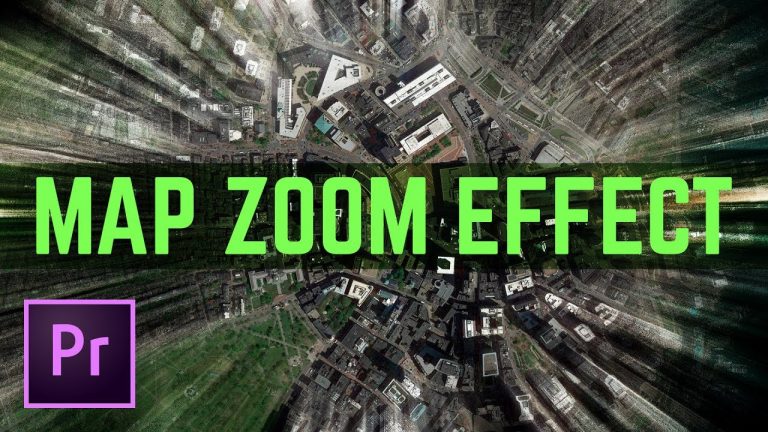
Map Zoom to Sky Effect – Fake Drone Video Transition Effect – Premiere Pro Tutorial

0

FAKE DRONE GTA STYLE ZOOMING TRANSITION! | Check out the simple process to create this cool effect to make it look like you’re zooming around town in your video! | BONUS TIP! Check out the 5th Jitter method in this video: https://youtu.be/HsdLuiVWN7E to create the camera movement from the overhead/drone shot like I did in the example clip I show!

? Buy the Photoshop Course and Support the Channel → http://bit.ly/28NuwFy

? My Instagram: http://instagram.com/tutvid

? Subscribe for Daily Tutorials → https://goo.gl/DN4Nln

Google Map Customizer: http://www.chengfolio.com/google_map_customizer
Zoom In Premiere Pro Tutorial: https://youtu.be/mgUCamkkcC0
Zoom Out Premiere Pro Tutorial: https://youtu.be/XIhcc26bPGc

In this video editing Premiere Pro tutorial, we will take a look at creating a fake drone zoom in/out transition effect that is much like the GTA map zoom out effect. We will use a couple adjustment layers, a screenshot from Google Maps or Google Earth and a couple transformation effects in Premiere Pro to create a very cool zoom to outer space style effect that will make viewers feel like the camera is teleporting from place to place in your video! Thanks for watching!

⚡️ written tutorial here: http://bit.ly/2uIDKyi

INSTAGRAM: http://instagram.com/tutvid
TWITTER: http://twitter.com/tutvid
FACEBOOK: https://www.facebook.com/tutvid
SNAPCHAT: tutvid.com

tutvid is a YouTube channel dedicated to creating the best Adobe Photoshop, Premiere Pro, Lightroom, and Illustrator tutorials. My goal is to create the best, most informative, and entertaining tutorials on the web. If you enjoy my videos, the best way to support what I do here is to purchase my course linked above or simply subscribe to the YouTube channel by pressing the red button.

✉️ business inquiries: nate@tutvid.com