Home Blog Page 85

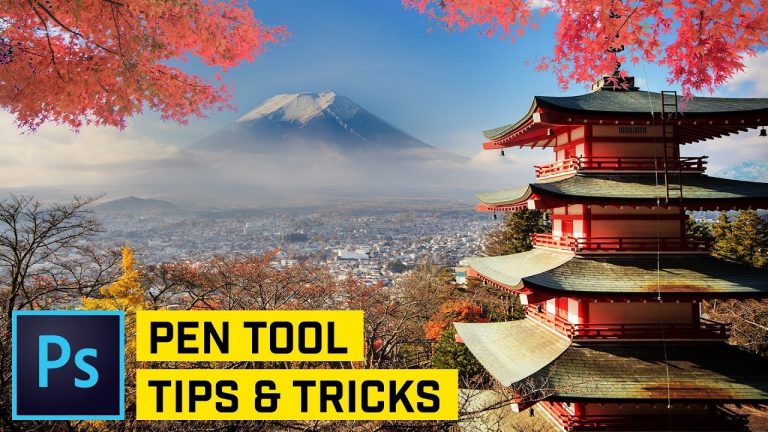
Five Pen Tool Tips & Tricks in Less Than 240 Seconds

0

LEARN SOME COOL PEN AND PATH TIPS IN LESS THAN FIVE MINUTES! | We’ll cover how to better use the Pen tool for drawing shapes or just making selections in this Photoshop tutorial.

? Buy the Photoshop Course and Support the Channel → http://bit.ly/28NuwFy

? My Instagram: http://instagram.com/tutvid

? Subscribe for Daily Tutorials → https://goo.gl/DN4Nln

In this Photoshop tutorial, we will quickly run over the Rubber band tip, drawing a path before you start drawing it, the power of the Alt key, changing the size or color of the path as it’s displayed, and a simple common sense tip about not using fills or strokes on your paths. Hope you enjoy the video!

⚡️ written tutorial here: http://bit.ly/2EaKtXU

INSTAGRAM: http://instagram.com/tutvid
TWITTER: http://twitter.com/tutvid
FACEBOOK: https://www.facebook.com/tutvid
SNAPCHAT: tutvid.com

tutvid is a YouTube channel dedicated to creating the best Adobe Photoshop, Premiere Pro, Lightroom, and Illustrator tutorials. My goal is to create the best, most informative, and entertaining tutorials on the web. If you enjoy my videos, the best way to support what I do here is to purchase my course linked above or simply subscribe to the YouTube channel by pressing the red button.

✉️ business inquiries: nate@tutvid.com

Stranger Things Intro Title Effect Photoshop CC

0

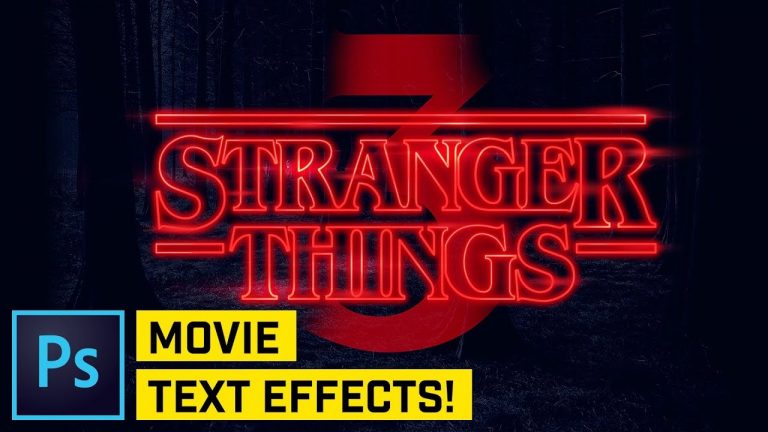
USE THIS PHOTOSHOP TUTORIAL TO CREATE THIS STRANGER THINGS EFFECT! | Learn to create a complex system of paths and style them to build out this really cool text effect in Photoshop.

? Buy the Photoshop Course and Support the Channel → http://bit.ly/28NuwFy

? My Instagram: http://instagram.com/tutvid

? Subscribe for Daily Tutorials → https://goo.gl/DN4Nln

In this Photoshop tutorial, we’ll learn to work with complex paths and build a path using the Benguiat typeface and combine and build the intro logo for Stranger Things. I’ll show you how to convert the paths to a vector shape layer and build out multiple strokes and layer on a few layer styles, blend modes, colors, and more to create a compelling and beautiful-looking Stranger Things logo/title/opening effect.

⚡️ written tutorial here: http://bit.ly/2ns1KUA

INSTAGRAM: http://instagram.com/tutvid
TWITTER: http://twitter.com/tutvid
FACEBOOK: https://www.facebook.com/tutvid
SNAPCHAT: tutvid.com

tutvid is a YouTube channel dedicated to creating the best Adobe Photoshop, Premiere Pro, Lightroom, and Illustrator tutorials. My goal is to create the best, most informative, and entertaining tutorials on the web. If you enjoy my videos, the best way to support what I do here is to purchase my course linked above or simply subscribe to the YouTube channel by pressing the red button.

✉️ business inquiries: nate@tutvid.com

QUICK MASK MODE: Photoshop CC

0

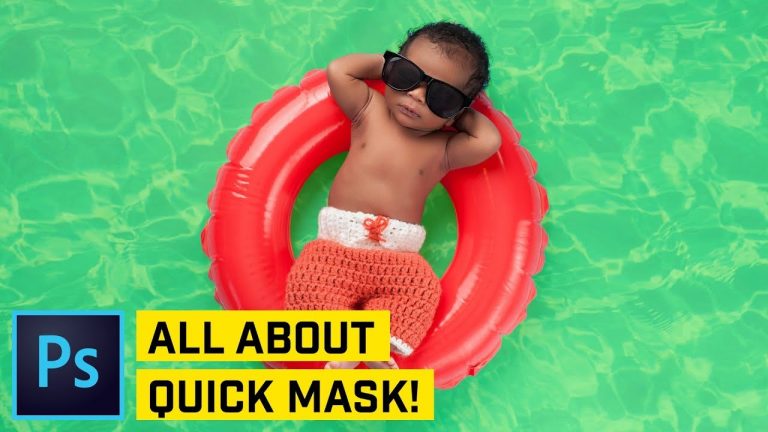
LEARN ALL ABOUT THE POWER OF QUICK MASK MODE IN THIS PHOTOSHOP TUTORIAL! | We’ll cover setting up Quick Mask Mode to give you the maximum flexibility and power when using it and we’ll also cover exactly how and why to use Quick Mask Mode.

? Buy the Photoshop Course and Support the Channel → http://bit.ly/28NuwFy

? My Instagram: http://instagram.com/tutvid

? Subscribe for Daily Tutorials → https://goo.gl/DN4Nln

In this Photoshop tutorial, we’ll quickly break down the aptly named “Quick Mask Mode” in Photoshop CC. We’ll talk about when to use Quick Mask Mode and why I love using Quick Mask so much! I hope you enjoy the tutorial and find that it becomes a big time saver for you as well!

⚡️ written tutorial here: http://bit.ly/2DPjhkx

INSTAGRAM: http://instagram.com/tutvid
TWITTER: http://twitter.com/tutvid
FACEBOOK: https://www.facebook.com/tutvid
SNAPCHAT: tutvid.com

tutvid is a YouTube channel dedicated to creating the best Adobe Photoshop, Premiere Pro, Lightroom, and Illustrator tutorials. My goal is to create the best, most informative, and entertaining tutorials on the web. If you enjoy my videos, the best way to support what I do here is to purchase my course linked above or simply subscribe to the YouTube channel by pressing the red button.

✉️ business inquiries: nate@tutvid.com

ADVANCED: Glowing PS4 Controller Photoshop CC 2018

0

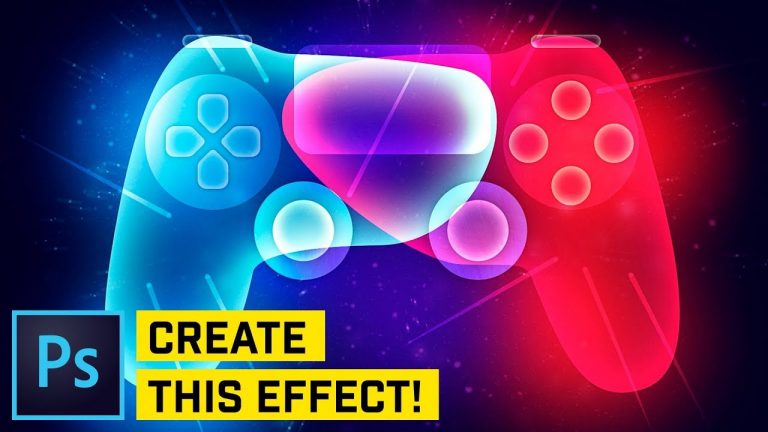
CREATE THIS COOL GLOWING GLASS CONTROLLER IN THIS PHOTOSHOP TUTORIAL! | We’ll dive deep into working with paths to create complete shapes and sets of shapes in Photoshop CC. Instagram that inspired this tutorial: https://www.instagram.com/ilyashapko/

? DISCORD: http://discord.me/tutvid

? My Instagram: http://instagram.com/tutvid

? Buy the Photoshop Course and Support the Channel → http://bit.ly/28NuwFy

? Subscribe for Daily Tutorials → https://goo.gl/DN4Nln

In this Photoshop tutorial, we’ll create a glowing glass Playstation 4 controller that we will create using a series of stacked paths, colors, and layer styles to build a really cool looking shape in the end. In this tutorial you’ll learn all about the Pen Tool, create advanced and complex paths, working with colors in Layer Styles, and building atmosphere with custom brushes and glows and blurs and all kinds of cool stuff. Thanks for watching!

⚡️ written tutorial here: http://bit.ly/2E7ksIj

INSTAGRAM: http://instagram.com/tutvid
TWITTER: http://twitter.com/tutvid
FACEBOOK: https://www.facebook.com/tutvid

tutvid is a YouTube channel dedicated to creating the best Adobe Photoshop, Premiere Pro, Lightroom, and Illustrator tutorials. My goal is to create the best, most informative, and entertaining tutorials on the web. If you enjoy my videos, the best way to support what I do here is to purchase my course linked above or simply subscribe to the YouTube channel by pressing the red button.

✉️ business inquiries: nate@tutvid.com

Create a Video Game Title Logo Effect Photoshop CC

0

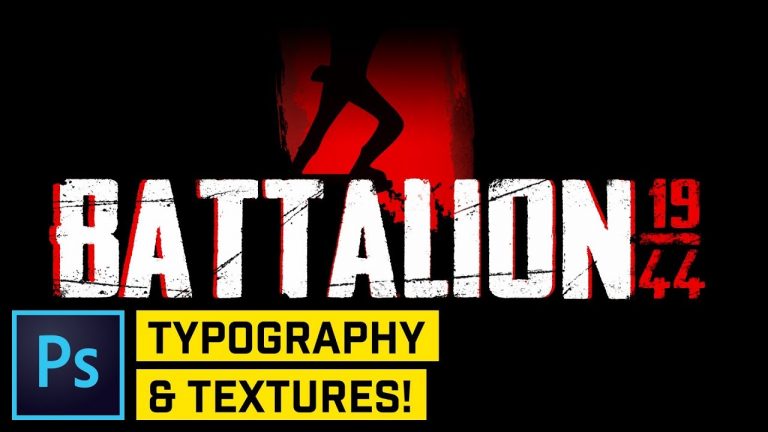
CREATE THIS BATTALION 1944 TEXT EFFECT IN THIS PHOTOSHOP TUTORIAL! | In this tutorial I’ll walk through creating this simple Battalion 1944 text effect using simple shapes and type in Photoshop.

? DISCORD: http://discord.me/tutvid

? My Instagram: http://instagram.com/tutvid

? Buy the Photoshop Course and Support the Channel → http://bit.ly/28NuwFy

? Subscribe for Daily Tutorials → https://goo.gl/DN4Nln

In this Photoshop tutorial, we’ll use simple tools in Photoshop to create some type and a few custom brushes to texturize and take this text effect to the next level! Use the download links here to get all the resources that you need here:

Headliner No. 45 Font: https://www.dafont.com/headliner-no-45.font?text=Battalion+1944&psize=l

Download the subtle brush kit: https://www.retrosupply.co/pages/free-the-subtle-brush-kit

Download the Grubby Grunge Brush pack: https://www.brusheezy.com/brushes/50073-42-grubby-grunge-brushes

Download the Soldier Brush pack: https://www.brusheezy.com/brushes/18194-18-toy-soldier-brushes

Download the painted brush stroke Brush pack: https://www.brusheezy.com/brushes/56970-free-brush-stroke-photoshop-brushes

⚡️ written tutorial here: http://bit.ly/2GQCYX0

INSTAGRAM: http://instagram.com/tutvid
TWITTER: http://twitter.com/tutvid
FACEBOOK: https://www.facebook.com/tutvid

tutvid is a YouTube channel dedicated to creating the best Adobe Photoshop, Premiere Pro, Lightroom, and Illustrator tutorials. My goal is to create the best, most informative, and entertaining tutorials on the web. If you enjoy my videos, the best way to support what I do here is to purchase my course linked above or simply subscribe to the YouTube channel by pressing the red button.

✉️ business inquiries: nate@tutvid.com

Create a PRECISE Grid Overlay in Photoshop

0

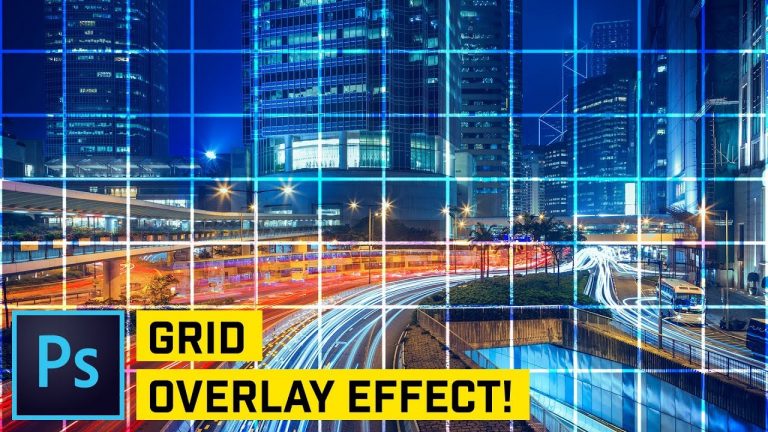
APPLY A CUSTOM GRID EFFECT TO ANY IMAGE IN PHOTOSHOP! | Learn to create a custom, exactly precise grid pattern that will automatically work perfectly with any image in this Photoshop tutorial.

? DISCORD: http://discord.me/tutvid

? My Instagram: http://instagram.com/tutvid

? Buy the Photoshop Course and Support the Channel → http://bit.ly/28NuwFy

? Subscribe for Daily Tutorials → https://goo.gl/DN4Nln

In this Photoshop tutorial, we’ll create an exact 1×1 inch pattern overlay that can be placed over any image or graphic. This grid will save with or be printed with the file and can be useful for sketching or building a reference grid over a complicated piece of artwork.

⚡️ written tutorial here: http://bit.ly/2HgX2Su

INSTAGRAM: http://instagram.com/tutvid
TWITTER: http://twitter.com/tutvid
FACEBOOK: https://www.facebook.com/tutvid

tutvid is a YouTube channel dedicated to creating the best Adobe Photoshop, Premiere Pro, Lightroom, and Illustrator tutorials. My goal is to create the best, most informative, and entertaining tutorials on the web. If you enjoy my videos, the best way to support what I do here is to purchase my course linked above or simply subscribe to the YouTube channel by pressing the red button.

✉️ business inquiries: nate@tutvid.com

WORKFLOW: Natural Light Fashion Photos in Lightroom CC (Classic)

0

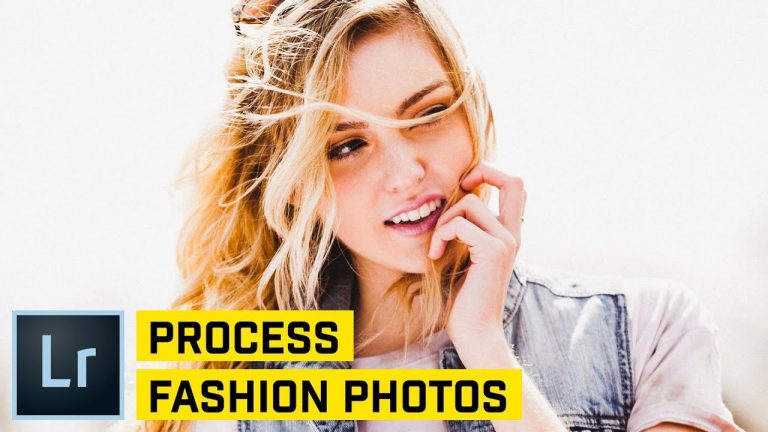
RETOUCH & PROCESS FASHION PHOTOS IN LIGHTROOM! | Check out how I like to approach photos shot with available light in Lightroom to get a heavily stylized fashion photo look.

? DISCORD: http://discord.me/tutvid

? My Instagram: http://instagram.com/tutvid

? Buy the Photoshop Course and Support the Channel → http://bit.ly/28NuwFy

? Subscribe for Daily Tutorials → https://goo.gl/DN4Nln

In this Adobe Lightroom CC Classic tutorial, we’ll go through my workflow in retouching and adjusting photos shot in the middle of a field with only available light and how I like to create a very stylized fashion look for these photos. We’ll also play with my new Palette kit that allows me to have physical controls for the sliders and digital interface in Lightroom. It’s all a bunch of cool stuff and I think you’ll really enjoy this tutorial! Thanks for watching!

⚡️ written tutorial here: http://bit.ly/2BJcJTe

INSTAGRAM: http://instagram.com/tutvid
TWITTER: http://twitter.com/tutvid
FACEBOOK: https://www.facebook.com/tutvid

tutvid is a YouTube channel dedicated to creating the best Adobe Photoshop, Premiere Pro, Lightroom, and Illustrator tutorials. My goal is to create the best, most informative, and entertaining tutorials on the web. If you enjoy my videos, the best way to support what I do here is to purchase my course linked above or simply subscribe to the YouTube channel by pressing the red button.

✉️ business inquiries: nate@tutvid.com

Basic Video Editing with Premiere Pro CC

0

START EDITING YOUR OWN VIDEOS IN 10 MINUTES! | In this fast-paced Premiere Pro tutorial, we’ll cover everything you will need to know to start editing your own videos and films today using Premiere Pro!

? Buy the Photoshop Course and Support the Channel → http://bit.ly/28NuwFy

? My Instagram: http://instagram.com/tutvid

? Subscribe for Daily Tutorials → https://goo.gl/DN4Nln

In this Premiere Pro tutorial, we will break it all down as we take a look at beginning with the very first screen you see when you open Premiere Pro and take you through creating new sequences, importing footage, working with the UI and workspace, working with the timeline and editing videos on the timeline, working with multiple clips, adjusting you audio, making sounds louder or quieter, trimming and cutting video clips, adding fade transitions for both audio and video, using the Razor tool for fast cuts, adding text and titles to your video project, and then we’ll quickly cover the stuff you want to know about preparing files for export and exporting files that will look and sound great on YouTube, Facebook, or anywhere else you may be uploading your videos.

⚡️ written tutorial here: http://bit.ly/2Fai4AB

INSTAGRAM: http://instagram.com/tutvid
TWITTER: http://twitter.com/tutvid
FACEBOOK: https://www.facebook.com/tutvid
SNAPCHAT: tutvid.com

tutvid is a YouTube channel dedicated to creating the best Adobe Photoshop, Premiere Pro, Lightroom, and Illustrator tutorials. My goal is to create the best, most informative, and entertaining tutorials on the web. If you enjoy my videos, the best way to support what I do here is to purchase my course linked above or simply subscribe to the YouTube channel by pressing the red button.

✉️ business inquiries: nate@tutvid.com

Parallel Rotation Effect in Premiere Pro

0

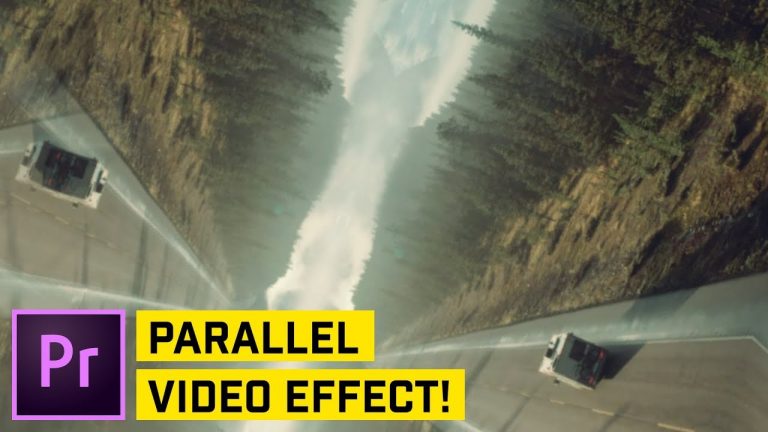
LEARN HOW I CREATE THIS VERY COOL EFFECT! | Learn to use a simple Premiere Effect to create a trippy rotation parallel effect in this Premiere Pro tutorial!

? DISCORD: http://discord.me/tutvid

? My Instagram: http://instagram.com/tutvid

? Buy the Photoshop Course and Support the Channel → http://bit.ly/28NuwFy

? Subscribe for Daily Tutorials → https://goo.gl/DN4Nln

In this Premiere Pro tutorial, we’ll build out a parallel animated effect that looks great on any video clip. I’ll use a replicate effect to duplicate the video, use a few mirror effects to build this out and make it perfect. I’ll then use a transform effect to create a swinging, eased animation that makes for a pretty cool and very trippy effect. Hope you enjoy it!

⚡️ written tutorial here: http://bit.ly/2Elgijo

INSTAGRAM: http://instagram.com/tutvid
TWITTER: http://twitter.com/tutvid
FACEBOOK: https://www.facebook.com/tutvid

tutvid is a YouTube channel dedicated to creating the best Adobe Photoshop, Premiere Pro, Lightroom, and Illustrator tutorials. My goal is to create the best, most informative, and entertaining tutorials on the web. If you enjoy my videos, the best way to support what I do here is to purchase my course linked above or simply subscribe to the YouTube channel by pressing the red button.

✉️ business inquiries: nate@tutvid.com

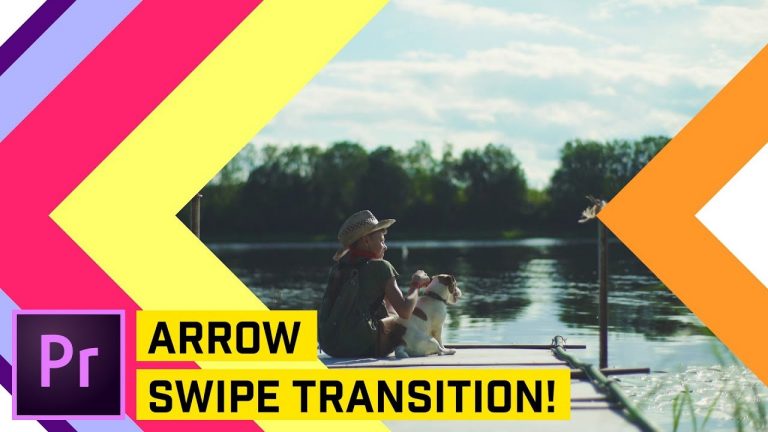
Arrow Swipe Transition Premiere Pro CC

0

CREATE THIS COOL TRANSITION EFFECT IN PREMIERE QUICKLY! | Learn to use shapes and animation easing to create a quick and easy transition that is useful for all sorts of projects!

? DISCORD: http://discord.me/tutvid

? My Instagram: http://instagram.com/tutvid

? Buy the Photoshop Course and Support the Channel → http://bit.ly/28NuwFy

? Subscribe for Daily Tutorials → https://goo.gl/DN4Nln

In this Premiere Pro video editing tutorial, we’ll use the shape tools in Premiere to create a stack of chevron arrows and then we’ll animate a simple pass across the face of the video and use easing to offset the arrows and allow this effect to bounce and slam across the video and then we’ll use one of the animated squares to mask the back end of this animation away and complete the way the effect looks. I hope you enjoy the video and thanks for watching!

⚡️ written tutorial here: http://bit.ly/2EpGdq6

INSTAGRAM: http://instagram.com/tutvid
TWITTER: http://twitter.com/tutvid
FACEBOOK: https://www.facebook.com/tutvid

tutvid is a YouTube channel dedicated to creating the best Adobe Photoshop, Premiere Pro, Lightroom, and Illustrator tutorials. My goal is to create the best, most informative, and entertaining tutorials on the web. If you enjoy my videos, the best way to support what I do here is to purchase my course linked above or simply subscribe to the YouTube channel by pressing the red button.

✉️ business inquiries: nate@tutvid.com