Home Blog Page 94

Master Dodging and Burning in 32 Minutes | Photoshop In-Depth Tutorial

0

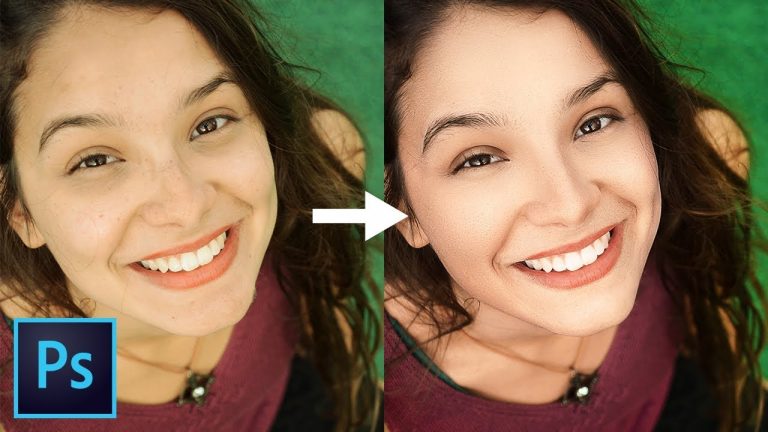
Ultimate Guide to Dodging and Burning in Photoshop! Right from “What is Dodging and Burning?” to some advanced techniques and applications of the same, learn how to transform your portraits from flat to fabulous by adding amazing depth and dimension.

We will also discuss the steps we need to perform before and after we dodge and burn, and where it exactly falls in your workflow. Hope this video helps you. Thanks for watching!

► TUTORIAL LINKS:
Complete Guide to Removing Blemishes in Photoshop: https://youtu.be/cAxfhjzHPIY
Leave No Blemish Unhealed with This Beauty Retouching Tip in Photoshop: https://youtu.be/cAxfhjzHPIY
Frequency Separation In-Depth with Mixer Brush in Photoshop: https://youtu.be/Z8mnzVNaiD0
High-End Skin Retouching & Sculpting in Photoshop: https://youtu.be/Ka-4x2vgh58
How to Color Correct Skin in Photoshop – Fix Tanning, Uneven Skin Tone, and Color Cast: https://youtu.be/gTrbSAqfJOY
Secrets to Stylize a Dull Image into an Interesting One in Photoshop: https://youtu.be/Yk0T25FR06g
3 Ways to Add Cross Processing & Stylizing Effects in Photoshop: https://youtu.be/kr0x7R3TFFE

► MY VIDEO GEAR:
Camera: http://piximp.com/80D
Microphone: http://piximp.com/mic
Lens: http://piximp.com/50mm
Memory Card: http://piximp.com/sandisk64

► TIMESTAMPS:
00:42 Steps Before and After
02:44 What is Dodging and Burning?
04:14 Techniques
06:15 The Process
17:09 An Important Application of D&B
23:54 Fixing Color Shifts
26:00 A Quicker and Easier Technique
30:33 Recap

► DOWNLOADS
1. Sample Image: https://goo.gl/ZYLNUE
2. Starting PSD: https://goo.gl/V2veqe
3. Finished PSD: https://goo.gl/21LrU6 (Only for our Patreon Family)

► HELP US CREATE MORE FREE VIDEOS:
Support us at Patreon: https://www.patreon.com/piximperfect

► SHARE: https://goo.gl/IUhnUl

►LET’S CONNECT:
Facebook: http://facebook.com/piximperfect
Twitter: https://twitter.com/piximperfect
Instagram: https://www.instagram.com/piximperfect
Google+: https://plus.google.com/+UnmeshDinda
How to Create the Sharpest Portraits in Photoshop!

0

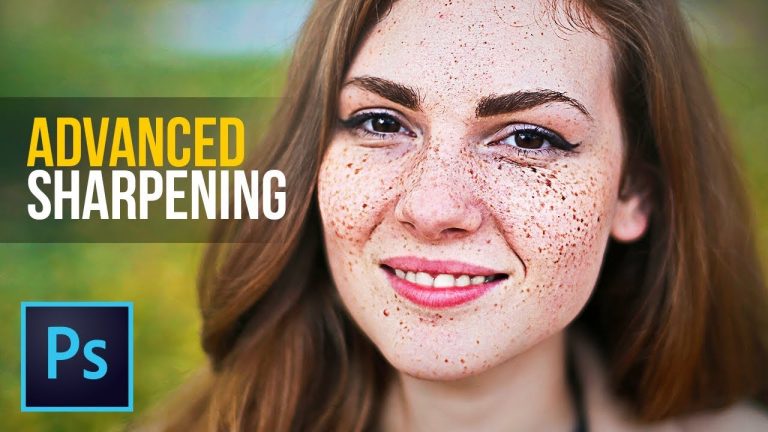
Advanced Sharpening Technique to Create Tack Sharp Portraits in Photoshop! Build levels of sharpness and learn how to apply the perfect amount and properties of sharpness to each area specifically.

In this tutorial, we will learn how to use the High Pass Filter to create various levels of sharpness for different textures and make your portraits pop. For instance, one level for skin texture, the other for the freckles.

We will also discuss what is sharpness and how does Photoshop sharpen images. I hope this tutorial helps, thanks for watching!

► RETOUCHING TEETH TUTORIAL:

► TIMESTAMPS:
00:23 The Concept of Sharpening
06:12 Analysis of an Example Image
07:22 The Technique
17:54 Recap

► MY VIDEO GEAR:
Camera: http://piximp.com/80D
Microphone: http://piximp.com/mic
Lens: http://piximp.com/50mm
Memory Card: http://piximp.com/sandisk64

► DOWNLOADS
1. Sample Image: https://goo.gl/mKMjPq
2. Finished PSD: https://goo.gl/2SE5bn (Only for our Patreon Family)

► HELP US CREATE MORE FREE VIDEOS:
Support us at Patreon: https://www.patreon.com/piximperfect

► SHARE: https://goo.gl/IUhnUl

►LET’S CONNECT:
Facebook: http://facebook.com/piximperfect
Twitter: https://twitter.com/piximperfect
Instagram: https://www.instagram.com/piximperfect
Google+: https://plus.google.com/+UnmeshDinda
How to Fix Crossed Eyes in Photoshop

0

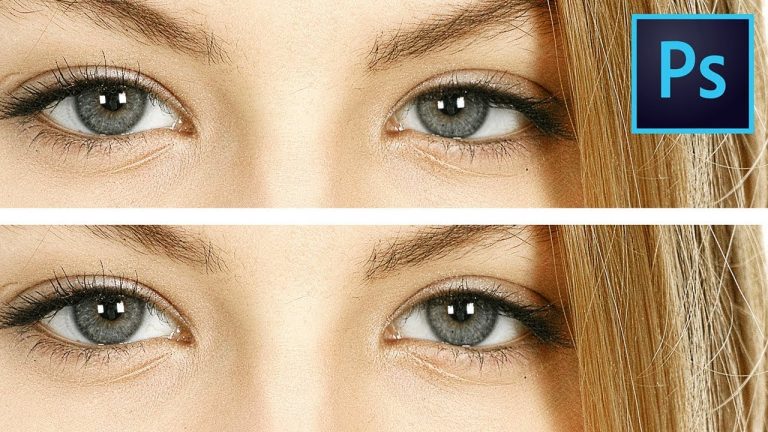
The Easiest Way to Fix Crossed or Uneven Eyes in Photoshop! Using simple steps like selections and masks, learn how to correct squinty eyes and then use Warp to match it with the surrounding area.

Hope this tutorial helps. Thanks for watching!

► MY VIDEO GEAR:
Camera: http://piximp.com/80D
Microphone: http://piximp.com/mic
Lens: http://piximp.com/50mm
Memory Card: http://piximp.com/sandisk64

NOTE: If you wish to support this channel, please use these links to buy any gear from Amazon. You don’t have to pay anything extra. Amazon will pay us a small percentage of your purchase which will mean the world to me and help keep PiXimperfect free for everyone, forever.

► DOWNLOADS
1. Sample Image: https://goo.gl/8th569
2. Finished PSD: https://goo.gl/6xPoUP (Only for our Patreon Family)

PiXimperfect is free, and will always be.
► SUPPORT the cause: https://www.patreon.com/piximperfect

► SHARE: https://goo.gl/IUhnUl

►LET’S CONNECT:
Facebook: http://facebook.com/piximperfect
Twitter: https://twitter.com/piximperfect
Instagram: https://www.instagram.com/piximperfect
Google+: https://plus.google.com/+UnmeshDinda
The BEST Way to Add Contrast and Make Images Pop in Photoshop

0

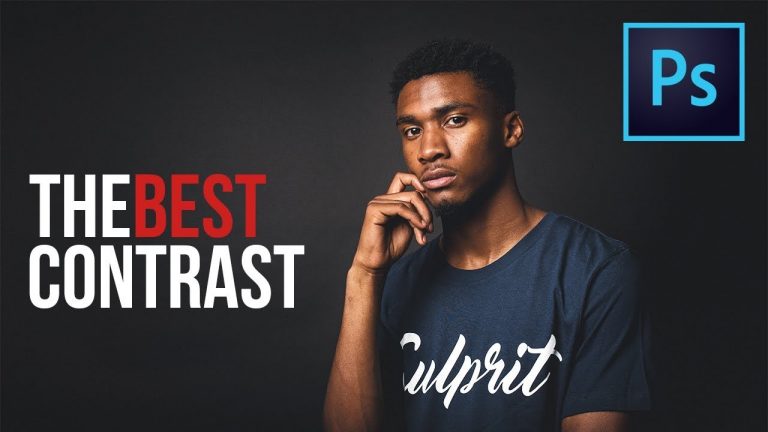
The Most Natural Way to Add Contrast to Your Images in Photoshop! Take complete control over the highlights and shadows, without disturbing the color. Using the amazing power of Curves along with Hue/Saturation Adjustment layer, not only increase the contrast manually but also learn how to color correct the image after doing so.

In this tutorial, we will also discuss the blend mode Luminosity and how to use the same to avoid getting the color affected. Hope this tutorial helps. Thank you for watching!

► MY VIDEO GEAR:
Camera: http://piximp.com/80D
Microphone: http://piximp.com/mic
Lens: http://piximp.com/50mm
Memory Card: http://piximp.com/sandisk64

► DOWNLOADS
Sample Images: https://goo.gl/VW7RY4

► HELP US CREATE MORE FREE VIDEOS:
Support us at Patreon: https://www.patreon.com/piximperfect

► SHARE: https://goo.gl/IUhnUl

►LET’S CONNECT:
Facebook: http://facebook.com/piximperfect
Twitter: https://twitter.com/piximperfect
Instagram: https://www.instagram.com/piximperfect
Google+: https://plus.google.com/+UnmeshDinda
How to Add Creative Color and Texture to Portraits in Photoshop

0

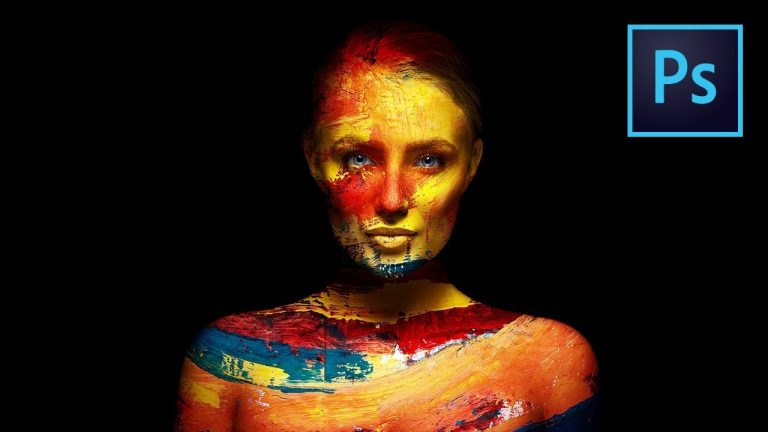
Apply Highly Realistic Paints and Texture to Portraits in Photoshop! Learn how to manually mold the texture according to the shape of the portrait and use advanced blend modes and blend-if to blend in the colors in the most natural fashion. In this tutorial, we will also learn how to dodge and burn to add more dimension and make your creative portrait really pop.

We will start off by preparing the texture for the application. Then we will use Liquify to manually mold the texture around the skin. During this time, we will learn several techniques to set the color or the texture to match with the bumps of the portrait.

Then, using multiple different blend modes, we will not only apply it realistically but also additionally dodge and burn to add depth and dimension. At the end, we will also learn how to sharpen the texture and a cool little trick to make the iris of the eye pop!

Hope this tutorial helps. Thank you for watching!

► MY VIDEO GEAR:
Camera: http://piximp.com/80D
Microphone: http://piximp.com/mic
Lens: http://piximp.com/50mm
Memory Card: http://piximp.com/sandisk64

► DOWNLOADS
1. Sample Images: https://goo.gl/bPRHhf
2. Finished PSD: https://goo.gl/zZ5ekC (Only for our Patreon Family)

►TUTORIAL LINKS:
Pen Tool: https://youtu.be/5kAQUNFZJXY
Displacement Maps: https://youtu.be/Xg7NvUv4o0c
Best Way to Select Hair: https://youtu.be/T2D8EIh9Gus

► HELP US CREATE MORE FREE VIDEOS:
Support us at Patreon: https://www.patreon.com/piximperfect

► SHARE: https://goo.gl/IUhnUl

►LET’S CONNECT:
Facebook: http://facebook.com/piximperfect
Twitter: https://twitter.com/piximperfect
Instagram: https://www.instagram.com/piximperfect
Google+: https://plus.google.com/+UnmeshDinda
The Amazing Power of Liquify for Portrait Retouching in Photoshop

0

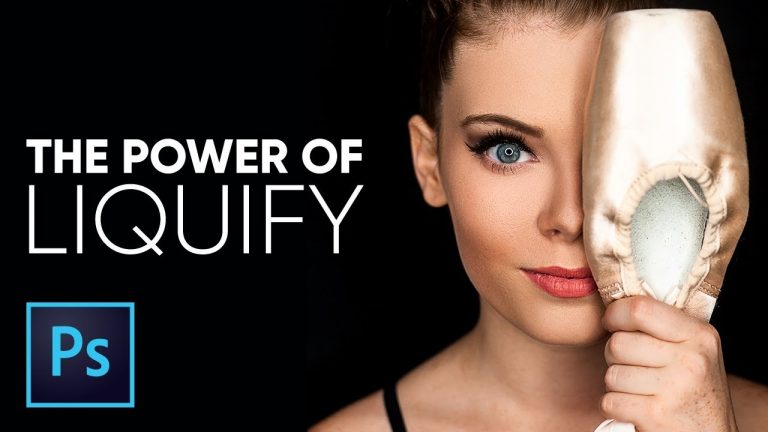
The Complete Guide to Using Liquify for Portrait Retouching in Photoshop! Right from understanding the basic tools in depth to advanced features like the Face-Aware Liquify, we will cover it all. Learn several techniques of using liquify in various situations with four examples.

I hope this video helps. Thank you for watching!

► TIMESTAMPS:
00:27 Before we Apply Liquify
01:06 Understanding the Tools and its Applications
08:59 Correcting a Portrait (Example 1)
10:53 The Most Important Liquify Tip
14:38 Correcting a Portrait (Example 2)
15:01 When to Apply Liquify
18:44 How to Fill Those Gaps at the Corner
20:53 Correcting a Portrait with Face-Aware Liquify (Example 3)
23:26 Correcting the Eye (Example 4)
24:22 Recap

► IMAGE CREDITS:
Heather Yeager
Instagram: @_heatheryeager_
Facebook: fb.com/thelovelyheatheryeager

► DOWNLOADS
1. Sample Images: https://goo.gl/Qj5B21
2. Finished PSD: https://goo.gl/soXtuN (Only for our Patreon Family)

► HIGH-END SKIN RETOUCHING TUTORIAL:

► MY VIDEO GEAR:
Camera: http://piximp.com/80D
Microphone: http://piximp.com/mic
Lens: http://piximp.com/50mm
Memory Card: http://piximp.com/sandisk64

► HELP US CREATE MORE FREE VIDEOS:
Support us at Patreon: https://www.patreon.com/piximperfect

► SHARE: https://goo.gl/IUhnUl

►LET’S CONNECT:
Facebook: http://facebook.com/piximperfect
Twitter: https://twitter.com/piximperfect
Instagram: https://www.instagram.com/piximperfect
Google+: https://plus.google.com/+UnmeshDinda
The Most Important Skin Retouching Trick in Photoshop

0

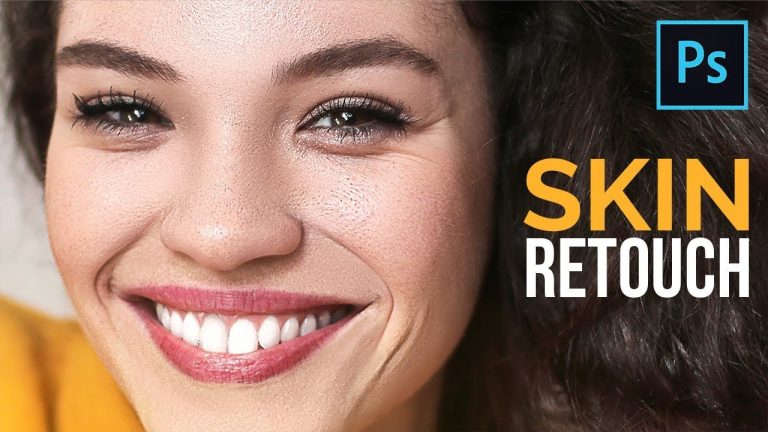
Just One Simple Technique to Repair and Reconstruct Skin in Photoshop! Remove eye bags, fix tanned skin, discoloration, modify the skin structure and also learn how to sculpt and soften the skin with this amazing tip. Very similar to Frequency Separation but much easier, in this tutorial, we will modify the skin without affecting the skin texture and might as well improve the same.

Hope this video helps. Thank you for watching!

►TIMESTAMPS:
00:46 Example 1 – Fixing Discoloration
09:17 Example 2 – Fixing Distracting Imperfections
12:06 Example 3 – Removing Eye Bags
16:30 Example 4 – Skin Sculpting
21:46 Recap

► DOWNLOADS:
1. Sample Images: https://goo.gl/pbxQse
2. 4 Finished PSDs: https://goo.gl/r8yKhz (Only for our Patreon Family)

► MY VIDEO GEAR:
Camera: http://piximp.com/80D
Microphone: http://piximp.com/mic
Lens: http://piximp.com/50mm
Memory Card: http://piximp.com/sandisk64

► REFERRED TUTORIALS:
1. Retouching Teeth: https://youtu.be/6hlf0ZrHMgE
2. Science Behind Frequency Separation: https://youtu.be/Z8mnzVNaiD0
3. Skin Softening and Sculpting: https://youtu.be/Ka-4x2vgh58

► HELP US CREATE MORE FREE VIDEOS:
Support us at Patreon: https://www.patreon.com/piximperfect

► SHARE: https://goo.gl/IUhnUl

►LET’S CONNECT:
Facebook: http://facebook.com/piximperfect
Twitter: https://twitter.com/piximperfect
Instagram: https://www.instagram.com/piximperfect
Google+: https://plus.google.com/+UnmeshDinda
Create Dreamy Soft Focus Effect in Photoshop

0

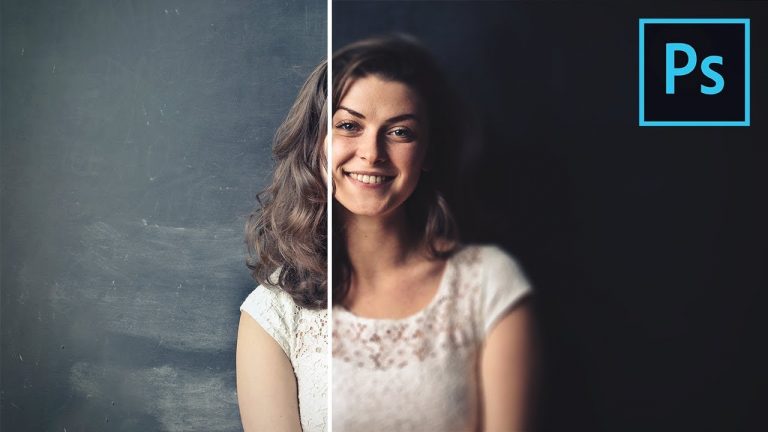
Add Beautiful Soft Focus Effect in Photoshop Using an Amazing Feature of Blur Gallery! Learn how to create creamy soft surroundings, and stylize the image adding beautiful contrast and colors using Curves.

In this tutorial, we will learn how to add multiple points inside of Field Blur and how can we customize the softness of each area separately and non-destructively. Then, we will use Curves to get that punchy matte effect.

I hope this tutorial helps. Thank you for watching!

► MY VIDEO GEAR:
Camera: http://piximp.com/80D
Microphone: http://piximp.com/mic
Lens: http://piximp.com/50mm
Memory Card: http://piximp.com/sandisk64

► DOWNLOADS
1. Sample Image: https://goo.gl/AFbHQD
2. Finished PSD: https://goo.gl/bZQDeR (Only for our Patreon Family)

► HELP US CREATE MORE FREE VIDEOS:
Support us at Patreon: https://www.patreon.com/piximperfect

► SHARE: https://goo.gl/IUhnUl

►LET’S CONNECT:
Facebook: http://facebook.com/piximperfect
Twitter: https://twitter.com/piximperfect
Instagram: https://www.instagram.com/piximperfect
Google+: https://plus.google.com/+UnmeshDinda
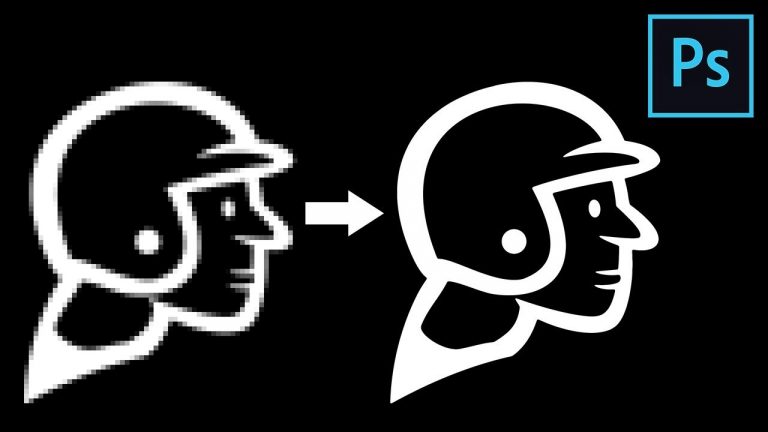
Convert Low-Res Graphic to High-Res in Photoshop

0

Transform a Low-Resolution Graphic to High-Resolution in Photoshop! Learn how to recover the details and the sharp edges of an illustration easily by understanding the concept of contrast and Curves.

In this tutorial, we will learn to refine the edges both in black and white and color images. Hope this helps you. Thank you for watching 🙂

► REFERRED TUTORIAL:
Convert Raster to Vector in Illustrator: https://youtu.be/NAQ2S_4ElC8

► DOWNLOADS
1. Low Res Sample Image: https://goo.gl/xThSrf
2. High-Res Sample Image: https://goo.gl/gYScNr
2. Finished PSD: https://www.patreon.com/posts/16504818 (Only for our Patreon Family)

► HELP US CREATE MORE FREE VIDEOS:
Support us at Patreon: https://www.patreon.com/piximperfect

► SHARE: https://goo.gl/IUhnUl

►LET’S CONNECT:
Facebook: http://facebook.com/piximperfect
Twitter: https://twitter.com/piximperfect
Instagram: https://www.instagram.com/piximperfect
Google+: https://plus.google.com/+UnmeshDinda

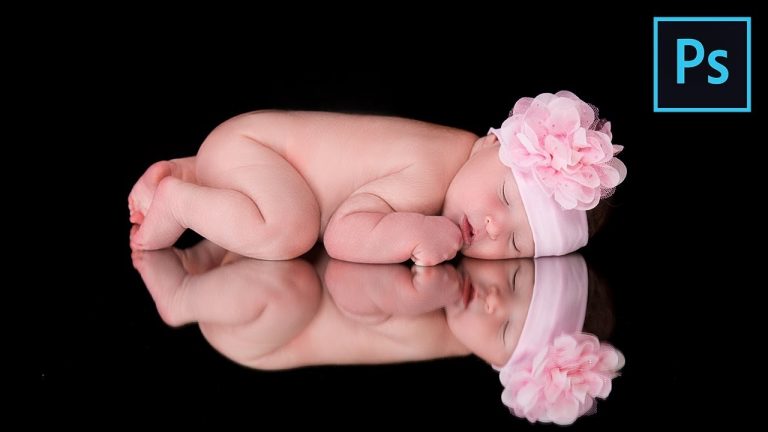
How to Retouch Newborn Photos in Photoshop

0

The Complete Guide to Retouching and Editing Newborn Photos in Photoshop! Right from using Adobe Camera Raw, to Skin Retouching, Sculpting, Color Correction, Shaping the Light and so much more! Today, we are going to learn every process step by step in-depth.

In this tutorial, we will cover various techniques. First, we will learn how to do minimal adjustments in Adobe Camera Raw to prepare the image for further processing. Then, we will set the structure right using Liquify and learn few tips on the right way to use it. After this segment, we will be using the “Patch Tool” to remove blemishes and learn a trick to do it more efficiently to locate the blemishes better.

Once we get the structure right, we will dive into skin retouching. Firstly, we will start with sculpting the skin and repairing imperfections like harsh shadows or patches. Then, using a very quick technique, we will soften the skin and keep a beautiful skin texture. As a bonus tip, we will how to add a rich skin tone. After this, we will finally look at the color of the skin using Hue/Saturation Adjustment layers.

We then will shape the light and add punch to out image using Curves. At the end, we will learn how to perform some advanced sharpening.

I hope this video helps. Thank you for watching!

► TIMESTAMPS
00:36 Preparation in Adobe Camera Raw
02:45 Setting the Structure Using Liquify
08:00 Removing Blemishes
12:46 Skin Retouching and Correction
19:56 Skin Softening
24:29 Color Correcting Skin
27:39 Adding Rich Skin Tone
30:21 Shaping the Light Using Curves
32:31 Sharpening
35:58 Recap

► MY VIDEO GEAR:
Camera: http://piximp.com/80D
Microphone: http://piximp.com/mic
Lens: http://piximp.com/50mm
Memory Card: http://piximp.com/sandisk64

► SKIN SOFTENING ACTION:
Download Link: https://goo.gl/Uos7Zc
Instructions: https://youtu.be/H0lPIYERVlw

PiXimperfect is free, and will always be.
► SUPPORT the cause: https://www.patreon.com/piximperfect

► SHARE: https://goo.gl/IUhnUl

►LET’S CONNECT:
Facebook: http://facebook.com/piximperfect
Twitter: https://twitter.com/piximperfect
Instagram: https://www.instagram.com/piximperfect
Google+: https://plus.google.com/+UnmeshDinda