Home Blog Page 130

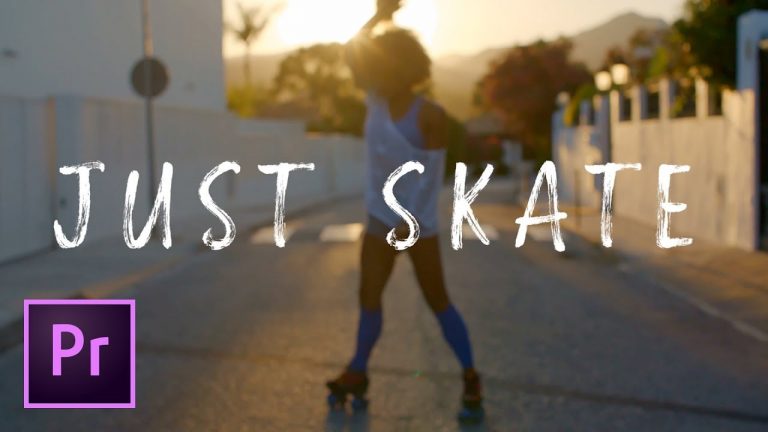
Handwritten Write-On Text Title Effect Premiere Pro

0

CREATE THIS HANDWRITING TEXT EFFECT IN PREMIERE! | Use built in effects in Premiere Pro to create a text title that looks like it’s being written onto the video as it plays.

? Buy the Photoshop Course and Support the Channel → http://bit.ly/28NuwFy

? My Instagram: http://instagram.com/tutvid

? Subscribe for Daily Tutorials → https://goo.gl/DN4Nln

Hello Stockholm (FREE): http://www.dafont.com/hello-stockholm.font
Five Boroughs (FREE): http://www.dafont.com/five-boroughs-handwriting.font
Trashhand (FREE): http://www.dafont.com/trashhand.font
WC Mano Negra (FREE): http://www.dafont.com/wc-mano-negra-bta.font
Montez (FREE): https://www.fontsquirrel.com/fonts/montez
PaulMaul (FREE): http://www.dafont.com/-paulmaul.font
Snickles (FREE): https://www.fontsquirrel.com/fonts/snickles

In this Premiere Pro video editing tutorial, we will create a simple text title and then use the “Write-On” effect to animate a line that will trace the font that we put in place with Premiere’s new Text tool. We will also learn how to mask this animation to complete the effect. In addition, I will show you how to adjust the duration of the animation and change a number of other properties if you want a different style of animation.

⚡️ written tutorial here: http://bit.ly/2w5eSpj

INSTAGRAM: http://instagram.com/tutvid
TWITTER: http://twitter.com/tutvid
FACEBOOK: https://www.facebook.com/tutvid
SNAPCHAT: tutvid.com

tutvid is a YouTube channel dedicated to creating the best Adobe Photoshop, Premiere Pro, Lightroom, and Illustrator tutorials. My goal is to create the best, most informative, and entertaining tutorials on the web. If you enjoy my videos, the best way to support what I do here is to purchase my course linked above or simply subscribe to the YouTube channel by pressing the red button.

✉️ business inquiries: nate@tutvid.com

Audio Waveform Visualization Effect After Effects

0

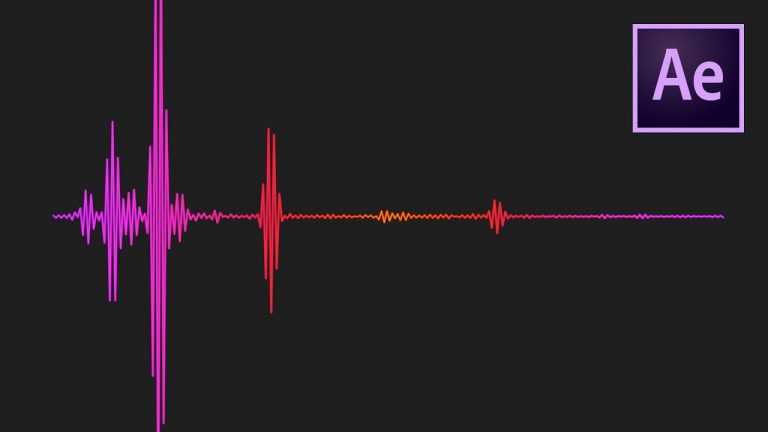
CREATE A COLORFUL DATA VISUALIZER THAT PLAYS WITH MUSIC AUTOMATICALLY! | Check out how to use this audio waveform effect in After Effects to create a cool audio visualizer in a snap.

01:51 TUTORIAL ACTUALLY STARTS HERE

? Buy the Photoshop Course and Support the Channel → http://bit.ly/28NuwFy

? My Instagram: http://instagram.com/tutvid

? Subscribe for Daily Tutorials → https://goo.gl/DN4Nln

In this After Effects tutorial, we will create a cool colorful visualizer that will connect to any audio layer we place in After Effects and automatically generate an effect that bumps and jumps along with the music. You will see just how many different types of visualizers After Effects has built into this effect and how much you can modify and customize your very own visualizer effect. Thanks for watching!

⚡️ written tutorial here: http://bit.ly/2w8EaBZ

INSTAGRAM: http://instagram.com/tutvid
TWITTER: http://twitter.com/tutvid
FACEBOOK: https://www.facebook.com/tutvid
SNAPCHAT: tutvid.com

tutvid is a YouTube channel dedicated to creating the best Adobe Photoshop, Premiere Pro, Lightroom, and Illustrator tutorials. My goal is to create the best, most informative, and entertaining tutorials on the web. If you enjoy my videos, the best way to support what I do here is to purchase my course linked above or simply subscribe to the YouTube channel by pressing the red button.

✉️ business inquiries: nate@tutvid.com

10 Photoshop Liquify Features and Tips You Need to Know

0

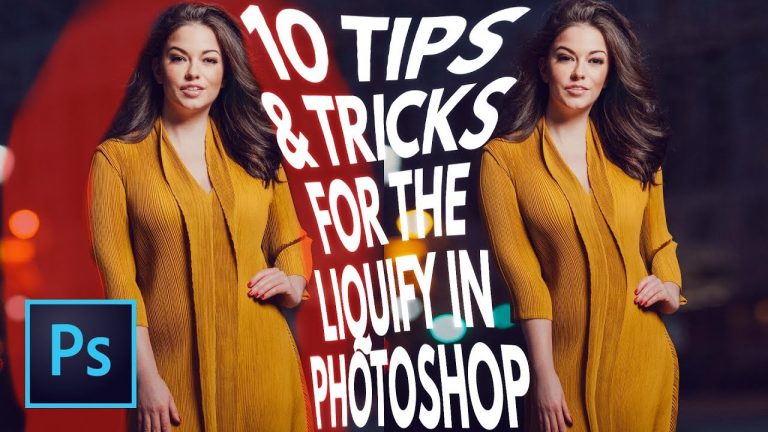
LEARN HOW TO USE LIQUIFY BETTER WITH THIS VIDEO! | Check out a few great tips and tricks about how you can better use Liquify to manipulate your images in Photoshop with this tutorial!

? Buy the Photoshop Course and Support the Channel → http://bit.ly/28NuwFy

? My Instagram: http://instagram.com/tutvid

? Subscribe for Daily Tutorials → https://goo.gl/DN4Nln

In this Photoshop tutorial, we will take a look at some of my favorite features within Photoshop’s Liquify tool and some of the best things I’ve learned about this feature in Photoshop over my years using it. We will talk about using Smart Objects with Liquify, different useful hotkeys, tricks using the Forward Warp Tool, masking and targeting different isolated areas of the image, the amazing Face-Aware liquify features, and much more!

⚡️ written tutorial here: http://bit.ly/2w8IPnQ

INSTAGRAM: http://instagram.com/tutvid
TWITTER: http://twitter.com/tutvid
FACEBOOK: https://www.facebook.com/tutvid
SNAPCHAT: tutvid.com

tutvid is a YouTube channel dedicated to creating the best Adobe Photoshop, Premiere Pro, Lightroom, and Illustrator tutorials. My goal is to create the best, most informative, and entertaining tutorials on the web. If you enjoy my videos, the best way to support what I do here is to purchase my course linked above or simply subscribe to the YouTube channel by pressing the red button.

✉️ business inquiries: nate@tutvid.com

Create Vector GEOMETRIC Background Illustrator Tutorial

0

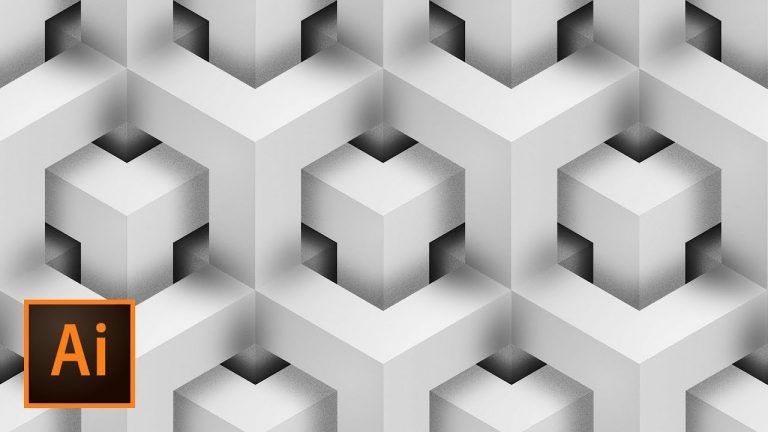
MAKE THIS COOL BACKGROUND FROM SIMPLE SHAPES, SHADOWS, and GRAIN! | Build precise shapes and use Pathfinder, alignment, smart guides, and more to create this cool looking background.

? Buy the Photoshop Course and Support the Channel → http://bit.ly/28NuwFy

? My Instagram: http://instagram.com/tutvid

? Subscribe for Daily Tutorials → https://goo.gl/DN4Nln

In this Illustrator tutorial, we will create a simple polygon and use guides and the Pen tool to build a complex series of shapes from our single initial shape and then add shadows and grain using the effects in Illustrator and then duplicate the initial cluster shape and build it out into a complex background that can be as big or as small as you want!

⚡️ written tutorial here: http://bit.ly/2x2aOCM

INSTAGRAM: http://instagram.com/tutvid
TWITTER: http://twitter.com/tutvid
FACEBOOK: https://www.facebook.com/tutvid
SNAPCHAT: tutvid.com

tutvid is a YouTube channel dedicated to creating the best Adobe Photoshop, Premiere Pro, Lightroom, and Illustrator tutorials. My goal is to create the best, most informative, and entertaining tutorials on the web. If you enjoy my videos, the best way to support what I do here is to purchase my course linked above or simply subscribe to the YouTube channel by pressing the red button.

✉️ business inquiries: nate@tutvid.com

Video in Text: MASK & Create RETRO INTRO Premiere Pro Effect

0

CREATE THIS RETRO BURGER JOINT INTRO & MASK VIDEO TO TEXT! | Create a title and mask your video within that new text title.

? Buy the Photoshop Course and Support the Channel → http://bit.ly/28NuwFy

? My Instagram: http://instagram.com/tutvid

? Subscribe for Daily Tutorials → https://goo.gl/DN4Nln

In this Premiere Pro video editing tutorial, we will use the Type tool to create a title with some retro-style text and then we will mask our video to appear ONLY within that text title. As a bonus, we will also create an animated intro using this mask to make our video appear within the text and then zoom the camera “through” the text to reveal the full video. It’s a cool effect and you will learn all about how to mask video and even animate a mask to make different parts of the video appear in your video projects in Premiere.

⚡️ written tutorial here: http://bit.ly/2fJsyPT

INSTAGRAM: http://instagram.com/tutvid
TWITTER: http://twitter.com/tutvid
FACEBOOK: https://www.facebook.com/tutvid
SNAPCHAT: tutvid.com

tutvid is a YouTube channel dedicated to creating the best Adobe Photoshop, Premiere Pro, Lightroom, and Illustrator tutorials. My goal is to create the best, most informative, and entertaining tutorials on the web. If you enjoy my videos, the best way to support what I do here is to purchase my course linked above or simply subscribe to the YouTube channel by pressing the red button.

✉️ business inquiries: nate@tutvid.com

Create a Laughing Face Emoji Photoshop Tutorial

0

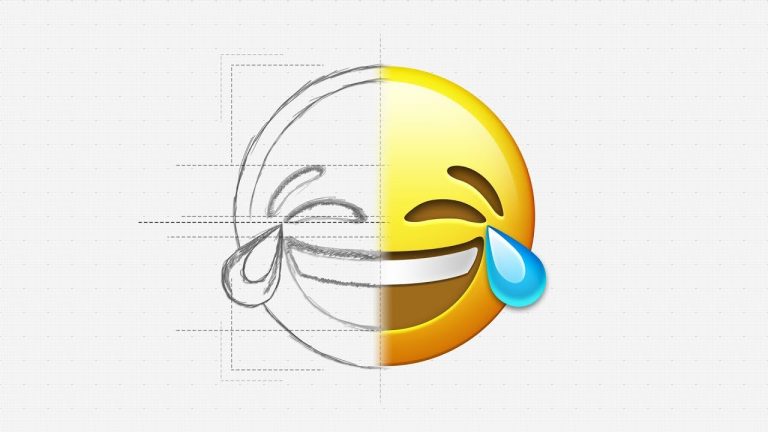
USE THIS TECHNIQUE TO CREATE ANY EMOJI WITH PHOTOSHOP! | We’ll take a look at building out an Emoji like you would find on a current iOS device using Layer Styles and Paths in Photoshop.

? Buy the Photoshop Course and Support the Channel → http://bit.ly/28NuwFy

? My Instagram: http://instagram.com/tutvid

? Subscribe for Daily Tutorials → https://goo.gl/DN4Nln

? ↓ VIDEO GUIDE ↓ ?
00:43 Getting it started
06:34 Creating the highlight for the base shape
08:18 Creating the facial features for your emoji
09:19 Diving deep with paths to create our face shapes
17:59 Creating shapes from the paths
21:04 Adding depth to the features on the face
26:17 Making the tears look good

In this Photoshop tutorial, we will create a series of shapes and build the base of any emoji face that you would find on an iOS device at the time I made this tutorial. After creating the base that you can use for any emoji face, we will create a series of paths and convert them to shapes and use Layer Styles to make the whole series of shapes look like a real, as-you-would-expect iOS emoji. We will create the laughing emoji face.

⚡️ written tutorial here: http://bit.ly/2xlUtsT

INSTAGRAM: http://instagram.com/tutvid
TWITTER: http://twitter.com/tutvid
FACEBOOK: https://www.facebook.com/tutvid
SNAPCHAT: tutvid.com

tutvid is a YouTube channel dedicated to creating the best Adobe Photoshop, Premiere Pro, Lightroom, and Illustrator tutorials. My goal is to create the best, most informative, and entertaining tutorials on the web. If you enjoy my videos, the best way to support what I do here is to purchase my course linked above or simply subscribe to the YouTube channel by pressing the red button.

✉️ business inquiries: nate@tutvid.com

How to Make an HBO Style Intro in Premiere Pro

0

HBO STYLE INTRO PREMIERE PRO TUTORIAL! | Create this two-part intro effect and make sure you download the resources from my website (or grab that individually from the links below)

⚡️ download tutorial resources here: http://bit.ly/2vcS8Q4

? Buy the Photoshop Course and Support the Channel → http://bit.ly/28NuwFy

? My Instagram: http://instagram.com/tutvid

? Subscribe for Daily Tutorials → https://goo.gl/DN4Nln

In this Premiere Pro tutorial, we will create the iconic HBO intro/opening in a few minutes in Premiere Pro. This effect will work with any logo or graphic that you import into Premiere Pro. We will use a series of masks, drop shadows, bevels, keyframe animations, and SO much more to create this epic and classic intro effect. Check it out and thank you so much for watching!

Download the graphics, audio track, and static video here:
Free Font Download: https://www.ffonts.net/Marbold-Normal.font.download
Static video source on YouTube: https://www.youtube.com/watch?v=DH0BQtwEAsM

⚡️ download tutorial resources here: http://bit.ly/2vcS8Q4

INSTAGRAM: http://instagram.com/tutvid
TWITTER: http://twitter.com/tutvid
FACEBOOK: https://www.facebook.com/tutvid
SNAPCHAT: tutvid.com

tutvid is a YouTube channel dedicated to creating the best Adobe Photoshop, Premiere Pro, Lightroom, and Illustrator tutorials. My goal is to create the best, most informative, and entertaining tutorials on the web. If you enjoy my videos, the best way to support what I do here is to purchase my course linked above or simply subscribe to the YouTube channel by pressing the red button.

✉️ business inquiries: nate@tutvid.com

How to Change Hair Color (Dark/Brunette to other colors) Photoshop Tutorial

0

CONVERT BROWN HAIR TO ANY COLOR! | Learn to change a brunette head of hair into any other color!

? ↓ VIDEO GUIDE ↓ ?
01:35 Selecting the hair
02:35 Using Select and Mask to refine the selection
06:12 Refining the mask manually (creating purple/blue hair)
11:57 Creating gray hair
13:07 Creating black hair
14:45 Creating red/auburn hair
19:15 Creating blonde hair
26:02 Creating very yellow blonde hair

? Subscribe for Daily Tutorials → https://goo.gl/DN4Nln

? Buy the Photoshop Course and Support the Channel → http://bit.ly/28NuwFy

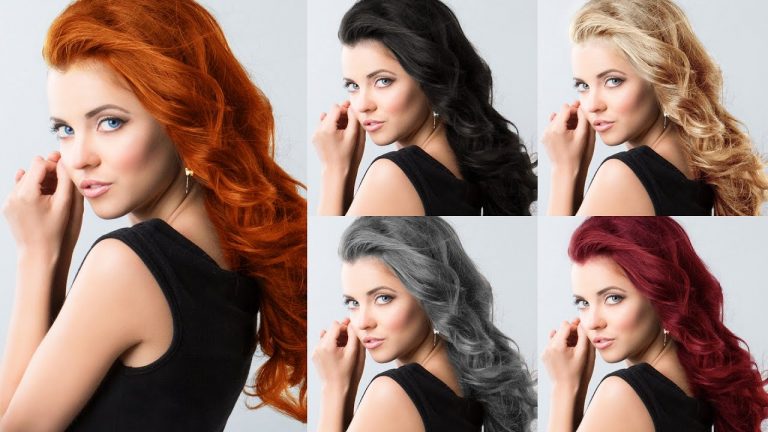
In this Photoshop tutorial, we will learn how to make a complex hair selection using Select and Mask and further tweak the mask manually using a subtle brush to touch up the edges, etc… We will learn to convert dark hair to blonde, dark hair to red/auburn, dark hair to gray or black, and even any color you desire. You’re going to love this video if you are looking for some of the best ways to convert dark hair to different colors in Photoshop!

⚡️ written tutorial here: http://bit.ly/2oRWU6H

INSTAGRAM: http://instagram.com/tutvid
TWITTER: http://twitter.com/tutvid
FACEBOOK: https://www.facebook.com/tutvid
SNAPCHAT: tutvid.com

tutvid is a YouTube channel dedicated to creating the best Adobe Photoshop, Premiere Pro, Lightroom, and Illustrator tutorials. My goal is to create the best, most informative, and entertaining tutorials on the web. If you enjoy my videos, the best way to support what I do here is to purchase my course linked above or simply subscribe to the YouTube channel by pressing the red button.

✉️ business inquiries: nate@tutvid.com

CREDITS:
Social Icons in outro: http://www.freepik.com/free-vector/six-social-networking-icons-with-infographic-resources_982300.htm

Zooming Out Effect IN DEPTH Premiere Pro Tutorial

0

LEARN EVERY ASPECT OF THE ZOOMING OUT EFFECT IN PREMIERE! | Learn to create a zooming out effect with a variety of effects and adjustment layers in Premiere and we will also cover how to re-adjust and align the video clips as they zoom out and also clone away bits of the frame that are distracting.

? Subscribe for Daily Tutorials → https://goo.gl/DN4Nln

? Buy the Photoshop Course and Support the Channel → http://bit.ly/28NuwFy

In this Premiere Pro Video Editing tutorial, we’ll take a look at the good ole zooming out effect and just how easy or complicated it can be. The effect is really something that you can create in a matter of minutes and even copy to many other transitions in your video editing project, but in this tutorial we’ll dive deep into what makes this effect work, how you can tweak it to get the best zoom for your project, what kind of video footage works best for this effect, how to clone away bad areas of the zooming frame, and even align and animate the video transition to give the zooming out effect a perfectly lined up illusion. It’s a bit of info to consume, but I’m confident you’ll learn a ton and have a bunch of fun trying to make this effect!

⚡️ written tutorial here: http://bit.ly/2p6JLCP

INSTAGRAM: http://instagram.com/tutvid
TWITTER: http://twitter.com/tutvid
FACEBOOK: https://www.facebook.com/tutvid
SNAPCHAT: tutvid.com

tutvid is a YouTube channel dedicated to creating the best Adobe Photoshop, Premiere Pro, Lightroom, and Illustrator tutorials. My goal is to create the best, most informative, and entertaining tutorials on the web. If you enjoy my videos, the best way to support what I do here is to purchase my course linked above or simply subscribe to the YouTube channel by pressing the red button.

✉️ business inquiries: nate@tutvid.com

CREDITS:
Social Icons in outro: http://www.freepik.com/free-vector/six-social-networking-icons-with-infographic-resources_982300.htm

All About How to SHARPEN Your Photos in Lightroom

0

LEARN THE INS AND OUTS OF SHARPENING IN LIGHTROOM! | Learn about targeted sharpening, the basics of sharpening images, output sharpening, and “sharpening” with Clarity or Dehaze.

? ↓ VIDEO GUIDE ↓ ?
01:34 Starting the Sharpening Workflow for a Landscape Photo
04:16 The Power of the Masking Slider
07:42 Sharpening a Portrait
09:27 Clarity for “Sharpening”
10:13 “Sharpening” with Dehaze
10:54 Targeted Sharpening with Adjustment Brush
12:44 Output Sharpening

? Subscribe for Daily Tutorials → https://goo.gl/DN4Nln

? Buy the Photoshop Course and Support the Channel → http://bit.ly/28NuwFy

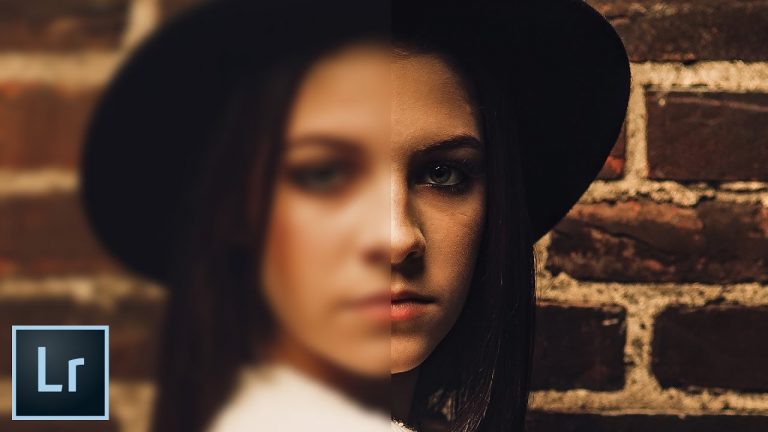
In this Lightroom tutorial, we’ll break down exactly what goes into sharpening photos in Lightroom and how to better think about your sharpening to get better results. We’ll talk about what sharpening does and how to use the sliders in Lightroom to get a better pass of sharpening on your photos as well as targeted sharpening when only part of the image needs to be sharpened. We will also talk about when to add Lightroom’s output sharpening to physical prints or photos exported from Lightroom and we will talk about when and where to use Clarity and Dehaze in the sharpening process. If you enjoy sharp photos you’re going to love this tutorial!

⚡️ written tutorial here: http://bit.ly/2qtjEcR

INSTAGRAM: http://instagram.com/tutvid
TWITTER: http://twitter.com/tutvid
FACEBOOK: https://www.facebook.com/tutvid
SNAPCHAT: tutvid.com

tutvid is a YouTube channel dedicated to creating the best Adobe Photoshop, Premiere Pro, Lightroom, and Illustrator tutorials. My goal is to create the best, most informative, and entertaining tutorials on the web. If you enjoy my videos, the best way to support what I do here is to purchase my course linked above or simply subscribe to the YouTube channel by pressing the red button.

✉️ business inquiries: nate@tutvid.com

CREDITS:
Social Icons in outro: http://www.freepik.com/free-vector/six-social-networking-icons-with-infographic-resources_982300.htm