Home Blog Page 131

30 Techniques Every Photographer/Retoucher Needs to Know! (Pt. 2 of 4)

0

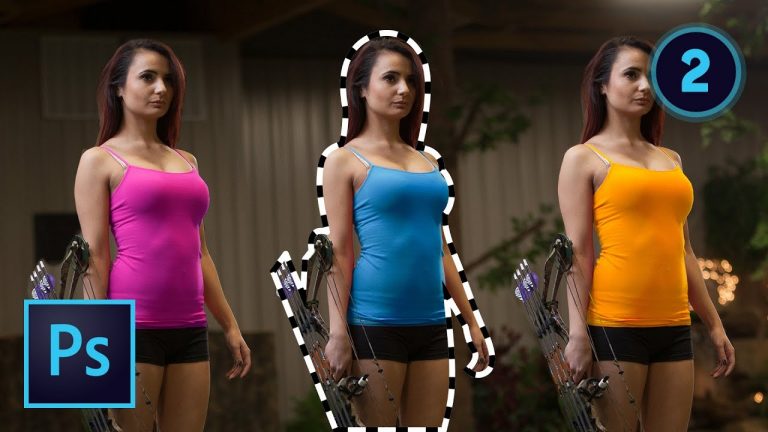
4-PART FREE MINI-COURSE ABOUT RETOUCHING AND LEARNING THE BASICS OF PHOTOSHOP! | We will cover techniques 10-18 in this video that you just have got to know as a retoucher in Photoshop.

Part 1: https://youtu.be/dk-GA1h4J4s
Part 2: https://youtu.be/y91ld8GKg9U
Part 3: https://youtu.be/Bh36v-FyZkw
Part 4: https://youtu.be/dfjVHyQa5Fs

? ↓ VIDEO GUIDE ↓ ?
01:24 10.) All About Levels
07:59 11.) All About Curves
15:18 12.) Blend Modes
19:56 13.) Masking!
25:56 14.) Retouching Eyes
29:49 15.) Whitening Teeth
32:03 16.) Changing Hair Color
37:14 17.) Frequency Separation for Better Skin
44:37 18.) Creating Skin Texture to Add Detail

? Subscribe for Daily Tutorials → https://goo.gl/DN4Nln

? Buy the Photoshop Course and Support the Channel → http://bit.ly/28NuwFy

In this Photoshop tutorial, we will talk about how to use Levels and Curves for tonal and color adjustments and even a little color correction. We will also break down masking and creating selections, how to retouch eyes, teeth, skin, and even change the color of a subject’s hair. We will also spend time talking about frequency separation for retouching skin and how to rebuild skin texture using a technique that will be useful for add texture in all kinds of situations in Photoshop.

⚡️ written tutorial here: http://bit.ly/2p9jhzy

INSTAGRAM: http://instagram.com/tutvid
TWITTER: http://twitter.com/tutvid
FACEBOOK: https://www.facebook.com/tutvid
SNAPCHAT: tutvid.com

tutvid is a YouTube channel dedicated to creating the best Adobe Photoshop, Premiere Pro, Lightroom, and Illustrator tutorials. My goal is to create the best, most informative, and entertaining tutorials on the web. If you enjoy my videos, the best way to support what I do here is to purchase my course linked above or simply subscribe to the YouTube channel by pressing the red button.

✉️ business inquiries: nate@tutvid.com

CREDITS:
Social Icons in outro: http://www.freepik.com/free-vector/six-social-networking-icons-with-infographic-resources_982300.htm
Make a Beautiful Grunge Retro Ribbon | Illustrator Tutorial

0

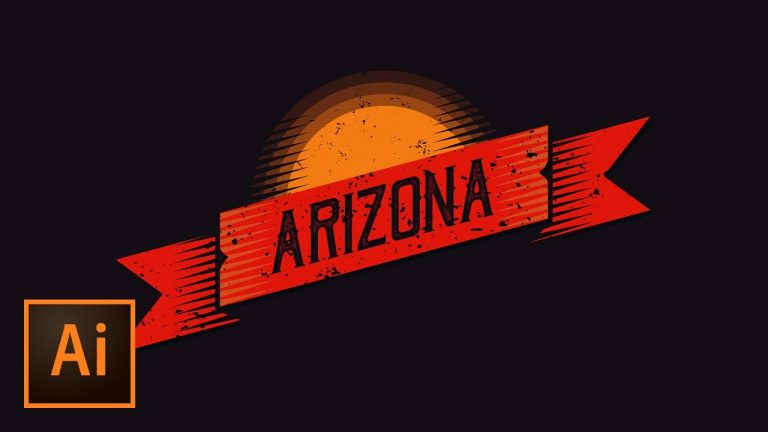
ANYONE CAN CREATE THIS FLAT DISTRESSED RIBBON! | Build this shape piece by piece and learn to create several different ribbons in the process.

Download the free grunge textures here: http://bit.ly/2q2ndqS
Here is the original artwork that inspired this tutorial: https://dribbble.com/shots/1288023-Cowboy-Culture

? Subscribe for Daily Tutorials → https://goo.gl/DN4Nln

? Buy the Photoshop Course and Support the Channel → http://bit.ly/28NuwFy

In this Illustrator tutorial, we will create a distressed flat ribbon using shape tools and the Pathfinder in Adobe Illustrator. We will also add a layered sun effect behind the ribbon to build out a complete western-looking distressed ribbon effect. You’ll learn about shape tools, working with paths, Smart Guides, masking in Illustrator, and much much more in this video! I hope you enjoy it!

⚡️ written tutorial and free vector textures download here: http://bit.ly/2q2ndqS

INSTAGRAM: http://instagram.com/tutvid
TWITTER: http://twitter.com/tutvid
FACEBOOK: https://www.facebook.com/tutvid
SNAPCHAT: tutvid.com

tutvid is a YouTube channel dedicated to creating the best Adobe Photoshop, Premiere Pro, Lightroom, and Illustrator tutorials. My goal is to create the best, most informative, and entertaining tutorials on the web. If you enjoy my videos, the best way to support what I do here is to purchase my course linked above or simply subscribe to the YouTube channel by pressing the red button.

✉️ business inquiries: nate@tutvid.com

CREDITS:
Social Icons in outro: http://www.freepik.com/free-vector/six-social-networking-icons-with-infographic-resources_982300.htm
How to Change Hair Color (Blonde to other colors) Photoshop Tutorial

0

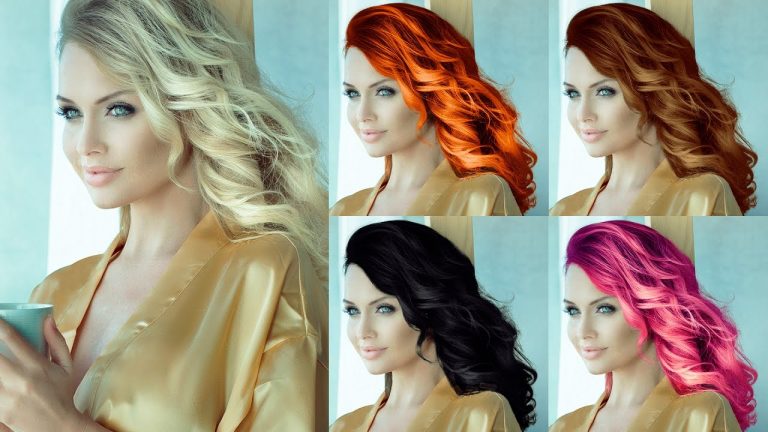
CONVERT BLONDE HAIR TO ANY OTHER COLOR! | This tutorial will cover everything from creating a complex selection to building proper stacks of Adjustment Layers to create all sorts of color and lightness hair color changes.

? ↓ VIDEO GUIDE ↓ ?
00:52 Getting started and checking out examples
01:55 Using Quick Select to start the hair selection
04:44 Using Select and Mask to refine the selection
07:19 Blue hair to help refine our mask more
08:46 Using the Brush Tool to refine the hair mask even more
10:11 I’ve made a great mistake.
18:10 Blonde to gray/silver hair
19:45 Blonde to black hair
22:13 Blonde to red/auburn hair
28:17 Blonde to brunette hair

? Subscribe for Daily Tutorials → https://goo.gl/DN4Nln

? Buy the Photoshop Course and Support the Channel → http://bit.ly/28NuwFy

In this Photoshop tutorial, we’ll talk about creating a complex hair selection with Select and Mask and also tweaking and adjusting that mask with the Brush tool. Together, we’ll talk about converting light or blonde hair to gray or silver hair, we’ll make the switch from blonde hair to red or auburn hair, we’ll make the switch from blonde to brunette, and of course, we’ll be tweaking a Curves Adjustment Layer to create more extreme purples, blues, or greens for hair color as well. I hope you love it and enjoy it!

⚡️ written tutorial here: http://bit.ly/2pWXHBX

INSTAGRAM: http://instagram.com/tutvid
TWITTER: http://twitter.com/tutvid
FACEBOOK: https://www.facebook.com/tutvid
SNAPCHAT: tutvid.com

tutvid is a YouTube channel dedicated to creating the best Adobe Photoshop, Premiere Pro, Lightroom, and Illustrator tutorials. My goal is to create the best, most informative, and entertaining tutorials on the web. If you enjoy my videos, the best way to support what I do here is to purchase my course linked above or simply subscribe to the YouTube channel by pressing the red button.

✉️ business inquiries: nate@tutvid.com

CREDITS:
Social Icons in outro: http://www.freepik.com/free-vector/six-social-networking-icons-with-infographic-resources_982300.htm
Sliding Split Screen Transition Effect Premiere Pro

0

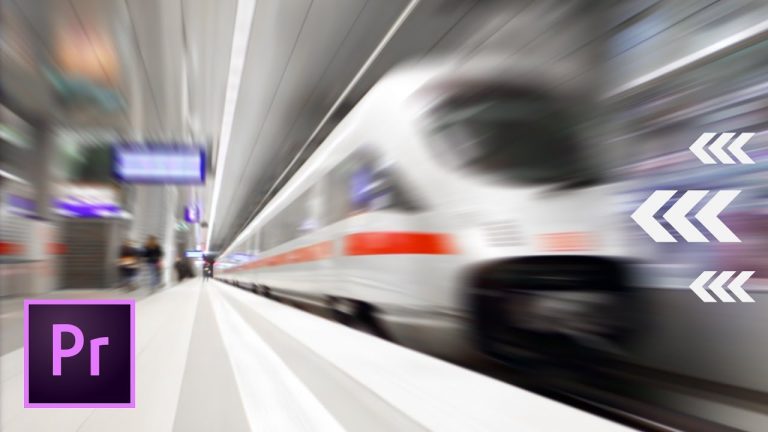
CREATE A SLIDING SCREEN DISPLAY OR TRANSITION EFFECT FOR YOUR VIDEOS! | We’ll create a full screen sliding video effect and a slide in/out graphic effect in this Premiere Pro tutorial.

? Subscribe for Daily Tutorials → https://goo.gl/DN4Nln

? Buy the Photoshop Course and Support the Channel → http://bit.ly/28NuwFy

In this Premiere Pro Video Editing tutorial, we will use a Linear Wipe transition effect in Premiere to build a customizable split screen effect that will allow you to quickly create split screen effects to show an example of what you’re talking about on screen, to perform a full split-to-full screen transition, or to have a simple graphic (or video) pop out effect to give additional details about a scene that you’re showing in your video project. You’ll learn about animation, keyframes, the Push effect, Linear Wipes, and working with multiple clips in this tutorial. I hope you watch it and love it!

⚡️ written tutorial here: http://bit.ly/2q04Am9

INSTAGRAM: http://instagram.com/tutvid
TWITTER: http://twitter.com/tutvid
FACEBOOK: https://www.facebook.com/tutvid
SNAPCHAT: tutvid.com

tutvid is a YouTube channel dedicated to creating the best Adobe Photoshop, Premiere Pro, Lightroom, and Illustrator tutorials. My goal is to create the best, most informative, and entertaining tutorials on the web. If you enjoy my videos, the best way to support what I do here is to purchase my course linked above or simply subscribe to the YouTube channel by pressing the red button.

✉️ business inquiries: nate@tutvid.com

CREDITS:
Social Icons in outro: http://www.freepik.com/free-vector/six-social-networking-icons-with-infographic-resources_982300.htm
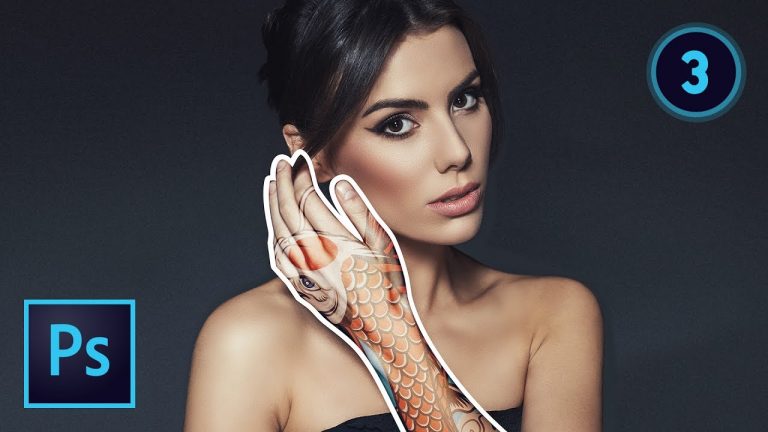
30 Techniques Every Photographer/Retoucher Needs to Know! (Pt. 3 of 4)

0

4-PART FREE MINI-COURSE ABOUT RETOUCHING AND LEARNING THE BASICS OF PHOTOSHOP! | We will cover techniques 19-27 in this video that you just have got to know as a retoucher in Photoshop.

Part 1: https://youtu.be/dk-GA1h4J4s
Part 2: https://youtu.be/y91ld8GKg9U
Part 3: https://youtu.be/Bh36v-FyZkw
Part 4: https://youtu.be/dfjVHyQa5Fs

? ↓ VIDEO GUIDE ↓ ?
01:00 19.) Reduce and remove wrinkles
02:41 Getting started with the healing brush
06:32 20.) Dodging and Burning
07:58 How to do the burning
13:00 How to do the dodging
14:22 Double dodge and burn trick
15:48 Quick dodge/burn effect
18:47 21.) How to Add a Tattoo Realistically
23:33 Masking the tattoo in place
27:06 Using adjustments to blend the tattoo
30:04 Blurring the tattoo to match
35:43 22.) Select and Replace a Sky with Luminosity/Channel Masks
38:38 Using levels to get the perfect selection
42:44 Replacing the sky and watching the magic happen
45:02 23.) Color Correction Techniques
45:28 Curves for quick corrections
49:58 24.) Targeting and Changing Individual Colors
52:56 Correcting sunburn by targeting the reds
54:32 25.) Four Ways to Create a Black and White Photo
01:00:03 26.) Creating a Basic Composite Image and Blending Colors
01:14:26 27.) Puppet Warp to Change a Person’s Figure

? Subscribe for Daily Tutorials → https://goo.gl/DN4Nln

? Buy the Photoshop Course and Support the Channel → http://bit.ly/28NuwFy

In this Photoshop tutorial, we’ll talk about a bunch more things you really should know if you’re a photographer or retoucher using Photoshop today! We’ll cover how to lessen and hide wrinkles in portrait photo, some of my best tips and tricks to getting better at dodging and burning photos, how to apply a realistic tattoo to somebody, making a complex selection of a nature photo and replacing the sky, fast and powerful Photoshop color correction techniques, targeting and changing individual colors, healing sunburns, creating amazing black and white photos, matching color and building tone in a simple composite image, and the bizarre and wonderful world of Puppet Warp. This is a VERY long tutorial, but it’s almost like a mash up for 9 much larger tutorials that have all been packed into one. I hope you love it and enjoy it a bunch! Thanks for watching!

⚡️ written tutorial here: http://bit.ly/2qp0022

INSTAGRAM: http://instagram.com/tutvid
TWITTER: http://twitter.com/tutvid
FACEBOOK: https://www.facebook.com/tutvid
SNAPCHAT: tutvid.com

tutvid is a YouTube channel dedicated to creating the best Adobe Photoshop, Premiere Pro, Lightroom, and Illustrator tutorials. My goal is to create the best, most informative, and entertaining tutorials on the web. If you enjoy my videos, the best way to support what I do here is to purchase my course linked above or simply subscribe to the YouTube channel by pressing the red button.

✉️ business inquiries: nate@tutvid.com

CREDITS:
Social Icons in outro: http://www.freepik.com/free-vector/six-social-networking-icons-with-infographic-resources_982300.htm
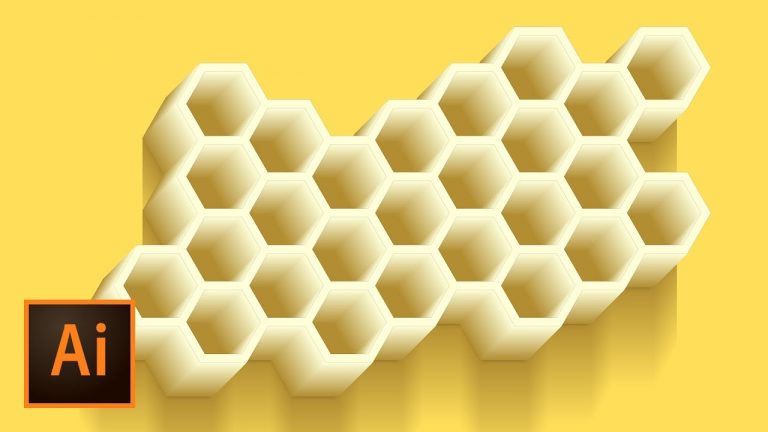
Honeycomb Vector Illustration – Illustrator Tutorial

0

USE SHAPE, STROKE, AND BLEND TOOLS TO CREATE THIS AWESOME ARTWORK! | Learn the tricks of point snapping, blend tool shadows, and stroke alignment to add a cool touch to this honeycomb illustration as we build this entire effect from scratch in this Illustrator tutorial!

? Subscribe for Daily Tutorials → https://goo.gl/DN4Nln

? Buy the Photoshop Course and Support the Channel → http://bit.ly/28NuwFy

In this Adobe Illustrator tutorial, we will take a look at working with shape tools and stroke options to build out a bee hive honeycomb illustration. We will learn how to harness the hidden power of Snap to Point to quickly build out the honeycomb effect with ease, we will talk about working with stroke alignment to change the way our effect comes together, we will build a subtle blend, add edge shadowing, edge definition to the front of the honeycomb with more strokes, work with the Blend option to create a drop shadows exactly to the specifications of our honeycomb, and much more in this fun tutorial! I hope you love it and share it with your friends!

⚡️ written tutorial here: http://bit.ly/2phQGwW

INSTAGRAM: http://instagram.com/tutvid
TWITTER: http://twitter.com/tutvid
FACEBOOK: https://www.facebook.com/tutvid
SNAPCHAT: tutvid.com

tutvid is a YouTube channel dedicated to creating the best Adobe Photoshop, Premiere Pro, Lightroom, and Illustrator tutorials. My goal is to create the best, most informative, and entertaining tutorials on the web. If you enjoy my videos, the best way to support what I do here is to purchase my course linked above or simply subscribe to the YouTube channel by pressing the red button.

✉️ business inquiries: nate@tutvid.com

CREDITS:
Social Icons in outro: http://www.freepik.com/free-vector/six-social-networking-icons-with-infographic-resources_982300.htm
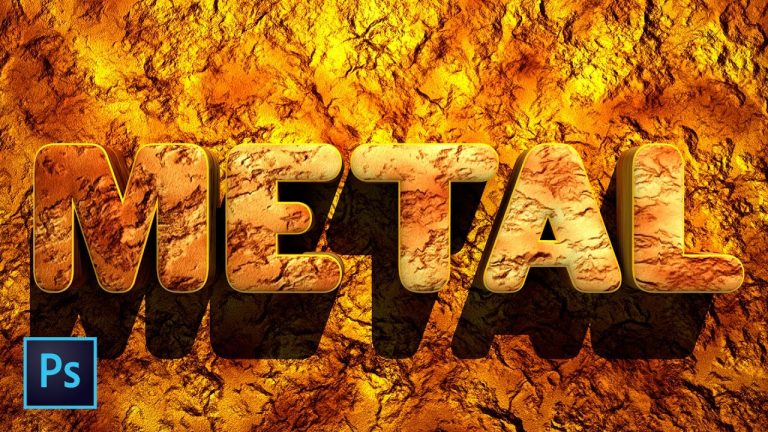
Create Amazing Metal Rust and Stone Textures Photoshop Tutorial

0

CREATE THOUSANDS OF TEXTURES IN ANY COLOR YOU CAN IMAGINE WITH THIS TECHNIQUE! | We’ll use the power of lighting effects and texture channels to create this mind-blowing effect.

? Subscribe for Daily Tutorials → https://goo.gl/DN4Nln

? Buy the Photoshop Course and Support the Channel → http://bit.ly/28NuwFy

In this Photoshop tutorial, we’ll take a look at building a texture channel using different filters that can be manipulated or re-created in any way you could ever imagine. We will use that channel in conjunction with a Lighting Effects filter over a base of colors in our document to create this really cool metal/rust/gold/stone texture that can be used for TONS of different things! You’re absolutely going to love this tutorial! We will also quickly look at how to use this type of texture as a material texture for a 3D object in Photoshop as well!

⚡️ written tutorial link: http://bit.ly/2ravhWu

INSTAGRAM: http://instagram.com/tutvid
TWITTER: http://twitter.com/tutvid
FACEBOOK: https://www.facebook.com/tutvid
SNAPCHAT: tutvid.com

tutvid is a YouTube channel dedicated to creating the best Adobe Photoshop, Premiere Pro, Lightroom, and Illustrator tutorials. My goal is to create the best, most informative, and entertaining tutorials on the web. If you enjoy my videos, the best way to support what I do here is to purchase my course linked above or simply subscribe to the YouTube channel by pressing the red button.

✉️ business inquiries: nate@tutvid.com

CREDITS:
Social Icons in outro: http://www.freepik.com/free-vector/six-social-networking-icons-with-infographic-resources_982300.htm
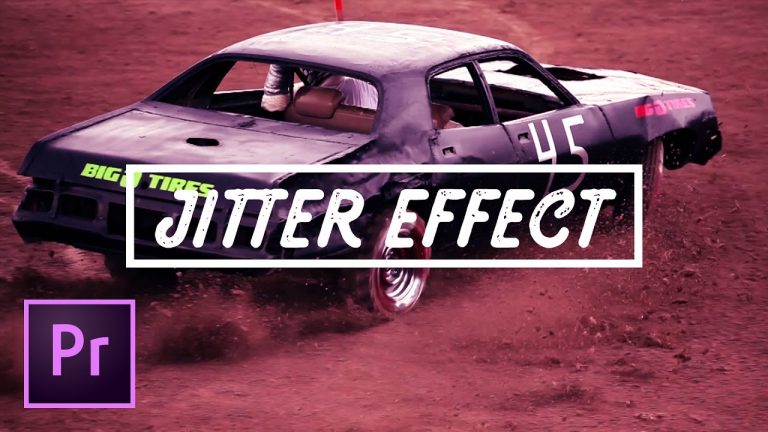
5 Easy & Effective Jitter/Camera Shake Effects in Premiere Pro

0

EASY, MEDIUM, AND ADVANCED CAMERA SHAKE EFFECTS IN PREMIERE PRO (AND AFTER EFFECTS A LITTLE, TOO! | We’ll break down everything from a simple quick jitter to a bigger, more advanced wiggle camera shake effect in this tutorial!

? ↓ VIDEO GUIDE ↓ ?
01:27 Fast Jitter Effect
07:05 Jitter on Adjustment Layer
14:25 Camera Shake (Gentle) Effect
20:10 Jitter Effect Transition
27:05 Sort-of-Advanced (but actually pretty simple) Wiggle (After Effects) Jitter Technique

? Subscribe for Daily Tutorials → https://goo.gl/DN4Nln

? Buy the Photoshop Course and Support the Channel → http://bit.ly/28NuwFy

In this Premiere Pro video editing tutorial, we will talk about creating a bunch of camera jitter, shake, and earthquake effects in Premiere Pro. We’ll create some of the effects that can be simply copied and pasted across every transition in your video edit, or we can sink our teeth into one single more advanced jitter customize for a specific clip in your project. This is a fun tutorial and I think you just might like it!

⚡️ written tutorial here: http://bit.ly/2qrzapu

INSTAGRAM: http://instagram.com/tutvid
TWITTER: http://twitter.com/tutvid
FACEBOOK: https://www.facebook.com/tutvid
SNAPCHAT: tutvid.com

tutvid is a YouTube channel dedicated to creating the best Adobe Photoshop, Premiere Pro, Lightroom, and Illustrator tutorials. My goal is to create the best, most informative, and entertaining tutorials on the web. If you enjoy my videos, the best way to support what I do here is to purchase my course linked above or simply subscribe to the YouTube channel by pressing the red button.

✉️ business inquiries: nate@tutvid.com

CREDITS:
Social Icons in outro: http://www.freepik.com/free-vector/six-social-networking-icons-with-infographic-resources_982300.htm
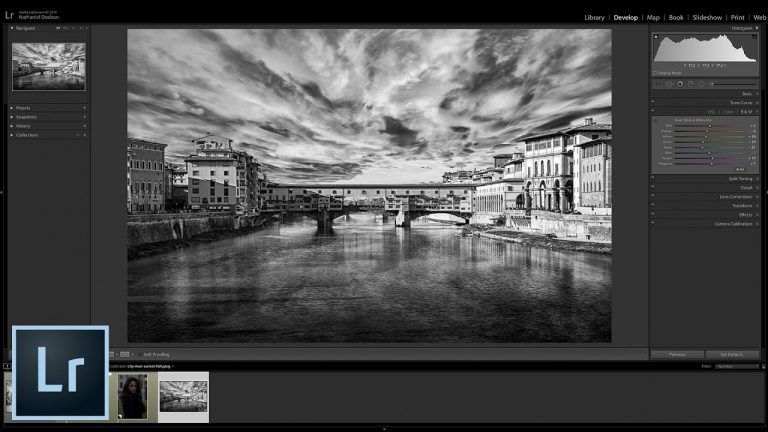
3 Great Ways to Create Black and White Photos in Lightroom

0

LEARN TO CONVERT ANY PHOTO TO A BLACK AND WHITE IMAGE AND GET GREAT RESULTS! | Learn to use the basic black and white conversion, the HSL/B&W sliders, and the cool result when converting HDR to black and white.

? Subscribe for Daily Tutorials → https://goo.gl/DN4Nln

? Buy the Photoshop Course and Support the Channel → http://bit.ly/28NuwFy

In this Lightroom tutorial, we will convert a simple landscape photo to black and white and use the scrubby finger and sliders in the HSL panel to perfect the image. We will also take a look at using Curves for contrast adjustments. You will also learn to create a retro black and white photo complete with static grain. We will cover nearly every aspect of how I like to create black and white images and cover three great techniques for creating your own black and white photos.

⚡️ written tutorial here: http://bit.ly/2pYMIoh

INSTAGRAM: http://instagram.com/tutvid
TWITTER: http://twitter.com/tutvid
FACEBOOK: https://www.facebook.com/tutvid
SNAPCHAT: tutvid.com

tutvid is a YouTube channel dedicated to creating the best Adobe Photoshop, Premiere Pro, Lightroom, and Illustrator tutorials. My goal is to create the best, most informative, and entertaining tutorials on the web. If you enjoy my videos, the best way to support what I do here is to purchase my course linked above or simply subscribe to the YouTube channel by pressing the red button.

✉️ business inquiries: nate@tutvid.com

CREDITS:
Social Icons in outro: http://www.freepik.com/free-vector/six-social-networking-icons-with-infographic-resources_982300.htm