Home Blog Page 121

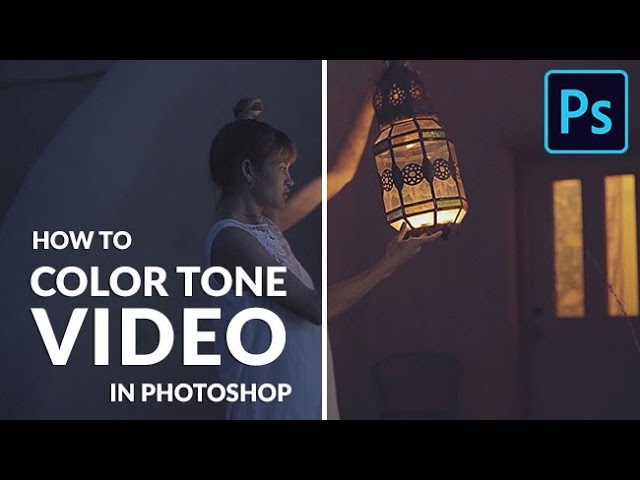
How to Color Tone Video in Photoshop

0

Stranger Things + PHLEARN! OMG!!! Check it out: https://www.youtube.com/watch?v=2NKLqDxfh2I

Download the Sample Video Here!

How to Color Tone Video in Photoshop

Adding color to video is as easy as color toning your photos. In this tutorial, we show you how to use adjustment layers over a video timeline to make color grading a breeze.

Start by importing your footage into Photoshop as you would with photos. It will automatically show up in a Video Group in your Layers tab, and populate a Timeline window. The Timeline lets you scrub through each frame of video, which is strung out over time.

Quick Tip: If you do not see your timeline window, go to Window – Timeline.

This Timeline is the biggest difference between editing color for photo and video. Once you have imported your video and the timeline is visible, and it is time to color grade.

How to Use a Curves Adjustment Layer on Video
Make a Curves adjustment layer by going down to the Adjustment layer icon and choosing Curves. It will show up as usual in the Layers tab and now in the Timeline too, right above your video. We dragged the center of the Curve upward to make our image just a little bit brighter.

To keep the brightness from overexposing our highlights, double click on the Adjustment layer. In the Blend-If dialog, hold ALT (Windows) or OPTION (iOS) and drag from left to right to make the Curves layer invisible where the underlying layer is lighter. This will lighten only the underexposed shadows for a great base color grade.

If you need to change when the adjustment layer turns on or off during the video, just drag the edge of the layer in the timeline to the right or left. You can see and manipulate exactly when the color grading shows up so it matches any action in your video.

Adding Color Tones
Although you can apply almost any coloring technique you use for photos to your video, in this tutorial we will cover two ways to add color to your shadows and highlights.

The first technique we use is applying a solid color adjustment layer to the desired chunk of footage. In this case we use an orange to warm the scene up. Change the layer blend mode to Soft Light and see how you like your color choice. You can always adjust the color of your fill layer until you find the perfect color tones.

The second technique we use is applying another Curves adjustment layer to target and adjust our Reds, Blues, and Greens individually. This allows us to narrow in on specific tones reducing or intensifying them.

You can add color specifically to your shadows by creating another solid fill layer, choosing the desired color, and selecting Lighten in the layer blend modes. The Lighten blend mode makes anything lighter than your chosen color remain the same, and anything darker will take your solid fill color. Adjust your fill color to choose which color appears in the shadows.

Remember, you can modify the opacity on each adjustment layer to change the intensity of its color tone.

Add Smooth Transitions to Color Adjustments
By applying transitions to our Curves adjustment layers, we can make our color adjustments fade in or out. This is extremely useful when you have a scene you want to gradually become lighter or darker.

VISIT PHLEARN.COM FOR MORE FREE TUTORIALS

Homepage

SUBSCRIBE NOW FOR MORE FREE TIPS AND TRICKS
http://www.youtube.com/subscription_center?add_user=phlearnllc

LET’S BE FRIENDS!
Instagram ► https://www.instagram.com/phlearn/
Facebook ► https://facebook.com/phlearn
Twitter ► https://twitter.com/phlearn
Google+ ► https://plus.google.com/116791098059215639405
Phlearn ► https://phlearn.com

How to Add Realistic Text to ANYTHING in Photoshop

0

From matching perspective to revealing the texture below the type, we show you how to make text look like it’s part of anything. Even Aaron’s face…
**Download the Sample Image here: https://goo.gl/iXnS6W

VISIT PHLEARN.COM FOR MORE FREE TUTORIALS

Homepage

SUBSCRIBE NOW FOR MORE FREE TIPS AND TRICKS
http://www.youtube.com/subscription_center?add_user=phlearnllc

LET’S BE FRIENDS!
Instagram ► https://www.instagram.com/phlearn/
Facebook ► https://facebook.com/phlearn
Twitter ► https://twitter.com/phlearn
Google+ ► https://plus.google.com/116791098059215639405
Phlearn ► https://phlearn.com
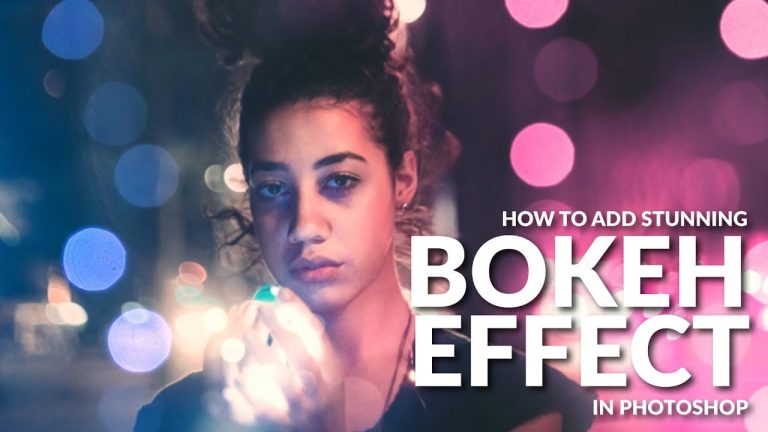
Create a Stunning BOKEH Effect in Photoshop

0

Download Sample Images Here: https://phlearn.com/createbokeh

BREAKING BOKEH

Bokeh is one of the most trendy effects in photography. When used properly, bokeh can create a striking and beautiful environment around your subject. Today we learn how to add bokeh that is both beautiful and effective!

Here we show you how to add it in photoshop, but to create the effect in camera, shoot with a shallow depth of field by opening up your aperture. The wider your aperture, the softer your background (and any lights in it) will be.

BOKEH-SHOP

Drag your bokeh image over your subject and change the LAYER BLENDING MODE to SCREEN to remove the dark areas of the image. After you’ve isolated the bokeh, TRANSFORM that layer so that it fits with your base image.

Load a Layer Mask onto each bokeh layer and use the BRUSH TOOL to paint black over the areas that you don’t want to be visible. Make sure each light is either completely visible or completely removed.

Use ADJUSTMENT LAYERS and SMART FILTERS to help match the color between the bokeh and base photo lighting. As a finishing touch, you can add a GRADIENT MAP on top of your layer stack to integrate the pieces of the image together.

We hope that this answered your question, human! Now go and add big beautiful bokeh to your holiday photos that will bring tears to your mother’s eyes.

VISIT PHLEARN.COM FOR MORE FREE TUTORIALS

Homepage

SUBSCRIBE NOW FOR MORE FREE TIPS AND TRICKS
http://www.youtube.com/subscription_center?add_user=phlearnllc

LET’S BE FRIENDS!
Instagram ► https://www.instagram.com/phlearn/
Facebook ► https://facebook.com/phlearn
Twitter ► https://twitter.com/phlearn
Google+ ► https://plus.google.com/116791098059215639405
Phlearn ► https://phlearn.com
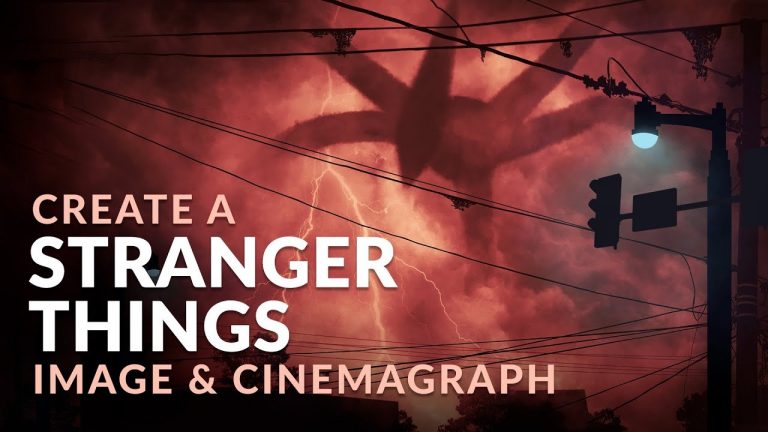
Create the Stranger Things Shadow Monster & Cinemagraph in Photoshop

0

Master Photoshop and Lightroom with PHLEARN PRO. See all of our tutorials at http://www.phlearn.com.

Today, we’re bringing a giant shadow monster to life. We’ll show you how to create the Stranger Things creature and its environment from scratch, then animate it into a cinemagraph.

Download the Cloud Brush from us here:
https://phlearn.com/cloudbrush

Download the Stock Images from us here:
https://goo.gl/ggDnPX

This tutorial involves intermediate Photoshop techniques. Throughout it, enjoy links to our other videos that explain these techniques step-by-step:

Blending Modes: https://goo.gl/1bK6u9
Channels: https://goo.gl/2fw8pd
Gradient Maps: https://goo.gl/mLZFjK
The Pen Tool: https://goo.gl/imxaFs
Cinemagraphs: https://goo.gl/tQuRGj

This is a new, more quickly-paced format we’re testing out. Let us know in the comments below what you think!

____

VISIT PHLEARN.COM FOR MORE TUTORIALS

Homepage

LET’S BE FRIENDS!
Phlearn ► https://phlearn.com
Instagram ► https://www.instagram.com/phlearn/
Facebook ► https://facebook.com/phlearn
Twitter ► https://twitter.com/phlearn
Google+ ► https://plus.google.com/116791098059215639405

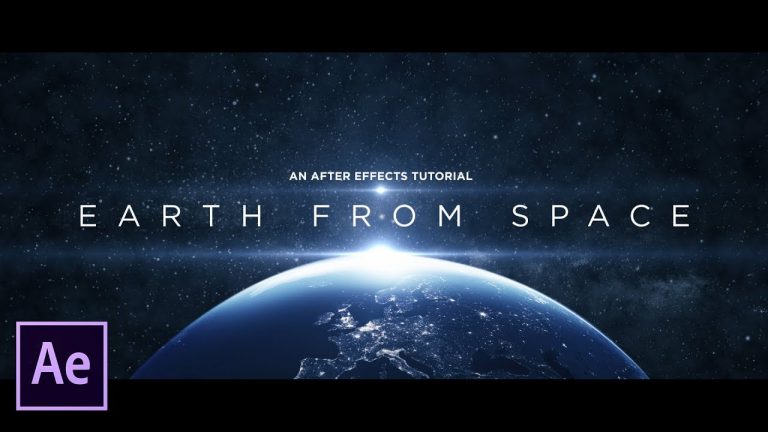
Create Earth From Space | After Effects Tutorial

0

Let’s go up to space and film the Earth…! Or how about we create our space scene in After Effects? In this After Effects Tutorial, learn how to take a 2D image of the Earth and integrate it into your space scene.

Like the music? Get your royalty free music at Artlist.io.
http://bit.ly/2ztBNvN

Earth Image: https://accuweather.brightspotcdn.com/96/74/f8b3b2814fbbaf27d6b8097292fd/earth-from-space.jpg

Social Media:
Drop a like on Facebook: https://www.facebook.com/sonduckfilm
Hit me up on Instagram: http://instagram.com/sonduckfilm
Follow me on Twitter: https://twitter.com/SonduckFilm
Connect with me on Linkedin: https://www.linkedin.com/in/joshnoel

Visit our website https://www.sonduckfilm.com for more tutorials, giveaways and film and photo gear!

Top 10 Text Presets in After Effects

0

Here’s our top 10 countdown for Text Presets in Adobe After Effects. These presets are our opinion, so please leave a comment down below on what your favorite presets are! Text Presets are a great way to save time by cutting out manually creating animation yourself. Adobe After Effects has a full library of great text presets that are as easy as drag and drop. This video highlights the top 10 Text presets that can help you in your mint graphics projects!

Like the music? Get your royalty free music at Artlist.io.
http://bit.ly/2t7xrrP

Social Media:
Drop a like on Facebook: https://www.facebook.com/sonduckfilm
Hit me up on Instagram: http://instagram.com/sonduckfilm
Follow me on Twitter: https://twitter.com/SonduckFilm
Connect with me on Linkedin: https://www.linkedin.com/in/joshnoel

Visit our website https://www.sonduckfilm.com for more tutorials, giveaways and film and photo gear!

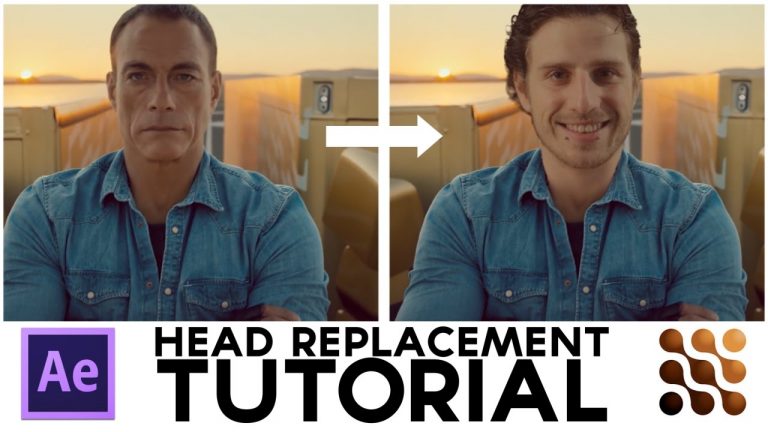
Flomotion After Effects Tutorial: Motion Tracking / Head Replacement with Mocha and After Effects

0

Flomotion After Effects Tutorial: Motion Tracking / Head Replacement with Mocha and After Effects

In this Flomotion Tutorial you will learn how to replace a head in a footage element with a greenscreen clip that you created.

Learn how to track with mocha for after effects.
Learn how to key greenscreen footage.

To find out more please visit:
www.flomotion.eu

Walkthrough Version 01:

Walkthrough Version 02:

Carefree von Kevin MacLeod ist unter der Lizenz Creative Commons Attribution license (https://creativecommons.org/licenses/by/4.0/) lizenziert.
Quelle: http://incompetech.com/music/royalty-free/index.html?isrc=USUAN1400037
Interpret: http://incompetech.com/

Lightroom CC For Beginners – Full FREE Training Course – Lightroom CC 2018 Tutorials

In this Lightroom CC for beginners training course, you will learn how to use all the tools and panels to develop your photos.

If you would like to watch each chapter as its own video, then check out the playlist here:

Index:
01:00 – Importing Photos
05:32 – Interface and Lightroom Search
10:17 – The Light and Color Panels
20:23 – Effects, Detail, Optics and Geometry Panels
29:01 – Crop, Heal, Targeted Adjustments, and Presets
36:28 – Exporting Photos

► Subscribe to My Channel Here: http://www.youtube.com/channel/UCdQ_ZkYaMe6qPoueUyPQgpQ?sub_confirmation=1

If you have any questions, please leave them below
or head over to this tutorial’s page on our website:

➜ https://photoshoptrainingchannel.com/

? Subscribe + Like + Share + Comment = More Video Tutorials!

Thank you for watching!

– – – – – – – – – – – – – – – – – – – – – – –
⚡ PTC NEWSLETTER

If you enjoyed this video be sure to subscribe to our newsletter to receive free weekly Photoshop tips and more!

➜ ✉️: http://ptcvids.com/subscribe

– – – – – – – – – – – – – – – – – – – – – – –
⚡PREMIUM TUTORIALS

For more in-depth Photoshop Tutorials be sure to check out our Premium tutorials.

➜ http://ptcvids.com/shop/

– – – – – – – – – – – – – – – – – – – – – – –
⚡ FOLLOW PTC ON

– Facebook: https://fb.com/PhotoshopTrainingChannel

– Instagram: http://instagram.com/jrfromptc

– LinkedIn: http://linkedin.com/company/Photoshop-Training-Channel

– Pinterest: http://pinterest.com/ptcpins

– Behance: https://www.behance.net/JRfromPTC

– Twitter: https://twitter.com/JRfromPTC

– – – – – – – – – – – – – – – – – – – – – – –
⚡ LINKS

– Website: https://photoshoptrainingchannel.com

– YouTube Channel: https://youtube.com/user/photoshoptrainingch

– Google +: https://google.com/+Photoshoptrainingchannel

– This Video’s Youtube Link: http://youtu.be/cLpOHt9f-x8

– – – – – – – – – – – – – – – – – – – – – – –
⚡ CREDITS

– Stock Images provided by stock.adobe.com

– Photoshop video tutorials by Jesus Ramirez

Importing Files Into Lightroom CC – Lightroom CC for Beginners FREE Course – 01

In this Lightroom CC Tutorial, you will learn to import files into Lightroom.

This video is part of my training series “Lightroom CC for Beginners” you can watch the rest of the videos here:

► Subscribe to My Channel Here: http://www.youtube.com/channel/UCdQ_ZkYaMe6qPoueUyPQgpQ?sub_confirmation=1

Photoshop tutorial showing you how to

If you have any questions, please leave them below
or head over to this tutorial’s page on our website:

➜ https://photoshoptrainingchannel.com/

? Subscribe + Like + Share + Comment = More Video Tutorials!

Thank you for watching!

– – – – – – – – – – – – – – – – – – – – – – –
⚡ PTC NEWSLETTER

If you enjoyed this video be sure to subscribe to our newsletter to receive free weekly Photoshop tips and more!

➜ ✉️: http://ptcvids.com/subscribe

– – – – – – – – – – – – – – – – – – – – – – –
⚡PREMIUM TUTORIALS

For more in-depth Photoshop Tutorials be sure to check out our Premium tutorials.

➜ http://ptcvids.com/shop/

– – – – – – – – – – – – – – – – – – – – – – –
⚡ FOLLOW PTC ON

– Facebook: https://fb.com/PhotoshopTrainingChannel

– Instagram: http://instagram.com/jrfromptc

– LinkedIn: http://linkedin.com/company/Photoshop-Training-Channel

– Pinterest: http://pinterest.com/ptcpins

– Behance: https://www.behance.net/JRfromPTC

– Twitter: https://twitter.com/JRfromPTC

– – – – – – – – – – – – – – – – – – – – – – –
⚡ LINKS

– Website: https://photoshoptrainingchannel.com

– YouTube Channel: https://youtube.com/user/photoshoptrainingch

– Google +: https://google.com/+Photoshoptrainingchannel

– This Video’s Youtube Link: http://youtu.be/ys5eyEs48RM

– – – – – – – – – – – – – – – – – – – – – – –
⚡ CREDITS

– Photoshop video tutorials by Jesus Ramirez

The Lightroom CC Interface and Smart Search – Lightroom CC for Beginners FREE Course – 02

In this Lightroom CC Tutorial, you will learn to navigate through the Lightroom interface. You will also learn to use the smart Lightroom CC search.

This video is part of my training series “Lightroom CC for Beginners” you can watch the rest of the videos here:

► Subscribe to My Channel Here: http://www.youtube.com/channel/UCdQ_ZkYaMe6qPoueUyPQgpQ?sub_confirmation=1

If you have any questions, please leave them below
or head over to this tutorial’s page on our website:

➜ https://photoshoptrainingchannel.com/

? Subscribe + Like + Share + Comment = More Video Tutorials!

Thank you for watching!

– – – – – – – – – – – – – – – – – – – – – – –
⚡ PTC NEWSLETTER

If you enjoyed this video be sure to subscribe to our newsletter to receive free weekly Photoshop tips and more!

➜ ✉️: http://ptcvids.com/subscribe

– – – – – – – – – – – – – – – – – – – – – – –
⚡PREMIUM TUTORIALS

For more in-depth Photoshop Tutorials be sure to check out our Premium tutorials.

➜ http://ptcvids.com/shop/

– – – – – – – – – – – – – – – – – – – – – – –
⚡ FOLLOW PTC ON

– Facebook: https://fb.com/PhotoshopTrainingChannel

– Instagram: http://instagram.com/jrfromptc

– LinkedIn: http://linkedin.com/company/Photoshop-Training-Channel

– Pinterest: http://pinterest.com/ptcpins

– Behance: https://www.behance.net/JRfromPTC

– Twitter: https://twitter.com/JRfromPTC

– – – – – – – – – – – – – – – – – – – – – – –
⚡ LINKS

– Website: https://photoshoptrainingchannel.com

– YouTube Channel: https://youtube.com/user/photoshoptrainingch

– Google +: https://google.com/+Photoshoptrainingchannel

– This Video’s Youtube Link: http://youtu.be/ZveLMEqATyE

– – – – – – – – – – – – – – – – – – – – – – –
⚡ CREDITS

– Photoshop video tutorials by Jesus Ramirez