Home Blog Page 123

Create Any Animated Icon For Motion Graphics | After Effects Tutorial

0

Let’s Create Animated Icons inside of After Effects! This tutorial shows how to design and animated any type of animated icons for your motion graphics projects. Learn how to easily create anything that you may need by using shape layers and using built in parameters.

Like the music? Get your royalty free music at Artlist.io.
http://bit.ly/2t7xrrP

Social Media:
Drop a like on Facebook: https://www.facebook.com/sonduckfilm
Hit me up on Instagram: http://instagram.com/sonduckfilm
Follow me on Twitter: https://twitter.com/SonduckFilm
Connect with me on Linkedin: https://www.linkedin.com/in/joshnoel

Visit our website https://www.sonduckfilm.com for more tutorials, giveaways and film and photo gear!

Quickly Create Shape Accents | After Effects Motion Graphics Tutorial

0

Like the music? Get your royalty free music at Artlist.io.
http://bit.ly/2t7xrrP

Social Media:
Drop a like on Facebook: https://www.facebook.com/sonduckfilm
Hit me up on Instagram: http://instagram.com/sonduckfilm
Follow me on Twitter: https://twitter.com/SonduckFilm
Connect with me on Linkedin: https://www.linkedin.com/in/joshnoel

Visit our website https://www.sonduckfilm.com for more tutorials, giveaways and film and photo gear!

Audio React Any Object | Audio Reaction After Effects Tutorial

0

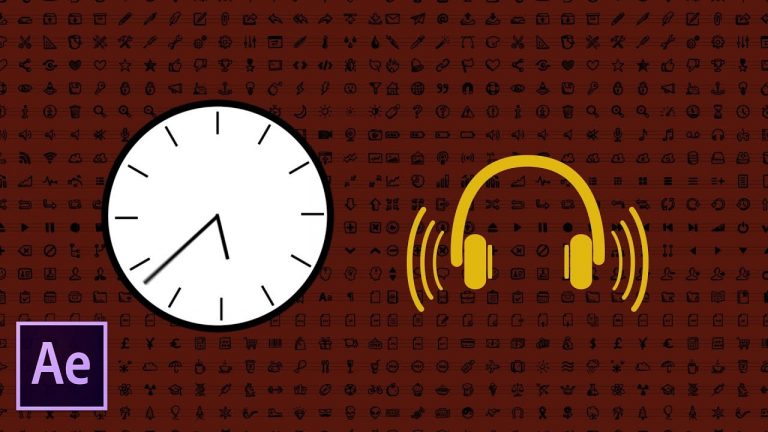
In this After Effects tutorial, create an awesome music video with audio reaction. This tutorial covers how to audio react any custom object you may need. Awesome create an automated clock that will animate with your timeline. Learn the ins and outs of creating multiple audio reactions.

EXPRESSION USED: https://www.dropbox.com/s/eybouqylpz7lzi2/Clock%20Automation.rtf?dl=0

Like the music? Get your royalty free music at Artlist.io.
http://bit.ly/2t7xrrP

Social Media:
Drop a like on Facebook: https://www.facebook.com/sonduckfilm
Hit me up on Instagram: http://instagram.com/sonduckfilm
Follow me on Twitter: https://twitter.com/SonduckFilm
Connect with me on Linkedin: https://www.linkedin.com/in/joshnoel

Visit our website https://www.sonduckfilm.com for more tutorials, giveaways and film and photo gear!

After Effects Tutorial: Circle City Motion Graphics

0

Like the music? Get your royalty free music at Artlist.io.
http://bit.ly/2t7xrrP

Download Project Files Here:

After Effects: Circle City Motion Graphics

Social Media:
Drop a like on Facebook: https://www.facebook.com/sonduckfilm
Hit me up on Instagram: http://instagram.com/sonduckfilm
Follow me on Twitter: https://twitter.com/SonduckFilm
Connect with me on Linkedin: https://www.linkedin.com/in/joshnoel

Visit our website https://www.sonduckfilm.com for more tutorials, giveaways and film and photo gear!

Create an Infinite Zoom | Photos, Videos, Motion Graphics | After Effects Tutorial

0

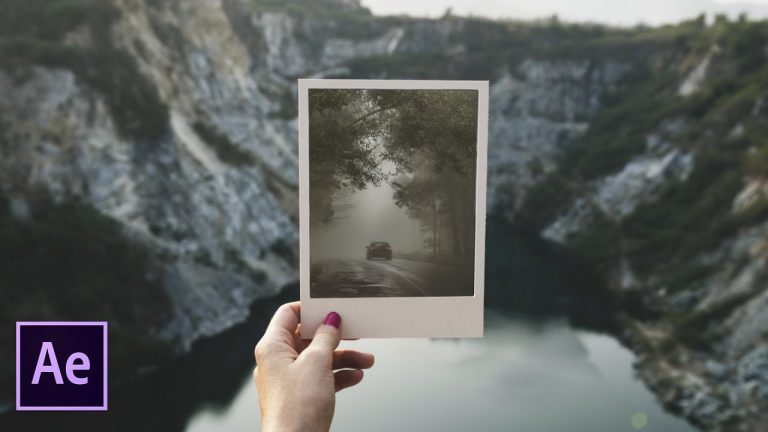
Create an endless infinite zoom inside of After Effects using photos, videos, or motion graphics. The infinite zoom effect allows you to seamlessly zoom in or out of your media. The goal is to create an area where you can move to the next scene. The best example is to zoom into a picture frame and replace that frame with your next image or video.

Like the music? Get your royalty free music at Artlist.io.
http://bit.ly/2t7xrrP

Project Files Coming Soon:

Social Media:
Drop a like on Facebook: https://www.facebook.com/sonduckfilm
Hit me up on Instagram: http://instagram.com/sonduckfilm
Follow me on Twitter: https://twitter.com/SonduckFilm
Connect with me on Linkedin: https://www.linkedin.com/in/joshnoel

Visit our website https://www.sonduckfilm.com for more tutorials, giveaways and film and photo gear!

How to Add Fog and Light in Photoshop

0

PHLEARN is having a Halloween Contest! https://goo.gl/AeS9Y4

Download the Phlearn Fog Brush & Sample Image here: https://phlearn.com/add-fog-light-photoshop

How to Add Fog & Light to Photos in Photoshop

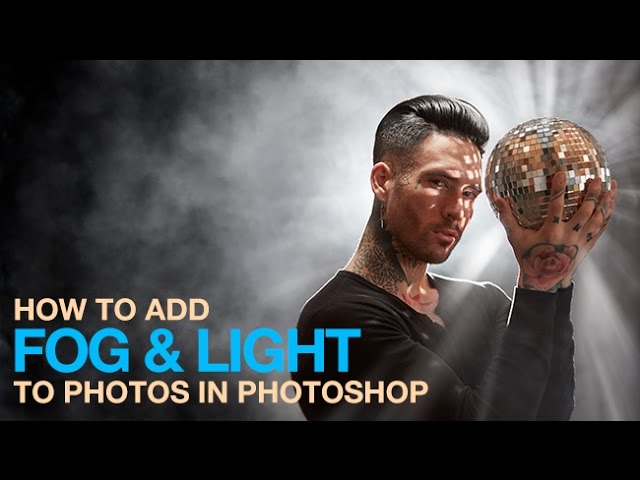
Learn how to add a bit of mystery to your photos by creating fog and light beams from scratch!

Bonus: Download the custom brush and image used in this tutorial.

Create Fog Using a Custom Brush

Fog is surprisingly easy to create in Photoshop, provided you have the right resources.

First, download the Phlearn Fog Brush below. After downloading, double-click on the .abr file to load it into Photoshop. Select the Phlearn Fog Brush by first selecting the Brush Tool (B) in Photoshop, then right-click to bring up the list of available brush presets. The Phlearn Fog Brush will be at the end of the list.

While using the Phlearn Fog Brush, try changing the brush size to approximate different types of fog. Also, start by using brush flow around 30% to get a natural appearance. If you find that the fog has too much detail, simply add a gaussian blur to the fog layer.

How to Create Light Beams

In order to give this image a bit more life, we are going to add beams of light coming from the disco ball.

To create beams of light in Photoshop, start by creating a new layer and painting random patches of white with the brush tool. These random patches of white will serve as ‘locators’ for the next step, applying a radial blur.

The goal is to make the random patches of white into streaks, and to do so, apply a radial blur. Go to ‘Filter – Blur – Radial Blur’ and choose ‘Zoom’ under ‘Blur Method’. Adjust the amount of zoom to 80 and choose a center point for the zoom blur by clicking on the ‘Blur Center’ graph. This filter does not give you a live preview, so you have to guess where the center of the zoom blur will be.

If you get the center wrong, simply undo your blur and re-do it again, this time moving the blur center. Once you are satisfied with the blur center, you can adjust the amount of blur.

Now you have a zoom blur coming from the center of the Disco Ball

VISIT PHLEARN.COM FOR MORE FREE TUTORIALS

Homepage

SUBSCRIBE NOW FOR MORE FREE TIPS AND TRICKS
http://www.youtube.com/subscription_center?add_user=phlearnllc

GET FREE TUTORIALS SENT TO YOUR EMAIL + DISCOUNTS ON OUR PRO TUTORIALS!
https://phlearn.com/mail

LET’S BE FRIENDS!
Instagram ► https://www.instagram.com/phlearn/
Facebook ► https://facebook.com/phlearn
Twitter ► https://twitter.com/phlearn
Google+ ► https://plus.google.com/116791098059215639405
Phlearn ► https://phlearn.com

Did you know there is a lot more to PHLEARN than YouTube? https://phlearn.com/more
-~-~~-~~~-~~-~-

-~-~~-~~~-~~-~-

How to Remove Logos from Clothing in Photoshop

0

PHLEARN is having a Halloween Contest! https://goo.gl/AeS9Y4

How to Remove Logos from Clothing in Photoshop

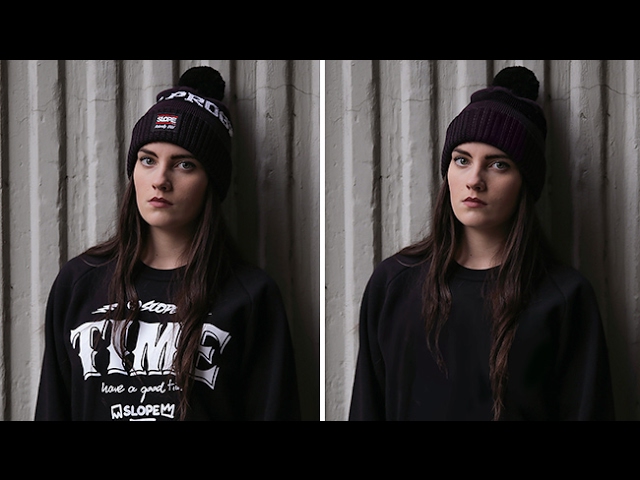
Labels and graphics on clothing can be distracting or unwanted in a photograph. Clients will often want logos removed – especially if they are from a competing brand. Sometimes it is better to remove them completely.

Learn how to remove logos from clothing in today’s episode.

Copy Texture & Patters

At times, logos are placed over textures and patterns on clothing. These textures need to be replaced when removing a logo.

To replace a texture or pattern, look for a similar pattern on another area of clothing.

Create a new layer and use the Clone Stamp Tool to sample the “good” texture and paint it onto the new layer. Be sure that “Sample – Current & Below” is checked in the settings for the Clone Stamp Tool.

Once the pattern has been duplicated to a new layer, transform it into place using CTRL/CMD+T. Try lowering the opacity of the layer to see where it will cover.

If necessary, do this multiple times from different areas of clothing to fully cover the logo.

After copying the texture from one area to another, you may need to alter it slightly. Use a Hue/Saturation adjustment layer to change color and lightness. Use a Brightness/Contrast Adjustment layer to lower contrast and darken a texture.

To make an adjustment layer only effect the layer underneath it, right-click on the adjustment layer and click on “Create Clipping Mask”

Don’t forget the Brush Tool!

When working with large patches of color, sometimes the best tool for the job is the Brush Tool. While it is not great for replicating patterns and textures, it can be used to quickly color large areas.

Start off with a small brush and remove just the logos by sampling the colors around it (ALT/OPTN+CLICK to sample). When you are done painting the smaller areas, make the brush large and soft-edged and paint in to blend the colors in with the clothing.

Download the Sample Image

https://phlearn.com/wp-content/uploads/2017/02/How-to-Remove-Logos-in-Photoshop_Before.jpg

VISIT PHLEARN.COM FOR MORE FREE TUTORIALS

Homepage

SUBSCRIBE NOW FOR MORE FREE TIPS AND TRICKS
http://www.youtube.com/subscription_center?add_user=phlearnllc

GET FREE TUTORIALS SENT TO YOUR EMAIL + DISCOUNTS ON OUR PRO TUTORIALS!
https://phlearn.com/mail

LET’S BE FRIENDS!
Instagram ► https://www.instagram.com/phlearn/
Facebook ► https://facebook.com/phlearn
Twitter ► https://twitter.com/phlearn
Google+ ► https://plus.google.com/116791098059215639405
Phlearn ► https://phlearn.com

Did you know there is a lot more to PHLEARN than YouTube? https://phlearn.com/more

How to Add Stars in Photoshop

0

PHLEARN is having a Halloween Contest! https://goo.gl/AeS9Y4

Download sample image used in tutorial here: https://phlearn.com/add-stars-photoshop

How to Add Stars to a Photo in Photoshop

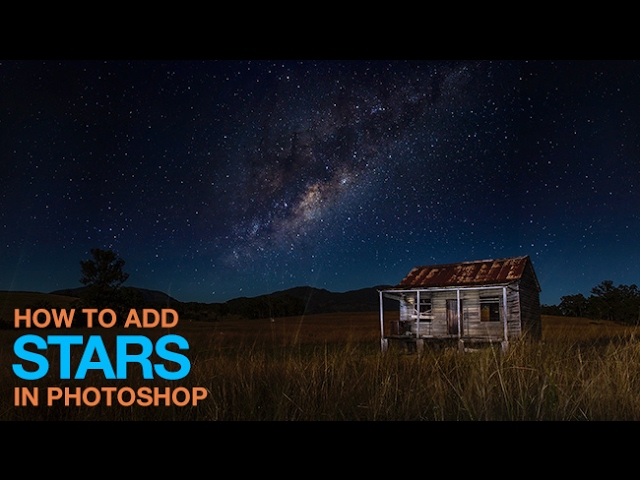
Learn how to quickly and easily add stars to any night photo in Photoshop!

Use Stock Images of Stars

If you don’t have any star photos of your own, you can always use stock images. Simply type “Stars” into your stock image website of choice and find your favorite photo.

To composite the star photo into your original image, use the move tool and click-and-drag the star image onto your original photo. Resize the stars if necessary, just be sure to not stretch them out.

If the star photo isn’t large enough to fill the entire sky, try duplicating it and moving the layer to fill in the gaps. As long as there aren’t any recognizable patterns in the stars, it shouldn’t be apparent that the photo has been duplicated.

How to Use Blending Modes and Clipping Masks

To make the stars blend into the night sky, change the blending mode of the star layer to “Screen.” Screen blend mode makes anything black invisible, leaving only the light visible, which is perfect for star photos.

If you find that the star image isn’t blending in well, try making the dark areas even darker – making them disappear.

Create a Levels Adjustment Layer and clip it to the star layer by right-clicking on the Adjustment Layer and selecting “Create Clipping Mask.” Now, move the mid-point slider in the Levels Adjustment layer until the stars blend perfectly into the original sky.

Be Sure to Mask the Foreground!

When adding stars to a sky, you want to be sure they don’t show up in front of trees, houses and mountains.

Create a selection using the magic wand tool of the original sky. The important part of the selection is the area where the sky meets land, don’t worry about getting the rest of the selection perfect. Once the selection is active, click on the layer mask icon to add a layer mask to the star image or group.

Fill in the rest of the sky with with on the layer mask and the stars will only be visible in the sky!

Download the Sample Images here: https://phlearn.com/add-stars-photoshop

VISIT PHLEARN.COM FOR MORE FREE TUTORIALS

Homepage

SUBSCRIBE NOW FOR MORE FREE TIPS AND TRICKS
http://www.youtube.com/subscription_center?add_user=phlearnllc

GET FREE TUTORIALS SENT TO YOUR EMAIL + DISCOUNTS ON OUR PRO TUTORIALS!
https://phlearn.com/mail

LET’S BE FRIENDS!
Instagram ► https://www.instagram.com/phlearn/
Facebook ► https://facebook.com/phlearn
Twitter ► https://twitter.com/phlearn
Google+ ► https://plus.google.com/116791098059215639405
Phlearn ► https://phlearn.com

Did you know there is a lot more to PHLEARN than YouTube? https://phlearn.com/more

How to Create a Dramatic Sky in Photoshop

0

PHLEARN is having a Halloween Contest! https://goo.gl/AeS9Y4

Download the images in this episode here: https://phlearn.com/create-dramatic-sky-photoshop

Learn how to enhance any sky by making it more dramatic in Photoshop!

How to Create a Selection from the Sky

The first step in creating a dramatic sky in Photoshop is to create a selection out of the sky, so only the sky is altered, not the rest of the image.

Use the Magic Wand Tool to select the sky. If the Magic Wand Tool doesn’t select enough area, bring the Tolerance higher, if it is selecting too much, lower the Tolerance. In this episode, we use a tolerance of about 30.

Chances are, your entire sky will not be selected with one click of the Magic Wand Tool. To add to an active selection, hold down the SHIFT Key and click another area. You will see a ‘+’ icon next to the Magic Wand Tool Cursor.

To remove an area from a selection, hold the ALT/OPTN key and click on a selected area. You will see a ‘-‘ icon next to the Magic Wand Tool Cursor.

The goal here is to select the entire sky without selecting areas like trees, people, or buildings.

Load the Selection in a Group Layer Mask

After creating a selection of the sky with the Magic Wand Tool, create a new layer and group the layer with itself by pressing CTRL/CMD+G. Then select the group and click on the layer mask icon. The active selection will be translated into a layer mask, revealing only the area that was once the selection.

The reason for making this Group Layer Mask is to restrict any layers inside the group to only show up over the sky. Any layer you place inside this group is defined by the layer mask of the group.

How to Add Dramatic Highlights and Shadows

They key to making skies more dramatic in Photoshop is to enhance the detail that is already present in the photo.

The techniques used in this tutorial will apply to any sky!

Let’s start by enhancing the dark areas of the sky. Create a new layer inside the group with the sky layer mask. Select black as the foreground color and use a large soft-edged brush to paint over the dark areas in the sky.

Next, open the Blending Options for the Layer by going to ‘Layer – Layer Style – Blending Options.’ Change the blending mode to either ‘Multiply,’ ‘Soft Light’ or ‘Overlay’.

At the bottom of the Blending Options Panel, there are two sliders labeled ‘Blend If,’ we are going to use the ‘Underlying Layer’ Slider. Hold ALT/OPTN and click on the white arrow on the right-hand side of the slider and drag to the left. This will separate out the two end points and allow for a smoother transition. By sliding the arrows from the right side, you are telling Photoshop to make this layer invisible where the underlying layer is lighter.

To put it all together, the black you painted on the layer is now only visible in the darker areas of the sky, and it is making those areas even darker.

When it comes to adding highlights, simply do the exact opposite.

Paint white over the light areas in the sky, change the blending mode to Soft Light, Overlay, or Screen and click on the black arrows on the left-hand side of the Underlying Layer slider in the Blend If the screen and drag the arrow to the right.

To add some color to the sky, simply do the same thing, only paint with color instead of black and white!

VISIT PHLEARN.COM FOR MORE FREE TUTORIALS

Homepage

SUBSCRIBE NOW FOR MORE FREE TIPS AND TRICKS
http://www.youtube.com/subscription_center?add_user=phlearnllc

GET FREE TUTORIALS SENT TO YOUR EMAIL + DISCOUNTS ON OUR PRO TUTORIALS!
https://phlearn.com/mail

LET’S BE FRIENDS!
Instagram ► https://www.instagram.com/phlearn/
Facebook ► https://facebook.com/phlearn
Twitter ► https://twitter.com/phlearn
Google+ ► https://plus.google.com/116791098059215639405
Phlearn ► https://phlearn.com

Did you know there is a lot more to PHLEARN than YouTube? https://phlearn.com/more

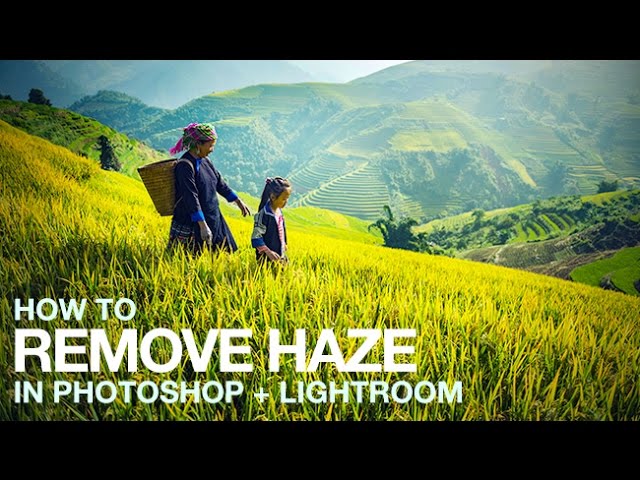
How to Remove Haze in Photoshop + Lightroom

0

PHLEARN is having a Halloween Contest! https://goo.gl/AeS9Y4

Download the Sample Image From This Tutorial: https://phlearn.com/remove-haze-lightroom-photoshop

A bit of haze can be beautiful in photos, but it can also obscure detail. Adobe recently added the Dehaze filter to remove haze simply.

In this episode you will learn how to remove haze in Lightroom and Photoshop!

How to Remove Haze in Lightroom

Adobe recently added the ‘Dehaze” filter in Lightroom. Navigate to the Develop Module and scroll down the right sidebar to get to the “Effects” tab.

Here you will find the Dehaze filter. To remove haze, slide to the right, to add haze, slide to the left.

If you find that removing haze makes your image too dark, lighten the shadows in the Basic Tab in the right sidebar.

How to Remove Haze in Photoshop

Photoshop offers the same Dehaze filter, although it is a bit hidden.

To access Dehaze in Photoshop, duplicate the background layer and go to ‘Filter-Camera Raw Filter’. Here you will have access to the same editing tools that Lightroom has to offer, including Dehaze.

Go to the ‘FX’ tab and slide the Dehaze slider to remove haze!

In this example, we also use a Curves Adjustment Layer to brighten the area around the subjects.

VISIT PHLEARN.COM FOR MORE FREE TUTORIALS

Homepage

SUBSCRIBE NOW FOR MORE FREE TIPS AND TRICKS
http://www.youtube.com/subscription_center?add_user=phlearnllc

GET FREE TUTORIALS SENT TO YOUR EMAIL + DISCOUNTS ON OUR PRO TUTORIALS!
https://phlearn.com/mail

LET’S BE FRIENDS!
Instagram ► https://www.instagram.com/phlearn/
Facebook ► https://facebook.com/phlearn
Twitter ► https://twitter.com/phlearn
Google+ ► https://plus.google.com/116791098059215639405
Phlearn ► https://phlearn.com

Did you know there is a lot more to PHLEARN than YouTube? https://phlearn.com/more