Home Blog Page 126

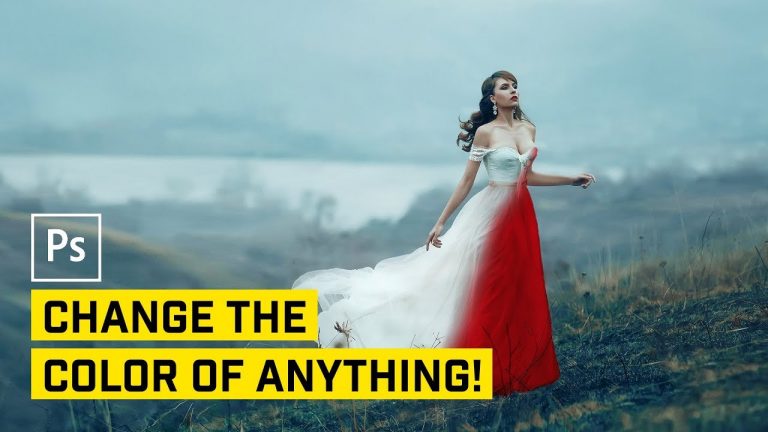
5 Ways to Change the Color of ANYTHING in Photoshop

0

CHANGE THE COLOR OF ANYTHING IN PHOTOSHOP! | Let’s break down how to use Hue/Saturation a few different ways, paint on a new realistic color, and use LAB to match an exact color if needed. We’ll cover it all in this tutorial today!

? Buy the Photoshop Course and Support the Channel → http://bit.ly/28NuwFy

? My Instagram: http://instagram.com/tutvid

? Subscribe for Daily Tutorials → https://goo.gl/DN4Nln

All photos downloaded from my favorite photo place in the world, Adobe Stock! https://stock.adobe.com

In this Photoshop tutorial, we will break down five different techniques that you can use to change the color of any object in Photoshop. We will look at the simple masked Hue/Sat adjustment layer, the Color and Hue blend modes, converting white (or black) to a color, targeting an individual color channel, and using the LAB mode readout to use Curves and change a color to exactly match what you want. By the end of this tutorial, you’ll have a whole bag of tricks that you will be able to use to change the color of anything while working with Photoshop

⚡️ written tutorial here: http://bit.ly/2f9qWLN

INSTAGRAM: http://instagram.com/tutvid
TWITTER: http://twitter.com/tutvid
FACEBOOK: https://www.facebook.com/tutvid
SNAPCHAT: tutvid.com

tutvid is a YouTube channel dedicated to creating the best Adobe Photoshop, Premiere Pro, Lightroom, and Illustrator tutorials. My goal is to create the best, most informative, and entertaining tutorials on the web. If you enjoy my videos, the best way to support what I do here is to purchase my course linked above or simply subscribe to the YouTube channel by pressing the red button.

✉️ business inquiries: nate@tutvid.com

Smooth SPIN + RADIAL Blur Transition in Premiere Pro

0

CREATE THE EFFECT AND PRESET QUICKLY! | We’ll create a simple, yet effective and polished spinning and blurring effect.

? Buy the Photoshop Course and Support the Channel → http://bit.ly/28NuwFy

? My Instagram: http://instagram.com/tutvid

? Subscribe for Daily Tutorials → https://goo.gl/DN4Nln

In this Premiere Pro video editing tutorial, we will break out a nested clip from pieces of two clips and stack a number of effects onto this clip to create a perfect spinning, flashing, blurred transition effect that will allow you to have a cool and fast transition you can add to your editing projects in seconds. Thanks for watching and I hope you enjoy it!

⚡️ written tutorial here: http://bit.ly/2xxnVzc

INSTAGRAM: http://instagram.com/tutvid
TWITTER: http://twitter.com/tutvid
FACEBOOK: https://www.facebook.com/tutvid
SNAPCHAT: tutvid.com

tutvid is a YouTube channel dedicated to creating the best Adobe Photoshop, Premiere Pro, Lightroom, and Illustrator tutorials. My goal is to create the best, most informative, and entertaining tutorials on the web. If you enjoy my videos, the best way to support what I do here is to purchase my course linked above or simply subscribe to the YouTube channel by pressing the red button.

✉️ business inquiries: nate@tutvid.com

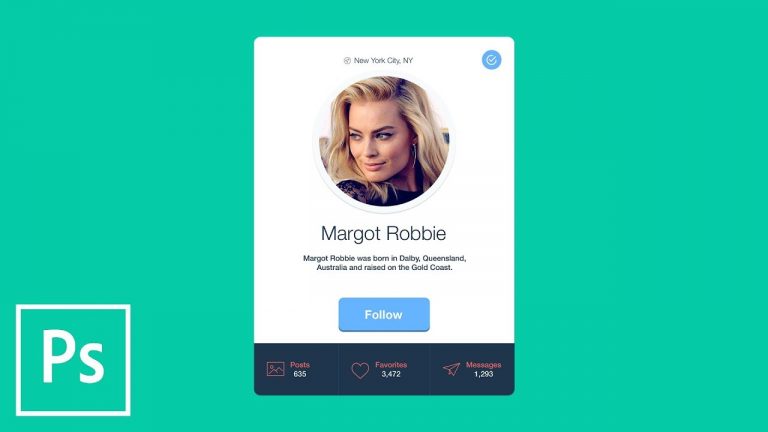
FLAT DESIGN: Create Profile Card User Interface with Photoshop CC

0

USE SHAPES, SPACING, AND COLOR TO CREATE THIS COOL UI! | We will break down how to work with perfectly aligned shapes, grids, and even some cool sizing tricks for typography.

? Buy the Photoshop Course and Support the Channel → http://bit.ly/28NuwFy

? My Instagram: http://instagram.com/tutvid

? Subscribe for Daily Tutorials → https://goo.gl/DN4Nln

Colors Scheme: https://color.adobe.com/Improved-Flat-UI—By-Frank-color-theme-8953063/
Icons:
https://www.flaticon.com/free-icon/tick-inside-circle_61222
https://www.flaticon.com/free-icon/navigation_149431
https://www.flaticon.com/free-icon/paper-plane_149444
https://www.flaticon.com/free-icon/picture_149092
https://www.flaticon.com/free-icon/like_149217

In this Photoshop tutorial, we will create this sleek flat design avatar/profile card that would look great in almost any application. We will talk about how to use and work with shape layers, Adobe Color, layer styles, alignment using a grid, typography, the golden ratio, icons, and much more! If you’re into graphic design, page layout, app design, web design, or just love Photoshop, this tutorial will be right up your alley!

⚡️ written tutorial here: http://bit.ly/2xxlqee

INSTAGRAM: http://instagram.com/tutvid
TWITTER: http://twitter.com/tutvid
FACEBOOK: https://www.facebook.com/tutvid
SNAPCHAT: tutvid.com

tutvid is a YouTube channel dedicated to creating the best Adobe Photoshop, Premiere Pro, Lightroom, and Illustrator tutorials. My goal is to create the best, most informative, and entertaining tutorials on the web. If you enjoy my videos, the best way to support what I do here is to purchase my course linked above or simply subscribe to the YouTube channel by pressing the red button.

✉️ business inquiries: nate@tutvid.com

SPEED UP Your Video Editing With This Workflow Trick in Premiere CC

0

LEARN ABOUT PROXIES AND HOW THEY WILL HELP YOU EDIT FASTER! | In this tutorial, we’ll lay out three different ways to use proxies to enable you to edit massive video files even on the slowest computer!

? ↓ VIDEO GUIDE ↓ ?
01:00 How Proxy Editing Works
03:19 Proxy Method #1 – standard import manual proxies
07:58 Proxy Method #2 – media browser auto-proxy creation
12:00 Proxy Method #3 – custom preset ingest method
15:50 Creating the ingest preset

? Buy the Photoshop Course and Support the Channel → http://bit.ly/28NuwFy

? My Instagram: http://instagram.com/tutvid

? Subscribe for Daily Tutorials → https://goo.gl/DN4Nln

In this Premiere Pro video editing tutorial, we will talk all about Proxies in Premiere Pro. This will be a deep dive on three different ways to import and create proxies in Premiere, what proxy files are and why they’re so great, how they can make your editing process faster, as well as why and when you might want to use them. This should be the definitive video that helps you understand proxies, proxy files, and Premiere Pro in less than 30 minutes!

Icons used: https://www.flaticon.com/packs/camera-and-accesories-3
https://www.flaticon.com/packs/cinematography

⚡️ written tutorial here: http://bit.ly/2yKjO10

INSTAGRAM: http://instagram.com/tutvid
TWITTER: http://twitter.com/tutvid
FACEBOOK: https://www.facebook.com/tutvid
SNAPCHAT: tutvid.com

tutvid is a YouTube channel dedicated to creating the best Adobe Photoshop, Premiere Pro, Lightroom, and Illustrator tutorials. My goal is to create the best, most informative, and entertaining tutorials on the web. If you enjoy my videos, the best way to support what I do here is to purchase my course linked above or simply subscribe to the YouTube channel by pressing the red button.

✉️ business inquiries: nate@tutvid.com

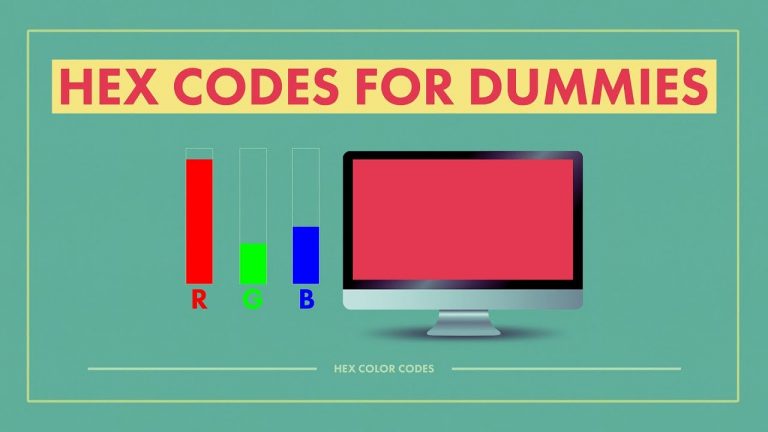
HEX CODE for Dummies (The Non-Technical Guide) (Base-16)

0

LEARN ALL ABOUT THE HEX CODE AND WHY IT WORKS! | We’ll talk a colorful walk through where color starts in a monitor and learn much about how hexadecimal color codes work.

? Buy the Photoshop Course and Support the Channel → http://bit.ly/28NuwFy

? My Instagram: http://instagram.com/tutvid

? Subscribe for Daily Tutorials → https://goo.gl/DN4Nln

Test your own skills with the color code game I played in the video! http://yizzle.com/whatthehex/?n=10

In this video, we will break down exactly the what, why, and how of the hex color code system. You will learn how and where the color channels get the information from and what each part of the hex color code means and how you can quickly interpret any hex code to figure out what color it is.

⚡️ written tutorial here: http://bit.ly/2wmFqPn

INSTAGRAM: http://instagram.com/tutvid
TWITTER: http://twitter.com/tutvid
FACEBOOK: https://www.facebook.com/tutvid
SNAPCHAT: tutvid.com

tutvid is a YouTube channel dedicated to creating the best Adobe Photoshop, Premiere Pro, Lightroom, and Illustrator tutorials. My goal is to create the best, most informative, and entertaining tutorials on the web. If you enjoy my videos, the best way to support what I do here is to purchase my course linked above or simply subscribe to the YouTube channel by pressing the red button.

✉️ business inquiries: nate@tutvid.com

The Golden Ratio for Logo or Icon Design in Illustrator

0

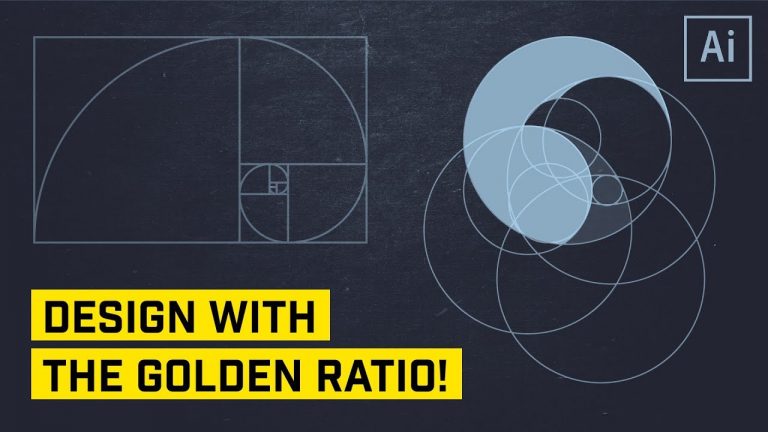
CREATE THE GOLDEN RATIO SPIRAL AND A LOGO MARK WITH THIS TUTORIAL! | We’ll create the Golden Ratio rectangle from scratch in this tutorial and you’ll see how easy, fun, and useful this technique can really be!

? Buy the Photoshop Course and Support the Channel → http://bit.ly/28NuwFy

? My Instagram: http://instagram.com/tutvid

? Subscribe for Daily Tutorials → https://goo.gl/DN4Nln

In this Adobe Illustrator tutorial, we will create our very own golden ratio spiral rectangle (Fibonacci sequence) and then use the techniques we’ve learned to create a series of circles that we can overlay on a sketch in Illustrator and use the Shaper Tool to quickly hack away and join shapes together to create a simple flat, negative space icon. This technique is effective for so many different design applications and I think you’ll really love this! Thanks for watching!

⚡️ written tutorial here: http://bit.ly/2wp3VM1

INSTAGRAM: http://instagram.com/tutvid
TWITTER: http://twitter.com/tutvid
FACEBOOK: https://www.facebook.com/tutvid
SNAPCHAT: tutvid.com

tutvid is a YouTube channel dedicated to creating the best Adobe Photoshop, Premiere Pro, Lightroom, and Illustrator tutorials. My goal is to create the best, most informative, and entertaining tutorials on the web. If you enjoy my videos, the best way to support what I do here is to purchase my course linked above or simply subscribe to the YouTube channel by pressing the red button.

✉️ business inquiries: nate@tutvid.com

Swipe-to-Reveal Text Effect in After Effects (Animated Mask Reveal)

0

CREATE A SWIPE TO REVEAL EFFECT IN AFTER EFFECTS! | We’ll manually keyframe a mask to hide and reveal a type tagline in our video project.

? Buy the Photoshop Course and Support the Channel → http://bit.ly/28NuwFy

? My Instagram: http://instagram.com/tutvid

? Subscribe for Daily Tutorials → https://goo.gl/DN4Nln

In this After Effects tutorial, we will learn to create and animate a mask that will form a highly customizable animated mask that will hide or reveal text as an object travels through our video (we will use a truck driving in this video to “swipe” in some text.) Learn some basic features of transforming, text, masks, and animation in After Effects in this tutorial.

⚡️ written tutorial here: http://bit.ly/2xOKzCN

INSTAGRAM: http://instagram.com/tutvid
TWITTER: http://twitter.com/tutvid
FACEBOOK: https://www.facebook.com/tutvid
SNAPCHAT: tutvid.com

tutvid is a YouTube channel dedicated to creating the best Adobe Photoshop, Premiere Pro, Lightroom, and Illustrator tutorials. My goal is to create the best, most informative, and entertaining tutorials on the web. If you enjoy my videos, the best way to support what I do here is to purchase my course linked above or simply subscribe to the YouTube channel by pressing the red button.

✉️ business inquiries: nate@tutvid.com

How to Blend Tones & Color Match for Composite Images in Photoshop

0

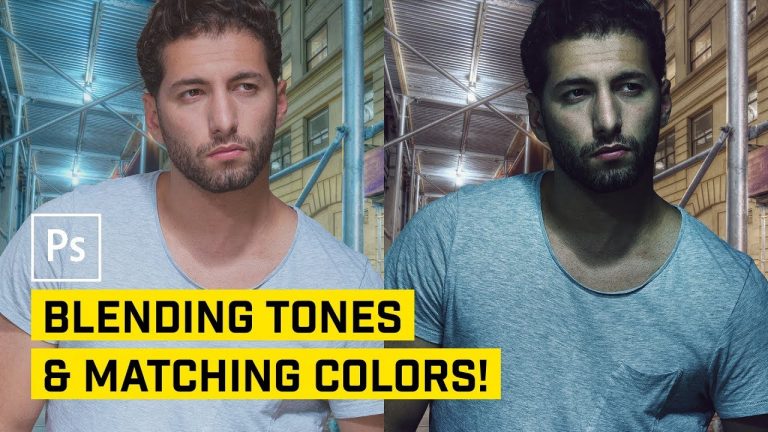
CHECK OUT THIS TECHNIQUE THAT ANYONE CAN DO! | We’ll use a couple adjustment layers and an eyedropper tool to correctly match color and tone in any composite image in Photoshop.

? Buy the Photoshop Course and Support the Channel → http://bit.ly/28NuwFy

? My Instagram: http://instagram.com/tutvid

? Subscribe for Daily Tutorials → https://goo.gl/DN4Nln

In this Photoshop tutorial, we’ll take a look at using Curves, Color Channels, and simple Clipping Masks to quickly and effectively match colors in a composite image using a specific numbers-based technique that is more than just looking at a photo and “knowing” what needs to be done with the image. This technique will allow you to know exactly why you’re doing what you’re doing and how to attack new composite images and solve any color or exposure differences when building a composite photo.

⚡️ written tutorial here: http://bit.ly/2xTJrfX

INSTAGRAM: http://instagram.com/tutvid
TWITTER: http://twitter.com/tutvid
FACEBOOK: https://www.facebook.com/tutvid
SNAPCHAT: tutvid.com

tutvid is a YouTube channel dedicated to creating the best Adobe Photoshop, Premiere Pro, Lightroom, and Illustrator tutorials. My goal is to create the best, most informative, and entertaining tutorials on the web. If you enjoy my videos, the best way to support what I do here is to purchase my course linked above or simply subscribe to the YouTube channel by pressing the red button.

✉️ business inquiries: nate@tutvid.com

“Instagram” Style Sports Photo Edit in Photoshop CC

0

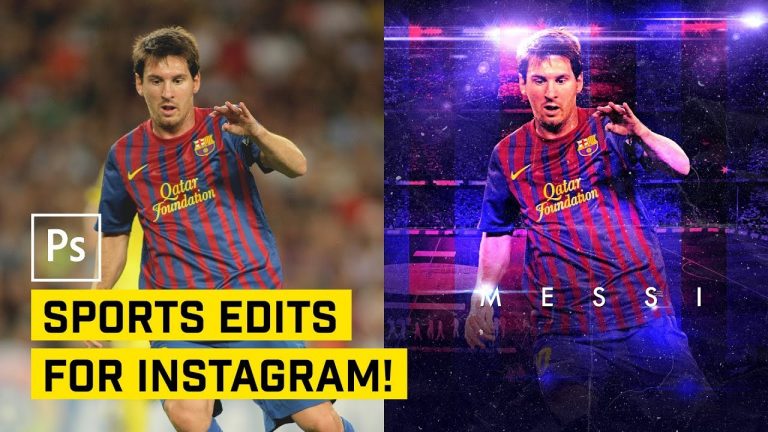
LEARN THE INS & OUTS OF MAKING GRAPHICS FOR INSTAGRAM! | How to make this high contrast, punchy graphic and text effect in Photoshop. | We will cover everything from Select and Mask to Adjustment Layers, and Smart Objects, and even applying texture to an image.

? Buy the Photoshop Course and Support the Channel → http://tutvid.com/advanced-photoshop-tutorial-bundle/

? My Instagram: http://instagram.com/tutvid

? Subscribe for Daily Tutorials → https://goo.gl/DN4Nln

In this Photoshop tutorial, we will create an Instagram style sports edit using the international superstar footballer, Lionel Messi. We will move him to a new background, add flares and color, tweak the background to add contrast between him and his stadium, add dusty atmospheric elements, do all kinds of color treatments, and add texture to really sell the effect. You’ll know it when you see it! If you work with any kind of graphics design, image manipulation, or composite work in Photoshop, you will definitely learn something from this tutorial! Thanks for watching!

⚡️ written tutorial here: http://bit.ly/2yUV5pY

INSTAGRAM: http://instagram.com/tutvid
TWITTER: http://twitter.com/tutvid
FACEBOOK: https://www.facebook.com/tutvid
SNAPCHAT: tutvid.com

tutvid is a YouTube channel dedicated to creating the best Adobe Photoshop, Premiere Pro, Lightroom, and Illustrator tutorials. My goal is to create the best, most informative, and entertaining tutorials on the web. If you enjoy my videos, the best way to support what I do here is to purchase my course linked above or simply subscribe to the YouTube channel by pressing the red button.

✉️ business inquiries: nate@tutvid.com

Edit FASTER with RIPPLE DELETE in Premiere Pro

0

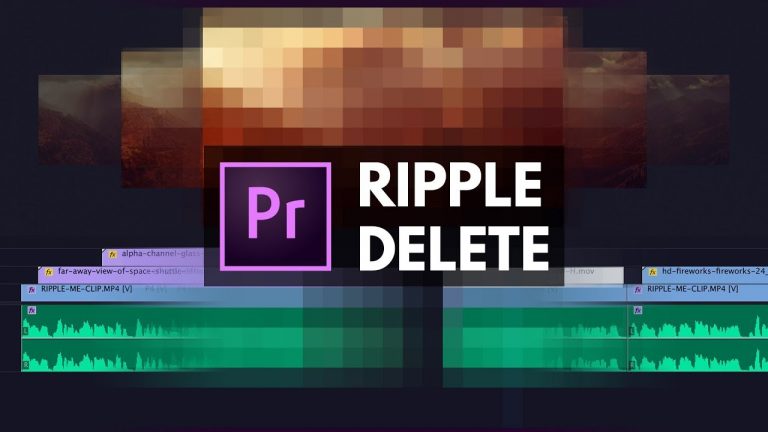
ALL ABOUT HOW TO USE THE RIPPLE DELETE AND ROLLING EDIT TOOLS IN PREMIERE PRO! | We will cover some great tricks for performing cuts, edits, ripple deletes, J and L cuts, rolling edits, extended edits, and much more in this Premiere Pro tutorial!

? ↓ VIDEO GUIDE ↓ ?
01:14 Very Basic Ripple Delete
01:50 Ripple Delete Hotkey
02:37 Rippling Markers Down the Timeline
03:06 The Powerful “Add Edit” Hotkey
04:21 The Ripple Edit Tool (B)
04:58 Ripple Edit Tool Hotkey
05:51 Ripple Delete One Frame At-a-time Trick!
06:57 Extraction Ripple Delete Method
07:53 Rolling Edits for “J” or “L” Cuts
09:15 Extend Edit Hotkey
09:54 Extend or Roll Edit Hotkey

? Buy the Photoshop Course and Support the Channel → http://bit.ly/28NuwFy

? My Instagram: http://instagram.com/tutvid

? Subscribe for Daily Tutorials → https://goo.gl/DN4Nln

In this Premiere Pro video editing tutorial, we will breakdown all the various ways you can use the Ripple Delete feature as well as extracting and rippling footage, creating custom hotkeys to help your editing process fly faster than you ever imagined, and also a number of default Premiere hotkey tricks that will help with both speed and precision in your next video editing project.

⚡️ written tutorial here: http://bit.ly/2yDLRSO

INSTAGRAM: http://instagram.com/tutvid
TWITTER: http://twitter.com/tutvid
FACEBOOK: https://www.facebook.com/tutvid
SNAPCHAT: tutvid.com

tutvid is a YouTube channel dedicated to creating the best Adobe Photoshop, Premiere Pro, Lightroom, and Illustrator tutorials. My goal is to create the best, most informative, and entertaining tutorials on the web. If you enjoy my videos, the best way to support what I do here is to purchase my course linked above or simply subscribe to the YouTube channel by pressing the red button.

✉️ business inquiries: nate@tutvid.com