Home Blog Page 125

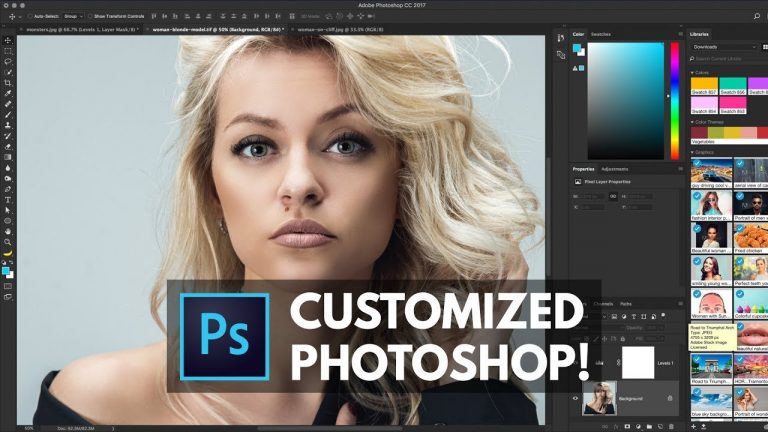
10 Steps to CUSTOMIZING Photoshop FOR YOU

0

LEARN THE INS AND OUTS OF PHOTOSHOP’S INTERFACE! | We will cover everything from simply dragging and organizing your workspace to little tips, tricks, and hidden goofs in the Photoshop UI.

? Buy the Photoshop Course and Support the Channel → http://bit.ly/28NuwFy

? My Instagram: http://instagram.com/tutvid

? Subscribe for Daily Tutorials → https://goo.gl/DN4Nln

In this Photoshop tutorial, we’ll talk all about how to change, customize, and set Photoshop up perfectly for the person that uses it the most, YOU! We’ll resize and customize the toolbars and docks, we’ll change the brightness of the interface, we’ll find hidden tools, customize the Layers Panel, customize hotkeys, menus items, toolbars, and even change the entire view mode of Photoshop to hide everything or create a full screen editing and viewing experience. After all the hard work, we’ll also save a workspace and make sure we keep our customized working experience.

⚡️ written tutorial here: http://bit.ly/2g4lf5G

INSTAGRAM: http://instagram.com/tutvid
TWITTER: http://twitter.com/tutvid
FACEBOOK: https://www.facebook.com/tutvid
SNAPCHAT: tutvid.com

tutvid is a YouTube channel dedicated to creating the best Adobe Photoshop, Premiere Pro, Lightroom, and Illustrator tutorials. My goal is to create the best, most informative, and entertaining tutorials on the web. If you enjoy my videos, the best way to support what I do here is to purchase my course linked above or simply subscribe to the YouTube channel by pressing the red button.

✉️ business inquiries: nate@tutvid.com

How to Edit Videos for INSTAGRAM Posts and Insta Stories

0

LEARN TO EDIT VIDEO FOR INSTA IN PREMIERE PRO! | Up your Instagram game by creating content specifically for the platform and delivering higher quality content than your peers! Learn everything you need to know about editing for Instagram in this video.

? Buy the Photoshop Course and Support the Channel → http://bit.ly/28NuwFy

? My Instagram: http://instagram.com/tutvid

? Subscribe for Daily Tutorials → https://goo.gl/DN4Nln

In this Premiere Pro video editing tutorial, we will look at creating the properly sized and timed sequences in Premiere Pro to create videos for your Instagram feed AND for your Instagram story. In addition to the basics of building the sequences you need for Instagram and exporting the files that will work for you, I’ll also cover a bunch of different editing tips and tricks and build out a simple Instagram video for a fake project that we’ll be working on in this tutorial.

⚡️ written tutorial here: http://bit.ly/2vdC0hj

INSTAGRAM: http://instagram.com/tutvid
TWITTER: http://twitter.com/tutvid
FACEBOOK: https://www.facebook.com/tutvid
SNAPCHAT: tutvid.com

tutvid is a YouTube channel dedicated to creating the best Adobe Photoshop, Premiere Pro, Lightroom, and Illustrator tutorials. My goal is to create the best, most informative, and entertaining tutorials on the web. If you enjoy my videos, the best way to support what I do here is to purchase my course linked above or simply subscribe to the YouTube channel by pressing the red button.

✉️ business inquiries: nate@tutvid.com

VISUAL BREAKDOWN: 8-bit vs 16-bit images

0

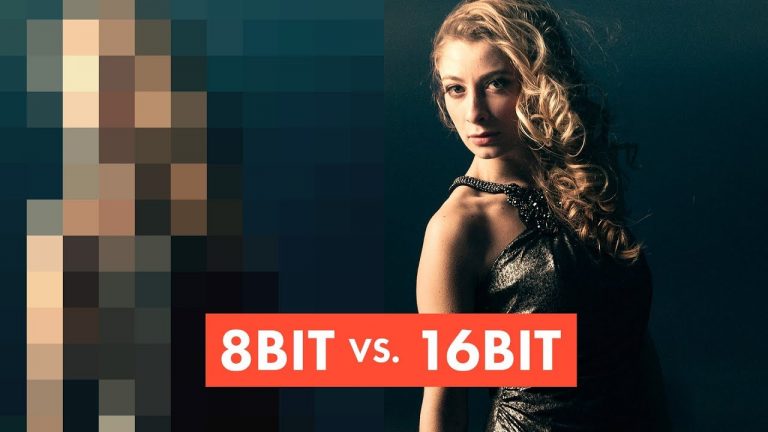
SHOOT IN RAW? EDIT IN 16 BIT MODE? SEE IT ALL HERE! | Check out my short video breakdown that will help you understand the differences between 8bit and 16bit images and editing in Photoshop.

? Buy the Photoshop Course and Support the Channel → http://bit.ly/28NuwFy

? My Instagram: http://instagram.com/tutvid

? Subscribe for Daily Tutorials → https://goo.gl/DN4Nln

In this video, we will breakdown the differences between an 8bit and a 16bit image and talk about the math behind what makes the color and tone work and we’ll also compare a bunch of images side-by-side and see the difference between 8bits and 16bits when editing in Photoshop. I hope you enjoy it and get a thing or two out of the video!

⚡️ written tutorial here: http://bit.ly/2wmduMn

INSTAGRAM: http://instagram.com/tutvid
TWITTER: http://twitter.com/tutvid
FACEBOOK: https://www.facebook.com/tutvid
SNAPCHAT: tutvid.com

tutvid is a YouTube channel dedicated to creating the best Adobe Photoshop, Premiere Pro, Lightroom, and Illustrator tutorials. My goal is to create the best, most informative, and entertaining tutorials on the web. If you enjoy my videos, the best way to support what I do here is to purchase my course linked above or simply subscribe to the YouTube channel by pressing the red button.

✉️ business inquiries: nate@tutvid.com

Make Better Videos w/ these AMAZING Premiere Pro Transitions

0

LEARN TO CREATE 5 SIMPLE & BEAUTIFUL TRANSITION EFFECTS IN PREMIERE PRO! | We’ll talk about a simple zoom, a lens distortion bump, a splatter transition, a rolling panoramic transition, and a twisting, zooming transition effect in this tutorial!

? Buy the Photoshop Course and Support the Channel → http://bit.ly/28NuwFy

? My Instagram: http://instagram.com/tutvid

? Subscribe for Daily Tutorials → https://goo.gl/DN4Nln

? ↓ VIDEO GUIDE ↓ ?
00:48 Zoom Transition
10:18 Lens Distortion Bump Transition
13:46 Center Splash Effect Transition
18:18 Panoramic Rotation Transition
24:12 Twisting Zoom Transition

In this Premiere Pro video editing tutorial, we will use a series of video clips and Adjustment Layers to build a few different effects that you will be able to easily use in your own video projects. We will save these transitions as presets so they take just a few seconds to use later on when you decide to add them to your own video editing projects.

⚡️ written tutorial here: http://bit.ly/2wZb3Th

INSTAGRAM: http://instagram.com/tutvid
TWITTER: http://twitter.com/tutvid
FACEBOOK: https://www.facebook.com/tutvid
SNAPCHAT: tutvid.com

tutvid is a YouTube channel dedicated to creating the best Adobe Photoshop, Premiere Pro, Lightroom, and Illustrator tutorials. My goal is to create the best, most informative, and entertaining tutorials on the web. If you enjoy my videos, the best way to support what I do here is to purchase my course linked above or simply subscribe to the YouTube channel by pressing the red button.

✉️ business inquiries: nate@tutvid.com

Create Bubble Text with Simple Illustration Techniques

0

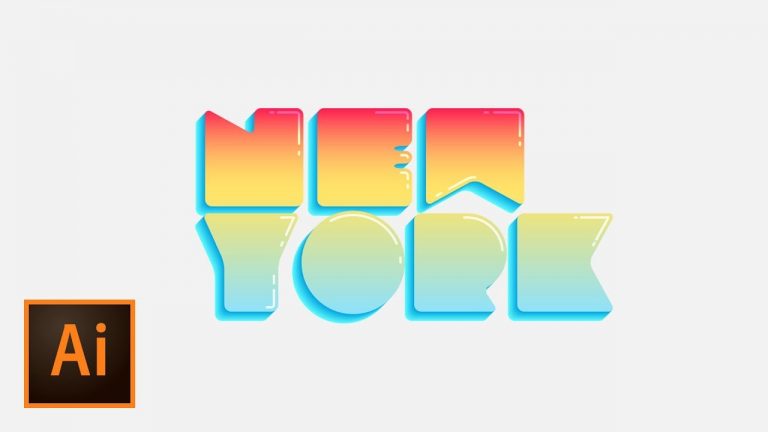
CREATE THIS TEXT EFFECT IN ADOBE ILLUSTRATOR! | Learn to break down a typeface and add color and highlights to complete this effect.

? Buy the Photoshop Course and Support the Channel → http://bit.ly/28NuwFy

? My Instagram: http://instagram.com/tutvid

? Subscribe for Daily Tutorials → https://goo.gl/DN4Nln

In this Adobe Illustrator tutorial, we will take a look at adding rounded corners to a typeface to make some “soft” text and then we’ll build a fake 3D base for the text facade, add a gradient that spans multiple objects, and use the paths to create a retracted stroke that will become a dynamic highlight for the edges of the text.

⚡️ written tutorial here: http://bit.ly/2gtq0lI

INSTAGRAM: http://instagram.com/tutvid
TWITTER: http://twitter.com/tutvid
FACEBOOK: https://www.facebook.com/tutvid
SNAPCHAT: tutvid.com

tutvid is a YouTube channel dedicated to creating the best Adobe Photoshop, Premiere Pro, Lightroom, and Illustrator tutorials. My goal is to create the best, most informative, and entertaining tutorials on the web. If you enjoy my videos, the best way to support what I do here is to purchase my course linked above or simply subscribe to the YouTube channel by pressing the red button.

✉️ business inquiries: nate@tutvid.com

Explosion Disintegration Effect Photoshop Tutorial

0

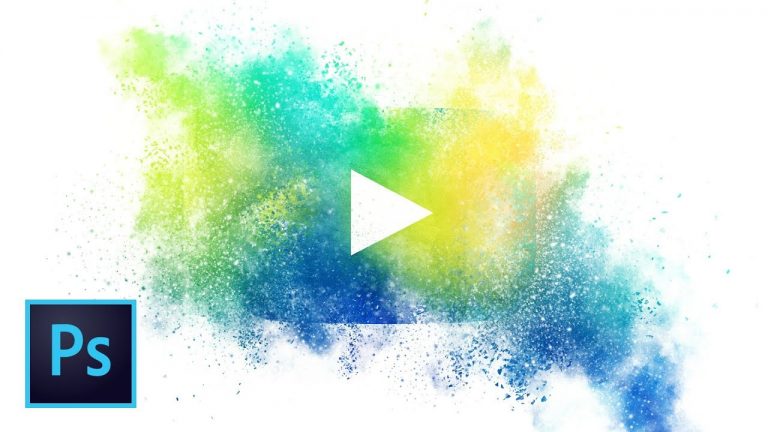
CREATE THIS DISPERSION EFFECT IN PHOTOSHOP!

? Buy the Photoshop Course and Support the Channel → http://bit.ly/28NuwFy

? My Instagram: http://instagram.com/tutvid

? Subscribe for Daily Tutorials → https://goo.gl/DN4Nln

DOWNLOADS:
Color Inspiration: https://unsplash.com/collections/142376/awash-in-color (choose almost any photo from this collection)
Texture: https://www.toptal.com/designers/subtlepatterns/vintage-concrete/
Brush Pack: https://www.brusheezy.com/brushes/1792-free-hi-res-watercolor-photoshop-brushes
https://www.brusheezy.com/brushes/57611-free-watercolor-wash-photoshop-brushes-3

Powder Brushes: https://www.brusheezy.com/brushes/59394-powder-brushes-4
Dust Brushes: https://www.brusheezy.com/brushes/58085-free-dust-photoshop-brushes
Explosion Brushes: https://www.brusheezy.com/brushes/17364-free-explosion-brushes
Disintegration Brushes: https://www.brusheezy.com/brushes/58623-free-disintegration-photoshop-brushes-18
YouTube Icon: https://worldvectorlogo.com/logo/youtube-icon

In this Photoshop tutorial, we’ll create our own custom watercolor texture using a mix of Photoshop brushes, dodging and burning, textures, and a photo to establish a base color scheme. After we’ve created a watercolor texture, we’ll mask it to a popular logo and use more Photoshop brushes to create an exploding disintegrating effect that will make our logo look like it’s bursting from the surface on which it is placed for this really cool effect!

⚡️ written tutorial here: http://bit.ly/2etml6I

INSTAGRAM: http://instagram.com/tutvid
TWITTER: http://twitter.com/tutvid
FACEBOOK: https://www.facebook.com/tutvid
SNAPCHAT: tutvid.com

tutvid is a YouTube channel dedicated to creating the best Adobe Photoshop, Premiere Pro, Lightroom, and Illustrator tutorials. My goal is to create the best, most informative, and entertaining tutorials on the web. If you enjoy my videos, the best way to support what I do here is to purchase my course linked above or simply subscribe to the YouTube channel by pressing the red button.

✉️ business inquiries: nate@tutvid.com

Call Out Titles in Premiere Pro

0

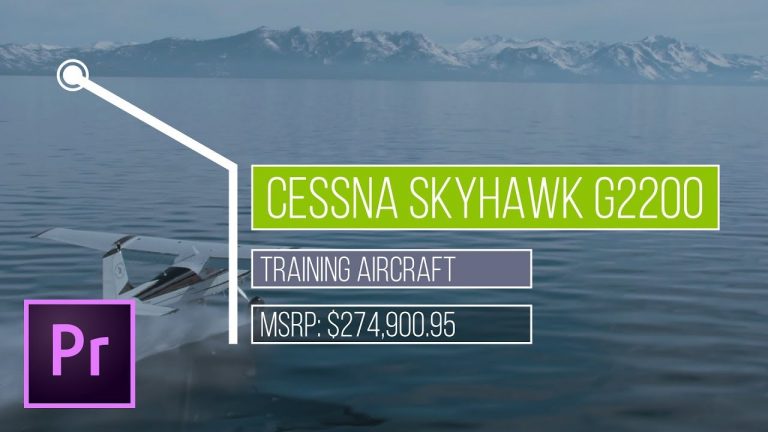
CREATE THESE CALL OUT TITLES IN PREMIERE AND USE THEM OVER AND OVER! | Learn to build a template call out title that you can customize and use for any project!

? Buy the Photoshop Course and Support the Channel → http://bit.ly/28NuwFy

? My Instagram: http://instagram.com/tutvid

? Subscribe for Daily Tutorials → https://goo.gl/DN4Nln

? ↓ VIDEO GUIDE ↓ ?
00:49 Housekeeping
02:10 Start making shapes
04:43 Animate the first title
05:15 Talking about anchor points
06:27 Keyframes
07:27 Animating a mask
09:35 Duplicating animated objects
13:21 Offsetting the animation
14:14 Cross Dissolve Trick
15:39 Creating the “Dot”
19:05 Animating the “Dot”
21:14 Making the outer ring appear
22:04 Creating the tech arm
25:56 Adjusting the timing
28:51 Applying the call out title in a project
30:41 Dealing with multiple call out titles

In this Premiere Pro video editing tutorial, we will use shape objects and text to create a complex call out title in Premiere Pro and we will use keyframes and masks to create a nice animation that will build out the call out title as it is displayed in your video project.

⚡️ written tutorial here: http://bit.ly/2wHc80g

INSTAGRAM: http://instagram.com/tutvid
TWITTER: http://twitter.com/tutvid
FACEBOOK: https://www.facebook.com/tutvid
SNAPCHAT: tutvid.com

tutvid is a YouTube channel dedicated to creating the best Adobe Photoshop, Premiere Pro, Lightroom, and Illustrator tutorials. My goal is to create the best, most informative, and entertaining tutorials on the web. If you enjoy my videos, the best way to support what I do here is to purchase my course linked above or simply subscribe to the YouTube channel by pressing the red button.

✉️ business inquiries: nate@tutvid.com

Create more DRAMATIC Black & White Photos with This Technique!

0

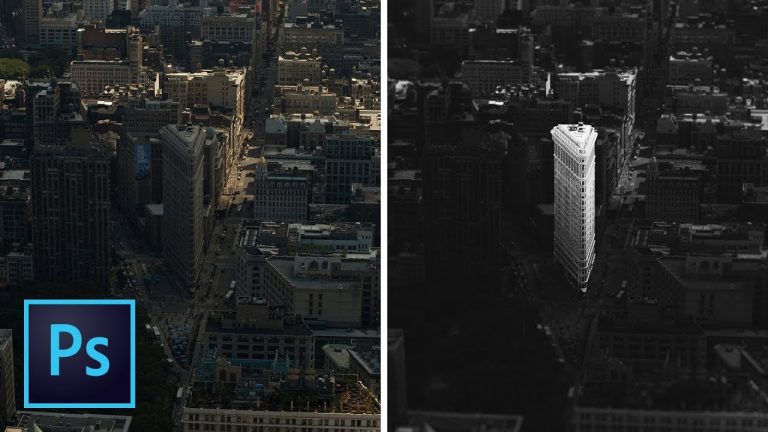
ISOLATE A SUBJECT IN BLACK AND WHITE TO CHANGE THE FOCUS OF A PHOTO! | Use Camera RAW and Masks to bring emphasis to a part of your photo | We will cover how to work with filters, masks, and smart objects to change the entire way a photo is viewed.

? Buy the Photoshop Course and Support the Channel → http://bit.ly/28NuwFy

? My Instagram: http://instagram.com/tutvid

? Subscribe for Daily Tutorials → https://goo.gl/DN4Nln

Images used in this tutorial
https://unsplash.com/photos/mvdgoX3AsKA
https://unsplash.com/photos/B_fEorIyKHM
https://unsplash.com/photos/fBdfsoq08dE

In this Photoshop tutorial, we’ll work on isolating the Flatiron building in a black and white photo to create an image that is really cool looking. We will create a brighter and darker version of the photo using Camera RAW and then we’ll create a mask that limits the brightened area to just what we want and finally, we’ll use Adjustment Layers to create a beautifully toned black and white image that draws the viewer’s eye exactly to where you want them to look.

⚡️ written tutorial here: http://bit.ly/2vRnxbl

INSTAGRAM: http://instagram.com/tutvid
TWITTER: http://twitter.com/tutvid
FACEBOOK: https://www.facebook.com/tutvid
SNAPCHAT: tutvid.com

tutvid is a YouTube channel dedicated to creating the best Adobe Photoshop, Premiere Pro, Lightroom, and Illustrator tutorials. My goal is to create the best, most informative, and entertaining tutorials on the web. If you enjoy my videos, the best way to support what I do here is to purchase my course linked above or simply subscribe to the YouTube channel by pressing the red button.

✉️ business inquiries: nate@tutvid.com

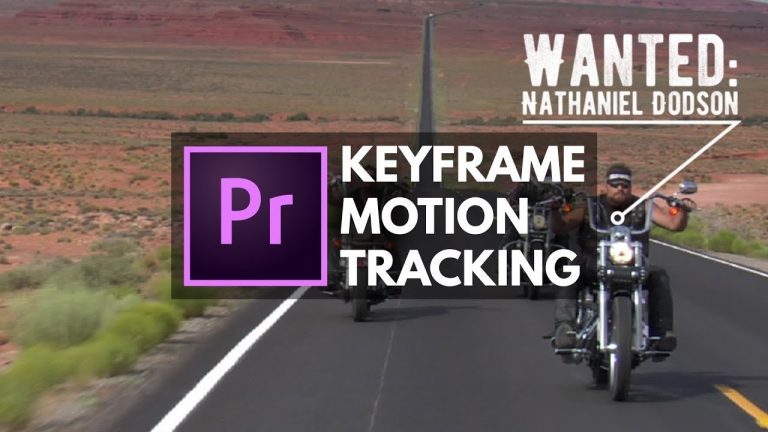
Auto & Manual Motion Tracking an Object with Premiere Pro

0

KEYFRAME BY KEYFRAME TRACKING AND THE SINGLE CLICK TRACKING! | We will check out how to make a call out title follow a moving object in this video.

? Buy the Photoshop Course and Support the Channel → http://bit.ly/28NuwFy

? My Instagram: http://instagram.com/tutvid

? Subscribe for Daily Tutorials → https://goo.gl/DN4Nln

In this Premier Pro video editing tutorial, we will use keyframes to manually keyframe out call out title along with a moving object in this video clip and use a series of clicks that will make the best of a situation that isn’t yet automated in Premiere Pro. We will then create a mask to pixelate out somebody’s face and use the auto-tracking feature to use the power of Premiere’s engine to generate as many keyframes as needed to auto track an object in your video.

⚡️ written tutorial here: http://bit.ly/2f4k1ac

INSTAGRAM: http://instagram.com/tutvid
TWITTER: http://twitter.com/tutvid
FACEBOOK: https://www.facebook.com/tutvid
SNAPCHAT: tutvid.com

tutvid is a YouTube channel dedicated to creating the best Adobe Photoshop, Premiere Pro, Lightroom, and Illustrator tutorials. My goal is to create the best, most informative, and entertaining tutorials on the web. If you enjoy my videos, the best way to support what I do here is to purchase my course linked above or simply subscribe to the YouTube channel by pressing the red button.

✉️ business inquiries: nate@tutvid.com