Home Blog Page 128

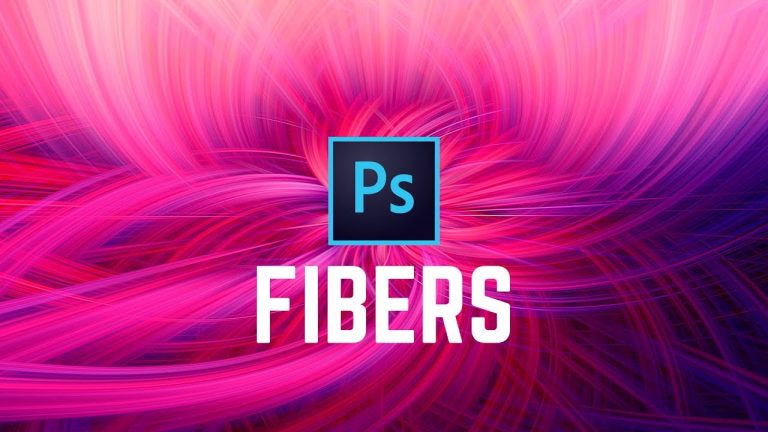
Abstract Twisted Light Fibers Effect Photoshop Tutorial

0

CREATE THIS EFFECT WITH ONE LAYER! | Learn to use the power of Smart Objects to create this effect on a single layer with multiple filters.

? Buy the Photoshop Course and Support the Channel → http://bit.ly/28NuwFy

? My Instagram: http://instagram.com/tutvid

? Subscribe for Daily Tutorials → https://goo.gl/DN4Nln

Download the free stock photo used in this tutorial here: https://unsplash.com/?photo=82gJggDId-U

In this Photoshop tutorial, we will talk about layering blurs and twirl filters together and mixing them with smart filter blend modes to create this cool, old-school-Photoshop twisted abstract fibers effect very quickly! Thanks for checking out this video!

⚡️ written tutorial here: http://bit.ly/2v6mMtS

INSTAGRAM: http://instagram.com/tutvid
TWITTER: http://twitter.com/tutvid
FACEBOOK: https://www.facebook.com/tutvid
SNAPCHAT: tutvid.com

tutvid is a YouTube channel dedicated to creating the best Adobe Photoshop, Premiere Pro, Lightroom, and Illustrator tutorials. My goal is to create the best, most informative, and entertaining tutorials on the web. If you enjoy my videos, the best way to support what I do here is to purchase my course linked above or simply subscribe to the YouTube channel by pressing the red button.

✉️ business inquiries: nate@tutvid.com

3 Rolling Frame Video Transitions Premiere Pro Tutorial

0

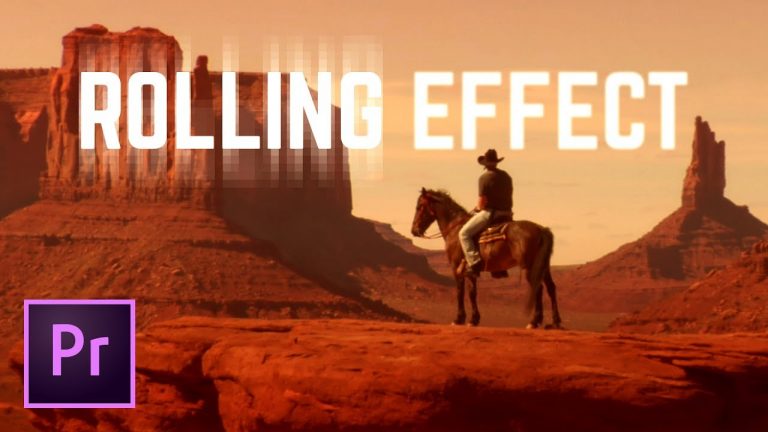
HIGH-SPEED ROLLING TRANSITIONS! | We’ll build out a single complex rolling frame video transition which ends up being 3 different effects all in one. Use any one however you like!

? Buy the Photoshop Course and Support the Channel → http://bit.ly/28NuwFy

? My Instagram: http://instagram.com/tutvid

? Subscribe for Daily Tutorials → https://goo.gl/DN4Nln

In this Premiere Pro video editing tutorial, we will talk about using an Adjustment Layer paired with a video offset, a blur, and some noise to create the base of this slot machine-like rolling shutter video transition effect. Learn to animate effects, ease effects, create animated masks from simple color mattes, create precisely sized objects as well when we create the slot machine style effect. You’re going to love this effect! Thanks for watching!

⚡️ written tutorial here: http://bit.ly/2ujT8Va

INSTAGRAM: http://instagram.com/tutvid
TWITTER: http://twitter.com/tutvid
FACEBOOK: https://www.facebook.com/tutvid
SNAPCHAT: tutvid.com

tutvid is a YouTube channel dedicated to creating the best Adobe Photoshop, Premiere Pro, Lightroom, and Illustrator tutorials. My goal is to create the best, most informative, and entertaining tutorials on the web. If you enjoy my videos, the best way to support what I do here is to purchase my course linked above or simply subscribe to the YouTube channel by pressing the red button.

✉️ business inquiries: nate@tutvid.com

Photo Composite and Manipulation Workflow Photoshop Tutorial

0

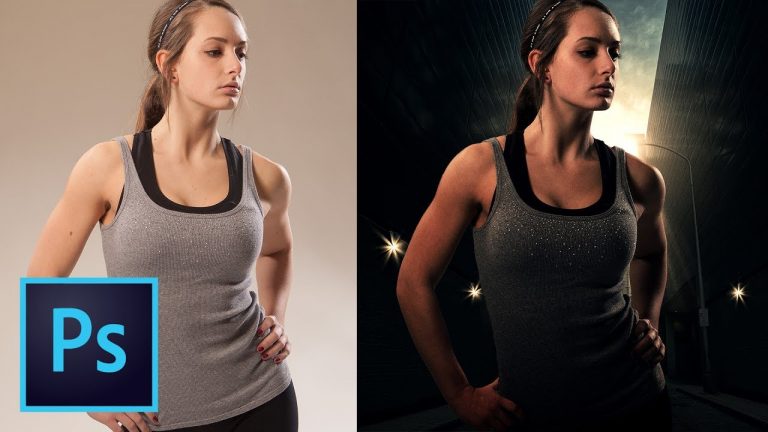
LEARN TO COMPOSITE AND BLEND PHOTOS IN PHOTOSHOP! | We will talk about how to create a background, cut out the subject, determine the correct level of exposure for background and model, as well as matching and creating color, and much more!

Download RAW photos here! http://bit.ly/2vzfv65
Download flare brushes here: https://www.brusheezy.com/brushes/57368-free-lens-flares-photoshop-brushes-5

? Buy the Photoshop Course and Support the Channel → http://bit.ly/28NuwFy

? My Instagram: http://instagram.com/tutvid

? Subscribe for Daily Tutorials → https://goo.gl/DN4Nln

Model from this tutorial Instagram: https://www.instagram.com/cdurk24/

Sign up for my newsletter and you’ll be able to download the RAW photos to follow along! Click here: http://bit.ly/2vzfv65

In this Photoshop tutorial, we will break down a composite image and start from the RAW images right out of the camera and process this piece all the way through to completion. We will talk about straightening and flipping the background to complete the backdrop of the composite, we will talk about a ton of color and toning, we will fight with Select and Mask to get a reasonable selection of our model, we will then look at using Adjustment Layers to match the exposure and color of the model with the environment into which we’re dropping the model. If you’re interested in Photography, Photoshop, Composite Workflows, or Photo Manipulation, you’re going to love this video!

⚡️ written tutorial here: http://bit.ly/2vzfv65

INSTAGRAM: http://instagram.com/tutvid
TWITTER: http://twitter.com/tutvid
FACEBOOK: https://www.facebook.com/tutvid
SNAPCHAT: tutvid.com

tutvid is a YouTube channel dedicated to creating the best Adobe Photoshop, Premiere Pro, Lightroom, and Illustrator tutorials. My goal is to create the best, most informative, and entertaining tutorials on the web. If you enjoy my videos, the best way to support what I do here is to purchase my course linked above or simply subscribe to the YouTube channel by pressing the red button.

✉️ business inquiries: nate@tutvid.com

VHS Retro Camcorder Effect Premiere Pro Tutorial

0

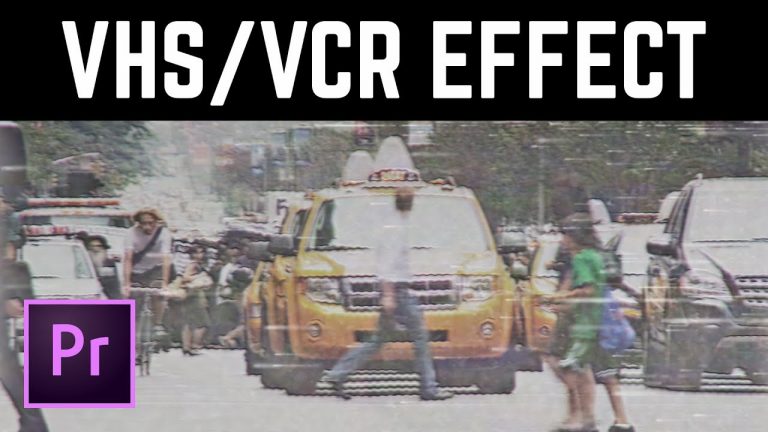
CREATE THIS PRESET VHS EFFECT SO YOU CAN USE IT ANYTIME YOU LIKE! | We will cover using multiple adjustment layers and a VHS overlay to create a convincing VHS style effect.

Download the finishing VHS effect I used here: https://www.youtube.com/watch?v=6zoJavBcU5o

? Buy the Photoshop Course and Support the Channel → http://bit.ly/28NuwFy

? My Instagram: http://instagram.com/tutvid

? Subscribe for Daily Tutorials → https://goo.gl/DN4Nln

In this Premiere Pro video editing tutorial, we will cover layering effects together and using color effects, blurs, and blend modes to convert a beautiful, HD clip to an older ratty-looking 1980s-1990s style camcorder style of footage. This is a very transferrable effect as well because we will take these effects and save them as a couple of presets so we can apply this effect to any project we like. Thanks for checking it out!

⚡️ written tutorial here: http://bit.ly/2vh6nno

INSTAGRAM: http://instagram.com/tutvid
TWITTER: http://twitter.com/tutvid
FACEBOOK: https://www.facebook.com/tutvid
SNAPCHAT: tutvid.com

tutvid is a YouTube channel dedicated to creating the best Adobe Photoshop, Premiere Pro, Lightroom, and Illustrator tutorials. My goal is to create the best, most informative, and entertaining tutorials on the web. If you enjoy my videos, the best way to support what I do here is to purchase my course linked above or simply subscribe to the YouTube channel by pressing the red button.

✉️ business inquiries: nate@tutvid.com

COLORIZE a Black and White Photo Lightroom Tutorial

0

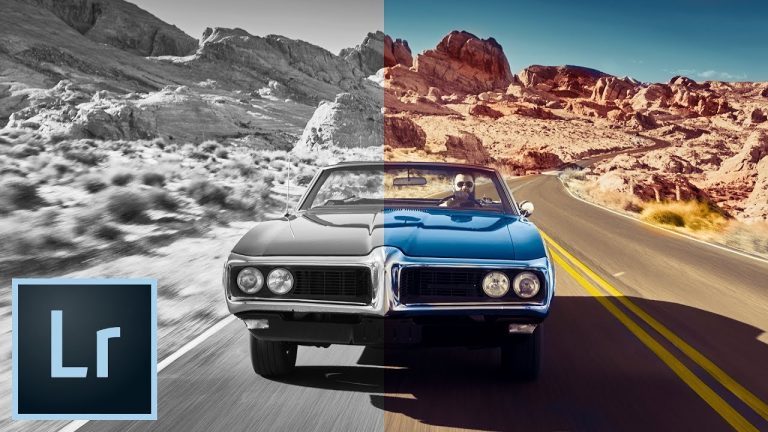
HARNESS THE SLOW, BULKY ADJUSTMENT BRUSH TO MAKE GLORIOUS COLOR PHOTOS FROM YOUR BLACK AND WHITE SHOTS! | We’ll learn all about tips and tricks of using the Adjustment Brush while we convert this black and white photo to a color shot.

? Buy the Photoshop Course and Support the Channel → http://bit.ly/28NuwFy

? My Instagram: http://instagram.com/tutvid

? Subscribe for Daily Tutorials → https://goo.gl/DN4Nln

In this Adobe Lightroom tutorial, we’ll take a black and white photo and use the Adjustment Brush to drop multiple pins and control each segment of the photo to “paint” in color, tone, as well as highlights and shadows to create a realistic-looking color image. We will also cover how to double or triple the power of the adjustment brush by duplicating pins, we’ll talk about auto-masking the Adjustment Brush, and also reduce the overall opacity of an individual pin, and much more! This tutorial is a bit longer than I initially expected it would be, but it’s full of all kinds of info and examples to get you started colorizing your own photos today!

⚡️ written tutorial here: http://bit.ly/2ul9axD

INSTAGRAM: http://instagram.com/tutvid
TWITTER: http://twitter.com/tutvid
FACEBOOK: https://www.facebook.com/tutvid
SNAPCHAT: tutvid.com

tutvid is a YouTube channel dedicated to creating the best Adobe Photoshop, Premiere Pro, Lightroom, and Illustrator tutorials. My goal is to create the best, most informative, and entertaining tutorials on the web. If you enjoy my videos, the best way to support what I do here is to purchase my course linked above or simply subscribe to the YouTube channel by pressing the red button.

✉️ business inquiries: nate@tutvid.com

5 ways to blend text into photos

0

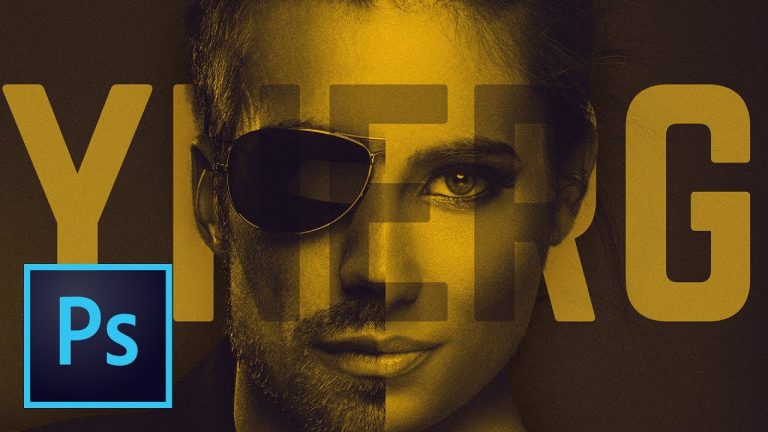
5 WAYS TO BLEND TEXT & IMAGES IN PHOTOSHOP! | We will use Photoshop to mask, blend mode, color change, adjustment layer, and blend text into photos in all sorts of different ways.

Vanity typeface: https://www.behance.net/gallery/17007215/Vanity-Free-Modern-Type-Family

? Buy the Photoshop Course and Support the Channel → http://bit.ly/28NuwFy

? My Instagram: http://instagram.com/tutvid

? Subscribe for Daily Tutorials → https://goo.gl/DN4Nln

In this Photoshop tutorial, we will cover five different ways to blend type into images. Here is that we’ll cover

00:43 : Weave text effect
07:25 : Blended text effect
12:55 : Inverted color type effect
18:03 : Textured text effect
28:44 : In front/behind text effect

We will use masks, gradients, adjustment layers, custom shadows, work with multiple typefaces, color range, texture masks, blend if sliders, and about a thousand other features, tips, and tricks in Photoshop. I hope you love it!

⚡️ written tutorial here: http://bit.ly/2uKJifr

INSTAGRAM: http://instagram.com/tutvid
TWITTER: http://twitter.com/tutvid
FACEBOOK: https://www.facebook.com/tutvid
SNAPCHAT: tutvid.com

tutvid is a YouTube channel dedicated to creating the best Adobe Photoshop, Premiere Pro, Lightroom, and Illustrator tutorials. My goal is to create the best, most informative, and entertaining tutorials on the web. If you enjoy my videos, the best way to support what I do here is to purchase my course linked above or simply subscribe to the YouTube channel by pressing the red button.

✉️ business inquiries: nate@tutvid.com

Draw a Syringe Emoji Illustration Tutorial

0

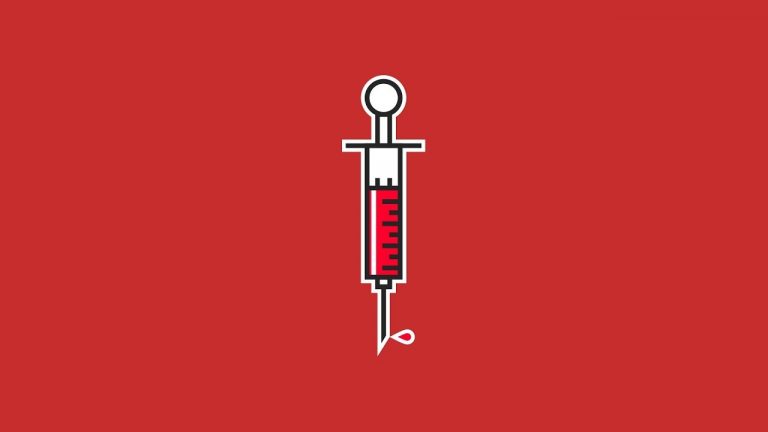
CREATE THIS SYRINGE IN ADOBE ILLUSTRATOR! | Using simple shape tools and the Pathfinder, we will create this slick little syringe illustration in Adobe Illustrator.

? Buy the Photoshop Course and Support the Channel → http://bit.ly/28NuwFy

? My Instagram: http://instagram.com/tutvid

? Subscribe for Daily Tutorials → https://goo.gl/DN4Nln

In this Adobe Illustrator tutorial, we will quickly create a series of shapes and manipulate the strokes, sizes, and fills to combine the shapes using the Pathfinder panel in Illustrator to build this filled syringe icon design much like the syringe emoji!

⚡️ written tutorial here: http://bit.ly/2uUfIos

INSTAGRAM: http://instagram.com/tutvid
TWITTER: http://twitter.com/tutvid
FACEBOOK: https://www.facebook.com/tutvid
SNAPCHAT: tutvid.com

tutvid is a YouTube channel dedicated to creating the best Adobe Photoshop, Premiere Pro, Lightroom, and Illustrator tutorials. My goal is to create the best, most informative, and entertaining tutorials on the web. If you enjoy my videos, the best way to support what I do here is to purchase my course linked above or simply subscribe to the YouTube channel by pressing the red button.

✉️ business inquiries: nate@tutvid.com

Global POWER of Master Clip Effect in Premiere Pro

0

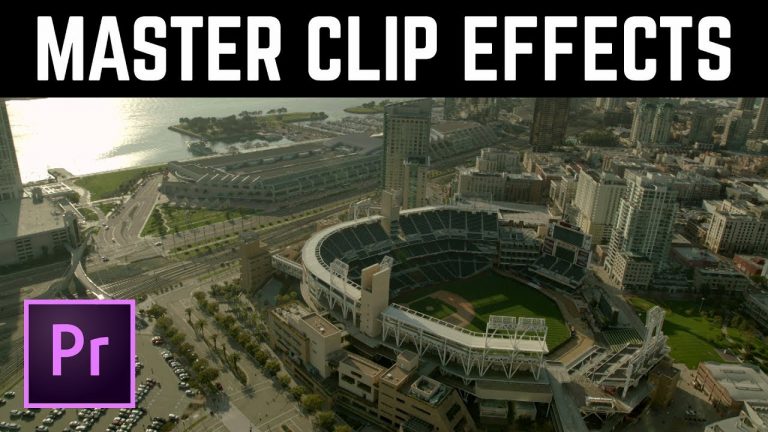
ONE OF THE COOLEST THINGS YOU NEVER KNEW ABOUT PREMIERE PRO! | Apply global effects to a clip, build an adjustment layer or color matter that acts as a pre-packaged preset, too!

? Buy the Photoshop Course and Support the Channel → http://bit.ly/28NuwFy

? My Instagram: http://instagram.com/tutvid

? Subscribe for Daily Tutorials → https://goo.gl/DN4Nln

In this Premiere Pro video editing tutorial, we will take a look at how you can update and add effects to multiple clips in Premiere very easily. This technique is particularly useful when you use three-point editing. You can add clips and build out your edit and then do color grading with Lumetri Color by using Master clip effects instead of targeting every single little clip you’ve cut into the project. I hope you enjoy this tutorial and that it saves you many hours of editing in Premiere Pro.

⚡️ written tutorial here: http://bit.ly/2urI3ke

INSTAGRAM: http://instagram.com/tutvid
TWITTER: http://twitter.com/tutvid
FACEBOOK: https://www.facebook.com/tutvid
SNAPCHAT: tutvid.com

tutvid is a YouTube channel dedicated to creating the best Adobe Photoshop, Premiere Pro, Lightroom, and Illustrator tutorials. My goal is to create the best, most informative, and entertaining tutorials on the web. If you enjoy my videos, the best way to support what I do here is to purchase my course linked above or simply subscribe to the YouTube channel by pressing the red button.

✉️ business inquiries: nate@tutvid.com

Photoshop 3D Text in SEVEN MINUTES!

0

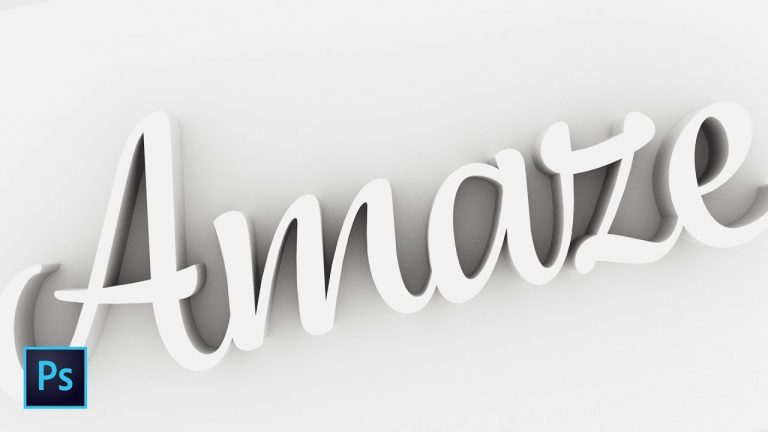
GET STARTED USING 3D IN NO TIME IN PHOTOSHOP! | We’ll create a simple, yet beautiful, 3D text effect in Photoshop with this tutorial.

? Buy the Photoshop Course and Support the Channel → http://bit.ly/28NuwFy

? My Instagram: http://instagram.com/tutvid

? Subscribe for Daily Tutorials → https://goo.gl/DN4Nln

In this Photoshop tutorial, we’ll take a simple approach to creating 3D text to take the mystery out of creating beautiful 3D text that interacts with the background and then the process of rendering it to complete the 3D text effect. It’s pretty fast and pretty easy, but a whole bunch of fun. Get started with 3D in Photoshop today!

⚡️ written tutorial here: http://bit.ly/2uYgBeP

INSTAGRAM: http://instagram.com/tutvid
TWITTER: http://twitter.com/tutvid
FACEBOOK: https://www.facebook.com/tutvid
SNAPCHAT: tutvid.com

tutvid is a YouTube channel dedicated to creating the best Adobe Photoshop, Premiere Pro, Lightroom, and Illustrator tutorials. My goal is to create the best, most informative, and entertaining tutorials on the web. If you enjoy my videos, the best way to support what I do here is to purchase my course linked above or simply subscribe to the YouTube channel by pressing the red button.

✉️ business inquiries: nate@tutvid.com

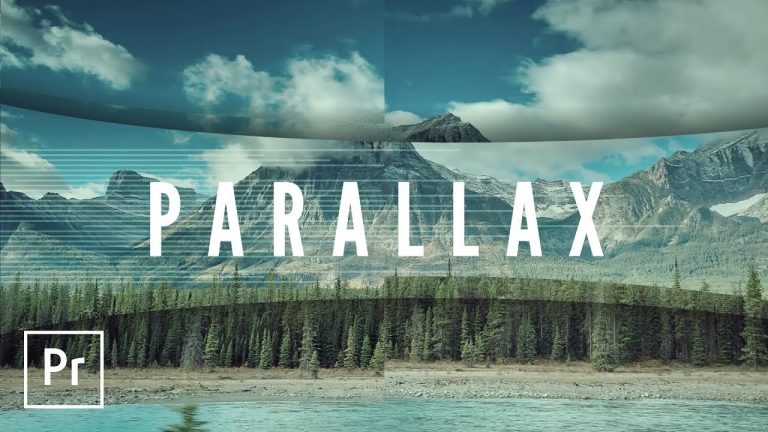
Parallax Style Intro and Transition Video Effects Premiere Pro Tutorial

0

HOW TO MAKE PARALLAX STYLE EFFECTS IN PREMIERE! | We’ll stack up the Adjustment Layers to knock down this effect. Check out the video, you’re going to love it!

? Buy the Photoshop Course and Support the Channel → http://bit.ly/28NuwFy

? My Instagram: http://instagram.com/tutvid

? Subscribe for Daily Tutorials → https://goo.gl/DN4Nln

? ↓ VIDEO GUIDE ↓ ?
01:42 Creating the Intro Effect (after creating sequence and placing clip(s))
02:54 Making the Matte/Adjustment Layer “Sandwich”
06:52 Keyframing and animation
10:08 Making the effect more dynamic by curving the lines
11:42 Creating the transition effect

In this Premiere Pro video editing tutorial, we will take a look at how to create two different effects. First, we’ll create a simple parallax style bumper/intro effect to introduce new video clips in your story and then we’ll create a blurred parallax style video clip transition effect that you’re just going to love. Combining both Adjustment Layers and Color Mattes used as masks, we will be able to create a complex, multi-layered animation that looks much harder to create than it really is. Thanks for watching!

⚡️ written tutorial here: http://bit.ly/2tNGgr8

INSTAGRAM: http://instagram.com/tutvid
TWITTER: http://twitter.com/tutvid
FACEBOOK: https://www.facebook.com/tutvid
SNAPCHAT: tutvid.com

tutvid is a YouTube channel dedicated to creating the best Adobe Photoshop, Premiere Pro, Lightroom, and Illustrator tutorials. My goal is to create the best, most informative, and entertaining tutorials on the web. If you enjoy my videos, the best way to support what I do here is to purchase my course linked above or simply subscribe to the YouTube channel by pressing the red button.

✉️ business inquiries: nate@tutvid.com