Home Blog Page 138

Photography: From Basic to Boss | Adobe Creative Cloud and Mango Street

0

Get some photography tips that don’t waste your time. Mango Street has teamed up with Adobe to give you their favorite photography tips.

Mango Street photo editing tips: https://adobe.ly/2xyAB9W

Subscribe: https://www.youtube.com/user/adobecreativecloud?sub_confirmation=1

LET’S CONNECT
Facebook: http://facebook.com/adobecreativecloud
Twitter: http://twitter.com/creativecloud
Instagram: http://www.instagram.com/adobecreativecloud/

Adobe Creative Cloud gives you the world’s best creative apps so you can turn your brightest ideas into your greatest work across your desktop and mobile devices.


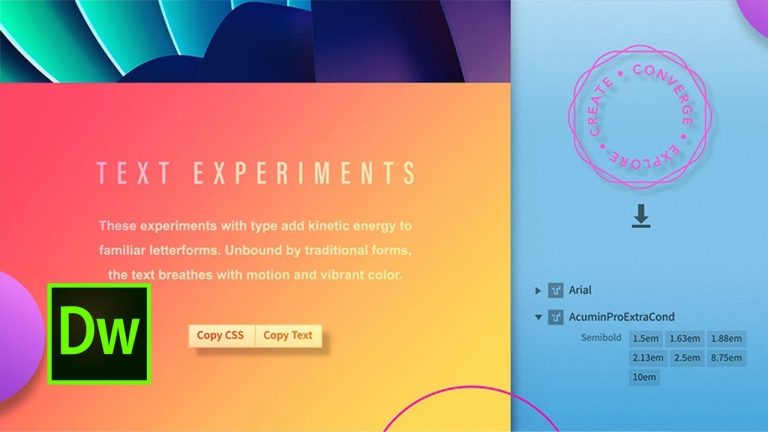
Grab Web Design Info From Photoshop Files Using Dreamweaver | Adobe Creative Cloud

Easily extract CSS code, images, colors, and text from PSD files to use in your web pages.

Sample files: https://adobe.ly/2wuqj5K

Learn more about Dreamweaver: https://adobe.ly/2jsnJvE

Subscribe: https://www.youtube.com/user/adobecreativecloud?sub_confirmation=1

LET’S CONNECT
Facebook: http://facebook.com/adobecreativecloud
Twitter: http://twitter.com/creativecloud
Instagram: http://www.instagram.com/adobecreativecloud/

Adobe Creative Cloud gives you the world’s best creative apps so you can turn your brightest ideas into your greatest work across your desktop and mobile devices.
How to Edit Your Video to the Beat of the Music with Premiere Pro CC

0

Join Adobe Evangelist Terry White as he shows you how to edit your video to the beat of the music in Adobe Premiere Pro CC.

Subscribe: https://www.youtube.com/user/adobecreativecloud?sub_confirmation=1

LET’S CONNECT
Facebook: http://facebook.com/adobecreativecloud
Twitter: http://twitter.com/creativecloud
Instagram: http://www.instagram.com/adobecreativecloud/

Adobe Creative Cloud gives you the world’s best creative apps so you can turn your brightest ideas into your greatest work across your desktop and mobile devices.

How to Make a Book Cover with InDesign CC and Typekit | Adobe Creative Cloud

0

Learn how to sync a Typekit font, then use contextual alternates to finesse your typography.

Start from scratch, or download practice files [https://adobe.ly/2vyVMrN] for a head start. Steps below.

Prep your project
All you need is some text to typeset. In InDesign CC, choose the type tool, and then click and drag on your page to draw a text frame. Type your text, and then press Esc to exit the frame and automatically switch to the Selection tool.

1. Open book-cover.indd.
2. Choose the Type tool, then open the Font menu from the Control Panel. Click Add Fonts from Typekit to launch Typekit in your browser.
3. Type a few words from the book title in the preview field, then use filters to browse by classification, recommendation, and properties.
4. Click the thumbnail of a font you like. Then, click Sync All to use the entire family, or sync individual fonts as needed.

Tip: We chose Bookmania because it has a multitude of alternate glyphs.

5. Back in InDesign, choose the Selection tool, then select a text frame in your design.
6. Choose the Type tool, open the Font menu, then click Apply Typekit Filter to see just the fonts you’ve synced. Select Bookmania to apply it.
7. Many Typekit fonts have glyphs you can use to beautify or customize the text appearance. Click inside a text frame, then highlight specific characters or character pairs. If alternate glyphs are available, a blue underline appears with an in-context menu. Click on an alternate to apply it.
8. To see all the glyphs for a selection, click the arrow in the in-context menu to open the Glyphs panel. Double click on a glyph to use it.

Tip: Choose “Entire Font” in the “Show” menu to see all the glyphs available for the selected font.

9. Kern as needed. To do this quickly, place your cursor between the characters to be kerned, then hold Option/Alt key and tap the left and right arrow keys to add or reduce spacing.

That’s it!

To learn, more visit our InDesign Tutorials page: https://adobe.ly/2gvKHRF

Subscribe: https://www.youtube.com/user/adobecreativecloud?sub_confirmation=1

LET’S CONNECT
Facebook: http://facebook.com/adobecreativecloud
Twitter: http://twitter.com/creativecloud
Instagram: http://www.instagram.com/adobecreativecloud/

Adobe Creative Cloud gives you the world’s best creative apps so you can turn your brightest ideas into your greatest work across your desktop and mobile devices.

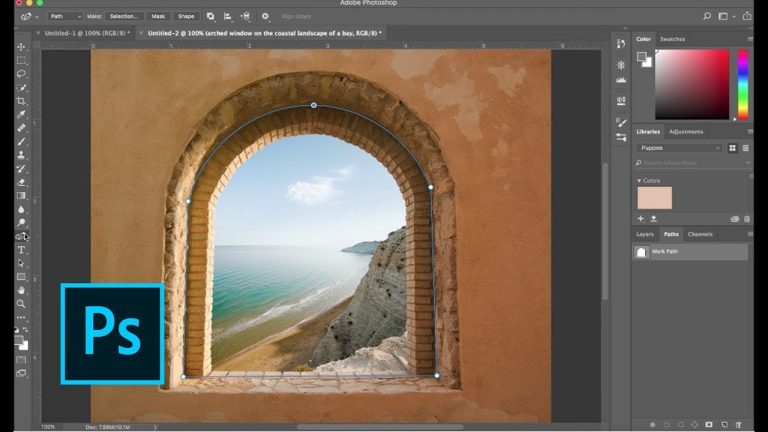
Photoshop Sneak Peek: New Curvature Pen Tool Coming to Photoshop CC | Adobe Creative Cloud

0

Sneak Peek: New Curvature Pen Tool Coming to Photoshop CC

We’re excited to give you a sneak peek of a new tool we’ve been working on for an upcoming release of Photoshop CC. The new Curvature Pen Tool makes path creation easier and more intuitive in Photoshop CC by enabling you to create paths more quickly and precisely. This is just one of many new features coming to Photoshop CC later this year.

Subscribe: https://www.youtube.com/user/adobecreativecloud?sub_confirmation=1

LET’S CONNECT
Facebook: http://facebook.com/adobecreativecloud
Twitter: http://twitter.com/creativecloud
Instagram: http://www.instagram.com/adobecreativecloud/

Adobe Creative Cloud gives you the world’s best creative apps so you can turn your brightest ideas into your greatest work across your desktop and mobile devices.
How to Create Time-Lapse Video from Still Images in Premiere Pro | Adobe Creative Cloud

0

Prepare a series of images in Adobe Photoshop CC to create a professional-quality time-lapse video in Adobe Premiere Pro CC.

If you want to follow along with this tutorial, use the Time-Lapse Demo assets: https://adobe.ly/2uZYkz4

Subscribe: https://www.youtube.com/user/adobecreativecloud?sub_confirmation=1

LET’S CONNECT
Facebook: http://facebook.com/adobecreativecloud
Twitter: http://twitter.com/creativecloud
Instagram: http://www.instagram.com/adobecreativecloud/

Adobe Creative Cloud gives you the world’s best creative apps so you can turn your brightest ideas into your greatest work across your desktop and mobile devices.

Optimizing Photoshop and Illustrator

Learn how to optimize Photoshop and Illustrator for performance and creativity. Learn how to optimize preferences and add scripts, plugins and commonly used graphics so you can work faster every day.

Subscribe: https://www.youtube.com/user/adobecreativecloud?sub_confirmation=1

LET’S CONNECT
Facebook: http://facebook.com/adobecreativecloud
Twitter: http://twitter.com/creativecloud
Instagram: http://www.instagram.com/adobecreativecloud/

Adobe Creative Cloud gives you the world’s best creative apps so you can turn your brightest ideas into your greatest work across your desktop and mobile devices.

How to Make & Size a Graphic for Social Media with Adobe Spark | Adobe Creative Cloud

0

Learn how to create and size a stylish graphic for social media by combining photos, graphics, and text with Adobe Spark Post.

1. Open Adobe Spark Post on your iPhone or iPad.
2. Tap a category, such as Business.
3. Scroll through the templates and tap one you like, then tap Remix to update it.
4. Tap Layout, then tap Resize and select the social media format where you’d like to post your design. Adobe Spark Post automatically resizes the layout for the social media app you select. Tap Done.
5. Tap the photo, then tap the image icon at the top to change the image. Select Photo Library and choose a new image from your mobile device.
6. Double tab the asterisk and type a different character to serve as the mask over the image. In our example, we changed the asterisk to an exclamation point. Tap Done.
7. Drag the rounded arrow to rotate the mask, and drag with your finger to reposition it over the image.
8. Double tap a text element and type new text to change the message. Tap Done.
9. Drag the text with your finger to reposition it.
10. Tap Style from the menu below the image and drag your finger around the circle to view different styles. Stop dragging when you see the style you like.

Tip: Drag in reverse to go back to a style you passed.

11. Tap Shape and browse through the options by sliding your finger. Tap decorations to preview them. When you find one you like, tap Done.
12. Tap Share from the top and select the social media app where you’d like to post your design.

That’s it!

To learn, more visit our Adobe Spark page: https://adobe.ly/2wvKfoE

Subscribe: https://www.youtube.com/user/adobecreativecloud?sub_confirmation=1

LET’S CONNECT
Facebook: http://facebook.com/adobecreativecloud
Twitter: http://twitter.com/creativecloud
Instagram: http://www.instagram.com/adobecreativecloud/

Adobe Creative Cloud gives you the world’s best creative apps so you can turn your brightest ideas into your greatest work across your desktop and mobile devices.

5 Ways to Make Selections in Adobe Photoshop CC

0

Adobe Evangelist Terry White is here to show 5 ways to make selections in Adobe Photoshop CC.

Subscribe: https://www.youtube.com/user/adobecreativecloud?sub_confirmation=1

LET’S CONNECT
Facebook: http://facebook.com/adobecreativecloud
Twitter: http://twitter.com/creativecloud
Instagram: http://www.instagram.com/adobecreativecloud/

Adobe Creative Cloud gives you the world’s best creative apps so you can turn your brightest ideas into your greatest work across your desktop and mobile devices.