Home Blog Page 146

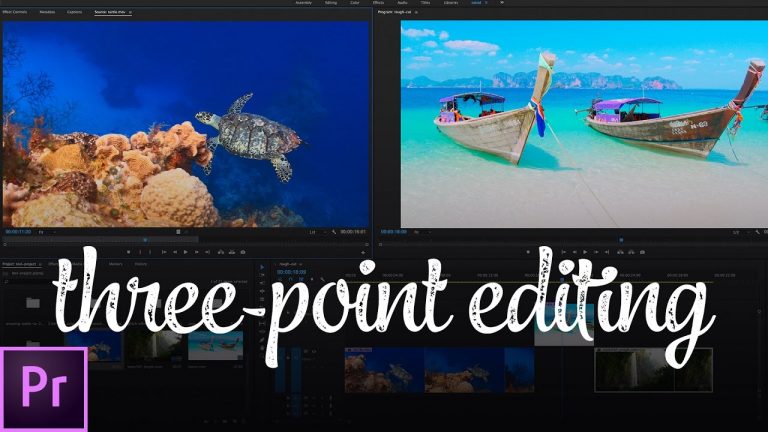
The FASTEST Way to Edit Video (Three-Point Editing) | Premiere Pro Tutorial

0

LEARN THREE-POINT EDITING AND EDIT LIKE A PRO! | Learn about what three-point editing is and why it’s so great! | We will go over exactly how and why you would use these techniques in Premiere and just how easy they are!

? Subscribe for Daily Tutorials → https://goo.gl/DN4Nln

? Buy the Photoshop Course and Support the Channel → http://bit.ly/28NuwFy

In this Premiere Pro tutorial, you’re going to learn all about three-point editing and what makes it so special when assembling your videos in Premiere Pro. (Three-point editing is actually possible in nearly all video editors out there, especially “professional” level NLE’s.) We’ll cover the many different ways you can perform three-point edits in Premiere and when you would want to do so. We’ll also have a little bonus tip throw in there with regard to the ultra sweet Slip tool that can be a massive time saver ESPECIALLY when working in a three-point editing workflow. So much awesome here, you’ve just gotta give it a watch for yourself.

⚡️ written tutorial here: http://bit.ly/2ocKnd5

INSTAGRAM: http://instagram.com/tutvid
TWITTER: http://twitter.com/tutvid
FACEBOOK: https://www.facebook.com/tutvid
SNAPCHAT: tutvid.com

tutvid is a YouTube channel dedicated to creating the best Adobe Photoshop, Premiere Pro, Lightroom, and Illustrator tutorials. My goal is to create the best, most informative, and entertaining tutorials on the web. If you enjoy my videos, the best way to support what I do here is to purchase my course linked above or simply subscribe to the YouTube channel by pressing the red button.

✉️ business inquiries: nate@tutvid.com

CREDITS:
Social Icons in outro: http://www.freepik.com/free-vector/six-social-networking-icons-with-infographic-resources_982300.htm

How to Create a Light Leak Transition in Premiere Pro – 4k Light Leaks

0

CREATE COOL AND EASY LIGHT LEAK TRANSITIONS! | Learn to line up and work with light leak video files to create cool transitions in this tutorial.

⚡️ download free 4k light leaks here: https://www.rocketstock.com/free-after-effects-templates/13-free-4k-light-leaks/

? Subscribe for Daily Tutorials → https://goo.gl/DN4Nln

? Buy the Photoshop Course and Support the Channel → http://bit.ly/28NuwFy

In this Premiere Pro video editing tutorial, we will cover how to import and work with short light leak clips to create flashy and smooth light leak/lens flare transition effect in Premiere. You’ll learn a couple cool tricks about reversing a flare to get the perfect moment of transition as well as working with blend modes to get the perfect lens effect for any clip of video you may be using. Check it out and I hope you enjoy it!

⚡️ check out the written tutorial here: http://bit.ly/2mSvs3v

INSTAGRAM: http://instagram.com/tutvid
TWITTER: http://twitter.com/tutvid
FACEBOOK: https://www.facebook.com/tutvid
SNAPCHAT: tutvid.com

tutvid is a YouTube channel dedicated to creating the best Adobe Photoshop, Premiere Pro, Lightroom, and Illustrator tutorials. My goal is to create the best, most informative, and entertaining tutorials on the web. If you enjoy my videos, the best way to support what I do here is to purchase my course linked above or simply subscribe to the YouTube channel by pressing the red button.

✉️ business inquiries: nate@tutvid.com

CREDITS:
Social Icons in outro: http://www.freepik.com/free-vector/six-social-networking-icons-with-infographic-resources_982300.htm
Grading Flat Footage in Premiere Pro Without a LUT (Curves, Basic Slider, Hue Curve)

0

USING SCOPES AND CURVES TO GRADE FOOTAGE! | We will use the Hue Curve, Regular Curves, and Basic Exposure/Contrast Sliders to grade some Flat LOG footage from a C100 MK II

Share Shane Hurlbut’s post on exposing the skin tones in the Canon Cinema series and shooting in LOG: http://www.thehurlblog.com/cinematography-online-how-to-expose-your-canon-cinema-eos-platform/

? Subscribe for Daily Tutorials → https://goo.gl/DN4Nln

? Buy the Photoshop Course and Support the Channel → http://bit.ly/28NuwFy

In this Premiere Pro video editing tutorial, we’ll take some flat C-LOG footage from a C100 and grade the footage for a usage shot without using a LUT (since Premiere Pro does not, at this moment, have a LUT made for the C100.) We’ll use the Curves to adjust brightness and color, we’ll use the sliders in the Basic tab to boost and adjust exposure and contrast, and we’ll use the Hue Curve to tweak the saturation of the colors as we wish. One of the fun things we’ll cover is how to quickly read and get an idea of what you’re looking at when you use a Lumetri Scope. We don’t really do a deep dive on the Lumetri Scope, but we do get an elementary idea of how to look at one and what you’re looking at.

⚡️ check out the written tutorial here: http://bit.ly/2nVb2rX

INSTAGRAM: http://instagram.com/tutvid
TWITTER: http://twitter.com/tutvid
FACEBOOK: https://www.facebook.com/tutvid
SNAPCHAT: tutvid.com

tutvid is a YouTube channel dedicated to creating the best Adobe Photoshop, Premiere Pro, Lightroom, and Illustrator tutorials. My goal is to create the best, most informative, and entertaining tutorials on the web. If you enjoy my videos, the best way to support what I do here is to purchase my course linked above or simply subscribe to the YouTube channel by pressing the red button.

✉️ business inquiries: nate@tutvid.com

CREDITS:
Social Icons in outro: http://www.freepik.com/free-vector/six-social-networking-icons-with-infographic-resources_982300.htm
Dynamic Animated Shape Mask Transition Effect Premiere Pro Tutorial

0

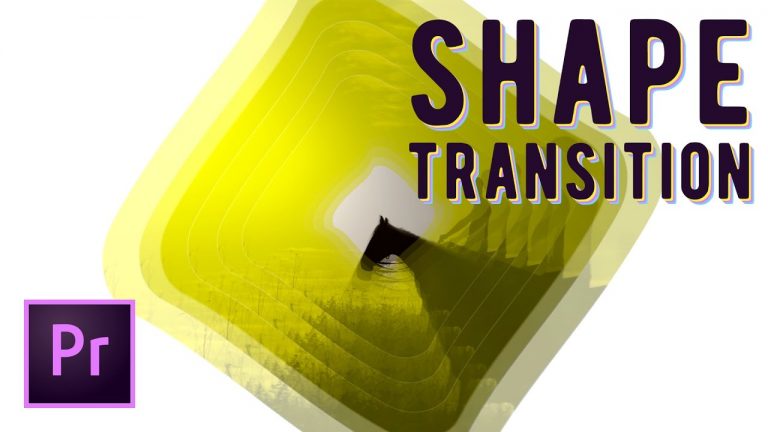
LEARN TO CREATE THIS EFFECT IN MINUTES! | Learn to Animate a Series of Masks to Create This Effect | We will cover keyframe animation, masking, adjusting timing, and more!

? Subscribe for Daily Tutorials → https://goo.gl/DN4Nln

? Buy the Photoshop Course and Support the Channel → http://bit.ly/28NuwFy

In this Premiere Pro Video Editing tutorial, we will build a double masked animation transition to make a cool pop up spinning shape that will spin and burst outward to reveal the new video scene. You’re going to learn a bunch about the presets in Premiere, how to animate with keyframes, easing, masking video tracks, and much more! You’re going to love it!

⚡️ written tutorial here: http://bit.ly/2oVwZdN

INSTAGRAM: http://instagram.com/tutvid
TWITTER: http://twitter.com/tutvid
FACEBOOK: https://www.facebook.com/tutvid
SNAPCHAT: tutvid.com

tutvid is a YouTube channel dedicated to creating the best Adobe Photoshop, Premiere Pro, Lightroom, and Illustrator tutorials. My goal is to create the best, most informative, and entertaining tutorials on the web. If you enjoy my videos, the best way to support what I do here is to purchase my course linked above or simply subscribe to the YouTube channel by pressing the red button.

✉️ business inquiries: nate@tutvid.com

CREDITS:
Social Icons in outro: http://www.freepik.com/free-vector/six-social-networking-icons-with-infographic-resources_982300.htm
The Best Blurred Zooming Transition Effect – Premiere Pro Tutorial

0

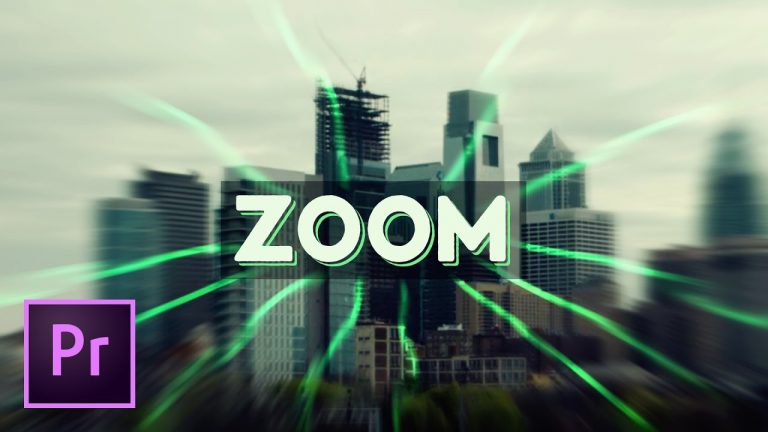
EFFECTIVE AND PROFESSIONAL LOOKING ZOOM EFFECT! | Use Adjustment Layers and Keyframing to Create This Effect

? Subscribe for Daily Tutorials → https://goo.gl/DN4Nln

? Buy the Photoshop Course and Support the Channel → http://bit.ly/28NuwFy

In this Premiere Pro Video Editing tutorial, we will look at using simple effects that are included with Premiere Pro to create a professional and smooth blurred zooming transition effect in Premiere. This effect is great for zooming into a single shot, zooming into a similar shot, or jumping to a completely different shot with this transition. One of the other great things about this transition is that it can easily be copied from one cut in your video project to another and all the animation, effects, and keyframes will all be copied over so you can instantly create multiple zooming transitions across your video project.

⚡️ written tutorial: http://bit.ly/2olJco5

INSTAGRAM: http://instagram.com/tutvid
TWITTER: http://twitter.com/tutvid
FACEBOOK: https://www.facebook.com/tutvid
SNAPCHAT: tutvid.com

tutvid is a YouTube channel dedicated to creating the best Adobe Photoshop, Premiere Pro, Lightroom, and Illustrator tutorials. My goal is to create the best, most informative, and entertaining tutorials on the web. If you enjoy my videos, the best way to support what I do here is to purchase my course linked above or simply subscribe to the YouTube channel by pressing the red button.

✉️ business inquiries: nate@tutvid.com

CREDITS:
Social Icons in outro: http://www.freepik.com/free-vector/six-social-networking-icons-with-infographic-resources_982300.htm
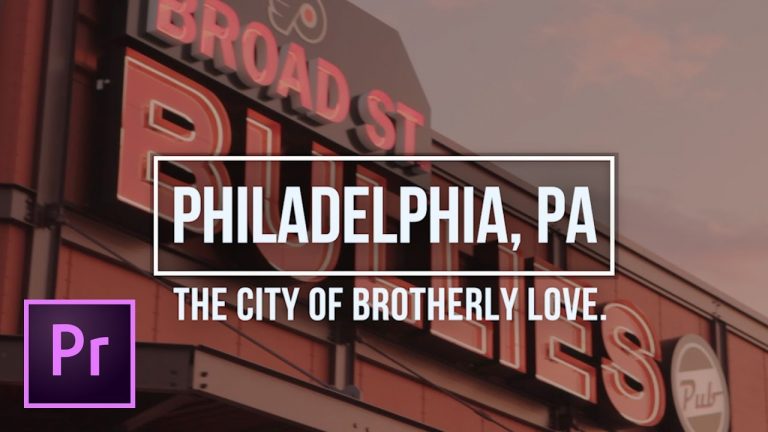
Lower Thirds and Video Titles with NEW Titler & Essential Graphics Panel | Premiere Pro Tutorial

0

COVERING THE NEW TITLER AND ESSENTIAL GRAPHICS PANEL FEATURES! | Learn to create animated titles or use the pre-built templates included with Premiere Pro!

? Subscribe for Daily Tutorials → https://goo.gl/DN4Nln

? Buy the Photoshop Course and Support the Channel → http://bit.ly/28NuwFy

In this Premiere Pro video editing tutorial, we will cover how to work with the new Essential Graphics panel to build an animated title using one of the many templates included with Premiere, we’ll also cover how to create an animated title from scratch and even save it as a template so you can use it in any upcoming video editing projects you have (or just for reuse in the same project over and over,) and we’ll also cover all the ins and outs of the new Titler tool and how to work with the new set of graphics tools in Premiere Pro 2017 CC (April 2017 Update)

⚡️ written tutorial here: http://bit.ly/2oI2PpE

INSTAGRAM: http://instagram.com/tutvid
TWITTER: http://twitter.com/tutvid
FACEBOOK: https://www.facebook.com/tutvid
SNAPCHAT: tutvid.com

tutvid is a YouTube channel dedicated to creating the best Adobe Photoshop, Premiere Pro, Lightroom, and Illustrator tutorials. My goal is to create the best, most informative, and entertaining tutorials on the web. If you enjoy my videos, the best way to support what I do here is to purchase my course linked above or simply subscribe to the YouTube channel by pressing the red button.

✉️ business inquiries: nate@tutvid.com

CREDITS:
Social Icons in outro: http://www.freepik.com/free-vector/six-social-networking-icons-with-infographic-resources_982300.htm
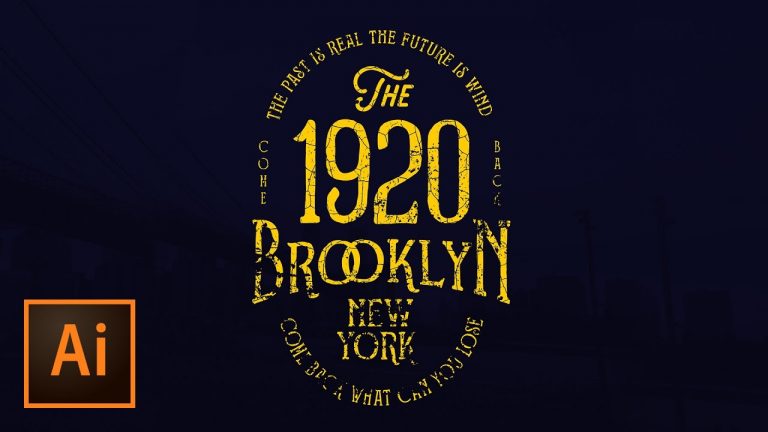
Distressed Text Effect and Grunge Graphics with Adobe Illustrator CC

0

FREE VECTOR TEXTURE DOWNLOAD INCLUDED! | Learn to create vector distressed textures from photos!

? Subscribe for Daily Tutorials → https://goo.gl/DN4Nln

? Buy the Photoshop Course and Support the Channel → http://bit.ly/28NuwFy

In this Illustrator tutorial, we’ll cover using Image Trace with grouped layers to create really good vector textures and then move those into our artwork and resize them for use in a mask to create real and detailed grunge texture masked effects in Adobe Illustrator. Make sure you download the 9 free vector textures I’ve provided with this tutorial!

⚡️ check out the written tutorial and the download: http://bit.ly/2nlT57F

INSTAGRAM: http://instagram.com/tutvid
TWITTER: http://twitter.com/tutvid
FACEBOOK: https://www.facebook.com/tutvid
SNAPCHAT: tutvid.com

tutvid is a YouTube channel dedicated to creating the best Adobe Photoshop, Premiere Pro, Lightroom, and Illustrator tutorials. My goal is to create the best, most informative, and entertaining tutorials on the web. If you enjoy my videos, the best way to support what I do here is to purchase my course linked above or simply subscribe to the YouTube channel by pressing the red button.

✉️ business inquiries: nate@tutvid.com

CREDITS:
Social Icons in outro: http://www.freepik.com/free-vector/six-social-networking-icons-with-infographic-resources_982300.htm
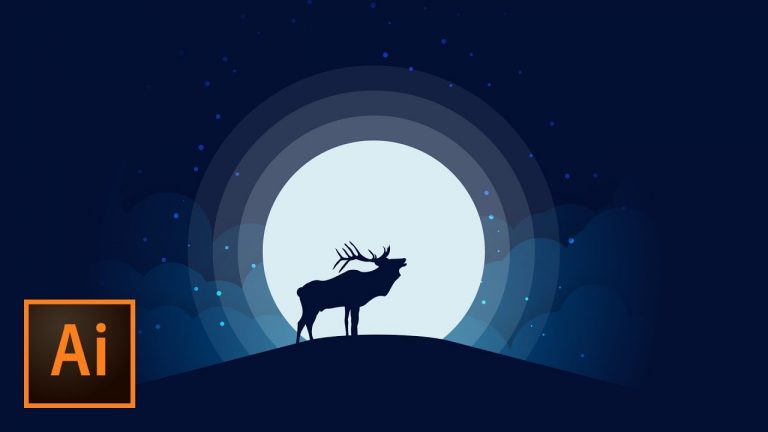
Animal Silhouette Moonlight Vector Illustration – Illustrator Tutorial

0

SHAPE TOOLS AND PATHFINDER TRICKS TO GET THIS EFFECT! | Learn tricks of the scatter brush, layer styles, masking and more!

Artist who’s work inspired this tutorial: https://dribbble.com/shots/1850390-Wolf

Stock Photo of Elk: https://unsplash.com/search/elk?photo=lQ0gPL_0Bt8

? Subscribe for Daily Tutorials → https://goo.gl/DN4Nln

? Buy the Photoshop Course and Support the Channel → http://bit.ly/28NuwFy

In this Adobe Illustrator tutorial, we’ll cover all the steps required to create this silhouette moonlight illustration with sparkling stars. We’ll use a custom scatter brush to create several layers of clouds, blend them with some shadows and opacity adjustments, we’ll use offset path to create a moon with glowing vector rings, we’ll create a starry sky with randomized dots by scattering dots with the brush tool, we’ll mask everything as needed to blend the illustration into our background, and then we’ll drag a photo in a go over how to trace it with multiple shape tools and the Pen tool to create our silhouette. Check it out and I hope you love it!

⚡️ written tutorial here: http://bit.ly/2oAwwgD

INSTAGRAM: http://instagram.com/tutvid
TWITTER: http://twitter.com/tutvid
FACEBOOK: https://www.facebook.com/tutvid
SNAPCHAT: tutvid.com

tutvid is a YouTube channel dedicated to creating the best Adobe Photoshop, Premiere Pro, Lightroom, and Illustrator tutorials. My goal is to create the best, most informative, and entertaining tutorials on the web. If you enjoy my videos, the best way to support what I do here is to purchase my course linked above or simply subscribe to the YouTube channel by pressing the red button.

✉️ business inquiries: nate@tutvid.com

CREDITS:
Social Icons in outro: http://www.freepik.com/free-vector/six-social-networking-icons-with-infographic-resources_982300.htm
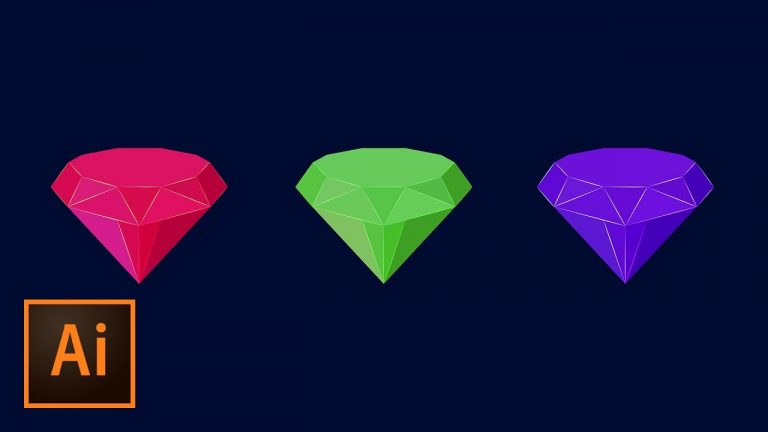
Create Flat Diamond Icon Illustrator Tutorial

0

LEVERAGE THE POWER OF GUIDES AND SNAPPING TO CREATE THIS ICON! | Use shapes and the Pen tool to create this awesome flat icon.

? Subscribe for Daily Tutorials → https://goo.gl/DN4Nln

? Buy the Photoshop Course and Support the Channel → http://bit.ly/28NuwFy

In this Adobe Illustrator tutorial, we will use the basic shape tools and edit them with the control bar and the Direct Selection tool to build a little base for our diamond and then use the Pen tool and Smart Guides to quickly sketch out the rest of a multi-faced diamond shape. We will also cover how to use recolor artwork to quickly change the color of the diamond all at once while maintaining the brightness difference between each face of the diamond. Check it out and I hope you enjoy it!

⚡️ written tutorial here: http://bit.ly/2prjdf3

INSTAGRAM: http://instagram.com/tutvid
TWITTER: http://twitter.com/tutvid
FACEBOOK: https://www.facebook.com/tutvid
SNAPCHAT: tutvid.com

tutvid is a YouTube channel dedicated to creating the best Adobe Photoshop, Premiere Pro, Lightroom, and Illustrator tutorials. My goal is to create the best, most informative, and entertaining tutorials on the web. If you enjoy my videos, the best way to support what I do here is to purchase my course linked above or simply subscribe to the YouTube channel by pressing the red button.

✉️ business inquiries: nate@tutvid.com

CREDITS:
Social Icons in outro: http://www.freepik.com/free-vector/six-social-networking-icons-with-infographic-resources_982300.htm