Home Blog Page 147

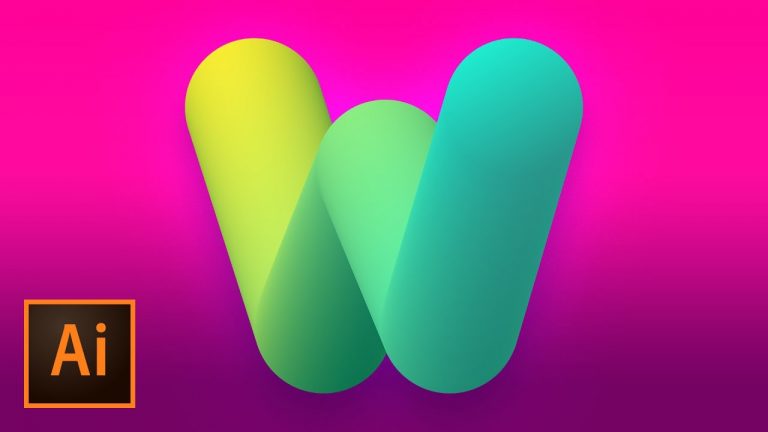
3D Bubble Text Logo Mark Design Illustrator Tutorial

0

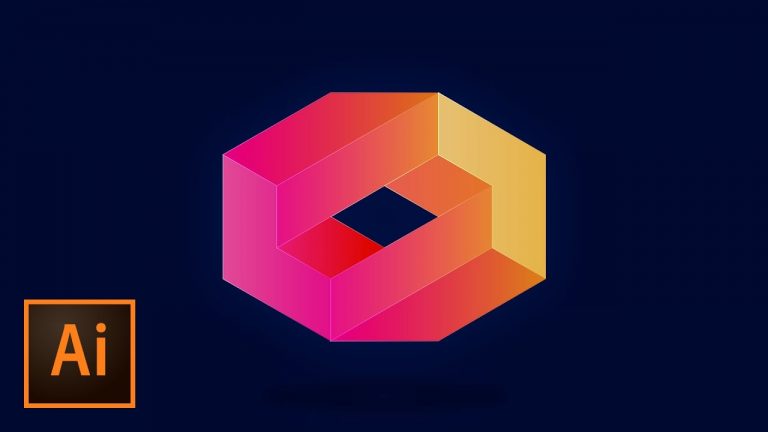
CREATE A SIMPLE LOGO MARK WITH THE BLEND TOOL! | Check out how we use a blend of colors and a font to create a simple logo in Illustrator.

? Subscribe for Daily Tutorials → https://goo.gl/DN4Nln

? Buy the Photoshop Course and Support the Channel → http://bit.ly/28NuwFy

In this Adobe Illustrator tutorial, we will break down a letter from a typeface and convert it to a single path and build a simple blend from a pair of gradient-filled circles and then morph it onto the path from our typeface and then tweak and adjust the blend path and each of the circles to change the orientation of the gradients to change the perspective of the graphic and so much more!

⚡️ written tutorial here: http://bit.ly/2pftDCq

INSTAGRAM: http://instagram.com/tutvid
TWITTER: http://twitter.com/tutvid
FACEBOOK: https://www.facebook.com/tutvid
SNAPCHAT: tutvid.com

tutvid is a YouTube channel dedicated to creating the best Adobe Photoshop, Premiere Pro, Lightroom, and Illustrator tutorials. My goal is to create the best, most informative, and entertaining tutorials on the web. If you enjoy my videos, the best way to support what I do here is to purchase my course linked above or simply subscribe to the YouTube channel by pressing the red button.

✉️ business inquiries: nate@tutvid.com

CREDITS:
Social Icons in outro: http://www.freepik.com/free-vector/six-social-networking-icons-with-infographic-resources_982300.htm
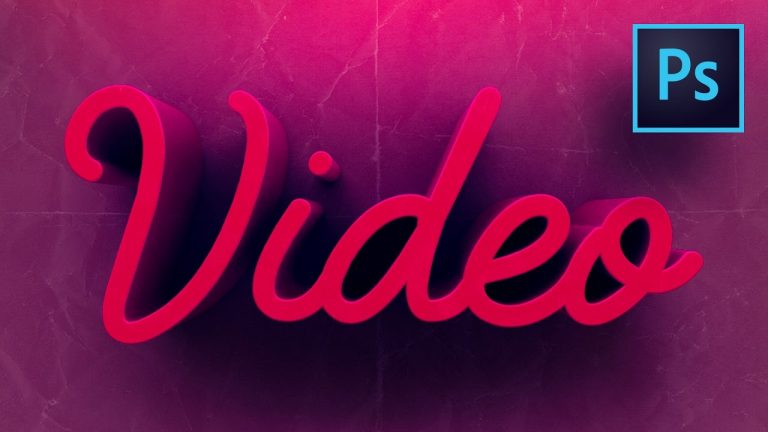
How to Make Colorful 3D Text Photoshop CC Tutorial

0

CREATE THIS 3D TEXT WITH EASE! | We’ll cover how to quickly create this sparkling, colorful text effect! | This Photoshop tutorial will cover creating 3D objects, working with 3D camera, 3D materials/textures, IBL’s, and much more!

⚡️ download the light leaks pack here: http://bit.ly/2nQZZ2P

FabFelt Script Font used in this video: https://www.behance.net/gallery/23900247/Fabfelt-script-Free-font

? Subscribe for Daily Tutorials → https://goo.gl/DN4Nln

? Buy the Photoshop Course and Support the Channel → http://bit.ly/28NuwFy

In this Photoshop tutorial, we’ll talk about how to create this deep, moody, colorful 3D text effect in Photoshop and cover all the basics you’ll need to know to get started working with 3D in Photoshop today. We’ll cover multiple aspects of moving 3D objects and aligning them, adding additional edges to a 3D object, changing colors of 3D objects, rendering, building a custom IBL to get a better sparkle and falling light for our 3D text effect, coloring a rendered object with adjustment layers, adding a distressed paper effect, sharpening, grain, and so much more! You’re going to love this video! Thanks for checking it out!

⚡️ download light leaks here: http://bit.ly/2nQZZ2P

INSTAGRAM: http://instagram.com/tutvid
TWITTER: http://twitter.com/tutvid
FACEBOOK: https://www.facebook.com/tutvid
SNAPCHAT: tutvid.com

tutvid is a YouTube channel dedicated to creating the best Adobe Photoshop, Premiere Pro, Lightroom, and Illustrator tutorials. My goal is to create the best, most informative, and entertaining tutorials on the web. If you enjoy my videos, the best way to support what I do here is to purchase my course linked above or simply subscribe to the YouTube channel by pressing the red button.

✉️ business inquiries: nate@tutvid.com

CREDITS:
Social Icons in outro: http://www.freepik.com/free-vector/six-social-networking-icons-with-infographic-resources_982300.htm
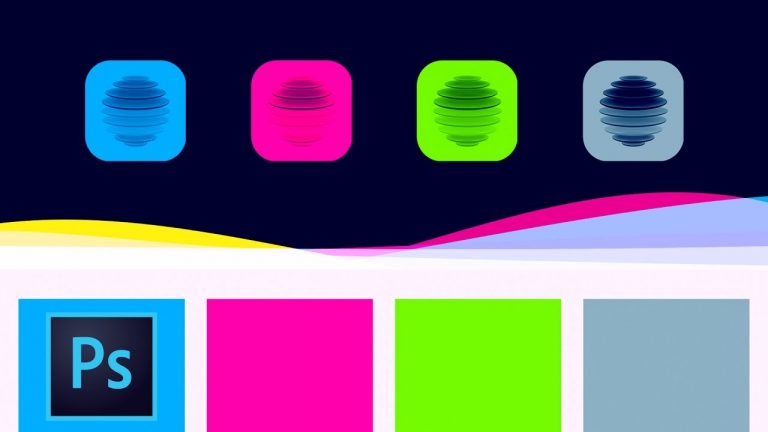
Create Flowing Color Waves Animation Effect in Photoshop – Vector Shape Download Included Here

0

SUCH AN EASY & COOL EFFECT!! | Create Multiple Colored Vector Waves and Animate Them | We will cover creating shapes within guides, blending multiple colored shape layers, and animating, exporting, and setting up a colored transition on Behance

Download colored waves here: http://bit.ly/2ngdlaL

? Subscribe for Daily Tutorials → https://goo.gl/DN4Nln

? Buy the Photoshop Course and Support the Channel → http://bit.ly/28NuwFy

In this Photoshop tutorial, we’ll create a super cool colored wave animation. Check out the download link here to grab the free PSD full of colored waves pre-made for you to use. You’ll learn how to create multiple waves shapes and use the Timeline panel to animate vector masks to create a beautiful flowing effect. About the only thing I don’t cover is how to properly line these shapes up to achieve a seamless loop (I forgot to cover it in the heat of recording this video, my mistake!)

⚡️ download and written tutorial here: http://bit.ly/2ngdlaL

INSTAGRAM: http://instagram.com/tutvid
TWITTER: http://twitter.com/tutvid
FACEBOOK: https://www.facebook.com/tutvid
SNAPCHAT: tutvid.com

tutvid is a YouTube channel dedicated to creating the best Adobe Photoshop, Premiere Pro, Lightroom, and Illustrator tutorials. My goal is to create the best, most informative, and entertaining tutorials on the web. If you enjoy my videos, the best way to support what I do here is to purchase my course linked above or simply subscribe to the YouTube channel by pressing the red button.

✉️ business inquiries: nate@tutvid.com

CREDITS:
Social Icons in outro: http://www.freepik.com/free-vector/six-social-networking-icons-with-infographic-resources_982300.htm
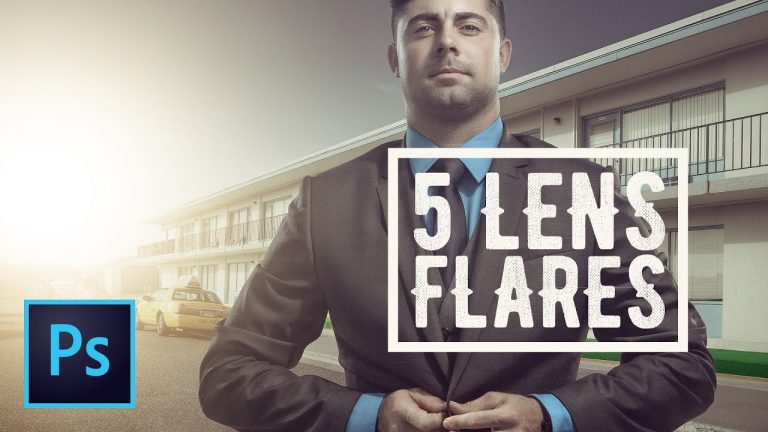
Five Different Ways to Create Amazing Lens Flares in Photoshop CC – (Free Light Leak Download!)

0

FREE LIGHT LEAK DOWNLOAD INCLUDED WITH TUTORIAL! | Learn to use brushes, Photoshop’s own lens flare, or light leaks to create all kinds of flare effects in Photoshop | We will even cover a pretty sweet Camera RAW trick as well.

? Subscribe for Daily Tutorials → https://goo.gl/DN4Nln

? Buy the Photoshop Course and Support the Channel → http://bit.ly/28NuwFy

In this Photoshop tutorial, we’ll cover a bunch of different ways to cover creating light leaks and lens flares. We’ll talk about mixing blend modes and brushes, we’ll talk about the adjustment brush and non-destructive, we’ll look at blending in light leaks, and we’ll take a look at a trick that makes the built-in Lens Flare feature of Photoshop a bit more usable. Check it out! I think you’ll really enjoy it!

⚡️ written tutorial and free download: http://bit.ly/2nIf1e3

INSTAGRAM: http://instagram.com/tutvid
TWITTER: http://twitter.com/tutvid
FACEBOOK: https://www.facebook.com/tutvid
SNAPCHAT: tutvid.com

tutvid is a YouTube channel dedicated to creating the best Adobe Photoshop, Premiere Pro, Lightroom, and Illustrator tutorials. My goal is to create the best, most informative, and entertaining tutorials on the web. If you enjoy my videos, the best way to support what I do here is to purchase my course linked above or simply subscribe to the YouTube channel by pressing the red button.

✉️ business inquiries: nate@tutvid.com

CREDITS:
Social Icons in outro: http://www.freepik.com/free-vector/six-social-networking-icons-with-infographic-resources_982300.htm
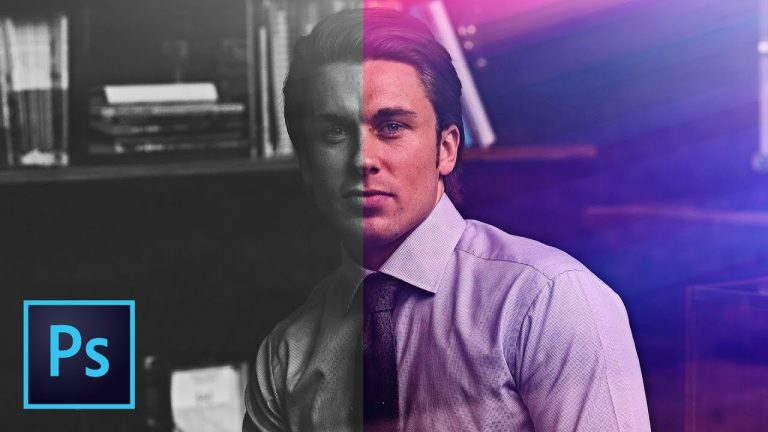
How to Make Colorful Custom Light Leaks! Photoshop Tutorial

0

BRUSHING, BLURRING, AND BLENDING!! | Create a Custom Color Palette and Paint in Flares | We will cover creating a new color palette, adjusting the Brush tool to paint what we want, and how to blur and set up the file to work as a flare.

⚡️ download light leak pack here: http://bit.ly/2osc65J

? Subscribe for Daily Tutorials → https://goo.gl/DN4Nln

? Buy the Photoshop Course and Support the Channel → http://bit.ly/28NuwFy

In this Photoshop tutorial, we’ll break down how to create a custom color palette in no time and then customize a brush head to paint randomly and also have each brush stroke interact with each other to be able to quickly paint out flares that will look cool! Once we’ve done the painting, we’ll cover different methods of blurring and how they will affect your light leaks and then we’ll make sure the file is ready to be saved as a JPEG so you can begin building your very own library of light leaks today!

⚡️ download light leak pack here: http://bit.ly/2osc65J

INSTAGRAM: http://instagram.com/tutvid
TWITTER: http://twitter.com/tutvid
FACEBOOK: https://www.facebook.com/tutvid
SNAPCHAT: tutvid.com

tutvid is a YouTube channel dedicated to creating the best Adobe Photoshop, Premiere Pro, Lightroom, and Illustrator tutorials. My goal is to create the best, most informative, and entertaining tutorials on the web. If you enjoy my videos, the best way to support what I do here is to purchase my course linked above or simply subscribe to the YouTube channel by pressing the red button.

✉️ business inquiries: nate@tutvid.com

CREDITS:
Social Icons in outro: http://www.freepik.com/free-vector/six-social-networking-icons-with-infographic-resources_982300.htm
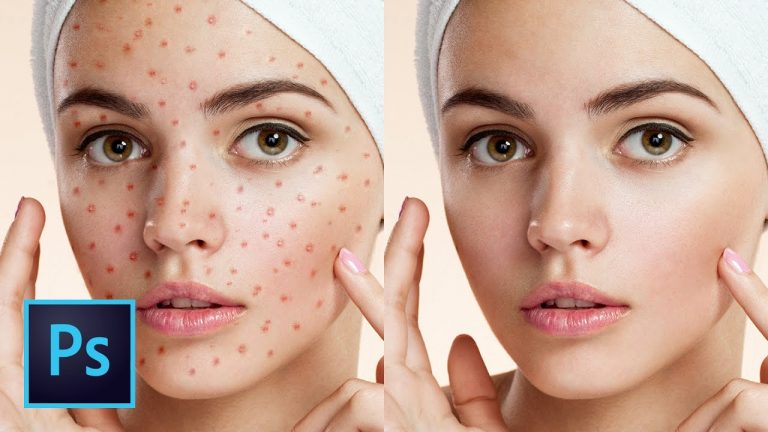
5 Best Ways to Clean Skin Blemishes and Heal Skin Photoshop Tutorial

0

GET RID OF ACNE, PIMPLES, & MARKS IN SECONDS! | Breakdown of 5 different tools and techniques for healing skin | We will cover healing brushes, camera RAW, frequency separation, and more!

Stock from Adobe Stock used in this tutorial: https://stock.adobe.com/stock-photo/photos-of-ugly-problem-skin-girl-on-beige-background/80570610

? Subscribe for Daily Tutorials → https://goo.gl/DN4Nln

? Buy the Photoshop Course and Support the Channel → http://bit.ly/28NuwFy

In this Photoshop tutorial, we’ll talk about five of the best and fastest ways to get rid of skin blemishes in your photos. We will cover non-destructive editing with Camera RAW, the Spot Healing Brush, the Healing Brush, the Patch Tool, and how to get started using Frequency Separation and how it works. If you are looking to clean up your photos for Facebook or your next dating profile photo or maybe you want to do professional fashion or beauty retouching, these techniques are THE techniques for Photoshop and cleaning skin quickly and effectively.

⚡️ written tutorial here: http://bit.ly/2oj9ebX

INSTAGRAM: http://instagram.com/tutvid
TWITTER: http://twitter.com/tutvid
FACEBOOK: https://www.facebook.com/tutvid
SNAPCHAT: tutvid.com

tutvid is a YouTube channel dedicated to creating the best Adobe Photoshop, Premiere Pro, Lightroom, and Illustrator tutorials. My goal is to create the best, most informative, and entertaining tutorials on the web. If you enjoy my videos, the best way to support what I do here is to purchase my course linked above or simply subscribe to the YouTube channel by pressing the red button.

✉️ business inquiries: nate@tutvid.com

CREDITS:
Social Icons in outro: http://www.freepik.com/free-vector/six-social-networking-icons-with-infographic-resources_982300.htm
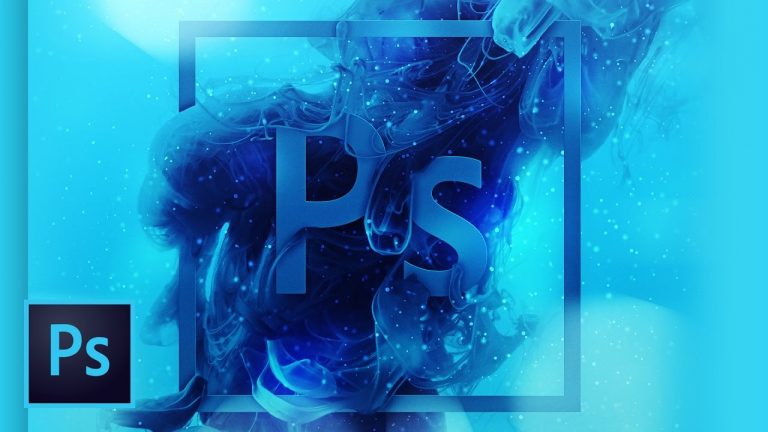
Smoke Liquid Ink Text and Logo Typography Effect – Photoshop CC Tutorial

0

BLEND TEXT IN & THROUGH SMOKE/INK IN THIS TUTORIAL! | Create a mask to blend the text and smoke and create custom shadows for this effect! | We will cover working with an SVG object, complex masking and selections, and MUCH more!

Smoke/Ink Stock Photo Used: https://www.dreamstime.com/stock-image-colorful-ink-water-image38259551

? Subscribe for Daily Tutorials → https://goo.gl/DN4Nln

? Buy the Photoshop Course and Support the Channel → http://bit.ly/28NuwFy

In this Photoshop CC tutorial, we’ll break down how to create this moody, beautiful intertwined typography effect by masking this text through colorful smoke/ink. We will cover all the masking and shadow-making that we need, but we’ll also talk about adding a 3D edge to the text/border, we’ll talk about radically re-coloring the artwork as well as adding floating particles and then sharpening and blend the entire artwork to make the whole thing look really polished and ready to be shared everywhere.

⚡️ check out the written tutorial here: http://bit.ly/2o7k1Zn

INSTAGRAM: http://instagram.com/tutvid
TWITTER: http://twitter.com/tutvid
FACEBOOK: https://www.facebook.com/tutvid
SNAPCHAT: tutvid.com

tutvid is a YouTube channel dedicated to creating the best Adobe Photoshop, Premiere Pro, Lightroom, and Illustrator tutorials. My goal is to create the best, most informative, and entertaining tutorials on the web. If you enjoy my videos, the best way to support what I do here is to purchase my course linked above or simply subscribe to the YouTube channel by pressing the red button.

✉️ business inquiries: nate@tutvid.com

CREDITS:
Social Icons in outro: http://www.freepik.com/free-vector/six-social-networking-icons-with-infographic-resources_982300.htm
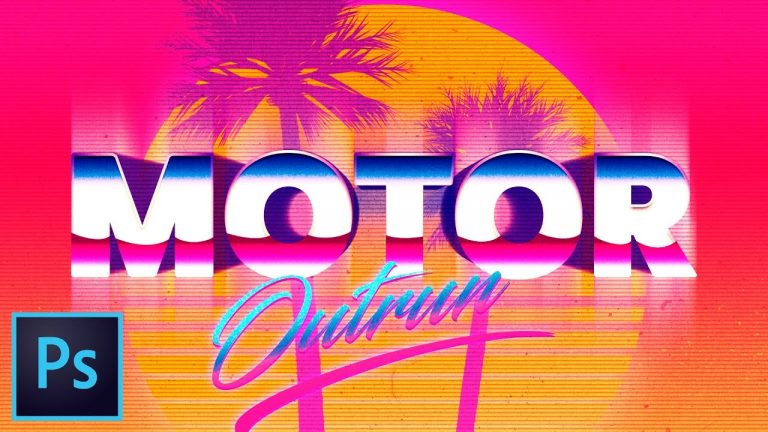
Create Outrun Retro-Futuristic Pixel Text Effect Photoshop Tutorial

0

LEARN TO CREATE THE “OUTRUN” STYLE & GRAB THE GRADIENT PACK DOWNLOAD HERE TOO! | Learn to work with gradients, textures, colors, text and more to create a myriad of different “Outrun” style works of art.

⚡️ DOWNLOAD the Gradient Pack here: http://bit.ly/2ol2AnT
⚡️ download the dirt spray brushes here: http://bit.ly/2pngcwy
⚡️ download the dust and scratches textures here: http://bit.ly/2oZpbap

? Subscribe for Daily Tutorials → https://goo.gl/DN4Nln

? Buy the Photoshop Course and Support the Channel → http://bit.ly/28NuwFy

In this Photoshop tutorial, we’ll create a cool Outrun style artwork from scratch in Photoshop. We’ll use a mixture of gradients (download the free outrun gradient pack here!,) fonts, vector shapes, textures, grain, shadows, and even mixing in layer styles to create a retro-futuristic effect that’s full of color and just generally looks really cool.

⚡️ download gradients and see written post: http://bit.ly/2ol2AnT

INSTAGRAM: http://instagram.com/tutvid
TWITTER: http://twitter.com/tutvid
FACEBOOK: https://www.facebook.com/tutvid
SNAPCHAT: tutvid.com

tutvid is a YouTube channel dedicated to creating the best Adobe Photoshop, Premiere Pro, Lightroom, and Illustrator tutorials. My goal is to create the best, most informative, and entertaining tutorials on the web. If you enjoy my videos, the best way to support what I do here is to purchase my course linked above or simply subscribe to the YouTube channel by pressing the red button.

✉️ business inquiries: nate@tutvid.com

CREDITS:
Social Icons in outro: http://www.freepik.com/free-vector/six-social-networking-icons-with-infographic-resources_982300.htm
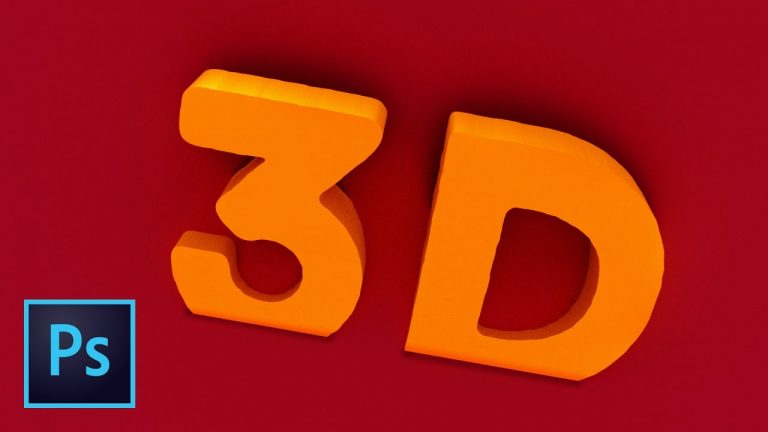
10 Steps to Getting Started With 3D | Photoshop Tutorial

0

LEARN TO WORK WITH 3D IN PHOTOSHOP FAST! | Learn to create 3D objects from scratch or convert graphics to 3D objects, too.

System Requirements for 3D per Adobe: https://helpx.adobe.com/photoshop/system-requirements.html

? Subscribe for Daily Tutorials → https://goo.gl/DN4Nln

? Buy the Photoshop Course and Support the Channel → http://bit.ly/28NuwFy

In this Photoshop tutorial, we’ll start from scratch and cover ten different techniques and steps to getting started with 3D in Photoshop. We will create fresh 3D objects, talk about the difference between moving the camera view and actually moving the 3D object, we’ll talk about applying textures to the different sides of a 3D object, converting a 2D plane (or image) to a 3D postcard and even combine that into an actual 3D object and make them interact and reflect off of each other like they would in real life, we’ll cover how to render out and export your 3D objects, and SO much more! If you haven’t jumped into 3D in Photoshop, you’ll absolutely love this video and (hopefully!) learn a ton!

⚡️ written tutorial here: http://bit.ly/2onmTPC

INSTAGRAM: http://instagram.com/tutvid
TWITTER: http://twitter.com/tutvid
FACEBOOK: https://www.facebook.com/tutvid
SNAPCHAT: tutvid.com

tutvid is a YouTube channel dedicated to creating the best Adobe Photoshop, Premiere Pro, Lightroom, and Illustrator tutorials. My goal is to create the best, most informative, and entertaining tutorials on the web. If you enjoy my videos, the best way to support what I do here is to purchase my course linked above or simply subscribe to the YouTube channel by pressing the red button.

✉️ business inquiries: nate@tutvid.com

CREDITS:
Social Icons in outro: http://www.freepik.com/free-vector/six-social-networking-icons-with-infographic-resources_982300.htm