Home Blog Page 152

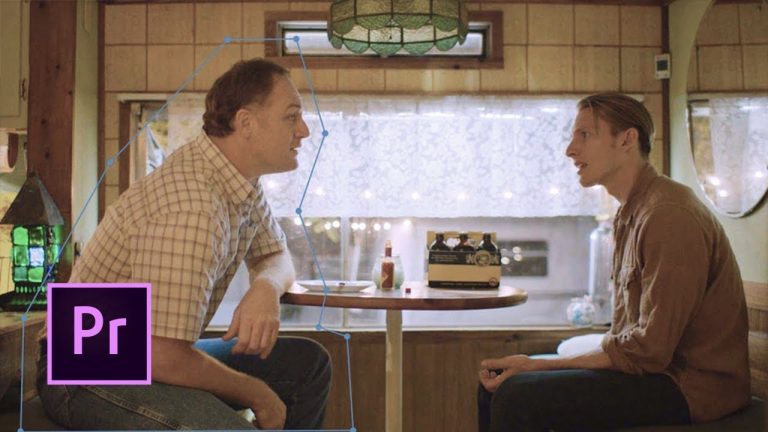
Use Basic Compositing to Combine your Best Clips in Premiere Pro | Adobe Creative Cloud

Combine two takes of a scene in Adobe Premiere Pro CC to get the best performance from your actors.

Learn more about Premiere Pro: https://adobe.ly/2vHr8aW

Subscribe: https://www.youtube.com/user/adobecreativecloud?sub_confirmation=1

LET’S CONNECT
Facebook: http://facebook.com/adobecreativecloud
Twitter: http://twitter.com/creativecloud
Instagram: http://www.instagram.com/adobecreativecloud/

Adobe Creative Cloud gives you the world’s best creative apps so you can turn your brightest ideas into your greatest work across your desktop and mobile devices.

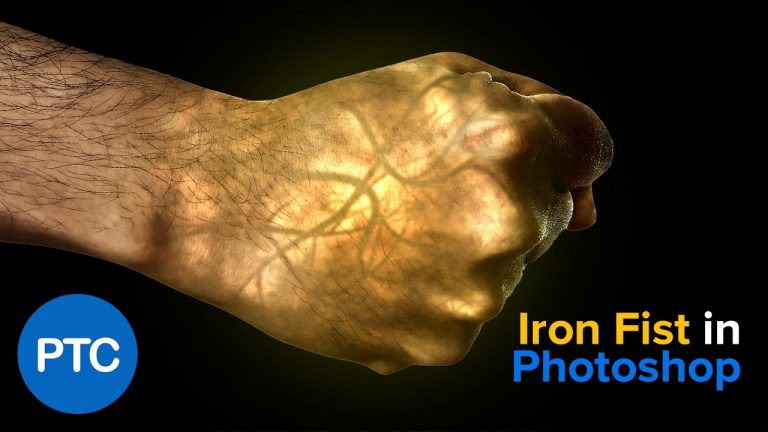
Iron Fist Effect – Glowing Hand – Photoshop Tutorial

Photoshop tutorial showing you how to create the glowing fist effect from the Netflix series, Iron Fist.

Even though you may never have the need to create this effect for your projects, by following this tutorial you will learn techniques that will help you in other areas.

In this project, we will work with blending modes, filters, adjustments layers, smart objects, layer masks, and clipping masks. There will be plenty of Photoshop tips for you to pick up along the way!

➜ Adobe Stock Assets:
First: https://adobe.ly/2nzj0Ze
Veins: https://adobe.ly/2ng91o6

➜ Stock free 10-image offer
http://bit.ly/10-free-images

In this Photoshop tutorial you will learn:
01:39 Import Adobe Stock assets
02:43 Masking with the Quick Selection tool
03:26 Using the Color Dodge Blending Mode to create glow
04:48 Using the Clouds Filter
06:18 Masking and Painting on Layer Masks
07:28 Levels Adjustment to control glow intensity
09:33 Applying large veins to the hand
16:46 Applying smaller veins to the hand
20:13 Using the Color Balance adjustment to control color
20:32 Using the Curves adjustment layer to create contrast
20:45 Adding a red glow to the center of the fist
23:25 Adding a yellow glow to the fist

If you have any questions, please leave them below
or head over to this tutorial’s page on our website:

➜ https://photoshoptrainingchannel.com/iron-fist-photoshop-tutorial/

Subscribe + Like + Share + Comment = More Video Tutorials!

Thank you for watching!

– – – – – – – – – – – – – – – – – – – – – – –
PREMIUM TUTORIALS

If you enjoyed this video be sure to subscribe to our newsletter to receive free weekly Photoshop tips and more!

Subscribe: http://ptcvids.com/subscribe

For more in-depth Photoshop Tutorials be sure to check out our Premium tutorials.

➜ http://ptcvids.com/shop/

– – – – – – – – – – – – – – – – – – – – – – –
FOLLOW PTC ON

– Facebook: https://fb.com/PhotoshopTrainingChannel

– Instagram: http://instagram.com/jrfromptc

– LinkedIn: http://linkedin.com/company/Photoshop-Training-Channel

– Pinterest: http://pinterest.com/ptcpins

– Behance: https://www.behance.net/JRfromPTC

– – – – – – – – – – – – – – – – – – – – – – –
LINKS

– Website: https://photoshoptrainingchannel.com

– YouTube Channel: https://youtube.com/user/photoshoptrainingch

– Google +: https://google.com/+Photoshoptrainingchannel

– This Video’s Youtube Link: https://youtu.be/4uWtHsTR1Vw

– – – – – – – – – – – – – – – – – – – – – – –
CREDITS

– Stock Images provided by stock.adobe.com

– Photoshop video tutorials by Jesus Ramirez

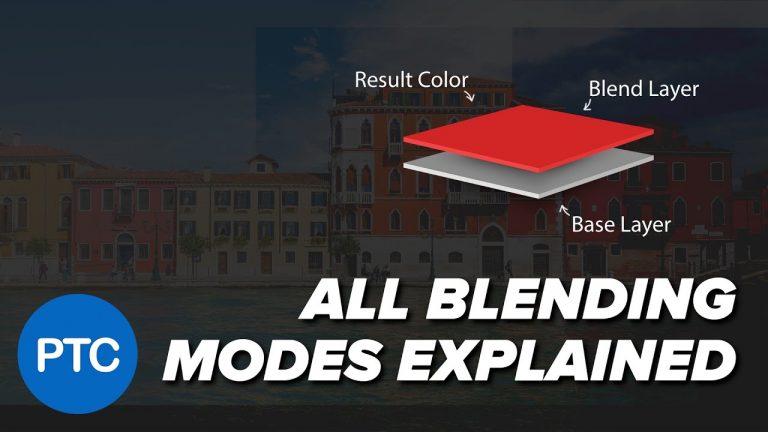
Blending Modes Explained – Complete Guide to Photoshop Blend Modes

Photoshop tutorial giving you an in-depth explanation on how Blending Modes work.

► Subscribe to My Channel Here: http://www.youtube.com/channel/UCdQ_ZkYaMe6qPoueUyPQgpQ?sub_confirmation=1

This is the ultimate guide to Blend Modes in Photoshop!

⭐This video is a free sample video from my course titled Mastering Color in Photoshop. Check it out here:
https://photoshoptrainingchannel.com/color/

Contents of this Blend Modes Video:

Normal Blending Mode Category
Normal (9:18)
Dissolve (9:57)

Darken Blending Mode Category
Darken (11:06)
Multiply (13:18)
Color Burn (14:34)
Linear Burn (15:06)
Darker Color (15:40)

Lighten Blending Mode Category
Lighten (16:28)
Screen (17:05)
Color Dodge (18:10)
Linear Dodge (Add) (18:38)
Lighter Color (19:06)

Contrast Blending Mode Category
Overlay (20:07)
Soft Light (21:57)
Hard Light (22:15)
Vivid Light (24:48)
Linear Light (25:15)
Pin Light (25:16)
Hard Mix (25:47)

Inversion Blending Mode Category
Difference (27:06)
Exclusion (28:22)
Subtract (28:41)
Divide (29:14)

Component Blending Mode Category
Hue (30:26)
Saturation (30:37)
Color (30:56)
Luminosity (31:46)

Pass Through (32:52)

Behind (35:40)
Clear (37:02)

“Transparency Shapes Layer” (37:21)

Blending Mode Keyboard Shortcuts (39:29)

If you have any questions, please leave them below
or head over to this tutorial’s page on our website:

➜ https://photoshoptrainingchannel.com/blending-modes-explained/

Subscribe + Like + Share + Comment = More Video Tutorials!

Thank you for watching!

– – – – – – – – – – – – – – – – – – – – – – –
⭐ PREMIUM TUTORIALS

If you enjoyed this video be sure to subscribe to our newsletter to receive free weekly Photoshop tips and more!

Subscribe: http://ptcvids.com/subscribe

For more in-depth Photoshop Tutorials be sure to check out our Premium tutorials.

➡️ http://ptcvids.com/shop/

– – – – – – – – – – – – – – – – – – – – – – –
FOLLOW PTC ON

– Facebook: https://fb.com/PhotoshopTrainingChannel

– Instagram: http://instagram.com/jrfromptc

– LinkedIn: http://linkedin.com/company/Photoshop-Training-Channel

– Pinterest: http://pinterest.com/ptcpins

– Behance: https://www.behance.net/JRfromPTC

– – – – – – – – – – – – – – – – – – – – – – –
LINKS

– Website: https://photoshoptrainingchannel.com

– YouTube Channel: https://youtube.com/user/photoshoptrainingch

– Google +: https://google.com/+Photoshoptrainingchannel

– This Video’s Youtube Link: http://youtu.be/MsukMXtEYFQ

– – – – – – – – – – – – – – – – – – – – – – –
CREDITS

– Photoshop video tutorials by Jesus Ramirez

3 Photoshop HACKS That You Probably DON’T Know

► Subscribe to My Channel Here: http://www.youtube.com/channel/UCdQ_ZkYaMe6qPoueUyPQgpQ?sub_confirmation=1

In this Photoshop tutorial, I will show you five Photoshop hacks you probably don’t know.

Photoshop Hack 01 – Create Template Files

Photoshop Hack 02 – Custom Plugins Folder

Photoshop Hack 03 – Use Premiere LUT Files in Photoshop

Photoshop Hack Bonus – Bring Back Refine Edge

If you have any questions, please leave them below
or head over to this tutorial’s page on our website:

➜ https://photoshoptrainingchannel.com/photoshop-hacks/

? Subscribe + Like + Share + Comment = More Video Tutorials!

Thank you for watching!

– – – – – – – – – – – – – – – – – – – – – – –
⚡ PTC NEWSLETTER

If you enjoyed this video be sure to subscribe to our newsletter to receive free weekly Photoshop tips and more!

➜ ✉️: http://ptcvids.com/subscribe

– – – – – – – – – – – – – – – – – – – – – – –
⚡PREMIUM TUTORIALS

For more in-depth Photoshop Tutorials be sure to check out our Premium tutorials.

➜ http://ptcvids.com/shop/

– – – – – – – – – – – – – – – – – – – – – – –
⚡ FOLLOW PTC ON

– Facebook: https://fb.com/PhotoshopTrainingChannel

– Instagram: http://instagram.com/jrfromptc

– LinkedIn: http://linkedin.com/company/Photoshop-Training-Channel

– Pinterest: http://pinterest.com/ptcpins

– Behance: https://www.behance.net/JRfromPTC

– Twitter: https://twitter.com/JRfromPTC

– – – – – – – – – – – – – – – – – – – – – – –
⚡ LINKS

– Website: https://photoshoptrainingchannel.com

– YouTube Channel: https://youtube.com/user/photoshoptrainingch

– Google +: https://google.com/+Photoshoptrainingchannel

– This Video’s Youtube Link: http://youtu.be/g7uf64MHmD8

– – – – – – – – – – – – – – – – – – – – – – –
⚡ CREDITS

– Stock Images provided by stock.adobe.com

– Photoshop video tutorials by Jesus Ramirez
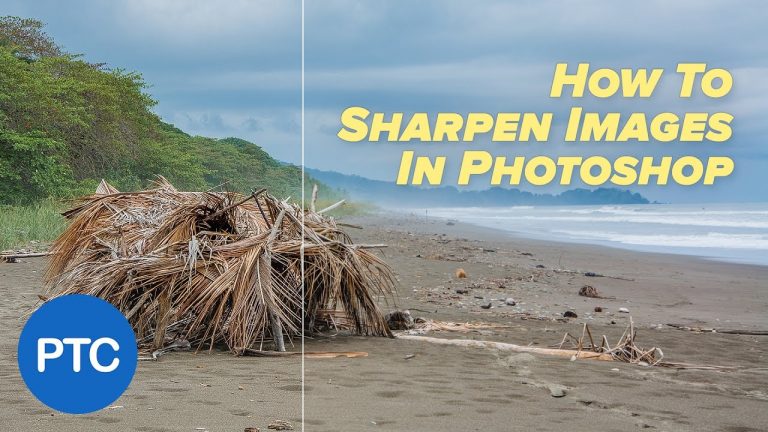
How To SHARPEN Images In Photoshop

In this tutorial, you will learn how to sharpen images in Photoshop.

► Subscribe to My Channel Here: http://www.youtube.com/channel/UCdQ_ZkYaMe6qPoueUyPQgpQ?sub_confirmation=1

When sharpening photos in Photoshop, it is important to understand that the sharpening adjustments that we apply do not add any new detail to the photo. In Photoshop, we can only create the illusion of sharpness by increasing the contrast of edge pixels. Making it seem as if there is more detail in the image.

If the sharpening is pushed too far, it can create edge halos or increase noise in the photo, so it is always a good idea to keep your adjustments as subtle as possible.

There are no rules or settings that you should always use. The amount of sharpening that looks good depends on the contrast of the texture of the image. The only thing that seems to hold true in most cases is that you should apply subtle adjustments.

When applying sharpness, always view the image at 100% so that you can see how the image is being affected, any other view will be inaccurate and misleading.

The tools that we will look at to sharpen images in Photoshop are the Smart Sharpen Filter, and the Camera RAW filter.

There are three types of sharpening that you can apply to a photo, Capture Sharpening, Creative Sharpening, and Output Sharpening. But in this video, we will mainly focus on capture sharpening.

Capture Sharpening

The sharpening that you apply to an image to bring back the sharpness lost through the process of capturing the image to a sensor and converting it to a digital format. The demosaicing process.

To offset this loss of detail, when you open a RAW file in CameraRAW or Lightroom you will see that the Sharpening “Amount” is set to 25 by default.

If you open a JPG, instead you will see that the Amount will be set to 0, because your camera or the device that created the image adds sharpening as the jpg is made.

Creative Sharpening

Applied selectively based on artistic intent. It is an effect that tends not to be realistic or subtle.

Output Sharpening

The last step before output. Done after you reduce the size of the image and before exporting it as a JPEG, or before printing the image. Both printing and downscaling an image may soften it, and it may require a bit of sharpening to bring back some detail.

If you have any questions, please leave them below
or head over to this tutorial’s page on our website:

➜ https://photoshoptrainingchannel.com/

? Subscribe + Like + Share + Comment = More Video Tutorials!

Thank you for watching!

– – – – – – – – – – – – – – – – – – – – – – –
⚡ PTC NEWSLETTER

If you enjoyed this video be sure to subscribe to our newsletter to receive free weekly Photoshop tips and more!

➜ ✉️: http://ptcvids.com/subscribe

– – – – – – – – – – – – – – – – – – – – – – –
⚡PREMIUM TUTORIALS

For more in-depth Photoshop Tutorials be sure to check out our Premium tutorials.

➜ http://ptcvids.com/shop/

– – – – – – – – – – – – – – – – – – – – – – –
⚡ FOLLOW PTC ON

– Facebook: https://fb.com/PhotoshopTrainingChannel

– Instagram: http://instagram.com/jrfromptc

– LinkedIn: http://linkedin.com/company/Photoshop-Training-Channel

– Pinterest: http://pinterest.com/ptcpins

– Behance: https://www.behance.net/JRfromPTC

– Twitter: https://twitter.com/JRfromPTC

– – – – – – – – – – – – – – – – – – – – – – –
⚡ LINKS

– Website: https://photoshoptrainingchannel.com

– YouTube Channel: https://youtube.com/user/photoshoptrainingch

– Google +: https://google.com/+Photoshoptrainingchannel

– This Video’s Youtube Link: http://youtu.be/ZMun-RmoEXk

– – – – – – – – – – – – – – – – – – – – – – –
⚡ CREDITS

– Stock Images provided by stock.adobe.com

– Photoshop video tutorials by Jesus Ramirez
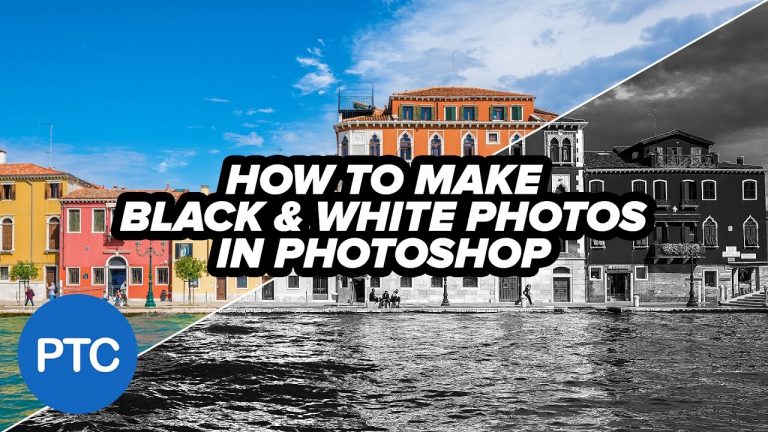
How To Make BLACK and WHITE Photos In PHOTOSHOP – Two Easy Conversion Techniques

► Subscribe to My Channel Here: http://www.youtube.com/channel/UCdQ_ZkYaMe6qPoueUyPQgpQ?sub_confirmation=1

In this tutorial, you will learn how to convert photos to black and white in Photoshop. We will use two techniques that will give you a lot of control and allow you to work non-destructively.

The first technique we will work with the Black and White Adjustment layer (introduced in Photoshop CS3). The Black and White Adjustment Layer allows you to control how dark or how bright specific colors will display after the black and white conversion has been made.

The second technique is very similar, but it instead uses the Camera RAW filter’s HSL sliders. They work the same way as the Black and White adjustment Layer but it offers two additional sliders. The “Oranges” slider, and the “Purple” slider.

If you have any questions, please leave them below
or head over to this tutorial’s page on our website:

➜ https://photoshoptrainingchannel.com/black-white-photos-photoshop/

? Subscribe + Like + Share + Comment = More Video Tutorials!

Thank you for watching!

– – – – – – – – – – – – – – – – – – – – – – –
⚡ PTC NEWSLETTER

If you enjoyed this video be sure to subscribe to our newsletter to receive free weekly Photoshop tips and more!

➜ ✉️: http://ptcvids.com/subscribe

– – – – – – – – – – – – – – – – – – – – – – –
⚡PREMIUM TUTORIALS

For more in-depth Photoshop Tutorials be sure to check out our Premium tutorials.

➜ http://ptcvids.com/shop/

– – – – – – – – – – – – – – – – – – – – – – –
⚡ FOLLOW PTC ON

– Facebook: https://fb.com/PhotoshopTrainingChannel

– Instagram: http://instagram.com/jrfromptc

– LinkedIn: http://linkedin.com/company/Photoshop-Training-Channel

– Pinterest: http://pinterest.com/ptcpins

– Behance: https://www.behance.net/JRfromPTC

– Twitter: https://twitter.com/JRfromPTC

– – – – – – – – – – – – – – – – – – – – – – –
⚡ LINKS

– Website: https://photoshoptrainingchannel.com

– YouTube Channel: https://youtube.com/user/photoshoptrainingch

– Google +: https://google.com/+Photoshoptrainingchannel

– This Video’s Youtube Link: http://youtu.be/qIbGzDHJ-9E

– – – – – – – – – – – – – – – – – – – – – – –
⚡ CREDITS

– Photoshop video tutorials by Jesus Ramirez

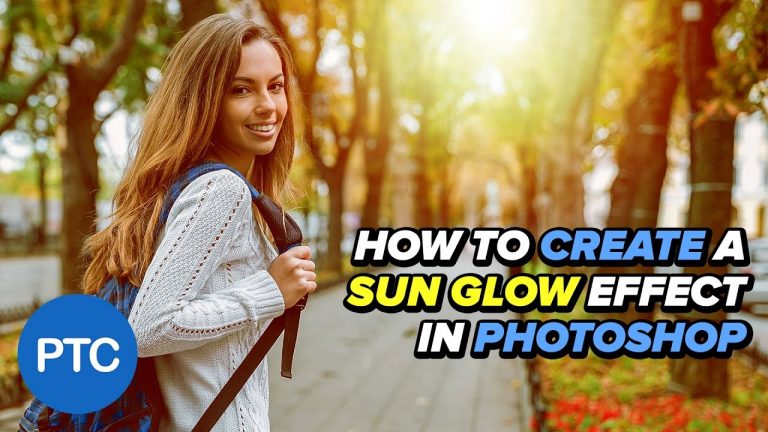
How To Create a SUN GLOW Effect in Photoshop – SUN FLARE Tutorial

► Subscribe to My Channel Here: http://www.youtube.com/channel/UCdQ_ZkYaMe6qPoueUyPQgpQ?sub_confirmation=1

In this tutorial, I’m going to show you how to create sun flares in Photoshop.

The effect that we’re going to create in this video is the sun glow effect that is really popular in portrait photography. It’s a stylized affect that warms up an image and makes it more interesting.

Like everything else in Photoshop, there is a lot of ways of achieving this sun flare overlay effect. One of the best methods is to use the Gradient Fill Layer alongside the Hard Light Blending Mode, which allows you to work none destructively, and it gives you a lot of control as to how the glow effect looks.

Using Adjustment Layers or Fill Layers, do not add too much to the file size of the final photoshop file. So use them instead of pixel layers whenever you can.

Best of all, if you create a sun glow effect using a Gradient Fill, you can save it as a preset, and use it again on any other image that you like.

By learning to create these artificial light bursts, you’ll be able to easily add sunlight to photos, and make sunset or sunrise glows.

In this tutorial, I will be using an Adobe stock for this image. You can download the free watermarked preview if you like, or use your own image to follow along.

⚡⚡ Adobe Stock Image:
http://bit.ly/2ptNI8B

If you have any questions, please leave them below
or head over to this tutorial’s page on our website:

➜ https://photoshoptrainingchannel.com/sun-glow-flare-photoshop/

? Subscribe + Like + Share + Comment = More Video Tutorials!

Thank you for watching!

– – – – – – – – – – – – – – – – – – – – – – –
⚡ PTC NEWSLETTER

If you enjoyed this video be sure to subscribe to our newsletter to receive free weekly Photoshop tips and more!

➜ ✉️: http://ptcvids.com/subscribe

– – – – – – – – – – – – – – – – – – – – – – –
⚡PREMIUM TUTORIALS

For more in-depth Photoshop Tutorials be sure to check out our Premium tutorials.

➜ http://ptcvids.com/shop/

– – – – – – – – – – – – – – – – – – – – – – –
⚡ FOLLOW PTC ON

– Facebook: https://fb.com/PhotoshopTrainingChannel

– Instagram: http://instagram.com/jrfromptc

– LinkedIn: http://linkedin.com/company/Photoshop-Training-Channel

– Pinterest: http://pinterest.com/ptcpins

– Behance: https://www.behance.net/JRfromPTC

– Twitter: https://twitter.com/JRfromPTC

– – – – – – – – – – – – – – – – – – – – – – –
⚡ LINKS

– Website: https://photoshoptrainingchannel.com

– YouTube Channel: https://youtube.com/user/photoshoptrainingch

– Google +: https://google.com/+Photoshoptrainingchannel

– This Video’s Youtube Link: http://youtu.be/1Ll0R0sSgNM

– – – – – – – – – – – – – – – – – – – – – – –
⚡ CREDITS

– Stock Images provided by stock.adobe.com

– Photoshop video tutorials by Jesus Ramirez
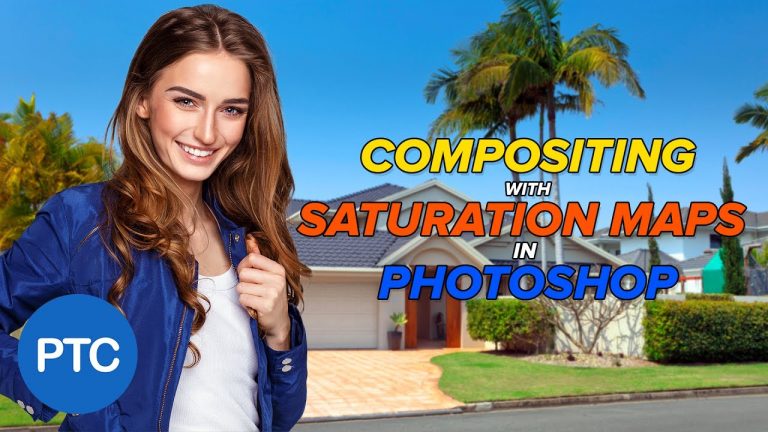
Compositing With SATURATION MAPS in Photoshop – Match Saturation

Photoshop tutorial showing you how to match the saturation of images using a Saturation Map.

► Subscribe to My Channel Here: http://www.youtube.com/channel/UCdQ_ZkYaMe6qPoueUyPQgpQ?sub_confirmation=1

Photoshop Compositing Course:
https://photoshoptrainingchannel.com/product/photoshop-compositing/

Photoshop tutorial showing you how to use a Selective Color Adjustment Layer to create a Saturation Map. Then you can use the map to try to match the saturation of multiple objects in a composite.

If you have any questions, please leave them below
or head over to this tutorial’s page on our website:

➜ https://photoshoptrainingchannel.com/saturation-maps

? Subscribe + Like + Share + Comment = More Video Tutorials!

Thank you for watching!

– – – – – – – – – – – – – – – – – – – – – – –
⚡ PTC NEWSLETTER

If you enjoyed this video be sure to subscribe to our newsletter to receive free weekly Photoshop tips and more!

➜ ✉️: http://ptcvids.com/subscribe

– – – – – – – – – – – – – – – – – – – – – – –
⚡PREMIUM TUTORIALS

For more in-depth Photoshop Tutorials be sure to check out our Premium tutorials.

➜ http://ptcvids.com/shop/

– – – – – – – – – – – – – – – – – – – – – – –
⚡ FOLLOW PTC ON

– Facebook: https://fb.com/PhotoshopTrainingChannel

– Instagram: http://instagram.com/jrfromptc

– LinkedIn: http://linkedin.com/company/Photoshop-Training-Channel

– Pinterest: http://pinterest.com/ptcpins

– Behance: https://www.behance.net/JRfromPTC

– Twitter: https://twitter.com/JRfromPTC

– – – – – – – – – – – – – – – – – – – – – – –
⚡ LINKS

– Website: https://photoshoptrainingchannel.com

– YouTube Channel: https://youtube.com/user/photoshoptrainingch

– Google +: https://google.com/+Photoshoptrainingchannel

– This Video’s Youtube Link:

– – – – – – – – – – – – – – – – – – – – – – –
⚡ CREDITS

– Stock Images provided by stock.adobe.com

– Photoshop video tutorials by Jesus Ramirez

How to Create SEAMLESS Textures in Photoshop – Repeatable Patterns

► Subscribe to My Channel Here: http://www.youtube.com/channel/UCdQ_ZkYaMe6qPoueUyPQgpQ?sub_confirmation=1

Photoshop tutorial showing you how to create seamless textures. We will use the Clouds Filter to generate our texture. But you can use this technique with any image that you like to create tileable patterns.

You will also learn to take advantage of the Clouds Filter’s algorithm to quickly create seamless repeatable patterns by using a document width and height that is set to the power of two.

If you have any questions, please leave them below
or head over to this tutorial’s page on our website:

➜ https://photoshoptrainingchannel.com/

? Subscribe + Like + Share + Comment = More Video Tutorials!

Thank you for watching!

– – – – – – – – – – – – – – – – – – – – – – –
⚡ PTC NEWSLETTER

If you enjoyed this video be sure to subscribe to our newsletter to receive free weekly Photoshop tips and more!

➜ ✉️: http://ptcvids.com/subscribe

– – – – – – – – – – – – – – – – – – – – – – –
⚡PREMIUM TUTORIALS

For more in-depth Photoshop Tutorials be sure to check out our Premium tutorials.

➜ http://ptcvids.com/shop/

– – – – – – – – – – – – – – – – – – – – – – –
⚡ FOLLOW PTC ON

– Facebook: https://fb.com/PhotoshopTrainingChannel

– Instagram: http://instagram.com/jrfromptc

– LinkedIn: http://linkedin.com/company/Photoshop-Training-Channel

– Pinterest: http://pinterest.com/ptcpins

– Behance: https://www.behance.net/JRfromPTC

– Twitter: https://twitter.com/JRfromPTC

– – – – – – – – – – – – – – – – – – – – – – –
⚡ LINKS

– Website: https://photoshoptrainingchannel.com

– YouTube Channel: https://youtube.com/user/photoshoptrainingch

– Google +: https://google.com/+Photoshoptrainingchannel

– This Video’s Youtube Link: http://youtu.be/YNdbxEEQ9no

– – – – – – – – – – – – – – – – – – – – – – –
⚡ CREDITS

– Photoshop video tutorials by Jesus Ramirez
Spider-Man Homecoming Text Effect in Photoshop – Layer Styles Tutorial

In this tutorial, you will learn to replicate the Spider-man text effect in Photoshop using Layer Styles.

► Subscribe to My Channel Here: http://www.youtube.com/channel/UCdQ_ZkYaMe6qPoueUyPQgpQ?sub_confirmation=1

Photoshop tutorial showing you how to

If you have any questions, please leave them below
or head over to this tutorial’s page on our website:

➜ https://photoshoptrainingchannel.com/

? Subscribe + Like + Share + Comment = More Video Tutorials!

Thank you for watching!

– – – – – – – – – – – – – – – – – – – – – – –
⚡ PTC NEWSLETTER

If you enjoyed this video be sure to subscribe to our newsletter to receive free weekly Photoshop tips and more!

➜ ✉️: http://ptcvids.com/subscribe

– – – – – – – – – – – – – – – – – – – – – – –
⚡PREMIUM TUTORIALS

For more in-depth Photoshop Tutorials be sure to check out our Premium tutorials.

➜ http://ptcvids.com/shop/

– – – – – – – – – – – – – – – – – – – – – – –
⚡ FOLLOW PTC ON

– Facebook: https://fb.com/PhotoshopTrainingChannel

– Instagram: http://instagram.com/jrfromptc

– LinkedIn: http://linkedin.com/company/Photoshop-Training-Channel

– Pinterest: http://pinterest.com/ptcpins

– Behance: https://www.behance.net/JRfromPTC

– Twitter: https://twitter.com/JRfromPTC

– – – – – – – – – – – – – – – – – – – – – – –
⚡ LINKS

– Website: https://photoshoptrainingchannel.com

– YouTube Channel: https://youtube.com/user/photoshoptrainingch

– Google +: https://google.com/+Photoshoptrainingchannel

– This Video’s Youtube Link: http://youtu.be/g7uf64MHmD8

– – – – – – – – – – – – – – – – – – – – – – –
⚡ CREDITS

– Stock Images provided by stock.adobe.com

– Photoshop video tutorials by Jesus Ramirez