Home Blog Page 151

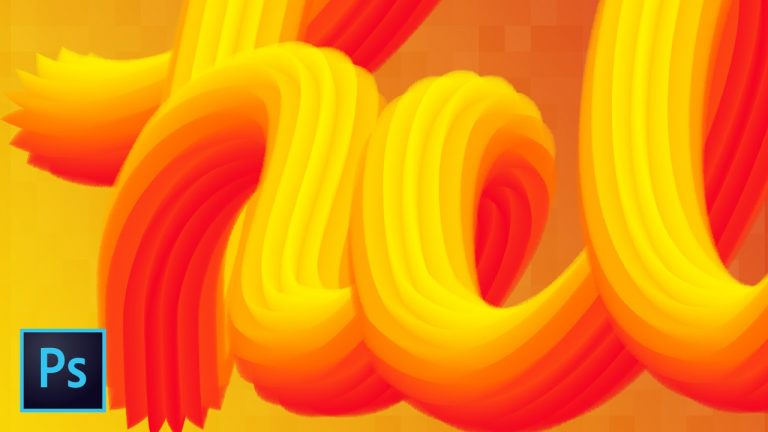
More Advanced 3D Typography Effects PART 2 Photoshop CC (How to Create Awesome Text w/ Mixer Brush)

0

ADVANCED TYPOGRAPHY EFFECT! | Take the skills you learned in part one to a whole new level | Use custom shapes and brush options for unlimited effects!

Learn to create your own simple letters from paths to build big pillow-like 3D text effects using paths and the Mixer Brush tool and SO MUCH more! WATCH PART 1 HERE: https://youtu.be/d8yH8frsofo

? Subscribe for Daily Tutorials → https://goo.gl/DN4Nln

? Buy the Photoshop Course and Support the Channel → http://bit.ly/28NuwFy

? ↓ VIDEO GUIDE ↓ ?
01:02 Getting started
02:15 Creating a custom letter from shapes
05:43 Creating custom sampler shapes
06:40 Painting ribbed 3D text effects
07:51 Sampling cut 3D effects from partial shapes
09:24 Freeform Pen tool for creating hollow 3D letters
11:34 Create a spiral infinite circle effect
14:37 Creating 3D textures with the Mixer Brush

In this Adobe Photoshop tutorial, we’ll tag team off part one of this tutorial and explore how to create new letters from paths, applying custom shapes using the Mixer Brush tool to add multiple dimensions to our incredible 3D typography effect that is virtually mind-blowing, we’ll create a swooping perfect circle that twists and melts our colors together perfectly, and we’ll explore brush pressures, scattering, and much more! You are going to learn some features, tools, and techniques that you’ll love to use in this tutorial!

⚡️ download is located here: http://bit.ly/2l1oesW

INSTAGRAM: http://instagram.com/tutvid
TWITTER: http://twitter.com/tutvid
FACEBOOK: https://www.facebook.com/tutvid
SNAPCHAT: tutvid.com

tutvid is a YouTube channel dedicated to creating the best Adobe Photoshop, Premiere Pro, Lightroom, and Illustrator tutorials. My goal is to create the best, most informative, and entertaining tutorials on the web. If you enjoy my videos, the best way to support what I do here is to purchase my course linked above or simply subscribe to the YouTube channel by pressing the red button.

✉️ business inquiries: nate@tutvid.com

CREDITS:
Social Icons in outro: http://www.freepik.com/free-vector/six-social-networking-icons-with-infographic-resources_982300.htm
Create a Tshirt Mockup Composite Design in Photoshop CC (Free PSD Download!)

0

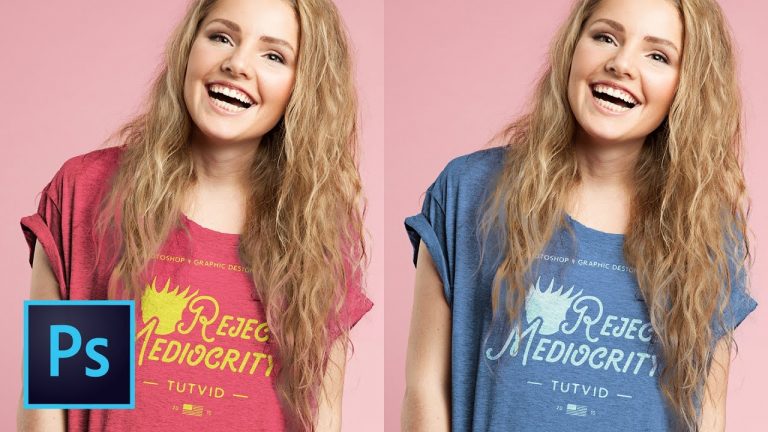
T-SHIRT DESIGN MOCKUP TUTORIAL | Learn to mockup a t-shirt design in Photoshop | Free PSD download below!

? ↓ VIDEO GUIDE ↓ ?
00:31 Getting started
01:17 Mockup with a flat t-shirt PSD
02:39 Adding the displacement map
04:06 Change the shirt color
05:08 Coloring the graphics on the shirt
06:10 Selection of the shirt on the model
07:20 Creating a new displacement map .PSD
08:34 Photo Filter to change shirt color
10:17 Adding the graphics to the shirt
10:54 Additional masking for the graphics
14:00 Applying our displacement filter
15:09 Blending and coloring the graphics

? Subscribe for Daily Tutorials → https://goo.gl/DN4Nln

? Buy the Photoshop Course and Support the Channel → http://bit.ly/28NuwFy

In this Photoshop tutorial, we’ll cover how to create a t-shirt mockup with the PSD download located in this video description. We’ll very quickly create a mockup with a flat t-shirt, but then we’ll use a photo of a model wearing a tshirt and create a tshirt design mockup with a real person involved. You’ll see how I like to use layers, masks, adjustment layers, and blend modes to get a realistic mockup created very quickly!

⚡️ download tshirt PSD: http://graphicburger.com/t-shirt-mockup-psd/
⚡️ written Photoshop tutorial here: http://bit.ly/2lO7pod

INSTAGRAM: http://instagram.com/tutvid
TWITTER: http://twitter.com/tutvid
FACEBOOK: https://www.facebook.com/tutvid
SNAPCHAT: tutvid.com

tutvid is a YouTube channel dedicated to creating the best Adobe Photoshop, Premiere Pro, Lightroom, and Illustrator tutorials. My goal is to create the best, most informative, and entertaining tutorials on the web. If you enjoy my videos, the best way to support what I do here is to purchase my course linked above or simply subscribe to the YouTube channel by pressing the red button.

✉️ business inquiries: nate@tutvid.com

CREDITS:
Social Icons in outro: http://www.freepik.com/free-vector/six-social-networking-icons-with-infographic-resources_982300.htm
10 Hidden & Obscure Photoshop Tools and Features in Photoshop CC

0

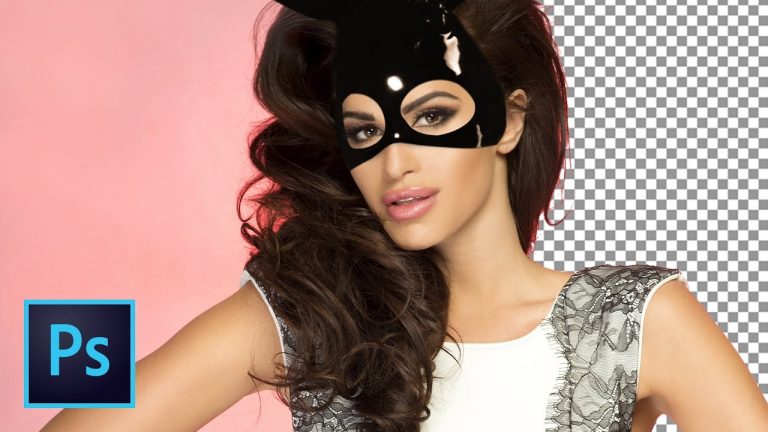
10 HIDDEN POWERFUL PHOTOSHOP FEATURES | We’ll learn tricks that are useful for photographers and graphic designers | Defringing, Color LUTs, Global Colors, Hyper-Target Colors, and more!

Adobe Stock used in this tutorial: https://stock.adobe.com/stock-photo/fashionable-brunette-lady-posing/61379227

? ↓ VIDEO GUIDE ↓ ?
00:39 ONE: Calculations for hair extraction and channel blending
10:28 TWO: Defringing to get better edges
14:39 THREE: The Power of Color LUTs
18:42 FOUR: Color Replacement Brush tool
22:40 FIVE: Hyper-Targeting Colors
26:29 SIX: Create Pixel Grids in Perspective
30:09 SEVEN: Brush Size/Hardness Hotkey Heads Up Trick
31:54 EIGHT: Rotating Clone Stamp or Healing Brush
34:06 NINE: Hidden sharpening viewing mode
36:41 TEN: The Global Color Trick/Hack
41:04 BONUS: Open and Flatten PSD to save time

? Subscribe for Daily Tutorials → https://goo.gl/DN4Nln

? Buy the Photoshop Course and Support the Channel → http://bit.ly/28NuwFy

In this Adobe Photoshop tutorial, we’ll do a quick 45 minute rundown of 10 features (and one bonus trick) that are relatively unknown or obscure in the world of Photoshop. We’ll talk about a trick to cut out hair and then making edges looks smoother and more perfect. We’ll talk about an amazing color grading technique and replacing colors and even targeting very specific color across a photo–even when that color is very hard to select. We’ll also talk about creating graphical grids, brush tool secrets, rotating the clone and healing brushes for maximum power, camera RAW hidden sharpening viewing mode, and the incredible power of global colors in Photoshop. If you’re a photographer OR graphic designer, this Photoshop tutorial is for you!

⚡️ written Photoshop tutorial here: http://bit.ly/2mFT1vX

INSTAGRAM: http://instagram.com/tutvid
TWITTER: http://twitter.com/tutvid
FACEBOOK: https://www.facebook.com/tutvid
SNAPCHAT: tutvid.com

tutvid is a YouTube channel dedicated to creating the best Adobe Photoshop, Premiere Pro, Lightroom, and Illustrator tutorials. My goal is to create the best, most informative, and entertaining tutorials on the web. If you enjoy my videos, the best way to support what I do here is to purchase my course linked above or simply subscribe to the YouTube channel by pressing the red button.

✉️ business inquiries: nate@tutvid.com

CREDITS:
Social Icons in outro: http://www.freepik.com/free-vector/six-social-networking-icons-with-infographic-resources_982300.htm
Create a Double Exposure Image in Photoshop (Amazing Double Exposure Effect Tutorial)

0

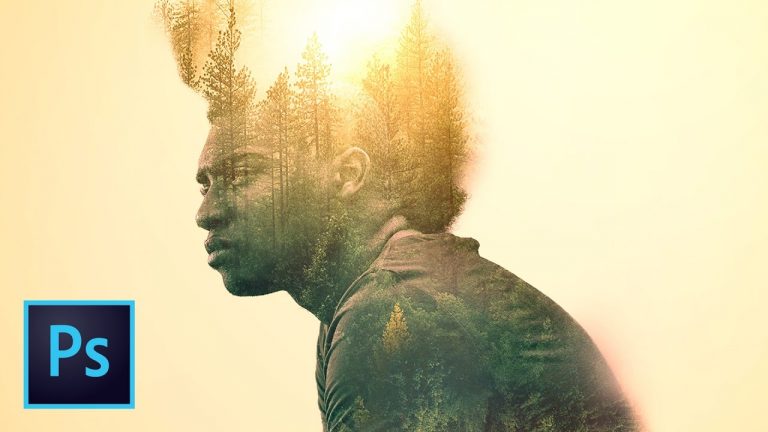
COLORFUL MASKED DOUBLE EXPOSURE | Mix masks and adjustment layers to create this effect | This tutorial covers Smart Objects, Masking, Blend Modes, Select and Mask, and much more!

? ↓ VIDEO GUIDE ↓ ?
00:23 How to use select and mask to cut out the model
04:21 Positioning and creating the background
06:01 Color and tone adjustments to the model
06:33 Bringing in the trees texture for the double exposure
10:27 Color and blending adjustments to blend the model with the trees
11:41 Extending the trees outside of the model
13:42 Adding a second layer of trees and blending everything together
18:54 Adding intense double sharpness effect
20:30 Creating an amazing lens flare
21:57 Adjusting overall color to give amazing mood
22:46 Create an edge vignette with lens correction

? Subscribe for Daily Tutorials → https://goo.gl/DN4Nln

? Buy the Photoshop Course and Support the Channel → http://bit.ly/28NuwFy

In this Photoshop tutorial, we’ll start by cutting out our model using Select and Mask to create a complex mask and then we’ll double up our tree texture and use masks and blend mode to set the double exposure effect and then we’ll use a combination of mid-tone sharpening, lens flares, and color effects to pull the double exposure effect together and get a great final result. This is an effect that should work on any object or person! Mask, Overlay, Color Correct, Blend, Sharpen, Flare, Color Grade and finish! That’s the process we’ll use in this tutorial.

⚡️ written tutorial link will be here: http://bit.ly/2muzdyD

INSTAGRAM: http://instagram.com/tutvid
TWITTER: http://twitter.com/tutvid
FACEBOOK: https://www.facebook.com/tutvid
SNAPCHAT: tutvid.com

tutvid is a YouTube channel dedicated to creating the best Adobe Photoshop, Premiere Pro, Lightroom, and Illustrator tutorials. My goal is to create the best, most informative, and entertaining tutorials on the web. If you enjoy my videos, the best way to support what I do here is to purchase my course linked above or simply subscribe to the YouTube channel by pressing the red button.

✉️ business inquiries: nate@tutvid.com

CREDITS:
Social Icons in outro: http://www.freepik.com/free-vector/six-social-networking-icons-with-infographic-resources_982300.htm
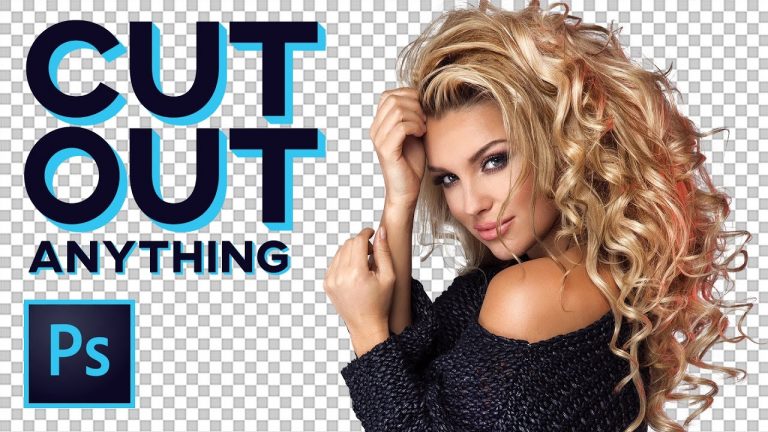
How to Cut Out ANYTHING in Photoshop (10 Tips and Tricks for Making Difficult Selections and Masks)

0

TEN TIPS & TRICKS FOR MAKING SELECTIONS! | Learn each of these styles in several minutes or less! | We will cover basic, intermediate, and advanced methods for making selections in Photoshop

Adobe Stock photo used in this tutorial: https://stock.adobe.com/stock-photo/beauty-portrait-of-blonde-sensual-lady/90506434

? ↓ VIDEO GUIDE ↓ ?
00:35 I. Start every selection with Quick Selection
03:35 II. Use Select and Mask to cut out hair
07:14 III. bonus tip: Getting back to the older Refine Edge feature
08:58 IV. Poly Lasso tool + tips and tricks for straight selections
12:42 V. The mighty Pen Tool
16:54 VI. Using a channel to create a complex selection
22:54 VII. Calculations for complex selections w/ lots of straight lines
26:19 VIII. Color Range to create selections based on color or tone
29:09 IX. Quick Mask tools to paint selections FAST
31:13 X. What do I do once I have a selection?
32:26 XI. Defringe your selections and objects for amazing edges

? Subscribe for Daily Tutorials → https://goo.gl/DN4Nln

? Buy the Photoshop Course and Support the Channel → http://bit.ly/28NuwFy

Learn to make virtually ANY selection and cut out anything you would even need in Photoshop. We’ll make simple, straight-line selections with the Poly Lasso tool, we’ll select car parts with the Pen Tool and edit the path, we’ll use Calculations to create extremely intricate and difficult selections VERY quickly, we’ll learn to use and work with Select and Mask as well as Refine Edge, we’ll build a selection based on a single channel, and SO much more! You will learn everything you need to know about one of the most important aspects of using Photoshop: Creating Selections and Cutting Stuff Out!

⚡️ check out the written tutorial here: http://bit.ly/2nbjCRV

INSTAGRAM: http://instagram.com/tutvid
TWITTER: http://twitter.com/tutvid
FACEBOOK: https://www.facebook.com/tutvid
SNAPCHAT: tutvid.com

tutvid is a YouTube channel dedicated to creating the best Adobe Photoshop, Premiere Pro, Lightroom, and Illustrator tutorials. My goal is to create the best, most informative, and entertaining tutorials on the web. If you enjoy my videos, the best way to support what I do here is to purchase my course linked above or simply subscribe to the YouTube channel by pressing the red button.

✉️ business inquiries: nate@tutvid.com

CREDITS:
Social Icons in outro: http://www.freepik.com/free-vector/six-social-networking-icons-with-infographic-resources_982300.htm
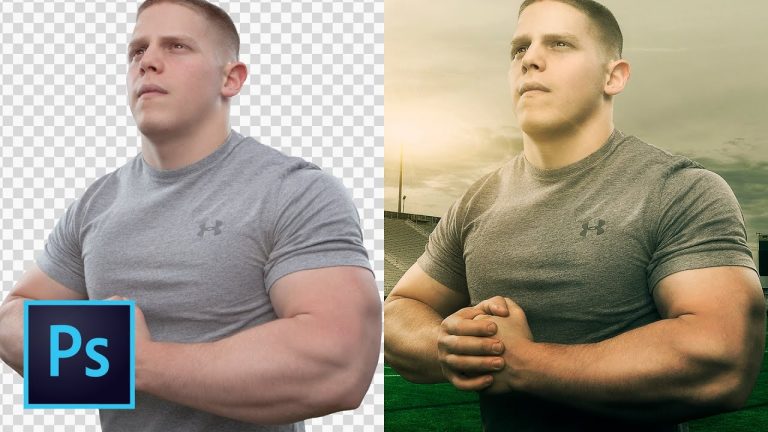
How to Composite and Blend Images in Photoshop with Lighting Effects, Masking, and Color

0

LEARN TO COMPOSITE ANY PERSON IN PHOTOSHOP | Take a deep dive into dragging someone from one image into another in this tutorial | We will cover selection tools, correcting color, creating colorful effects, sharpening, lens flare, dodging and burning, and much more!

? ↓ VIDEO GUIDE ↓ ?
00:54 Getting started
03:38 Cleaning up the background
08:38 Cutting out the model
09:55 Working this selection using Select and Mask
12:45 Cleaning up the hair with the Brush tool
16:26 First round of color and tone work
17:58 Dodging and burning
20:43 Adding lights to the stadium
27:28 Another round of color and tone work
33:43 Digital re-lighting with Curves and Levels
34:56 Make the turf GREEN
37:28 Final colorizing and sharpening

Link to download flare brush pack: https://www.brusheezy.com/brushes/56971-free-lens-flares-photoshop-brushes

? Subscribe for Daily Tutorials → https://goo.gl/DN4Nln

? Buy the Photoshop Course and Support the Channel → http://bit.ly/28NuwFy

In this Photoshop tutorial, we’ll tackle the complete process of blending two images together in Photoshop to create a movie-style composite image and pull together the foreground and background to create a smooth colored composite image with depth and contrast. You’ll learn about cutting out an image and creating a mask in this tutorial as well as healing, working with Curves, Levels, Gradient Maps, Selective Color, and much, much more to create this entire effect.

⚡️ Check out the written tutorial here: http://bit.ly/2mFSTPI

INSTAGRAM: http://instagram.com/tutvid
TWITTER: http://twitter.com/tutvid
FACEBOOK: https://www.facebook.com/tutvid
SNAPCHAT: tutvid.com

tutvid is a YouTube channel dedicated to creating the best Adobe Photoshop, Premiere Pro, Lightroom, and Illustrator tutorials. My goal is to create the best, most informative, and entertaining tutorials on the web. If you enjoy my videos, the best way to support what I do here is to purchase my course linked above or simply subscribe to the YouTube channel by pressing the red button.

✉️ business inquiries: nate@tutvid.com

CREDITS:
Social Icons in outro: http://www.freepik.com/free-vector/six-social-networking-icons-with-infographic-resources_982300.htm
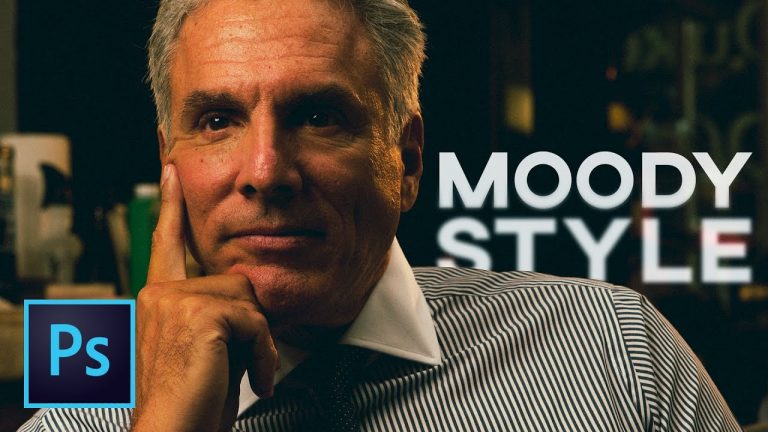
Create 5 Different “VSCO” Inspired Dark and Moody Photo Effects in Photoshop + Free Preset Download!

0

FREE PRESET DOWNLOAD INCLUDED HERE! | Create Five Different Moody Presets For Portraits in Camera Raw | We will cover how to use Curves and HSL in Camera Raw in depth

To install the Camera RAW actions download and unzip the file here: http://bit.ly/2mTjDMW

Place the 5x .xmp files in this folder

Mac: (user)/Library/Application Support/Adobe/Camera Raw /Settings

Win: (user)/Application Data/Adobe/Camera Raw/Settings

? Subscribe for Daily Tutorials → https://goo.gl/DN4Nln

? Buy the Photoshop Course and Support the Channel → http://bit.ly/28NuwFy

In this Photoshop tutorial, we’ll cover how to create five different moody Photoshop preset actions that we’ll be gearing specifically for portrait, but really could be used for any type of image in Photoshop. We will use the point curve in Camera Raw and the Hue, Saturation, Luminance sliders in Camera Raw almost exclusively to create these five different effects. Enjoy the video!

⚡️ free ACR preset download here: http://bit.ly/2mTjDMW

INSTAGRAM: http://instagram.com/tutvid
TWITTER: http://twitter.com/tutvid
FACEBOOK: https://www.facebook.com/tutvid
SNAPCHAT: tutvid.com

tutvid is a YouTube channel dedicated to creating the best Adobe Photoshop, Premiere Pro, Lightroom, and Illustrator tutorials. My goal is to create the best, most informative, and entertaining tutorials on the web. If you enjoy my videos, the best way to support what I do here is to purchase my course linked above or simply subscribe to the YouTube channel by pressing the red button.

✉️ business inquiries: nate@tutvid.com

CREDITS:
Social Icons in outro: http://www.freepik.com/free-vector/six-social-networking-icons-with-infographic-resources_982300.htm
Roundtrip Lightroom to Photoshop Editing Workflow

0

TWO WAYS TO EDIT LIGHTROOM TO PHOTOSHOP | TIFF, PSD, and RAW | Advanced Editing in Photoshop

Check out the two ways I like to bring my photos into Photoshop and return them to Lightroom!

? Subscribe for Daily Tutorials → https://goo.gl/DN4Nln

? Buy the Photoshop Course and Support the Channel → http://bit.ly/28NuwFy

? ↓ VIDEO GUIDE ↓ ?
01:16 Getting started with the workflow
01:46 Editing in Photoshop
02:40 Getting the image back to Lightroom automatically
04:52 Editing the options behind the workflow
06:20 Deleting the image returned by Photoshop from Lightroom & hard drive
07:45 Creating a Smart Object from Lightroom to use the Raw file
10:55 Final thoughts and how I use this workflow

In this Lightroom tutorial, we’ll talk about how to adjust the settings for the external editors in Lightroom and talk about shipping an image over to Photoshop from Lightroom. I’ll talk about deleting images when needed, where the new image is stored on the hard drive, working with TIFF, PSDs, and the original Camera RAW files, wrapping your Lightroom images in a Smart Object to preserve the RAW image and Lightroom edits, and more! If you ever need to do more advanced retouching, this tutorial will teach you everything you need to know to get the job done.

⚡️ written tutorial: http://bit.ly/2kkTWEq

INSTAGRAM: http://instagram.com/tutvid
TWITTER: http://twitter.com/tutvid
FACEBOOK: https://www.facebook.com/tutvid
SNAPCHAT: tutvid.com

tutvid is a YouTube channel dedicated to creating the best Adobe Photoshop, Premiere Pro, Lightroom, and Illustrator tutorials. My goal is to create the best, most informative, and entertaining tutorials on the web. If you enjoy my videos, the best way to support what I do here is to purchase my course linked above or simply subscribe to the YouTube channel by pressing the red button.

✉️ business inquiries: nate@tutvid.com

CREDITS:
Social Icons in outro: http://www.freepik.com/free-vector/six-social-networking-icons-with-infographic-resources_982300.htm
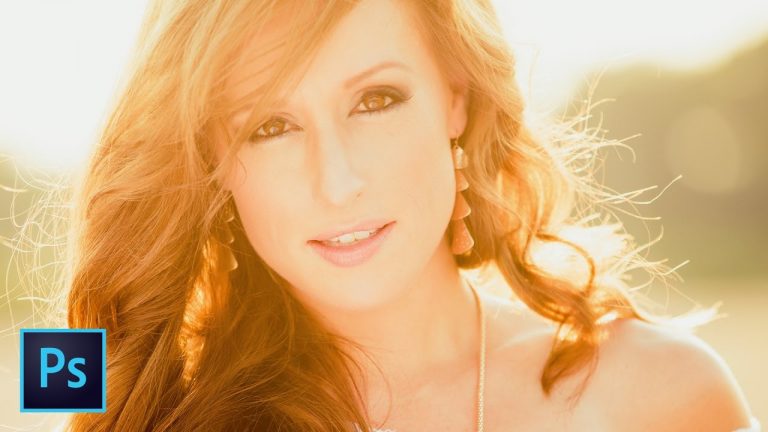
10 Photoshop Actions to Speed Up Retouching & Photo Editing

0

DOWNLOAD 10 FREE ACTIONS | Everything you need to start retouching right away! | Hair, Skin, Eyes, Color, & more!

⚡️ download the action pack here: http://bit.ly/2kNPivn

Check out the 10 Photoshop Actions that I love the most when I’m retouching images in Photoshop!

? Subscribe for Daily Tutorials → https://goo.gl/DN4Nln

? Buy the Photoshop Course and Support the Channel → http://bit.ly/28NuwFy

? ↓ VIDEO GUIDE ↓ ?
01:50 How to use Frequency Separation
07:06 How to Retouch Eyes
10:18 How to Retouch Hair
12:45 How to Dodge and Burn
14:17 Tonal Adjustment Action
16:21 Auto Lens Flare Action
17:00 Smart Grain Action
17:51 Video Game Tones Color Process Action
19:38 Soften, Sharpen Black and White Process Action

In this Photoshop tutorial, I go through ten Photoshop Actions that I built that I love using while retouching images. Make sure you download the action pack right away! We’ll cover Frequency Separation, Hair Retouching, Eye Retouching, Skin and Blemish Removal, Dodging and Burning, Creating a Lens Flare, Smart Grain to Blend Color and Tone, and more!

⚡️ download the action pack here: http://bit.ly/2kNPivn

INSTAGRAM: http://instagram.com/tutvid
TWITTER: http://twitter.com/tutvid
FACEBOOK: https://www.facebook.com/tutvid
SNAPCHAT: tutvid.com

tutvid is a YouTube channel dedicated to creating the best Adobe Photoshop, Premiere Pro, Lightroom, and Illustrator tutorials. My goal is to create the best, most informative, and entertaining tutorials on the web. If you enjoy my videos, the best way to support what I do here is to purchase my course linked above or simply subscribe to the YouTube channel by pressing the red button.

✉️ business inquiries: nate@tutvid.com

CREDITS:
Social Icons in outro: http://www.freepik.com/free-vector/six-social-networking-icons-with-infographic-resources_982300.htm

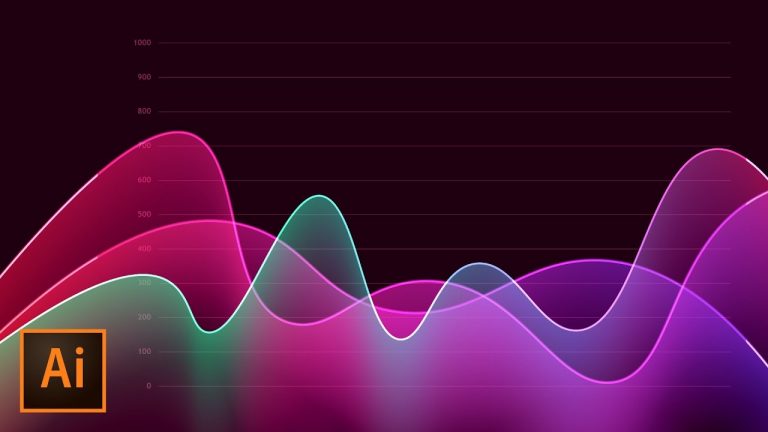
How to Create Metrics Line Graph Analytics Vector Artwork in Illustrator

0

BEAUTIFUL COLOR AND BLENDING | Create a Simple Graph Chart | Use Beautiful Colors and Gradients

You’re going to love using the Curvature Tool and the Blend Tool to create these beautiful line graphs!

? Subscribe for Daily Tutorials → https://goo.gl/DN4Nln

? Buy the Photoshop Course and Support the Channel → http://bit.ly/28NuwFy

? ↓ VIDEO GUIDE ↓ ?
00:35 Getting started
01:27 Creating the layers and shapes we need to start
02:35 Creating the graph lines quickly
05:06 Creating the graph numbers
09:19 Creating a masked layer
11:39 Introducing the Curvature Tool
12:32 Adding the first gradient
13:22 Creating the color blend
15:50 Creating a second graph line
18:34 Adding some contrast/transparency
19:05 Playing with the blends to tweak the whole effect
20:42 Final thoughts

In this Adobe Illustrator tutorial, we’ll build a simple colorful analytics dashboard style line graph with a blended gradient that fades in and out based upon the curve in the line chart. We’ll use the Grid tool, the Curvature tool, Gradients, the Curvature tool, Direct Selection, and Opacity changes to create a beautiful and colorful dynamic effect.

⚡️ written tutorial: http://bit.ly/2jMTZrC

INSTAGRAM: http://instagram.com/tutvid
TWITTER: http://twitter.com/tutvid
FACEBOOK: https://www.facebook.com/tutvid
SNAPCHAT: tutvid.com

tutvid is a YouTube channel dedicated to creating the best Adobe Photoshop, Premiere Pro, Lightroom, and Illustrator tutorials. My goal is to create the best, most informative, and entertaining tutorials on the web. If you enjoy my videos, the best way to support what I do here is to purchase my course linked above or simply subscribe to the YouTube channel by pressing the red button.

✉️ business inquiries: nate@tutvid.com

CREDITS:
Social Icons in outro: http://www.freepik.com/free-vector/six-social-networking-icons-with-infographic-resources_982300.htm