Home Blog Page 182

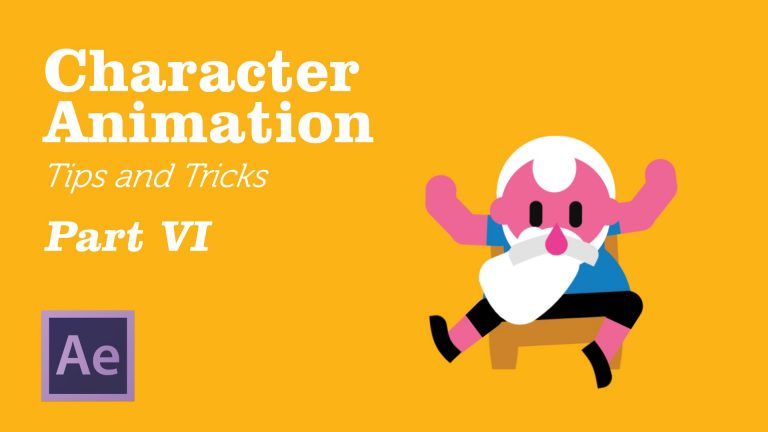
Character Animation in AfterEffects – Tips&Tricks Chapter 6

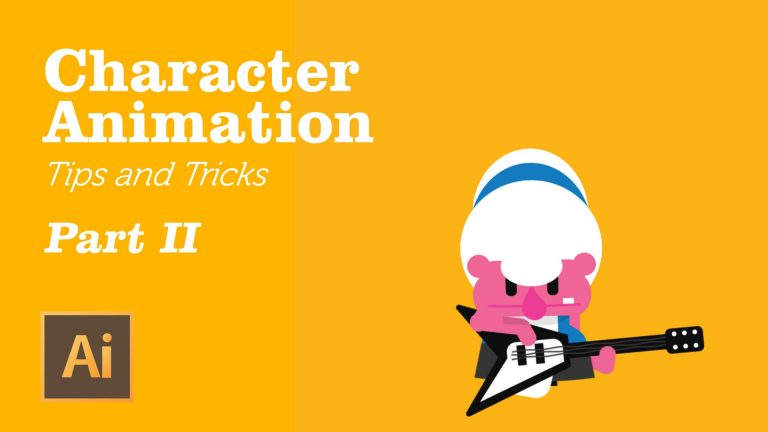
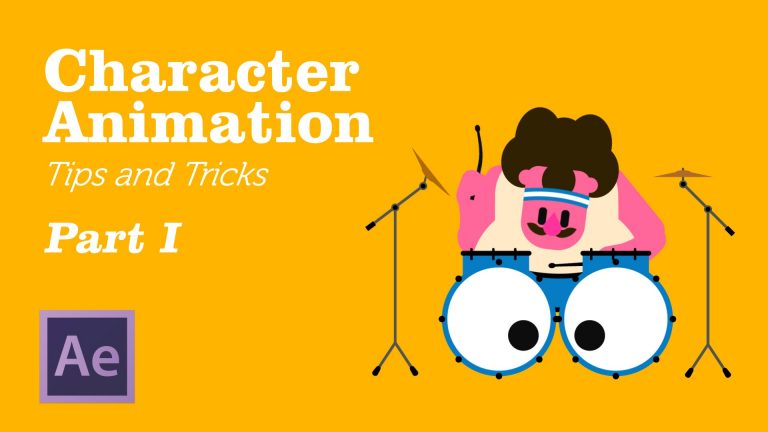
A lot of you guys have been asking question about how I animate character so I thought to put together a serie of 5/6 tutorials to show my workflow. There are so many things to say that I am really not sure these tutorial will be exhaustive, but I hope you will find them useful to develop your own process.

http://www.emanuelecolombo.it
http://www.dribbble.com/emanuelecolombo
http://www.behance.com/emanuelecolombo

http://www.instagram.com/ema_colombo

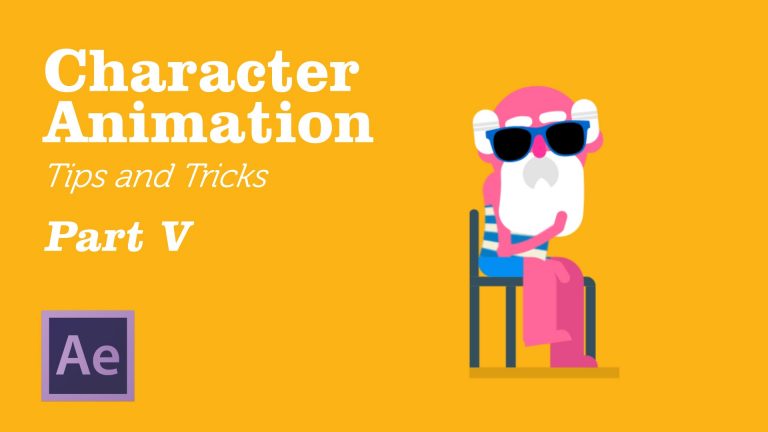
Character Animation in AfterEffects – Tips&Tricks Chapter 5

A lot of you guys have been asking question about how I animate character so I thought to put together a serie of 5/6 tutorials to show my workflow. There are so many things to say that I am really not sure these tutorial will be exhaustive, but I hope you will find them useful to develop your own process.

http://www.emanuelecolombo.it
http://www.dribbble.com/emanuelecolombo
http://www.behance.com/emanuelecolombo

http://www.instagram.com/ema_colombo

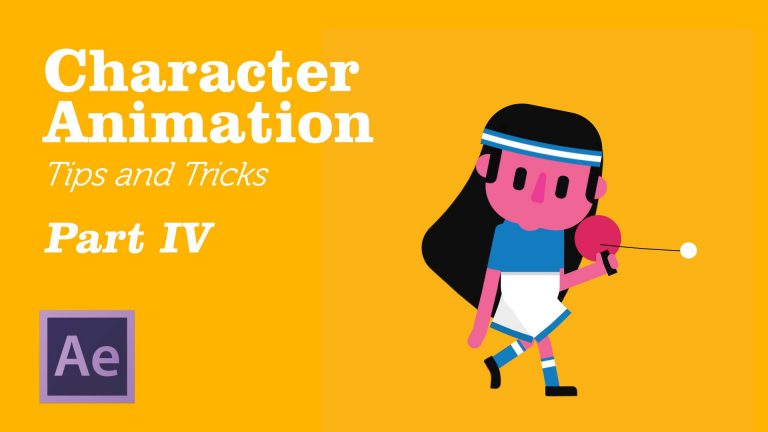
Character Animation in AfterEffects – Tips&Tricks Chapter 4

A lot of you guys have been asking question about how I animate character so I thought to put together a serie of 5/6 tutorials to show my workflow. There are so many things to say that I am really not sure these tutorial will be exhaustive, but I hope you will find them useful to develop your own process.

http://www.emanuelecolombo.it
http://www.dribbble.com/emanuelecolombo
http://www.behance.com/emanuelecolombo

http://www.instagram.com/ema_colombo

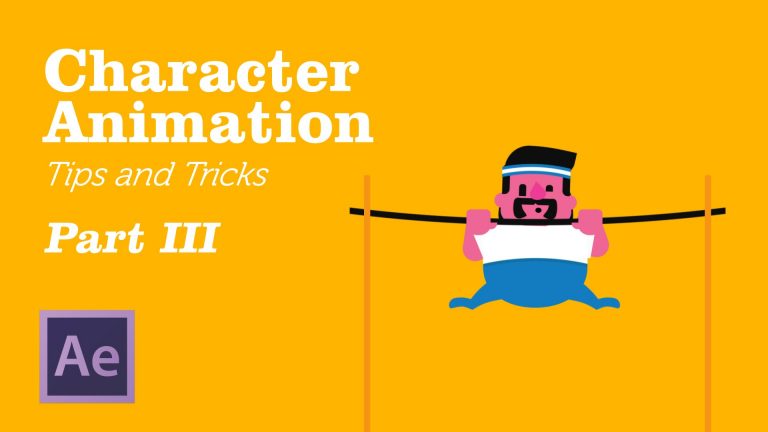
Character Animation in AfterEffects – Tips&Tricks Chapter 3

A lot of you guys have been asking question about how I animate character so I thought to put together a serie of 5/6 tutorials to show my workflow. There are so many things to say that I am really not sure these tutorial will be exhaustive, but I hope you will find them useful to develop your own process.

http://www.emanuelecolombo.it
http://www.dribbble.com/emanuelecolombo
http://www.behance.com/emanuelecolombo

http://www.instagram.com/ema_colombo

Character Animation in AfterEffects – Tips&Tricks Chapter 2

In this second episode I focused on how I generally set up characters. I know it’s not that interesting, but it is was fundamental to include this step before moving on more complex aspects of the animation process.
Things will be way more interesting starting from the next video, I promise 🙂

http://www.emanuelecolombo.it
http://www.dribbble.com/emanuelecolombo
http://www.behance.com/emanuelecolombo

http://www.instagram.com/ema_colombo

Character Animation in AfterEffects – Tips&Tricks Chapter 1

A lot of you guys have been asking question about how I animate character so I thought to put together a serie of 5/6 tutorials to show my workflow. There are so many things to say that I am really not sure these tutorial will be exhaustive, but I hope you will find them useful to develop your own process.

http://www.emanuelecolombo.it
http://www.dribbble.com/emanuelecolombo
http://www.behance.com/emanuelecolombo

http://www.instagram.com/ema_colombo

How to Create Responsive Design using Media Queries in Dreamweaver | Adobe Creative Cloud

Ensure your site looks its best across screen sizes and devices by adding and managing media queries using visual and coding tools in Adobe Dreamweaver CC.

Subscribe: https://www.youtube.com/user/adobecreativecloud?sub_confirmation=1

LET’S CONNECT
Facebook: http://facebook.com/adobecreativecloud
Twitter: http://twitter.com/creativecloud
Instagram: http://www.instagram.com/adobecreativecloud/

Adobe Creative Cloud gives you the world’s best creative apps so you can turn your brightest ideas into your greatest work across your desktop and mobile devices.
Learn How to Create a 3D Animation in After Effects | Adobe Creative Cloud

0

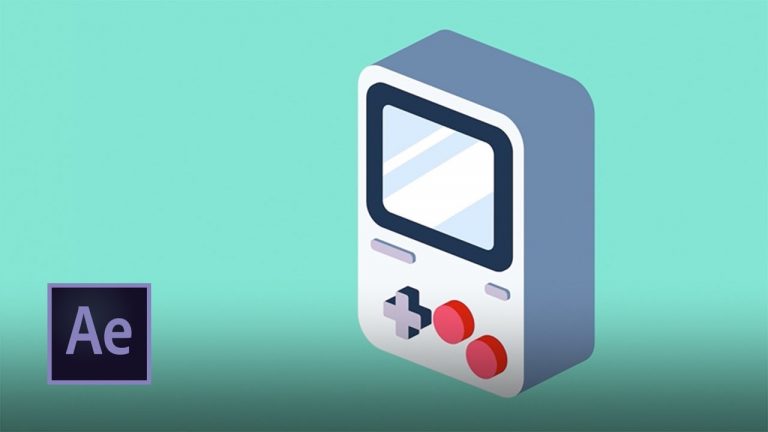
Use spline objects, extrude objects, and the powerful animation tools in the MoGraph module to create and animate a mobile video game device with cel shading using Maxon Cinema 4D Lite, included with Adobe After Effects.

If you want to follow along with this tutorial, use the Game Device assets [https://adobe.ly/2o94zMI]. Click Save to Creative Cloud to copy the assets to your account.

Subscribe: https://www.youtube.com/user/adobecreativecloud?sub_confirmation=1

LET’S CONNECT
Facebook: http://facebook.com/adobecreativecloud
Twitter: http://twitter.com/creativecloud
Instagram: http://www.instagram.com/adobecreativecloud/

Adobe Creative Cloud gives you the world’s best creative apps so you can turn your brightest ideas into your greatest work across your desktop and mobile devices.
Create Photorealistic Images in Project Felix by Combining 2D and 3D Assets | Adobe Creative Cloud

0

Not a 3D expert? Not a problem. Project Felix lets you easily composite 2D and 3D objects, backgrounds, materials, lighting, and effects to enhance your graphic design projects.

Learn more about the Project Felix beta: https://adobe.ly/2vpNjG4

Subscribe: https://www.youtube.com/user/adobecreativecloud?sub_confirmation=1

LET’S CONNECT
Facebook: http://facebook.com/adobecreativecloud
Twitter: http://twitter.com/creativecloud
Instagram: http://www.instagram.com/adobecreativecloud/

Adobe Creative Cloud gives you the world’s best creative apps so you can turn your brightest ideas into your greatest work across your desktop and mobile devices.
How to Make a Tattoo Composite with Photoshop CC | Adobe Creative Cloud

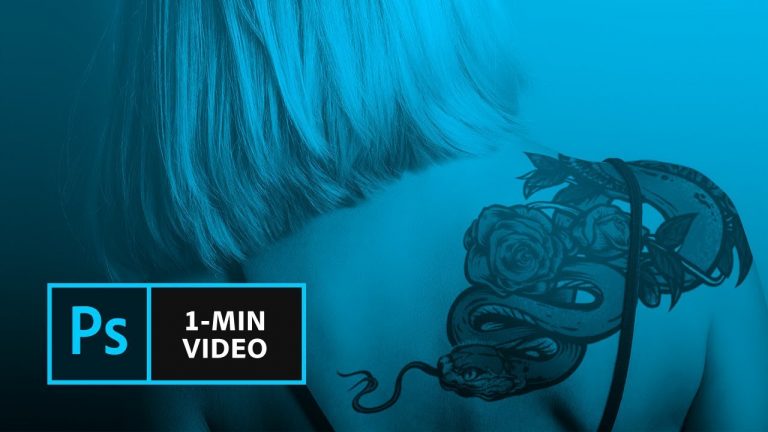
Learn how to apply an image to a person in a photo so that it looks like a convincing tattoo.

Start from scratch, or download practice files [https://adobe.ly/2vtyG5E]
for a head start. Steps below.

Prep your project
For this project, you’ll need two images: One of a tattoo graphic and one of a person who will model the tattoo.
1. Open tattoo-composite.psd.
2. Choose File – Place (Embedded or Linked), select tattoo.png.
3. Move the tattoo layer above the model photo layer.
4. Move, scale, or rotate the tattoo so that it’s roughly in the position you want it over the model. Press Return (or Enter) to place the image.
5. In the Layers panel, right-click on the tattoo layer and choose Convert to Smart Object so that future edits are non-destructive.

Create the tattoo composite

1. In the Layers panel, select the tattoo layer. Set the Blend Mode to Multiply and reduce the layer opacity to 80%.
2. Click the Add layer mask icon, select the Brush tool and paint with black to mask unwanted areas of the tattoo.
Tip: Modify Brush size and hardness from the Options panel as needed, or increase and decrease the size of your brush quickly with the bracket keys.
3. Create a realistic lighting effect on the tattoo: With the mask still selected, set the brush opacity and color, then paint over the part of the image you want to highlight.
Tip: In this example, the brush is black and opacity is 10% to paint over the white area of the mask.
4. In the Layers panel, click the Link icon to unlink the tattoo image from its mask, and then click the tattoo thumbnail to select it. This lets you edit the graphic independently from the mask.
5. Choose Edit – Transform – Warp. Drag the grid and grid handles to warp the image to the shape of the model’s body. Press Return (or Enter) when you’re done.
6. Choose Filter – Blur – Gaussian Blur. Adjust the radius to create a subtle effect that will help unify the tattoo with the model’s skin.
7. Choose File – Save As to save your image.

That’s it!

Visit our Photoshop Tutorials page to learn more: https://adobe.ly/2wmhivZ

Subscribe: https://www.youtube.com/user/adobecreativecloud?sub_confirmation=1

LET’S CONNECT
Facebook: http://facebook.com/adobecreativecloud
Twitter: http://twitter.com/creativecloud
Instagram: http://www.instagram.com/adobecreativecloud/

Adobe Creative Cloud gives you the world’s best creative apps so you can turn your brightest ideas into your greatest work across your desktop and mobile devices.