Home Blog Page 183

Learn How To Remove Instrumentals or Vocals using Audition CC | Adobe Creative Cloud

Easily create an a cappella track by removing instrumentals, or create a karaoke track by removing vocals, using the Center Channel Extractor effect in Adobe Audition. Learn tips for achieving the best results.

To try out the effects covered in this tutorial, use the LevineVocalRemoveSong asset: https://adobe.ly/2vIw7wB

The track featured in the tutorial is “On Cloud Nine” (ANW2714), available from Audio Network: https://www.audionetwork.com/

Subscribe: https://www.youtube.com/user/adobecreativecloud?sub_confirmation=1

LET’S CONNECT
Facebook: http://facebook.com/adobecreativecloud
Twitter: http://twitter.com/creativecloud
Instagram: http://www.instagram.com/adobecreativecloud/

Adobe Creative Cloud gives you the world’s best creative apps so you can turn your brightest ideas into your greatest work across your desktop and mobile devices.

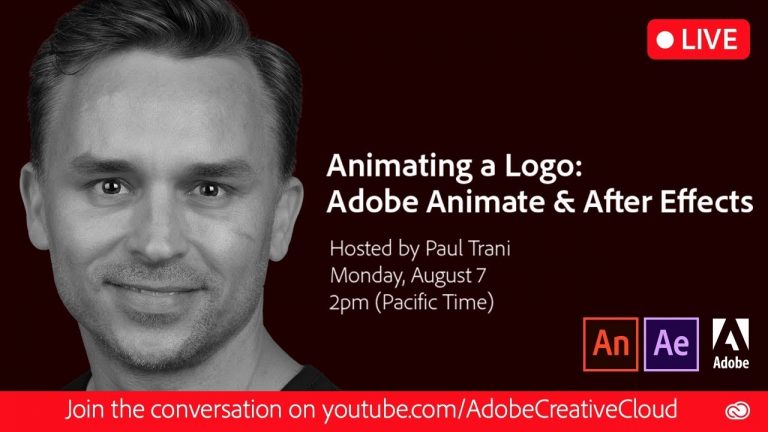
Animating a Logo: Adobe Animate & Adobe After Effects

0

Adobe Animate CC and Adobe After Effects can both create animation, but which one shall you use? What are the differences? How do you animate in both? Adobe Evangelist Paul Trani will answer these questions and more as he animates a logo in each.

Subscribe: https://www.youtube.com/user/adobecreativecloud?sub_confirmation=1

LET’S CONNECT
Facebook: http://facebook.com/adobecreativecloud
Twitter: http://twitter.com/creativecloud
Instagram: http://www.instagram.com/adobecreativecloud/

Adobe Creative Cloud gives you the world’s best creative apps so you can turn your brightest ideas into your greatest work across your desktop and mobile devices.
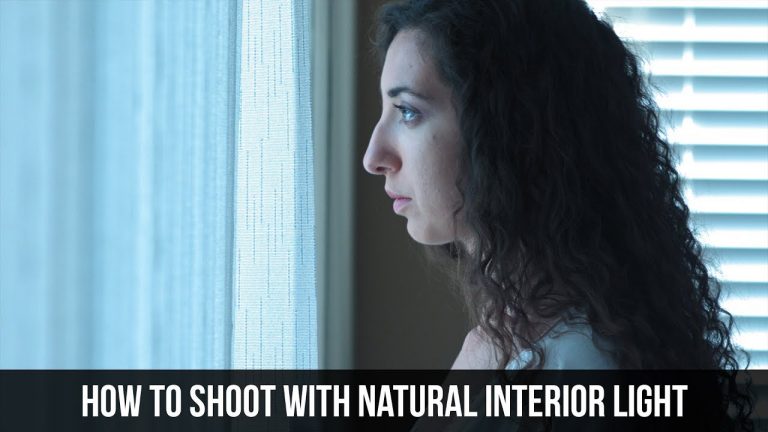
How to Shoot with Interior Natural Light – Filmmaking Tutorial

0

Are you shooting a short film that is covered mostly with interior scenes? In this filmmaking & cinematography tutorial, learn how to shoot with interior natural lights without any light modifiers or set lights. Filming with natural light can provide you with extraordinary results. You can easily create a strong sense of mood with the window light is in the shot. You can create beautiful contrast when your subject is close to the window and if you use it correctly, you can create a nice even key.

Like the music? Get your royalty free music at Artlist.io.
http://bit.ly/2t7xrrP

Social Media:
Drop a like on Facebook: https://www.facebook.com/sonduckfilm
Hit me up on Instagram: http://instagram.com/sonduckfilm
Follow me on Twitter: https://twitter.com/SonduckFilm
Connect with me on Linkedin: https://www.linkedin.com/in/joshnoel

Create Beautiful Double Exposure with Titles | After Effects Tutorial

0

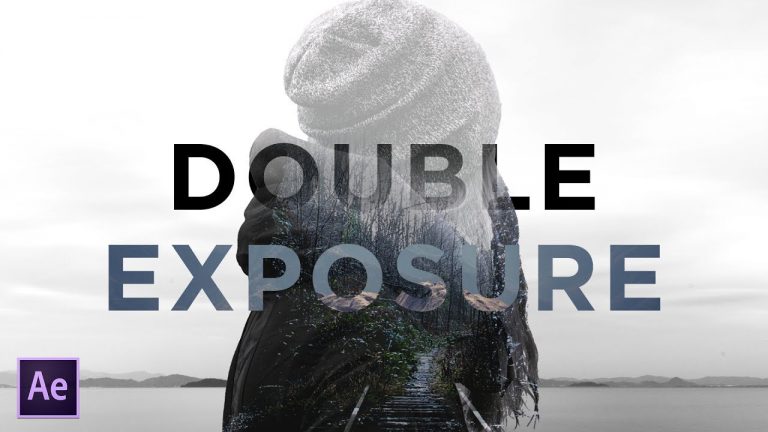
Create a beautiful double exposure animation inside of After Effects. In this tutorial, learn how to use multiple images and composite a breathtaking animation. We will be focusing on proper setup and using parallax for the animation. Double exposure can be used for video/photo manipulation or to illustrate a cutting-edge idea! After watching this After Effects tutorial, you’ll be able to create an exciting double exposure motion graphics project!

Like the music? Get your royalty free music at Artlist.io.
http://bit.ly/2t7xrrP

Visit our website https://www.sonduckfilm.com for more tutorials, giveaways and film and photo gear!

Social Media:
Drop a like on Facebook: https://www.facebook.com/sonduckfilm
Hit me up on Instagram: http://instagram.com/sonduckfilm
Follow me on Twitter: https://twitter.com/SonduckFilm
Connect with me on Linkedin: https://www.linkedin.com/in/joshnoel

Suggested After Effects Tutorials:
Animated Icons: https://youtu.be/OZFuYj_ohWw
Word Morph: https://youtu.be/Nc2w1Kt3XjE
Typography Titles: https://youtu.be/eruPaWT0aNs
3D Light Text Stroke Effect: https://youtu.be/r4hYFOcRwoY
Illustrator to After Effects Vectos: https://youtu.be/YGBRpCOtjNM
Clean Lower Thirds: https://youtu.be/aEt2yxs17IU

How to Film Cinematic Video Outdoors – Cinematography Tutorial

0

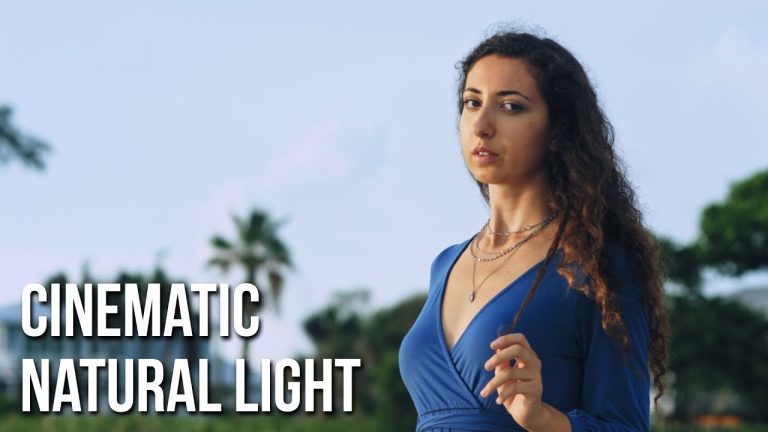
Are you curious on how you can shoot better video outdoors with natural light, without having to purchase expensive gear? In this cinematography tutorial, I will show how I shoot my outdoor scenes using only natural light. This tutorial breaks down my thought process and how I direct and use the tools I have to craft a cinematic image.

Don’t be obsessed with filmmaking gear. It’s all about how you use what you have. Shooting cinematic video has never been easier than before. Focus on the positioning of your subject and understand where your light sources are at.

Using the sun as a great natural light source will allow you to create a variety of moods. If you shoot in the shade, you will have a lot of control over the contrast and your subject will retain great detail. Shooting near the sun will allow you to use it as a silhouette. During twilight, expose for the greatest amount of detail in the frame.

Shooting cinematic video outdoors has never been easier before. Remember that exposure, positioning, and knowing where the light is at, will all help you to producing a beautiful cinematic image!

Like the music? Get your royalty free music at Artlist.io.
http://bit.ly/2t7xrrP

Social Media:
Drop a like on Facebook: https://www.facebook.com/sonduckfilm
Hit me up on Instagram: http://instagram.com/sonduckfilm
Follow me on Twitter: https://twitter.com/SonduckFilm
Connect with me on Linkedin: https://www.linkedin.com/in/joshnoel

Animated GRID for Photos & Videos | After Effects Tutorial

0

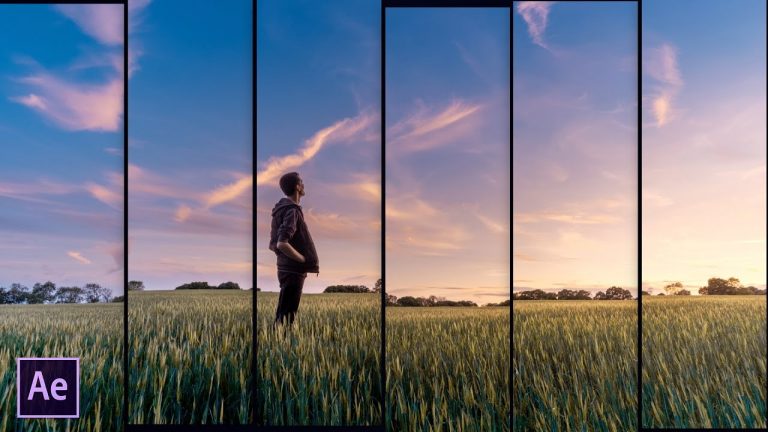
Learn how to easily create an animated grid for video or photo presentations. In this After Effects tutorial, you’ll be able to see how easy it is to break up your footage and put it on multiple layers.

Like the music? Get your royalty free music at Artlist.io.
http://bit.ly/2t7xrrP

Visit our website https://www.sonduckfilm.com for more tutorials, giveaways and film and photo gear!

Social Media:
Drop a like on Facebook: https://www.facebook.com/sonduckfilm
Hit me up on Instagram: http://instagram.com/sonduckfilm
Follow me on Twitter: https://twitter.com/SonduckFilm
Connect with me on Linkedin: https://www.linkedin.com/in/joshnoel

Suggested After Effects Tutorials:
Animated Icons: https://youtu.be/OZFuYj_ohWw
Word Morph: https://youtu.be/Nc2w1Kt3XjE
Typography Titles: https://youtu.be/eruPaWT0aNs
3D Light Text Stroke Effect: https://youtu.be/r4hYFOcRwoY
Illustrator to After Effects Vectos: https://youtu.be/YGBRpCOtjNM
Clean Lower Thirds: https://youtu.be/aEt2yxs17IU

Neon Glow Text or Logo | After Effects Motion Graphics Tutorial

0

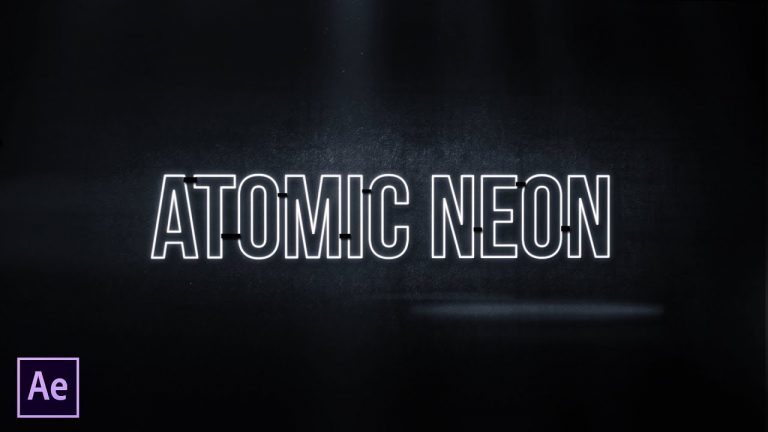
Inspired by the movie Atomic Blonde, learn how to create similar neon glow titles.

Used in this Tutorial:
Background: http://www.publicdomainpictures.net/pictures/170000/velka/grunge-background-1463561319MuZ.jpg
Volumetric Pack: https://www.rocketstock.com/free-after-effects-templates/16-free-4k-light-overlays/
Lens Flare: https://www.rocketstock.com/video-packs/radium-4k-lens-flares/

Like the music? Get your royalty free music at Artlist.io.
http://bit.ly/2t7xrrP

Visit our website https://www.sonduckfilm.com for more tutorials, giveaways and film and photo gear!

Social Media:
Drop a like on Facebook: https://www.facebook.com/sonduckfilm
Hit me up on Instagram: http://instagram.com/sonduckfilm
Follow me on Twitter: https://twitter.com/SonduckFilm
Connect with me on Linkedin: https://www.linkedin.com/in/joshnoel

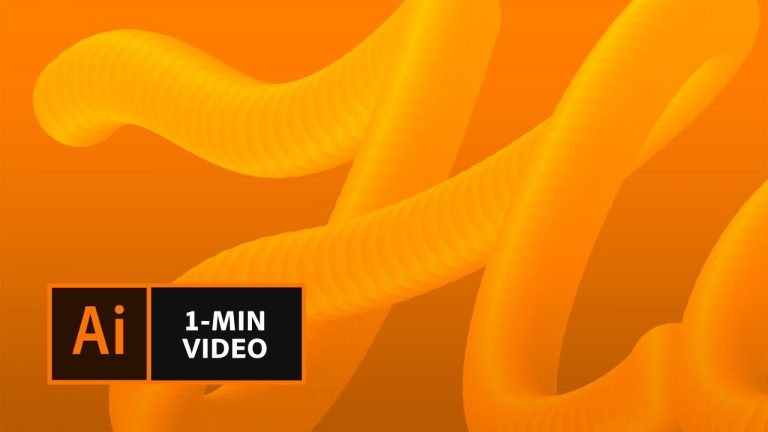
How to Make 3D Lettering in Illustrator | Adobe Creative Cloud

Learn how to create a 3D effect for hand-drawn letters.

1. Double-click the Pencil tool to open the Pencil Tool Options. Set Fidelity to Smooth. Click OK. Draw a letter using a single stroke, or path.
Optional: Use our custom alphabet (https://adobe.ly/2q2NodN) to create your lettering.
2. Choose the Ellipse tool and Shift+drag to draw a circle.
3. With the circle still selected, click the Gradient icon below the Fill color in the Tools panel. Set Stroke to None.
4. Open the Gradient panel (Window – Gradient). Double-click the first Gradient slider. Click the Swatches icon and choose a color. Double-click the second Gradient slider and choose a different color.
5. Use the Selection tool to select the circle. Then, Option/Alt+drag to duplicate the circle.
6. Choose the Blend tool and click each circle.
7. Double-click the Blend tool, select Specified Steps from the Spacing drop down, and set the desired number of steps.
8. Use the Selection tool to select both your letter and the blend, go to Object – Blend – Replace Spine to create the 3D effect.
Optional: To change the direction of your blend, select Reverse spine.

Subscribe: https://www.youtube.com/user/adobecreativecloud?sub_confirmation=1

LET’S CONNECT
Facebook: http://facebook.com/adobecreativecloud
Twitter: http://twitter.com/creativecloud
Instagram: http://www.instagram.com/adobecreativecloud/

Adobe Creative Cloud gives you the world’s best creative apps so you can turn your brightest ideas into your greatest work across your desktop and mobile devices.
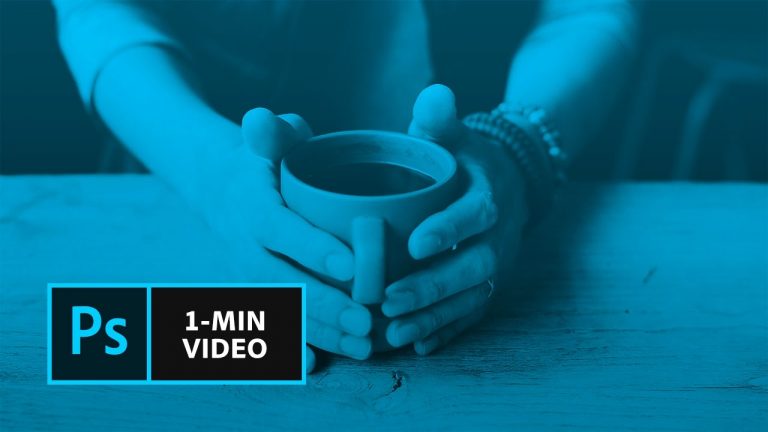
How to Create a Cinemagraph in Photoshop | Adobe Creative Cloud

Learn how to add subtle motion to a still photograph.

Start from scratch, or download practice file [https://adobe.ly/2rzdsOj] for a head start.

Steps below.

Prep your project:
1. Download the practice file (https://adobe.ly/2rzdsOj). Or, use your own!
a. Use the practice file: Download the CoffeeVideo.mp4 video file.
b. Use your own: Record or find a video clip that has repeated action, like the coffee moving in the sample file, or has an area of isolated movement. This will make it easier to create a looping effect.
2. Open CoffeeVideo.mp4 in Photoshop, File – Open.

Create your cinemagraph:

3. Open the Layers panel, Window – Layers. Drag the “Coffee Video” layer above “Video Group 1”.
4. Drag the “Video Group 1” layer group to the “Delete layer” icon to delete it.
5. Drag the “Coffee Video” layer to the “New Layer” icon to create a copy.
6. Open the Timeline panel, Window – Timeline. Drag the playhead to the point in the video that you want to serve as the still part of your cinemagraph. If you’re using the practice files, drag the playhead to 2:12.
7. Right-click the “Coffee Video copy” layer and select “Rasterize Layer” in the Layers panel.
8. Click “Select and Mask…” at the top of your workspace, or choose Select – Select and Mask.
9. Set the View Mode to Overlay.
10. Choose the Brush Tool from the tools panel and brush over the area of the video where you want to show movement. If you’re using the practice file, brush over the coffee in the cup. Adjust the brush size and hardness as needed.
11. Click Invert, and set the Ouput Settings to “Layer Mask”. Click OK.
12. Adjust the Start and End Points in the Timeline so that your cinemagraph loops seamlessly. If you’re using the practice files, set the Start point to 00:10 and the End point to 02:09. Tip: Drag the playhead to help note the timestamp.
13. Click the Play button to preview your cinemagraph. If your video is not looping, click the Settings icon and choose “Loop Playback”.
14. Save your cinemagraph, File – Export – Save for Web (Legacy). Choose your own settings, or use the following:
a. GIF, 256 colors, 100% Dither.
b. Adjust image size, if desired.
c. Set Looping Options to “Forever”

That’s it!

Subscribe: https://www.youtube.com/user/adobecreativecloud?sub_confirmation=1

LET’S CONNECT
Facebook: http://facebook.com/adobecreativecloud
Twitter: http://twitter.com/creativecloud
Instagram: http://www.instagram.com/adobecreativecloud/

Adobe Creative Cloud gives you the world’s best creative apps so you can turn your brightest ideas into your greatest work across your desktop and mobile devices.