Home Blog Page 338

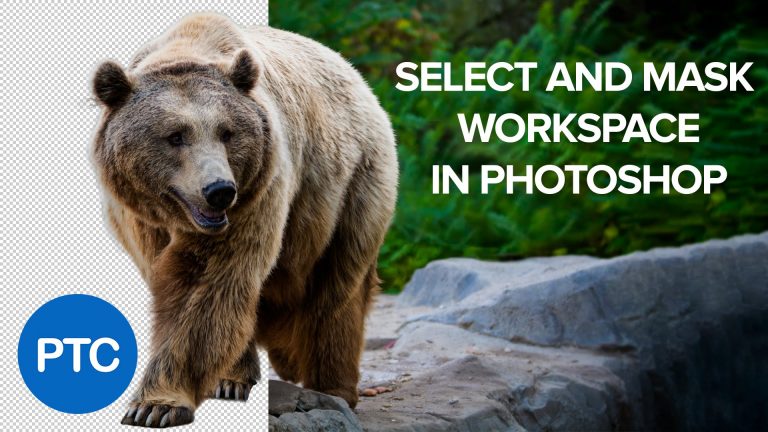
How To Use The Select And Mask Workspace In Photoshop

Photoshop CC 2015.5 tutorial showing how to use the Select and Mask Workspace in Photoshop. This new dedicated workspace helps you make precise selections and masks more easily than ever. Use tools like Refine Edge Brush to cleanly separate foreground and background elements. This new feature replaces the old Refine Edge and Refine Mask.

If you have any questions please leave them below
or head over to this tutorial’s page on our website:

https://photoshoptrainingchannel.com/photoshop-cc-2015-5-tutorials/

Subscribe + Like + Share + Comment = More Video Tutorials!

Thank you for watching!

===================================

If you enjoyed this video be sure to subscribe to our newsletter to receive free weekly photoshop tips and more!

Subscribe: http://ptcvids.com/subscribe

For more in-depth Photoshop Tutorials be sure to check out our Premium tutorials.

http://ptcvids.com/shop/

===================================
LINKS

Website:
https://photoshoptrainingchannel.com

Facebook:
https://www.facebook.com/PhotoshopTrainingChannel

Instagram:
http://instagram.com/jrfromptc

LinkedIn:
http://linkedin.com/company/Photoshop-Training-Channel

Pinterest:
http://pinterest.com/ptcpins

YouTube Channel:
https://www.youtube.com/user/photoshoptrainingch

Google +:
https://google.com/+Photoshoptrainingchannel

This Video’s Youtube Link:

Stock Images provided by: stock.adobe.com

Photoshop video tutorials by Jesus Ramirez
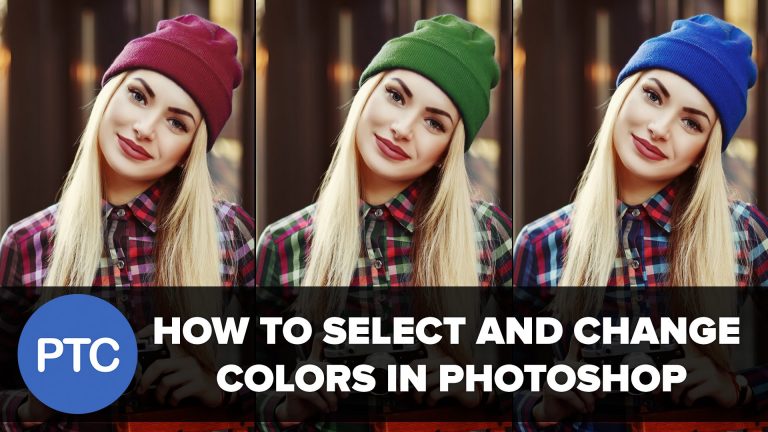
How To Select and Change Colors In Photoshop – Replace Colors In a Photo

Photoshop CC tutorial showing how to change the colors of objects.

This videos shows you 3 techniques that you can use to replace colors in Photoshop.

1. Color Replacement Tool 0:47
Nested under the Brush Tool, the Color Replacement tool allows you to easily change the color of object by painting directly on them. The downside is that this is a destructive tool.

2.Hue/Saturation Adjustment Layer 2:44
You can use the Hue/Saturation Adjustment Layer to change the color of an object by first making a mask around the object. Then clicking on the colorize checkbox and adjusting the hue.

3.Hue/Saturation (On-image Adjustment Tool) 5:14
You can select the On-image adjustment tool in the Properties panel, and click a color in the image. Drag left or right in the image to decrease or increase saturation of the color range that includes the pixel you clicked. Hold Ctrl (Mac: command) to change hue.

If you have any questions please leave them below
or head over to this tutorial’s page on our website:

https://photoshoptrainingchannel.com/how-to-change-colors-in-photoshop/

Subscribe + Like + Share + Comment = More Video Tutorials!

Thank you for watching!

===================================

If you enjoyed this video be sure to subscribe to our newsletter to receive free weekly photoshop tips and more!

Subscribe: http://ptcvids.com/subscribe

For more in-depth Photoshop Tutorials be sure to check out our Premium tutorials.

http://ptcvids.com/shop/

===================================
LINKS

Website:
https://photoshoptrainingchannel.com

Facebook:
https://www.facebook.com/PhotoshopTrainingChannel

Instagram:
http://instagram.com/jrfromptc

LinkedIn:
http://linkedin.com/company/Photoshop-Training-Channel

Pinterest:
http://pinterest.com/ptcpins

YouTube Channel:
https://www.youtube.com/user/photoshoptrainingch

Google +:
https://google.com/+Photoshoptrainingchannel

This Video’s Youtube Link:

Stock Images provided by: stock.adobe.com

Image used:
http://adobe.ly/29wvHLT

Photoshop video tutorials by Jesus Ramirez

How To Use The Displace Filter In Photoshop – Displacement Maps

Photoshop CC tutorial showing how to use the displace filter in Photoshop.

If you have any questions please leave them below
or head over to this tutorial’s page on our website:

https://photoshoptrainingchannel.com/compositing/

Subscribe + Like + Share + Comment = More Video Tutorials!

Thank you for watching!

===================================

If you enjoyed this video be sure to subscribe to our newsletter to receive free weekly photoshop tips and more!

Subscribe: http://ptcvids.com/subscribe

For more in-depth Photoshop Tutorials be sure to check out our Premium tutorials.

http://ptcvids.com/shop/

===================================
LINKS

Website:
https://photoshoptrainingchannel.com

Facebook:
https://www.facebook.com/PhotoshopTrainingChannel

Instagram:
http://instagram.com/jrfromptc

LinkedIn:
http://linkedin.com/company/Photoshop-Training-Channel

Pinterest:
http://pinterest.com/ptcpins

YouTube Channel:
https://www.youtube.com/user/photoshoptrainingch

Google +:
https://google.com/+Photoshoptrainingchannel

This Video’s Youtube Link:

Photoshop video tutorials by Jesus Ramirez

How To Create a Realistic Pokéball In Photoshop

Photoshop 3D tutorial showing how to create a realistic Pokéball.

If you have any questions please leave them below
or head over to this tutorial’s page on our website:

https://photoshoptrainingchannel.com/pokeball-photoshop/

Subscribe + Like + Share + Comment = More Video Tutorials!

Thank you for watching!

===================================

Check out my Photoshop compositing course.

https://photoshoptrainingchannel.com/product/photoshop-compositing/

===================================
LINKS

Website:
https://photoshoptrainingchannel.com

Facebook:
https://www.facebook.com/PhotoshopTrainingChannel

Instagram:
http://instagram.com/jrfromptc

LinkedIn:
http://linkedin.com/company/Photoshop-Training-Channel

Pinterest:
http://pinterest.com/ptcpins

YouTube Channel:
https://www.youtube.com/user/photoshoptrainingch

Google +:
https://google.com/+Photoshoptrainingchannel

This Video’s Youtube Link:

Photoshop video tutorials by Jesus Ramirez

Reactive Exposure – Adobe Lightroom Plugin

Lightroom Plugin Reactive Exposure How-To.

If you have any questions please leave them below
or head over to this plugins website:

https://www.rawplugins.com/

Thank you for watching!

What is Reactive Exposure?
Reactive Exposure™ is a plug-in that speaks natively with Adobe Lightroom, evaluates your image, and applies adjustment settings directly to the file in your catalog. Reactive Exposure takes the guesswork out of Luminosity and Tone Controls as a response to any Exposure adjustments you make, simplifying your work-flow.

Reactive Exposure only ever works directly with your source Lightroom file. There is never a duplicate file added to your catalog like using other plug-ins. Reactive Exposure maintains the integrity of your work-flow. No hidden settings or values that are kept by the plug-in.

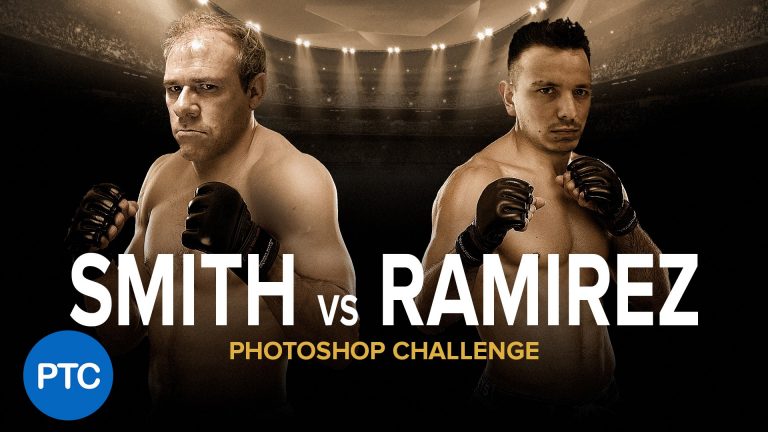
Photoshop Compositing Challenge – Jesús Ramirez – Colin Smith

Photoshop Compositing Challenge With Colin Smith From PhotoshopCAFE.

Watch The Outtakes at the very end!

Check out my version of the video at Colin’s YouTube channel:

Check out Colin’s Website:

PhotoshopCAFE, the free resource for photoshop users.

P.S.
#nophotoshop that is really what we look like without our shirts.

Subscribe + Like + Share + Comment = More Video Tutorials!

Thank you for watching!

===================================

If you enjoyed this video be sure to subscribe to our newsletter to receive free weekly photoshop tips and more!

Subscribe: http://ptcvids.com/subscribe

For more in-depth Photoshop Tutorials be sure to check out our Premium tutorials.

http://ptcvids.com/shop/

===================================
LINKS

Website:
https://photoshoptrainingchannel.com

Facebook:
https://www.facebook.com/PhotoshopTrainingChannel

Instagram:
http://instagram.com/jrfromptc

LinkedIn:
http://linkedin.com/company/Photoshop-Training-Channel

Pinterest:
http://pinterest.com/ptcpins

YouTube Channel:
https://www.youtube.com/user/photoshoptrainingch

Google +:
https://google.com/+Photoshoptrainingchannel

This Video’s Youtube Link:

Stock Images provided by: stock.adobe.com

Photoshop video tutorials by Jesus Ramirez
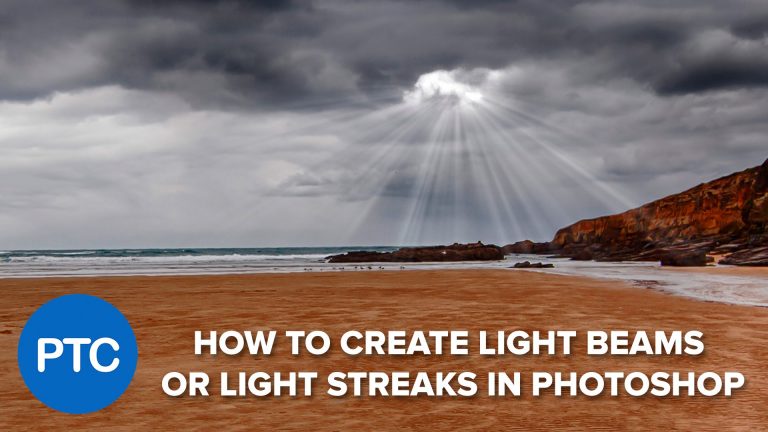
How To Create Light Beams (Light Streaks) in Photoshop

Photoshop tutorial showing you how to add light beams or light streaks to a photo.

If you have any questions please leave them below
or head over to this tutorial’s page on our website:

https://photoshoptrainingchannel.com/light-streaks-photoshop/

Subscribe + Like + Share + Comment = More Video Tutorials!

Thank you for watching!

===================================

If you enjoyed this video be sure to subscribe to our newsletter to receive free weekly photoshop tips and more!

Subscribe: http://ptcvids.com/subscribe

For more in-depth Photoshop Tutorials be sure to check out our Premium tutorials.

http://ptcvids.com/shop/

===================================
LINKS

Website:
https://photoshoptrainingchannel.com

Facebook:
https://www.facebook.com/PhotoshopTrainingChannel

Instagram:
http://instagram.com/jrfromptc

LinkedIn:
http://linkedin.com/company/Photoshop-Training-Channel

Pinterest:
http://pinterest.com/ptcpins

Behance:
https://www.behance.net/JRfromPTC

YouTube Channel:
https://www.youtube.com/user/photoshoptrainingch

Google +:
https://google.com/+Photoshoptrainingchannel

This Video’s Youtube Link:

Stock Images provided by: stock.adobe.com

Photoshop video tutorials by Jesus Ramirez

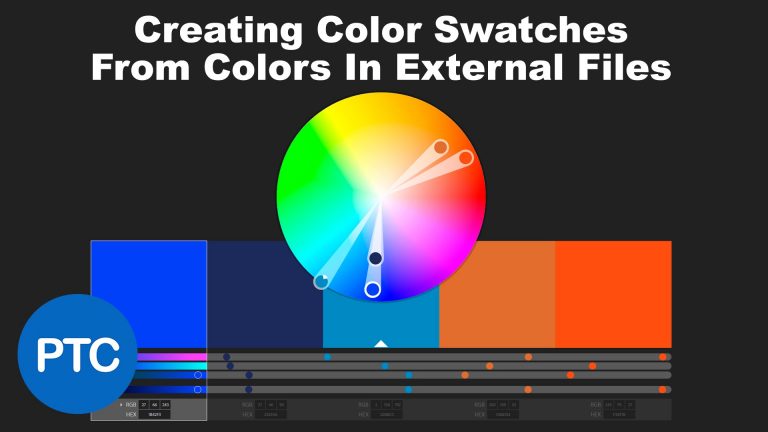
How To Create Color Swatches From External Files In Photoshop – HTML, CSS, SVG, and JPGs

In this Photoshop tutorial, I am going to show you how to create color swatches from external files such as HTML, CSS, SVG, and JPG documents.

This video is going to be really helpful for designers who are working on projects that require the use of specific colors found in external files. The goal is to create a custom color swatch set that can be used when working on projects that require those specific colors.

In the first example, we will take a logo into Adobe Color CC so that the online app analyzes the colors and saves them into a CC library.

Then I’ll show you how to take an SVG file, and CSS file into Photoshop to create a color swatch set from the colors found within those files.

These first two examples require Photoshop CC. But the third example can be followed by anyone using older versions of Photoshop. We will use color tables to grab the color palette from any photograph and open that color table in the Swatches panel.

If you have any questions please leave them below
or head over to this tutorial’s page on our website:

https://photoshoptrainingchannel.com/color-swatches-from-external-files-in-photoshop

Subscribe + Like + Share + Comment = More Video Tutorials!

Thank you for watching!

===================================

If you enjoyed this video be sure to subscribe to our newsletter to receive free weekly photoshop tips and more!

Subscribe: http://ptcvids.com/subscribe

For more in-depth Photoshop Tutorials be sure to check out our Premium tutorials.

http://ptcvids.com/shop/

===================================
LINKS

Website:
https://photoshoptrainingchannel.com

Facebook:
https://www.facebook.com/PhotoshopTrainingChannel

Instagram:
http://instagram.com/jrfromptc

LinkedIn:
http://linkedin.com/company/Photoshop-Training-Channel

Pinterest:
http://pinterest.com/ptcpins

Behance:
https://www.behance.net/JRfromPTC

YouTube Channel:
https://www.youtube.com/user/photoshoptrainingch

Google +:
https://google.com/+Photoshoptrainingchannel

This Video’s Youtube Link:

Photoshop video tutorials by Jesus Ramirez

Photoshop Easter Eggs – Banana, Toast and Coffee

Photoshop tutorial showing you how to access 3 funny hidden Photoshop easter eggs.

0:49 The first photoshop easter egg that I will show you, allows you to put a banana in place of the toolbar editor button. This will totally freak out your friends, so make sure to try it on them when they step away from their computer! 🙂

1:41 The 2 other Photoshop easter eggs that we will look at in this video allow you to display toast and coffee on the color theme swatches.

These Photoshop easter eggs do not change the way any particular tool or feature behaves in photoshop. They are just meant to be funny little extra design elements found on the interface.

For the banana easter egg, you will need Photoshop CC. While the toast and coffee easter egg works with CS6 and newer.

If you have any questions please leave them below
or head over to this tutorial’s page on our website:

https://photoshoptrainingchannel.com/

Subscribe + Like + Share + Comment = More Video Tutorials!

Thank you for watching!

===================================

If you enjoyed this video be sure to subscribe to our newsletter to receive free weekly photoshop tips and more!

Subscribe: http://ptcvids.com/subscribe

For more in-depth Photoshop Tutorials be sure to check out our Premium tutorials.

http://ptcvids.com/shop/

===================================
LINKS

Website:
https://photoshoptrainingchannel.com

Facebook:
https://www.facebook.com/PhotoshopTrainingChannel

Instagram:
http://instagram.com/jrfromptc

LinkedIn:
http://linkedin.com/company/Photoshop-Training-Channel

Pinterest:
http://pinterest.com/ptcpins

Behance:
https://www.behance.net/JRfromPTC

YouTube Channel:
https://www.youtube.com/user/photoshoptrainingch

Google +:
https://google.com/+Photoshoptrainingchannel

This Video’s Youtube Link:

Stock Images provided by: stock.adobe.com

Photoshop video tutorials by Jesus Ramirez
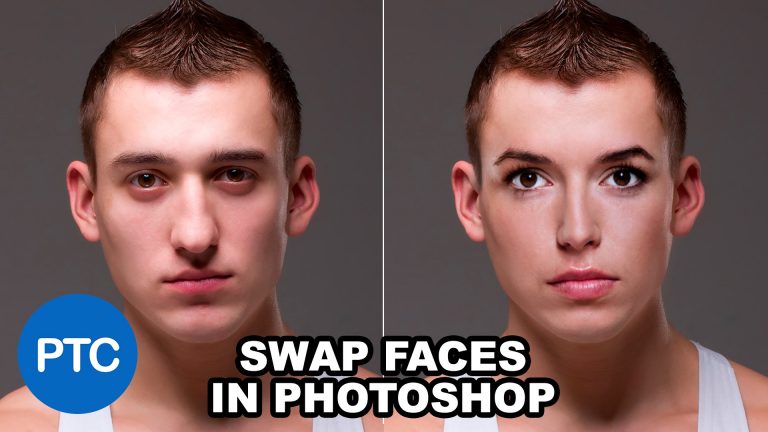
Swap Faces In Photoshop

Photoshop tutorial showing you how to swap faces.

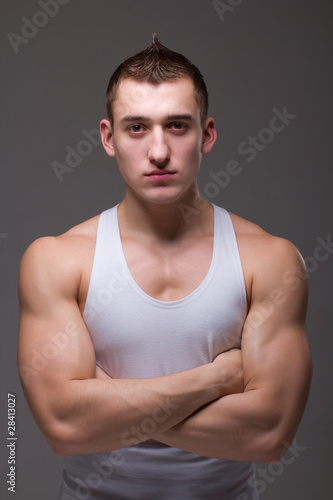
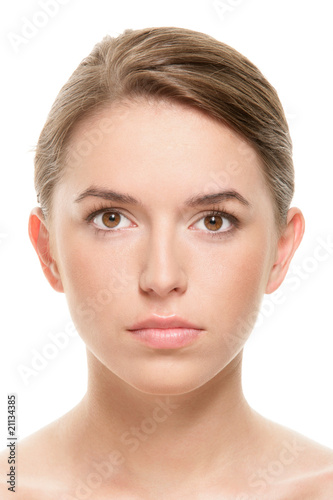
In this tutorial, I will show you how to Swap faces In Photoshop. Swapping faces or swapping heads is perhaps what Photoshop is most commonly used for. Just about every magazine cover or every movie poster that you see has had a head or face replaced.

There are many ways to swap faces in Photoshop but one of the quickest and most effective techniques is to use the Auto Blend Layers option in the Edit menu. This tool is usually used to stitch panoramas together in photoshop. But it actually does a great job of blending faces together. So I’ll show you how to do that in this video.

Even though the Auto Blend could match skin tones, it is usually a better idea to match the skin tones yourself manually. This may help you avoid problems in the long run. In this video I’ll show you an easy and fast way of matching the skin tones of two faces by using the Match Color feature under the Image menu.

Swapping faces in Photoshop can be a ton of fun, and it is not just for professionals anymore! After watching this Photoshop tutorial you will now be able to easily combine pictures and put a face on different bodies with just a few clicks. I’m sure you’ll impress your friends with your new acquired Photoshop skills!

Don’t forget to share your face swaps with me by using the hashtag #PTCvids on Instagram!

01:30 – How To Cut Faces

02:45 – Match Face Size, Shape, and Angle

04:40 – Match Skin Tones

07:75 – Bled Faces Together Using The Auto Blend Layers Command

If you have any questions please leave them below
or head over to this tutorial’s page on our website:

https://photoshoptrainingchannel.com/swap-faces-in-photoshop/

Subscribe + Like + Share + Comment = More Video Tutorials!

Thank you for watching!

===================================

If you enjoyed this video be sure to subscribe to our newsletter to receive free weekly photoshop tips and more!

Subscribe: http://ptcvids.com/subscribe

For more in-depth Photoshop Tutorials be sure to check out our Premium tutorials.

http://ptcvids.com/shop/

===================================
LINKS

Website:
https://photoshoptrainingchannel.com

Facebook:
https://www.facebook.com/PhotoshopTrainingChannel

Instagram:
http://instagram.com/jrfromptc

LinkedIn:
http://linkedin.com/company/Photoshop-Training-Channel

Pinterest:
http://pinterest.com/ptcpins

Behance:
https://www.behance.net/JRfromPTC

YouTube Channel:
https://www.youtube.com/user/photoshoptrainingch

Google +:
https://google.com/+Photoshoptrainingchannel

This Video’s Youtube Link:

Stock Images provided by: stock.adobe.com

Man Image:
Muscular man

Woman Image:
Portrait of beauty teenage girl

Photoshop video tutorials by Jesus Ramirez