Home Blog Page 339

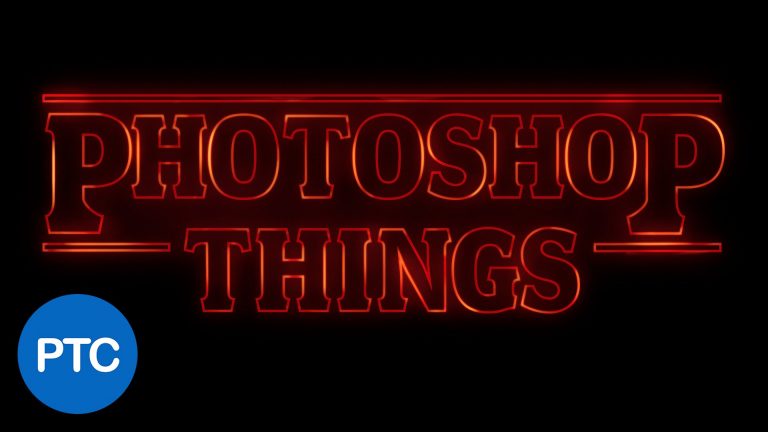
Stranger Things Text Effect In Photoshop

Photoshop tutorial showing you how to create the Stranger Things text effect.

This video is more than a tutorial showing how to replicate the Stranger Things opening sequence. I will spend time showing you many keyboard shortcuts, and techniques that you can use when working with type in Photoshop.

01:15 – Creating and Styling Type in Photoshop
04:21 – Type Keyboard Shortcuts That You Should Know
08:07 – Using Guides To Align Text
09:04 – Positioning Characters
10:38 – Converting Text To a Vector Shape
11:04 – Applying Fill and Strokes on Vector Shapes
12:00 – Create Decoration Lines
14:48 – Apply Layer Styles To Text
17:00 – Feathering Vector Masks
18:40 – Painting The Glow Effect Using Masks and Blend Modes

If you have any questions please leave them below
or head over to this tutorial’s page on our website:

https://photoshoptrainingchannel.com/stranger-things-text-effect-in-photoshop

Subscribe + Like + Share + Comment = More Video Tutorials!

Thank you for watching!

===================================

If you enjoyed this video be sure to subscribe to our newsletter to receive free weekly photoshop tips and more!

Subscribe: http://ptcvids.com/subscribe

For more in-depth Photoshop Tutorials be sure to check out our Premium tutorials.

http://ptcvids.com/shop/

===================================
LINKS

Website:
https://photoshoptrainingchannel.com

Facebook:
https://www.facebook.com/PhotoshopTrainingChannel

Instagram:
http://instagram.com/jrfromptc

LinkedIn:
http://linkedin.com/company/Photoshop-Training-Channel

Pinterest:
http://pinterest.com/ptcpins

Behance:
https://www.behance.net/JRfromPTC

YouTube Channel:
https://www.youtube.com/user/photoshoptrainingch

Google +:
https://google.com/+Photoshoptrainingchannel

This Video’s Youtube Link:

Photoshop video tutorials by Jesus Ramirez
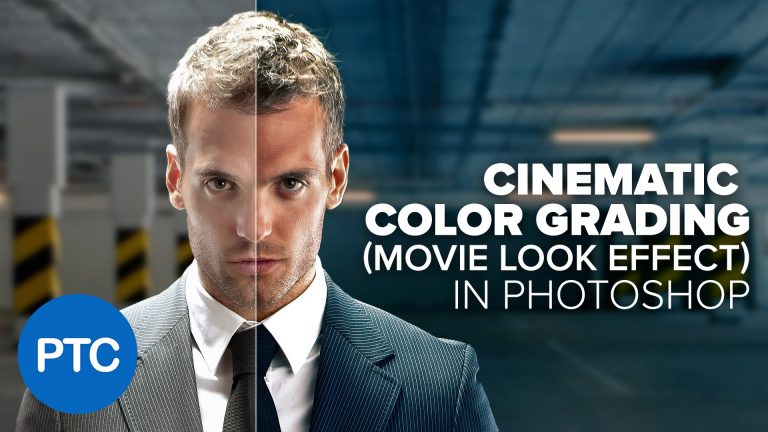
Cinematic Color Grading (Movie Look Effect) In Photoshop

Photoshop tutorial showing how to apply the cinematic effect to your photographs. The cinematic effect that we’re going for is the teal-orange look, which is a typical movie effect in action movies.

This effect gives the dark shades of your image a cool teal tone, while the light shades take a warm orange look. This makes the actor stand out since the colors are complementary and creates a “pop”when put side by side.

It is a good idea to do a color correction on your image, so you that it has neutral grays and no color cast.

00:45 – Color Theory
06:44 – Color Correcting Images Using Curves
12:42 – Color Grading With The Curves Adjustment Layer
25:42 – Color Grading With The Selective Color Adjustment Layer
28:10 – Color Grading With The Color Lookup Adjustment Layer
31:40 – Color Grading With The Gradient Map

If you have any questions please leave them below
or head over to this tutorial’s page on our website:

https://photoshoptrainingchannel.com/cinematic-color-grading/

Subscribe + Like + Share + Comment = More Video Tutorials!

Thank you for watching!

===================================

If you enjoyed this video be sure to subscribe to our newsletter to receive free weekly photoshop tips and more!

Subscribe: http://ptcvids.com/subscribe

For more in-depth Photoshop Tutorials be sure to check out our Premium tutorials.

http://ptcvids.com/shop/

===================================
LINKS

Website:
https://photoshoptrainingchannel.com

Facebook:
https://www.facebook.com/PhotoshopTrainingChannel

Instagram:
http://instagram.com/jrfromptc

LinkedIn:
http://linkedin.com/company/Photoshop-Training-Channel

Pinterest:
http://pinterest.com/ptcpins

Behance:
https://www.behance.net/JRfromPTC

YouTube Channel:
https://www.youtube.com/user/photoshoptrainingch

Google +:
https://google.com/+Photoshoptrainingchannel

This Video’s Youtube Link:

Stock Images provided by: stock.adobe.com

Photoshop video tutorials by Jesus Ramirez

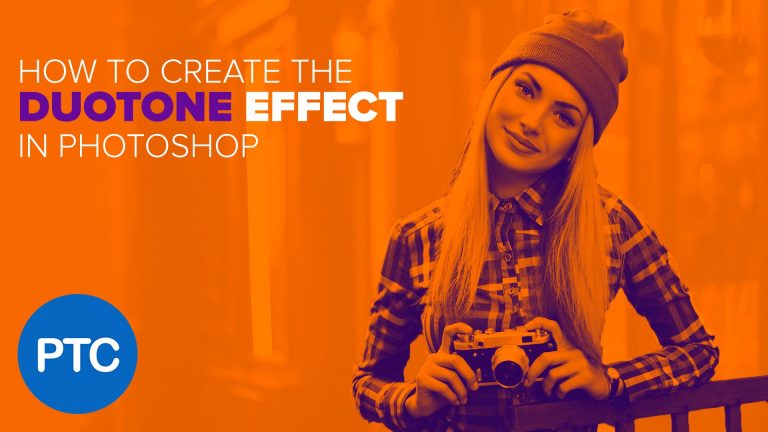
Duotone Effect In Photoshop

Photoshop tutorial showing you how to create a duotone effect

If you have any questions please leave them below
or head over to this tutorial’s page on our website:

https://photoshoptrainingchannel.com/duotone-effect-in-photoshop

Subscribe + Like + Share + Comment = More Video Tutorials!

Thank you for watching!

===================================

If you enjoyed this video be sure to subscribe to our newsletter to receive free weekly photoshop tips and more!

Subscribe: http://ptcvids.com/subscribe

For more in-depth Photoshop Tutorials be sure to check out our Premium tutorials.

http://ptcvids.com/shop/

===================================
LINKS

Website:
https://photoshoptrainingchannel.com

Facebook:
https://www.facebook.com/PhotoshopTrainingChannel

Instagram:
http://instagram.com/jrfromptc

LinkedIn:
http://linkedin.com/company/Photoshop-Training-Channel

Pinterest:
http://pinterest.com/ptcpins

Behance:
https://www.behance.net/JRfromPTC

YouTube Channel:
https://www.youtube.com/user/photoshoptrainingch

Google +:
https://google.com/+Photoshoptrainingchannel

This Video’s Youtube Link:

Stock Images provided by: stock.adobe.com

Photoshop video tutorials by Jesus Ramirez

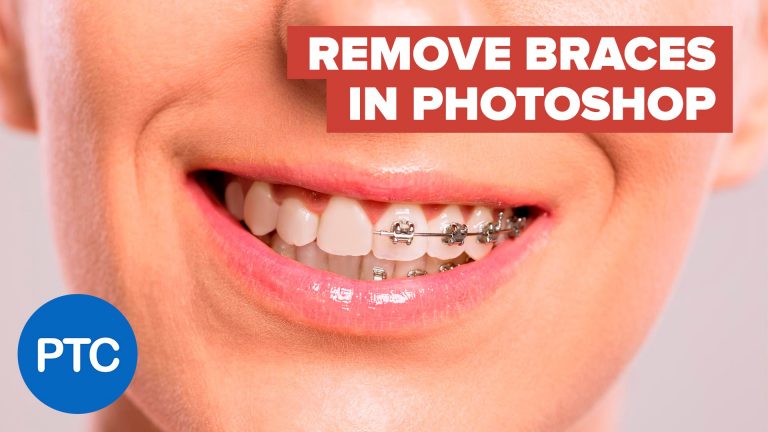
Remove Braces With Photoshop

Photoshop tutorial showing you how to remove braces.

If you have any questions, please leave them below
or head over to this tutorial’s page on our website:

https://photoshoptrainingchannel.com/remove-braces-with-photoshop/

Subscribe + Like + Share + Comment = More Video Tutorials!

Thank you for watching!

===================================

If you enjoyed this video be sure to subscribe to our newsletter to receive free weekly Photoshop tips and more!

Subscribe: http://ptcvids.com/subscribe

For more in-depth Photoshop Tutorials be sure to check out our Premium tutorials.

http://ptcvids.com/shop/

===================================
LINKS

Website:
https://photoshoptrainingchannel.com

Facebook:
https://www.facebook.com/PhotoshopTrainingChannel

Instagram:
http://instagram.com/jrfromptc

LinkedIn:
http://linkedin.com/company/Photoshop-Training-Channel

Pinterest:
http://pinterest.com/ptcpins

Behance:
https://www.behance.net/JRfromPTC

YouTube Channel:
https://www.youtube.com/user/photoshoptrainingch

Google +:
https://google.com/+Photoshoptrainingchannel

This Video’s Youtube Link:

Stock Images provided by stock.adobe.com

Photoshop video tutorials by Jesus Ramirez

How To Adjust and Change Facial Features In Photoshop

Photoshop tutorial showing you how to adjust and change facial features in Photoshop.

In this Photoshop tutorial you will learn how to:
01:44 – Use Puppet Warp Tool
04:10 – Work with Smart Object
07:10 – Use The Liquify Filter’s Tools:
07:17 – Face-Aware Liquify
07:57 – Forward Warp Tool
08:44 – Freeze Mask Tool
09:29 – Pucker Tool
09:45 – Bloat Tool
09:57 – Twirl Clockwise Tool
11:21 – Reconstruct (Fade Liquify Adjustments)

If you have any questions please leave them below
or head over to this tutorial’s page on our website:

https://photoshoptrainingchannel.com/adjust-facial-features-photoshop

Face-Aware Liquify Tutorial Mentioned In The Video:

Subscribe + Like + Share + Comment = More Video Tutorials!

Thank you for watching!

===================================

If you enjoyed this video be sure to subscribe to our newsletter to receive free weekly photoshop tips and more!

Subscribe: http://ptcvids.com/subscribe

For more in-depth Photoshop Tutorials be sure to check out our Premium tutorials.

http://ptcvids.com/shop/

===================================
LINKS

Website:
https://photoshoptrainingchannel.com

Facebook:
https://www.facebook.com/PhotoshopTrainingChannel

Instagram:
http://instagram.com/jrfromptc

LinkedIn:
http://linkedin.com/company/Photoshop-Training-Channel

Pinterest:
http://pinterest.com/ptcpins

Behance:
https://www.behance.net/JRfromPTC

YouTube Channel:
https://www.youtube.com/user/photoshoptrainingch

Google +:
https://google.com/+Photoshoptrainingchannel

This Video’s Youtube Link:

Stock Images provided by: stock.adobe.com

Photoshop video tutorials by Jesus Ramirez

Link Photos Between Lightroom and Photoshop

In this video, I will show you how to link photos between Photoshop and Lightroom.

This technique will allow Photoshop to reflect any changes made to the RAW file in Lightroom.

Also, since I normally don’t get to teach Lightroom, I spend some time going over some of my favorite keyboard shortcuts that you can use while developing your photos. To be frank with you, I may have given way too many shortcuts, but I still hope that you find them useful.

If you have any questions please leave them below
or head over to this tutorial’s page on our website:

https://photoshoptrainingchannel.com/link-photos-between-lightroom-photoshop/

Subscribe + Like + Share + Comment = More Video Tutorials!

Thank you for watching!

===================================

If you enjoyed this video be sure to subscribe to our newsletter to receive free weekly photoshop tips and more!

Subscribe: http://ptcvids.com/subscribe

For more in-depth Photoshop Tutorials be sure to check out our Premium tutorials.

http://ptcvids.com/shop/

===================================
LINKS

Website:
https://photoshoptrainingchannel.com

Facebook:
https://www.facebook.com/PhotoshopTrainingChannel

Instagram:
http://instagram.com/jrfromptc

LinkedIn:
http://linkedin.com/company/Photoshop-Training-Channel

Pinterest:
http://pinterest.com/ptcpins

Behance:
https://www.behance.net/JRfromPTC

YouTube Channel:
https://www.youtube.com/user/photoshoptrainingch

Google +:
https://google.com/+Photoshoptrainingchannel

This Video’s Youtube Link:

Photoshop video tutorials by Jesus Ramirez
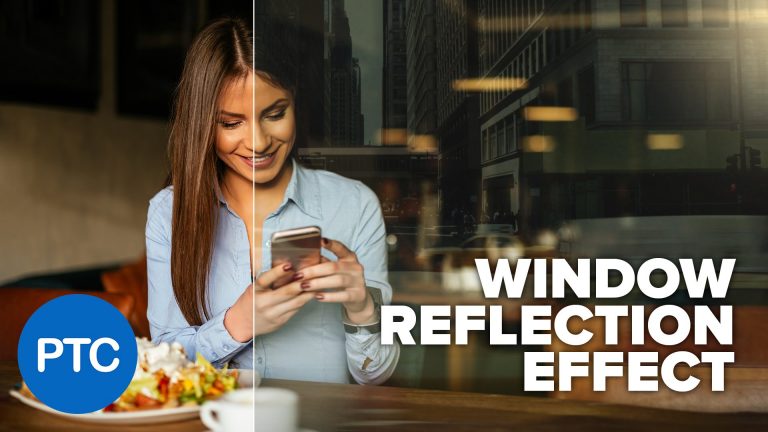
Glass Window Reflection Effect In Photoshop

Photoshop tutorial showing you how to create the fake window reflection effect in Photoshop.

This effect will create the illusion that the photo was shot through a glass window. The images used in this Photoshop tutorial are all Adobe Stock images, but you could easily follow along with your own images with no problem at all.

This technique helps give your photo a bit more depth and feeling. Even if you never intend to fake reflections in Photoshop, then still check out the video, it’s a great crash course in how certain blending modes work.

0:46 Getting started, and Adding Adobe Stock Images

01:36 Using The Lighten Blending Mode To Create The Reflection Effect

02:00 Use the Levels Adjustment Layer To Enhance the Lighten Blend Mode

04:46 Enhance The Highlights of The Image

06:05 Creating a Green Tint to Enhance a Window Effect

06:48 Using a Texture To Add Dirty to The Glass

07:56 Add a Darkening Gradient

08:43 Creating Highlights and Adding Flares Onto The Window Reflection

12:06 Adding a Blur and Noise To Make The Composite More Cohesive

If you have any questions please leave them below
or head over to this tutorial’s page on our website:

https://photoshoptrainingchannel.com/window-reflection-effect-photoshop

Subscribe + Like + Share + Comment = More Video Tutorials!

Thank you for watching!

===================================

If you enjoyed this video be sure to subscribe to our newsletter to receive free weekly Photoshop tips and more!

Subscribe: http://ptcvids.com/subscribe

For more in-depth Photoshop Tutorials be sure to check out our Premium tutorials.

http://ptcvids.com/shop/

===================================
LINKS

Website:
https://photoshoptrainingchannel.com

Facebook:
https://www.facebook.com/PhotoshopTrainingChannel

Instagram:
http://instagram.com/jrfromptc

LinkedIn:
http://linkedin.com/company/Photoshop-Training-Channel

Pinterest:
http://pinterest.com/ptcpins

Behance:
https://www.behance.net/JRfromPTC

YouTube Channel:
https://www.youtube.com/user/photoshoptrainingch

Google +:
https://google.com/+Photoshoptrainingchannel

This Video’s Youtube Link:

Stock Images provided by stock.adobe.com

Woman:
Time for breakfast

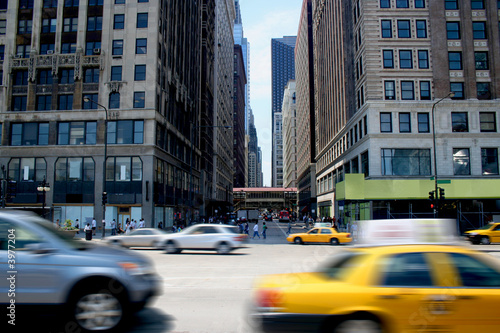
Busy City:
Busy City

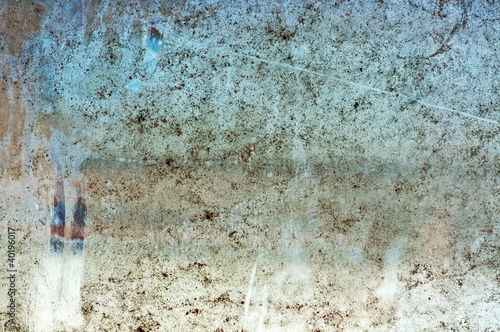
Glass Texture:
Dirty glass

Photoshop video tutorials by Jesus Ramirez
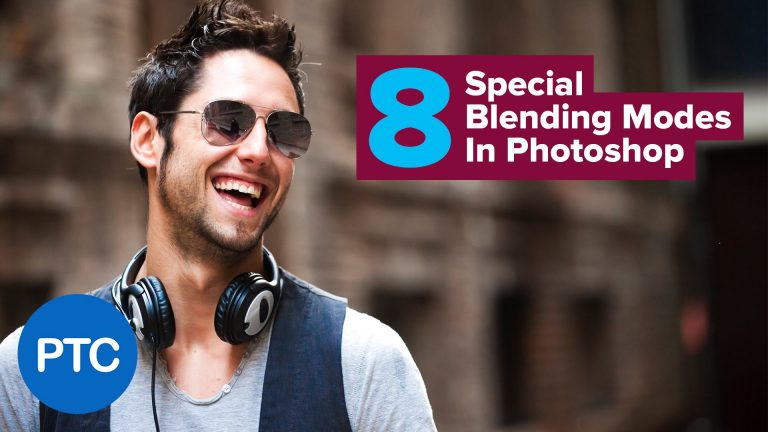
The 8 Special Blending Modes In Photoshop

Photoshop tutorial showing you how Photoshop’s 8 Special blending modes work.

These 8 special blend modes behave differently when Fill Opacity is adjusted, compared to when standard Opacity is adjusted. For all of the other blend modes, Opacity looks the same as Fill.

Also, the blending modes in this group blend differently when you un-check “Transparency Shapes Layer” at the Advanced blending under the Layer Style Window.

The blend modes that are members of this Special 8 group are Color Burn, Linear Burn, Color Dodge, Linear Dodge (Add), Vivid Light, Linear Light, Hard Mix, and Difference.

If you want to know more about blending modes, and how they all work, then don’t forget to watch my Photoshop tutorial on blending modes. I cover each one and explain how they work here:

If you have any questions, please leave them below
or head over to this tutorial’s page on our website:

https://photoshoptrainingchannel.com/8-special-blending-modes-photoshop

Subscribe + Like + Share + Comment = More Video Tutorials!

Thank you for watching!

===================================

If you enjoyed this video be sure to subscribe to our newsletter to receive free weekly Photoshop tips and more!

Subscribe: http://ptcvids.com/subscribe

For more in-depth Photoshop Tutorials be sure to check out our Premium tutorials.

http://ptcvids.com/shop/

===================================
LINKS

Website:
https://photoshoptrainingchannel.com

Facebook:
https://www.facebook.com/PhotoshopTrainingChannel

Instagram:
http://instagram.com/jrfromptc

LinkedIn:
http://linkedin.com/company/Photoshop-Training-Channel

Pinterest:
http://pinterest.com/ptcpins

Behance:
https://www.behance.net/JRfromPTC

YouTube Channel:
https://www.youtube.com/user/photoshoptrainingch

Google +:
https://google.com/+Photoshoptrainingchannel

This Video’s Youtube Link:

Stock Images provided by stock.adobe.com

Photoshop video tutorials by Jesus Ramirez

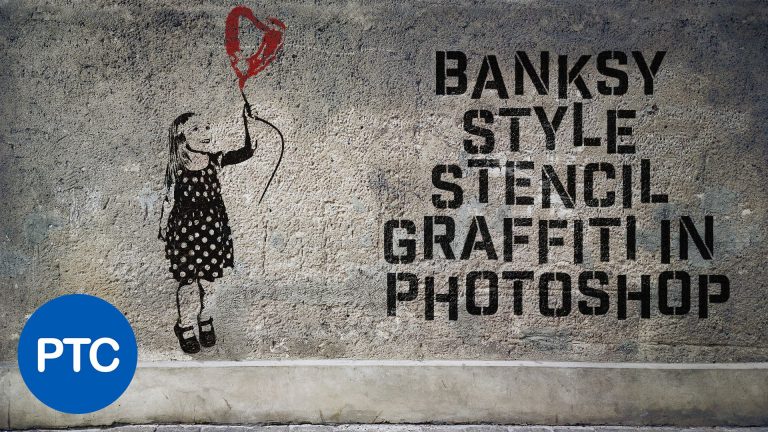
Banksy Style Stencil Graffiti Effect In Photoshop

In this Photoshop tutorial, I will show you how to create the Banksy-style stencil graffiti effect.

We will achieve this effect by using adjustment layers and blending modes in creative ways.

If you have any comments or questions, please leave them below.

If you have any questions, please leave them below
or head over to this tutorial’s page on our website:

https://photoshoptrainingchannel.com/banksy-style-photoshop

Subscribe + Like + Share + Comment = More Video Tutorials!

Thank you for watching!

===================================

If you enjoyed this video be sure to subscribe to our newsletter to receive free weekly Photoshop tips and more!

Subscribe: http://ptcvids.com/subscribe

For more in-depth Photoshop Tutorials be sure to check out our Premium tutorials.

http://ptcvids.com/shop/

===================================
LINKS

Website:
https://photoshoptrainingchannel.com

Facebook:
https://www.facebook.com/PhotoshopTrainingChannel

Instagram:
http://instagram.com/jrfromptc

LinkedIn:
http://linkedin.com/company/Photoshop-Training-Channel

Pinterest:
http://pinterest.com/ptcpins

Behance:
https://www.behance.net/JRfromPTC

YouTube Channel:
https://www.youtube.com/user/photoshoptrainingch

Google +:
https://google.com/+Photoshoptrainingchannel

This Video’s Youtube Link:

Stock Images provided by stock.adobe.com

Photoshop video tutorials by Jesus Ramirez

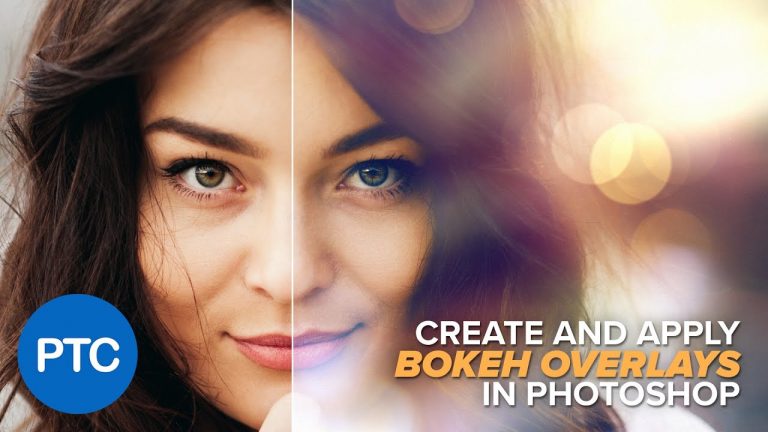
Create and Apply Bokeh Overlays In Photoshop

Photoshop tutorial showing you how to create and apply bokeh overlays in Photoshop.

In this tutorial you will learn to:
00:55 – Place images.
01:48 – Create Bokeh with the Field Blur filter.
02:45 – Apply overlays using Blending Modes.
03:15 – Use Levels to adjust Blending Modes.
04:00 – Use Layer Masks to hide the Bokeh effect.
06:10 – Distort images to create better Bokeh overlays.
07:30 – Composite overlays onto a photo.
09:45 – Create a sun flare.
12:08 – Use Selective Color to apply a color tone.
12:50 – Sharpen eyes with the Sharpen tool.
14:20 – Apply noise using the Lens Blur filter.

If you have any questions, please leave them below
or head over to this tutorial’s page on our website:

https://photoshoptrainingchannel.com/bokeh-overlays-photoshop

Subscribe + Like + Share + Comment = More Video Tutorials!

Thank you for watching!

===================================

If you enjoyed this video be sure to subscribe to our newsletter to receive free weekly Photoshop tips and more!

Subscribe: http://ptcvids.com/subscribe

For more in-depth Photoshop Tutorials be sure to check out our Premium tutorials.

http://ptcvids.com/shop/

===================================
LINKS

Website:
https://photoshoptrainingchannel.com

Facebook:
https://www.facebook.com/PhotoshopTrainingChannel

Instagram:
http://instagram.com/jrfromptc

LinkedIn:
http://linkedin.com/company/Photoshop-Training-Channel

Pinterest:
http://pinterest.com/ptcpins

Behance:
https://www.behance.net/JRfromPTC

YouTube Channel:
https://www.youtube.com/user/photoshoptrainingch

Google +:
https://google.com/+Photoshoptrainingchannel

This Video’s Youtube Link:

Stock Images provided by stock.adobe.com

Photoshop video tutorials by Jesus Ramirez