Check out another of my videos: “BREAKDOWN: Select and Mask vs. Refine Edge – Photoshop CC”
-~-~~-~~~-~~-~-
Check out our sponsor, GraphicStock.com Use this link for the deal in the video: http://graphicstock.com/x/TutVid_0416
The Brightness/Contrast adjustment is one of the more simple adjustments that you can perform in Photoshop, but most people who I’ve seen using it don’t use it to its fullest effect. In this tutorial, I’ll show you how to increase contrast by “decreasing” contrast and building a deeper and more cinematic based look with the Brightness/Contrast adjustment. We’ll also touch on adjustment layers and how to use them as well.
See written tutorial on site: http://tutvid.com/photoshop-tutorials/photoshop-the-best-brightnesscontrast-adjustment/
INSTAGRAM & MORE:
http://instagram.com/tutvid Tweets by tutvid
https://www.facebook.com/tutvid
Check out another of my videos: “BREAKDOWN: Select and Mask vs. Refine Edge – Photoshop CC”
-~-~~-~~~-~~-~-
It’s Photoshop! The application we love to hate and today I want to give you a list of what I think are the ten best and ten worst things about Photoshop. These will be anything from tools, features, the way Photoshop works, to user experience and technical aspects of Photoshop. I’ll try to cover features in the best and worst parts of this tutorial that will be useful for you to know about when you’re using Photoshop. DISCLAIMER: This tutorial was recorded/written when Photoshop CC 2015.5 was the newest version of Photoshop. Maybe Adobe will have corrected some of these things when you view the tutorial. At least we can hope for that.
I am trying to find a happy balance between things that I love/hate as both a photographer and designer/web guy. Let me know what you think!
Check out the written tutorial: http://tutvid.com/photoshop-tutorials/10-best-worst-things-about-photoshop-cc
Pick up my image retouching tutorial package ($27) right here: http://tutvid.com/retouching-photos-photoshop/
VIDEO GUIDE:
==THE GOOD==
00:59 Curves
02:05 Smart Objects
06:11 Adjustment Layers
08:39 The Pen Tool
09:35 Save Selections
10:59 Masking
14:29 Quick Mask Mode
16:36 Rotate View Tool
18:22 Overscroll
20:22 Smart Guides & The Pixel Grid
22:48 BONUS: Close All (Apply don’t save)
==THE BAD==
24:03 Default EVERYTHING
24:28 Advanced Retouching Course Promo (just because)
26:29 Non-Scaling Layer Styles
29:10 Magnetic Lasso Tool
30:01 Content-Aware Move Tool
31:27 Reshuffling Open Files in Tab Bar
32:44 Browse in Bridge Button
33:34 No Good Way to Measure
35:34 Copy CSS
36:49 New Save For Web Location
38:15 Terrible for UI Designers
40:23 BONUS: Actions Panel is Archaic
41:41 DOUBLE BONUS: New “Start” Menu in Photoshop
Free images used in this tutorial:
https://unsplash.com/photos/RRNbMiPmTZY
https://unsplash.com/photos/_4Ib-a8g9aA
https://unsplash.com/photos/B0kNuKcK7q0
https://unsplash.com/photos/n3XTxxV7qhI
https://unsplash.com/photos/YEZStwX0Iqk
https://unsplash.com/photos/Zj5AZQcCYXg
https://unsplash.com/photos/zepnJQycr4U
https://unsplash.com/photos/6BSO1pyA4zE
https://unsplash.com/photos/2P2d3Le4fAg
https://unsplash.com/photos/fEwOb8EROJQ
SNAPCHAT & MORE:
http://instagram.com/tutvid Tweets by tutvid
https://www.facebook.com/tutvid
? tutvid.com
Apple Style Video Player UI — Photoshop Tutorial In the following tutorial we’re going to explore what it takes to create the visual aspect of the Apple Trailer style video player. Using lots of Shape Layers and Layer Styles we’ll learn to use Vector Masks, Layer Styles, Custom Shapes, The Pen Tool, Aligning Tools, and more!
This tutorial is one in the continued series the Howard from http://www.IceflowStudios.com and I are creating. Inspiration is draw from the amazing http://www.365psd.com and any number of the quality, free PSD downloads they provide! Check them out now!
Check out another of my videos: “BREAKDOWN: Select and Mask vs. Refine Edge – Photoshop CC”
-~-~~-~~~-~~-~-
Philly Is Ugly timelapse tutorial and behind the scenes. http://phillyisugly.com
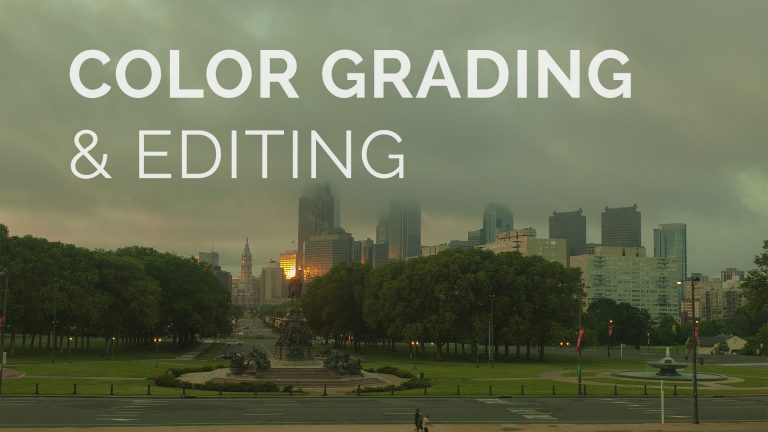
In the following tutorial I will walk you through how I look at and approached the color grading, toning, and editing process using Adobe Camera RAW in my recent timelapse film “Philly Is Ugly”.
Check out another of my videos: “BREAKDOWN: Select and Mask vs. Refine Edge – Photoshop CC”
-~-~~-~~~-~~-~-
Check out our sponsor, GraphicStock.com Use this link for the deal in the video: http://graphicstock.com/x/TutVid_0416
Learn how to master and control Levels to your advantage in Photoshop. Not only can you add contrast with Levels, but you can create a faded effect, you can reduce contrast, you can color correct, you can control individual color channels, and more! Check out this tutorial and see what you’ve been missing in Levels!
See written tutorial on site: http://tutvid.com/photoshop-tutorials/photoshop-tutorial-levels-levels-levels/
INSTAGRAM & MORE:
http://instagram.com/tutvid Tweets by tutvid
https://www.facebook.com/tutvid
Check out another of my videos: “BREAKDOWN: Select and Mask vs. Refine Edge – Photoshop CC”
-~-~~-~~~-~~-~-
These are 31 hotkeys in Photoshop that are both useful and that you probably have never heard of or even used before. We’re going to cover so much in this video and we’re going to do it pretty fast! Please LIKE and SHARE this video if you enjoyed it!
SUPPORT tutvid.com!
Pick up my image retouching tutorial package right here: http://tutvid.com/retouching-photos-photoshop/
We will cover:
1.) Precise Brushing Mode – Caps Lock
2.) Clipping Mask – Alt/Opt + G
3.) Fill and Preserve Transparency – Shift + Alt/Opt + Backspace/Delete
4.) Camera RAW Switching Panels – Cmd/Ctrl + Alt/Opt + 1-9
5.) Create Filled Layer Mask – Alt/Opt + Click
6.) Copy from Multiple Layers – Shift+Cmd+C
7.) Load Channel as a Selection – Cmd/Ctrl + Alt/Opt + Shift + 2-5
8.) Hide/Show Layer(s) – Cmd/Ctrl + ,
9.) Cycle through Brushes – “,” or “.”
10.) Open Adjustment w/ Previous Settings – Add Alt/Opt to Adjustment Hotkey
11.) Last Filter w/ Dialog Box to Adjust – Cmd/Ctrl + Alt/Opt + F
12.) Choose Different Layer Styles – Cmd/Ctrl + 0-9
13.) Drag in and Center image – Hold Shift Key
14.) Create New Layer Behind – Cmd/Ctrl + Click
15.) Load Path as a Selection – Cmd/Ctrl + Enter/Return
16.) Find Free Transform Handles – Cmd+T and then Cmd+0
17.) Bird’s Eye View – Hold “H” and drag
18.) Flip Tool Usage – Alt/Opt
19.) Show/Hide Marching Ants – Cmd/Ctrl + H
20.) Align Text Left, Center, Right – Cmd-Shift-L/C/R
21.) Show/Hide Guides – Cmd/Ctrl + ;
22.) Show/Hide Rulers – Cmd/Ctrl + R
23.) Temporarily Disable Snapping – Ctrl key
24.) Hotkey Select “Deep” Tools in Toolbar – Shift + Hotkey
25.)Panel Control in UI – Tab & Shift + Tab
26.) Nudge Points on Curves Line – Arrow Keys & Ctrl/Tab to go to next point
27.) Cycle Through Tools in Toolbar – Alt/Opt + Click Icons
28.) Navigate Document – Mouse Wheel + Cmd/Ctrl & Mouse Wheel
29.) Mouse Wheel to Zoom – Cmd/Ctrl + Alt/Opt + Mouse Wheel
30.) Select Layer Contents in Layers Panel – Cmd/Ctrl + Click w/ Move Tool
31.) Duplicate and Nudge Graphic – Alt/Opt + Arrow (add shift to nudge 10px)
See it on the website: http://tutvid.com/photoshop-tutorials/the-31-hidden-hotkeys-of-photoshop-cc/
SNAPCHAT & MORE:
http://instagram.com/tutvid Tweets by tutvid
https://www.facebook.com/tutvid
? tutvid.com
IMAGES USED IN THIS VIDEO:
Yeezys on fire: https://unsplash.com/photos/FgPGGFlY1gY
Blonde in milk: https://unsplash.com/photos/kgMhHiXOBgs
Girl headphones: https://unsplash.com/photos/th3rQu0K3aM
Chef: https://unsplash.com/photos/xtzSMpzTWH0
Girl in field: https://unsplash.com/photos/Jy992J_7GUs
Cincinnati: https://unsplash.com/photos/afYqpFY-gF8
Finch: https://unsplash.com/photos/jsUQBs8vC5Y
Rainy street: https://unsplash.com/photos/uFomxGheuGk
Banff Park: https://unsplash.com/photos/YBLvEQ6npQo
Macbook Pro: https://unsplash.com/photos/y0_vFxOHayg
Blonde w/ hat: https://unsplash.com/photos/8QhRV-_dSVo
Thailand temples: https://unsplash.com/photos/np5wC9cYINA
Drinking bro: https://unsplash.com/photos/TXRiNssV1Jc
Temple: https://unsplash.com/photos/HoevDVvxInw
Check out another of my videos: “BREAKDOWN: Select and Mask vs. Refine Edge – Photoshop CC”
-~-~~-~~~-~~-~-
Check out the written tutorial! http://iceflowstudios.com/2012/tutorials/how-to-draw-a-mac-mini-photoshop-tutorial/
Like Tutvid on Facebook: http://www.facebook.com/tutvidFan
Follow me on Twitter: http://www.twitter.com/tutvid
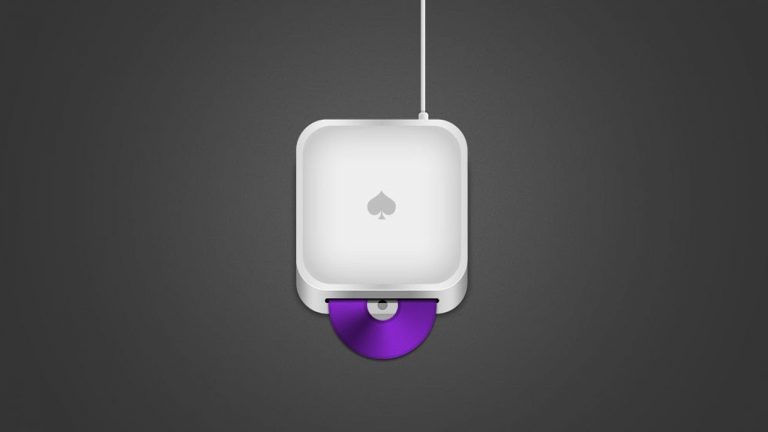
We all love Apple’s sleek, simple, and smooth designs. The chrome, the white, the sharp blacks all accented with the iconic metallic Apple seem to personify quality, productivity, and fun. Why wouldn’t we all take a Mac mini? Well, you can take your very own Mac home tonight by completing this tutorial! Take a look, open up Photoshop, and get going!
This tutorial is one in the continued series the Howard from http://www.IceflowStudios.com and I are creating. Inspiration is draw from the amazing http://www.365psd.com and any number of the quality, free PSD downloads they provide! Check them out now!
Check out another of my videos: “BREAKDOWN: Select and Mask vs. Refine Edge – Photoshop CC”
-~-~~-~~~-~~-~-
Check out our sponsor, GraphicStock.com Use this link for the deal in the video: http://graphicstock.com/x/TutVid_0416
Well, it’s here, another Curves tutorial that I’ve done. This is the biggest and baddest one yet. I’ll take you from absolutely no knowledge about Curves and by the end of this video you will understand how to control the contrast, tone, and color of specific areas of your image without a mask and increase or decrease contrast as well as introduce or reduce colors in your images. Curves might be the most powerful feature in all of Photoshop.
See written tutorial on site: http://tutvid.com/photoshop-tutorials/curves-the-most-powerful-photoshop-feature/
INSTAGRAM & MORE:
http://instagram.com/tutvid Tweets by tutvid
https://www.facebook.com/tutvid
Check out another of my videos: “BREAKDOWN: Select and Mask vs. Refine Edge – Photoshop CC”
-~-~~-~~~-~~-~-
Philly Is Ugly timelapse tutorial and behind the scenes. http://phillyisugly.com
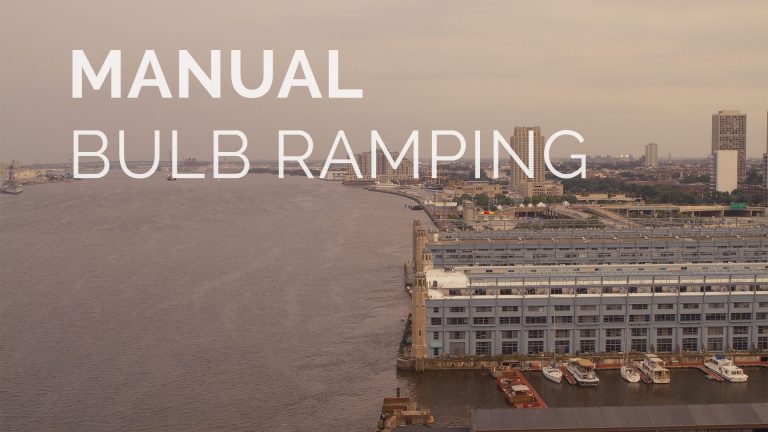
In the following tutorial we will look at how I fade together sequences of images shot for a timelapse film specifically when you need to adjust the camera to keep the pictures from getting too ark while you are shooting. I call it “Manual Bulb Ramping”, enjoy!
Check out another of my videos: “BREAKDOWN: Select and Mask vs. Refine Edge – Photoshop CC”
-~-~~-~~~-~~-~-
PHOTOSHOP CC 2015.5 IS HERE! With each update of Photoshop we get a few new tweaks and updates. This article/video will cover all the important and useful updates in the latest and greatest version of our favorite photo editing application. This is THE Photoshop tutorial that will bring you up to speed in no time with all of the new and important features of Photoshop CC 2015.5
Check out the written article for a quick overview: http://tutvid.com/photoshop-tutorials/ultimate-guide-to-all-the-new-features-of-photoshop-cc-2015-5/
VIDEO GUIDE:
00:59 Face Aware Liquify
06:38 Select and Mask Workspace
13:46 Match Font
15:49 Content Aware Crop
18:42 Adobe Stock Photo Integration
21:32 Embedding Color Profile on Export
21:59 On-Canvas Glyph Alternatives
23:04 3D Manufacturing File (3MF) Format
23:50 Update to Artboards
25:30 Photoshop Speed Improvements
26:16 Copying Assets to Adobe Experience Design CC
27:03 Adobe Portfolio
28:14 Photoshop app downloads 65% faster
28:20 Legacy Healing Brush Mode
28:32 Font weights/styles grouped together
28:47 Document layer count in info and status bar
28:53 Info panel can show composite image values
28:59 Oil paint now works on lower end graphics cards
29:06 GPU rich features now enabled over remote connections
29:17 Better, faster content aware functionality
29:34 Small swatches again available in Swatches panel
29:41 Move divisions in Divide Slices command
29:54 Improved Brush performance
30:02 Text layer optimization
30:08 Detection of conflicting graphics cards to prevent Photoshop crashes
30:19 Name/value of color displayed in recently used colors
30:26 Hotkeys for Brush pressure & more
30:33 Hotkey for airbrush mode
30:41 New multi-touch changes
30:58 Color adaptation in Fill dialog box
31:07 32-bit system limitations
31:24 Photoshop to Behance integration is gone
31:41 No more Refine Edge dialog box
Pick up my image retouching tutorial package ($27) right here: http://tutvid.com/retouching-photos-photoshop/
SNAPCHAT & MORE:
http://instagram.com/tutvid Tweets by tutvid
https://www.facebook.com/tutvid
? tutvid.com