Home Blog Page 497

How to Make a Kick Ass Lightning Background in Photoshop

0

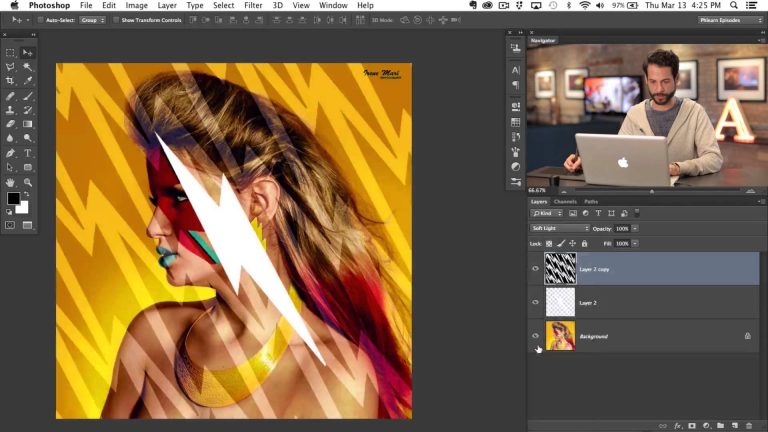
The step and repeat command is one of the coolest secrets Photoshop has to offer. You won’t need this feature every time you open Photoshop, but when you are creating patterns, there is no better tool.
To start the Step and Repeat simply create a shape on a blank layer, in this case we chose to use a lightning bolt. Next make a selection from the shape by holding CTRL/CMD and clicking on the layer thumbnail. This will make sure that each repetition is on the same layer.
After you have made your selection press OPTN+CMD+T to start the transformation. Free transform your layer by rotating, scaling or skewing. When you are done transforming hit ENTER to apply the transformation. At this point you should have 2 of your shape.
To create multiple copies that all have the same transformation, hit CMD+OPTN+SHIFT+T. Each time you complete the keyboard shortcut you will repeat the previous step, this making a Step and Repeat.

If you thought this episode was great our “Pro Tutorials” are about 10 times better, more in-depth detailed information, and are priced perfectly for the photographers and photoshoppers wanting to become the best. Of course we teach it the right way, you just have to get access to the lesson check out http://phlearn.com/pro-tutorials.

Make sure to subscribe to our Youtube channel for great videos, hangout with us on Google+, like us on Facebook, chat on Twitter, and capture moments on Instagram. All of our accounts have something fun to offer.

Phlearn Accounts
Website: http://phlearn.com
Youtube: https://www.youtube.com/channel/UC47XN5bhLTBH5TRFyKaUpKg
Facebook: https://www.facebook.com/Phlearn
Twitter: https://twitter.com/phlearn
Google+: https://plus.google.com/u/0/116791098…
Instagram: https://instagram.com/phlearn

How to Correct Red Skin Color in Photoshop Quickly

0

It’s time to correct red skin captured in your images. Here is how to do it, quickly.

One of the problems you will encounter when photographing people is skin redness. It usually shows up around the nose, close to the eyes and on the cheeks. Skin that looks too red can make people look tired, sick, old, or just bad.

Thankfully there is a simple fix that will work every time.

Using a Hue/Saturation Layer
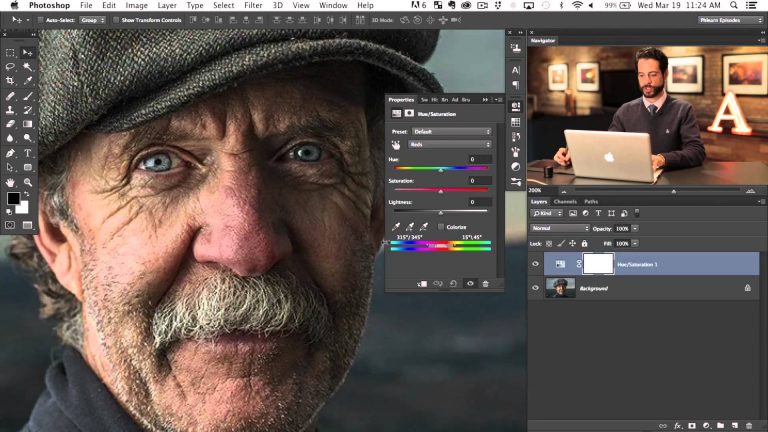
In this episode we show you how to use a Hue/Saturation adjustment layer to pinpoint the redness and get rid of it for good.

We start by selecting REDS from the drop down menu that is on MASTER by default. After selecting the reds we bring up the saturation as high as possible to see what colors we are actually effecting. Then we use the slider on the bottom to narrow in the focus of color and move it left and right until only the area we want to change becomes highlighted.

After the selection is bright red, bring the saturation back down to 0 and adjust the Hue slider to the right. In this image we use a +25 Hue but that will change depending on the colors in your image. Once you set the Hue correctly you are done!

If you thought this episode was great our “Pro Tutorials” are about 10 times better, more in-depth detailed information, and are priced perfectly for the photographers and photoshoppers wanting to become the best. Of course we teach it the right way, you just have to get access to the lesson check out http://phlearn.com/pro-tutorials.

Make sure to subscribe to our Youtube channel for great videos, hangout with us on Google+, like us on Facebook, chat on Twitter, and capture moments on Instagram. All of our accounts have something fun to offer.

Phlearn Accounts
Website: http://phlearn.com
Youtube: https://www.youtube.com/channel/UC47XN5bhLTBH5TRFyKaUpKg
Facebook: https://www.facebook.com/Phlearn
Twitter: https://twitter.com/phlearn
Google+: https://plus.google.com/u/0/116791098…
Instagram: https://instagram.com/phlearn

How to Add a Background Texture to a Portrait in Photoshop

0

Click Here to see Brooke Shaden’s work: http://www.promotingpassion.com/promoting-passion-video-blog-beauty-texture/

If you thought this episode was great our “Pro Tutorials” are about 10 times better, more in-depth detailed information, and are priced perfectly for the photographers and photoshoppers wanting to become the best. Of course we teach it the right way, you just have to get access to the lesson check out http://phlearn.com/pro-tutorials.

Make sure to subscribe to our Youtube channel for great videos, hangout with us on Google+, like us on Facebook, chat on Twitter, and capture moments on Instagram. All of our accounts have something fun to offer.

Phlearn Accounts
Website: http://phlearn.com
Youtube: https://www.youtube.com/channel/UC47XN5bhLTBH5TRFyKaUpKg
Facebook: https://www.facebook.com/Phlearn
Twitter: https://twitter.com/phlearn
Google+: https://plus.google.com/u/0/116791098…
Instagram: https://instagram.com/phlearn
How to Remove a Bra in Photoshop

0

Phlearn PRO Photoshop Tutorials
View Our Bestselling Bundles – http://bit.ly/1Abrt1R

Removing a Bra Strap

It is easy to miss a small detail during a photo shoot like a bra strap hanging out when you are more focused on other things. In today’s episode we show you how to get rid of those straps (or other similar details) in a very simple tutorial that will have you amazed at how far Photoshop has come.

Using the Spot Healing Brush

The Spot Healing Brush tool was recently updated in Photoshop and is MUCH better than it used to be. Adobe added the “Content Aware” Option which calculates possible backgrounds for areas you are patching over. No tool will work perfectly every time but the Spot Healing Brush just got some major points from Phlearn.

If you thought this episode was great our “Pro Tutorials” are about 10 times better, more in-depth detailed information, and are priced perfectly for the photographers and photoshoppers wanting to become the best. Of course we teach it the right way, you just have to get access to the lesson check out http://phlearn.com/pro-tutorials.

Make sure to subscribe to our Youtube channel for great videos, hangout with us on Google+, like us on Facebook, chat on Twitter, and capture moments on Instagram. All of our accounts have something fun to offer.

Phlearn Accounts
Website: http://phlearn.com
Youtube: https://www.youtube.com/channel/UC47XN5bhLTBH5TRFyKaUpKg
Facebook: https://www.facebook.com/Phlearn
Twitter: https://twitter.com/phlearn
Google+: https://plus.google.com/u/0/116791098…
Instagram: https://instagram.com/phlearn
The Best Photoshop Tutorial Ever: Behind The Scenes Photoshop 201

0

This PRO Tutorial will make you fluent in the language of Photoshop! This PRO Tutorial includes the following:

Download Here:
http://phlearn.com/pro/photoshop-201

Complete Photoshop Tutorial — Over 2:30 Hours of Step-by-Step instruction
Section 1 — Introduction and Optimizing Photoshop (Color Space, Settings)
Section 2 — Retouching Tools (Clone Stamp, Healing Brush, Liquify, Puppet Warp)
Section 3 — Selection Tools (Channels, Color Range, Masking, Tool Blend Modes)
Section 4 — Background Techniques (Masking, Curves, Clipping Masks, Blend Modes, Color Matching)
Section 5 — Coloring Techniques (Curves, Hue Saturation, Colorizing, Adjustment Layers, Apply Image)
Section 6 — Completing the Image
Six Sections — Photoshop broken down by topic to make it easy
Original Images — 23 Images Included in Download

If you thought this episode was great our “Pro Tutorials” are about 10 times better, more in-depth detailed information, and are priced perfectly for the photographers and photoshoppers wanting to become the best. Of course we teach it the right way, you just have to get access to the lesson check out http://phlearn.com/pro-tutorials.

Make sure to subscribe to our Youtube channel for great videos, hangout with us on Google+, like us on Facebook, chat on Twitter, and capture moments on Instagram. All of our accounts have something fun to offer.

Phlearn Accounts
Website: http://phlearn.com
Youtube: https://www.youtube.com/channel/UC47XN5bhLTBH5TRFyKaUpKg
Facebook: https://www.facebook.com/Phlearn
Twitter: https://twitter.com/phlearn
Google+: https://plus.google.com/u/0/116791098…
Instagram: https://instagram.com/phlearn
Photography Production Packet for Photo shoots

0

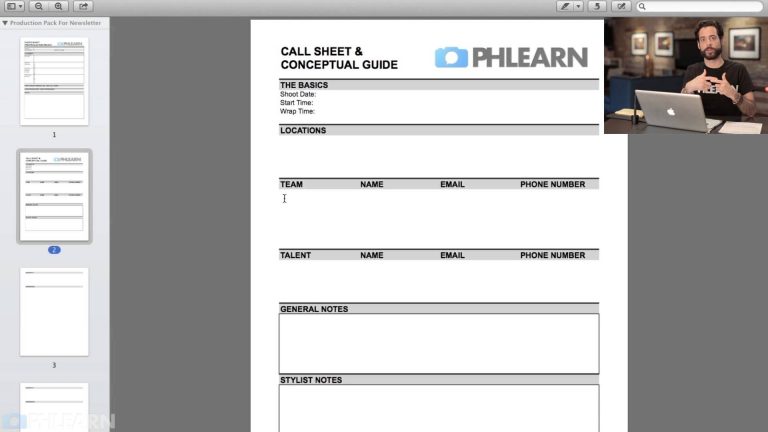
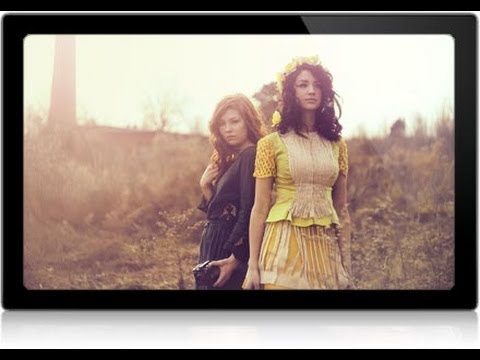
We have found that a huge part of a shoot’s success lies in the Pre-Production. The more time we spend planning a shoot the better it turns out, that is why we created this Production Packet.

As a rule we do not place a photo shoot on the calendar until the Production Packet is filled out completely, that way we know exactly what we are getting before we start.

If you thought this episode was great our “Pro Tutorials” are about 10 times better, more in-depth detailed information, and are priced perfectly for the photographers and photoshoppers wanting to become the best. Of course we teach it the right way, you just have to get access to the lesson check out http://phlearn.com/pro-tutorials.

Make sure to subscribe to our Youtube channel for great videos, hangout with us on Google+, like us on Facebook, chat on Twitter, and capture moments on Instagram. All of our accounts have something fun to offer.

Phlearn Accounts
Website: http://phlearn.com
Youtube: https://www.youtube.com/channel/UC47XN5bhLTBH5TRFyKaUpKg
Facebook: https://www.facebook.com/Phlearn
Twitter: https://twitter.com/phlearn
Google+: https://plus.google.com/u/0/116791098…
Instagram: https://instagram.com/phlearn

How to Correct Skin Tones and Stylize Your Photo in Photoshop

0

Phlearn PRO Photoshop Tutorials
View Our Bestselling Bundles – http://bit.ly/1Abrt1R

Correcting Skin Tones

Getting your white balance exactly right can be tricky. If you are on the cool side your subjects will look a bit too blue making them look a bit lifeless. We show you a quick method using Color Balance to correct skin tones and get a nice base for further editing.

Coloring Shadows

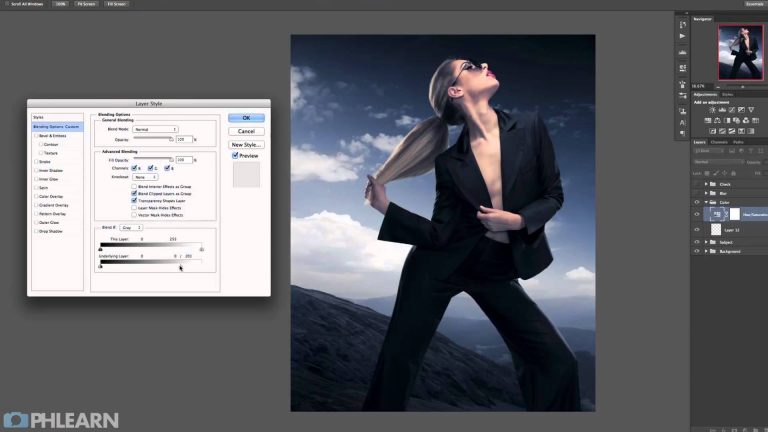
If you do want your image to to have cool tones it is a good idea to keep those tones to the shadows of the image, that way your skin tones continue to look natural. In this Photoshop tutorial we show you how to colorize using the Hue/Saturation adjustment layer and then restrict those colors to the shadows using Blend If.

Adding Light Effects

When you are photographing into the Sun you have some great opportunities to add lighting effects in Photoshop. From a huge lens flare to a subtle color grade the options are endless and each photo will require a different effect.

In this image we use the gradient tool to create a glow on the left side of the image. After bringing in the base color we use Curves to add a bit of warmth to the lens flare.

If you thought this episode was great our “Pro Tutorials” are about 10 times better, more in-depth detailed information, and are priced perfectly for the photographers and photoshoppers wanting to become the best. Of course we teach it the right way, you just have to get access to the lesson check out http://phlearn.com/pro-tutorials.

Make sure to subscribe to our Youtube channel for great videos, hangout with us on Google+, like us on Facebook, chat on Twitter, and capture moments on Instagram. All of our accounts have something fun to offer.

Phlearn Accounts
Website: http://phlearn.com
Youtube: https://www.youtube.com/channel/UC47XN5bhLTBH5TRFyKaUpKg
Facebook: https://www.facebook.com/Phlearn
Twitter: https://twitter.com/phlearn
Google+: https://plus.google.com/u/0/116791098…
Instagram: https://instagram.com/phlearn
Phlearn is headed in a NEW Direction!

0

If you thought this episode was great our “Pro Tutorials” are about 10 times better, more in-depth detailed information, and are priced perfectly for the photographers and photoshoppers wanting to become the best. Of course we teach it the right way, you just have to get access to the lesson check out http://phlearn.com/pro-tutorials.

Make sure to subscribe to our Youtube channel for great videos, hangout with us on Google+, like us on Facebook, chat on Twitter, and capture moments on Instagram. All of our accounts have something fun to offer.

Phlearn Accounts
Website: http://phlearn.com
Youtube: https://www.youtube.com/channel/UC47XN5bhLTBH5TRFyKaUpKg
Facebook: https://www.facebook.com/Phlearn
Twitter: https://twitter.com/phlearn
Google+: https://plus.google.com/u/0/116791098…
Instagram: https://instagram.com/phlearn
It’s More Than A Candle, It’s A Phlandle – Phlandles Blooopers

0

Use coupon code “Phlandle” and get 10% off your purchase during the month of April. You will also be entered into a drawing to win a Phlandle.

Enjoy this blooper video and be sure to use Coupon Code “Phlandle” during your next purchase on Phlearn.

How to Draw Attention to Your Subject in Photoshop

0

Adding Interest to Your Background
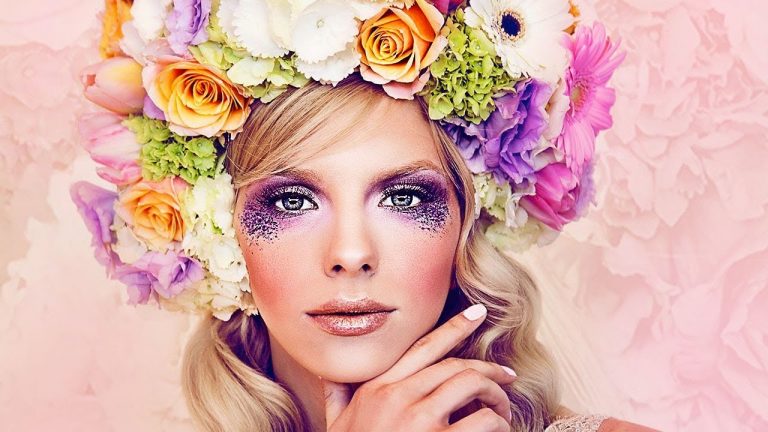
Photographing a subject on a blank (seamless) backdrop is very common in the studio and will give you a nice clean look. Sometimes you may find yourself wanting to add some interest to the backdrop in Photoshop and this episode is perfect for showing you how it is done. There are many ways to add interest to a background, but this is one of the simplest and most effective.

We start out by using the clone stamp tool to copy some of the flowers from the headdress onto a new layer. Then we convert each of the two layers to black and white and change the blending modes to “soft light”, this gives a subtle texture to the background. After scaling the layers a bit larger to fit the background we use a layer mask on their group to make the effect only visible on the background.

Draw Attention to Your Subject
Photoshop is a great tool when it comes to drawing attention to your subject. You can use things like color, saturation, sharpening, and exposure to draw the viewers eye to a specific part of an image.

In this tutorial we show you a great technique for sharpening just part of your images, helping the subject’s eyes stand out.

Coloring
Coloring your image in Photoshop is fairly easy and can give you effects that would be very hard to capture straight out of camera.

We color the background a bit on the cool side and then add some warmth using curves over the subject’s face to help bring attention to that area.

If you thought this episode was great our “Pro Tutorials” are about 10 times better, more in-depth detailed information, and are priced perfectly for the photographers and photoshoppers wanting to become the best. Of course we teach it the right way, you just have to get access to the lesson check out http://phlearn.com/pro-tutorials.

Make sure to subscribe to our Youtube channel for great videos, hangout with us on Google+, like us on Facebook, chat on Twitter, and capture moments on Instagram. All of our accounts have something fun to offer.

Phlearn Accounts
Website: http://phlearn.com
Youtube: https://www.youtube.com/channel/UC47XN5bhLTBH5TRFyKaUpKg
Facebook: https://www.facebook.com/Phlearn
Twitter: https://twitter.com/phlearn
Google+: https://plus.google.com/u/0/116791098…
Instagram: https://instagram.com/phlearn