Home Blog Page 498

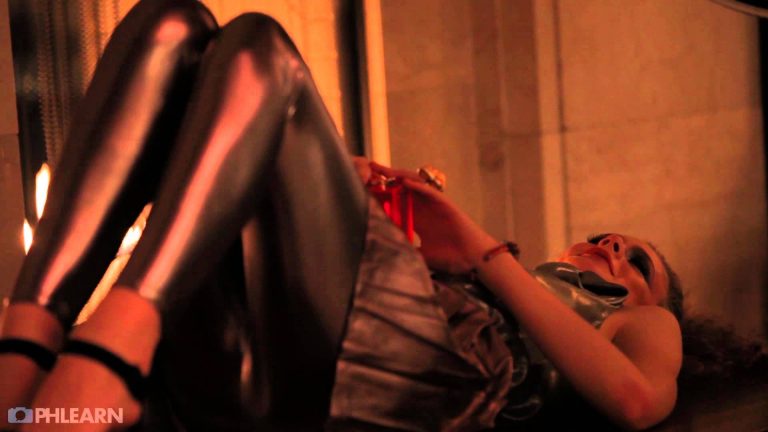
Maximizing Lighting in a Fashion Photoshoot

0

If you thought this episode was great our “Pro Tutorials” are about 10 times better, more in-depth detailed information, and are priced perfectly for the photographers and photoshoppers wanting to become the best. Of course we teach it the right way, you just have to get access to the lesson check out http://phlearn.com/pro-tutorials.

Make sure to subscribe to our Youtube channel for great videos, hangout with us on Google+, like us on Facebook, chat on Twitter, and capture moments on Instagram. All of our accounts have something fun to offer.

Phlearn Accounts
Website: http://phlearn.com
Youtube: https://www.youtube.com/channel/UC47XN5bhLTBH5TRFyKaUpKg
Facebook: https://www.facebook.com/Phlearn
Twitter: https://twitter.com/phlearn
Google+: https://plus.google.com/u/0/116791098…
Instagram: https://instagram.com/phlearn

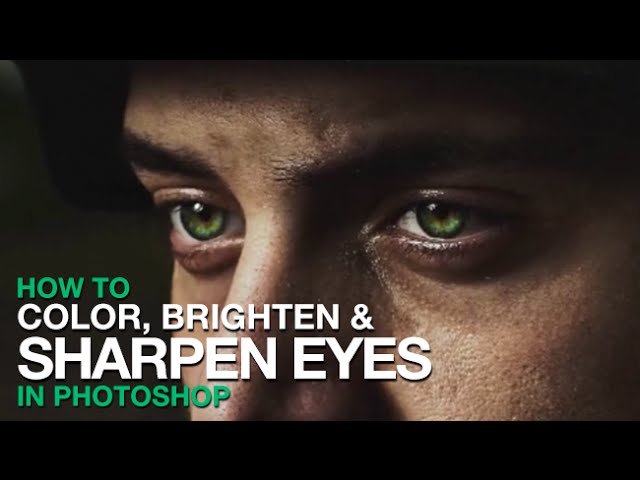
How to Color, Brighten and Sharpen Eyes in Photoshop

0

Our #1 PRO Tutorial ever is now on Sale! https://phlearn.com/popular

Make Eyes Look Amazing in Photoshop

If you have ever seen amazing eyes in a photo there is a good chance that it has been edited in Photoshop. Enhancing a person’s eyes in Photoshop is a quick way to make an image really stand out.

In today’s episode we show you how to use the natural colors of an eye to enhance its color depth. You will also learn how to properly dodge and burn an eye to make it stand out.

Coloring the Eye

There are many ways to color a person’s eye in Photoshop. This method uses the natural color of the eye as a base for new color. Start out by creating a new layer and sampling the color from the inner part of the eye. Next open your color palette and increase both lightness and saturation. This will give you a more vibrant version of the same hue. Then paint over the inner part of the eye, covering where the original color was. Do this a couple of times, sampling colors from around the eye.

After all of the colors are painted, change your layer blending mode to “Soft Light” or “Overlay” to allow the color to blend into the eyes. Then make sure to use “Gaussian Blur” to soften the edges of where you painted.

The eyes should be quite a bit more vibrant but still look natural.

Dodging and Burning the Eye

In this episode we use curves adjustment layers to brighten the center part of the pupil and darken the outer edges of the pupil. This change will give the eyes more depth and light.

Sharpening

The final step is to sharpen the eyes. You may already be sharpening your whole image, but just sharpening key areas (like the eyes) is a great way to draw more attention to those areas.

If you thought this episode was great our “Pro Tutorials” are about 10 times better, more in-depth detailed information, and are priced perfectly for the photographers and photoshoppers wanting to become the best. Of course we teach it the right way, you just have to get access to the lesson check out http://phlearn.com/pro-tutorials.

Make sure to subscribe to our Youtube channel for great videos, hangout with us on Google+, like us on Facebook, chat on Twitter, and capture moments on Instagram. All of our accounts have something fun to offer.

VISIT PHLEARN.COM FOR MORE FREE TUTORIALS

Homepage

SUBSCRIBE TO OUR CHANNEL FOR MORE FREE TIPS AND TRICKS
http://www.youtube.com/subscription_center?add_user=phlearnllc

GET FREE TUTORIALS IN YOUR EMAIL + DISCOUNTS ON OUR PRO TUTORIALS!
https://phlearn.com/mail

BUY THE TABLET AARON USES! https://phlearn.com/tablet

LET’S BE FRIENDS!
Instagram ► https://www.instagram.com/phlearn/
Facebook ► https://facebook.com/phlearn
Twitter ► https://twitter.com/phlearn
Google+ ► https://plus.google.com/116791098059215639405
Phlearn ► https://phlearn.com

————————————————————————————————————-
#phlearnmethod – Photoshop Made Simple.
Download Your Free 5 Pack Today – http://bit.ly/1GfvyEq
Unlock the Secret to the Lens Flare in Photoshop

0

Phlearn PRO Photoshop Tutorials
View Our Bestselling Bundles – http://bit.ly/1Abrt1R

Here Are The Secrets of Lens Flare. When properly used, the Lens Flare filter in Photoshop can add a nice effect to backlit photos. One issue people have with the Lens Flare filter is that you can’t apply it to a blank layer. That means that you are not able to adjust the lens flare after it has been applied. In this episode we show you a special secret to creating a lens flare on a blank layer and how you can adjust it in various ways afterwards, getting around the limitation of the filter.

If you thought this episode was great our “Pro Tutorials” are about 10 times better, more in-depth detailed information, and are priced perfectly for the photographers and photoshoppers wanting to become the best. Of course we teach it the right way, you just have to get access to the lesson check out http://phlearn.com/pro-tutorials.

Make sure to subscribe to our Youtube channel for great videos, hangout with us on Google+, like us on Facebook, chat on Twitter, and capture moments on Instagram. All of our accounts have something fun to offer.

Phlearn Accounts
Website: http://phlearn.com
Youtube: https://www.youtube.com/channel/UC47XN5bhLTBH5TRFyKaUpKg
Facebook: https://www.facebook.com/Phlearn
Twitter: https://twitter.com/phlearn
Google+: https://plus.google.com/u/0/116791098…
Instagram: https://instagram.com/phlearn

Learn how to Create Light Rays and Dust Particles Using a Custom Brush in Photoshop.

0

In today’s episode we create dust from scratch in Photoshop using a custom brush. The key to creating “dust” is to make particles that seem completely random.

Using a custom brush is a great way to create dust because it will take care of scattering all the particles for you. All you have to do is choose your size then click-and-drag and Photoshop will place countless particles until you let go.

You will learn how to create a “custom brush shape” to make the particles scatter even more.

If you thought this episode was great our “Pro Tutorials” are about 10 times better, more in-depth detailed information, and are priced perfectly for the photographers and photoshoppers wanting to become the best. Of course we teach it the right way, you just have to get access to the lesson check out http://phlearn.com/pro-tutorials.

Make sure to subscribe to our Youtube channel for great videos, hangout with us on Google+, like us on Facebook, chat on Twitter, and capture moments on Instagram. All of our accounts have something fun to offer.

Phlearn Accounts
Website: http://phlearn.com
Youtube: https://www.youtube.com/channel/UC47XN5bhLTBH5TRFyKaUpKg
Facebook: https://www.facebook.com/Phlearn
Twitter: https://twitter.com/phlearn
Google+: https://plus.google.com/u/0/116791098…
Instagram: https://instagram.com/phlearn

Amazing Trick to Recover Shadow Detail in Photoshop

0

How to Recover Shadow Detail

It can be hard to capture detail in both the shadows and highlights of an image because the dynamic range of most cameras is too small. A lot of the time the dark areas of your images will come out looking black.

In this episode we show you a quick way to bring back detail into your shadows without disturbing the highlights.

If you thought this episode was great our “Pro Tutorials” are about 10 times better, more in-depth detailed information, and are priced perfectly for the photographers and photoshoppers wanting to become the best. Of course we teach it the right way, you just have to get access to the lesson check out http://phlearn.com/pro-tutorials.

Make sure to subscribe to our Youtube channel for great videos, hangout with us on Google+, like us on Facebook, chat on Twitter, and capture moments on Instagram. All of our accounts have something fun to offer.

Phlearn Accounts
Website: http://phlearn.com
Youtube: https://www.youtube.com/channel/UC47XN5bhLTBH5TRFyKaUpKg
Facebook: https://www.facebook.com/Phlearn
Twitter: https://twitter.com/phlearn
Google+: https://plus.google.com/u/0/116791098…
Instagram: https://instagram.com/phlearn

Behind The Scenes: Royal Portraits PRO Tutorial

0

Come behind the scenes with Sir Aaron of Phlearnelot for our latest photoshoot entitled, “Royal Portraits PRO Tutorial.”

Click here to see how we edited the images: http://phlearn.com/pro/royal-portrait

If you thought this episode was great our “Pro Tutorials” are about 10 times better, more in-depth detailed information, and are priced perfectly for the photographers and photoshoppers wanting to become the best. Of course we teach it the right way, you just have to get access to the lesson check out http://phlearn.com/pro-tutorials.

Make sure to subscribe to our Youtube channel for great videos, hangout with us on Google+, like us on Facebook, chat on Twitter, and capture moments on Instagram. All of our accounts have something fun to offer.

Phlearn Accounts
Website: http://phlearn.com
Youtube: https://www.youtube.com/channel/UC47XN5bhLTBH5TRFyKaUpKg
Facebook: https://www.facebook.com/Phlearn
Twitter: https://twitter.com/phlearn
Google+: https://plus.google.com/u/0/116791098…
Instagram: https://instagram.com/phlearn

Make Your Vacation Photos Look Amazing in Photoshop!

0

Common Issues with Vacation Photos

We all know that you can set up lighting and work with models to make a photo more interesting, but what happens when you have no control over your environment? That is the case much of the time when you are traveling, you have to take what you are given.

Some common issues with travel photos include:

Unwanted People in Background – Can usually be taken out with the Clone Stamp Tool
Haze or Fog – Use the Auto feature on Curves or Levels as covered in this episode
Unsharp Photos – You probably won’t have a tripod and your best lenses with you on vacation
Colors – The colors in your photos usually don’t represent the colors of the actual scene, a lot of the time due to errors in white balance.

Correcting Color

In this episode we show you how to correct color and exposure at the same time using the “Auto” feature that comes built into both Curves and Levels adjustment layers. We go in depth showing you the different options available in the Auto dialog, showing you how to change the algorithm used to correct color. These changes may sound small but they can make a huge difference in your images.

Sharpening

There are many ways to sharpen an image in Photoshop. In this episode we go over one of my favorite methods, particularly effective when dealing with landscape images. Instead of trying to sharpen the entire image at once we actually apply a small amount of sharpening over and over again. This results in a more natural looking image but one with incredible detail.

If you thought this episode was great our “Pro Tutorials” are about 10 times better, more in-depth detailed information, and are priced perfectly for the photographers and photoshoppers wanting to become the best. Of course we teach it the right way, you just have to get access to the lesson check out http://phlearn.com/pro-tutorials.

Make sure to subscribe to our Youtube channel for great videos, hangout with us on Google+, like us on Facebook, chat on Twitter, and capture moments on Instagram. All of our accounts have something fun to offer.

Phlearn Accounts
Website: http://phlearn.com
Youtube: https://www.youtube.com/channel/UC47XN5bhLTBH5TRFyKaUpKg
Facebook: https://www.facebook.com/Phlearn
Twitter: https://twitter.com/phlearn
Google+: https://plus.google.com/u/0/116791098…
Instagram: https://instagram.com/phlearn

Create and Shape Eyebrows in Photoshop

0

Create and Shape Eyebrows in Photoshop

The shape and definition of eyebrows can make a huge difference in someone’s appearance. The beauty industry has known this for years and all over the world people pluck, tweeze, tint, shape, brush, and pencil eyebrows.

In today’s episode we show you how to get amazing eyebrows in Photoshop. You will learn how to shape eyebrows and realize what a difference they can make in an image.

Creating a Custom Brush

Sometimes that right way to do something is also the hard way. That has never scared us here at Phlearn and that is why we bring you a method for creating eyebrows that involves a custom brush.

In this episode we show you how to use the Pen Tool to create a path that mimics a hair. From there we stroke that path with the Brush Tool, checking “Simulate Pressure”. This makes a brush stroke that gets smaller on each end, just like hair.

After that we use this shape to define a custom brush shape and enter the brush settings to make the brush hair follow the direction of the cursor. This is a bit involved if you have never used custom brushes but don’t fear, we are including the brushes used in this tutorial for download.

Use this link to download the custom brush

Create and Shape Eyebrows in Photoshop

For those of you who would rather just download the brushes created in this tutorial we offer them free of charge. Just visit Phlearn.com

If you thought this episode was great our “Pro Tutorials” are about 10 times better, more in-depth detailed information, and are priced perfectly for the photographers and photoshoppers wanting to become the best. Of course we teach it the right way, you just have to get access to the lesson check out http://phlearn.com/pro-tutorials.

Make sure to subscribe to our Youtube channel for great videos, hangout with us on Google+, like us on Facebook, chat on Twitter, and capture moments on Instagram. All of our accounts have something fun to offer.

Phlearn Accounts
Website: http://phlearn.com
Youtube: https://www.youtube.com/channel/UC47XN5bhLTBH5TRFyKaUpKg
Facebook: https://www.facebook.com/Phlearn
Twitter: https://twitter.com/phlearn
Google+: https://plus.google.com/u/0/116791098…
Instagram: https://instagram.com/phlearn

Draw Attention to Your Subject Using Radial Focus Blur

0

Drawing Attention to your Subject

There are many techniques you can use in Photoshop to draw more attention to your subject. In this episode we cover a special technique we created to help blur the edges of a photo while keeping your subject in focus.

Step and Repeat

In order to create this special effect you will have to learn how to Step-and-Repeat in Photoshop. The first step is to make a duplicate of your layer and hit OPTN+CMD+T and make your transformation. After the transformation is complete hit ENTER to apply the transformation. You have just completed the STEP part of the Step-and-Repeat.

To apply the REPEAT just hit SHIFT+OPTN+CMD+T. Each time you enter this command Photoshop will apply the same transformation and create a new layer.

Radial Focus Blur

In this episode we use the Step-and-Repeat to draw attention to the subject’s face. We enter the STEP process by hitting OPTN+CMD+T and move the reference point over the subject’s face. Then we make the image larger and rotate it clockwise. Depending on the degree of transformation in this step your image will either be more or less blurred.

We then use the REPEAT command by hitting SHIFT+OPTN+CMD+T anywhere from 5-10 times. After you have created your new layers with the REPEAT command, select those layers, hit V, then use the numbers on the top of your keyboard to change their opacity. Different opacities will give you different looks.
If you thought this episode was great our “Pro Tutorials” are about 10 times better, more in-depth detailed information, and are priced perfectly for the photographers and photoshoppers wanting to become the best. Of course we teach it the right way, you just have to get access to the lesson check out http://phlearn.com/pro-tutorials.

Make sure to subscribe to our Youtube channel for great videos, hangout with us on Google+, like us on Facebook, chat on Twitter, and capture moments on Instagram. All of our accounts have something fun to offer.

Phlearn Accounts
Website: http://phlearn.com
Youtube: https://www.youtube.com/channel/UC47XN5bhLTBH5TRFyKaUpKg
Facebook: https://www.facebook.com/Phlearn
Twitter: https://twitter.com/phlearn
Google+: https://plus.google.com/u/0/116791098…
Instagram: https://instagram.com/phlearn

How to Create Realistic Eye Makeup in Photoshop

0

Principles of Applying Eye Makeup

If you are going to apply makeup in Photoshop it is important to understand some basics on how real makeup is applied. Makeup does not make people look better on it’s own, it must be applied correctly. There is a huge difference between well applied makeup and poorly applied makeup. The same is true in Photoshop.

This episode starts out with some of the basics of makeup application. We talk about how to open up the eye using eye shadow. We also show you several different eye shadow applications, each of which serves a different purpose.

Blending in Eye Makeup

Eye shadow is applied in Photoshop using the brush tool and a layer set to Multiply blending mode. This will make sure the color blends into the skin and looks more realistic.

The trick is to make the changes look like they are natural and not done in Photoshop. To add skin texture back into the makeup we use Blend-If to lessen the visibility of the eye shadow over the skin highlights.

Creating Eyelashes in Photoshop

You can spend time drawing in your own eyelashes but we have found that using eyelash brushes is the way to go.

In this tutorial we show you how to download and use eyelash brushes from a great resource – Obsidian Dawn. obsidiandawn.com/eyelashes-photoshop-gimp-brushes

Contouring the Face in Photoshop

To finish off the tutorial we show you how to contour a face. Contouring will help draw more contrast between highlights and shadow and bring out features like cheek bones and eyebrow arches.

If you thought this episode was great our “Pro Tutorials” are about 10 times better, more in-depth detailed information, and are priced perfectly for the photographers and photoshoppers wanting to become the best. Of course we teach it the right way, you just have to get access to the lesson check out http://phlearn.com/pro-tutorials.

Make sure to subscribe to our Youtube channel for great videos, hangout with us on Google+, like us on Facebook, chat on Twitter, and capture moments on Instagram. All of our accounts have something fun to offer.

Phlearn Accounts
Website: http://phlearn.com
Youtube: https://www.youtube.com/channel/UC47XN5bhLTBH5TRFyKaUpKg
Facebook: https://www.facebook.com/Phlearn
Twitter: https://twitter.com/phlearn
Google+: https://plus.google.com/u/0/116791098…
Instagram: https://instagram.com/phlearn