Home Blog Page 52

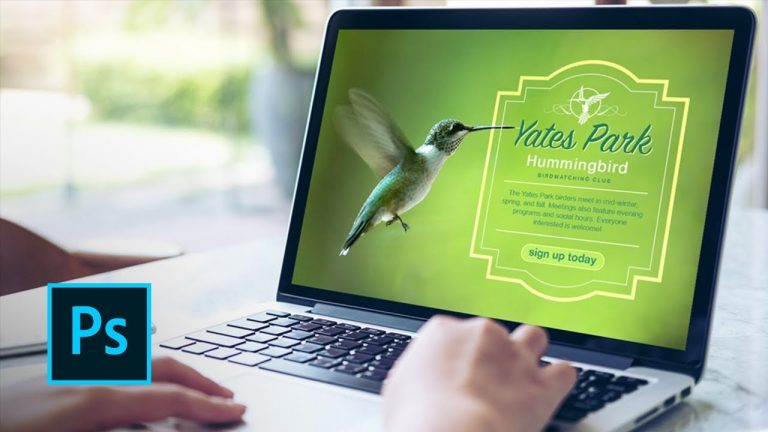
Learn How to Work with Shape Tools in Photoshop CC | Adobe Creative Cloud

Add vector design elements to your photographic images using the shape tools in Adobe Photoshop CC.

Start with some simple shapes, and then combine them to create more complex art using simple techniques.

Note: Watch Create a graphic shape to learn the basics.

Select the Rectangle tool. In the Options bar, choose the Combine Shapes option.
Click and drag on the canvas to draw a rectangle. Tip: Press the spacebar before you release your mouse to adjust the position of the rectangle.
Draw two more rectangles, each a bit narrower and taller than the previous one as shown.
Select the tallest rectangle and adjust any corner radius in the Properties panel. (This adjusts all four corners at once because they are constrained by the link button.) Drag until you have completely rounded sides.
To reposition a shape, choose the Path Selection tool. Select a shape, and then rearrange it.
You can also manipulate individual points or sides. Choose the Direct Selection tool and click an individual point; press Shift to select additional points. Once selected, you can adjust them at once. Tip: Use the Arrow keys to move selected points easily.
With some points selected, press Control+T (Windows) or Command+T (macOS) to access Free Transform to scale, skew, rotate, and more.
When you’re ready to style the shape, click the Fill Color thumbnail in the Options bar and set it to None. Click the Stroke Color thumbnail and click the Color Picker icon in the top right corner. Tip: To pick a color from the image itself, move your cursor over the image and click to sample a color. Adjust the color in the Color Picker. Finally, adjust the Stroke width in the Options bar.
Experiment with the shape layer’s blending mode to unify your vector design and photographic background. Reduce the shape layer’s opacity if needed. Tip: Press a number between 1 and 9 to quickly lower opacity.
Save your artwork for its final use.

Continue learning with CC Learn: https://adobe.ly/2JGZEy3

Subscribe: https://www.youtube.com/user/adobecreativecloud?sub_confirmation=1

LET’S CONNECT
Facebook: http://facebook.com/adobecreativecloud
Twitter: http://twitter.com/creativecloud
Instagram: http://www.instagram.com/adobecreativecloud/

Adobe Creative Cloud gives you the world’s best creative apps so you can turn your brightest ideas into your greatest work across your desktop and mobile devices.

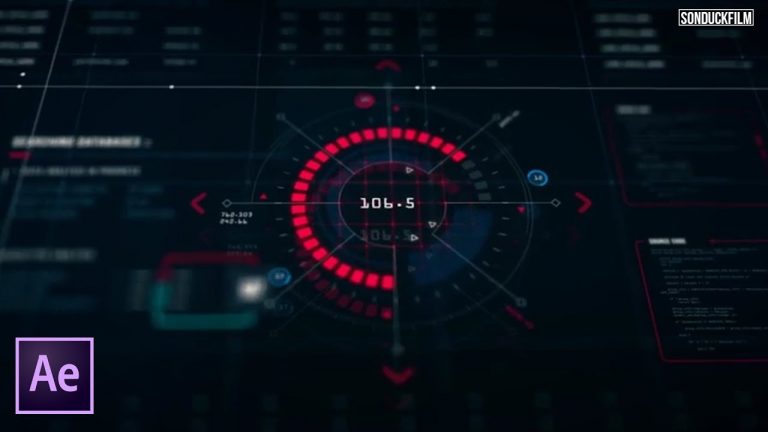
Create HUD Interface Sci-fi Elements | After Effects Tutorial

0

In this After Effects tutorial, learn how to create an advanced HUD interface sci-fi element. There are limitless variations of creating HUD elements and this tutorial will help you hit the ground running! Creating HUD interface elements are easy and be sure to check our links below for some new ideas!

Here are over 2000 HUD Interface packs: http://bit.ly/2JPfTbz

Here’s my Favorite 3 HUD Interface Packs
Quantum HUD: http://bit.ly/2MpqGHW
Axion: http://bit.ly/2t2JG6d
700+ HUD UI Pack: http://bit.ly/2MiSSMF

Social Media:
Drop a like on Facebook: https://www.facebook.com/sonduckfilm
Hit me up on Instagram: http://instagram.com/sonduckfilm
Follow me on Twitter: https://twitter.com/SonduckFilm
Connect with me on Linkedin: https://www.linkedin.com/in/joshnoel

Visit our website https://www.sonduckfilm.com for more tutorials, giveaways and film and photo gear!

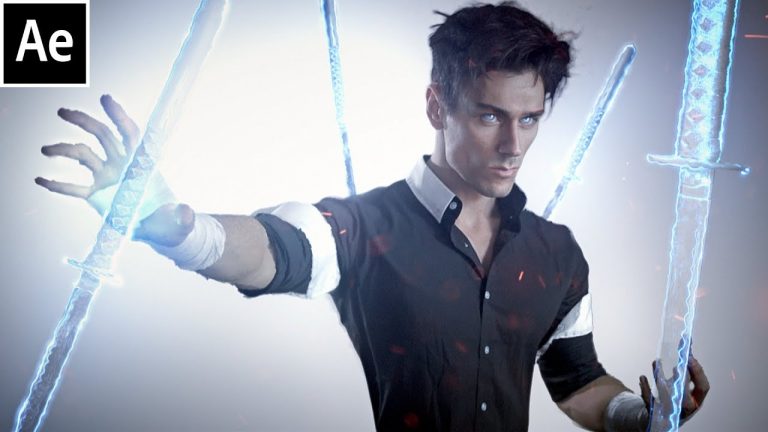
Epic Soul Blade After Effects Tutorial

My Signature Lut Pack: https://www.creatrix-visuals.com/product-page/cinema-luts-signature-edition
Creatrix Store: https://www.creatrix-visuals.com
Creatrix Vault: https://www.creatrix-visuals.com/creatrix-elite
My Gear: https://kit.com/Chris.Connor/chris-connor-s-kit

Original Video: https://www.youtube.com/watch?v=Umrc-4Q1EDI

Get Social:
Twitter: https://www.creatrix-visuals.com
Facebook: https://www.facebook.com/CreatrixVisuals/
Instagram: https://www.instagram.com/chrisconnorart/

This serves as a sneak peak behind the VFX Art from the Soul Blade concept.

Soul Blade is a concept VFX showcase focused on fantasy/action visual effects inspired by anime. We used our Cinema Particles pack as well as our upcoming Cinema Fog pack!

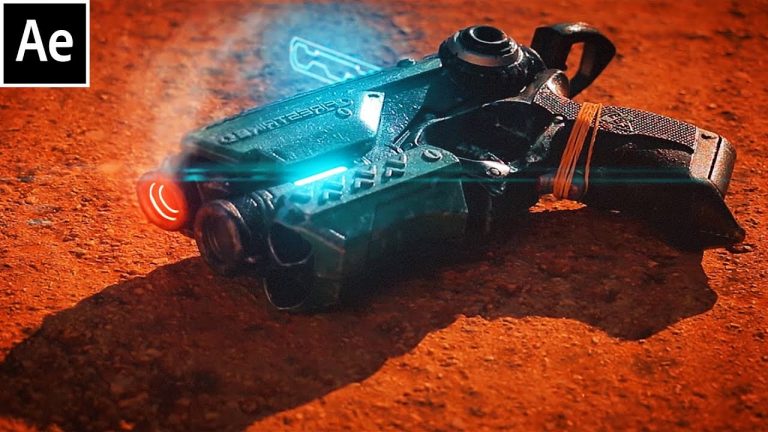
After Effects Scifi Pistol Heat Effect Tutorial

My Signature Lut Pack: https://www.creatrix-visuals.com/product-page/cinema-luts-signature-edition
Creatrix Store: https://www.creatrix-visuals.com

Creatrix Vault: https://www.creatrix-visuals.com/creatrix-elite
My Gear: https://kit.com/Chris.Connor/chris-connor-s-kit

Get Access to this project exclusively with the Creatrix Vault!

Get Social:
Twitter: https://www.creatrix-visuals.com
Facebook: https://www.facebook.com/CreatrixVisuals/
Instagram: https://www.instagram.com/chrisconnorart/

This is a VFX tutorial on the Scifi Pistol Heat Effect!

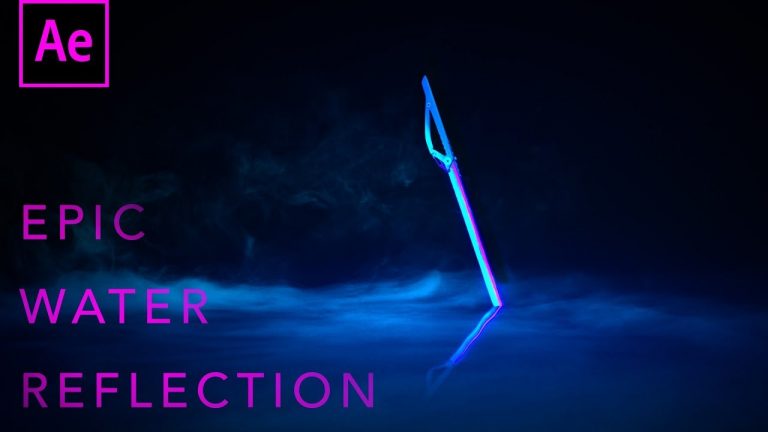
Epic Water Reflection Effect – After Effects Tutorial

My Signature Lut Pack: https://www.creatrix-visuals.com/product-page/cinema-luts-signature-edition
Creatrix Store: https://www.creatrix-visuals.com

Creatrix Vault: https://www.creatrix-visuals.com/creatrix-elite
My Gear: https://kit.com/Chris.Connor/chris-connor-s-kit

Get Social:
Twitter: https://www.creatrix-visuals.com
Facebook: https://www.facebook.com/CreatrixVisuals/
Instagram: https://www.instagram.com/chrisconnorart/

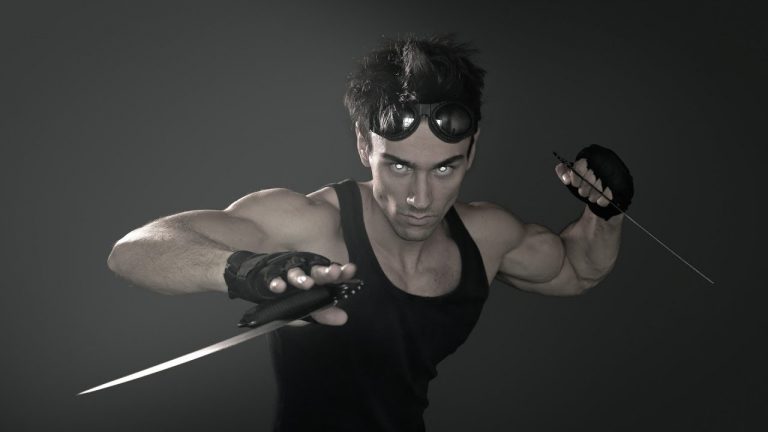
How to Throw Blades Through Camera – After Effects Tutorial

My Signature Lut Pack: https://www.creatrix-visuals.com/product-page/cinema-luts-signature-edition
Creatrix Store: https://www.creatrix-visuals.com

Creatrix Vault: https://www.creatrix-visuals.com/creatrix-elite
My Gear: https://kit.com/Chris.Connor/chris-connor-s-kit

Project available in the Creatrix Vault

Get Social:
Twitter: https://www.creatrix-visuals.com
Facebook: https://www.facebook.com/CreatrixVisuals/
Instagram: https://www.instagram.com/chrisconnorart/

How to Realistically Composite Smoke VFX – After Effects Tutorial

My Signature Lut Pack: https://www.creatrix-visuals.com/product-page/cinema-luts-signature-edition
Creatrix Store: https://www.creatrix-visuals.com

Creatrix Vault: https://www.creatrix-visuals.com/creatrix-elite
My Gear: https://kit.com/Chris.Connor/chris-connor-s-kit

Project available in the Creatrix Vault

Get Social:
Twitter: https://www.creatrix-visuals.com
Facebook: https://www.facebook.com/CreatrixVisuals/
Instagram: https://www.instagram.com/chrisconnorart/

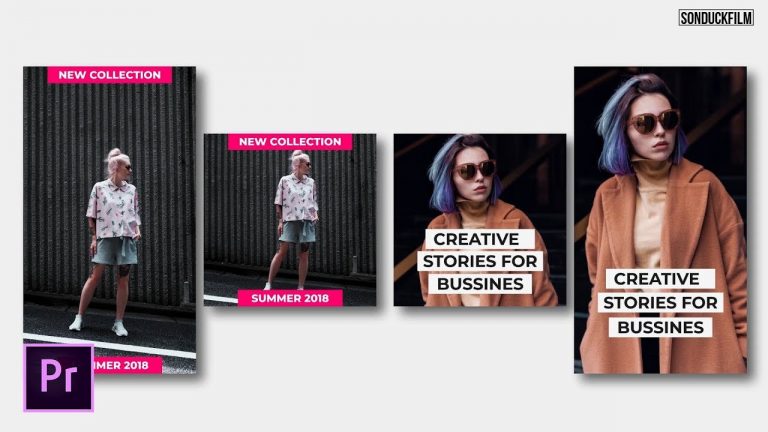
Create Instagram Stories | Adobe Premiere Pro Tutorial

In this Adobe Premiere Pro Tutorial, learn how to create an Instagram story. Creating Instagram stories are a great new way to communicate with your following. This Premiere Pro tutorial covers how to setup a Instagram story and how to use titles and graphics.

Premiere Instagram Templates: http://bit.ly/2JrxItH
75 Instagram Stories: http://bit.ly/2sRBjue
30 Instagram Stories: http://bit.ly/2kZFTTI

My Instagram Story For After Effects Tutorial: https://youtu.be/K8vfOVWzAvc

Like the music? Get your royalty free music at AudioJungle.
Listen here: http://bit.ly/2vWDfX6

Music Used In This Video!
Intro Song: http://bit.ly/2JzWGqL
Outro Song: http://bit.ly/2vRNDiV

Social Media:
Drop a like on Facebook: https://www.facebook.com/sonduckfilm
Hit me up on Instagram: http://instagram.com/sonduckfilm
Follow me on Twitter: https://twitter.com/SonduckFilm
Connect with me on Linkedin: https://www.linkedin.com/in/joshnoel

Visit our website https://www.sonduckfilm.com for more tutorials, giveaways and film and photo gear!

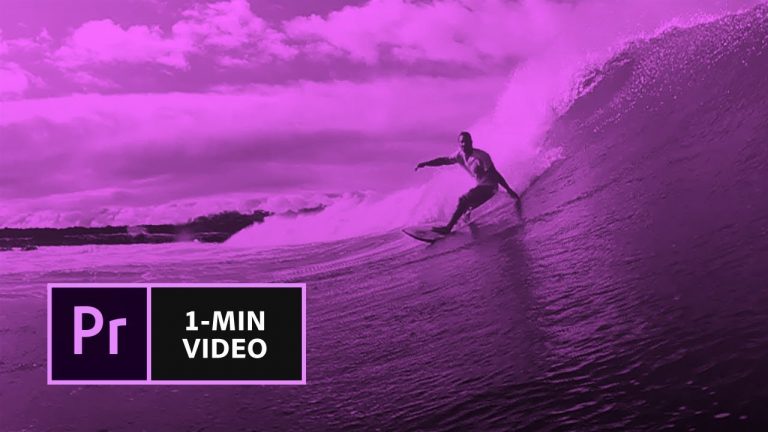
How to Make Extreme Color Grading in Premiere Pro | Adobe Creative Cloud

Give your clip an artistic effect with a 4-color gradient overlay.

Start from scratch or download practice files [https://adobe.ly/2IKOLXg] for a head start. Steps below.

1. Create a new project in Premiere Pro (File – New – Project), enter a name, and click OK.
2. Find footage on Adobe Stock: Open the Libraries panel (Window – Libraries). Search Adobe Stock for surfer footage (e.g., “surfer watershot”). Hover over the clip you’d like to use and click the shopping cart icon to license it. Or, click the cloud icon to preview it with a watermark before you buy it. Right-click the video clip in the Libraries panel and choose “Add to Project.”

Optional: Use “Surfer.mov” from our practice files. Then, import the clip (File – Import).

3. Click the Project tab, then right-click the surfer clip and choose “New Sequence from Clip.”

Optional: Drag the playhead to an interesting portion of your clip on the Timeline (say, the 6-second mark in the sample provided).

Tip: Pinch or expand with two fingers on the trackpad, or drag one of the small circles below the Timeline to zoom in and out.

4. Add an adjustment layer: Click the New Item icon in the Project panel, choose Adjustment Layer, and click OK.
5. Drag the adjustment layer to the Timeline just above the surfer clip. Drag to extend the adjustment layer to the length of the surfer clip.
6. Add a color gradient: Switch to the Effects workspace (Window – Workspaces – Effects). Type “4-color” in the Effects search field. Drag the 4-Color Gradient effect on to the adjustment layer.
7. Experiment with different colors: Click the first color swatch (yellow). Use the Color Picker to find a new color and click OK. Repeat for the next three colors.
8. Reposition colors: Change the numeric values of Points 1-4 to experiment with the positioning of the four color swatches.
9. Change the Blend setting: Increase the Blend value to create a softer border between colors. Decrease the value for a more defined border between colors.
10. Change the Blending Mode to Overlay. Or, select other blending options to see the different effects.

That’s it! Play your sequence to see the complete effect.

To learn more, visit our Premiere Pro Tutorials page: https://adobe.ly/2veGhET

Subscribe: https://www.youtube.com/user/adobecreativecloud?sub_confirmation=1

LET’S CONNECT
Facebook: http://facebook.com/adobecreativecloud
Twitter: http://twitter.com/creativecloud
Instagram: http://www.instagram.com/adobecreativecloud/

Adobe Creative Cloud gives you the world’s best creative apps so you can turn your brightest ideas into your greatest work across your desktop and mobile devices.