Home Blog Page 53

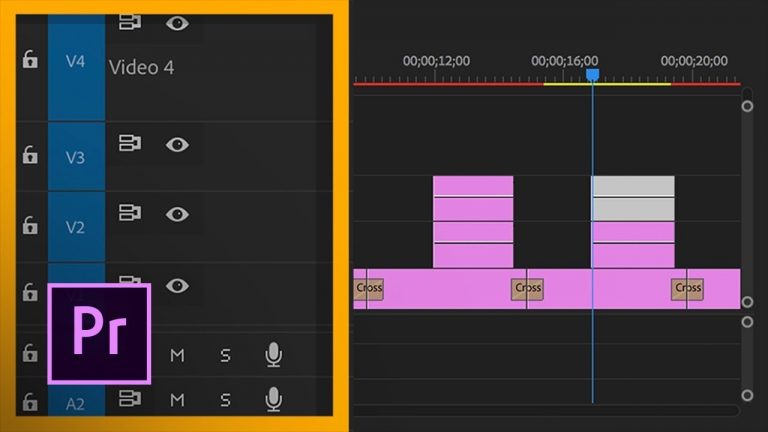
Customize Timeline Track Controls in Premiere Pro CC | Adobe Creative Cloud

Make intelligent use of the workspace in Adobe Premiere Pro CC by adjusting track header controls, using track height presets, and displaying relevant clip information in the Timeline panel.

Contributors: Maxim Jago, Oren Brimer (footage from See You Around)

More helpful Premiere Pro tutorials: https://adobe.ly/2LOlKMh

Subscribe: https://www.youtube.com/user/adobecreativecloud?sub_confirmation=1

LET’S CONNECT
Facebook: http://facebook.com/adobecreativecloud
Twitter: http://twitter.com/creativecloud
Instagram: http://www.instagram.com/adobecreativecloud/

Adobe Creative Cloud gives you the world’s best creative apps so you can turn your brightest ideas into your greatest work across your desktop and mobile devices.

Corporate Presentation Motion Graphics Scene | After Effects Tutorial

0

In this After Effects tutorial, create a corporate presentation motion graphics scene. This tutorial shows how to use branding and elements to compose a fantastic corporate scene.

Be sure to check out Video Library to help you in your motion graphics projects! Video Library HERE: http://bit.ly/2FE2CRT

Also, check out text library to create title animation within a few seconds! Text Library HERE: http://bit.ly/2rWy4Su

Like the music? Get your royalty free music at AudioJungle.
Listen here: http://bit.ly/2vWDfX6

Music Used In This Video!
Intro Song: http://bit.ly/2JzWGqL
Outro Song: http://bit.ly/2vRNDiV

Social Media:
Drop a like on Facebook: https://www.facebook.com/sonduckfilm
Hit me up on Instagram: http://instagram.com/sonduckfilm
Follow me on Twitter: https://twitter.com/SonduckFilm
Connect with me on Linkedin: https://www.linkedin.com/in/joshnoel

Visit our website https://www.sonduckfilm.com for more tutorials, giveaways and film and photo gear!

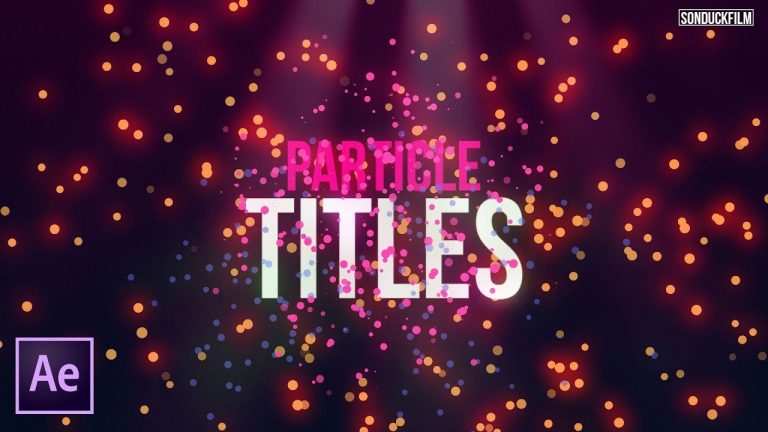
Create a Particle Reveal and Scene | After Effects Tutorial (No Plugins)

0

In this After Effects tutorial, create your own particle scene and reveal with no plugins! We will be using CC Particle World to customized our own particle scene. You will be able to use any object as particles.

Sign Up For 2 Free months of Skillshare here!: https://skl.sh/2L1NOLa

———————————————————-
Position X Expression:
target = thisComp.layer(“Null 1”);
(target.position[0]-(thisComp.width/2))/thisComp.width

Position Y Expression:
target = thisComp.layer(“Null 1”);
(target.position[1]-(thisComp.height/2))/thisComp.width

Position Z Expression:
target = thisComp.layer(“Null 1”);
target.position[2]/thisComp.width
————————————————————-

The Particle Templates For After Effects: http://bit.ly/2JgtqIX

Like the music? Get your royalty free music at AudioJungle.
Listen here: http://bit.ly/2vWDfX6

Music Used In This Video!
Intro Song: http://bit.ly/2JzWGqL
Outro Song: http://bit.ly/2vRNDiV

Social Media:
Drop a like on Facebook: https://www.facebook.com/sonduckfilm
Hit me up on Instagram: http://instagram.com/sonduckfilm
Follow me on Twitter: https://twitter.com/SonduckFilm
Connect with me on Linkedin: https://www.linkedin.com/in/joshnoel

Visit our website https://www.sonduckfilm.com for more tutorials, giveaways and film and photo gear!

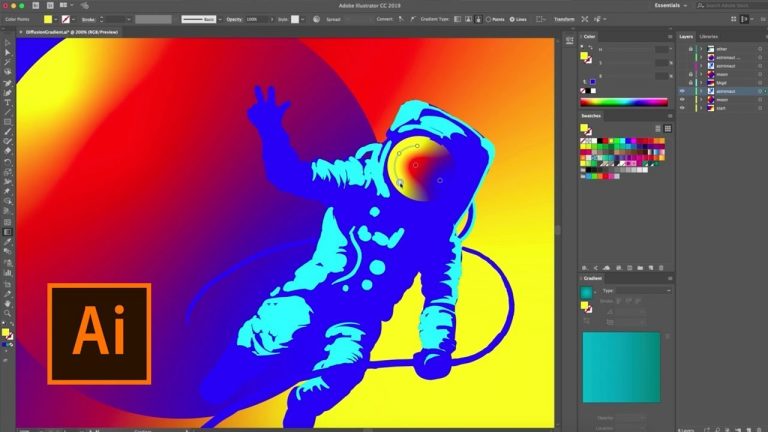
Illustrator CC Sneak Peek: Diffusion Gradients | Adobe Creative Cloud

We’re excited to give you a sneak peek into a new gradient feature coming to Illustrator CC later this year. Traditional linear or radial gradients can limit your flexibility, while gradient meshes can have a steep learning curve. The new gradient feature lets you create rich blends of colors that seemingly diffuse naturally into each other.

Subscribe: https://www.youtube.com/user/adobecreativecloud?sub_confirmation=1

LET’S CONNECT
Facebook: http://facebook.com/adobecreativecloud
Twitter: http://twitter.com/creativecloud
Instagram: http://www.instagram.com/adobecreativecloud/

Adobe Creative Cloud gives you the world’s best creative apps so you can turn your brightest ideas into your greatest work across your desktop and mobile devices.

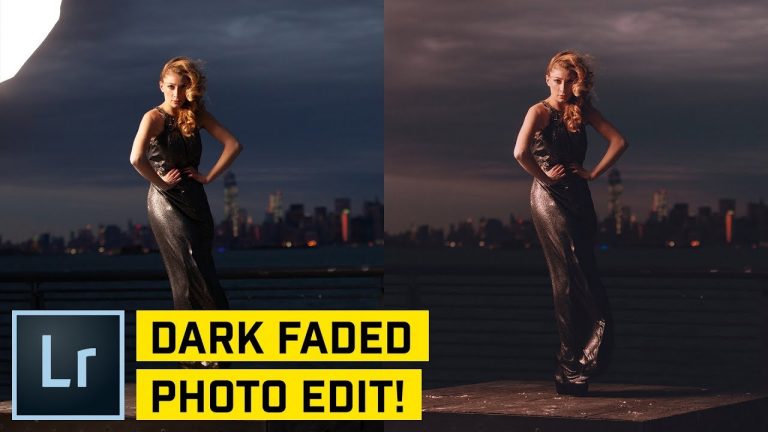
Dark Faded Style Portrait in Lightroom CC (Classic)

0

FROM RAW TO GLORIOUS JPEG #6: We’ll play with a photo I shot a few years ago in New York City to get this moody, faded photo! | Learn about Curves, HSL sliders, Camera Calibration, and more in this Lightroom tutorial!

? DISCORD: http://discord.me/tutvid

? My Instagram: http://instagram.com/tutvid

? Buy the Photoshop Course and Support the Channel → http://bit.ly/28NuwFy

? Subscribe for Daily Tutorials → https://goo.gl/DN4Nln

In this Lightroom tutorial, we’ll take a walk through Lightroom and do whatever we want to this photo and learn a little about the healing brush to remove large blemishes, a little cropping, using Curves and the Curves color channels, playing with HSL to edit the color levels, a little sharpening, Camera Calibration, and then tweaking and adjusting the whole thing to try to get a photo that we really like. Hope you enjoy the tutorial!

⚡️ written tutorial here: http://bit.ly/2Hsl4tm

INSTAGRAM: http://instagram.com/tutvid
TWITTER: http://twitter.com/tutvid
FACEBOOK: https://www.facebook.com/tutvid

tutvid is a YouTube channel dedicated to creating the best Adobe Photoshop, Premiere Pro, Lightroom, and Illustrator tutorials. My goal is to create the best, most informative, and entertaining tutorials on the web. If you enjoy my videos, the best way to support what I do here is to purchase my course linked above or simply subscribe to the YouTube channel by pressing the red button.

✉️ business inquiries: nate@tutvid.com

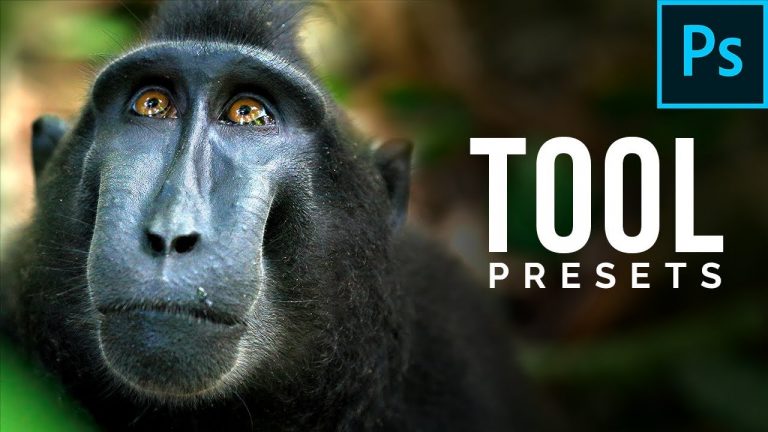
Work Faster with Tool Presets in Photoshop

0

Work faster and more efficiently by using tool presets and brush presets in Photoshop! Learn how to quickly customize any tool to your liking with just one click.

With the help of the text tool, in this tutorial, we will learn how to how to save the complete package of settings, right from font selection, to font weight, tracking, size, orientation, etc. so that you get the perfect combinations according to you just when you need and save time.

Hope this tutorial helps you. Thank you for watching!

► HELP US CREATE MORE FREE VIDEOS:
Support us at Patreon: https://www.patreon.com/piximperfect

► SHARE: https://goo.gl/IUhnUl

►LET’S CONNECT:
Facebook: http://facebook.com/piximperfect
Twitter: https://twitter.com/piximperfect
Instagram: https://www.instagram.com/piximperfect
Google+: https://plus.google.com/+UnmeshDinda

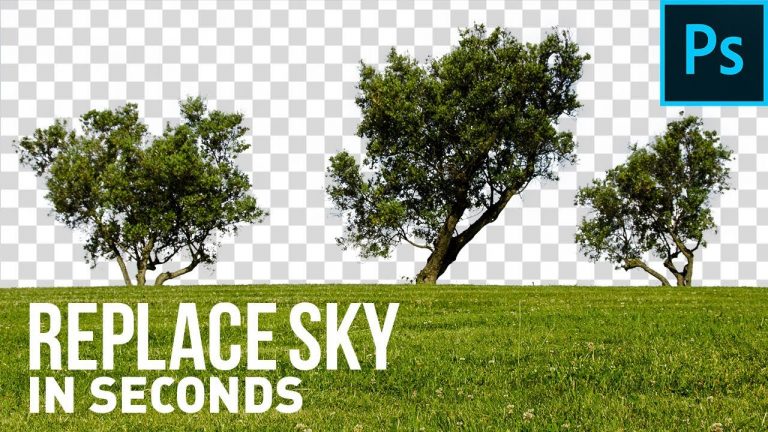
Crazy Trick To Replace Sky in Seconds! – Photoshop Tutorial

0

Remove or Replace Blue Skies Using this Quick Trick in Photoshop! Learn how to combine Channels with Blend-If to remove the blues from the bright skies, thus making it transparent. Then, we will learn how to refine the edges and the selection as a whole.

In this tutorial, I have two examples for you to follow along and develop a better understanding of Layer Styles or Blending Options, and how to take advantage of the same to target the skies.

I hope this tutorial helps you. Thank you for watching 🙂

► DOWNLOADS:
1. Sample Images: http://piximp.com/4ABR
2. Finished PSD: http://piximp.com/4ABT (Only for our Patreon Family)

► HELP US CREATE MORE FREE VIDEOS:
Support us at Patreon: https://www.patreon.com/piximperfect

► SHARE: https://goo.gl/IUhnUl

►LET’S CONNECT:
Facebook: http://facebook.com/piximperfect
Twitter: https://twitter.com/piximperfect
Instagram: https://www.instagram.com/piximperfect
Google+: https://plus.google.com/+UnmeshDinda

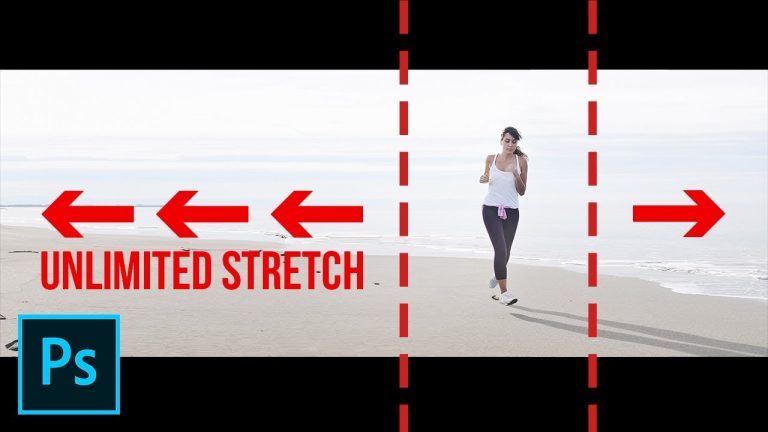
Quick HACK for UNLIMITED Background Stretching in Photoshop ?

0

Amazing Trick to Extensively Stretch the Background Without the Subject Being Distorted in Photoshop! Learn how to use the Content-Aware Scale effectively and trick it to not target the subject.

In this tutorial, we have two examples to learn how to extend the background and also center the subject. I hope this helps you. Thank you for watching 🙂

► DOWNLOADS:
Sample Images: http://piximp.com/4ABU

► HELP US CREATE MORE FREE VIDEOS:
Support us at Patreon: https://www.patreon.com/piximperfect

► SHARE: https://goo.gl/IUhnUl

►LET’S CONNECT:
Facebook: http://facebook.com/piximperfect
Twitter: https://twitter.com/piximperfect
Instagram: https://www.instagram.com/piximperfect
Google+: https://plus.google.com/+UnmeshDinda