Home Blog Page 54

WHAT!! This HIDDEN TOOL in Photoshop Blew My Mind!

0

A Hidden Tool in Photoshop That Makes Painting SO MUCH FASTER! In this tutorial, I’ll share with you a shortcut to bring up a rarely used option to instantly pick any color while using the brush tool.

We will also understand the differences between using this method and the conventional method and discover which one is the best. Hope this tutorial helps. Thank you for watching 🙂

► HELP US CREATE MORE FREE VIDEOS:
Support us at Patreon: https://www.patreon.com/piximperfect

► SHARE: https://goo.gl/IUhnUl

►LET’S CONNECT:
Facebook: http://facebook.com/piximperfect
Twitter: https://twitter.com/piximperfect
Instagram: https://www.instagram.com/piximperfect
Google+: https://plus.google.com/+UnmeshDinda

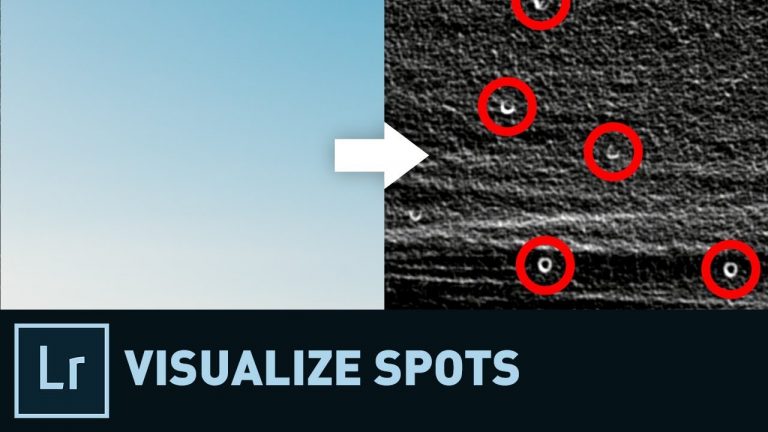
How to Spot the Spots in Lightroom | Quick Tip

0

Learn how to use Visualize Spots feature in Lightroom to make the spots or camera dust more visible, allowing you to remove them quickly and easily.

We will also learn techniques and shortcuts to remove the spots and get your image ready to go. I hope this tutorial helps 🙂 Thank you for watching!

► HELP US CREATE MORE FREE VIDEOS:
Support us at Patreon: https://www.patreon.com/piximperfect

► SHARE: https://goo.gl/IUhnUl

►LET’S CONNECT:
Facebook: http://facebook.com/piximperfect
Twitter: https://twitter.com/piximperfect
Instagram: https://www.instagram.com/piximperfect
Google+: https://plus.google.com/+UnmeshDinda
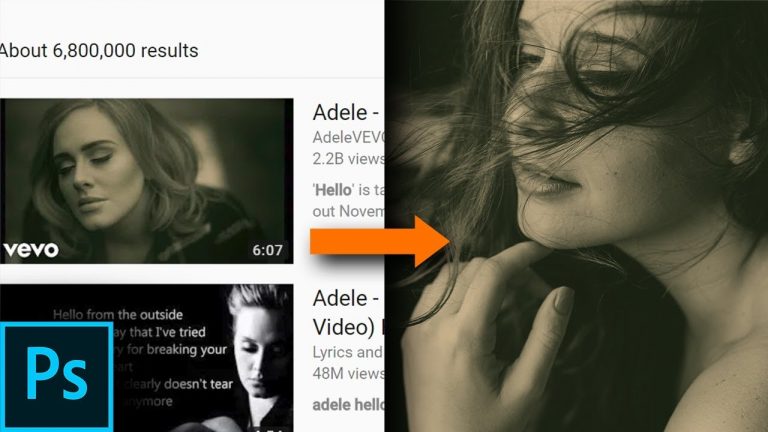
Pick Color Anywhere & Reproduce Music Video Styles in Photoshop

0

Sample Color from Anywhere on Screen, Even From Outside of Photoshop! Learn how to reproduce the exact colors of movies or music video using this technique. In this tutorial, we will do the basics of color reproduction using Gradient Maps.

Hope this tutorial helps! Thank you for watching 🙂

► DOWNLOADS
1. Sample Image: http://piximp.com/4ABV
2. Finished PSD: http://piximp.com/4ABX (Only for our Patreon Family)

► HELP US CREATE MORE FREE VIDEOS:
Support us at Patreon: https://www.patreon.com/piximperfect

► SHARE: https://goo.gl/IUhnUl

►LET’S CONNECT:
Facebook: http://facebook.com/piximperfect
Twitter: https://twitter.com/piximperfect
Instagram: https://www.instagram.com/piximperfect
Google+: https://plus.google.com/+UnmeshDinda
► THUMBNAIL CREDITS:
Music Video: https://youtu.be/YQHsXMglC9A
Adele – Hello
Directed by Xavier Dolan, @XDolan

Follow Adele on:
Facebook – https://www.facebook.com/Adele
Twitter – https://twitter.com/Adele
Instagram – http://instagram.com/Adele

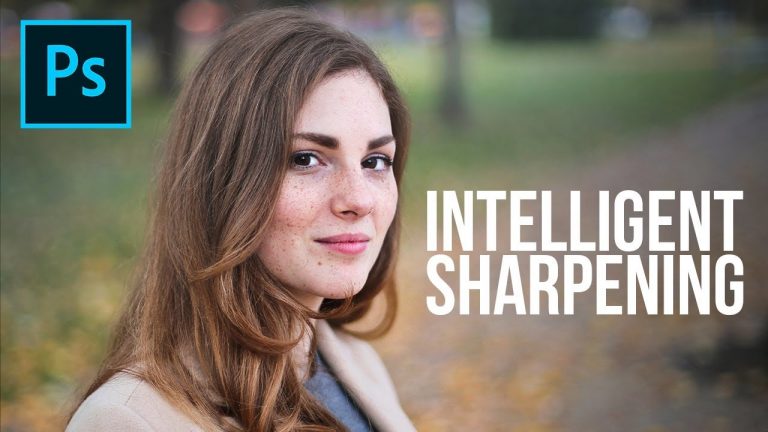
Using High Pass Layers to Sharpen? A Smarter Trick in Photoshop

0

STOP Creating Destructive High Pass Layers! Here’s A Smarter Non-Destructive Way to Sharpen Without Any Layers in Photoshop! Learn how to use Smart Objects and Smart Filters to Sharpen, Remove the Blemishes and do a lot of stuff just by using ONE LAYER!

In this tutorial, we will explore how easily we can have blend modes and opacity to smart filters inside of the layer and use that to our advantage. I hope this tutorial helps, thank you so much for watching 🙂

► ADVANCED SHARPENING TUTORIAL:

► DOWNLOADS
1. Sample Image: http://piximp.com/4ABY
2. Finished PSD: http://piximp.com/4AC0 (Only for our Patreon Family)

► HELP US CREATE MORE FREE VIDEOS:
Support us at Patreon: https://www.patreon.com/piximperfect

► SHARE: https://goo.gl/IUhnUl

►LET’S CONNECT:
Facebook: http://facebook.com/piximperfect
Twitter: https://twitter.com/piximperfect
Instagram: https://www.instagram.com/piximperfect
Google+: https://plus.google.com/+UnmeshDinda
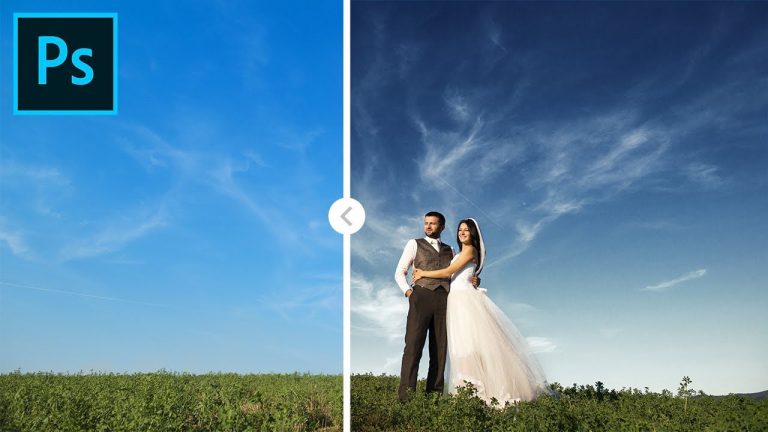
Extract Dramatic Details from Sky in Photoshop Using Channels

0

Make a Flat Sky Pop by Adding Drama and Details in Photoshop! Learn how to use Channels to create masks of the details like clouds in the sky and use Curves and other Adjustment Layers to accentuate them and add punch.

In this tutorial, we will learn how to use Channels as a source of information for the details. Hope this video helps you. Thank you for watching 🙂

► MORE ABOUT CHANNELS:

► DOWNLOADS
1. Sample Image: http://piximp.com/4AC1
2. Finished PSD: http://piximp.com/4AC3 (Only for our Patreon Family)

► HELP US CREATE MORE FREE VIDEOS:
Support us at Patreon: https://www.patreon.com/piximperfect

► SHARE: https://goo.gl/IUhnUl

►LET’S CONNECT:
Facebook: http://facebook.com/piximperfect
Twitter: https://twitter.com/piximperfect
Instagram: https://www.instagram.com/piximperfect
Google+: https://plus.google.com/+UnmeshDinda
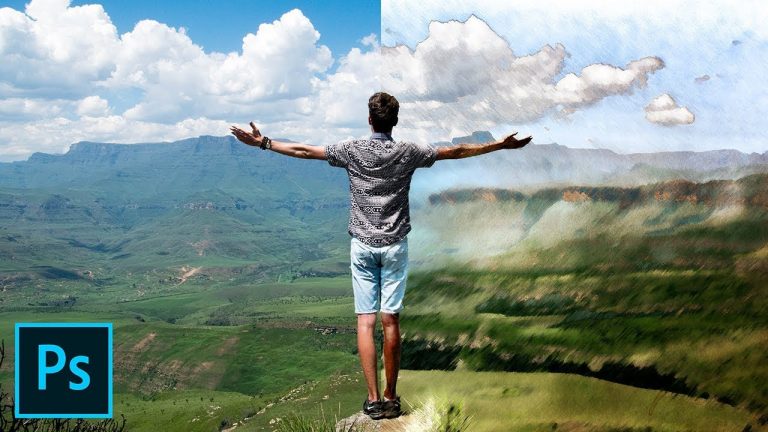
How to Create a Cool Painting Effect in Photoshop

0

Create an interesting watercolor or painting effect just by playing around with Photoshop! Learn how to use the basic concepts of Photoshop to come up with any kind of effect that you have in your mind.

In this tutorial, we are going to learn how to use Black and White Adjustment Layer to create the texture and blend modes to add the color to the effect. Then we will learn how to use overlay textures to add punch to the same.

► MORE ABOUT PEXELS

► DOWNLOADS
1. Sample Image: http://piximp.com/4AC4
2. Finished PSD: http://piximp.com/4AC6 (Only for our Patreon Family)

► HELP US CREATE MORE FREE VIDEOS
Support us at Patreon: https://www.patreon.com/piximperfect

► SHARE: https://goo.gl/IUhnUl

►LET’S CONNECT
Facebook: http://facebook.com/piximperfect
Twitter: https://twitter.com/piximperfect
Instagram: https://www.instagram.com/piximperfect
Google+: https://plus.google.com/+UnmeshDinda
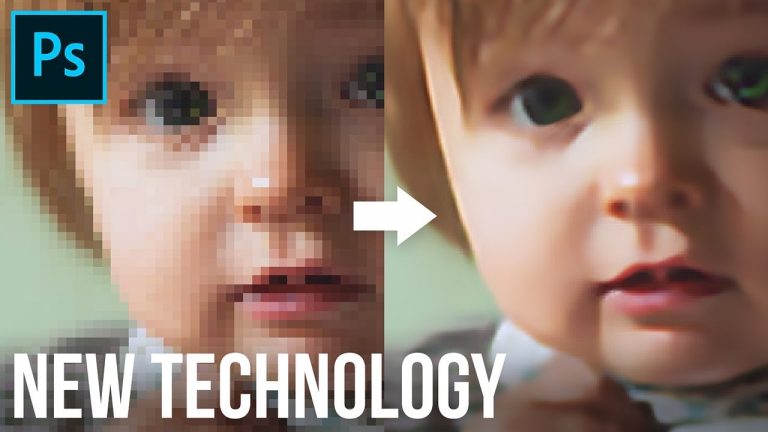
Hidden Technology to Convert Low to High Resolution in Photoshop

0

Upscale Your Images with Much Better Quality Using a Brand New Technology: Preserve Details 2.0 in Photoshop CC! This technology renders much better result while increasing your image size and does an amazing job in preserving details.

Hope this tutorial helps. Thank you for watching 🙂

► ‘KEEP CREATING’ T-SHIRTS NOW AVAILABLE ON AMAZON (USA ONLY):
http://piximp.com/tshirt

*Will be available worldwide soon.

► DOWNLOADS:
1. Sample Image: http://piximp.com/4AC7

► HELP US CREATE MORE FREE VIDEOS:
Support us at Patreon: https://www.patreon.com/piximperfect

► SHARE: https://goo.gl/IUhnUl

►LET’S CONNECT:
Facebook: http://facebook.com/piximperfect
Twitter: https://twitter.com/piximperfect
Instagram: https://www.instagram.com/piximperfect
Google+: https://plus.google.com/+UnmeshDinda
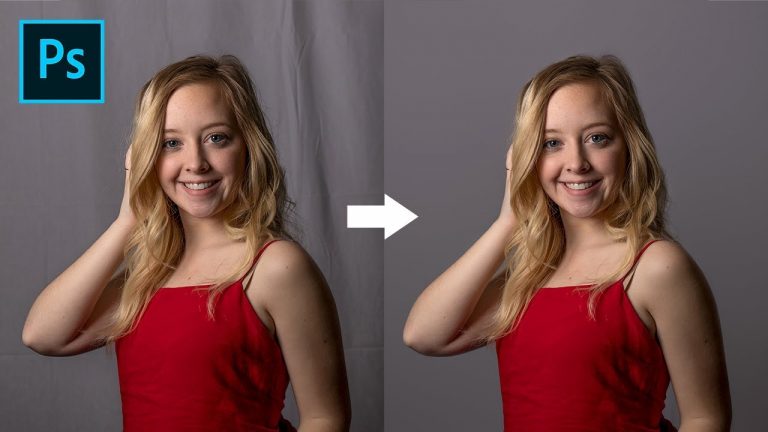
How to Clean Wrinkly Backdrops in Photoshop

0

A Powerful Technique to Clean and Smooth Out Wrinkly Backdrops with Folds and Creases in Photoshop! Also add creative texture or pattern to the backdrop to using blend modes and adjustment layers.

⚡ ENVATO ELEMENTS | UNLIMITED STOCK DOWNLOADS
Unlock more than 510,000+ Stock Photos, Photoshop Actions, Fonts, Brushes, Graphics & More!

► Subscribe to Envato Elements with the link: http://piximp.com/envato and submit the screenshot of your purchase to submit@piximperfect.com to get access to a HUGE library of PiXimperfect Photoshop Assets as well!

NOTE: Only purchases with the above mentioned link can avail the access to Exclusive PiXimperfect resources.

In this tutorial, we will learn how to clean the background by first creating it, using Content-Aware Fill. Then we will learn how to smooth out the background without disturbing the subject. At the end, we will add a details layer or a texture layer to make the new backdrop look more realistic.

We will also learn how to add new texture or pattern to the backdrop to make the image more interesting. Hope this tutorial helps you. Thank you for watching 🙂

► DOWNLOADS:
1. Sample Images: http://piximp.com/4ACA
2. Finished PSD: http://piximp.com/4AC9 (Only for our Patreon Family)

► HELP US CREATE MORE FREE VIDEOS:
Support us at Patreon: https://www.patreon.com/piximperfect

► SHARE: https://goo.gl/IUhnUl

►LET’S CONNECT:
Facebook: http://facebook.com/piximperfect
Twitter: https://twitter.com/piximperfect
Instagram: https://www.instagram.com/piximperfect
Google+: https://plus.google.com/+UnmeshDinda

Colorful Glitch FX Tutorial! 100% After Effects!

Create a procedural Glitch Effect 100% inside of After Effects!
Project File: http://www.videocopilot.net/blog/2018/03/new-tutorial-colorful-glitch-fx-100-ae/

Rendering Note: I’ve heard some people having issues with Fractal Noise not rendering correctly and I think you need to disable GPU Acceleration for the Project. File-Project Settings, “Mercury Software Only”. Hope that helps!

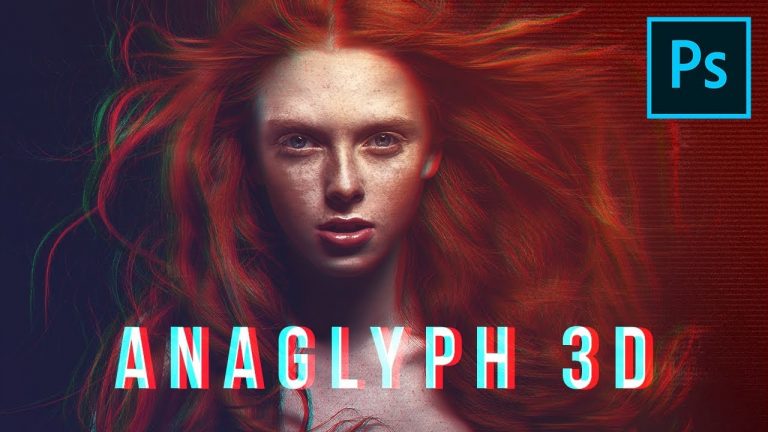
Actually Understanding Anaglyph 3D Effect in Photoshop

0

Create an Amazing Anaglyph 3D Effect in Photoshop! Build Dramatic filters and learn how to stylize your images with Red-Cyan 3D overlay. We will learn the concept of Anaglyph 3D effect and use the fundamentals of Channels to recreate the same.

In this tutorial, we will also learn how to build and stack effects and filters to really give our image the moody and stylized look that we are going for. I hope this tutorial helps. Thank you for watching 🙂

⚡ ENVATO ELEMENTS | UNLIMITED STOCK DOWNLOADS
Unlock more than 510,000+ Stock Photos, Photoshop Actions, Fonts, Brushes, Graphics & More!

► Subscribe to Envato Elements with the link: http://piximp.com/envato and submit the screenshot of your purchase (or order confirmation) to submit@piximperfect.com to get access to a HUGE library of PiXimperfect Photoshop Assets as well!

► LINK TO ACTION FOR ENVATO MEMBERS:
http://piximp.com/anaglyph3D

► DOWNLOADS:
1. Sample Image: http://piximp.com/4ACB
2. Finished PSD: http://piximp.com/4ACE (Only for our Patreon Family)

► HELP US CREATE MORE FREE VIDEOS:
Support us at Patreon: https://www.patreon.com/piximperfect

► SHARE: https://goo.gl/IUhnUl

►LET’S CONNECT:
Facebook: http://facebook.com/piximperfect
Twitter: https://twitter.com/piximperfect
Instagram: https://www.instagram.com/piximperfect
Google+: https://plus.google.com/+UnmeshDinda