Home Blog Page 57

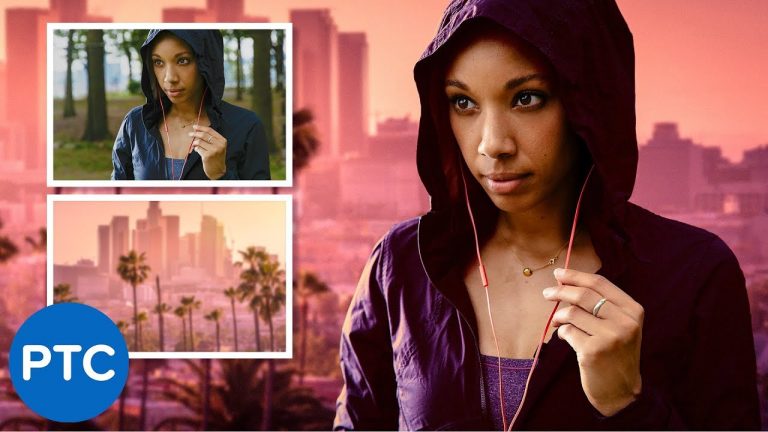
How To Blend Images Together and Create Realistic Composites In Photoshop

In this Photoshop tutorial, you will learn how to blend images together and create realistic composites in Photoshop.

You will learn three techniques to easily match luminosity, saturation, and color.

? INDEX

02:36 – Step One: How To Match Luminosity
07:56 – Step Two: How To Match Saturations
11:19 – Step Three: How To Match Color
17:40 – Bonus: Camera Raw

LINKS

Advanced Hair Masking Tutorial
►► https://www.youtube.com/watch?v=qV1DAf5cYXE&index=5&list=PL3bfN-31F9RdzVhwXPj0yEceDozZGGVxP

Perspective Tutorial
►► https://www.youtube.com/watch?v=OoHfZFl65fo&list=PL3bfN-31F9RfB_7DNMOtdiPwvL-WAA-7F

PTC Newsletter:
► http://ptcvids.com/subscribe

Premium Tutorials:
► http://ptcvids.com/shop

Website:
► photoshoptrainingchannel.com

FOLLOW ME

Instagram:
► http://instagram.com/jrfromptc

Facebook Group:
► http://ptcvids.com/group

Twitter:
► https://twitter.com/JRfromPTC

LinkedIn:
► https://linkedin.com/in/jesusramirez9

CREDITS
● Stock Images provided by stock.adobe.com
● Photoshop video tutorials by Jesus Ramirez
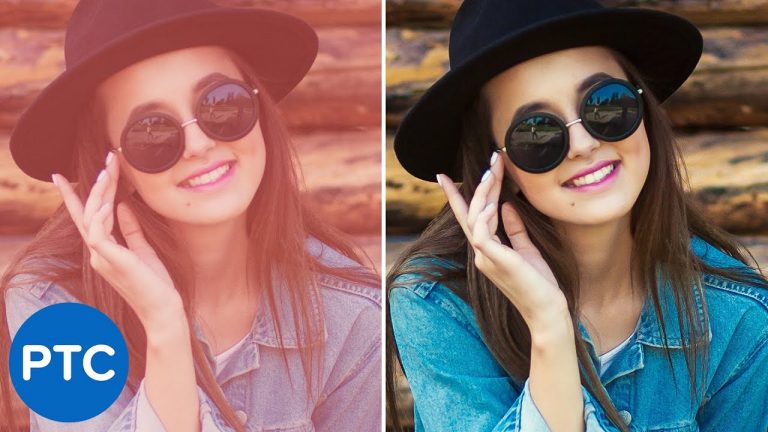
Easy ONE-CLICK Color Correction in Photoshop | Quickest Way To White Balance a Photo

In this Photoshop tutorial, you will learn how to white balance a photo with just one click!

The technique shown in this tutorial is perhaps the best and quickest way to color correct a photo in any Situation. With just one-click, all your colors will magically fall into place. I’ll even show you what to do when they don’t!

In this tutorial, you will learn to use the Auto Color Correction Algorithms inside of the Curves (and Levels) Adjustment Layer to automate color correction in Photoshop. It is truly an easy fix for white balance in Photoshop.

This essential technique will let Photoshop do all the hard work, and it will figure out automatically what colors to sample from to create an accurate color correction.

This makes it so that you can automatically perform Color Correction using Curves in Photoshop within seconds!

? INDEX

00:30 – Remove a Color Cast with Auto Color Correction Options
02:30 – How the Find Dark and Light Colors Algorithm Works
04:25 – What to do when the Auto Color Corrections don’t work
05:00 – How to use the Gray Eyedropper to Find The Neutral Grays
06:51 – How the Eyedroppers work in the Curves Adjustment Layer

LINKS

Cinematic Color Grading in Photoshop
►► https://www.youtube.com/watch?v=KrD53AJmfEM&list=PL3bfN-31F9RfIYmd445LK9F8pQ7jbmHPu

PTC Newsletter:
► http://ptcvids.com/subscribe

Premium Tutorials:
► http://ptcvids.com/shop

Website:
► photoshoptrainingchannel.com

FOLLOW ME

Instagram:
► http://instagram.com/jrfromptc

Facebook Group:
► http://ptcvids.com/group

Twitter:
► https://twitter.com/JRfromPTC

LinkedIn:
► https://linkedin.com/in/jesusramirez9

CREDITS
● Stock Images provided by stock.adobe.com
● Photoshop video tutorials by Jesus Ramirez

Photoshop Tutorial: VCR VHS Camcorder Glitch Effect [FREE PSD TEMPLATE INCLUDED]

In this Photoshop tutorial, you will learn how to create the glitchy VHS VCR tape Camcorder effect.

Glitch effects are becoming very popular and there are many different techniques you can use to replicate that old-school video quality in your photograph.

In this video, we will focus on using Smart Objects, Adjustment Layers and Filters to get that old glitch effect. All the steps on this tutorial are non-destructive, which means you can always come back and make changes later!

You can even use the final PSD as a template file to easily apply the effect to any other photo!

LINKS

FREE PSD TEMPLATE and VCR Font:
► https://photoshoptrainingchannel.com/vcr-vhs-camcorder-effect/

How To Color Tone Photos in Photoshop
► https://www.youtube.com/watch?v=pHHupVt_irc&list=PL3bfN-31F9RfB_7DNMOtdiPwvL-WAA-7F

PTC Newsletter:
► http://ptcvids.com/subscribe

Premium Tutorials:
► http://ptcvids.com/shop

Website:
► photoshoptrainingchannel.com

FOLLOW ME

Instagram:
► http://instagram.com/jrfromptc

Facebook Group:
► http://ptcvids.com/group

Twitter:
► https://twitter.com/JRfromPTC

LinkedIn:
► https://linkedin.com/in/jesusramirez9

CREDITS
● Stock Images provided by stock.adobe.com
● Photoshop video tutorials by Jesus Ramirez

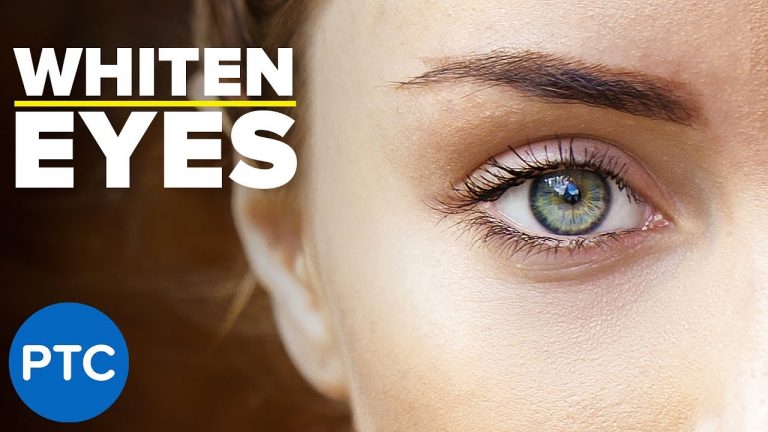
How To Whiten Eyes In Photoshop

In this Photoshop tutorial, you will learn how to whiten eyes in Photoshop.

In this video, you will learn how to select, mask, and apply selective targeting to whiten eyes.

? INDEX – How To Whiten Eyes In Photoshop

00:25 – Selecting Eyes
02:28 – Masking Eyes
03:28 – Whitening Eyes
05:29 – Removing Red Vains from Eyes
07:31 – Group Masking Trick

LINKS

*Blend If Guide*
► https://www.youtube.com/watch?v=yAMXBYx0r5g&list=PL3bfN-31F9ReOdO3aXZxWEMjsBEf-JyRy

*Spot Healing Brush Tool Guide*
►https://www.youtube.com/watch?v=68PFhYhpWCE&list=PL3bfN-31F9Rf97L72xDdSdbxwqqGwiiWj

PTC Newsletter:
► http://ptcvids.com/subscribe

Premium Tutorials:
► http://ptcvids.com/shop

Website:
► photoshoptrainingchannel.com

FOLLOW ME

Instagram:
► http://instagram.com/jrfromptc

Facebook Group:
► http://ptcvids.com/group

Twitter:
► https://twitter.com/JRfromPTC

LinkedIn:
► https://linkedin.com/in/jesusramirez9

CREDITS
● Stock Images provided by stock.adobe.com
● Photoshop video tutorials by Jesus Ramirez

How To Remove Wrinkles and Blemishes in Photoshop [MUST-KNOW Techniques]

In this video, you will learn how to remove wrinkles and blemishes in Photoshop.

In this Photoshop tutorial, we will focus on the Spot Healing Brush Tool to remove imperfections.

You will learn how you can use the different “Modes” which probably have not even notice before so that you can retouch any face and remove wrinkles, blemishes, and other unwanted distractions.

I’m also going to show you a technique that you can use to make the hard-to-see blemishes in the skin more noticeable so that you can remove them.

Just like every other PTC tutorial, this video will be filled with tips and tricks!

? INDEX – How To Remove Wrinkles and Blemishes in Photoshop
03:06 – Spot Healing Brush Tool Modes
06:10 – How To Make Difficult To See Blemishes More Noticeable

LINKS

One-Click White Balance:
► youtube.com/watch?v=B-W44JJToG8&list=PL3bfN-31F9RfFrhZJej2S47GNfFYGXewu

Whiten Eyes in Photoshop:
► youtube.com/watch?v=qJ3POWSuU2U&list=PL3bfN-31F9RfB_7DNMOtdiPwvL-WAA-7F

PTC Newsletter:
► http://ptcvids.com/subscribe

Premium Tutorials:
► http://ptcvids.com/shop

Website:
► photoshoptrainingchannel.com

FOLLOW ME

Instagram:
► http://instagram.com/jrfromptc

Facebook Group:
► http://ptcvids.com/group

Twitter:
► https://twitter.com/JRfromPTC

LinkedIn:
► https://linkedin.com/in/jesusramirez9

CREDITS
● Stock Images provided by stock.adobe.com
● Photoshop video tutorials by Jesus Ramirez

POWERFUL Photoshop Masking Technique That I Just Came Up With! [Detail Mask]

In this Photoshop tutorial, you will learn how to create a mask that targets the detail and edges of a photo. Much like the Masking slider in the sharpening tool in Camera Raw and Lightroom.

? INDEX – Photoshop Masking Technique [ Detail Selections]

00:12 – Question From Online Viewer About Masking
00:58 – How the Sharpen Masking Slider Works
02:06 – First Technique – Find Edges Filter
03:24 – New Technique – Glowing Edges Filter

LINKS

90-Second Sky Replacement Technique:
► https://youtube.com/watch?v=mlgvoBVRYZg&list=PL3bfN-31F9Rdzg20w9tWbhIySXN11SmzY

ADVANCED Hair Masking In Photoshop
► https://youtube.com/watch?v=qV1DAf5cYXE&list=PL3bfN-31F9RfIYmd445LK9F8pQ7jbmHPu

PTC Newsletter:
► http://ptcvids.com/subscribe

Premium Tutorials:
► http://ptcvids.com/shop

Website:
► photoshoptrainingchannel.com

FOLLOW ME

Instagram:
► http://instagram.com/jrfromptc

Facebook Group:
► http://ptcvids.com/group

Twitter:
► https://twitter.com/JRfromPTC

LinkedIn:
► https://linkedin.com/in/jesusramirez9

CREDITS
● Stock Images provided by stock.adobe.com
● Photoshop video tutorials by Jesus Ramirez

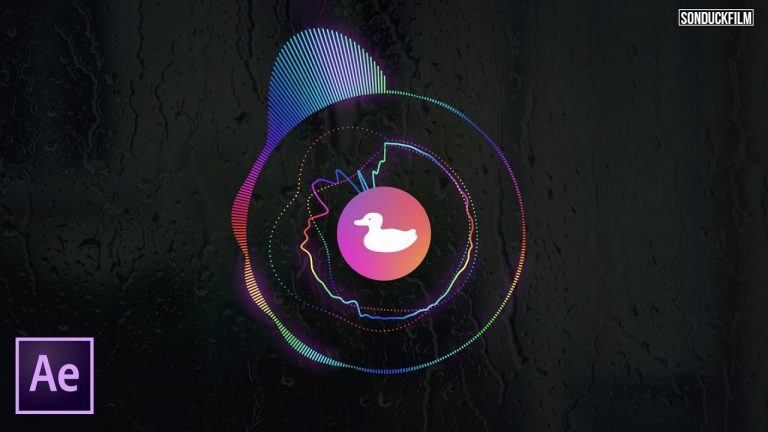
Sync Music With Audio Spectrum Reaction | After Effects Tutorial

0

Sync music by creating this amazing audio spectrum reaction effect! It’s very easy and you only need one effect! This After Effects tutorial covers how to full use the audio spectrum effect and how to create different variations of your audio reaction.

Looking for Great Audio Reaction After Effects Templates? Check out hundreds of the best templates here: http://bit.ly/2J65U14

My Audio Reaction Tutorial:
Audio React any object: https://youtu.be/EVpclcvZkj0

Like the music? Get your royalty free music at AudioJungle.
Listen here: http://bit.ly/2vWDfX6

Music Used In This Video!
Intro Song: http://bit.ly/2JzWGqL
Outro Song: http://bit.ly/2vRNDiV

Social Media:
Drop a like on Facebook: https://www.facebook.com/sonduckfilm
Hit me up on Instagram: http://instagram.com/sonduckfilm
Follow me on Twitter: https://twitter.com/SonduckFilm
Connect with me on Linkedin: https://www.linkedin.com/in/joshnoel

Visit our website https://www.sonduckfilm.com for more tutorials, giveaways and film and photo gear!

Be Creative | Animated Typography 3 | After Effects Tutorial

0

Be Creative with your titles! In this After Effects tutorial, we will create animated typography using shapes and careful animation.
Amazing Typography Templates: http://bit.ly/2G8iDLg

3 Amazing After Effects Title Templates:
The Best Animated Titles Template: http://bit.ly/2Ir9MKt
Kinetic Typography Pack Plugin: http://bit.ly/2IzDnNO
300 Premiere Titles: http://bit.ly/2L799n1

Like the music? Get your royalty free music at AudioJungle.
Listen here: http://bit.ly/2vWDfX6

Music Used In This Video!
Intro Song: http://bit.ly/2JzWGqL
Outro Song: http://bit.ly/2vRNDiV

Social Media:
Drop a like on Facebook: https://www.facebook.com/sonduckfilm
Hit me up on Instagram: http://instagram.com/sonduckfilm
Follow me on Twitter: https://twitter.com/SonduckFilm
Connect with me on Linkedin: https://www.linkedin.com/in/joshnoel

Visit our website https://www.sonduckfilm.com for more tutorials, giveaways and film and photo gear!

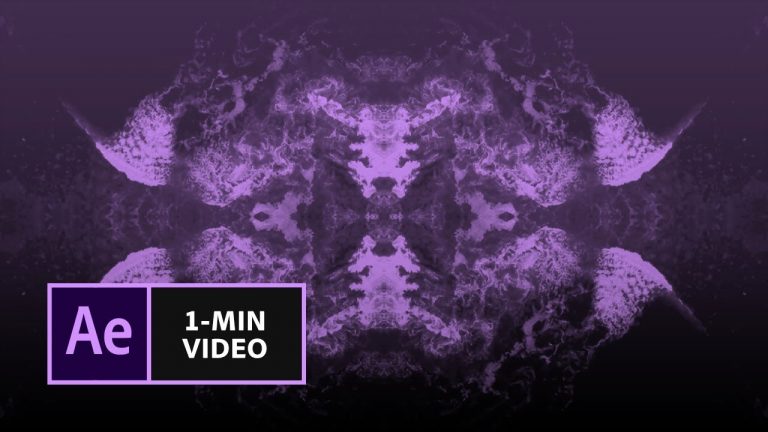
How to Make a Kaleidoscope Effect in After Effects | Adobe Creative Cloud

Flip a video clip on itself to create an eye-catching, mirrored effect with a few quick settings.

Start from scratch, or download practice files [https://adobe.ly/2rxRagI] for a head start. Steps below.

1. Create a new project in After Effects (File – New – New Project).
2. Search Adobe Stock video footage: Open the Libraries panel (may be the tab next to Effects & Presets). Search Adobe Stock for beach or waves footage (e.g., “hermosa beach drone”). Hover over the clip you’d like to use and click the shopping cart icon to license it. Or, click the cloud icon to preview it with a watermark before you buy it. Right-click the video clip in the Libraries panel and choose “Add to Project”.

Optional: Use “Hermosa Beach.mov” from our practice files. Then, import the clip (File – Import – File).

3. Add video clip to timeline: From the Project panel, drag the Hermosa Beach.mov clip to the “Create a new composition” icon.
4. Define the work area: Drag the playhead to the 20 second mark on the timeline. Type B, the keyboard shortcut, to show the beginning of the work area moving to the playhead.

Tip: If your timeline displays frames per second, Cmd+click (macOS), or Ctrl+click (Windows), on the timer to switch to seconds.

5. Apply the Mirror effect: From the Effects & Presets panel, search “Mirror”. Drag the Mirror effect on to the Hermosa Beach.mov clip in the timeline.
6. Add the first Mirror effect: In the Effects Controls panel, set the Reflection Angle to -90 degrees.
7. Add the second Mirror effect: Right+click in the Effects Controls panel and choose Mirror. Click the first value in the Reflection Center field for the 2nd mirror effect and add “/2” after the number to change the value to half of the original.

That’s it! Play your sequence to see the complete movie title.

Make it with After Effects: https://adobe.ly/2I51WpQ

Subscribe: https://www.youtube.com/user/adobecreativecloud?sub_confirmation=1

LET’S CONNECT
Facebook: http://facebook.com/adobecreativecloud
Twitter: http://twitter.com/creativecloud
Instagram: http://www.instagram.com/adobecreativecloud/

Adobe Creative Cloud gives you the world’s best creative apps so you can turn your brightest ideas into your greatest work across your desktop and mobile devices.

Create a Title Opener in Adobe Premiere | Tutorial

Create an amazing title opener with Adobe Premiere Pro. This premiere tutorial will show you how to edit a slideshow type opener with a clean title.

The BEST Adobe Premiere Pro Templates available here: http://bit.ly/2GmL2gT

3 Amazing Premiere Pro Templates:
300 Premiere Titles: http://bit.ly/2L799n1
YouTube Library For Premiere: http://bit.ly/2rLiF7j
35 Title Slides: http://bit.ly/2wM02p0

Like the music? Get your royalty free music at AudioJungle.
Listen here: http://bit.ly/2vWDfX6

Music Used In This Video!
Intro Song: http://bit.ly/2JzWGqL
Outro Song: http://bit.ly/2vRNDiV

Social Media:
Drop a like on Facebook: https://www.facebook.com/sonduckfilm
Hit me up on Instagram: http://instagram.com/sonduckfilm
Follow me on Twitter: https://twitter.com/SonduckFilm
Connect with me on Linkedin: https://www.linkedin.com/in/joshnoel

Visit our website https://www.sonduckfilm.com for more tutorials, giveaways and film and photo gear!