Home Blog Page 61

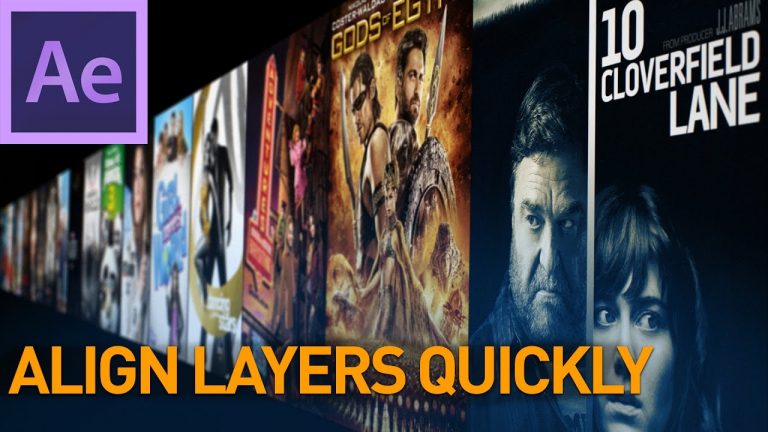
Align Layers Quickly!

Subscribe TODAY ► http://bit.ly/2boAAHK
Need a freelancer? Contact me!► http://www.ryanwalkerfx.com/
Twittter►http://twitter.com/FenixColorado
Facebook►http://on.fb.me/vdTh7b

————-
Move anchor point: http://bit.ly/1li1fUe
Align Layers: http://bit.ly/2fgHofx
Layers2Grid: http://bit.ly/2fMYf5U

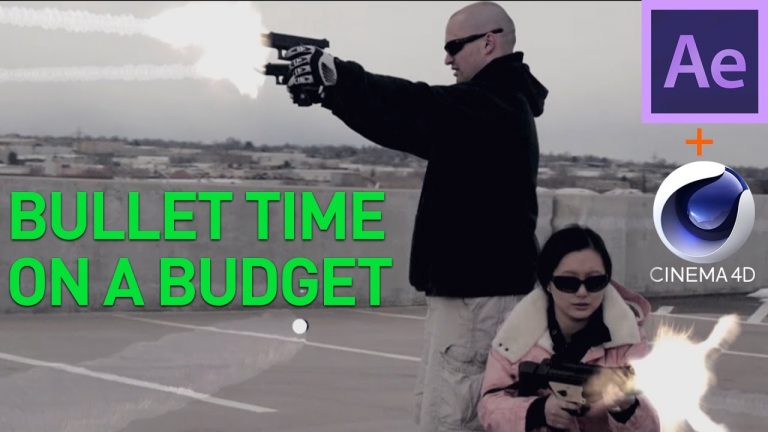
Mannequin Challenge With Guns | Bullet Time Effect

FNX Contrast Crush Preset► http://bit.ly/2fMPRra
Subscribe TODAY ► http://bit.ly/2boAAHK
Need a freelancer? Contact me!► http://www.ryanwalkerfx.com/
Twittter►http://twitter.com/FenixColorado
Facebook►http://on.fb.me/vdTh7b

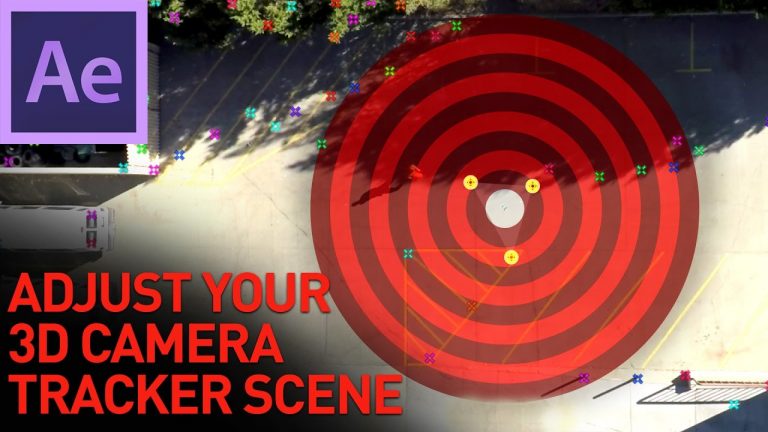
Adjust a 3d Motion Tracked Scene

Subscribe TODAY ► http://bit.ly/2boAAHK
Need a freelancer? Contact me!► http://www.ryanwalkerfx.com/
Twittter►http://twitter.com/FenixColorado
Facebook►http://on.fb.me/vdTh7b

Orient World Script►http://bit.ly/2gTAZ9o

Light Painting | Free AE Toolkit

Free Toolkit ► https://bit.ly/2J1F6MB
Subscribe TODAY ► http://bit.ly/2boAAHK
Need a freelancer? Contact me!► http://www.ryanwalkerfx.com/
Twittter►http://twitter.com/FenixColorado
Facebook►http://on.fb.me/vdTh7b

Exporting Shadows with Transparency from After Effects

Subscribe TODAY ► http://bit.ly/2boAAHK
Need a freelancer? Contact me!► http://www.ryanwalkerfx.com/
Twittter►http://twitter.com/FenixColorado
Facebook►http://on.fb.me/vdTh7b

Natural Light Leaks from Your Footage

Subscribe TODAY ► http://bit.ly/2boAAHK
Need a freelancer? Contact me!► http://www.ryanwalkerfx.com/
Twittter►http://twitter.com/FenixColorado
Facebook►http://on.fb.me/vdTh7b

Get to Know Lightroom CC | Adobe Creative Cloud

Welcome to the first lesson in the Getting Started series of tutorials that teach you the basic tools and techniques of Adobe Lightroom CC. This tutorial introduces you to Lightroom CC and helps you understand the Lightroom CC ecosystem.

Download sample files: https://adobe.ly/2HnJsx4
Original tutorial on Adobe website: https://adobe.ly/2IGIYl4
All Lightroom CC tutorials: https://adobe.ly/2BgPfom

Subscribe: https://www.youtube.com/user/adobecreativecloud?sub_confirmation=1

LET’S CONNECT
Facebook: http://facebook.com/adobecreativecloud
Twitter: http://twitter.com/creativecloud
Instagram: http://www.instagram.com/adobecreativecloud/

Adobe Creative Cloud gives you the world’s best creative apps so you can turn your brightest ideas into your greatest work across your desktop and mobile devices.
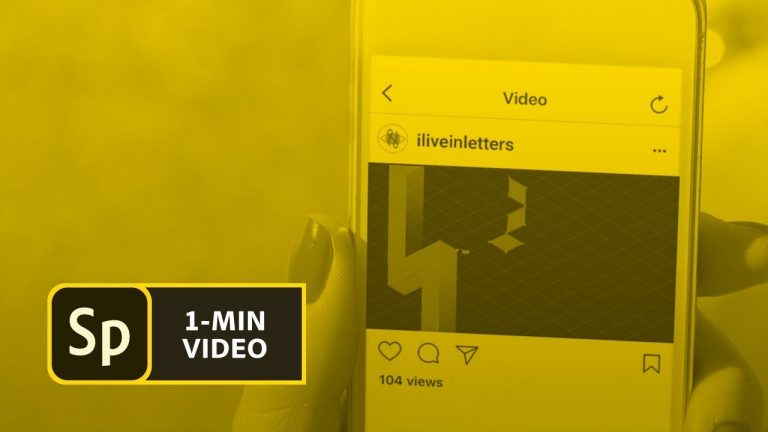
How to Make an “About My Work” Video with Adobe Spark | Adobe Creative Cloud

0

Learn how to create a video that uses text, photos, video, and music to showcase your work.

Create an Adobe Spark Video

1. Open Adobe Spark in a desktop web browser (http://spark.adobe.com).
2. Click the + icon at the top, then choose Video.

Tip: You can click Skip when Spark prompts you to enter your story idea. Then, click Start from Scratch if you want to create your own layout. Or, choose one of the Themes.

Add Header Image and Text

1. Add a title: Click the + icon in the middle, then choose Text to type a title or salutation.
2. Add background image: Click the + icon to the left. Click Photo, then Lightroom (or the source of where your photos are stored). Click the photo you’d like to use.
3. Move the text: Drag the text where you want to align it on the image.

Add Text, Photos, and Video

1. Add slide: Click the + icon in the ribbon bar below the slide you just created and choose Split Screen as the format.
2. Add image: Click the + icon in the center. Choose Photo, then add a photo.
3. Add text: Click the + icon to the right. Choose Text, then add descriptive text.
4. Add slide: Click the + icon in the ribbon bar to add a new slide.
5. Add video: Click the + icon in the center. Choose Video, browse to find the right video file. Drag the handles to trim the video. Click Save.
6. Add text: Choose Split Screen. Click the double arrow icon to move the video to the right side if necessary. Click the + icon and add descriptive text.
7. Add additional slides with text, photos, and videos. Choose the layout you like for each.

Add Music

1. Add a slide with video: Click the + icon in the ribbon to add a new slide.
2. Add music: Click Music in the top right. Add one of the music options provided in Spark. Or, click Add Music, then browse to find a music file to associate with the slide.

Share

1. Share: Click Share at the top, choose a Category, add a Title and Subtitle. Change the Author Name if necessary. Click Create link.

That’s it!

To learn, more visit our Adobe Spark page: https://adobe.ly/2GWdO8Q

Subscribe: https://www.youtube.com/user/adobecreativecloud?sub_confirmation=1

LET’S CONNECT
Facebook: http://facebook.com/adobecreativecloud
Twitter: http://twitter.com/creativecloud
Instagram: http://www.instagram.com/adobecreativecloud/

Adobe Creative Cloud gives you the world’s best creative apps so you can turn your brightest ideas into your greatest work across your desktop and mobile devices.
Art Makers: Felix Hernandez Creates Dreamscapes in Photoshop | Adobe Creative Cloud

Dreams that seem real can keep us thinking for days. Mexican photographer and digital artist Felix Hernandez creates dreamlike worlds that make us think. Take a closer look at how he combined photos of a scene he built in his studio with his subtle use of Adobe Photoshop CC to make us wonder what happened on a snowy night in the middle of nowhere.

To learn more about how Felix created this piece, visit the Love Car tutorial: https://adobe.ly/2F0YaqZ

Production music courtesy of www.epidemicsound.com

Subscribe: https://www.youtube.com/user/adobecreativecloud?sub_confirmation=1

LET’S CONNECT
Facebook: http://facebook.com/adobecreativecloud
Twitter: http://twitter.com/creativecloud
Instagram: http://www.instagram.com/adobecreativecloud/

Adobe Creative Cloud gives you the world’s best creative apps so you can turn your brightest ideas into your greatest work across your desktop and mobile devices.