Home Blog Page 62

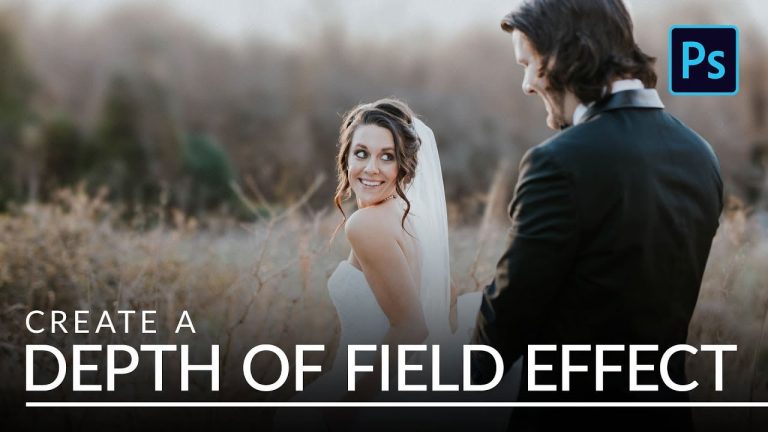
How to Blur a Background and Create Depth of Field in Photoshop

0

I Guarantee I Can Teach You to Master Photoshop. Learn How: https://phlearn.com/aaronwillteachyou

Having a soft, out-of-focus background is an extremely effective way of drawing the viewer’s eye to your subject and it’s also a highly sought after look that should be a part of every photographer’s skillset.

Download the sample image here:

How to Blur a Background and Create Depth of Field in Photoshop

As always, the best way to do this is in-camera. So when you’re going for this look, try using a lens with a wide maximum aperture – like a 50mm f/ 1.2 or f/ 1.4 which are both fantastic for shooting portraits with a shallow depth of field.

Sometimes though, you may not have the right lens or you’re not able to shoot that wide open because of lighting conditions. This is where Photoshop can save the day.

Creating a Realistic Depth of Field Effect

This technique involves making an accurate selection of the subject(s) in the photo, duplicating them, removing them from the original background, blurring the background, and then placing them back into the image. It does take a bit of time but the effect is realistic and can easily make an image into one that your client will love!

VISIT PHLEARN.COM FOR MORE FREE TUTORIALS

Homepage

SUBSCRIBE NOW FOR MORE FREE TIPS AND TRICKS
http://www.youtube.com/subscription_center?add_user=phlearnllc

LET’S BE FRIENDS!
Instagram ► https://www.instagram.com/phlearn/
Facebook ► https://facebook.com/phlearn
Twitter ► https://twitter.com/phlearn
Phlearn ► https://phlearn.com
HUD Sci-Fi Title Elements | After Effects Tutorial

0

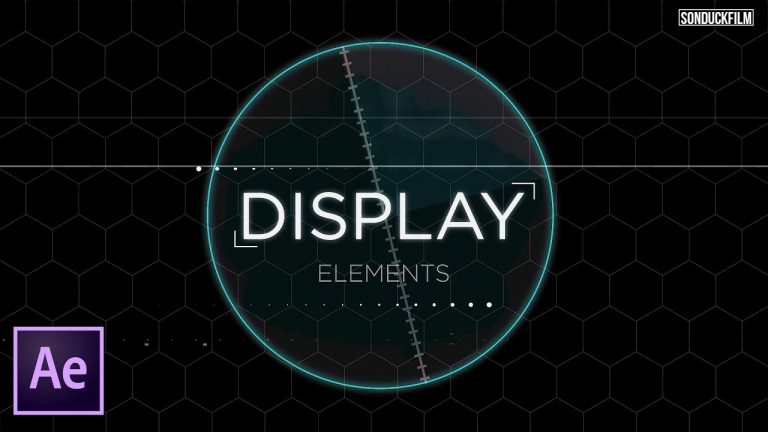
Learn how to create HUD infographics elements. In this After Effects tutorial, create titles that have HUD animations in mind, create displays from scratch, and how to add distortion to the overall composition.

350 HUD Quantum Pack: http://bit.ly/2GM3WCB

Montage Library Here: http://bit.ly/2qfuQIi
750 Video Effects and Transitions
My full review of Montage Library: https://youtu.be/ZYUyKQ42gbo

My Top 3 HUD Sci-Fi After Effects Packs:
Phantom: http://bit.ly/2HboDqY
200+ Elements: http://bit.ly/2qmrF1l
Ultimate HUD 300+:http://bit.ly/2JzTVGp

Tutorials
RGB Splitting: https://youtu.be/gV5vlD6Psv0
Distortion: https://www.youtube.com/watch?v=KDjBi8RuuuE
3D HUD: https://www.youtube.com/watch?v=cY2DNavyJJk

Like the music? Get your royalty free music at Artlist.io.
http://bit.ly/2GADpnG

Social Media:
Drop a like on Facebook: https://www.facebook.com/sonduckfilm
Hit me up on Instagram: http://instagram.com/sonduckfilm
Follow me on Twitter: https://twitter.com/SonduckFilm
Connect with me on Linkedin: https://www.linkedin.com/in/joshnoel

Visit our website https://www.sonduckfilm.com for more tutorials, giveaways and film and photo gear!

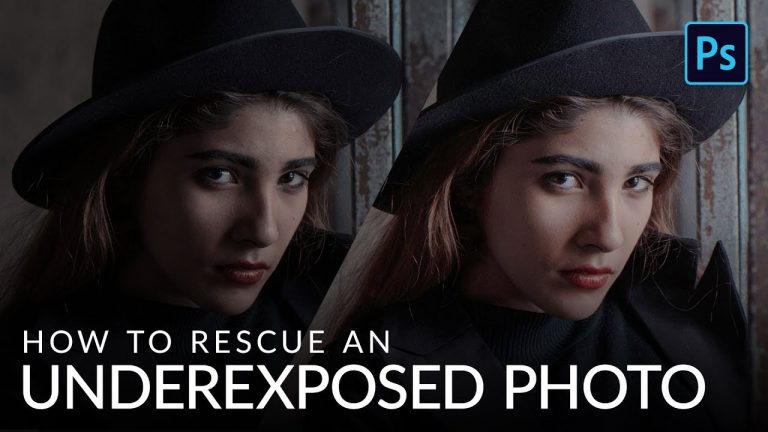
How to Fix an Underexposed Photo in Photoshop

0

I Guarantee I Can Teach You to Master Photoshop. Learn How: https://phlearn.com/aaronwillteachyou

Download the sample images here:

How to Fix an Underexposed Photo in Photoshop

One of the worst feelings as a photographer is having to send an image to the recycle bin because you missed on exposure. Before saying goodbye to an image, try bringing it back to life with the power of Photoshop. In this tutorial, we’ll show you how to bring up shadows, restore lost details, and rescue the original color in an image. Follow along with the free sample image!

VISIT PHLEARN.COM FOR MORE FREE TUTORIALS

Homepage

SUBSCRIBE NOW FOR MORE FREE TIPS AND TRICKS
http://www.youtube.com/subscription_center?add_user=phlearnllc

LET’S BE FRIENDS!
Instagram ► https://www.instagram.com/phlearn/
Facebook ► https://facebook.com/phlearn
Twitter ► https://twitter.com/phlearn
Phlearn ► https://phlearn.com
How To Remove People From Photos in Photoshop

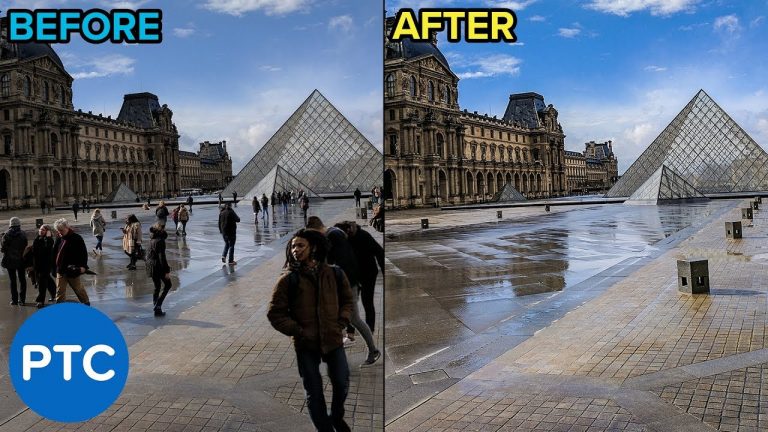
In this tutorial, you will learn how to remove people from photos in photoshop.

This is the perfect technique for removing people from your vacation photos.You will need to use multiple shots and blend them together using Photoshop’s Stack Modes.

If you want to learn how to remove crowds or remove unwanted people in Photoshop, then this is the perfect technique!

For this tutorial, you will, of course, need to plan in advance and take multiple photos. If you only have one photo to work with then check out this tutorial:

How To Remove ANYTHING From a Photo in Photoshop
► https://www.youtube.com/watch?v=oOTxsRTjkNM&t=0s&list=PL3bfN-31F9RfIYmd445LK9F8pQ7jbmHPu

How To Use The SPOT HEALING BRUSH TOOL With CONTENT-AWARE in Photoshop
► https://www.youtube.com/watch?v=68PFhYhpWCE&index=5&list=PL3bfN-31F9Rf97L72xDdSdbxwqqGwiiWj

What Each Stack Mode Does:
► https://photoshoptrainingchannel.com/how-to-remove-people-from-photos-in-photoshop

? INDEX
01:04 – Load Files into Photoshop With Statistics
04:08 – How To Edit Stack Modes
05:02 – Fix Errors With The Spot Healing Brush Tool
07:25 – Replace The Sky
08:43 – Apply Adobe Camera Raw Adjustments

LINKS

PTC Newsletter:
► http://ptcvids.com/subscribe

Premium Tutorials:
► http://ptcvids.com/shop

Website:
► https://photoshoptrainingchannel.com

FOLLOW ME

Instagram:
► http://instagram.com/jrfromptc

Facebook Group:
► http://ptcvids.com/group

Twitter:
► https://twitter.com/JRfromPTC

LinkedIn:
► https://linkedin.com/in/jesusramirez9

CREDITS
● Stock Images provided by stock.adobe.com
● Photoshop video tutorials by Jesus Ramirez

How To Use Blending Modes for Compositing in Photoshop – Little-Known “Pass Through” Trick

In this tutorial, you will learn how to use Blending Modes for compositing in Photoshop.

Pass Through is the default Blend Mode for groups. Using this Blending Mode alongside Adjustment Layers will allow you to work faster and more efficiently when compositing.

This is a little-known trick that I am sure you will love!

? INDEX – Blending Modes for Compositing in Photoshop

01:10 – Why Clipping Masks Will Not Work
03:11 – Why Layer Masks Will Not Work
04:30 – “Pass Through” – The Perfect Solution!
08:44 – Adobe Sensei

LINKS
All Blending Modes Explained:
► https://www.youtube.com/watch?v=MsukMXtEYFQ&index=1&list=PL3bfN-31F9RdU4cCGC7RiT3e8QBEA1K_Z

Adobe Sensei Article:
► https://www.adobe.com/insights/amplifying-human-creativity-with-artificial-intelligence.html

Face-Aware Liquify:
► https://www.youtube.com/watch?v=2zhgvNfJTnM&index=12&list=PL3bfN-31F9RfFrhZJej2S47GNfFYGXewu

Select Subject:
► https://www.youtube.com/watch?v=SL9pie_fBMY&index=5&list=PL3bfN-31F9RfyTBo5B0WeHwNHlOIDjoX6

Instagram:
► http://instagram.com/jrfromptc

Behance:
► https://www.behance.net/JRfromPTC

PTC Newsletter:
► http://ptcvids.com/subscribe

Premium Tutorials:
► http://ptcvids.com/shop

Website:
► photoshoptrainingchannel.com

FOLLOW ME

Instagram:
► http://instagram.com/jrfromptc

Facebook Group:
► http://ptcvids.com/group

Twitter:
► https://twitter.com/JRfromPTC

LinkedIn:
► https://linkedin.com/in/jesusramirez9

CREDITS
● Photoshop video tutorials by Jesus Ramirez

Smart Objects vs. Raster Objects (PHOTOSHOP CC)

0

THIS IS WHY YOU SHOULD BE USING SMART OBJECTS IN PHOTOSHOP! | I’ll do a nice comparison between the pros and cons of Smart and stupid objects in Photoshop CC.

? DISCORD: http://discord.me/tutvid

? My Instagram: http://instagram.com/tutvid

? Buy the Photoshop Course and Support the Channel → http://bit.ly/28NuwFy

? Subscribe for Daily Tutorials → https://goo.gl/DN4Nln

In this Photoshop tutorial, we’ll look at some of the big benefits and cool things you can do with Smart Objects and compare that against how raster objects work in Photoshop. I’ll talk about the good and bad stuff about Smart Object. Long story short, I think you should be using Smart Objects. This video will show you why.

⚡️ written tutorial here: http://bit.ly/2DSNAlq

INSTAGRAM: http://instagram.com/tutvid
TWITTER: http://twitter.com/tutvid
FACEBOOK: https://www.facebook.com/tutvid

tutvid is a YouTube channel dedicated to creating the best Adobe Photoshop, Premiere Pro, Lightroom, and Illustrator tutorials. My goal is to create the best, most informative, and entertaining tutorials on the web. If you enjoy my videos, the best way to support what I do here is to purchase my course linked above or simply subscribe to the YouTube channel by pressing the red button.

✉️ business inquiries: nate@tutvid.com

5 Hidden Tips & Tricks in Premiere Pro CC

0

Premiere Pro Tutorial: LEARN SOME COOL AND USEFUL TRICKS IN PREMIERE PRO! | Use the Smart Rendering trick I use in this tutorial to make your videos render 25x faster!

? DISCORD: http://discord.me/tutvid

? My Instagram: http://instagram.com/tutvid

? Buy the Photoshop Course and Support the Channel → http://bit.ly/28NuwFy

? Subscribe for Daily Tutorials → https://goo.gl/DN4Nln

In this Premiere Pro tutorial, we’ll take a look at some cool stuff you can do with the interface in Premiere Pro, some snapping tricks for aligning text and graphics, changing the anchor point to completely change the animation, using the audio mixer to apply effects to an entire track, touch on the what, why, and how of submixes, setting default transitions, and the incredible power of Smart Rendering and you will see how much time this will save you if you can work it into your workflow. Thanks for watching!

⚡️ written tutorial here: http://bit.ly/2IREGsc

INSTAGRAM: http://instagram.com/tutvid
TWITTER: http://twitter.com/tutvid
FACEBOOK: https://www.facebook.com/tutvid

tutvid is a YouTube channel dedicated to creating the best Adobe Photoshop, Premiere Pro, Lightroom, and Illustrator tutorials. My goal is to create the best, most informative, and entertaining tutorials on the web. If you enjoy my videos, the best way to support what I do here is to purchase my course linked above or simply subscribe to the YouTube channel by pressing the red button.

✉️ business inquiries: nate@tutvid.com

Learn to Mask in Adobe After Effects CC

0

AFTER EFFECTS TUTORIAL ALL ABOUT MASKING! | Learn how to create and animate simple masks in After Effects today in this tutorial!

? DISCORD: http://discord.me/tutvid

? My Instagram: http://instagram.com/tutvid

? Buy the Photoshop Course and Support the Channel → http://bit.ly/28NuwFy

? Subscribe for Daily Tutorials → https://goo.gl/DN4Nln

In this After Effects tutorial, we’ll learn about creating simple masks using the shape tools and the Pen tool, how the masks work and the different ways you can blend them to build complex masks and even how to animate and perform a very simple rotoscope to animate a mask. This is the tutorial for you if you know nothing about masking in After Effects. Thanks for watching!

⚡️ written tutorial here: http://bit.ly/2pE9rYU

INSTAGRAM: http://instagram.com/tutvid
TWITTER: http://twitter.com/tutvid
FACEBOOK: https://www.facebook.com/tutvid

tutvid is a YouTube channel dedicated to creating the best Adobe Photoshop, Premiere Pro, Lightroom, and Illustrator tutorials. My goal is to create the best, most informative, and entertaining tutorials on the web. If you enjoy my videos, the best way to support what I do here is to purchase my course linked above or simply subscribe to the YouTube channel by pressing the red button.

✉️ business inquiries: nate@tutvid.com

5 MUST KNOW Photoshop Tips & Tricks (25 MINUTES)

0

PHOTOSHOP TUTORIAL: LEARN EPIC STUFF ABOUT PHOTOSHOP CC! | Learn about the global color smart object trick, select & mask tips, and how to colorize a white object and more!

SUPPORT OUR SPONSOR: http://squarespace.com/tutvid

UI Kit used in this video: https://365psd.com/day/4-205/

? DISCORD: http://discord.me/tutvid

? My Instagram: http://instagram.com/tutvid

? Buy the Photoshop Course and Support the Channel → http://bit.ly/28NuwFy

? Subscribe for Daily Tutorials → https://goo.gl/DN4Nln

In this Photoshop tutorial, we’ll take a look at changing units of measure, the power of path operations to build complex shapes, a trick for filling shapes and text faster, global color with Smart Objects, how to split selections across multiple iterations of Select & Mask, and a bonus tip of how to colorize a white object. Thanks for watching and I hope you love it!

⚡️ written tutorial here: http://bit.ly/2DSAipc

INSTAGRAM: http://instagram.com/tutvid
TWITTER: http://twitter.com/tutvid
FACEBOOK: https://www.facebook.com/tutvid

tutvid is a YouTube channel dedicated to creating the best Adobe Photoshop, Premiere Pro, Lightroom, and Illustrator tutorials. My goal is to create the best, most informative, and entertaining tutorials on the web. If you enjoy my videos, the best way to support what I do here is to purchase my course linked above or simply subscribe to the YouTube channel by pressing the red button.

✉️ business inquiries: nate@tutvid.com