Home Blog Page 64

Have You Seen The OPACITY Slider for LIGHTROOM Classic CC!

0

CHECK OUT THE POWER OF THIS OPACITY SLIDER FOR LIGHTROOM CLASSIC CC!

Check out the plugin here: https://gumroad.com/a/885699699

In this tutorial, I’ll break down how to use this really cool plugin that a buddy of mine created for Lightroom that allows you to reduce the opacity of settings applied to your image. It’s crazy awesome and a bunch of fun!

In this Adobe Lightroom tutorial, we’ll look at exactly how to use the OPAL opacity slider plugin for Lightroom and just how easy and effective it is. I’ll show you the basics of getting started with OPAL and some of the hidden advanced features within the plugin as well. This is a must-have plugin and it’s only $15 (!)

⚡️ written tutorial here: http://bit.ly/2Fyk4mA

INSTAGRAM: http://instagram.com/tutvid
TWITTER: http://twitter.com/tutvid
FACEBOOK: https://www.facebook.com/tutvid

tutvid is a YouTube channel dedicated to creating the best Adobe Photoshop, Premiere Pro, Lightroom, and Illustrator tutorials. My goal is to create the best, most informative, and entertaining tutorials on the web. If you enjoy my videos, the best way to support what I do here is to purchase my course linked above or simply subscribe to the YouTube channel by pressing the red button.

✉️ business inquiries: nate@tutvid.com

Create a Video Camera Icon in Adobe Illustrator CC

0

ILLUSTRATOR TUTORIAL: CREATE iOS ICON OF VIDEO CAMERA! | Learn to use shape and pathfinder tools to create complex shapes that looks awesome in Adobe Illustrator.

Inspiration: “Meipai”: http://iosicongallery.com/meipai-hottest-short-video-20150729/

? DISCORD: http://discord.me/tutvid

? My Instagram: http://instagram.com/tutvid

? Buy the Photoshop Course and Support the Channel → http://bit.ly/28NuwFy

? Subscribe for Daily Tutorials → https://goo.gl/DN4Nln

In this Illustrator tutorial, we’ll cover using various shape tools to build out a simple base shape and then we’ll use the gradient tool to build out a first level of depth for our video camera shape and then we’ll use the pathfinder and blend tool to punch a hole in the center of the video camera icon as well as create a perfectly smooth rounded illusion of depth on this icon. Lastly, we’ll build out shadows to complete the look. If you like illustration and building icons or graphics for the web, you’re going to love this tutorial! Thanks for watching and make sure to share it with your friends!

⚡️ written tutorial here: http://bit.ly/2Hz18F3

INSTAGRAM: http://instagram.com/tutvid
TWITTER: http://twitter.com/tutvid
FACEBOOK: https://www.facebook.com/tutvid

tutvid is a YouTube channel dedicated to creating the best Adobe Photoshop, Premiere Pro, Lightroom, and Illustrator tutorials. My goal is to create the best, most informative, and entertaining tutorials on the web. If you enjoy my videos, the best way to support what I do here is to purchase my course linked above or simply subscribe to the YouTube channel by pressing the red button.

✉️ business inquiries: nate@tutvid.com

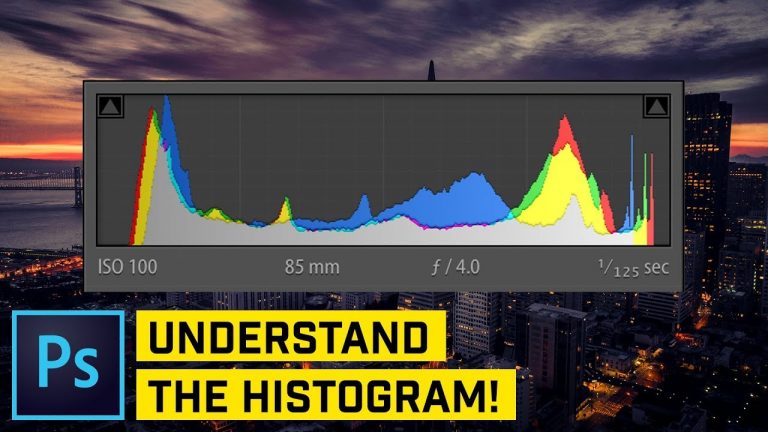
Understand the Histogram (VERY IMPORTANT)

0

LEARN HOW TO USE AND READ A HISTOGRAM IN THIS VIDEO! | Histograms can be difficult to understand, but they’re so useful! Learn all about them in this video using Photoshop.

? DISCORD: http://discord.me/tutvid

? My Instagram: http://instagram.com/tutvid

? Buy the Photoshop Course and Support the Channel → http://bit.ly/28NuwFy

? Subscribe for Daily Tutorials → https://goo.gl/DN4Nln

In this Photoshop tutorial, we’ll break down the histogram in Photoshop and I’ll show you how to read it and why it’s so important. You can use the histogram in Photoshop, Camera RAW editor, Lightroom, Premiere Pro, Davinci Resolve, or even in the flesh on the back of your camera or monitoring screen while out on a shoot. The histogram is important!

⚡ written tutorial here: http://bit.ly/2pqBeMi

INSTAGRAM: http://instagram.com/tutvid
TWITTER: http://twitter.com/tutvid
FACEBOOK: https://www.facebook.com/tutvid

tutvid is a YouTube channel dedicated to creating the best Adobe Photoshop, Premiere Pro, Lightroom, and Illustrator tutorials. My goal is to create the best, most informative, and entertaining tutorials on the web. If you enjoy my videos, the best way to support what I do here is to purchase my course linked above or simply subscribe to the YouTube channel by pressing the red button.

✉ business inquiries: nate@tutvid.com

5 FAST & EASY Visual Effects in Premiere Pro

0

PREMIERE PRO EFFECTS: VHS, SPEED RAMP, DOLLY ZOOM, VERTIGO EFFECT & GLITCH EFFECT! | In this tutorial, we’ll cover how to create all of these effects in Premiere Pro for your next video editing project!

Check out our sponsor, Squarespace and use the code “tutvid” for 10% your website: https://www.squarespace.com/tutvid

? DISCORD: http://discord.me/tutvid

? My Instagram: http://instagram.com/tutvid

? Buy the Photoshop Course and Support the Channel → http://bit.ly/28NuwFy

? Subscribe for Daily Tutorials → https://goo.gl/DN4Nln


00:37 Dolly Zoom (Vertigo) Effect
05:04 VHS Quality Effect (w/ audio)
10:20 Pulsing Glitch Effect
13:36 2x Speed Ramp Effect
16:30 Cinematic Camera and Movement Effect

(VHS Effect add-on) – Go download a video from YouTube with static effect: https://www.youtube.com/watch?v=6zoJavBcU5o

In this Premiere Pro tutorial, we’ll talk about creating 5 different video effects in Premiere Pro. We will create a dolly zoom (or vertigo) effect, a VHS effect, a pulsing glitching effect, a 2x Speed ramped effect, and a cinematic camera + movement effect all using simple effects and timeline animation in Premiere Pro! Thanks for watching!

⚡️ written tutorial here: http://bit.ly/2FLYYp0

INSTAGRAM: http://instagram.com/tutvid
TWITTER: http://twitter.com/tutvid
FACEBOOK: https://www.facebook.com/tutvid

tutvid is a YouTube channel dedicated to creating the best Adobe Photoshop, Premiere Pro, Lightroom, and Illustrator tutorials. My goal is to create the best, most informative, and entertaining tutorials on the web. If you enjoy my videos, the best way to support what I do here is to purchase my course linked above or simply subscribe to the YouTube channel by pressing the red button.

✉️ business inquiries: nate@tutvid.com

Handwriting Animation After Effects CC

0

AFTER EFFECTS TUTORIAL: Handwriting Effect Tutorial! | In this tutorial we’ll use a mask and a path to complete this self-writing type effect in After Effects.

? DISCORD: http://discord.me/tutvid

? My Instagram: http://instagram.com/tutvid

? Buy the Photoshop Course and Support the Channel → http://bit.ly/28NuwFy

? Subscribe for Daily Tutorials → https://goo.gl/DN4Nln

In this After Effects tutorial, we’ll place some text, trace over it using the Pen Tool, adjust the path, use a simple Trim Path effect and animate it to build out a handwriting effect. Lastly, we’ll use a track matte to mask the handwriting effect to any type that we want. Thanks for watching!

⚡️ written tutorial here: http://bit.ly/2GRIysz

INSTAGRAM: http://instagram.com/tutvid
TWITTER: http://twitter.com/tutvid
FACEBOOK: https://www.facebook.com/tutvid

tutvid is a YouTube channel dedicated to creating the best Adobe Photoshop, Premiere Pro, Lightroom, and Illustrator tutorials. My goal is to create the best, most informative, and entertaining tutorials on the web. If you enjoy my videos, the best way to support what I do here is to purchase my course linked above or simply subscribe to the YouTube channel by pressing the red button.

✉️ business inquiries: nate@tutvid.com

9 Photoshop HACKS in 90 SECONDS

0

LEARN 9 ESSENTIAL PHOTOSHOP TRICKS FAST IN THIS VIDEO! | Learn about the global color trick, the banana tool, epic cityscapes, tilt-shifting, rubber bands, and more in this fast-paced Photoshop video.

? DISCORD: http://discord.me/tutvid

? My Instagram: http://instagram.com/tutvid

? Buy the Photoshop Course and Support the Channel → http://bit.ly/28NuwFy

? Subscribe for Daily Tutorials → https://goo.gl/DN4Nln

In this Photoshop tutorial, we’ll break down how to use a bunch of tricks, features, and hacks that I love about Photoshop. I hope you enjoy the video! Is this video ripping off the format of Peter Mckinnon? Darn skippy it is. Please like & share with your friends!

⚡️ written tutorial here: http://bit.ly/2GfqwTm

INSTAGRAM: http://instagram.com/tutvid
TWITTER: http://twitter.com/tutvid
FACEBOOK: https://www.facebook.com/tutvid

tutvid is a YouTube channel dedicated to creating the best Adobe Photoshop, Premiere Pro, Lightroom, and Illustrator tutorials. My goal is to create the best, most informative, and entertaining tutorials on the web. If you enjoy my videos, the best way to support what I do here is to purchase my course linked above or simply subscribe to the YouTube channel by pressing the red button.

✉️ business inquiries: nate@tutvid.com

Happy Fire Artwork – Adobe Illustrator Tutorial

0

CREATE THIS HAPPY FIRE ART FROM SCRATCH IN ILLUSTRATOR CC! | Learn to work with shapes, the Pathfinder, global color, CMYK, and much more in this graphic design tutorial!

Inspiration for this tutorial: MBE on dribbble: https://dribbble.com/shots/3161658-Fire

? DISCORD: http://discord.me/tutvid

? My Instagram: http://instagram.com/tutvid

? Buy the Photoshop Course and Support the Channel → http://bit.ly/28NuwFy

? Subscribe for Daily Tutorials → https://goo.gl/DN4Nln

In this Adobe Illustrator tutorial, we will create this happy fire illustration inspired by the incredible artist, MBE (whose dribbble link I have posted above.) We’ll use basic shape tools and manipulate them using the pathfinder. We’ll layer on shapes to create a complex fire shape and then we’ll create a series of global colors using the Color panel and create a gradient from these colors that will help make our fire look a little more like fire should. Hopefully, you will learn a thing or two about Illustrator and enjoy the video at the same time! Thanks for watching!

⚡️ written tutorial here: http://bit.ly/2FYxlcl

INSTAGRAM: http://instagram.com/tutvid
TWITTER: http://twitter.com/tutvid
FACEBOOK: https://www.facebook.com/tutvid

tutvid is a YouTube channel dedicated to creating the best Adobe Photoshop, Premiere Pro, Lightroom, and Illustrator tutorials. My goal is to create the best, most informative, and entertaining tutorials on the web. If you enjoy my videos, the best way to support what I do here is to purchase my course linked above or simply subscribe to the YouTube channel by pressing the red button.

✉️ business inquiries: nate@tutvid.com

Autotune Your Voice (SINGING) in Audition CC

0

LEARN ABOUT AUTOTUNING AND HAVE SOME FUN BY USING AUTOTUNE ON A VOCAL TRACK! | We’ll use the Auto Pitch Correction Feature in Audition to have some fun with a vocal track and learn a little about autotune in Adobe Audition CC as well.

? DISCORD: http://discord.me/tutvid

? My Instagram: http://instagram.com/tutvid

? Buy the Photoshop Course and Support the Channel → http://bit.ly/28NuwFy

? Subscribe for Daily Tutorials → https://goo.gl/DN4Nln

In this Audition tutorial, I’ll use a vocal track I put together using lyrics inspired by some YouTube song I saw a while ago that used Jason Mraz’s “I’m Yours” song as a backing track. Here we’ll explore how to get the right scale and key for your vocals and even touch on the very unknown “Calibration A4” option in the auto pitch correction feature that Audition offers us.

⚡️ written tutorial here: http://bit.ly/2G9V2um

INSTAGRAM: http://instagram.com/tutvid
TWITTER: http://twitter.com/tutvid
FACEBOOK: https://www.facebook.com/tutvid

tutvid is a YouTube channel dedicated to creating the best Adobe Photoshop, Premiere Pro, Lightroom, and Illustrator tutorials. My goal is to create the best, most informative, and entertaining tutorials on the web. If you enjoy my videos, the best way to support what I do here is to purchase my course linked above or simply subscribe to the YouTube channel by pressing the red button.

✉️ business inquiries: nate@tutvid.com

How To Change The Color of ANYTHING In Photoshop | Select and Change ANY Color

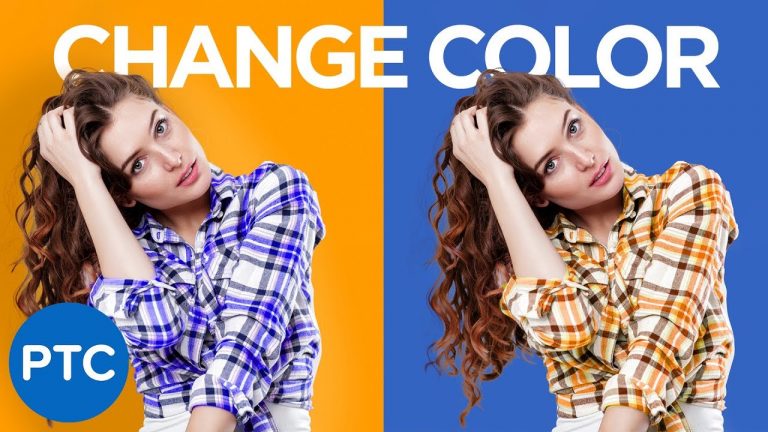
In this tutorial, you will learn how to change the color of anything in photoshop.

You will learn four techniques to Select and Change any Color in Photoshop. We will use the Hue and Saturation Adjustment Layer, Color Range, Blend If, and More!

► Blend If Crash Course: https://youtube.com/watch?v=yAMXBYx0r5g&list=PL3bfN-31F9RfIYmd445LK9F8pQ7jbmHPu

? INDEX – How to Change The Color of Anything

00:56 – What are Hue, Saturation, and Brightness?
02:18 – Why I don’t like the color replacement tool.
03:06 – Changing the color of a shirt in Photoshop
05:48 – Color shirt to Black or White
07:56 – Change a white object to color (or black to color)
09:55 – Using the Direct Selection Color Picker
12:24 – Selecting Colors With Color Range
15:05 – Making Selections from Blend IF

LINKS

PTC Newsletter:
► http://ptcvids.com/subscribe

Premium Tutorials:
► http://ptcvids.com/shop

Website:
► photoshoptrainingchannel.com

FOLLOW ME

Instagram:
► http://instagram.com/jrfromptc

Facebook Group:
► http://ptcvids.com/group

Twitter:
► https://twitter.com/JRfromPTC

LinkedIn:
► https://linkedin.com/in/jesusramirez9

CREDITS
● Stock Images provided by stock.adobe.com
● Photoshop video tutorials by Jesus Ramirez

5 TIPS for BETTER PERFORMANCE in Premiere Pro

0

https://cinecom.info/Intel – Get better performance inside Adobe Premiere Pro by changing settings and must-know tips. In this video we’ll share 5 software tips to speed up Premiere Pro, which you can instantly use and 1 bonus tips around computer hardware.

Read More ► https://cinecom.info/PremierePerformance
How to build your own Video Editing PC ► https://www.youtube.com/watch?v=SY_h_W5I0Jo
Adobe Article on Performance ► https://forums.adobe.com/thread/2122549
WinDirStat ► https://windirstat.net/
WinDirStat for Mac users ► http://www.spacegremlinapp.com/

Thumbnail Credit: PC-Ware

Our Custom GH5 Camera Rig Kit
► https://kit.com/Cinecom/customized-lumix-gh5-camera-rig

How we VLOG
► https://kit.com/Cinecom/creative-vlogging

Lighting we use
► https://kit.com/Cinecom/creative-video-lighting

✅ LETS CONNECT!
Instagram ► http://cinecom.info/Instagram
Facebook ► http://cinecom.info/Facebook