Home Blog Page 63

5 Must Know Pathfinder Tricks in Adobe Illustrator CC

0

ILLUSTRATOR TUTORIAL: LEARN SOME HIDDEN FEATURES OF THE PATHFINDER! | Check out this video and learn a few secret little things that you may not have known about using the Pathfinder panel in Adobe Illustrator.

? DISCORD: http://discord.me/tutvid

? My Instagram: http://instagram.com/tutvid

? Buy the Photoshop Course and Support the Channel → http://bit.ly/28NuwFy

? Subscribe for Daily Tutorials → https://goo.gl/DN4Nln

In this Illustrator tutorial, I’ll break it all down for you when it comes to using the Pathfinder. Creating compound shapes to open up unlimited versatility when creating a custom shape with pathfinder, reduce additional anchor points, making and releasing compound paths/shapes, removing unfilled artwork automatically, and a cool hotkey to repeat pathfinder operations with ease.

⚡️ written tutorial here: http://bit.ly/2HYUPus

INSTAGRAM: http://instagram.com/tutvid
TWITTER: http://twitter.com/tutvid
FACEBOOK: https://www.facebook.com/tutvid

tutvid is a YouTube channel dedicated to creating the best Adobe Photoshop, Premiere Pro, Lightroom, and Illustrator tutorials. My goal is to create the best, most informative, and entertaining tutorials on the web. If you enjoy my videos, the best way to support what I do here is to purchase my course linked above or simply subscribe to the YouTube channel by pressing the red button.

✉️ business inquiries: nate@tutvid.com

How to Make a Resume That’s More You with Adobe Spark | Adobe Creative Cloud

0

Learn how to quickly create an online resume with the built-in layouts, styles, photos, and fonts with Adobe Spark. Share your resume with prospects who can view your resume on any size screen.

Start from scratch, or download practice files [http://learndownload.adobe.com/pub/learn/mobile-apps/make-a-resume.zip] for a head start. Steps below.

Create an Adobe Spark Page

1. Open Adobe Spark in a desktop web browser (https://spark.adobe.com/) and login with your Adobe ID.
2. Click the + icon at the top, then choose Page.

Add Header Image and Text

1. Add the header image: Click the + icon below the “Add a Subtitle” text. Click Photo, then Upload Photo. Browse the files you downloaded for this tutorial and select portrait.jpg (or use your own).
2. Add a title: Click “Add a Title” and replace it with your own title. Click “Add a Subtitle” and replace it with your own subtitle.
3. Choose a theme: Click Themes from the top right, then choose a theme you like.

NOTE: This video shows the difference between two different themes – “LUCA” and “CRISP”.

4. Add a description: Click the + icon under the header image. Choose Text and type a description, or copy and paste the description text in the sample provided (“Business management…changing perceptions”). Select the description text and click H2 to reformat. Then, click the Center Align icon.
5. Add a window image: Click the + icon under the description text. Choose Photo, then click Find free photos. Type a search term (such as ‘succulent’), then press Return or Enter. Click the photo you like, then choose window. Scroll up and down to view the window image functionality.

Add Resume Details

1. Add Education and Work Experience (not shown in video):
a. Education: Add your own education history or copy from the sample provided – copy from “Education” down to “Business Management”. Click the + icon under the window image and select Text, then paste the text you copied, or type your own. Select the word “Education” and choose H1 to reformat the text.
b. Work Experience: Copy the text from “Work Experience” to “…previous fundraising drive.” Click the + icon under the Education text, select Text, then paste the copied text. Reformat “Work Education” as H1, “Earth Day Ambassador, Terra Quota” as H2, “2016 to Present” as B (Bold). Format the text for the Intern position in a similar way.
2. Make a bulleted list (not shown in video): Click the + icon under the Work Experience section, select Text, select H1, add the word “Skills”. Copy the skills text from the sample provided, click the + icon, select Text, click the bulleted list icon, and paste under the Skills heading. Repeat for the Interests section.
3. Add contact section (not shown in video): Click the + icon under the Interests section, select Text, type “Contacts”, format as H1. Add text, “jensen@greentowncollege.edu”, below Contacts.
4. Add a link: Select the email address you just added, choose the link icon, type “mailto:jensen@greentowncollege.edu” into the field (or copy it from the sample), click Save.
5. Add a button: Click the + icon under the email link, select button. Type “Connect on LinkedIn” in the first field, and “http://www.linkedin.com/venusjensen” in the next field. Click Save.

Preview and share

1. Preview (not shown in video): Click Preview at the top and scroll through the sections of your resume. Click the X in the top right to close Preview.
2. Share: Click Share at the top, select Business as the Category, update the Author Name. Click Create link, then copy the link or choose from one of the sharing options.

That’s it!

To learn, more visit our Adobe Spark page (https://spark.adobe.com/).

Subscribe: https://www.youtube.com/user/adobecreativecloud?sub_confirmation=1

LET’S CONNECT
Facebook: http://facebook.com/adobecreativecloud
Twitter: http://twitter.com/creativecloud
Instagram: http://www.instagram.com/adobecreativecloud/

Adobe Creative Cloud gives you the world’s best creative apps so you can turn your brightest ideas into your greatest work across your desktop and mobile devices.

How to Make a Web Story with Adobe Spark | Adobe Creative Cloud

0

Learn how to quickly create an engaging web story, complete with built-in layouts and styles, photos, and video.

Start from scratch, or download practice files [http://learndownload.adobe.com/pub/learn/mobile-apps/make-a-web-story.zip ] for a head start. Steps below.

Create an Adobe Spark Page

1. Open Adobe Spark in a desktop web browser (http://spark.adobe.com).
2. Click the + icon at the top, then choose Page.

Add Header Image and Text

1. Add a title: Click “Add a Title” and replace it with your own title. Click “Add a Subtitle” and replace it with your own subtitle.
2. Add the header image: Click the + icon below the subtitle. Click Photo, then Upload Photo. Browse the files you downloaded for this tutorial and choose insideOut.jpg (or use your own).
3. Choose a theme: Click Themes from the top right, then choose a theme you like.

NOTE: This video shows the difference between two different themes – “BRUCE” and “BALDWIN”.

Add Story Details

1. Add heading text: Click the + icon under the header image and choose Text. Type “260 miles, 17 trail days, 8 alpine passes, 2 frostbitten ears, and 1 camera”. Click inside the text and choose H2 to reformat it. Click the text again and choose the Center Align icon.
2. Add body text: Copy the first paragraph from the sample provided, starting from “California’s John Muir Trail” through “…western United States.” Click the + icon under the heading text, choose Type, and paste the text you just copied.
3. Add heading text: Click the + icon under the paragraph, choose Text. Type “Days 1-5, Cottonwood Pass to Onion Valley”, format it as H2, and center align.
4. Add body text: Copy the 2nd paragraph from the sample provided, starting from “The first few days” through “…months of anticipation.” Click the + icon under the heading text, choose Type, and paste the text you just copied.

Add Photos and Video

1. Add a photo grid: Click the + icon under the last paragraph, choose Photo Grid, and choose Upload Photo. Choose all 4 photos from the Days 1-5 folder from the practice files (Shift + click to select all). Click Open, then Save once the pictures have uploaded.
2. Add body text: Copy the 3rd paragraph from the sample provided, starting from “Reaching the summit” through “…start of my trek.” Click the + icon, choose Type, and paste the text.
3. Add heading text: Click the + icon, choose Text. Type “Days 6-11, Onion Valley to Vermillion Valley Ranch”, format it as H2 and center align.
4. Add body text: Copy the paragraph “I hit my low” through “…start of my trek” and paste it below the last heading.
5. Add a window image: Click the + icon, choose Photo, then choose Upload Photo. Choose expanse.jpg from the Days 6-11 folder from the practice files. Click Open, then click Window from the photo options. Scroll up and down within the image to view the window functionality.
6. Add heading and body text: Add the last heading “Days 12-17…” and the body text from “The last few days” through “…ready to go back.”.
7. Add a video: Click the + icon, choose Video, type “https://vimeo.com/257043328” in the Add an Embedded Video field. Click Save.
8. Add the last paragraph to the page.
9. Add a button: Click the + icon under the last paragraph, choose Button. Type “Instagram” in the first field, and “https://www.instagram.com/kendall.plant/” in the next field. Center align, then click Save.

Preview and share

1. Preview: Click Preview at the top and scroll through the sections of your web story. Click the X in the top right to close Preview.
2. Share: Click Share at the top, choose a Category, change the Author Name to “Kendall Plant” and turn off the Get Noticed switch (or keep it on if you are publishing your own story). Click Create link, then copy the link or choose from one of the sharing options.

That’s it!

To learn, more visit our Adobe Spark page: https://adobe.ly/2pgQkE1

Subscribe: https://www.youtube.com/user/adobecreativecloud?sub_confirmation=1

LET’S CONNECT
Facebook: http://facebook.com/adobecreativecloud
Twitter: http://twitter.com/creativecloud
Instagram: http://www.instagram.com/adobecreativecloud/

Adobe Creative Cloud gives you the world’s best creative apps so you can turn your brightest ideas into your greatest work across your desktop and mobile devices.
What’s New in Illustrator CC – April Experimental Release | Adobe Creative Cloud

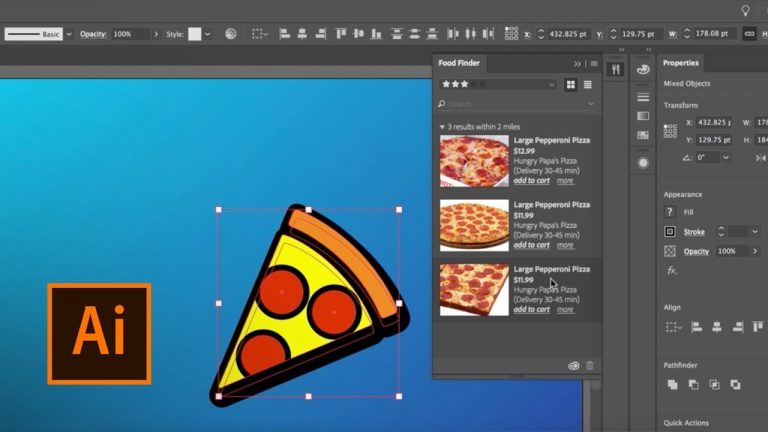
Today, we’re announcing a breakthrough to help hungry designers – the April Experimental Release of Illustrator CC.

This feature is a sneak peek on what’s to come. We hope you’re hungry for this as much as we are. It’s coming soon to Illustrator near you.

Learn more: https://theblog.adobe.com/april-1-release-illustrator-cc-nourishing-feed-creativity/

What do you crave to eat while you’re creating in the app? Let us know and join the conversation with #AiFood.

Subscribe: https://www.youtube.com/user/adobecreativecloud?sub_confirmation=1

LET’S CONNECT
Facebook: http://facebook.com/adobecreativecloud
Twitter: http://twitter.com/creativecloud
Instagram: http://www.instagram.com/adobecreativecloud/

Adobe Creative Cloud gives you the world’s best creative apps so you can turn your brightest ideas into your greatest work across your desktop and mobile devices.
Streamline Editing with Timeline-Based Techniques in Premiere Pro CC | Adobe Creative Cloud

Edit sequences efficiently in Adobe Premiere Pro CC using source patching and sync locking and by targeting, locking, and navigating tracks quickly.

Get started with Premiere Pro: https://adobe.ly/2uluAwp

Subscribe: https://www.youtube.com/user/adobecreativecloud?sub_confirmation=1

LET’S CONNECT
Facebook: http://facebook.com/adobecreativecloud
Twitter: http://twitter.com/creativecloud
Instagram: http://www.instagram.com/adobecreativecloud/

Adobe Creative Cloud gives you the world’s best creative apps so you can turn your brightest ideas into your greatest work across your desktop and mobile devices.

How to Make a Fake ID in Photoshop

0

Today we’re going to show you how to harness the power of Photoshop to become anyone you want to be! As the saying goes, “Age is only a number!“. A number that can be changed with Photoshop and a decent printer.

Before jumping into today’s episode, make sure to download your official government holograms here: https://phlearn.com/fakeids

VISIT PHLEARN.COM FOR MORE FREE TUTORIALS

Homepage

SUBSCRIBE NOW FOR MORE FREE TIPS AND TRICKS
http://www.youtube.com/subscription_center?add_user=phlearnllc

LET’S BE FRIENDS!
Instagram ► https://www.instagram.com/phlearn/
Facebook ► https://facebook.com/phlearn
Twitter ► https://twitter.com/phlearn
Phlearn ► https://phlearn.com

*******
PHLEARN does not condone the falsification or reproduction of any legal or government document. This is April Fools and a total joke.
******

Create Floor Reflections With Motion Graphics | After Effects Tutorial

0

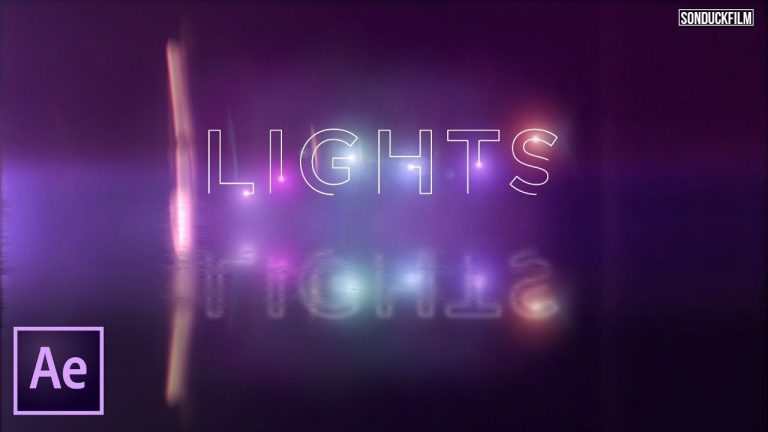
This After Effects tutorial shows how to create floor reflections with your motion graphics. Creating a floor reflection allows you to enhance the value of your work and adds more depth to the scene!

Great Videohive After Effects Templates: https://goo.gl/AbYv5X

Five Great Logo Intros with Floor Reflections:
Cyberpunk: http://bit.ly/2GkErIw
Ultra Energetic Logo: http://bit.ly/2pQMMJz
Weekend Logo Revealer: http://bit.ly/2Gplr7w
Neon Sign Kit: http://bit.ly/2E7x0yu
Electric Intro: http://bit.ly/2uxNRei

Like the music? Get your royalty free music at Artlist.io.
http://bit.ly/2t7xrrP

Get inspiring royalty free stock music tracks: https://goo.gl/YWzkyT

Our After Effect Light Stroke Tutorial: https://youtu.be/va-OvAdPcck

Social Media:
Drop a like on Facebook: https://www.facebook.com/sonduckfilm
Hit me up on Instagram: http://instagram.com/sonduckfilm
Follow me on Twitter: https://twitter.com/SonduckFilm
Connect with me on Linkedin: https://www.linkedin.com/in/joshnoel

Visit our website https://www.sonduckfilm.com for more tutorials, giveaways and film and photo gear!

Create This Great Distortion Offset Transition | After Effects Tutorial

0

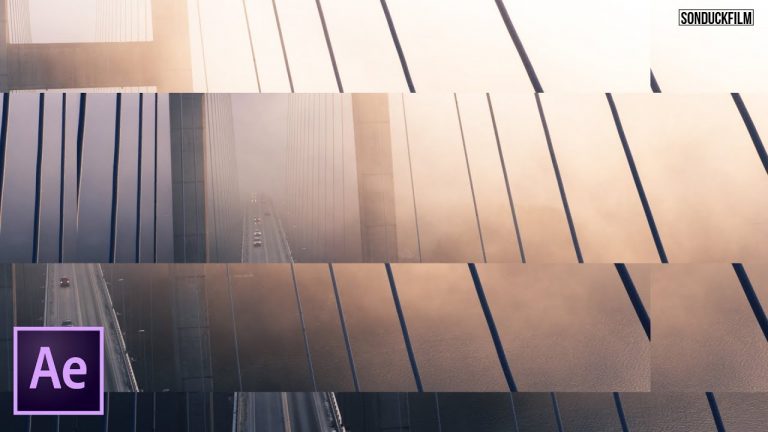
In this After Effects tutorial, learn how to create the popular offset distortion transition. This effect has been used in many “fashion” type projects.

My top 5 Favorite Transition/Motion Design Templates
1.1000+ Seamless Transitions: https://goo.gl/BP4dnW
2. 700 Glitch Transitions with SFX: https://goo.gl/m7TjRD
3. 250 Assorted Transitions: https://goo.gl/7QzVsh
4. Fashion Promo: https://goo.gl/Uqoif8
5. Rhythmic Promo: https://goo.gl/YLAKsc

Get inspiring royalty free stock music tracks: https://goo.gl/YWzkyT

Like the music? Get your royalty free music at Artlist.io.
http://bit.ly/2t7xrrP

Social Media:
Drop a like on Facebook: https://www.facebook.com/sonduckfilm
Hit me up on Instagram: http://instagram.com/sonduckfilm
Follow me on Twitter: https://twitter.com/SonduckFilm
Connect with me on Linkedin: https://www.linkedin.com/in/joshnoel

Visit our website https://www.sonduckfilm.com for more tutorials, giveaways and film and photo gear!

How to Add Textures to Photos and Logos in Photoshop

0

I Guarantee I Can Teach You to Master Photoshop. Learn How: https://phlearn.com/aaronwillteachyou

Download the image and textures here: https://phlearn.com/tutorial/add-textures-photos-logos/

Download our exclusive Dust & Scratches Texture Pack – Included with a PHLEARN PRO subscription: https://phlearn.com/tutorial/dust-scratches-texture/

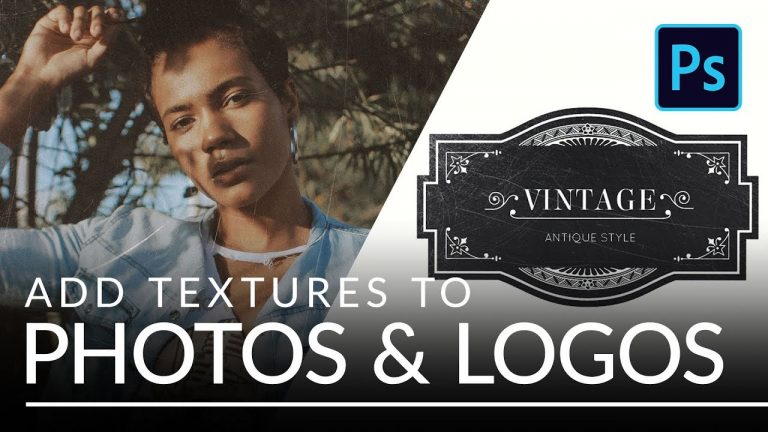
Give a wedding photo a romantic feel by adding a vintage, weathered look. Add some grit and grunge to an album cover by adding scuffs and scratches. Help a business stand out by adding some theme and character to their logo. Adding textures can often be a great finishing touch when creating memorable pictures and, in this tutorial, we’ll show you how to do it. In addition to a sample image, we’ve included two custom textures that you can start using to experiment with your own photos!

VISIT PHLEARN.COM FOR MORE FREE TUTORIALS

Homepage

SUBSCRIBE NOW FOR MORE FREE TIPS AND TRICKS
http://www.youtube.com/subscription_center?add_user=phlearnllc

LET’S BE FRIENDS!
Instagram ► https://www.instagram.com/phlearn/
Facebook ► https://facebook.com/phlearn
Twitter ► https://twitter.com/phlearn
Phlearn ► https://phlearn.com

Remove FLYAWAY Stray Hairs in Photoshop CC FAST!

0

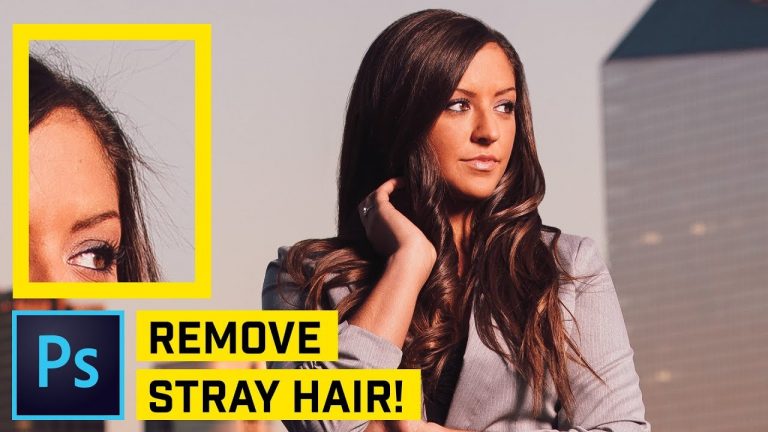
PHOTOSHOP TUTORIAL: CLEAN UP STRAY & FLYAWAY HAIR! | Check out this cool feature in the Healing brush that works perfectly for getting rid of flyaway hairs in your photos.

? DISCORD: http://discord.me/tutvid

? My Instagram: http://instagram.com/tutvid

? Buy the Photoshop Course and Support the Channel → http://bit.ly/28NuwFy

? Subscribe for Daily Tutorials → https://goo.gl/DN4Nln

In this Photoshop tutorial, I’ll walk you through a completely non-destructive process for removing flyaway hairs that plague your image. This had long been a task I dreaded when clients would ask me to correct or clean up because it was such a chore getting the background to match when I cloned over the hairs. This technique uses the blending power of the Healing Brush to quickly create cleaner edges for hair in your images. Thanks for watching!

⚡️ written tutorial here: http://bit.ly/2tzg0kw

INSTAGRAM: http://instagram.com/tutvid
TWITTER: http://twitter.com/tutvid
FACEBOOK: https://www.facebook.com/tutvid

tutvid is a YouTube channel dedicated to creating the best Adobe Photoshop, Premiere Pro, Lightroom, and Illustrator tutorials. My goal is to create the best, most informative, and entertaining tutorials on the web. If you enjoy my videos, the best way to support what I do here is to purchase my course linked above or simply subscribe to the YouTube channel by pressing the red button.

✉️ business inquiries: nate@tutvid.com