Home Blog Page 82

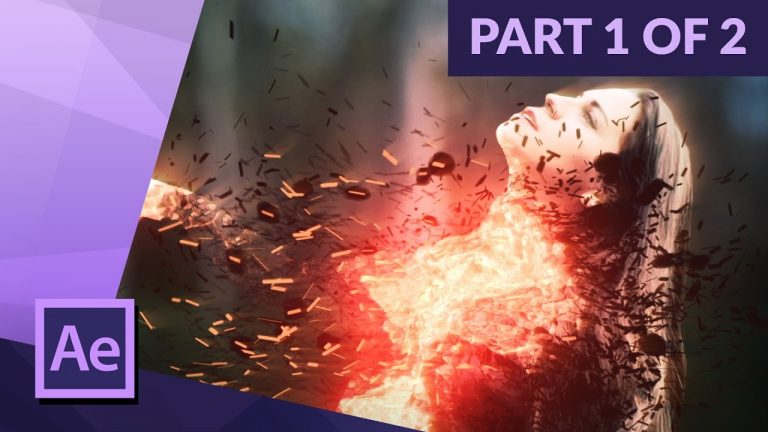
CREATE AN EPIC DISINTEGRATION EFFECT in AFTER EFFECTS TUTORIAL (part 1 of 2)

0

► Let’s learn how to create this awesome effect in adobe after effect cc 2017 (also possible in older versions) You do need the plug-in trapcode particular to do the particles for this effect.

► DOWNLOAD FOOTAGE – http://bit.ly/2k6oHNj
► BUY PROJECT FILE – http://bit.ly/DIsintegration

► SUBSCRIBE! – http://bit.ly/ignaceyt

► TOLERATED STORE – http://bit.ly/storeyt

♦ Uploading:
Every single day!

♦ Music from:
http://bit.ly/1tfTfh7

Adobe Store:
http://bit.ly/productsadobe

♦ Basic Recording Gear:
– Panasonic GH4
– Metabones Canon EF
– Sigma 17-50mm F2.8 Lens.

♦ Popular Playlists:
– Adobe After Effects Tutorials http://bit.ly/2dxxoil
– Adobe Premiere Pro Tutorials http://bit.ly/2cYW252
– Maxon Cinema 4D Tutorials http://bit.ly/2dDBSQx
– Hardware reviews http://bit.ly/2dxwO4q
– News & Updates http://bit.ly/2dAciwF
– Speed Art http://bit.ly/2dxwZwu

♦ Social Media:
– Twitter http://www.twitter.com/ignacealeya
– Instagram http://instagram.com/ignacealeya
– Facebook http://bit.ly/toleratedfacebook
– Site http://www.toleratedstore.com

♦ Business:
info@tolerated.be

Be sure to leave a comment and to check out my channel! I have a lot more video’s.
Let’s start creating!

Host & Creator
Ignace Aleya
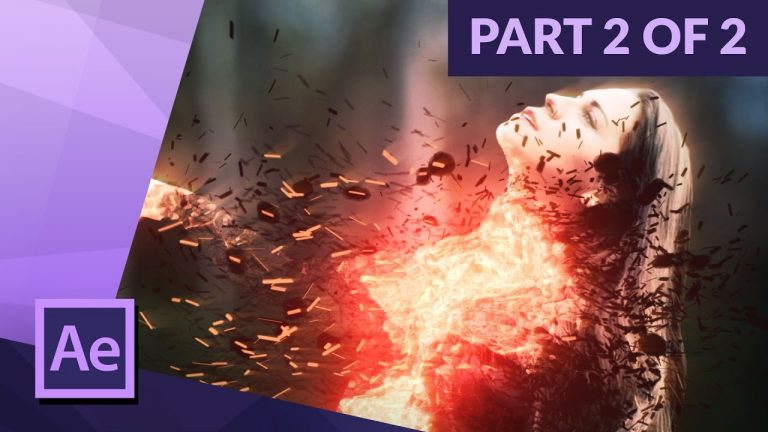
CREATE AN EPIC DISINTEGRATION EFFECT in AFTER EFFECTS (part 2 of 2)

0

► Part 2 on how to create an awesome disintegration effect in adobe after effects cc 2017. Enjoy!
► SUBSCRIBE! – http://bit.ly/ignaceyt

► TOLERATED STORE – http://bit.ly/storeyt

♦ Uploading:
Every single day!

♦ Music from:
http://bit.ly/1tfTfh7

Adobe Store:
http://bit.ly/productsadobe

♦ Basic Recording Gear:
– Panasonic GH4
– Metabones Canon EF
– Sigma 17-50mm F2.8 Lens.

♦ Popular Playlists:
– Adobe After Effects Tutorials http://bit.ly/2dxxoil
– Adobe Premiere Pro Tutorials http://bit.ly/2cYW252
– Maxon Cinema 4D Tutorials http://bit.ly/2dDBSQx
– Hardware reviews http://bit.ly/2dxwO4q
– News & Updates http://bit.ly/2dAciwF
– Speed Art http://bit.ly/2dxwZwu

♦ Social Media:
– Twitter http://www.twitter.com/ignacealeya
– Instagram http://instagram.com/ignacealeya
– Facebook http://bit.ly/toleratedfacebook
– Site http://www.toleratedstore.com

♦ Business:
info@tolerated.be

Be sure to leave a comment and to check out my channel! I have a lot more video’s.
Let’s start creating!

Host & Creator
Ignace Aleya
Create a Perfect Video Loop in Premiere Pro

0

SIMPLE TECHNIQUE TO CREATE A LOOPING VIDEO IN PREMIERE PRO! | Cut, swap, and fade together a clip to transform almost any video into a seamless looping clip using this awesome trick!

? Buy the Photoshop Course and Support the Channel → http://bit.ly/28NuwFy

? My Instagram: http://instagram.com/tutvid

? Subscribe for Daily Tutorials → https://goo.gl/DN4Nln

In this Premiere Pro video editing tutorial, we’ll use a simple trick to split a video clip, swap the positioning of the clips, overlap the clips (if needed), and then add a cross dissolve fade to drag out a transition to complete a seamlessly looping video clip that can be fused in your next video editing project, but is also perfect for animations, and more!

Loop icon in thumbnail: https://www.flaticon.com/free-icon/arrow-loop_32161#term=loop&page=1&position=49

⚡️ written tutorial here: http://bit.ly/2h6LaHb

INSTAGRAM: http://instagram.com/tutvid
TWITTER: http://twitter.com/tutvid
FACEBOOK: https://www.facebook.com/tutvid
SNAPCHAT: tutvid.com

tutvid is a YouTube channel dedicated to creating the best Adobe Photoshop, Premiere Pro, Lightroom, and Illustrator tutorials. My goal is to create the best, most informative, and entertaining tutorials on the web. If you enjoy my videos, the best way to support what I do here is to purchase my course linked above or simply subscribe to the YouTube channel by pressing the red button.

✉️ business inquiries: nate@tutvid.com

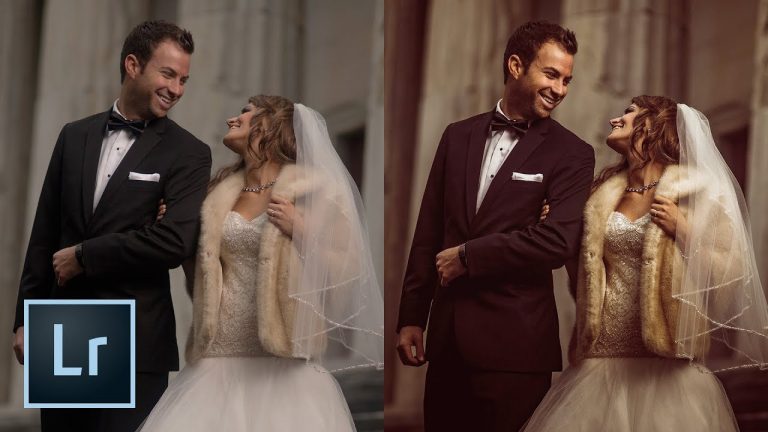
Rich Faded Wedding Photo Effect in Lightroom (TUTORIAL)

0

CREATE FADED FILM-LIKE EFFECT RETOUCHING FOR YOUR PHOTO IN LIGHTROOM! | Use a few simple tools in Adobe Lightroom to create this cool photo treatment quickly!

? Buy the Photoshop Course and Support the Channel → http://bit.ly/28NuwFy

? My Instagram: http://instagram.com/tutvid

? Subscribe for Daily Tutorials → https://goo.gl/DN4Nln

In this Adobe Lightroom tutorial, we’ll begin with a RAW wedding photo straight out of the camera and play with Camera Calibration settings, Curves and the color channels, Hue/Saturation/Lightness settings, and even simple tonal, brightness, and sharpening settings to create a really cool looking effect that will output a deliverable stylized photo.

⚡️ written tutorial here: http://bit.ly/2hJcqMC

INSTAGRAM: http://instagram.com/tutvid
TWITTER: http://twitter.com/tutvid
FACEBOOK: https://www.facebook.com/tutvid
SNAPCHAT: tutvid.com

tutvid is a YouTube channel dedicated to creating the best Adobe Photoshop, Premiere Pro, Lightroom, and Illustrator tutorials. My goal is to create the best, most informative, and entertaining tutorials on the web. If you enjoy my videos, the best way to support what I do here is to purchase my course linked above or simply subscribe to the YouTube channel by pressing the red button.

✉️ business inquiries: nate@tutvid.com

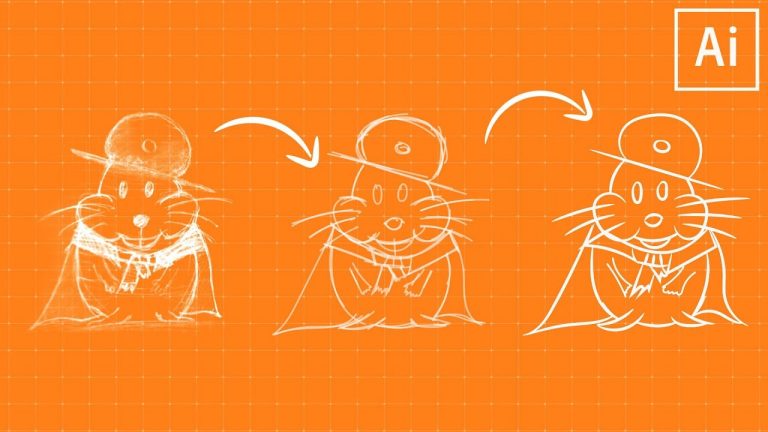
Learn to Sketch & Ink Artwork in Illustrator CC!

0

LEARN TO MAKE YOUR PENCIL SKETCHES INKED ARTWORK IN ILLUSTRATOR! | We’ll create some custom brushes and work with opacity to create some nice looking strokes.

? Buy the Photoshop Course and Support the Channel → http://bit.ly/28NuwFy

? My Instagram: http://instagram.com/tutvid

? Subscribe for Daily Tutorials → https://goo.gl/DN4Nln

In this Illustrator tutorial, we’ll use a sketch that has been scanned into our computer and create a series of rough sketches over it first and once we’ve settled on an initial sketch that we like we’ll create an art brush and use that to create thick, inked lines over our rough sketching. Once we’ve got out inked lines, I’ll show you the merging trick that I use with the Shaper Tool to help clean up the lines where it is needed. Hope you enjoy this video!

⚡️ written tutorial here: http://bit.ly/2hnCc8u

INSTAGRAM: http://instagram.com/tutvid
TWITTER: http://twitter.com/tutvid
FACEBOOK: https://www.facebook.com/tutvid
SNAPCHAT: tutvid.com

tutvid is a YouTube channel dedicated to creating the best Adobe Photoshop, Premiere Pro, Lightroom, and Illustrator tutorials. My goal is to create the best, most informative, and entertaining tutorials on the web. If you enjoy my videos, the best way to support what I do here is to purchase my course linked above or simply subscribe to the YouTube channel by pressing the red button.

✉️ business inquiries: nate@tutvid.com

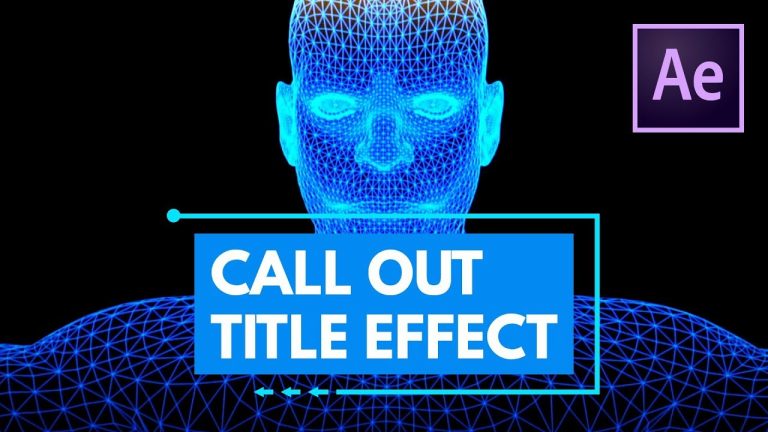
Call Out Titles or Lower Thirds with Animated Border in After Effects

0

USE THIS TRICK IN AFTER EFFECTS TO AUTO-ANIMATE A STROKE! | In this video, we’ll break down and animate a call out title using some cool techniques.

? Buy the Photoshop Course and Support the Channel → http://bit.ly/28NuwFy

? My Instagram: http://instagram.com/tutvid

? Subscribe for Daily Tutorials → https://goo.gl/DN4Nln

In this After Effects tutorial, we will use text layers and shape layers to create a simple call out title. After we make the call out title, we’ll use the shape layer to layer on additional shapes with borders, offsets, and an effect called “Trim Path” to allow us to animate a stroke around our call out title. We will also use keyframe animation to lock down when and where this animation will begin and also do a little more animating and tweaking of the overall call out title to finish the effect up nicely.

⚡️ written tutorial here: http://bit.ly/2AHvnXC

INSTAGRAM: http://instagram.com/tutvid
TWITTER: http://twitter.com/tutvid
FACEBOOK: https://www.facebook.com/tutvid
SNAPCHAT: tutvid.com

tutvid is a YouTube channel dedicated to creating the best Adobe Photoshop, Premiere Pro, Lightroom, and Illustrator tutorials. My goal is to create the best, most informative, and entertaining tutorials on the web. If you enjoy my videos, the best way to support what I do here is to purchase my course linked above or simply subscribe to the YouTube channel by pressing the red button.

✉️ business inquiries: nate@tutvid.com

How to Edit Video with the J-Cut and L-Cut in Premiere Pro (MUST KNOW)

0

CREATE AMAZING SCENE TRANSITIONS IN YOUR MOVIE WITH THE J CUT AND THE L CUT! | Check out this simple technique for editing your videos even better and utilizing some tools to create the essential j-cut and l-cut transitions.

? Buy the Photoshop Course and Support the Channel → http://bit.ly/28NuwFy

? My Instagram: http://instagram.com/tutvid

? Subscribe for Daily Tutorials → https://goo.gl/DN4Nln

In this Premiere Pro video editing tutorial, we will take a look at what the j-cut and l-cut are and also how to maneuver your footage to be able to create this simple transition effect. Once you know what the j-cut is, you’ll see it used all over the place and you’ll begin to appreciate just how effective and beautiful of a technique it is.

⚡️ written tutorial here: http://bit.ly/2ij4NNd

INSTAGRAM: http://instagram.com/tutvid
TWITTER: http://twitter.com/tutvid
FACEBOOK: https://www.facebook.com/tutvid
SNAPCHAT: tutvid.com

tutvid is a YouTube channel dedicated to creating the best Adobe Photoshop, Premiere Pro, Lightroom, and Illustrator tutorials. My goal is to create the best, most informative, and entertaining tutorials on the web. If you enjoy my videos, the best way to support what I do here is to purchase my course linked above or simply subscribe to the YouTube channel by pressing the red button.

✉️ business inquiries: nate@tutvid.com

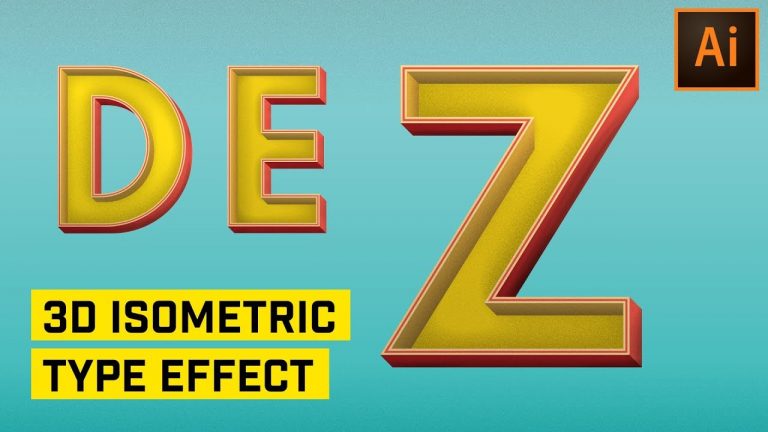
3D Isometric Text Effect in Adobe Illustrator

0

CREATE THIS COOL TEXT EFFECT FOR YOUR NEXT PROJECT! | Learn to use the Pen Tool and Smart Guides and texture to create this isometric style text effect in Adobe Illustrator

? Buy the Photoshop Course and Support the Channel → http://bit.ly/28NuwFy

? My Instagram: http://instagram.com/tutvid

? Subscribe for Daily Tutorials → https://goo.gl/DN4Nln

In this Adobe Illustrator tutorial, we’ll build a simple text effect and use the Pen Tool to create inner and outer edges for our letters and then use a series of colors, gradients, and blend modes to make flat text appear to transform into fully 3-dimensional isometric typography that looks awesome in almost any color! You’ll learn about the power of Smart Guides, Masking, Vector Grain Effects, Gradients, Brushing, Blend Modes, and much more!

⚡️ written tutorial here: http://bit.ly/2B63NDL

INSTAGRAM: http://instagram.com/tutvid
TWITTER: http://twitter.com/tutvid
FACEBOOK: https://www.facebook.com/tutvid
SNAPCHAT: tutvid.com

tutvid is a YouTube channel dedicated to creating the best Adobe Photoshop, Premiere Pro, Lightroom, and Illustrator tutorials. My goal is to create the best, most informative, and entertaining tutorials on the web. If you enjoy my videos, the best way to support what I do here is to purchase my course linked above or simply subscribe to the YouTube channel by pressing the red button.

✉️ business inquiries: nate@tutvid.com

Edit Cool Instagram Photos with Lightroom!

0

CREATE AMAZING FADED PHOTOS USING THIS TECHNIQUE FOR YOUR INSTAGRAM IMAGES! | Learn to use toning, Curves, HSL, and additional features in Adobe Lightroom to create this cool milky faded effect for you images perfect for cinematic images and Instagram photos!

? Buy the Photoshop Course and Support the Channel → http://bit.ly/28NuwFy

? My Instagram: http://instagram.com/tutvid

? Subscribe for Daily Tutorials → https://goo.gl/DN4Nln

In this Adobe Lightroom tutorial, we’ll use a series of techniques in Lightroom to transform a simple urban nighttime photo from a standard shot from your DSLR to a trendy, faded, cinematic image that will look great and be perfect for Instagram or your portfolio!

⚡️ written tutorial here: http://bit.ly/2zXer1x

INSTAGRAM: http://instagram.com/tutvid
TWITTER: http://twitter.com/tutvid
FACEBOOK: https://www.facebook.com/tutvid
SNAPCHAT: tutvid.com

tutvid is a YouTube channel dedicated to creating the best Adobe Photoshop, Premiere Pro, Lightroom, and Illustrator tutorials. My goal is to create the best, most informative, and entertaining tutorials on the web. If you enjoy my videos, the best way to support what I do here is to purchase my course linked above or simply subscribe to the YouTube channel by pressing the red button.

✉️ business inquiries: nate@tutvid.com

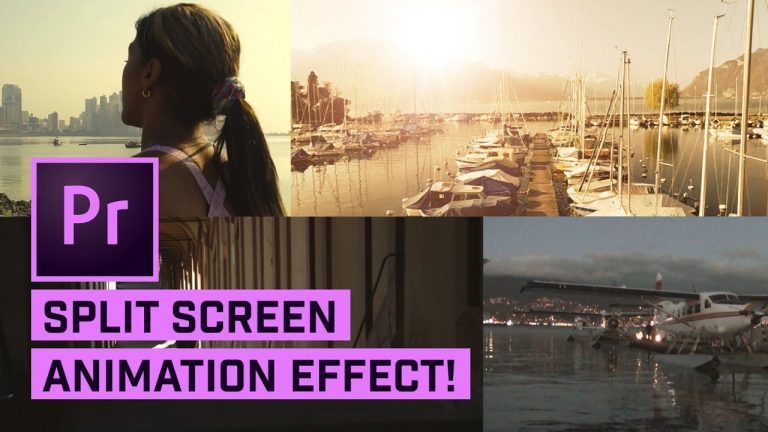
2x, 3x, and 4x Split Screens in Premiere Pro (with Animation)

0

4-UP SPLIT SCREENS AND HORIZONTAL & VERTICAL SPLIT SCREENS IN PREMIERE! | Learn to create and animate multiple split-screen effects in Premiere Pro in this tutorial!

? ↓ VIDEO GUIDE ↓ ?
00:50 Tutorial Starts
01:19 2x Split Screen
06:05 3x Split Screen
09:40 4x Split Screen
14:45 Change Footage, Save Animation Tip/Trick
15:35 Simple Split Screen With Graphics

? Buy the Photoshop Course and Support the Channel → http://bit.ly/28NuwFy

? My Instagram: http://instagram.com/tutvid

? Subscribe for Daily Tutorials → https://goo.gl/DN4Nln

In this Premiere Pro video editing tutorial, we will create an animated split-screen effect that will work as a vertical 2-across split screen effect, or a 2-up-and-down horizontal split screen, or a 4-up quad view video split screen. We’ll use a few effects and a little animation to build out this effect and I’ll teach you a trick to quickly copy this animation to any project by swapping the visual part of the video while saving all the animation and keyframes! Also, we have a free download if you just want a simple vertical, side-by-side, or horizontal, top-and-bottom, or 4-up grid split screen effect without any animation. I show you how to create the effect in about a minute using those free downloads in this video.

Download the split-screen graphics here: http://tutvid.com/wp-content/uploads/2017/12/split-screen-graphics-tutvid.zip

⚡️ written tutorial here: http://bit.ly/2nWmSpc

INSTAGRAM: http://instagram.com/tutvid
TWITTER: http://twitter.com/tutvid
FACEBOOK: https://www.facebook.com/tutvid
SNAPCHAT: tutvid.com

tutvid is a YouTube channel dedicated to creating the best Adobe Photoshop, Premiere Pro, Lightroom, and Illustrator tutorials. My goal is to create the best, most informative, and entertaining tutorials on the web. If you enjoy my videos, the best way to support what I do here is to purchase my course linked above or simply subscribe to the YouTube channel by pressing the red button.

✉️ business inquiries: nate@tutvid.com