Home Blog Page 83

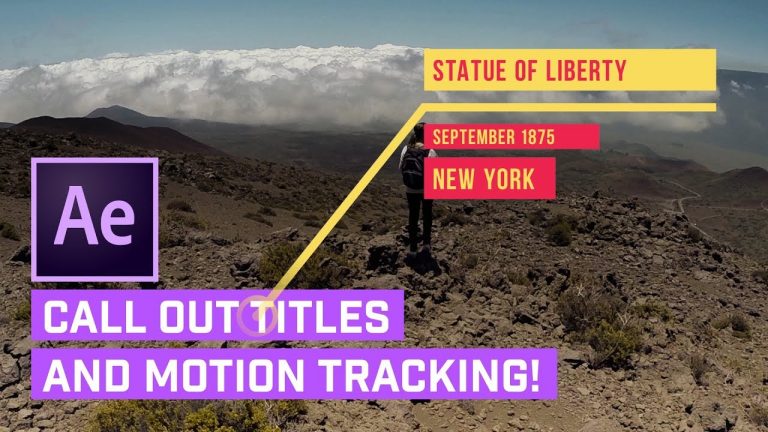
Call Out TITLES After Effects + AUTO Motion Tracking

0

CREATE CUSTOM AFTER EFFECTS CALL OUT TITLES! | Build the graphics to make a cool call out title and animate it and then track it through a moving video.

? Buy the Photoshop Course and Support the Channel → http://bit.ly/28NuwFy

? My Instagram: http://instagram.com/tutvid

? Subscribe for Daily Tutorials → https://goo.gl/DN4Nln

In this After Effects tutorial, we will build a custom call out title using shapes and lines and then break the full graphic down and animate each part of it to create a smooth and beautiful call out title that will appear and pop out as it travels through your video. After creating the call out title, we’ll use the Motion Tracking in After Effects to automatically track the call out title and attach it to an object that is moving through the video with ease.

⚡️ written tutorial here: http://bit.ly/2k0QSfj

INSTAGRAM: http://instagram.com/tutvid
TWITTER: http://twitter.com/tutvid
FACEBOOK: https://www.facebook.com/tutvid
SNAPCHAT: tutvid.com

tutvid is a YouTube channel dedicated to creating the best Adobe Photoshop, Premiere Pro, Lightroom, and Illustrator tutorials. My goal is to create the best, most informative, and entertaining tutorials on the web. If you enjoy my videos, the best way to support what I do here is to purchase my course linked above or simply subscribe to the YouTube channel by pressing the red button.

✉️ business inquiries: nate@tutvid.com

SPEED UP Video with No Audio DISTORTION in Premiere Pro

0

LEARN TO ADJUST THE PITCH OF YOUR AUDIO AS YOU CHANGE SPEED TO GET GOOD RESULTS! | We will cover using Effects in Premiere Pro including the Speed/Duration tool and various pitch shifters to create a really cool effect that will allow you to fit more into your videos!

? Buy the Photoshop Course and Support the Channel → http://bit.ly/28NuwFy

? My Instagram: http://instagram.com/tutvid

? Subscribe for Daily Tutorials → https://goo.gl/DN4Nln

In this Premiere Pro tutorial, we will take a look at the different types of Pitch Shifters you have access to in Premiere Pro from the automatic pitch shifting when you speed up or slow down video, to the more advanced pitch shifters in the Effects panel and we’ll cover some of the best ways to adjust the audio to make a funny looking video sound much better and more natural.

⚡️ written tutorial here: http://bit.ly/2BrJBzO

INSTAGRAM: http://instagram.com/tutvid
TWITTER: http://twitter.com/tutvid
FACEBOOK: https://www.facebook.com/tutvid
SNAPCHAT: tutvid.com

tutvid is a YouTube channel dedicated to creating the best Adobe Photoshop, Premiere Pro, Lightroom, and Illustrator tutorials. My goal is to create the best, most informative, and entertaining tutorials on the web. If you enjoy my videos, the best way to support what I do here is to purchase my course linked above or simply subscribe to the YouTube channel by pressing the red button.

✉️ business inquiries: nate@tutvid.com

5 MUST KNOW Tips for Better & Smoother Animations in Premiere Pro

0

CREATE ANIMATIONS THAT LOOK LIKE THEY CAME FROM AFTER EFFECTS! | Fixing the bezier animation path, jumping keyframes, deep easing, and more! Learn a bunch of cool tips and tricks for animating better in Premiere Pro.

Go support our sponsor, ProductionCrate! http://bit.ly/2zYPoHI

? Buy the Photoshop Course and Support the Channel → http://bit.ly/28NuwFy

? My Instagram: http://instagram.com/tutvid

? Subscribe for Daily Tutorials → https://goo.gl/DN4Nln

In this Premiere Pro video editing tutorial, we’ll take a look at five little tips and tricks that I love to use when I’m animating in Premiere Pro. Start using these and you’ll begin realizing there is actually a little bit of high-quality animation you can create from scratch right in Premiere. Really complex stuff will still have to go over to After Effects, but there is a whole lot we can do within Premiere itself.

⚡️ written tutorial here: http://bit.ly/2pNj76A

INSTAGRAM: http://instagram.com/tutvid
TWITTER: http://twitter.com/tutvid
FACEBOOK: https://www.facebook.com/tutvid
SNAPCHAT: tutvid.com

tutvid is a YouTube channel dedicated to creating the best Adobe Photoshop, Premiere Pro, Lightroom, and Illustrator tutorials. My goal is to create the best, most informative, and entertaining tutorials on the web. If you enjoy my videos, the best way to support what I do here is to purchase my course linked above or simply subscribe to the YouTube channel by pressing the red button.

✉️ business inquiries: nate@tutvid.com

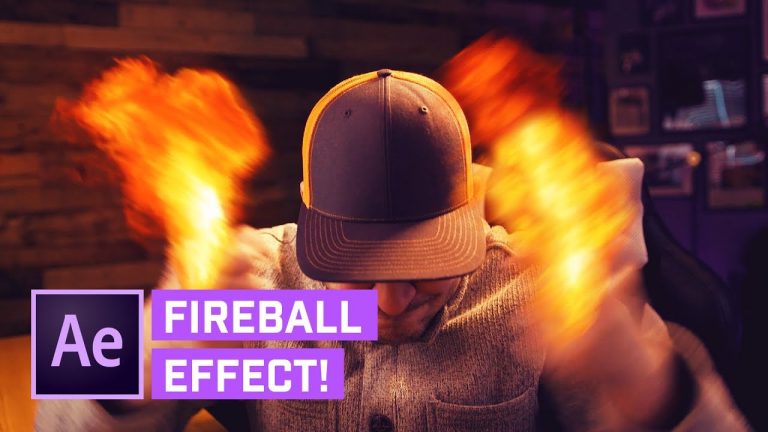
Fireball Effect in After Effects (Auto Tracking in AE)

0

LEARN ABOUT MOTION TRACKING IN THIS AFTER EFFECTS TUTORIAL! | We’ll learn about auto tracking in After Effects and we’ll do some simple placement, scaling, and rotation as well as manually tracking where it’s needed to complete this effect.

Check out ProductionCrate for all the cool resources I used in this video: http://bit.ly/2zYPoHI

Free Explosion & Fire Downloads: http://footagecrate.com/fire-explosions.html

? Buy the Photoshop Course and Support the Channel → http://bit.ly/28NuwFy

? My Instagram: http://instagram.com/tutvid

? Subscribe for Daily Tutorials → https://goo.gl/DN4Nln

In this After Effects tutorial, we will use a few keyed fireball clips from ProductionCrate to create a double fireball effect that explodes together into a massive fireball that overtakes the entire screen. We’ll learn about simple scaling and positioning and then build out two tracking points that follow my hands and then as I smash them together a fireball will explode from it and overtake the whole screen. I hope you love this tutorial! Thanks for watching!

Fast forward icon used: https://www.flaticon.com/free-icon/fast-forward_660276

⚡️ written tutorial here: http://bit.ly/2E1Ma8G

INSTAGRAM: http://instagram.com/tutvid
TWITTER: http://twitter.com/tutvid
FACEBOOK: https://www.facebook.com/tutvid
SNAPCHAT: tutvid.com

tutvid is a YouTube channel dedicated to creating the best Adobe Photoshop, Premiere Pro, Lightroom, and Illustrator tutorials. My goal is to create the best, most informative, and entertaining tutorials on the web. If you enjoy my videos, the best way to support what I do here is to purchase my course linked above or simply subscribe to the YouTube channel by pressing the red button.

✉️ business inquiries: nate@tutvid.com

Edit BRIGHT Sunlight Wedding Photos in LIGHTROOM CC

0

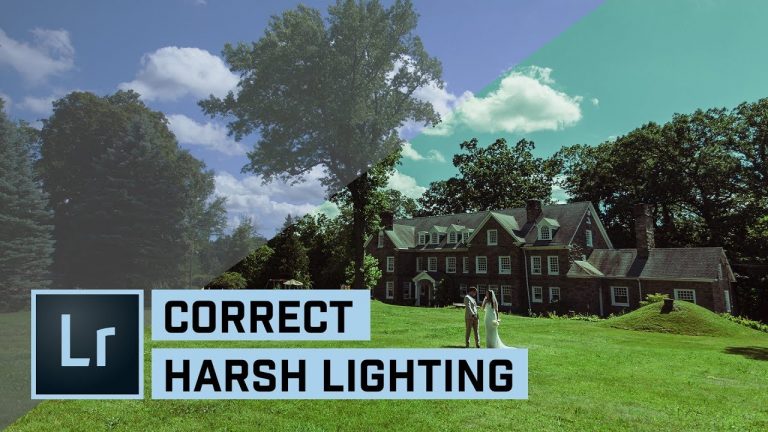
CHECK OUT MY TECHNIQUE FOR MAXIMIZING DYNAMIC RANGE FOR HANDLING PHOTOS IN THE BRIGHT SUN! | We’ll take a look at all the settings and options I tweak to handle difficult wedding photos with harsh light.

? Buy the Photoshop Course and Support the Channel → http://bit.ly/28NuwFy

? My Instagram: http://instagram.com/tutvid

? Subscribe for Daily Tutorials → https://goo.gl/DN4Nln

In this Adobe Lightroom tutorial, we’ll look at adjusting this wide angle lens-shot in the bright noonday summer sun so we can get a really cool looking photo and save details in the harsh highlights and shadows. We’ll use Camera Calibration to expand the photo a little, run the tones and colors with Curves, bounce the highlights and shadows around with our basic corrections, touch on the sharpening, adding some midtone punchiness, and even how I handle the lens correction issues of shooting at 17mm.

⚡️ written tutorial here: http://bit.ly/2m4jeWW

INSTAGRAM: http://instagram.com/tutvid
TWITTER: http://twitter.com/tutvid
FACEBOOK: https://www.facebook.com/tutvid
SNAPCHAT: tutvid.com

tutvid is a YouTube channel dedicated to creating the best Adobe Photoshop, Premiere Pro, Lightroom, and Illustrator tutorials. My goal is to create the best, most informative, and entertaining tutorials on the web. If you enjoy my videos, the best way to support what I do here is to purchase my course linked above or simply subscribe to the YouTube channel by pressing the red button.

✉️ business inquiries: nate@tutvid.com

Seven Simple Photo Fixes with Adobe Lightroom CC

0

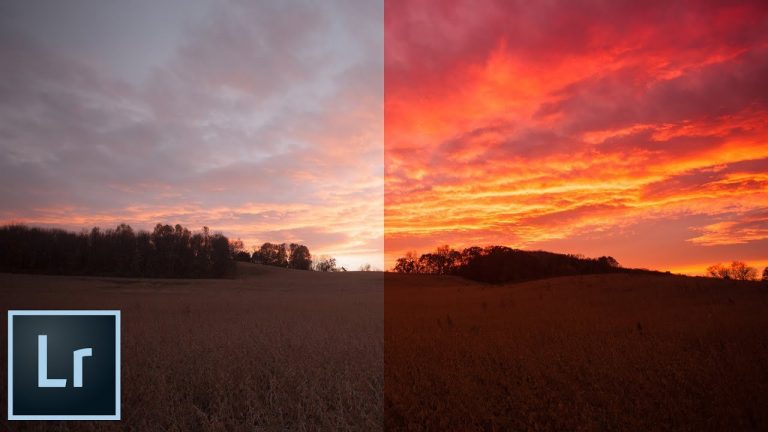
CORRECT EXPOSURE, COLOR, & PERSPECTIVE! | In this tutorial we’ll cover a bunch of very essential techniques to solve common problems that you may run into while using Lightroom.

? Buy the Photoshop Course and Support the Channel → http://bit.ly/28NuwFy

? My Instagram: http://instagram.com/tutvid

? Subscribe for Daily Tutorials → https://goo.gl/DN4Nln

In this Lightroom tutorial, we’ll first take a look a few useful techniques for correcting exposure whether you have an image that is overexposed or underexposed. We’ll also check out a few different techniques for color correction, adjusting colors in a very targeted manner, using Curves, learning about perspective adjustments, cropping, leveling, and so much more! Thanks for watching!

⚡️ written tutorial here: [LINK SOON]

INSTAGRAM: http://instagram.com/tutvid
TWITTER: http://twitter.com/tutvid
FACEBOOK: https://www.facebook.com/tutvid
SNAPCHAT: tutvid.com

tutvid is a YouTube channel dedicated to creating the best Adobe Photoshop, Premiere Pro, Lightroom, and Illustrator tutorials. My goal is to create the best, most informative, and entertaining tutorials on the web. If you enjoy my videos, the best way to support what I do here is to purchase my course linked above or simply subscribe to the YouTube channel by pressing the red button.

✉️ business inquiries: nate@tutvid.com

7 Premiere Pro Tips & Tricks Every Video Editor Needs to Know

0

LEARN NEW WAYS TO EDIT IN THIS PREMIERE PRO TUTORIAL! | We’ll cover some of the techniques and tricks I use daily when I’m editing video.

Check out our sponsor, Squarespace and use the code “tutvid” for 10% your website: https://www.squarespace.com/tutvid

? Buy the Photoshop Course and Support the Channel → http://bit.ly/28NuwFy

? My Instagram: http://instagram.com/tutvid

? Subscribe for Daily Tutorials → https://goo.gl/DN4Nln

In this Premiere Pro video editing tutorial, we’ll look at some of my favorite things in Premiere Pro. The stuff that makes me work faster and with less stress. I’ll cover how to scrub/shuttle through your timeline faster with hotkeys, the super fast In/Out/Extract edit, the two hotkeys I added to Premiere and can’t live without, Targeting Tracks and why that’s important, reducing lag when playing your video back in Premiere, locking tracks for better ripple deletes, and adjusting audio gain for louder and better managed audio levels.

⚡️ written tutorial here: http://bit.ly/2rmmt17

INSTAGRAM: http://instagram.com/tutvid
TWITTER: http://twitter.com/tutvid
FACEBOOK: https://www.facebook.com/tutvid
SNAPCHAT: tutvid.com

tutvid is a YouTube channel dedicated to creating the best Adobe Photoshop, Premiere Pro, Lightroom, and Illustrator tutorials. My goal is to create the best, most informative, and entertaining tutorials on the web. If you enjoy my videos, the best way to support what I do here is to purchase my course linked above or simply subscribe to the YouTube channel by pressing the red button.

✉️ business inquiries: nate@tutvid.com

How to Export Videos for Instagram (Posts & Stories)

0

LEARN HOW TO EXPORT HIGH-QUALITY VIDEOS FOR INSTAGRAM! | We’ll use Premiere Pro and it’s powerful Export panel to help us export great videos for Instagram.

? Buy the Photoshop Course and Support the Channel → http://bit.ly/28NuwFy

? My Instagram: http://instagram.com/tutvid

? Subscribe for Daily Tutorials → https://goo.gl/DN4Nln

In this Premiere Pro tutorial, we’ll talk about sizes, ratios, video dimensions, what bitrate, file size, and everything that you will need to know when you’re interested in getting great videos for Instagram. We’ll also break down the differences between videos for posts and videos for stories in Instagram as well.

⚡️ written tutorial here: http://bit.ly/2DEown2

INSTAGRAM: http://instagram.com/tutvid
TWITTER: http://twitter.com/tutvid
FACEBOOK: https://www.facebook.com/tutvid
SNAPCHAT: tutvid.com

tutvid is a YouTube channel dedicated to creating the best Adobe Photoshop, Premiere Pro, Lightroom, and Illustrator tutorials. My goal is to create the best, most informative, and entertaining tutorials on the web. If you enjoy my videos, the best way to support what I do here is to purchase my course linked above or simply subscribe to the YouTube channel by pressing the red button.

✉️ business inquiries: nate@tutvid.com

Make Your Audio and Voice Sound Better – Audition CC Tutorial

0

LEARN MY WORKFLOW FOR EDITING VOICE AND AUDIO IN ADOBE AUDITION! | In this Adobe Audition tutorial, we’ll take a look at creating a preset that will take your audio, strip out background noise, and compress and normalize your audio levels to a great volume level for use online for any audio, film, or video project.

? Buy the Photoshop Course and Support the Channel → http://bit.ly/28NuwFy

? My Instagram: http://instagram.com/tutvid

? Subscribe for Daily Tutorials → https://goo.gl/DN4Nln

In this Adobe Audition tutorial, I’ll go over my basic audio process using Adobe Audition to reduce background noise, normalize the levels to boost up the audio level, compress the peaks to help even things out, tweak and reduce background noise a little more, use the equalizer to give the audio some spice, boost the audio level again by normalizing, and then a series of things to limit the audio and compress peaks to get everything where we want it to be and make sure we’re not blowing out the speakers of the people listening to our audio. I hope you enjoy the tutorial!

⚡️ written tutorial here: http://bit.ly/2DNDUN9

INSTAGRAM: http://instagram.com/tutvid
TWITTER: http://twitter.com/tutvid
FACEBOOK: https://www.facebook.com/tutvid
SNAPCHAT: tutvid.com

tutvid is a YouTube channel dedicated to creating the best Adobe Photoshop, Premiere Pro, Lightroom, and Illustrator tutorials. My goal is to create the best, most informative, and entertaining tutorials on the web. If you enjoy my videos, the best way to support what I do here is to purchase my course linked above or simply subscribe to the YouTube channel by pressing the red button.

✉️ business inquiries: nate@tutvid.com