Home Blog Page 88

5-Second Light Effect Filters in Photoshop!

0

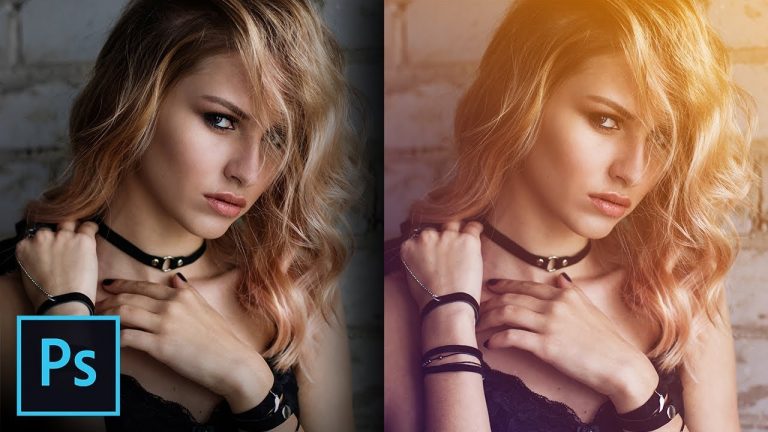
Create Amazing Light Effects Using Gradients in Photoshop! Learn how to perfectly work the colors, the blend-modes, and the gradients, to add flares of light and haze to your images. We will understand which colors look good together so you can create your own color combinations.

In this tutorial, we will not only customize the gradients and the effects in every way possible but also will introduce you to a complete library of numerous presets that you can choose from and apply with just one click!

► MY VIDEO GEAR:
Camera: http://piximp.com/80D
Microphone: http://piximp.com/mic
Lens: http://piximp.com/50mm
Memory Card: http://piximp.com/sandisk64

► DOWNLOADS
1. Sample Images: https://goo.gl/6uh6i1
2. Finished PSD: https://goo.gl/d1XHxE (Only for our Patreon Family)

► HELP US CREATE MORE FREE VIDEOS:
Support us at Patreon: https://www.patreon.com/piximperfect

► SHARE: https://goo.gl/IUhnUl

►LET’S CONNECT:
Facebook: http://facebook.com/piximperfect
Twitter: https://twitter.com/piximperfect
Instagram: https://www.instagram.com/piximperfect
Google+: https://plus.google.com/+UnmeshDinda
How To Use “Blend If” In Photoshop Like a PRO: The Definitive 7-Minute Guide

In this Photoshop tutorial, you will learn how to use “Blend If” like a pro.

This Photoshop tutorial will demystify this scary command to help you create fast and easy blends.

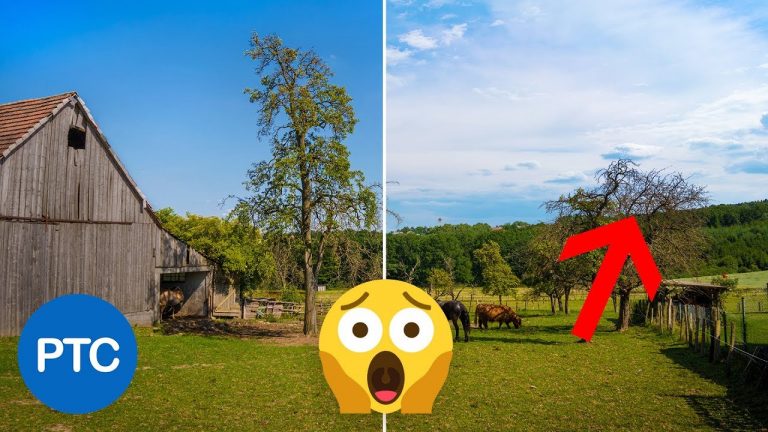
With the techniques that you will learn in this tutorial, you will be able to make fast and easy sky replacements, apply textures to text, create cool special effects, and much more.

“Blend If” is truly one of Photoshop’s unsung heroes and an extremely powerful tool that often gets overlooked.

Watch this tutorial all the way through and let me know in the comments what you think!

✅ Subscribe on YouTube Here: https://goo.gl/bwsW68

? INDEX – How To Use “Blend If” in Photoshop Like a PRO

04:48 – Blend If Explanation (Gray)
02:54 – Use Blend If To Create Special Effects
04:06 – Apply Textures Using Blend If
05:24 – Blend If Explanation (RGB channels)
07:40 – Sky Replacements Using Blend If

? This tutorial’s page on our website:
https://photoshoptrainingchannel.com/how-to-use-blend-if

? Subscribe + Like + Share + Comment = More Video Tutorials!

Thank you for watching!

– – – – – – – – – – – – – – – – – – – – – – –
⚡ PTC NEWSLETTER

If you enjoyed this video be sure to subscribe to our newsletter to receive free weekly Photoshop tips and more!

➜ ✉️: http://ptcvids.com/subscribe

– – – – – – – – – – – – – – – – – – – – – – –
? PREMIUM TUTORIALS

For more in-depth Photoshop Tutorials be sure to check out our Premium tutorials.

➜ http://ptcvids.com/shop/

– – – – – – – – – – – – – – – – – – – – – – –
⚡ FOLLOW ON

– Facebook: https://fb.com/PhotoshopTrainingChannel

– Instagram: http://instagram.com/jrfromptc

– LinkedIn: http://linkedin.com/company/Photoshop-Training-Channel

– Pinterest: http://pinterest.com/ptcpins

– Behance: https://www.behance.net/JRfromPTC

– Twitter: https://twitter.com/JRfromPTC

– – – – – – – – – – – – – – – – – – – – – – –
⚡ CREDITS

– Stock Images provided by stock.adobe.com

– Photoshop video tutorials by Jesus Ramirez

– This Video’s Youtube Link: http://youtu.be/yAMXBYx0r5g

Mind Blowing “Blend If” Photoshop Trick That You Don’t Know – 90-Second Tip #01

In this Photoshop tutorial, you will learn how to apply actual transparency to a layer using “Blend If”. Hint: It uses a Smart Object!

✅ Subscribe on YouTube Here: https://goo.gl/bwsW68

? Subscribe + Like + Share + Comment = More Video Tutorials!

Thank you for watching!

– – – – – – – – – – – – – – – – – – – – – – –
⚡ PTC NEWSLETTER

If you enjoyed this video be sure to subscribe to our newsletter to receive free weekly Photoshop tips and more!

➜ ✉️: http://ptcvids.com/subscribe

– – – – – – – – – – – – – – – – – – – – – – –
? PREMIUM TUTORIALS

For more in-depth Photoshop Tutorials be sure to check out our Premium tutorials.

➜ http://ptcvids.com/shop/

– – – – – – – – – – – – – – – – – – – – – – –
⚡ FOLLOW ON

– Facebook: https://fb.com/PhotoshopTrainingChannel

– Instagram: http://instagram.com/jrfromptc

– LinkedIn: http://linkedin.com/company/Photoshop-Training-Channel

– Pinterest: http://pinterest.com/ptcpins

– Behance: https://www.behance.net/JRfromPTC

– Twitter: https://twitter.com/JRfromPTC

– – – – – – – – – – – – – – – – – – – – – – –
⚡ CREDITS

– Stock Images provided by stock.adobe.com

– Photoshop video tutorials by Jesus Ramirez

– This Video’s Youtube Link: http://youtu.be/mlgvoBVRYZg

EDITABLE See-Through CUTOUT TEXT in Photoshop – Little-Known Pro Trick | 90-Second Tip #02

In this Photoshop tutorial, you will learn how to create an editable see-through cutout text effect (stencil text effect).

You will learn to use the “Knockout,” a little-known professional technique, that will allow you to work non-destructively so that you can edit the text and change the font at any time.

⚡In-Depth Knockout Tutorial:

✅ Subscribe on YouTube Here: https://goo.gl/bwsW68

? This tutorial’s page on our website:
https://photoshoptrainingchannel.com/

? Subscribe + Like + Share + Comment = More Video Tutorials!

Thank you for watching!

– – – – – – – – – – – – – – – – – – – – – – –
⚡ PTC NEWSLETTER

If you enjoyed this video be sure to subscribe to our newsletter to receive free weekly Photoshop tips and more!

➜ ✉️: http://ptcvids.com/subscribe

– – – – – – – – – – – – – – – – – – – – – – –
? PREMIUM TUTORIALS

For more in-depth Photoshop Tutorials be sure to check out our Premium tutorials.

➜ http://ptcvids.com/shop/

– – – – – – – – – – – – – – – – – – – – – – –
⚡ FOLLOW ON

– Facebook: https://fb.com/PhotoshopTrainingChannel

– Instagram: http://instagram.com/jrfromptc

– LinkedIn: http://linkedin.com/company/Photoshop-Training-Channel

– Pinterest: http://pinterest.com/ptcpins

– Behance: https://www.behance.net/JRfromPTC

– Twitter: https://twitter.com/JRfromPTC

– – – – – – – – – – – – – – – – – – – – – – –
⚡ CREDITS

– Stock Images provided by stock.adobe.com

– Photoshop video tutorials by Jesus Ramirez

– This Video’s Youtube Link: http://youtu.be/L8OI838Iqk

Create and Apply BOKEH Overlays in Photoshop | 90-Second Tip #03

In this Photoshop tutorial, you will learn how to create and apply Bokeh Overlays in 90 seconds.

⚡ Blending Modes Crash Course:

✅ Subscribe on YouTube Here: https://goo.gl/bwsW68

? This tutorial’s page on our website:
https://photoshoptrainingchannel.com/

? Subscribe + Like + Share + Comment = More Video Tutorials!

Thank you for watching!

– – – – – – – – – – – – – – – – – – – – – – –
⚡ PTC NEWSLETTER

If you enjoyed this video be sure to subscribe to our newsletter to receive free weekly Photoshop tips and more!

➜ ✉️: http://ptcvids.com/subscribe

– – – – – – – – – – – – – – – – – – – – – – –
? PREMIUM TUTORIALS

For more in-depth Photoshop Tutorials be sure to check out our Premium tutorials.

➜ http://ptcvids.com/shop/

– – – – – – – – – – – – – – – – – – – – – – –
⚡ FOLLOW ON

– Facebook: https://fb.com/PhotoshopTrainingChannel

– Instagram: http://instagram.com/jrfromptc

– LinkedIn: http://linkedin.com/company/Photoshop-Training-Channel

– Pinterest: http://pinterest.com/ptcpins

– Behance: https://www.behance.net/JRfromPTC

– Twitter: https://twitter.com/JRfromPTC

– – – – – – – – – – – – – – – – – – – – – – –
⚡ CREDITS

– Stock Images provided by stock.adobe.com

– Photoshop video tutorials by Jesus Ramirez

– This Video’s Youtube Link: http://youtu.be/f1SJTBwZFDc

Create Any Type of Lower Third in After Effects | Tutorial

0

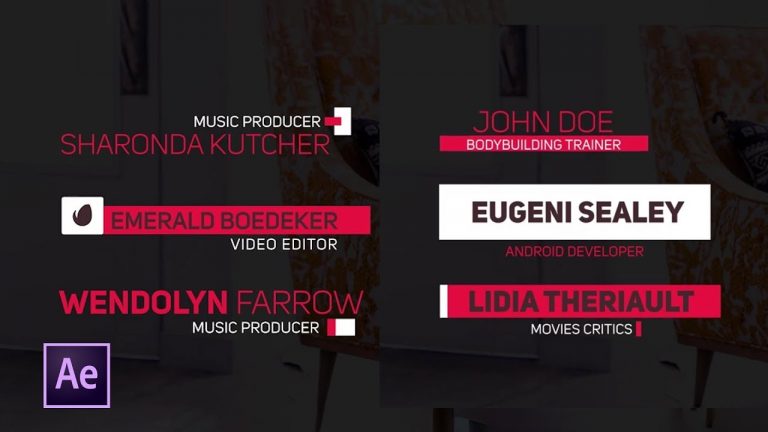
In this After Effects tutorial, learn how to breakdown lower third designs and create your own. My favorite way to learn is to look over what the best are creating. Then look at each element and understand what it is doing. In this After Effects video, I broke down two lower thirds designs down from Videohive.net.

Amazing Lower Third Templates To Save You Time!
45 4K Lower Thirds:
https://goo.gl/1HzVv7

Clean Lower Thirds:
https://goo.gl/MQ4RxF

Titles And Lower Third Pack:
https://goo.gl/CMtHWG

Simple Titles and Lower Thirds:
https://goo.gl/fKyuiw

Like the music? Get your royalty free music at Artlist.io.
http://bit.ly/2t7xrrP

Download The Free Lower Thirds Created In This Tutorial:

After Effects: Create Any Lower Third

Social Media:
Drop a like on Facebook: https://www.facebook.com/sonduckfilm
Hit me up on Instagram: http://instagram.com/sonduckfilm
Follow me on Twitter: https://twitter.com/SonduckFilm
Connect with me on Linkedin: https://www.linkedin.com/in/joshnoel

Visit our website https://www.sonduckfilm.com for more tutorials, giveaways and film and photo gear!

Want to take your projects and client work to the next level? Get the best After Effects, Motion templates & stock footage from VideoHive:

The Best After Effects Templates: https://goo.gl/AbYv5X
Apple Motion Templates: https://goo.gl/AbX9sd &
Amazing Stock Footage: https://goo.gl/LLVkko

Get inspiring royalty free stock music tracks: https://goo.gl/YWzkyT
And handy sound effects bundles: https://goo.gl/Y5aaJ3

3 Guides for Great Composition in Your Photos

0

I Guarantee I Can Teach You to Master Photoshop. Learn How: https://phlearn.com/aaronwillteachyou

Save 10% on a Website or Domain with Squarespace:
https://www.squarespace.com/phlearn

Download the Sample Images Here!

3 Guides for Great Composition in Your Photos

Like many other techniques in photography, creating effective composition is best done in-camera rather than during the editing process. That being said, there will be times where you may want to make minor adjustments or even completely change the composition in a shot. For those situations, the Crop Tool in Photoshop provides useful guides for some of the most common compositional techniques.

VISIT PHLEARN.COM FOR MORE FREE TUTORIALS

Homepage

SUBSCRIBE NOW FOR MORE FREE TIPS AND TRICKS
http://www.youtube.com/subscription_center?add_user=phlearnllc

LET’S BE FRIENDS!
Instagram ► https://www.instagram.com/phlearn/
Facebook ► https://facebook.com/phlearn
Twitter ► https://twitter.com/phlearn
Phlearn ► https://phlearn.com

How to Make a Custom Photo Look with Lightroom CC | Adobe Creative Cloud

0

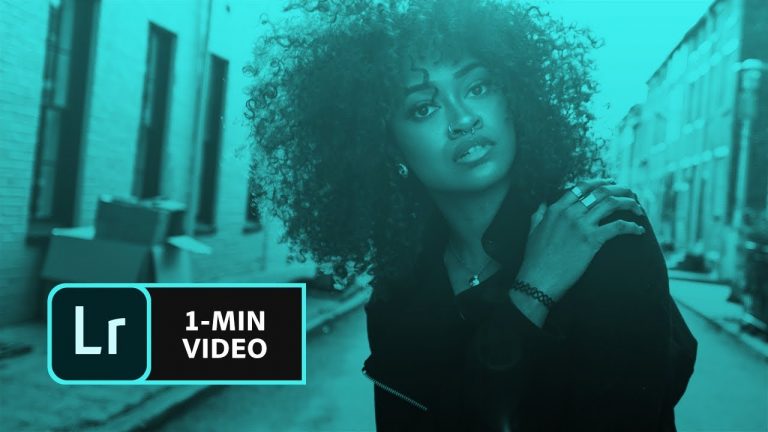
Learn how to edit a photo to give it a new look. Then, create a preset from those settings to apply your favorite style to other photos.

Start from scratch, or download practice files [https://learndownload.adobe.com/pub/learn/lightroom-cc/make-custom-photo-look.zip] for a head start. Steps below.

1. Open photo1.jpg in the Lightroom CC desktop app (File – Add Photos).
2. Click the Edit icon from the upper right.
3. Apply a preset: Click Presets from the bottom of the Edit panel. Open the Color preset category and choose “03 – High Contrast”.
4. Modify preset settings: Click the Tone Curve icon. Click once on the center of the curve. Drag the far left point up to around 7. Move the Temp (Temperature) slider to +7.

Tip: To add points to the Tone Curve, make sure the RGB Channels option (gray circle) is selected. Click the “Show Original” icon at the bottom (or type “”) to show switch between the before and after version.

5. Create new preset: Click the ellipses icon in the Presets panel. Click Create Preset. Type “Warm tones” and click Save.
6. Apply new preset: Open photo2.jpg in Lightroom CC. Choose the new “Warm tones” preset to create a new look for the photo.

That’s it!

Photo credits:
• Adrien Radford: https://www.instagram.com/adrienradford/?hl=en
• Emily Blincoe: https://www.instagram.com/emilyblincoe/?hl=en
• Pablo Alarcon: https://www.instagram.com/pablo.a/

To learn, more visit our Lightroom Tutorials page: https://adobe.ly/2BGfL6e

Subscribe: https://www.youtube.com/user/adobecreativecloud?sub_confirmation=1

LET’S CONNECT
Facebook: http://facebook.com/adobecreativecloud
Twitter: http://twitter.com/creativecloud
Instagram: http://www.instagram.com/adobecreativecloud/

Adobe Creative Cloud gives you the world’s best creative apps so you can turn your brightest ideas into your greatest work across your desktop and mobile devices.

Use Flash Effects To Make Your Motion Graphics Pop | After Effects Tutorial

0

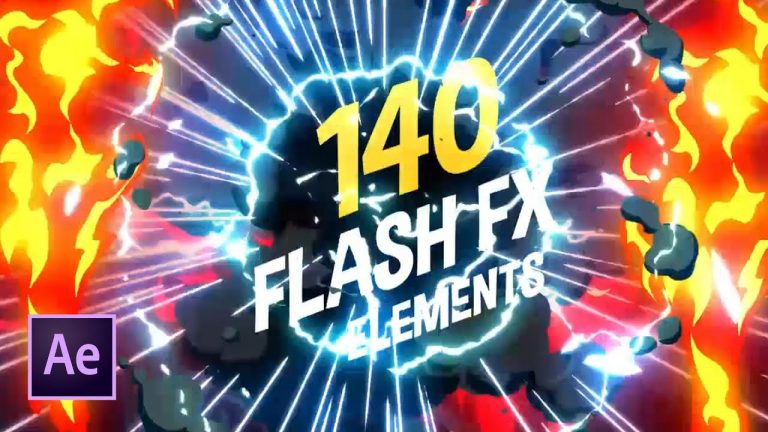
140 Flash FX Pack Used In This Video: https://goo.gl/j337FQ

Want to take your projects and client work to the next level? Get the best After Effects, Motion templates & stock footage from VideoHive:

The Best After Effects Templates: https://goo.gl/AbYv5X
Apple Motion Templates: https://goo.gl/AbX9sd &
Amazing Stock Footage: https://goo.gl/LLVkko

Get inspiring royalty free stock music tracks: https://goo.gl/YWzkyT
And handy sound effects bundles: https://goo.gl/Y5aaJ3

Social Media:
Drop a like on Facebook: https://www.facebook.com/sonduckfilm
Hit me up on Instagram: http://instagram.com/sonduckfilm
Follow me on Twitter: https://twitter.com/SonduckFilm
Connect with me on Linkedin: https://www.linkedin.com/in/joshnoel

Visit our website https://www.sonduckfilm.com for more tutorials, giveaways and film and photo gear!

Sync Text To Music | Create Lyric Videos | After Effects Tutorial

0

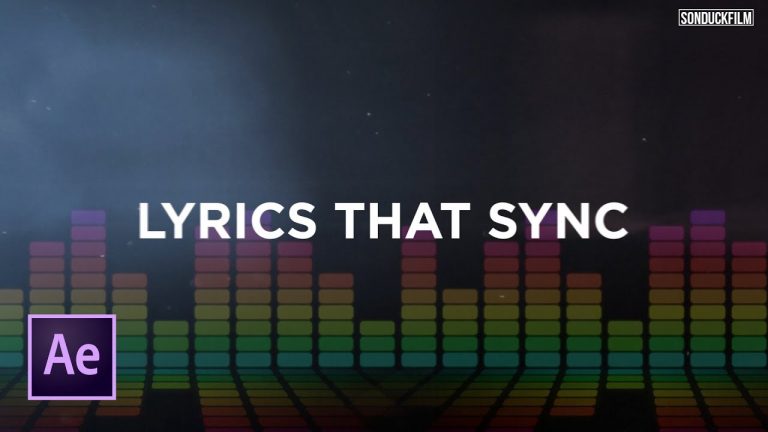
Learn how to easily sync text to Music and create awesome past paced sequences or lyric videos! This adobe After Effects tutorial will cover how to create amazing text animation that is sync to the beat. Learn how to monitor your music to add markers and identify sync points. Take a look at the many options of text animation with multiple properties. This After Effects tutorial will unable to consider overlay elements to spice up your final product!

Save Time or Learn From These Synced To Beat Templates:
Stomp 2: https://goo.gl/tsHT7x
Stomp: https://goo.gl/62rDBM

Song I used in This Video: https://goo.gl/sLsHmR

Download The Most Handy Presets For Animation Composer now: 1000+ Motion Presets!: https://goo.gl/hiofcg
Learn more and Watch My Full Review: https://youtu.be/NKwzMYncBLY

Download This Tutorial’s Free Project Files From SonduckFilm: http://www.sonduckfilm.com/tutorials/sync-text-to-music/

Awesome Overlay Assets Used in This Video:
Lens Flare Pack: https://goo.gl/HqJpM1
Digital Distortion: https://goo.gl/x5GLaK

Want to take your projects and client work to the next level? Get the best After Effects, Motion templates & stock footage from VideoHive:

The Best After Effects Templates: https://goo.gl/AbYv5X
Apple Motion Templates: https://goo.gl/AbX9sd &
Amazing Stock Footage: https://goo.gl/LLVkko

Get inspiring royalty free stock music tracks: https://goo.gl/YWzkyT
And handy sound effects bundles: https://goo.gl/Y5aaJ3

Social Media:
Drop a like on Facebook: https://www.facebook.com/sonduckfilm
Hit me up on Instagram: http://instagram.com/sonduckfilm
Follow me on Twitter: https://twitter.com/SonduckFilm
Connect with me on Linkedin: https://www.linkedin.com/in/joshnoel

Visit our website https://www.sonduckfilm.com for more tutorials, giveaways and film and photo gear!