Home Blog Page 89

How to Batch Resize Photos in Photoshop in Only 2 Minutes

0

I Guarantee I Can Teach You to Master Photoshop. Learn How: https://phlearn.com/aaronwillteachyou

Grab the Sample Images Here!
https://2017episode.s3.amazonaws.com/BATCH_RESIZE_SAMPLE_IMAGES.zip

Batch resizing is ideal for when you need to send a client several images for review but full-size files aren’t necessary. We’ll walk you through how to create a custom Photoshop Action which will resize an image to a predetermined width, then we’ll apply that action to an entire folder of images with just a few clicks.

VISIT PHLEARN.COM FOR MORE FREE TUTORIALS

Homepage

SUBSCRIBE NOW FOR MORE FREE TIPS AND TRICKS
http://www.youtube.com/subscription_center?add_user=phlearnllc

LET’S BE FRIENDS!
Instagram ► https://www.instagram.com/phlearn/
Facebook ► https://facebook.com/phlearn
Twitter ► https://twitter.com/phlearn
Phlearn ► https://phlearn.com

Apply Immersive Effects for 360/VR Footage in After Effects | Adobe Creative Cloud

Stylize your 360/VR footage in Adobe After Effects CC by applying or generating seamless effects — formatted specifically for equirectangular footage — without incurring any unwanted artifacts.

Learn more about After Effects: https://adobe.ly/2CEbqT9

Subscribe: https://www.youtube.com/user/adobecreativecloud?sub_confirmation=1

LET’S CONNECT
Facebook: http://facebook.com/adobecreativecloud
Twitter: http://twitter.com/creativecloud
Instagram: http://www.instagram.com/adobecreativecloud/

Adobe Creative Cloud gives you the world’s best creative apps so you can turn your brightest ideas into your greatest work across your desktop and mobile devices.

Orange Teal Color Grading | Premiere Pro Tutorial

0

Orange teal color grading is a popular style that a lot of filmmakers call on when grading their video projects. The color contrast works out perfectly, and makes skin tones look great… most of time. In this Adobe Premiere Pro Tutorial, we will look at how create the orange teal look with Lumetri Color. We talk about the importance of getting the shot correct in camera and several techniques that we can use in Premiere.

To capture a great orange teal look, be sure that the color contrast in your lighting is apparent. Make sure the background lighting is set to around 5600k, while your key light is around 3200k. This is an easy way to create amazing color contrast!

Like the music? Get your royalty free music at Artlist.io.
http://bit.ly/2t7xrrP

Social Media:
Drop a like on Facebook: https://www.facebook.com/sonduckfilm
Hit me up on Instagram: http://instagram.com/sonduckfilm
Follow me on Twitter: https://twitter.com/SonduckFilm
Connect with me on Linkedin: https://www.linkedin.com/in/joshnoel

Visit our website https://www.sonduckfilm.com for more tutorials, giveaways and film and photo gear!

Create a Double Exposure VIDEO in Photoshop

0

Create Impressive Video Effects in Photoshop! Download the Sample Videos Here: https://phlearn.com/tutorial/double-exposure-video/

If you want 10% off SquareSpace, use PHLEARN’s special promotional link: https://www.squarespace.com/phlearn

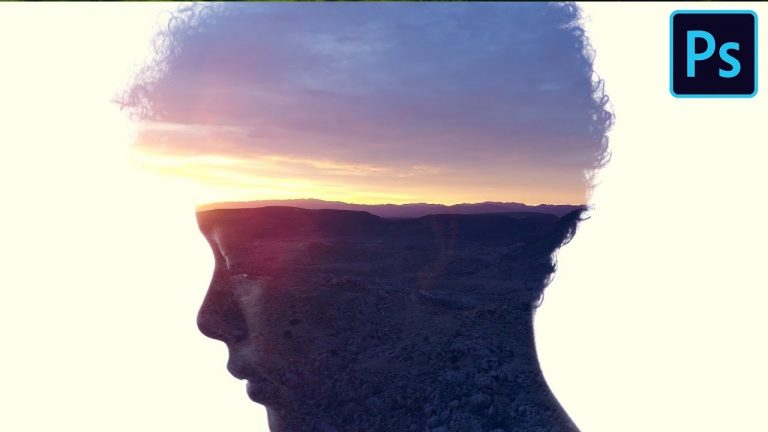
Since the early days of film, double exposure techniques have been a staple in creating dreamy and surreal images. In this tutorial, we not only show you how to create your own double exposure effect, but we also demonstrate how to pull it off using video in Photoshop.

For those who are curious, at PHLEARN we use Premiere Pro, After Effects, and Handbrake to create and publish our videos. So while you can use Photoshop to edit simple videos like this double exposure, if you want to do long form professional video editing, you would need to use a more robust software suite like ours.

VISIT PHLEARN.COM FOR MORE FREE TUTORIALS

Homepage

SUBSCRIBE NOW FOR MORE FREE TIPS AND TRICKS
http://www.youtube.com/subscription_center?add_user=phlearnllc

LET’S BE FRIENDS!
Instagram ► https://www.instagram.com/phlearn/
Facebook ► https://facebook.com/phlearn
Twitter ► https://twitter.com/phlearn
Phlearn ► https://phlearn.com

My Favorite After Effects Animation Preset Pack | Titles & Graphics

0

It’s here! Links Below!

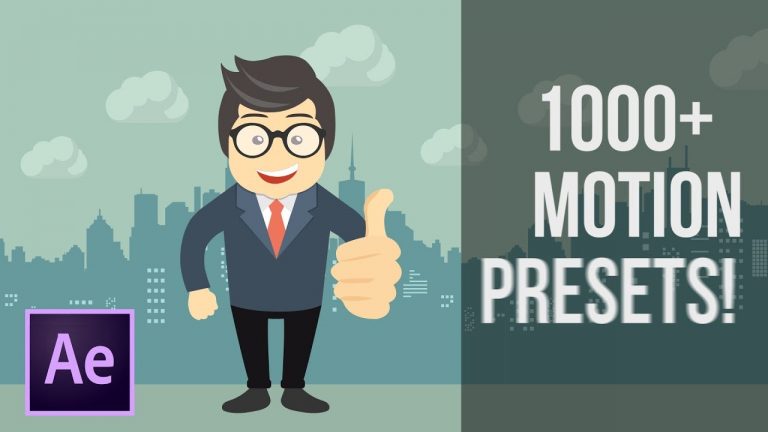
Download The Most Handy Presets For Animation Composer now: 1000+ Motion Presets!: https://goo.gl/hiofcg

Want to take your projects and client work to the next level? Get the best After Effects, Motion templates & stock footage from VideoHive:

After Effects After Effect Templates: https://goo.gl/AbYv5X
Apple Motion Templates: https://goo.gl/AbX9sd &
Stock Footage: https://goo.gl/LLVkko

Get inspiring royalty free stock music tracks: https://goo.gl/YWzkyT
And handy sound effects bundles: https://goo.gl/Y5aaJ3

Social Media:
Drop a like on Facebook: https://www.facebook.com/sonduckfilm
Hit me up on Instagram: http://instagram.com/sonduckfilm
Follow me on Twitter: https://twitter.com/SonduckFilm
Connect with me on Linkedin: https://www.linkedin.com/in/joshnoel

Visit our website https://www.sonduckfilm.com for more tutorials, giveaways and film and photo gear!

Transform Your Portraits to 3D Anime Dolls or Cartoons in Photoshop

0

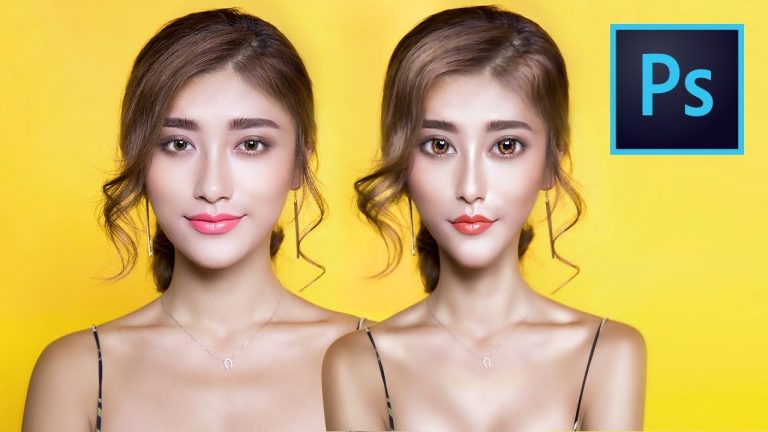
A Step by Step Guide to Create Doll-Like Face or Portrait in Photoshop! Learn advanced Liquify techniques combined with skin, hair and eye retouching especially for achieving the Cartoon or Anime look.

We will start off by getting the structure right. For this we will learn how to stack layers of Liquify to accurate set the mold for our portrait. Then, we will learn techniques to soften the skin and take away the reality from the image, thus giving it a 3D cartoon look. After that, we will specifically focus on skin, hair, and eye techniques to breathe life in your character. Last but not the least, to make the portrait really shine and add depth, we will use dodging and burning.

Whether you are creating a caricature or simply a cartoon versions of your image, this technique will work for you. We have got a lot to cover in this video. Hope this helps you!

► DOWNLOADS:
1. Sample Image: https://goo.gl/tp3roh
2. 2 Versions of Finished PSDs: https://goo.gl/BAF7AJ (Only for our Patreon Family)

PiXimperfect is free, and will always be.
► SUPPORT the cause: https://www.patreon.com/piximperfect

► SHARE: https://goo.gl/IUhnUl

►LET’S CONNECT:
Facebook: http://facebook.com/piximperfect
Twitter: https://twitter.com/piximperfect
Instagram: https://www.instagram.com/piximperfect
Google+: https://plus.google.com/+UnmeshDinda
You Don’t Need Luminosity Masks in Photoshop Because…

0

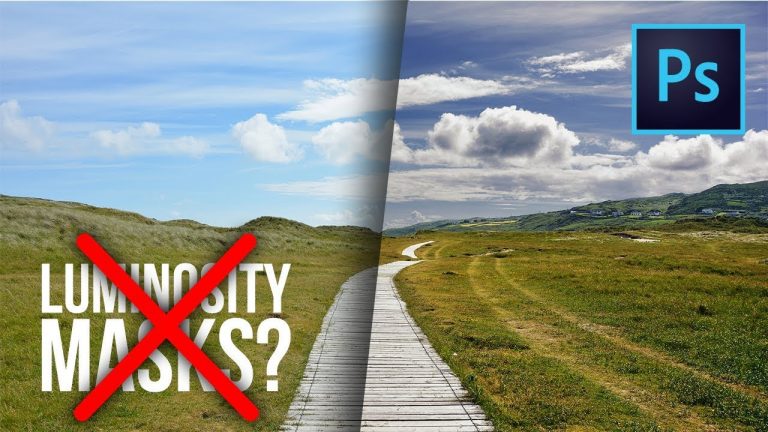
Amazing Alternative to Luminosity Masks in Photoshop! Unlike Luminosity Masks, this is completely non-destructive, much faster, let’s you edit the brightness level or the Luminance values a layer is targeting after the fact, and also, lets you see the effect of the adjustment layer real-time while you are playing with the area which it is targeting. But here’s the caveat…

This really cool method also comes with limitations. So, in this video, we will be talking about the limitations of both the methods so that you can be the better judge of whether to use Luminosity Masks or this method given an image.

► MY VIDEO GEAR:
Camera: http://piximp.com/80D
Microphone: http://piximp.com/mic
Lens: http://piximp.com/50mm
Memory Card: http://piximp.com/sandisk64

NOTE: If you wish to support this channel, please use these links to buy anything from Amazon. You don’t have to pay extra. Amazon will pay us a small percentage of your purchase which will mean the world to me and will help keep PiXimperfect free for everyone, forever.

► DOWNLOADS:
1. Sample Image: https://goo.gl/v4AnH3

PiXimperfect is free, and will always be.
► SUPPORT the cause: https://www.patreon.com/piximperfect

► SHARE: https://goo.gl/IUhnUl

►LET’S CONNECT:
Facebook: http://facebook.com/piximperfect
Twitter: https://twitter.com/piximperfect
Instagram: https://www.instagram.com/piximperfect
Google+: https://plus.google.com/+UnmeshDinda
Photoshop Tip: Confused on Color? Use This Amazing Shortcut

0

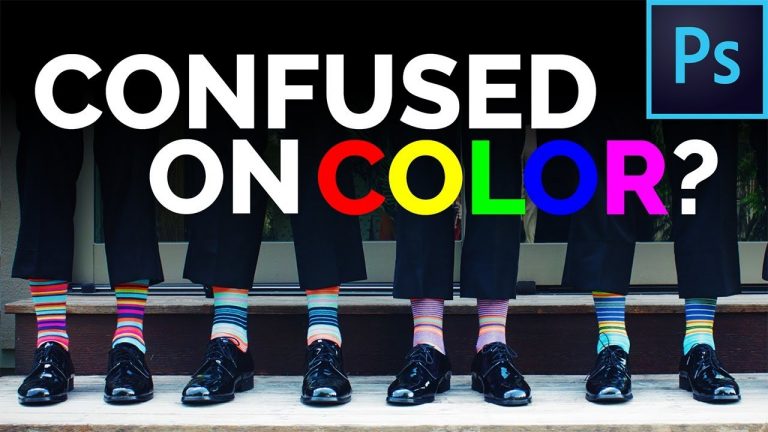
Red or White? Which color to choose for my text? Does the shape look good in green or blue? Ever been confused in Photoshop? We all have. Here’s how to use the Fill Color shortcut in ways you wouldn’t have imagined (unless you’re already a super expert).

Just one shortcut to change the color of text, layer, solid color adjustment layers, shapes and more! In this episode, we are going to explore the various applications of this multi-purpose shortcut. Hope this video helps you. Thank you for watching!

► MY VIDEO GEAR:
Camera: http://piximp.com/80D
Microphone: http://piximp.com/mic
Lens: http://piximp.com/50mm
Memory Card: http://piximp.com/sandisk64

NOTE: If you wish to support this channel, please use these links to buy anything from Amazon. You don’t have to pay extra. Amazon will pay us a small percentage of your purchase which will mean the world to me and will help keep PiXimperfect free for everyone, forever.

PiXimperfect is free, and will always be.
► SUPPORT the cause: https://www.patreon.com/piximperfect

► SHARE: https://goo.gl/IUhnUl

►LET’S CONNECT:
Facebook: http://facebook.com/piximperfect
Twitter: https://twitter.com/piximperfect
Instagram: https://www.instagram.com/piximperfect
Google+: https://plus.google.com/+UnmeshDinda
Dodge and Burn Automatically and Still Have Manual Controls in Photoshop

0

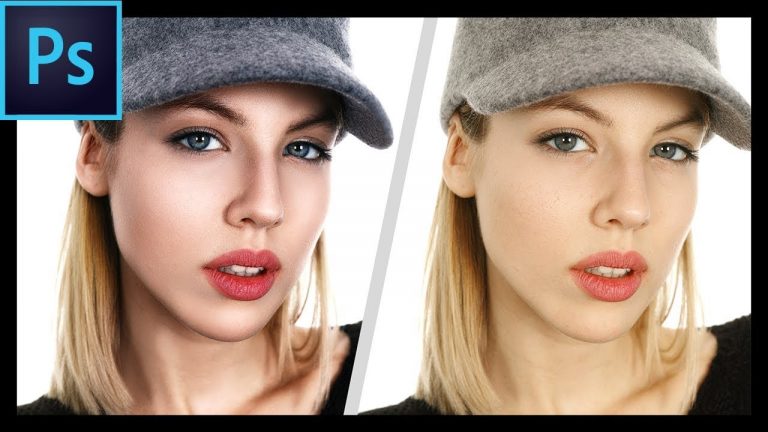
The Amazing AUTO-MANUAL Way to Dodge and Burn in Photoshop using the power of Apply Image feature! Learn how to combine Blend-If, Curves, and Apply Image in a smart way to automatically perform dodging and burning and add dimension to your images.

Dodging and burning is nothing but brightening or darkening certain parts of the object in the image, to give the object more dimension and a sense of shape, which would otherwise look flat. Dodge means brighten, whereas, burn means darken. One can really sculpt the face make the portrait pop using this technique.

► MY VIDEO GEAR:
Camera: http://piximp.com/80D
Microphone: http://piximp.com/mic
Lens: http://piximp.com/50mm
Memory Card: http://piximp.com/sandisk64

NOTE: If you wish to support this channel, please use these links to buy anything from Amazon. You don’t have to pay extra. Amazon will pay us a small percentage of your purchase which will mean the world to me and will help keep PiXimperfect free for everyone, forever.

► DOWNLOADS:
1. Sample Image: https://goo.gl/KyehGh
2. Finished PSD: https://goo.gl/tnrMwy (Only for our Patreon Family)

► TUTORIALS RECOMMENDED:
1. Skin Retouching Playlist: https://goo.gl/vjvvpt
2. Frequency Separation: https://youtu.be/Z8mnzVNaiD0
3. Eye Retouching Playlist: https://goo.gl/D5snPt
4. Dodge and Burn (Quick Way): https://youtu.be/WoXYynZ8cs8
5. Dodge and Burn in Lightroom: https://youtu.be/JJea1oJTINk
6. Skin Softening Action: https://youtu.be/H0lPIYERVlw

PiXimperfect is free, and will always be.
► SUPPORT the cause: https://www.patreon.com/piximperfect

► SHARE: https://goo.gl/IUhnUl

►LET’S CONNECT:
Facebook: http://facebook.com/piximperfect
Twitter: https://twitter.com/piximperfect
Instagram: https://www.instagram.com/piximperfect
Google+: https://plus.google.com/+UnmeshDinda
Build Amazingly Creative Looks Using Curves in Photoshop

0

Create the Look of YOUR Imagination Just by Using Curves and Masks in Photoshop! Learn the actual process and the approach to creating not only a particular effect, but also ANY look that you have in your mind and render it in Photoshop by breaking down the effect step-by-step and use curves to achieve each element separately.

Whether you want a dramatic look, a dreamy effect, or even a vibrant one, this tutorial is all about the creative applications of Curves in Photoshop! Hope this video helps you. Thank you for watching!

► MY VIDEO GEAR:
Camera: http://piximp.com/80D
Microphone: http://piximp.com/mic
Lens: http://piximp.com/50mm
Memory Card: http://piximp.com/sandisk64

NOTE: If you wish to support this channel, please use these links to buy anything from Amazon. You don’t have to pay extra. Amazon will pay us a small percentage of your purchase which will mean the world to me and will help keep PiXimperfect free for everyone, forever.

► DOWNLOADS:
1. Sample Image: https://goo.gl/EZry46
2. Finished PSD: https://goo.gl/sw38ja (Only for our Patreon Family)

PiXimperfect is free, and will always be.
► SUPPORT the cause: https://www.patreon.com/piximperfect

► SHARE: https://goo.gl/IUhnUl

►LET’S CONNECT:
Facebook: http://facebook.com/piximperfect
Twitter: https://twitter.com/piximperfect
Instagram: https://www.instagram.com/piximperfect
Google+: https://plus.google.com/+UnmeshDinda