Home Blog Page 92

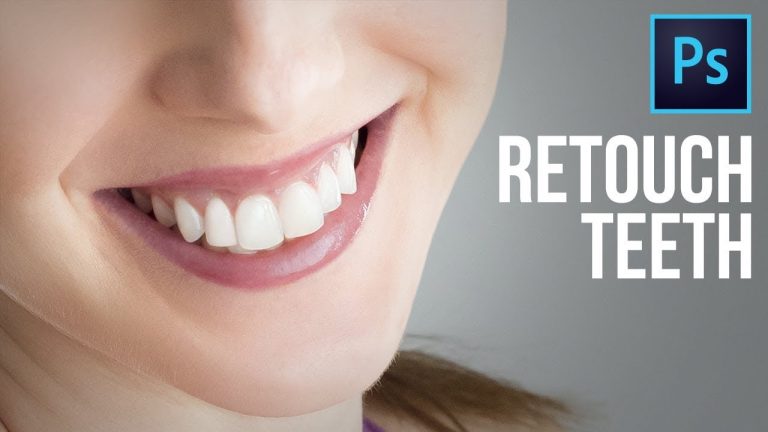
In-Depth Teeth Retouching in Photoshop

0

Retouching Teeth can be broken down into 2 elements: Shaping and Coloring. Learn how to bring out the best shape naturally and remove the exact color cast like yellow or even blue, and then work our way out in whitening the teeth.

Exploring the Amazing Power of Hue/Saturation Adjustment Layer and Liquify, will break down the concept and get the teeth to look perfect, at the same time, natural very easily. I hope this video helps you!

► MY VIDEO GEAR:
Camera: http://piximp.com/80D
Microphone: http://piximp.com/mic
Lens: http://piximp.com/50mm
Memory Card: http://piximp.com/sandisk64

NOTE: If you wish to support this channel, please use these links to buy anything from Amazon. You don’t have to pay extra. Amazon will pay us a small percentage of your purchase which will mean the world to me and will help keep PiXimperfect free for everyone, forever.

► DOWNLOADS:
1. Sample Images: https://goo.gl/yKaV8N
2. Sample PSD: https://goo.gl/hC93zG (Only for our Patreon Famly)

PiXimperfect is free, and will always be.
► SUPPORT the cause: https://www.patreon.com/piximperfect

► SHARE: https://goo.gl/IUhnUl

►LET’S CONNECT:
Facebook: http://facebook.com/piximperfect
Twitter: https://twitter.com/piximperfect
Instagram: https://www.instagram.com/piximperfect
Google+: https://plus.google.com/+UnmeshDinda
Building Realistic Facial Hair in Photoshop

0

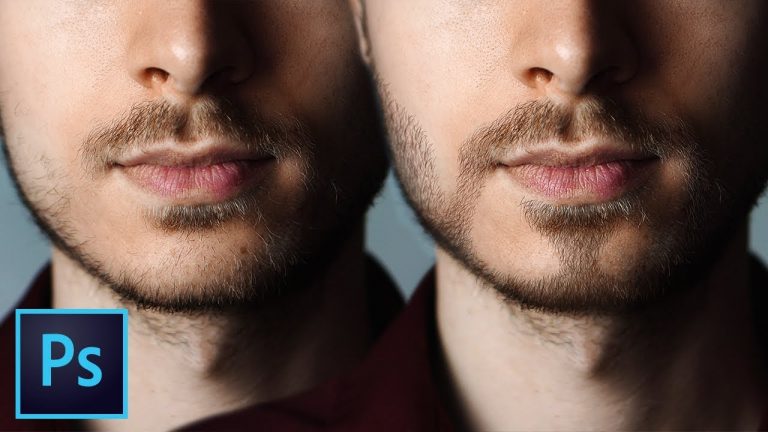
The secret to creating highly realistic facial hair in Photoshop is to create a highly realistic brush which mimics the properties of hair. In this tutorial, learn how to create a brush using a sample from the image and manipulating the properties of the same to create hair. Then, we will learn how to match not only the color of the hair but also the random nuances so that it appears authentic and convincing.

I hope this tutorial helps. Thank you for watching!

► MY VIDEO GEAR:
Camera: http://piximp.com/80D
Microphone: http://piximp.com/mic
Lens: http://piximp.com/50mm
Memory Card: http://piximp.com/sandisk64

NOTE: If you wish to support this channel, please use these links to buy anything from Amazon. You don’t have to pay extra. Amazon will pay us a small percentage of your purchase which will mean the world to me and will help keep PiXimperfect free for everyone, forever.

► DOWNLOADS:
1. Sample Image: https://goo.gl/C6RxPh
2. Finished PSD: https://goo.gl/hRWFm1 (Only for our Patreon Family)

PiXimperfect is free, and will always be.
► SUPPORT the cause: https://www.patreon.com/piximperfect

► SHARE: https://goo.gl/IUhnUl

►LET’S CONNECT:
Facebook: http://facebook.com/piximperfect
Twitter: https://twitter.com/piximperfect
Instagram: https://www.instagram.com/piximperfect
Google+: https://plus.google.com/+UnmeshDinda
Create Highly Realistic Lipstick in Photoshop

0

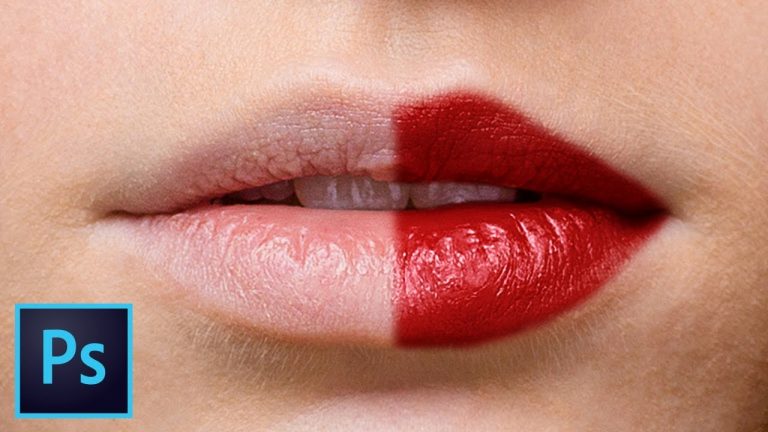
Create Luscious Lipstick Using a Secret Combination of Blend Modes and Different Shades of Color in Photoshop. Understanding the fundamental concepts of how “Screen” and “Multiply” blend mode works, we will work on the highlights and the shadows of the lips separately and apply different shades.

In this tutorial, we will use several solid color adjustment layers with different shades of red (or any color of your choice) with various blend modes and mask it to the lips in different areas accordingly to mimic the properties of a lipstick and reproduce its depth and shine.

I hope this tutorial helps you. Thank you so much for watching!

► MY VIDEO GEAR:
Camera: http://piximp.com/80D
Microphone: http://piximp.com/mic
Lens: http://piximp.com/50mm
Memory Card: http://piximp.com/sandisk64

NOTE: If you wish to support this channel, please use these links to buy anything from Amazon. You don’t have to pay extra. Amazon will pay us a small percentage of your purchase which will mean the world to me and will help keep PiXimperfect free for everyone, forever.

► DOWNLOADS:
1. Sample Image: https://goo.gl/MPWNCw
2. Finished PSD: https://goo.gl/Z6yhB9 (Only for our Patreon Family)

PiXimperfect is free, and will always be.
► SUPPORT the cause: https://www.patreon.com/piximperfect

► SHARE: https://goo.gl/IUhnUl

►LET’S CONNECT:
Facebook: http://facebook.com/piximperfect
Twitter: https://twitter.com/piximperfect
Instagram: https://www.instagram.com/piximperfect
Google+: https://plus.google.com/+UnmeshDinda
Professional Lip Retouching in Photoshop

0

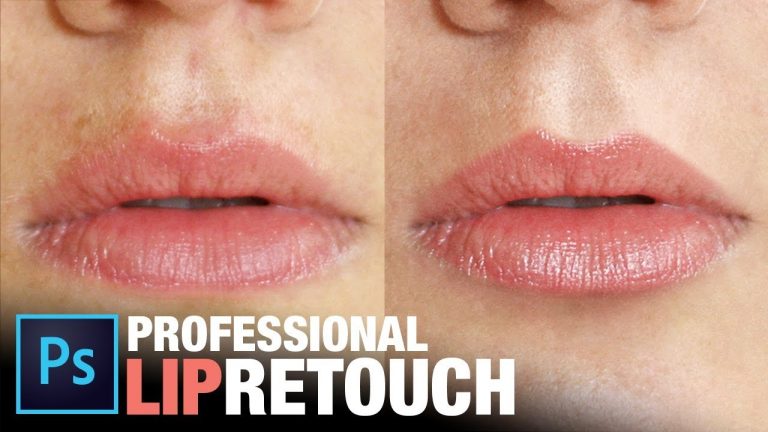
Discover the 3 Essential Elements of Retouching Lips in Photoshop! Learn to refine, shape, color correct, and dodge and burn lips using advanced masking and cloning along with adjustment layers. In this beauty retouching tutorial, we’re going to learn the techniques and tips focused on cleaning up the lips, correct it and make it stand out.

The 3 Elements of Lip Retouching are:
1. Shaping
2. Coloring
3. Dodging and Burning

In shaping, our objective is to define the shape of the lips. By removing the irregularities using advanced selections and cloning, we will give a definite shape to the lips and improve the surrounding skin.

In Coloring, we will use the hue/saturation adjustment layer to improve, correct or adjust the color of the lips in Photoshop.

In Dodging and Burning, we will brighten and darken particular areas of the lips and the skin around it to make it stand out and give it some dimension.

I hope this tutorial helps you. Thank you for watching!

► MY VIDEO GEAR:
Camera: http://piximp.com/80D
Microphone: http://piximp.com/mic
Lens: http://piximp.com/50mm
Memory Card: http://piximp.com/sandisk64

NOTE: If you wish to support this channel, please use these links to buy anything from Amazon. You don’t have to pay extra. Amazon will pay us a small percentage of your purchase which will mean the world to me and will help keep PiXimperfect free for everyone, forever.

► DOWNLOADS:
1. Sample Images: https://goo.gl/iuN2w8
2. Finished PSD: https://goo.gl/pGdzwG (Only for Patreon Members)

PiXimperfect is free, and will always be.
► SUPPORT the cause: https://www.patreon.com/piximperfect

► SHARE: https://goo.gl/IUhnUl

►LET’S CONNECT:
Facebook: http://facebook.com/piximperfect
Twitter: https://twitter.com/piximperfect
Instagram: https://www.instagram.com/piximperfect
Google+: https://plus.google.com/+UnmeshDinda
2 Magic Sliders for Fast Smooth Selections in Photoshop CC

0

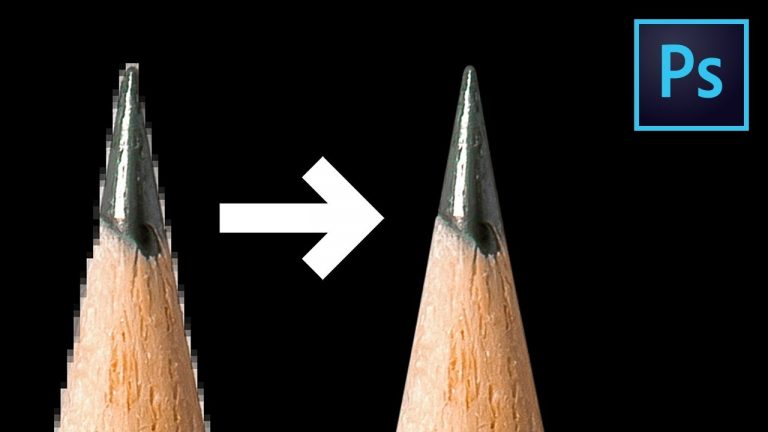
Make Amazing Selections and Smooth Masks Quickly Using the Combination of 2 Hidden Sliders in Photoshop CC! Learn how to get rid of jagged edges by working the right settings in “Select & Mask” properties and then use the combination to refine the edge further.

I hope this video helps. Thanks for watching!

► MY VIDEO GEAR:
Camera: http://piximp.com/80D
Microphone: http://piximp.com/mic
Lens: http://piximp.com/50mm
Memory Card: http://piximp.com/sandisk64

NOTE: If you wish to support this channel, please use these links to buy any gear from Amazon. You don’t have to pay anything extra. Amazon will pay us a small percentage of your purchase which will mean the world to me and will help keep PiXimperfect free for everyone, forever.

► DOWNLOADS:
1. Sample Images: https://goo.gl/23CzEU
2. Finished PSD: https://goo.gl/RXbpVZ (Only for our Patreon Family)

PiXimperfect is free, and will always be.
► SUPPORT the cause: https://www.patreon.com/piximperfect

► SHARE: https://goo.gl/IUhnUl

►LET’S CONNECT:
Facebook: http://facebook.com/piximperfect
Twitter: https://twitter.com/piximperfect
Instagram: https://www.instagram.com/piximperfect
Google+: https://plus.google.com/+UnmeshDinda
Select Hair & Remove Fringes Using Channels in Photoshop

0

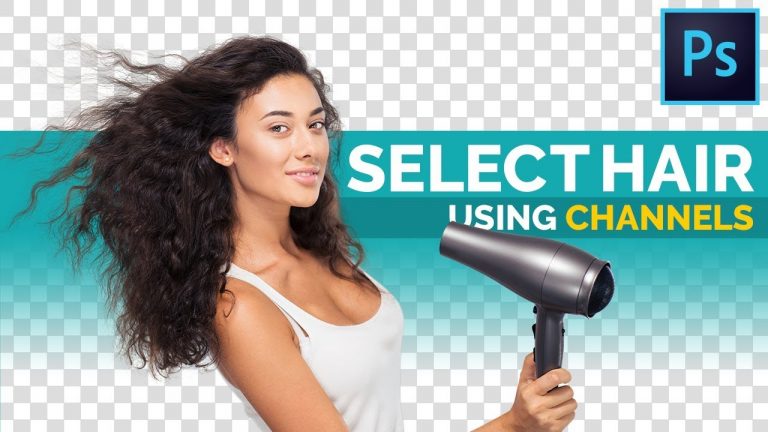
Discover the Amazing Power of Channels to Select Hair and Remove Fringes in Photoshop! Accurately mask hair and get rid of outlines or fringes in such a way that you can put your subject on ANY BACKGROUND!

In this tutorial, we will learn how to utilize the power of channels to select the hair, then we will use simple techniques like cloning, painting, and clipping masks to remove the hair fringe. In this video, I’m going to show you two examples in different situations so that the concept becomes clearer.

I hope this tutorial helps you. Thank you for watching!

► MY VIDEO GEAR:
Camera: http://piximp.com/80D
Microphone: http://piximp.com/mic
Lens: http://piximp.com/50mm
Memory Card: http://piximp.com/sandisk64

NOTE: If you wish to support this channel, please use these links to buy any gear from Amazon. You don’t have to pay anything extra. Amazon will pay us a small percentage of your purchase which will mean the world to me and will help keep PiXimperfect free for everyone, forever.

► DOWNLOADS:
1. Sample Images: https://goo.gl/qn9C7C
2. Finished PSD: https://goo.gl/cHUxzw (Only for our Patreon Family)

► MASTER THE PEN TOOL IN 30 MINUTES

PiXimperfect is free, and will always be.
► SUPPORT the cause: https://www.patreon.com/piximperfect

► SHARE: https://goo.gl/IUhnUl

►LET’S CONNECT:
Facebook: http://facebook.com/piximperfect
Twitter: https://twitter.com/piximperfect
Instagram: https://www.instagram.com/piximperfect
Google+: https://plus.google.com/+UnmeshDinda
2 Easy Tricks to Remove White Edges or Fringes from Cut-Outs in Photoshop

0

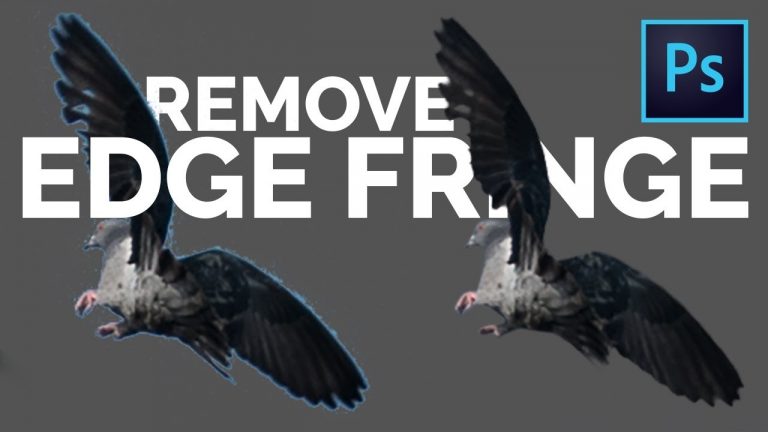
2 Quick and Efficient Techniques to Remove Edge Fringe or Outlines from Cut-Outs and Masks in Photoshop! While making a selection, we often end up with an annoying outline or halo around the edge which disturbs compositing. Learn how to easily remove those outlines or fringes using the basic features of Photoshop.

In this tutorial, we’re going to learn how to use the smudge tools to refine your edges along with some masking and selection tricks. Hope this tutorial helps you. Thank you for watching!

► MY VIDEO GEAR:
Camera: http://piximp.com/80D
Microphone: http://piximp.com/mic
Lens: http://piximp.com/50mm
Memory Card: http://piximp.com/sandisk64

NOTE: If you wish to support this channel, please use these links to buy any gear from Amazon. You don’t have to pay anything extra. Amazon will pay us a small percentage of your purchase which will mean the world to me and will help keep PiXimperfect free for everyone, forever.

► DOWNLOADS:
1. Sample Image: https://goo.gl/sGTg7C
2. Finished PSD: https://goo.gl/HHWSCr (Only for our Patreon Family)

PiXimperfect is free, and will always be.
► SUPPORT the cause: https://www.patreon.com/piximperfect

► SHARE: https://goo.gl/IUhnUl

►LET’S CONNECT:
Facebook: http://facebook.com/piximperfect
Twitter: https://twitter.com/piximperfect
Instagram: https://www.instagram.com/piximperfect
Google+: https://plus.google.com/+UnmeshDinda
This Snow Brush is NOT Available for Download!

0

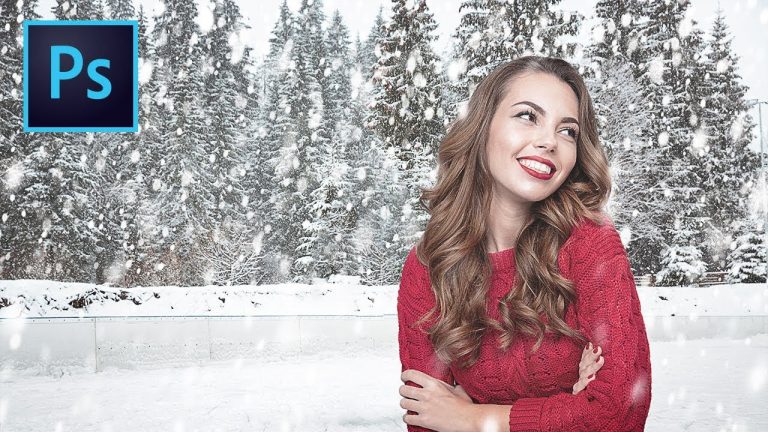
The Easiest Way to Create a Snow Brush in Photoshop! Transform Your Regular Soft Brush to Paint Amazing Snow Using the Power of “Brush Settings” in Photoshop. Learn how to create a brush which is highly customizable to mimic the properties of snow in the most natural way. To add snow to your images, just paint with the brush, and snow will form with the randomness of air and wind automatically.

► MY VIDEO GEAR:
Camera: http://piximp.com/80D
Microphone: http://piximp.com/mic
Lens: http://piximp.com/50mm
Memory Card: http://piximp.com/sandisk64

NOTE: If you wish to support this channel, please use these links to buy any gear from Amazon. You don’t have to pay anything extra. Amazon will pay us a small percentage of your purchase which will mean the world to me and will help keep PiXimperfect free for everyone, forever.

► DOWNLOADS
1. Composite PSD: https://goo.gl/hXpsbN
2. Finished PSD: https://goo.gl/bMPyvY (Only for our Patreon Family)

► MUSIC
Jonathan Paris
fb.com/jonathanparismusic
Check out his music: https://goo.gl/KTT4Fm

PiXimperfect is free, and will always be.
► SUPPORT the cause: https://www.patreon.com/piximperfect

► SHARE: https://goo.gl/IUhnUl

►LET’S CONNECT:
Facebook: http://facebook.com/piximperfect
Twitter: https://twitter.com/piximperfect
Instagram: https://www.instagram.com/piximperfect
Google+: https://plus.google.com/+UnmeshDinda
1-Minute Photoshop – How to Change Background (Episode 1)

0

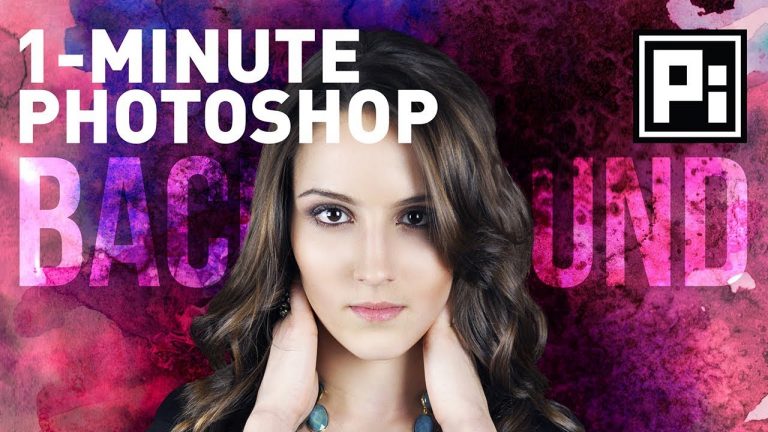
On this episode, learn how to extract the subject and change the background in Photoshop CC, in just one minute. Using the power of Select and Mask, and amazing tools like the quick selection and refine edge, you’ll see how easy it gets to make a selection!

Hope this video helps you! Thank you for watching.

► MY VIDEO GEAR:
Camera: http://piximp.com/80D
Microphone: http://piximp.com/mic
Lens: http://piximp.com/50mm
Memory Card: http://piximp.com/sandisk64

NOTE: If you wish to support this channel, please use these links to buy any gear from Amazon. You don’t have to pay anything extra. Amazon will pay us a small percentage of your purchase which will mean the world to me and will help keep PiXimperfect free for everyone, forever.

► DOWNLOADS
Sample Images: https://goo.gl/rC6uvE

PiXimperfect is free, and will always be.
► SUPPORT the cause: https://www.patreon.com/piximperfect

► SHARE: https://goo.gl/IUhnUl

►LET’S CONNECT:
Facebook: http://facebook.com/piximperfect
Twitter: https://twitter.com/piximperfect
Instagram: https://www.instagram.com/piximperfect
Google+: https://plus.google.com/+UnmeshDinda

Apply the Golden Colors of Autumn | 1-Minute Photoshop (Ep. 3)

0

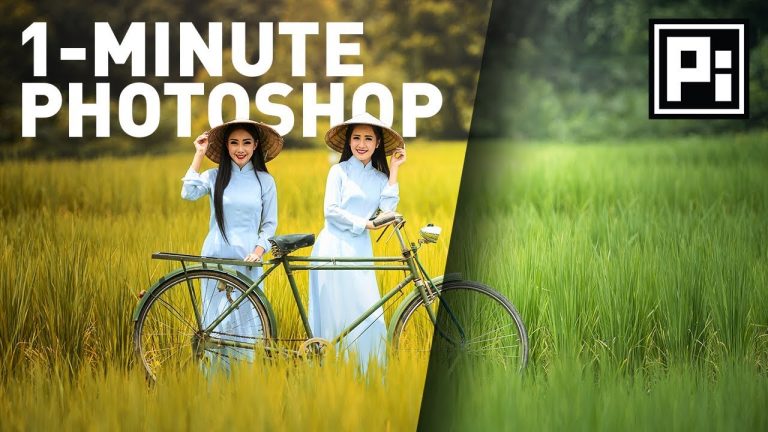
Create the Warm Autumn or Fall Color Effect in Photoshop in Just One Minute! Learn how to use “Apply Image” along with Blend Modes and an amazing Color Mode to achieve the dreamy colors and add mood to your images.

Hope this video helps you. Thank you for watching!

► MY VIDEO GEAR:
Camera: http://piximp.com/80D
Microphone: http://piximp.com/mic
Lens: http://piximp.com/50mm
Memory Card: http://piximp.com/sandisk64

NOTE: If you wish to support this channel, please use these links to buy any gear from Amazon. You don’t have to pay anything extra. Amazon will pay us a small percentage of your purchase which will mean the world to me and will help keep PiXimperfect free for everyone, forever.

► DOWNLOADS
1. Sample Images: https://goo.gl/ptz7JN
2. Finished PSD: https://goo.gl/brVhiF (Only for our Patreon Family)

PiXimperfect is free, and will always be.
► SUPPORT the cause: https://www.patreon.com/piximperfect

► SHARE: https://goo.gl/IUhnUl

►LET’S CONNECT:
Facebook: http://facebook.com/piximperfect
Twitter: https://twitter.com/piximperfect
Instagram: https://www.instagram.com/piximperfect
Google+: https://plus.google.com/+UnmeshDinda