Home Blog Page 91

Create Gorgeous Hair in Photoshop | PiXimperfect

0

A Super Quick Way to Add Depth and Dimension to Hair in Photoshop! Just using Curves and simple Blend Modes, let’s make the hair shine with glamour.

In this tutorial, first of all, we will use the power of Curves and masks to bring out the dimension in hair. Next, we will use blend modes and blend if to take care of the color and luminosity. Also, when we highlight or darken parts of the hair, sometimes there might occur a color shift, we’ll learn how to fix that as well. Hope this video helps you. Thanks for watching!

► MY VIDEO GEAR:
Camera: http://piximp.com/80D
Microphone: http://piximp.com/mic
Lens: http://piximp.com/50mm
Memory Card: http://piximp.com/sandisk64

NOTE: If you wish to support this channel, please use these links to buy anything from Amazon. You don’t have to pay extra. Amazon will pay us a small percentage of your purchase which will mean the world to me and will help keep PiXimperfect free for everyone, forever.

► DOWNLOADS:
1. Sample Images: https://goo.gl/uW95R8
2. 3 Finished PSDs: https://goo.gl/MtSPtL (Only for our Patreon Family)

PiXimperfect is free, and will always be.
► SUPPORT the cause: https://www.patreon.com/piximperfect

► SHARE: https://goo.gl/IUhnUl

►LET’S CONNECT:
Facebook: http://facebook.com/piximperfect
Twitter: https://twitter.com/piximperfect
Instagram: https://www.instagram.com/piximperfect
Google+: https://plus.google.com/+UnmeshDinda
The Untold Secret of Color Balance in Photoshop!

0

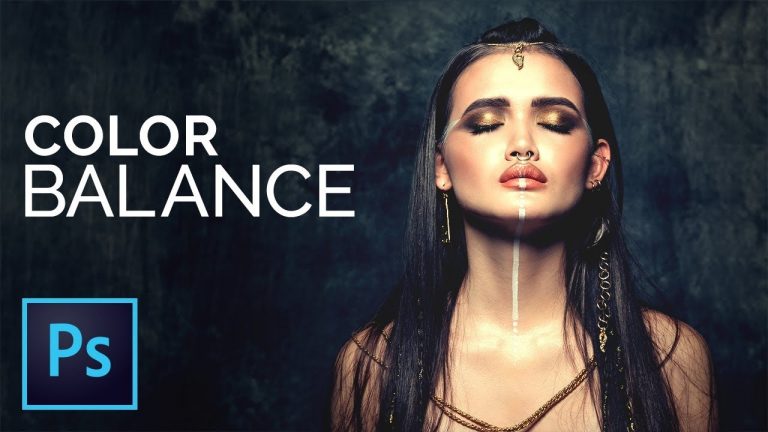
Master Color Balance in Photoshop by Discovering the Secret of Its Extreme Simplicity! Breaking down the concept of color, in this video, we will understand “Color Balance” by using simple Curves. Learn how to take control of color and shape it the way you desire, utilizing this amazing power tool for color grading.

First off, we will understand what is color balance and different ways of applying the same. Both through adjustments and adjustment layers. Then, we will introduce ourselves to the panel. Next, we will compare it with Curves and show you how it works and how similar both of them are. In the end, we will learn when to use what and which situations demand color balance.

Thank you for watching. Hope this video helps you!

► MY VIDEO GEAR:
Camera: http://piximp.com/80D
Microphone: http://piximp.com/mic
Lens: http://piximp.com/50mm
Memory Card: http://piximp.com/sandisk64

NOTE: If you wish to support this channel, please use these links to buy anything from Amazon. You don’t have to pay extra. Amazon will pay us a small percentage of your purchase which will mean the world to me and will help keep PiXimperfect free for everyone, forever.

► DOWNLOADS:
1. Sample Image: https://goo.gl/wFdNSj
2. Finished PSD: https://goo.gl/Lj3mmS (Only for our Patreon Family)

PiXimperfect is free, and will always be.
► SUPPORT the cause: https://www.patreon.com/piximperfect

► SHARE: https://goo.gl/IUhnUl

►LET’S CONNECT:
Facebook: http://facebook.com/piximperfect
Twitter: https://twitter.com/piximperfect
Instagram: https://www.instagram.com/piximperfect
Google+: https://plus.google.com/+UnmeshDinda
How to Fix Shadows From Portraits in Photoshop | Advanced Technique

0

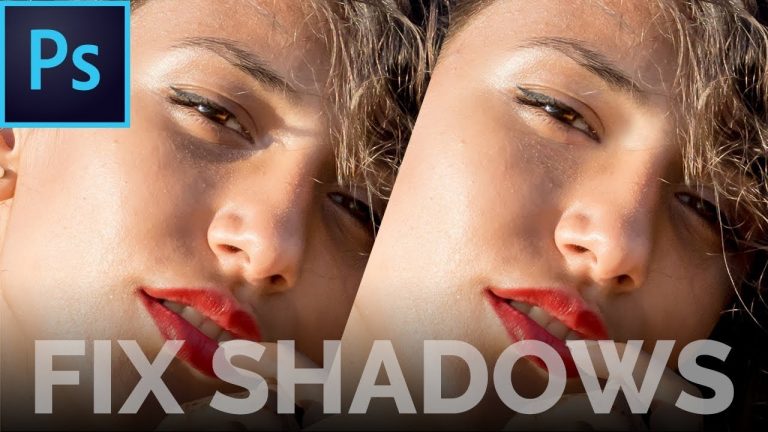
A High-End Technique to Remove, Fix or Reduce Shadows from Portraits, especially from Face in Photoshop! In this advanced tutorial, we’re going to use the power of Curves and Masking along with Hue and Saturation to fix the shadow and get it all brightened up to match the skin tone.

First off, we will break down the theory of shadows and what changes happen to a particular area when in shadow. For instance, the darkness increases or the luminosity decreases, the Hue might change slightly and the saturation might decrease. Understanding these concepts will help us treat and fix the shadow areas in a much better way.

► MY VIDEO GEAR:
Camera: http://piximp.com/80D
Microphone: http://piximp.com/mic
Lens: http://piximp.com/50mm
Memory Card: http://piximp.com/sandisk64

NOTE: If you wish to support this channel, please use these links to buy anything from Amazon. You don’t have to pay extra. Amazon will pay us a small percentage of your purchase which will mean the world to me and will help keep PiXimperfect free for everyone, forever.

► DOWNLOADS:
1. Sample Image: https://goo.gl/3NS1zd
2. Finished PSD: https://goo.gl/vdHVzT

PiXimperfect is free, and will always be.
► SUPPORT the cause: https://www.patreon.com/piximperfect

► SHARE: https://goo.gl/IUhnUl

►LET’S CONNECT:
Facebook: http://facebook.com/piximperfect
Twitter: https://twitter.com/piximperfect
Instagram: https://www.instagram.com/piximperfect
Google+: https://plus.google.com/+UnmeshDinda
A Secret Blend Mode for Compositing in Photoshop

0

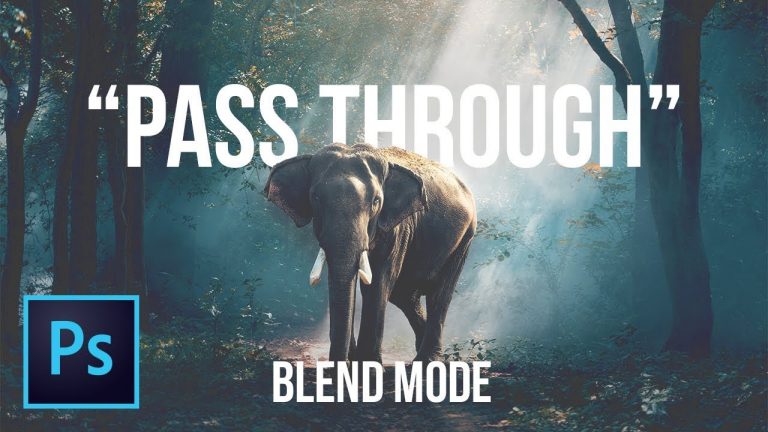
What is Pass Through Blend Mode? Learn how the difference between “Pass Through” and “Normal” blend modes can be a great compositing tool in Photoshop. In this video, we will understand the basic concepts of these Blend Modes in Groups and how each one interacts with the image. Also, we will learn how to use “Normal” and “Pass Through” with an example.

I hope this video helps you. Thank you for watching!

► MY VIDEO GEAR:
Camera: http://piximp.com/80D
Microphone: http://piximp.com/mic
Lens: http://piximp.com/50mm
Memory Card: http://piximp.com/sandisk64

NOTE: If you wish to support this channel, please use these links to buy anything from Amazon. You don’t have to pay extra. Amazon will pay us a small percentage of your purchase which will mean the world to me and will help keep PiXimperfect free for everyone, forever.

► DOWNLOADS:
1. Sample Images: https://goo.gl/KPV8Ej
2. Finished PSD of Composite: https://goo.gl/QeYF7G

PiXimperfect is free, and will always be.
► SUPPORT the cause: https://www.patreon.com/piximperfect

► SHARE: https://goo.gl/IUhnUl

►LET’S CONNECT:
Facebook: http://facebook.com/piximperfect
Twitter: https://twitter.com/piximperfect
Instagram: https://www.instagram.com/piximperfect
Google+: https://plus.google.com/+UnmeshDinda
High-End Skin Retouching & Sculpting in Photoshop

0

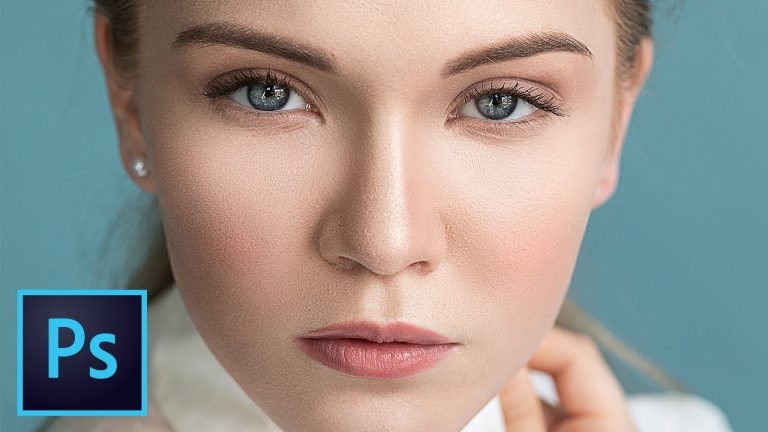
Advanced Technique for Flawless Skin Retouching, Sculpting and Softening in Photoshop! Combining the power of Frequency Separation along with manual Sampling and Painting, learn how to recreate and sculpt the skin, maintaining a beautiful skin texture.

Using this technique, you will not only achieve a smooth skin but also will have the control to naturally remove wrinkles, lift up the cheekbones, and renovate the whole structure of the skin with the skin texture still intact. This is an All-in-One Method whether you want to soften the skin or just simple repair particular areas or discolorations.

I hope this video helps you. Thank you so much for watching!

► IMAGE CREDITS:

Photographer: Pasi Järvenpää
Instagram: @terry_bull
www.pasijarvenpaa.com

Model @katakantanen
MUAH: @milaforsgren

► MY VIDEO GEAR:
Camera: http://piximp.com/80D
Microphone: http://piximp.com/mic
Lens: http://piximp.com/50mm
Memory Card: http://piximp.com/sandisk64

NOTE: If you wish to support this channel, please use these links to buy anything from Amazon. You don’t have to pay extra. Amazon will pay us a small percentage of your purchase which will mean the world to me and will help keep PiXimperfect free for everyone, forever.

► DOWNLOADS:
1. Sample Image: https://goo.gl/ua1Cqn
2. Finished PSD: https://goo.gl/R7GMkD (Only for our Patreon Family)

PiXimperfect is free, and will always be.
► SUPPORT the cause: https://www.patreon.com/piximperfect

► SHARE: https://goo.gl/IUhnUl

►LET’S CONNECT:
Facebook: http://facebook.com/piximperfect
Twitter: https://twitter.com/piximperfect
Instagram: https://www.instagram.com/piximperfect
Google+: https://plus.google.com/+UnmeshDinda
Photoshop NOT WORKING Properly? DO THIS!!

0

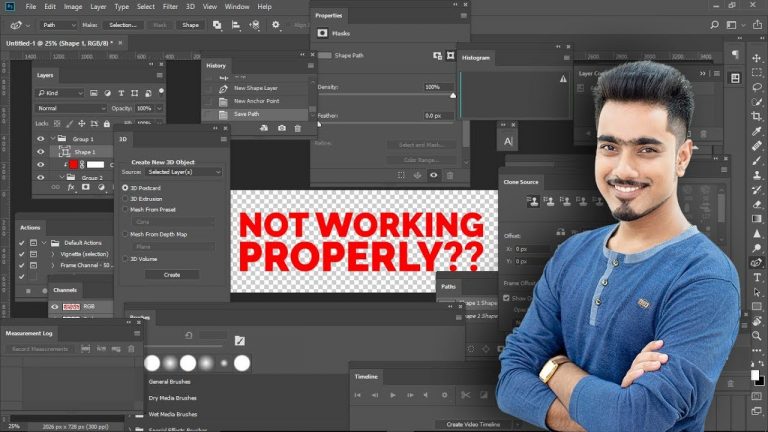
Learn 2 Essential Ways to Reset Photoshop. In this video, we will learn how to reset Photoshop preferences in case it is not working properly, you want to reset it to default, shows up an error, you want something back but you don’t know how to, or you want Photoshop to be as it was when first installed.

Both the methods have its own pros and cons. While the first method is trickier, it gives you more flexibility to have a backup of the settings and not delete all of your Workspace data, Color Settings or Keyboard shortcuts. The second method is very easy, just requires a keyboard shortcut. But, it resets everything and you have no control over what to keep and what not to. Neither you have a backup.

I hope this video helps solve your existing or possible future issues. Thank you so much for watching!

► MY VIDEO GEAR:
Camera: http://piximp.com/80D
Microphone: http://piximp.com/mic
Lens: http://piximp.com/50mm
Memory Card: http://piximp.com/sandisk64

NOTE: If you wish to support this channel, please use these links to buy anything from Amazon. You don’t have to pay extra. Amazon will pay us a small percentage of your purchase which will mean the world to me and will help keep PiXimperfect free for everyone, forever.

PiXimperfect is free, and will always be.
► SUPPORT the cause: https://www.patreon.com/piximperfect

► SHARE: https://goo.gl/IUhnUl

►LET’S CONNECT:
Facebook: http://facebook.com/piximperfect
Twitter: https://twitter.com/piximperfect
Instagram: https://www.instagram.com/piximperfect
Google+: https://plus.google.com/+UnmeshDinda
Hair Retouching | Make Hair Colors Pop in Photoshop

0

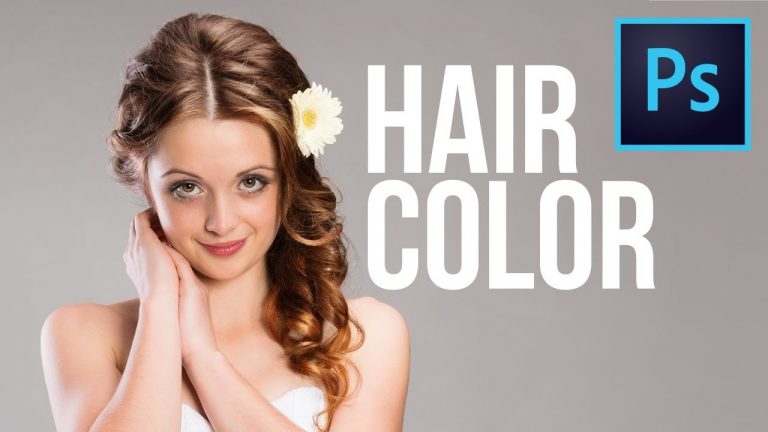
A Super Fun Way to Enhance Hair Color in Photoshop! Bring the best out of each distinct color tone in hair just by using the power of blend modes and simple painting with the brush. In this hair retouching tutorial, we’ll learn how to paint strand by strand and make each one stand out.

Also, we will look into variations when the hair is dark or bright and accordingly how to make changes in the technique. Hope this video helps you. Thanks for watching!

► MY VIDEO GEAR:
Camera: http://piximp.com/80D
Microphone: http://piximp.com/mic
Lens: http://piximp.com/50mm
Memory Card: http://piximp.com/sandisk64

NOTE: If you wish to support this channel, please use these links to buy anything from Amazon. You don’t have to pay extra. Amazon will pay us a small percentage of your purchase which will mean the world to me and will help keep PiXimperfect free for everyone, forever.

► DOWNLOADS:
1. Sample Image: https://goo.gl/yxm2wN
2. Finished PSD: https://goo.gl/UbDrJo (Only for our Patreon Family)

PiXimperfect is free, and will always be.
► SUPPORT the cause: https://www.patreon.com/piximperfect

► SHARE: https://goo.gl/IUhnUl

►LET’S CONNECT:
Facebook: http://facebook.com/piximperfect
Twitter: https://twitter.com/piximperfect
Instagram: https://www.instagram.com/piximperfect
Google+: https://plus.google.com/+UnmeshDinda
Create Amazing Details in the Eyes with Photoshop!

0

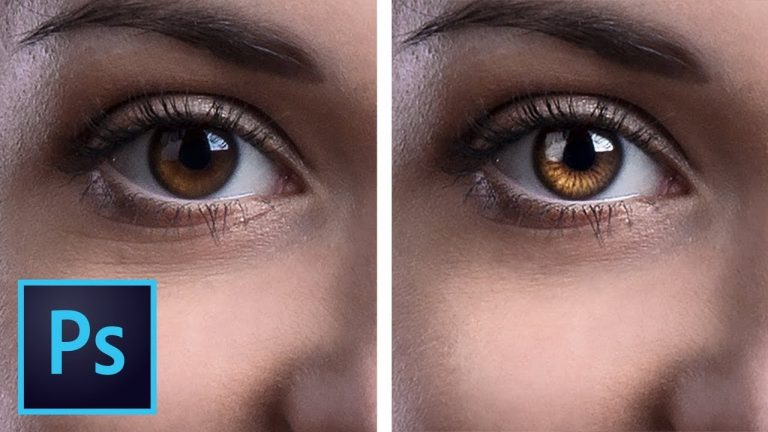
Make the Eyes Dramatic by Adding Details and Dimension in Photoshop! Create details for the iris and make eyes shine by playing with highlights and understanding the concept of how light enters the eye.

In this eye retouching tutorial, we will use the power of Curves, Masks, Blend Modes, and Blend-If, we will learn a very simple but highly effective way to bring life to the eyes in Photoshop. We’ll also learn how to enhance catchlights and remove the red veins from the white of the eyes. Hope this tutorial helps you! Thank you so much for watching 🙂

► MY VIDEO GEAR:
Camera: http://piximp.com/80D
Microphone: http://piximp.com/mic
Lens: http://piximp.com/50mm
Memory Card: http://piximp.com/sandisk64

NOTE: If you wish to support this channel, please use these links to buy anything from Amazon. You don’t have to pay extra. Amazon will pay us a small percentage of your purchase which will mean the world to me and will help keep PiXimperfect free for everyone, forever.

► DOWNLOADS:
1. Sample Image: https://goo.gl/39eKuH
2. Finished PSD: https://goo.gl/A5RNfe (Only for our Patreon Family)

PiXimperfect is free, and will always be.
► SUPPORT the cause: https://www.patreon.com/piximperfect

► SHARE: https://goo.gl/IUhnUl

►LET’S CONNECT:
Facebook: http://facebook.com/piximperfect
Twitter: https://twitter.com/piximperfect
Instagram: https://www.instagram.com/piximperfect
Google+: https://plus.google.com/+UnmeshDinda
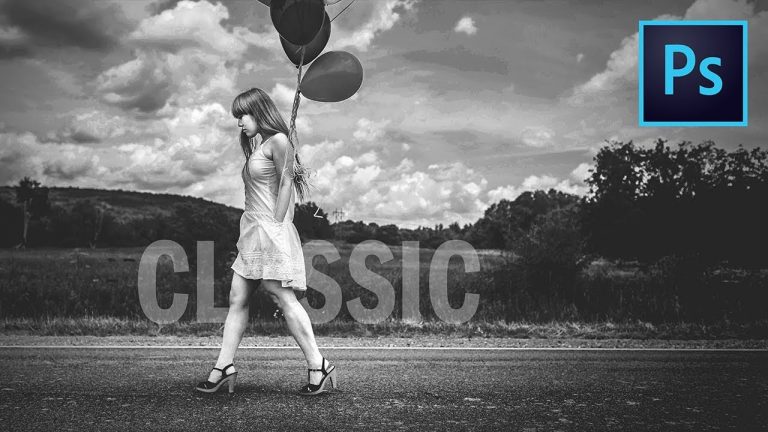
The Classic Black & White Formula Simplified | Photoshop Tutorial

0

Create Amazingly Dramatic and Moody Black and White Conversions in Photoshop! In this Complete Step-by-Step Guide learn to use the Black & White Adjustment Layer the right way and combine numerous Curves Adjustment Layers to add drama and matte effect to our image along with Levels to add Custom Vignettes! At the end, we will also learn a very interesting way to add Noise to our image for an added punch.

I hope this video helps. Thank you so much for watching!

► MY VIDEO GEAR:
Camera: http://piximp.com/80D
Microphone: http://piximp.com/mic
Lens: http://piximp.com/50mm
Memory Card: http://piximp.com/sandisk64

NOTE: If you wish to support this channel, please use these links to buy anything from Amazon. You don’t have to pay extra. Amazon will pay us a small percentage of your purchase which will mean the world to me and will help keep PiXimperfect free for everyone, forever.

► DOWNLOADS:
1. Sample Image: https://goo.gl/RkbgD6
2. Finished PSD: https://goo.gl/uN2Nhy (Only for our Patreon Family)

PiXimperfect is free, and will always be.
► SUPPORT the cause: https://www.patreon.com/piximperfect

► SHARE: https://goo.gl/IUhnUl

►LET’S CONNECT:
Facebook: http://facebook.com/piximperfect
Twitter: https://twitter.com/piximperfect
Instagram: https://www.instagram.com/piximperfect
Google+: https://plus.google.com/+UnmeshDinda

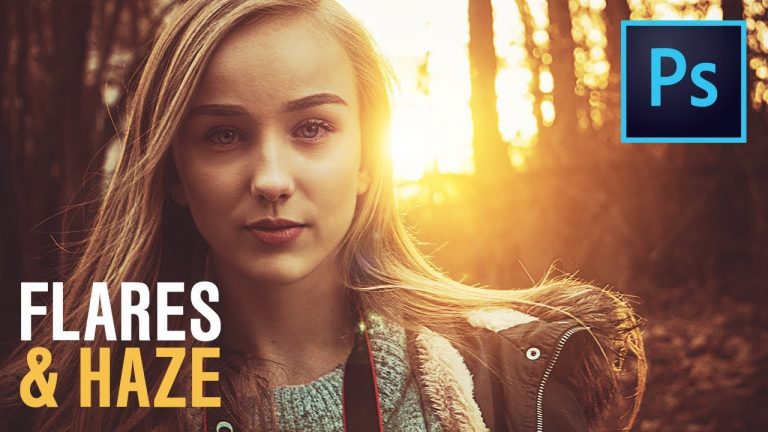
Create Amazing Light Flares & Haze in Photoshop

0

Highly Customizable Method to Add Amazing Light Flares and Haze to Your Images in Photoshop! Using the power of Gradient Maps and Gradient Fill, learn how to bring out the mood and drama in your image by not just adding flares, but also getting the image to match the flares. Also, we’ll learn how to use Curves to add a cherry to the cake!

We will start off by creating a radial gradient as the base for the flare, then position it and make it realistic by using blend modes and an extra layer of curves. Then, we will use curves and gradient maps to get out image match with the light structure of the flare. Hope this tutorial helps you. Thank you so much for watching!

► MY VIDEO GEAR:
Camera: http://piximp.com/80D
Microphone: http://piximp.com/mic
Lens: http://piximp.com/50mm
Memory Card: http://piximp.com/sandisk64

NOTE: If you wish to support this channel, please use these links to buy anything from Amazon. You don’t have to pay extra. Amazon will pay us a small percentage of your purchase which will mean the world to me and will help keep PiXimperfect free for everyone, forever.

► DOWNLOADS:
1. Sample Image: https://goo.gl/2HK4rt
2. Finished PSDs: https://goo.gl/7Qh498 (Only for our Patreon Family)

PiXimperfect is free, and will always be.
► SUPPORT the cause: https://www.patreon.com/piximperfect

► SHARE: https://goo.gl/IUhnUl

►LET’S CONNECT:
Facebook: http://facebook.com/piximperfect
Twitter: https://twitter.com/piximperfect
Instagram: https://www.instagram.com/piximperfect
Google+: https://plus.google.com/+UnmeshDinda