Home Blog Page 10

The EASY Background Remover Hidden in Photoshop!

0

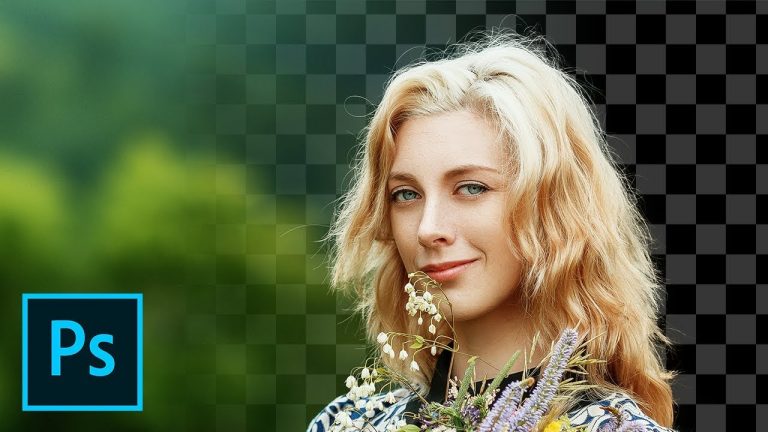
Explore the Amazing Power of the Background Eraser Tool in Photoshop! Learn how to easily cut out hair or complex edges using this tool, as we will learn it in-depth with the best settings for every situation. We will also cover how to make this tool completely non-destructive.

Whether you want to change the background or make it transparent, the Background Eraser can help you not only remove the background bust also create a refined mask.

Hope this tutorial helps. Thank you for watching 🙂

â–º DOWNLOADS:
1. Sample Image: https://shutr.bz/2NqXswh
2. Finished PSD: http://bit.ly/2DfHUXA (Only for our Patreon Family)

â–º HELP US CREATE MORE FREE VIDEOS:
Support us at Patreon: https://www.patreon.com/piximperfect

â–º SHARE: https://goo.gl/IUhnUl

â–ºLET’S CONNECT:
Facebook: http://facebook.com/piximperfect
Twitter: https://twitter.com/piximperfect
Instagram: https://www.instagram.com/piximperfect
Google+: https://plus.google.com/+UnmeshDinda
Turn DAY to NIGHT in 2 MINUTES with Photoshop!

0

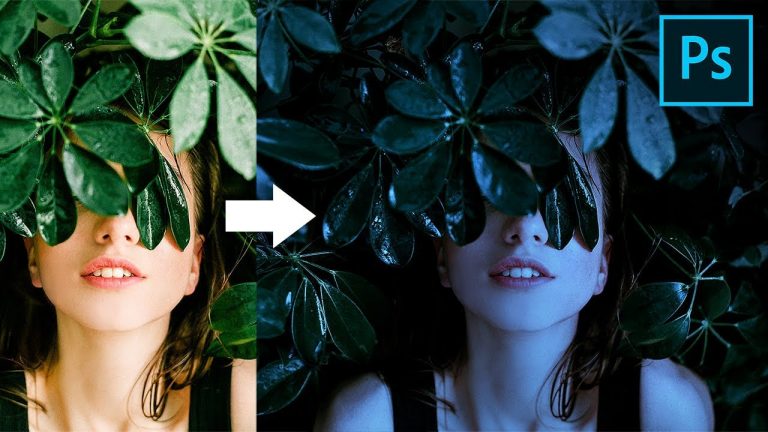
Super Easy and Effective Technique to Turn Day to Night in Just 2 Minutes with Photoshop! Using just a couple adjustment layers to turn your bright daylight image to moonlit night in Photoshop.

You can add some extra lights, or replace the sky with a starry one if required. This tutorial helps you with a good starting point for a day to night conversion.

Hope this video helps. Thank you for watching 🙂

â–º DOWNLOADS:
1. Sample Image: http://bit.ly/2Nwq4oa
2. Finished PSD: http://bit.ly/2OINZNH (Only for our Patreon Family)

â–º HELP US CREATE MORE FREE VIDEOS:
Support us at Patreon: https://www.patreon.com/piximperfect

â–º SHARE: https://goo.gl/IUhnUl

â–º LET’S CONNECT:
Facebook: http://facebook.com/piximperfect
Twitter: https://twitter.com/piximperfect
Instagram: https://www.instagram.com/piximperfect
Google+: https://plus.google.com/+UnmeshDinda
Boost & Enhance Colors with One Click in Photoshop!

0

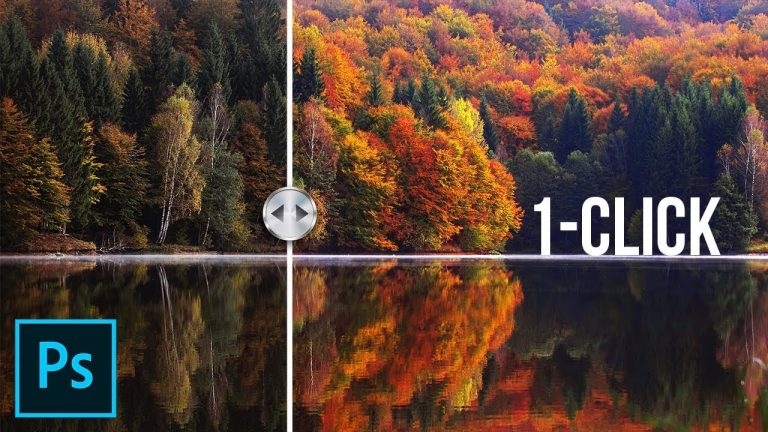
The Most Natural and Advanced Technique to Enhance Colors with Just One Click in Photoshop! Using the amazing power of Selective Color Adjustment Layer, we will amplify each color, one at a time, very precisely.

Also, we will provide an action, and learn how to create a preset, so that we can make colors pop in seconds! Hope this tutorial helps, thank you for watching 🙂

â–º DOWNLOADS:
1. Enhance Color Photoshop Action: http://bit.ly/2xw3x0H
2. Sample Images: http://piximp.com/colorpopsample

If the action link doesn’t work, try this link: https://drive.google.com/open?id=1b2NqZRzalAc03yNKbxEIRbAsAErswvVX

â–º HELP US CREATE MORE FREE VIDEOS:
Support us at Patreon: https://www.patreon.com/piximperfect

â–º SHARE: https://goo.gl/IUhnUl

â–ºLET’S CONNECT:
Facebook: http://facebook.com/piximperfect
Twitter: https://twitter.com/piximperfect
Instagram: https://www.instagram.com/piximperfect
Google+: https://plus.google.com/+UnmeshDinda

Special Blend Mode to Boost Radiance + FREE Action | Photoshop Tutorial

0

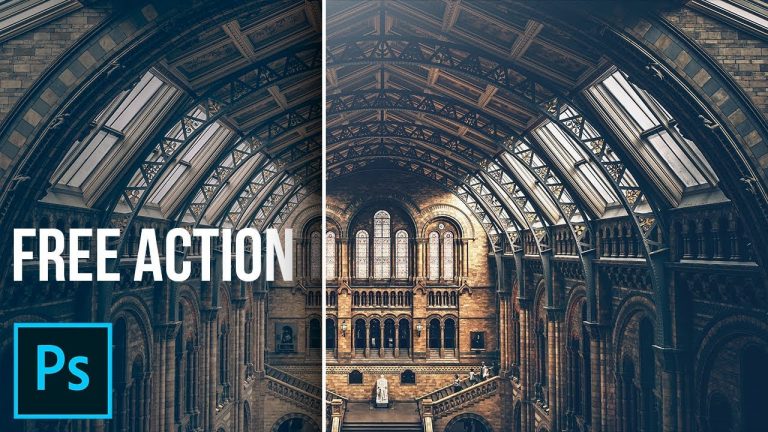
Make Your Images Pop, FAST! Learn how to add beautiful Radiance to your images in Photoshop using a special Blend Mode. With this Quick and Easy Technique, we’ll learn how to add depth and punch to flat boring images.

To make this technique even quicker, we’ll also provide a downloadable Action. Besides, to enhance the look, even more, Gradient Maps, Curves, and Color Lookup would be of great use.

Hope this tutorial helps. Thank you for watching 🙂

â–º MAKE IT, WITH SQUARESPACE:
Go to http://squarespace.com/piximperfect to save 10% on your first purchase of a wesbite or domain.

â–º DOWNLOADS:
1. PiXimperfect Radiance Action: http://bit.ly/pixradianceaction
2. Sample Image: http://bit.ly/2xDbsJv
3. Finished PSD: http://bit.ly/2xQdqWf (Only for our Patreon Family)

â–º HELP US CREATE MORE FREE VIDEOS:
Support us at Patreon: https://www.patreon.com/piximperfect

â–º SHARE: https://goo.gl/IUhnUl

â–ºLET’S CONNECT:
Facebook: http://facebook.com/piximperfect
Twitter: https://twitter.com/piximperfect
Instagram: https://www.instagram.com/piximperfect
Google+: https://plus.google.com/+UnmeshDinda
10 AMAZING Photoshop Actions by PiXimperfect!

0

A Collection of 10 Premium Photoshop Actions by Piximperfect That You Can Download for FREE! Whether it’s portrait retouching or editing landscapes, these actions have a wide variety of applications and are fully customizable.

In this video, we will learn how to make the best use of these Photoshop Actions whether you are retouching skin or sharpening your image. This is a tiny gift to you for supporting PiXimperfect. You mean the most to us!

Hope this video helps. Thank you for watching 🙂

â–º MAKE IT, WITH SQUARESPACE:
Go to http://squarespace.com/piximperfect to save 10% on your first purchase of a website or domain.

â–º TIMESTAMPS:

02:20 AUTO DODGE AND BURN
06:32 CHECK LAYERS
09:46 LOW-FREQUENCY RETOUCHING
14:42 SKIN SOFTENING
18:00 CREATIVE VIGNETTING
21:13 SELECTIVE COLOR SATURATION
23:27 RADIANCE
24:57 PAINTERLY EFFECT
26:23 PORTRAIT POP
30:08 SHARPENING

â–º RECOMMENDED TUTORIALS:
1. Check Layers: https://youtu.be/fKc4VHY0vAI
2. Compositing with Check Layers: https://youtu.be/DT-4wbjFYHQ
3. Skin Softening Action: https://youtu.be/H0lPIYERVlw

â–º DOWNLOADS:
1. PiXimperfect Action Collection: http://bit.ly/pixactioncollection
2. Sample Images: http://bit.ly/2QgPD9K (Only for our Patreon Family)

â–º DONATE:
https://www.paypal.me/unmeshdinda

â–º HELP US CREATE MORE FREE VIDEOS:
Support us at Patreon: https://www.patreon.com/piximperfect

â–º SHARE: https://goo.gl/IUhnUl

â–ºLET’S CONNECT:
Facebook: http://facebook.com/piximperfect
Twitter: https://twitter.com/piximperfect
Instagram: https://www.instagram.com/piximperfect
Google+: https://plus.google.com/+UnmeshDinda

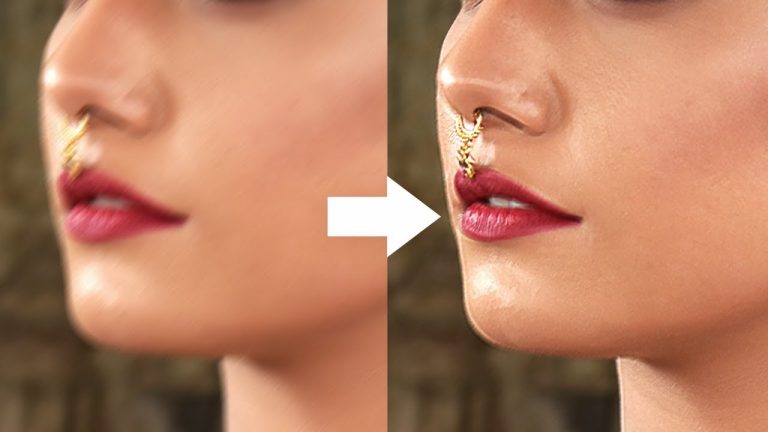
A ‘Smart’ Way to Fix Motion Blur in Photoshop!

0

Whether it’s a camera shake or a simple movement blurring and destroying your photo, today, we’ll fix that in Photoshop! Using advanced sharpening techniques, in this tutorial, we will learn a super fast way to reduce the blur by correctly analyzing the image.

First, we will start by understanding the angle of movement. Then we will determine the exact distance of the camera or the object moved. And then, we will use that data to accurately sharpen our images non-destructively.

I hope this tutorial helps. Thank you for watching 🙂

â–º RECOMMENDED TUTORIALS:
MISSED FOCUS? Save a Blurry Photo in Photoshop: https://youtu.be/32ccycfCyE4

â–º DOWNLOADS:
1. Sample Image: http://bit.ly/2RiEZjW
2. Finished PSD: http://bit.ly/2P8nNwh (Only for our Patreon Family)

â–º DONATE:
https://www.paypal.me/unmeshdinda

â–º HELP US CREATE MORE FREE VIDEOS:
Support us at Patreon: https://www.patreon.com/piximperfect

â–º SHARE: https://goo.gl/IUhnUl

â–ºLET’S CONNECT:
Facebook: http://facebook.com/piximperfect
Twitter: https://twitter.com/piximperfect
Instagram: https://www.instagram.com/piximperfect
Google+: https://plus.google.com/+UnmeshDinda
THIS GLASS IS FAKE – Easy Photoshop Effects!

0

â–º CHECK OUT THE PHOTOSHOP ACTION FOR JUST $2!
http://wet.piximperfectstore.com/

Easily Create Beautiful Wet Glass Effect with Rain Drops in Photoshop! Utilizing the concept of Color Range and Blend Modes, we will put up a realistic window pane in front of our subject with water droplets.

In this tutorial, we will use the power of observation to achieve any effect we desire. We’ll start off by applying a different kind of blur that looks much more natural than Gaussian Blur. Then, we will limit the blur only to certain areas to go with the texture by using Color Range.

Next, using blend modes, we will put up another layer of texture on top of our subject to add depth and authenticity to the effect and the overall mood of the image. In the end, the power of Adjustment Layers will help us bring all the elements together.

Hope this video helps you. Thank you for watching 🙂

â–º DOWNLOADS:
1. Sample Image: http://bit.ly/2PkmRog
2. Finished PSD: http://bit.ly/2E7M9F0 (Only for our Patreon Family)
3. Action for free: http://bit.ly/patreonaction (Only for our Patreon Family)
4. Wet Glass Texture: http://bit.ly/2yjEQ79

â–º HELP US CREATE MORE FREE VIDEOS:
Support us at Patreon: https://www.patreon.com/piximperfect

â–º SHARE: https://goo.gl/IUhnUl

â–ºLET’S CONNECT:
Facebook: http://facebook.com/piximperfect
Twitter: https://twitter.com/piximperfect
Instagram: https://www.instagram.com/piximperfect
Google+: https://plus.google.com/+UnmeshDinda

Creative Background Blur! – 1-Minute Photoshop

0

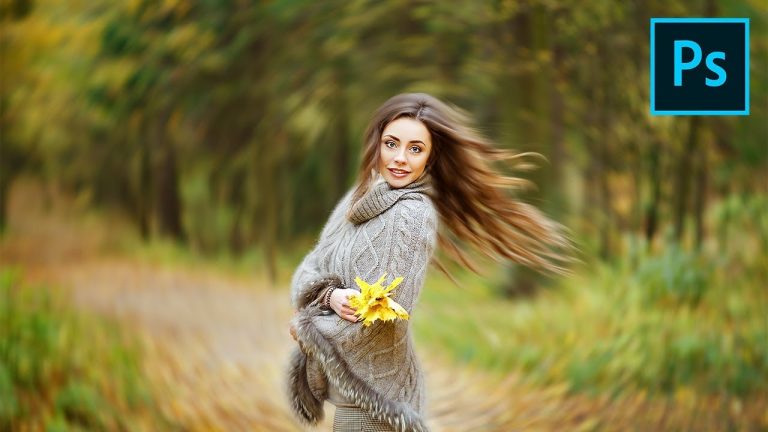
Super Easy and Fun Technique to Creatively Blur the Background in Photoshop! Learn how to apply the blur in complex directions to make the subject stand out.

In this video, we will utilize the power of multiple points in Path Blur to not only create a shallow depth-of-field but also direct the hair and make it flow. All this, non-destructively!

Hope this tutorial helps. Thank you for watching 🙂

â–º DOWNLOADS:
1. Sample Image: http://bit.ly/2NtRWEi
2. Finished PSD: http://bit.ly/2RxNx6Q (Only for our Patreon Family)

â–º DONATE:
https://www.paypal.me/unmeshdinda

â–º HELP US CREATE MORE FREE VIDEOS:
Support us at Patreon: https://www.patreon.com/piximperfect

â–º SHARE: https://goo.gl/IUhnUl

â–ºLET’S CONNECT:
Facebook: http://facebook.com/piximperfect
Twitter: https://twitter.com/piximperfect
Instagram: https://www.instagram.com/piximperfect
Google+: https://plus.google.com/+UnmeshDinda

Hair Selection Was Perfect! BUT, THE COLOR CAST? | Photoshop Tutorial

0

In a previous tutorial, we learned about the magical Background Eraser Tool in Photoshop! But, what if we have color cast or fringes around the edge? What if the selection of the subject looks awful on some backgrounds?

In this tutorial, learn how to remove color casts, fix fringes, and make your subject look perfect in any background while creating a composite. Hope this tutorial helps. Thank you for watching 🙂

â–º MAKE IT, WITH SQUARESPACE:
Go to http://squarespace.com/piximperfect to save 10% on your first purchase of a website or domain.

â–º DOWNLOADS:
1. Sample Image: https://shutr.bz/2NqXswh
2. Starting PSD: http://bit.ly/2IOu0en
3. Finished PSD: http://bit.ly/2EnlrZ8 (Only for our Patreon Family)

â–º HELP US CREATE MORE FREE VIDEOS:
Support us at Patreon: https://www.patreon.com/piximperfect

â–º SHARE: https://goo.gl/IUhnUl

â–ºLET’S CONNECT:
Facebook: http://facebook.com/piximperfect
Twitter: https://twitter.com/piximperfect
Instagram: https://www.instagram.com/piximperfect
Google+: https://plus.google.com/+UnmeshDinda

Top 20 NEW Features & Updates EXPLAINED! – Photoshop CC 2019

0

Adobe Finally Released the Latest Photoshop CC 2019 during Adobe MAX! Learn what’s new with this in-depth tutorial covering all of the 20 new features and updates with Photoshop version 20.0.

In this tutorial, we will look at some of the biggest updates like the Amazingly Magical Content-Aware Fill, Blend Mode Preview, the new Color Wheel and so much more!

Hope this tutorial helps. Thank you for watching 🙂

â–º TIMESTAMPS:
00:33 Typing Math in Photoshop
01:15 The Frame Tool
03:12 The Modern Undo
05:09 Blend Mode Preview
06:25 Color Wheel
09:30 Proportional Transform
13:46 Default Sample Text
15:06 Auto-Commit
17:30 Lock Workspace
20:01 Symmetry Mode
22:39 Go Back Home
24:21 2x Select Subject
24:38 Faster Startup in Windows
24:47 ‘Export As’ Performance
25:14 Multiple Artboards Preview
27:29 New Distribute Spacing Options
29:00 Scale UI to Font
30:37 Brand New Content-Aware Fill

â–º DONATE:
https://www.paypal.me/unmeshdinda

â–º RECOMMENDED TUTORIALS:
1. Select Subject: https://youtu.be/hpqvmO0c72M
2. Tricking the Content-Aware Fill: https://youtu.be/VvIF0eOg25k

â–º HELP US CREATE MORE FREE VIDEOS:
Support us at Patreon: https://www.patreon.com/piximperfect

â–º SHARE: https://goo.gl/IUhnUl

â–ºLET’S CONNECT:
Facebook: http://facebook.com/piximperfect
Twitter: https://twitter.com/piximperfect
Instagram: https://www.instagram.com/piximperfect
Google+: https://plus.google.com/+UnmeshDinda