Home Blog Page 11

1-Minute Photoshop – Add Cool GRUNGE Texture!

0

Add a rough Grunge Texture to your image with Photoshop in Just One Minute! Learn how to use the simple combinations of multiple blend modes and Blend-if to create this effect easily.

► DOWNLOADS:
1. Sample Image: http://bit.ly/2yjSzf9
2. Texture: http://bit.ly/pixgrunge
3. Finished PSD: http://bit.ly/2Ah9wIg (Only for our Patreon Family)

► HELP US CREATE MORE FREE VIDEOS:
Support us at Patreon: https://www.patreon.com/piximperfect

► SHARE: https://goo.gl/IUhnUl

►LET’S CONNECT:
Facebook: http://facebook.com/piximperfect
Twitter: https://twitter.com/piximperfect
Instagram: https://www.instagram.com/piximperfect
Google+: https://plus.google.com/+UnmeshDinda

Select Transparent Stuff with Blend Modes! – Photoshop Tutorial

0

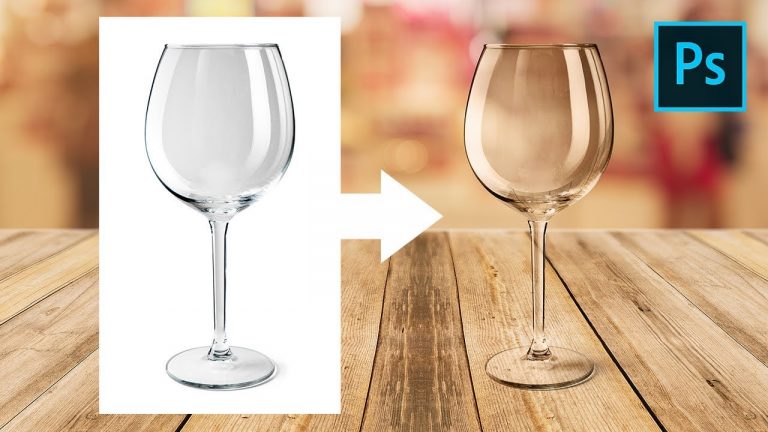
Easily Mask Transparent Objects by Using Simple Blend Modes and Change the Background in Photoshop! In this video, we will mask a wine glass on a white background by using the concepts of how Blending Modes work, along with Blend-If.

Also in this tutorial, we will learn to create realistic reflections on the glass along with techniques to match it with the background. Then, we will also create a shadow to make the composite natural.

Hope this video helps, thank you for watching 🙂

► RECOMMENDED TUTORIAL:
2 Ways to Select Transparent Objects in Photoshop: https://youtu.be/jp6c9SjuFvk

► DOWNLOADS:
1. Sample Image of Glass (Stock): https://shutr.bz/2CXhl8C
2. Background Image: http://bit.ly/2J7qrQn
3. Finished PSD: http://bit.ly/2qb9aNT (Only for our Patreon Family)

► HELP US CREATE MORE FREE VIDEOS:
Support us at Patreon: https://www.patreon.com/piximperfect

► SHARE: https://goo.gl/IUhnUl

► LET’S CONNECT:
Facebook: http://facebook.com/piximperfect
Twitter: https://twitter.com/piximperfect
Instagram: https://www.instagram.com/piximperfect
Google+: https://plus.google.com/+UnmeshDinda
Finally, Remove Stuff FAST with This New Tech! – Photoshop In-Depth

0

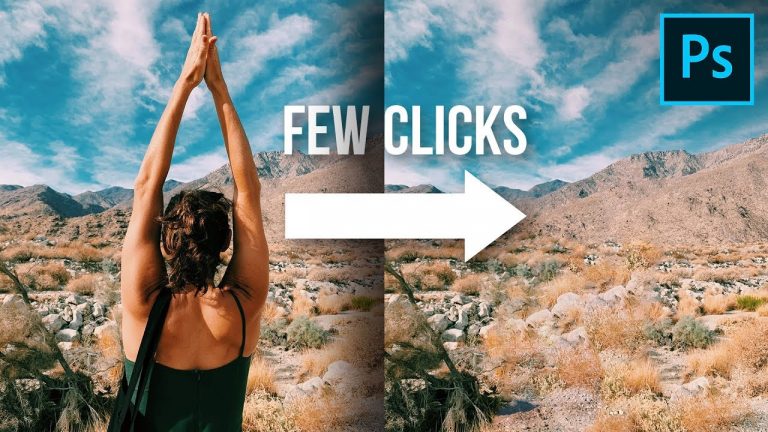
Discover the Best Ways and Practices to Use the Brand New Content-Aware Fill in Photoshop CC 2019! Step by step, we will learn every aspect of this new feature through various examples in this tutorial.

Whether it is repairing or correcting an area, or removing distracting elements in your photo, we will go through every single tool and setting, to get the best results in very less time.

Hope this tutorial helps. Thank you for watching 🙂

► MAKE IT, WITH SQUARESPACE:
Go to http://squarespace.com/piximperfect to save 10% on your first purchase of a website or domain.

► DOWNLOADS:
1. All Sample Images: http://bit.ly/2ShX6Ht
2. Finished PSD: http://bit.ly/2ON5nos (Only for our Patreon Family)

► HELP US CREATE MORE FREE VIDEOS:
Support us at Patreon: https://www.patreon.com/piximperfect

► SHARE: https://goo.gl/IUhnUl

►LET’S CONNECT:
Facebook: http://facebook.com/piximperfect
Twitter: https://twitter.com/piximperfect
Instagram: https://www.instagram.com/piximperfect
Google+: https://plus.google.com/+UnmeshDinda
Export with Just One Button! – Photoshop Trick

0

Save Tons of Time by Exporting with Just One Button in Photoshop! Learn how to set up Photoshop to export your images for Facebook, Instagram, or Emails, with just one step and assign a single key to it.

In this tutorial, we will learn how to best use the Quick Export features in Adobe Photoshop CC. Hope this tutorial helps you. Thank you for watching 🙂

► HELP US CREATE MORE FREE VIDEOS:
Support us at Patreon: https://www.patreon.com/piximperfect

► SHARE: https://goo.gl/IUhnUl

►LET’S CONNECT:
Facebook: http://facebook.com/piximperfect
Twitter: https://twitter.com/piximperfect
Instagram: https://www.instagram.com/piximperfect
Google+: https://plus.google.com/+UnmeshDinda
Everything AUTOMATIC in Photoshop + FREE ACTIONS!

0

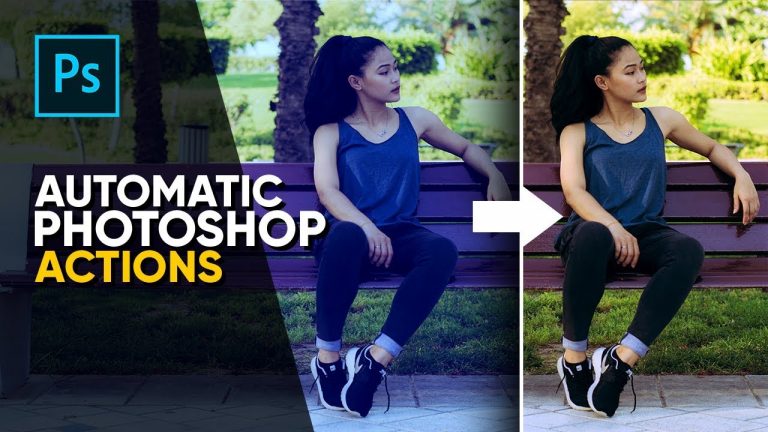
Explore the Top Automatic features of Photoshop and learn how to use them in your workflow! Whether it is correcting the color or setting the contrast, in this tutorial, we will discover and learn how to best use some of these one-click features in Photoshop.

These features may not give you the absolute best color correction or brightness adjustment all the time, however, they can prove to be a great starting point. Hope this tutorial helps. Thank you for watching 🙂

► RECOMMENDED TUTORIAL:
Automate Color Correction in Photoshop: https://youtu.be/Wm66pw4FU-0

► DOWNLOADS:
1. The Automatic Action Collection by PiXimperfect: http://bit.ly/pixactionauto
2. Sample Images: http://bit.ly/2PzqKsS

► DONATE:
https://www.paypal.me/unmeshdinda

► HELP US CREATE MORE FREE VIDEOS:
Support us at Patreon: https://www.patreon.com/piximperfect

► SHARE: https://goo.gl/IUhnUl

►LET’S CONNECT:
Facebook: http://facebook.com/piximperfect
Twitter: https://twitter.com/piximperfect
Instagram: https://www.instagram.com/piximperfect
Google+: https://plus.google.com/+UnmeshDinda
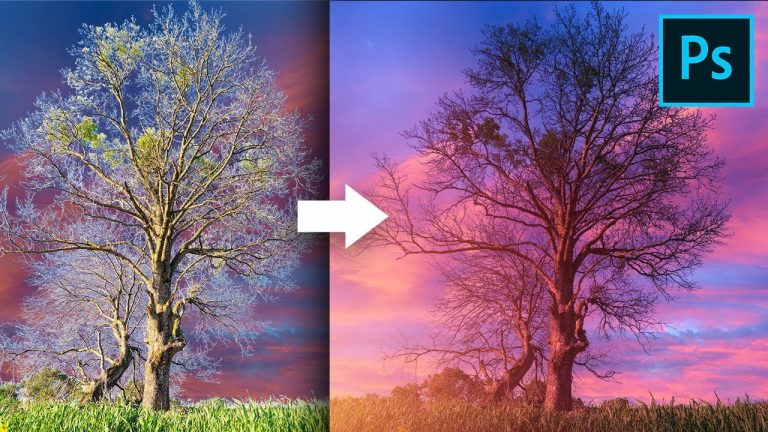
Remove Fringes Around Trees During Sky Swap! – Photoshop Tutorial

0

A Powerful Way to Select Trees & Remove Annoying Fringes or Halos Around the Branches During Sky Replacement in Photoshop! In this tutorial, we will use 2 effective ways to deal with edge fringe: Color Matching and Blending Modes.

Sometimes, just removing the fringes is not the solution since it can be a part of the object. Instead, in this video, we will focus on how we can manipulate color to change and match the sky perfectly.

► RECOMMENDED TUTORIALS:
1. Special Blend Modes: https://youtu.be/OX7L6lwe3QI
Using Channels to Make Selection: https://youtu.be/H6I9Q-b2pQc
2. The BEST Way to Select Hair in Photoshop: https://youtu.be/T2D8EIh9Gus
3. 2 Easy Tricks to Remove White Edges or Fringes: https://youtu.be/KYW5PjXzNu4
4. How to Blur Background When Hair is Difficult to Select in Photoshop: https://youtu.be/69x30qM53MM
5. How to Auto-Select Objects or Areas in Focus: https://youtu.be/IoKpej6ZI84

► DOWNLOADS:
1. Sample Images: http://bit.ly/2AGUcF7
2. Finished PSD: http://bit.ly/2P2h4YF (Only for our Patreon Family)

► DONATE:
https://www.paypal.me/unmeshdinda

► HELP US CREATE MORE FREE VIDEOS:
Support us at Patreon: https://www.patreon.com/piximperfect

► SHARE: https://goo.gl/IUhnUl

►LET’S CONNECT:
Facebook: http://facebook.com/piximperfect
Twitter: https://twitter.com/piximperfect
Instagram: https://www.instagram.com/piximperfect
Google+: https://plus.google.com/+UnmeshDinda
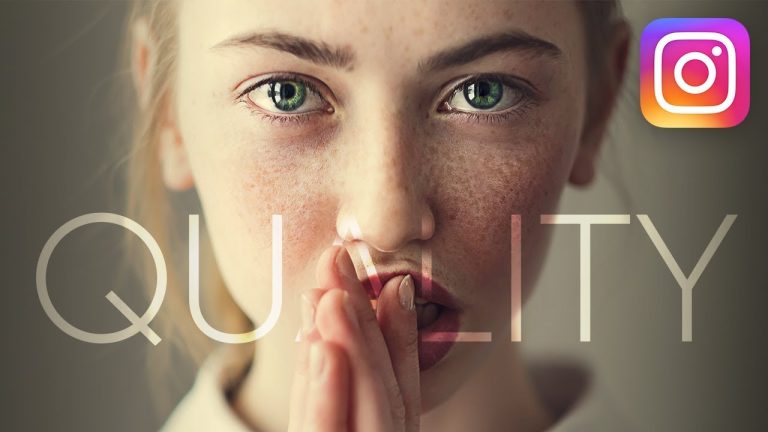
6 Secret Steps to Nail Instagram Quality! – Photoshop Tutorial

0

Besides the best export settings for Instagram, discover the extra steps we need to take to make our images stand out! In this tutorial, we will go through ‘6 Golden Steps to Make Your Images Look Amazing on Instagram’ using Photoshop.

Right from making sure the color doesn’t change when you upload, to getting the sharpest results, we will cover it all. Whether you are starting from Lightroom or Photoshop, we will learn the right way to compress our images without compromising image quality.

► DOWNLOADS:
1. Sample Image: http://bit.ly/2OpI4vU
2. Finished PSD: http://bit.ly/2Oolggc (Only for our Patreon Family)
3. Faded Warm LUT: http://bit.ly/2JEaRfF

► HELP US CREATE MORE FREE VIDEOS:
Support us at Patreon: https://www.patreon.com/piximperfect

► SHARE: https://goo.gl/IUhnUl

►LET’S CONNECT:
Facebook: http://facebook.com/piximperfect
Twitter: https://twitter.com/piximperfect
Instagram: https://www.instagram.com/piximperfect
Google+: https://plus.google.com/+UnmeshDinda
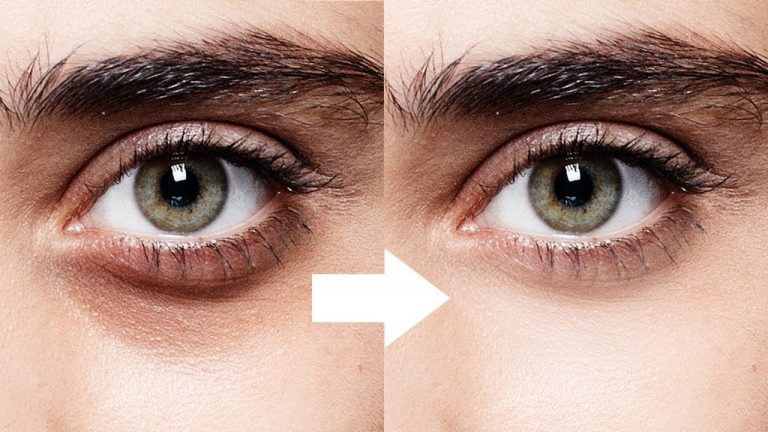
1-Minute Photoshop – Remove Dark Circles Naturally

0

Learn How to Remove Eye Bags and Dark Circles Without Losing Any Texture in Photoshop! Using the power of Blend Modes and Clipping Masks, in this tutorial, we will remove the dark areas without affecting the skin texture.

Hope this tutorial helps. Thank you for watching 🙂

► DOWNLOADS:
Sample Image: https://shutr.bz/2qxIPJM

► HELP US CREATE MORE FREE VIDEOS:
Support us at Patreon: https://www.patreon.com/piximperfect

► SHARE: https://goo.gl/IUhnUl

►LET’S CONNECT:
Facebook: http://facebook.com/piximperfect
Twitter: https://twitter.com/piximperfect
Instagram: https://www.instagram.com/piximperfect
Google+: https://plus.google.com/+UnmeshDinda

Blend Anything on Any Surface in Photoshop!

0

► TourBox now available on Kickstarter for 40% off! Limited time offer, only 15 days left! Check it out here: https://www.kickstarter.com/projects/470115464/tourbox-the-game-changer-for-photoshop-and-lightro?ref=7pwm8z

The Most Realistic Technique to Add a Text, Graphic, or a Logo on Any Surface Using in Photoshop! Whether it is writing text on a cloth or putting up a graphic on a wall, the process remains the same. In this tutorial, we will combine both manual and automatic ways to mould and confirm the graphic according to the texture of the background.

Using the power of Blend-If with multiple Blend Modes, we will match the shadows and the highlights of the surface with that of the graphic. Then, using Liquify and Displacement Maps, we will learn not only how to curve and fold the graphic according to the folds of the fabric but also apply a fine texture to make it look natural.

In the end, we will perform some dodging and burning along with some lighting effects to add more drama and punch. Hope this tutorial helps. Thank you for watching!

► RECOMMENDED TUTORIAL:
Lighting Effects: https://youtu.be/8Gfx8JPpJrA

► DOWNLOADS:
1. Sample Image: http://bit.ly/2Ph2w7u
2. Finished PSD: http://bit.ly/2PPJ41m (Only for our Patreon Family)

► HELP US CREATE MORE FREE VIDEOS:
Support us at Patreon: https://www.patreon.com/piximperfect

► SHARE: https://goo.gl/IUhnUl

►LET’S CONNECT:
Facebook: http://facebook.com/piximperfect
Twitter: https://twitter.com/piximperfect
Instagram: https://www.instagram.com/piximperfect
Google+: https://plus.google.com/+UnmeshDinda
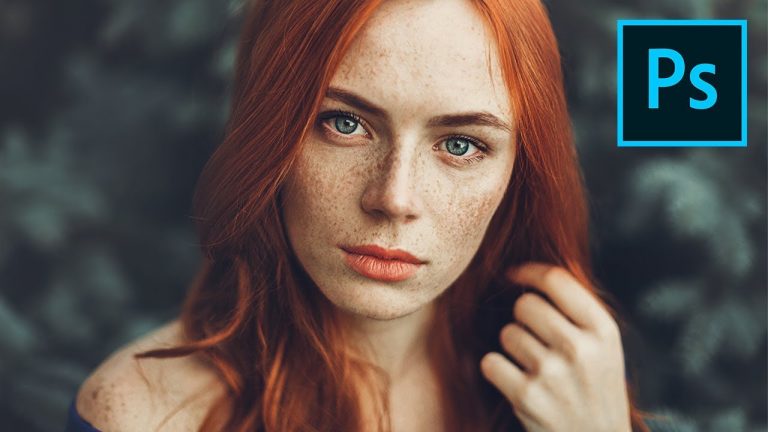
Enhance Freckles with 2 Sliders! 1-Minute Photoshop

0

Easily Enhance Freckles and Make them Pop in Just One Minute with Photoshop! Using the power of Blend Modes and the Black & White Adjustment Layer, learn how to target and enhance the freckles with few sliders.

Hope this tutorial helps. Thank you for watching 🙂

► DOWNLOADS:
1. Sample Image: http://bit.ly/2DuKKr3
2. Finished PSD: http://bit.ly/2zHmFJv (Only for our Patreon Family)

► HELP US CREATE MORE FREE VIDEOS:
Support us at Patreon: https://www.patreon.com/piximperfect

► SHARE: https://goo.gl/IUhnUl

► LET’S CONNECT:
Facebook: http://facebook.com/piximperfect
Twitter: https://twitter.com/piximperfect
Instagram: https://www.instagram.com/piximperfect
Google+: https://plus.google.com/+UnmeshDinda