Home Blog Page 9

Naturally Remove Dark Circles with FS in Photoshop

0

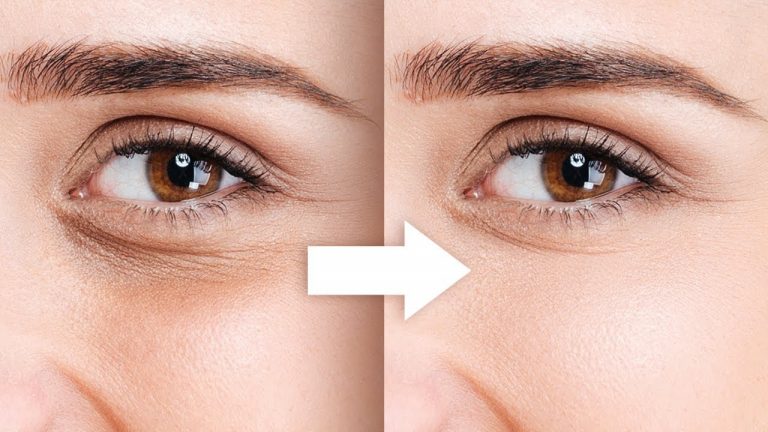
The Most Realistic Technique to Remove Dark Circles Using Frequency Separation in Photoshop! Learn to sculpt the skin and retouch in a way which is subtle enough to retain the expression and still make the skin smooth, beautiful, and most importantly, natural.

In this tutorial, we will learn how to work the color tones and texture separately, to be able to deal with dark areas and wrinkles, one at a time. Also, we will touch upon the science of smile!

Hope this tutorial helps you. Thank you for watching 🙂

► RECOMMENDED VIDEOS:
1. Concepts of Frequency Separation: https://youtu.be/Z8mnzVNaiD0
2. Using Check Layers: https://youtu.be/fKc4VHY0vAI

► DOWNLOADS:
1. Sample Image: http://bit.ly/2N0HBDK
2. Finished PSD: http://bit.ly/2BXboc6 (Only for our Patreon Family)

► HELP US CREATE MORE FREE VIDEOS:
Support us at Patreon: https://www.patreon.com/piximperfect

► SHARE: https://goo.gl/IUhnUl

►LET’S CONNECT:
Facebook: http://facebook.com/piximperfect
Twitter: https://twitter.com/piximperfect
Instagram: https://www.instagram.com/piximperfect
Google+: https://plus.google.com/+UnmeshDinda
1-Minute Photoshop – FAKE Shallow Depth of Field

0

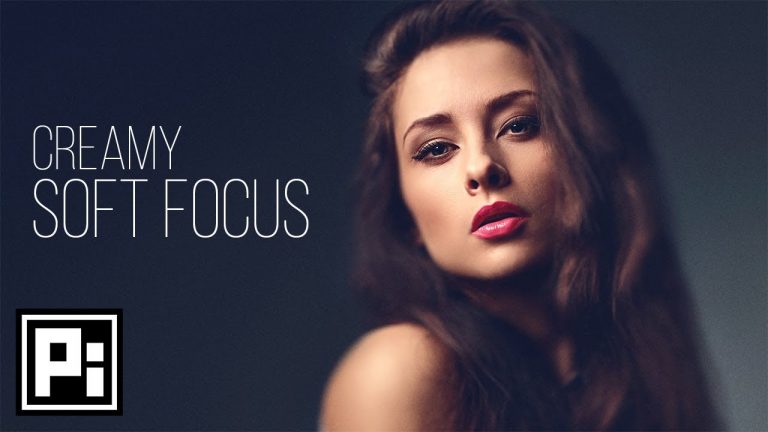
Create a Creamy Soft Focus Effect and a Shallow Depth of Field in Photoshop! Using an amazing feature of adding multiple points in blur gallery, in this tutorial, we will use Field Blur to selectively apply Blur to mimic Shallow Depth of Field in Just One Minute!

Hope this tutorial helps you. Thank you for watching 🙂

► DOWNLOADS:
1. Sample Image: https://shutr.bz/2PobzPx
2. Finished PSD: http://bit.ly/2LHg7OJ (Only for our Patreon Family)

► HELP US CREATE MORE FREE VIDEOS:
Support us at Patreon: https://www.patreon.com/piximperfect

► SHARE: https://goo.gl/IUhnUl

►LET’S CONNECT:
Facebook: http://facebook.com/piximperfect
Twitter: https://twitter.com/piximperfect
Instagram: https://www.instagram.com/piximperfect
Google+: https://plus.google.com/+UnmeshDinda
One Click to Make MUCH BETTER ACTIONS in Photoshop!

0

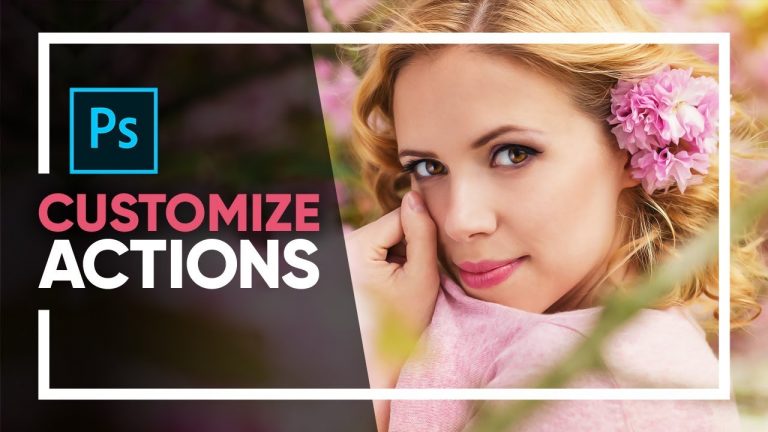
Make your Photoshop Actions versatile and customizable so that they work on most images, if not all. With one click, learn how to create customizable parameters so that you can decide the values according to your image while the action is being played.

In this video, we are going to create an action for achieving a ‘Painterly Effect’ as an example. We will learn how to use Smart Objects to keep things completely non-destructive. Hope this tutorial helps you. Thank you for watching 🙂

► DOWNLOADS:
1. Sample Image: http://bit.ly/2C70iBm
2. Finished PSD and Action: http://bit.ly/2Pv8H3v (Only for our Patreon Family)

► HELP US CREATE MORE FREE VIDEOS:
Support us at Patreon: https://www.patreon.com/piximperfect

► SHARE: https://goo.gl/IUhnUl

►LET’S CONNECT:
Facebook: http://facebook.com/piximperfect
Twitter: https://twitter.com/piximperfect
Instagram: https://www.instagram.com/piximperfect
Google+: https://plus.google.com/+UnmeshDinda
The BEST Color Grading Tool for Photoshop. Period.

0

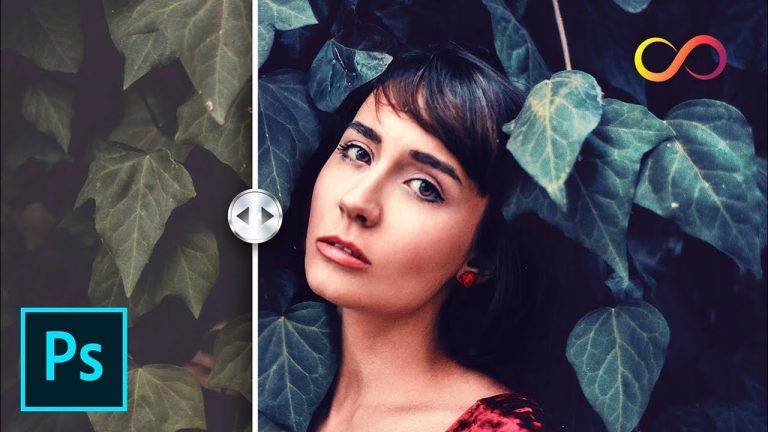
This is the Ultimate Color Grading Panel for Photoshop! We’ll explore the amazing power of Infinite Color Panel that gives you unlimited professional color grading options with just a few clicks.

► GET THE INFINITE COLOR PANEL WITH HIGHEST DISCOUNT EVER:
Go to http://infinitecolorpanel.com and Use the Code “PIX” to get $35 Off!

The panel automatically generates an infinite amount of looks which are 100% customizable to your taste. All the parameters work in coordination to generate the approach of commercial high-end retouching by professional retoucher Pratik Naik, creating looks which are uniquely yours.

In this video, we will learn a variety of color grading tricks of techniques to go with the Infinite Color Panel to help you make most of the panel in ways you just have to see! Hope this tutorial helps you. Thank you for watching 🙂

To see more work from other professionals who use this panel, check out https://www.instagram.com/infinitecolorpanel/

► DOWNLOADS:
All Finished PSDs: http://bit.ly/icppixpsd

► HELP US CREATE MORE FREE VIDEOS:
Support us on Patreon: https://www.patreon.com/piximperfect

► SHARE: https://goo.gl/IUhnUl

►LET’S CONNECT:
Facebook: http://facebook.com/piximperfect
Twitter: https://twitter.com/piximperfect
Instagram: https://www.instagram.com/piximperfect
Google+: https://plus.google.com/+UnmeshDinda

The COMPLETE Guide to Smart Objects in Photoshop

0

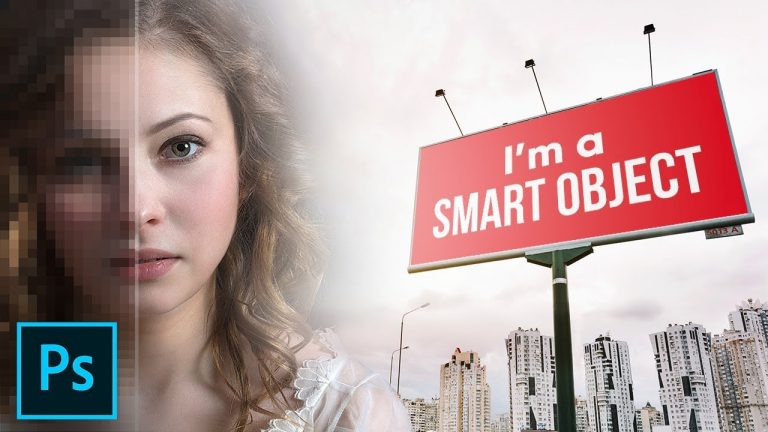
All You Need to Know About Smart Objects in Photoshop! This is THE MOST Comprehensive Guide including all the amazing tricks, techniques and ways you can use Smart Objects whether you are compositing, designing, or editing your images.

Right from the core concepts to the most advanced applications, we will cover it all. Please refer the following index to guide you through the video.

► INDEX WITH TIMESTAMPS:
00:10 Why Do We Need Smart Objects?
00:21 Advantages of RAW Images as Smart Objects
02:39 Using ACR to Open RAW Image as a Smart Object
04:11 The ‘Pixel’ Concept of Smart Objects
07:54 Example of Smart Objects vs. Regular Raster Layers
10:35 Blur the Background with Smart Filters
14:48 The Power of Smart Groups
18:22 Creating Mockups with Smart Objects
23:49 Using ‘Replace Contents’ to Your Advantage
28:16 Embedded vs. Linked Smart Objects
35:38 Making Duplicate Smart Objects Unique
37:05 Creating a Smart Reflection
39:54 Limitations of Smart Objects
41:51 Conclusion and the Idea of Non-Destructive Editing

Hope this video helps you 🙂 Thank you for watching!

► DOWNLOADS:
1. Billboard Mockup Image: http://bit.ly/2oNwEHT
2. Composite Sample Image: http://bit.ly/2wPAJ2Y
3. Finished PSDs: http://bit.ly/2CvGdVJ (Only for our Patreon Family)

► RECOMMENDED TUTORIALS:
1. Blur the Background: https://youtu.be/9Hbha3mgTiA
2. Working with Mockups: https://youtu.be/zYZqekLTTM4

► HELP US CREATE MORE FREE VIDEOS:
Support us at Patreon: https://www.patreon.com/piximperfect

► SHARE: https://goo.gl/IUhnUl

►LET’S CONNECT:
Facebook: http://facebook.com/piximperfect
Twitter: https://twitter.com/piximperfect
Instagram: https://www.instagram.com/piximperfect
Google+: https://plus.google.com/+UnmeshDinda
Check & Match Colors Precisely in Photoshop

0

Unlock the Amazing Power of Check Layers to Precisely Match Color while Making Composites in Photoshop! Whether you are into photo manipulation or simply changing backgrounds, Check Layers allow you to accurately blend the images by matching the color, saturation, and lighting, by looking at the different parameters of the image separately.

In this tutorial, we will learn how to use Curves, Hue/Saturation, Gradient Maps, and several other Adjustment Layers to match the elements of a composite. We will also learn how to create realistic shadows to go with the light.

Hope this tutorial helps. Thank you for watching 🙂

► DOWNLOADS:
1. Starting PSD: http://bit.ly/2O1yXSS
2. Finished PSD: http://bit.ly/2QmL2ng (Only for our Patreon Family)

► RECOMMENDED TUTORIALS:

1. Check Layers: https://youtu.be/fKc4VHY0vAI

2. Select Hair:


3. Select Subject: https://youtu.be/hpqvmO0c72M

4. Select and Mask: https://youtu.be/tmGzS5iT_h0

► HELP US CREATE MORE FREE VIDEOS:
Support us at Patreon: https://www.patreon.com/piximperfect

► SHARE: https://goo.gl/IUhnUl

►LET’S CONNECT:
Facebook: http://facebook.com/piximperfect
Twitter: https://twitter.com/piximperfect
Instagram: https://www.instagram.com/piximperfect
Google+: https://plus.google.com/+UnmeshDinda
Create Amazing Light Effects Using this Filter | Photoshop Tutorial

0

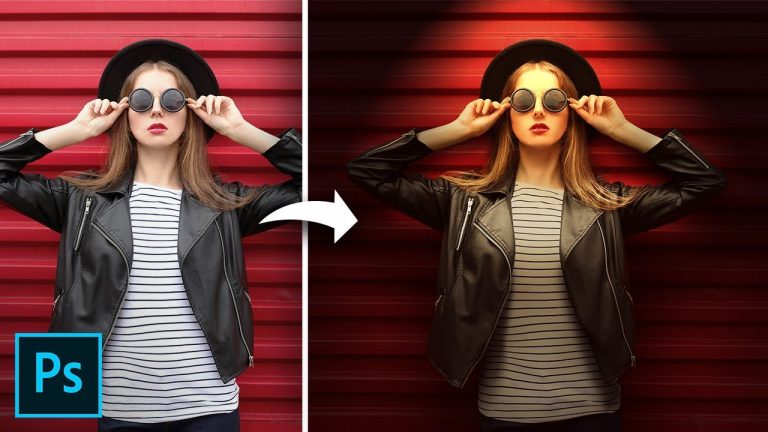
The Formula for Brilliant Light Effects and Shadows in Photoshop! In this video, we’ll build a warm spotlight and learn how to add shadows to go with it.

Exploring the Lighting Effects Filter, in this tutorial, we will touch upon the type, color, and intensity of light, along with several other properties like exposure and ambient light. From there, we will learn how to make shadows realistic by watching the direction and the softness or hardness of light.

We will focus on both, creating inner shadows and outer shadows to make the image pop and add dimension to the same. Hope this tutorial helps. Thank you for watching 🙂

► TIMESTAMPS:
00:33 Adding the Light
07:17 Creating the Outer Shadows
17:23 Creating the Inner Shadows
26:35 Recap

► DOWNLOADS:
1. Sample Images: http://bit.ly/2O6hSHf
2. Finished PSD: http://bit.ly/2MhekQJ (Only for our Patreon Family)

► HELP US CREATE MORE FREE VIDEOS:
Support us at Patreon: https://www.patreon.com/piximperfect

► SHARE: https://goo.gl/IUhnUl

►LET’S CONNECT:
Facebook: http://facebook.com/piximperfect
Twitter: https://twitter.com/piximperfect
Instagram: https://www.instagram.com/piximperfect
Google+: https://plus.google.com/+UnmeshDinda
Rain Effect in Less Than 1 Minute with Photoshop

0

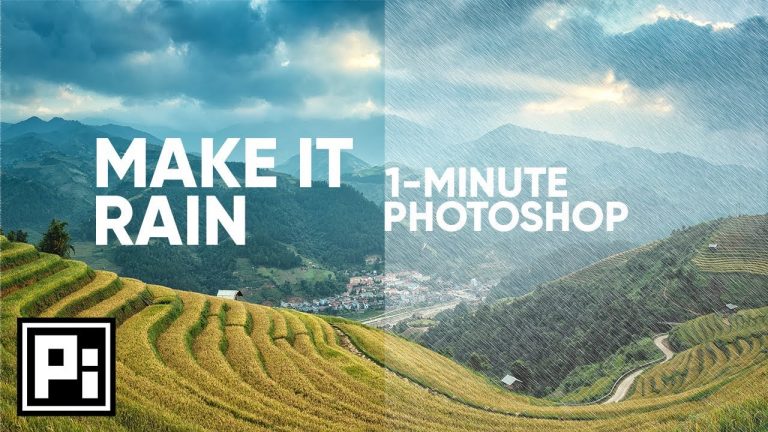
Make it Rain with Photoshop in Just One Minute! Discover Photoshop’s inbuilt action to create rain and several other effects in no time. Also, learn how to make the rain look natural by stacking several layers of water droplets.

Hope this tutorial helps. Thank you for watching 🙂

► DOWNLOADS:
1. Sample Image: http://bit.ly/2p3HFVT
2. Finished PSD: http://bit.ly/2Qq91Sk (Only for our Patreon Family)

► HELP US CREATE MORE FREE VIDEOS:
Support us at Patreon: https://www.patreon.com/piximperfect

► SHARE: https://goo.gl/IUhnUl

►LET’S CONNECT:
Facebook: http://facebook.com/piximperfect
Twitter: https://twitter.com/piximperfect
Instagram: https://www.instagram.com/piximperfect
Google+: https://plus.google.com/+UnmeshDinda
Transform a Photo to a Realistic Oil Painting – Photoshop Tutorial

0

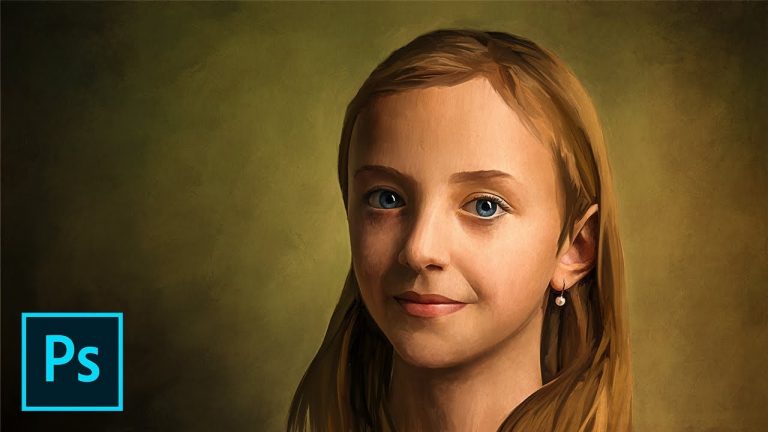
Transform a Photograph to a Realistic Oil Painting with Photoshop! Learn how to paint in bright and vibrant colors using Advanced Brushes. Right from making the perfect brush stroke to choosing the right color, we’ll cover it all.

In this digital painting tutorial, we will start with a photograph for reference. From there, with Kyle’s Real Oil Brushes, we will learn a technique to smudge to directly take colors from the portrait, creating each brush stroke to complement the dimension and the drama of the image.

After painting, we will also add some special effects to give it an old and rich renaissance look.

Hope this tutorial helps. Thank you for watching!

► DOWNLOADS:
1. Sample Image: http://bit.ly/2Qyzq0i
2. Finished PSD: http://bit.ly/2Nkj9hT (Only for our Patreon Family)

► HOW TO INSTALL BRUSHES:
https://adobe.ly/2xgIoHF

► HELP US CREATE MORE FREE VIDEOS:
Support us at Patreon: https://www.patreon.com/piximperfect

► SHARE: https://goo.gl/IUhnUl

►LET’S CONNECT:
Facebook: http://facebook.com/piximperfect
Twitter: https://twitter.com/piximperfect
Instagram: https://www.instagram.com/piximperfect
Google+: https://plus.google.com/+UnmeshDinda

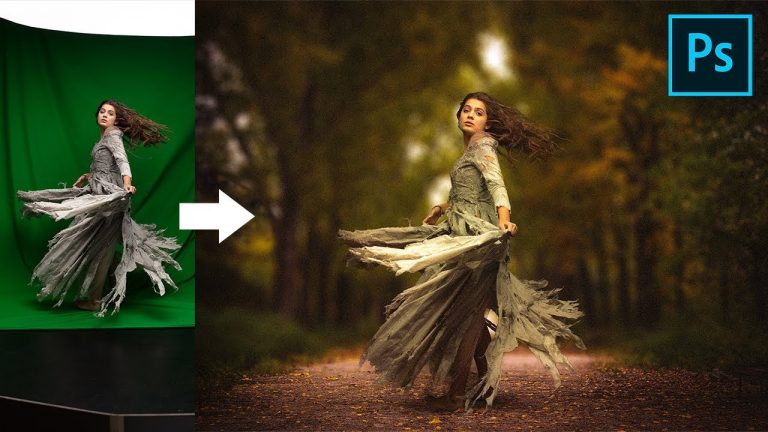
Use Green Screen to Create Composites in Photoshop!

0

The Complete Easy Step-by-step Process to Create a Composite or Change the Background Using Green Screen in Photoshop! We’ll examine how effective green screens are when it comes to extracting the subject from the background.

In this tutorial, we will learn how to use Advanced Color Range to remove the green background. Then, we’ll continue with some tricks and techniques to develop the perfect mask. In case your image has a green fringe around the edge, we’ll use selective Hue/Saturation to get rid of it easily.

Then, we will go in-depth into techniques that help us match the subject with the background. Learning how to create shadows, we’ll also learn a couple of ways to add special effects at the end to give the image an overall punch and feel.

Hope this video helps. Thank you for watching 🙂

► RECOMMENDED TUTORIALS:
1. Matching Subject with Background: https://youtu.be/TZnXQZWejPg
2. Using Check Layers for Composites: https://youtu.be/DT-4wbjFYHQ

► DOWNLOADS:
1. Sample Images: http://bit.ly/2pk6RYe
2. Finished PSD: http://bit.ly/2plz2Ww (Only for our Patreon Family)

► HELP US CREATE MORE FREE VIDEOS:
Support us at Patreon: https://www.patreon.com/piximperfect

► SHARE: https://goo.gl/IUhnUl

►LET’S CONNECT:
Facebook: http://facebook.com/piximperfect
Twitter: https://twitter.com/piximperfect
Instagram: https://www.instagram.com/piximperfect
Google+: https://plus.google.com/+UnmeshDinda