Home Blog Page 107

Wonder Woman Bullet Block After Effects Tutorial! | Film Learnin

0

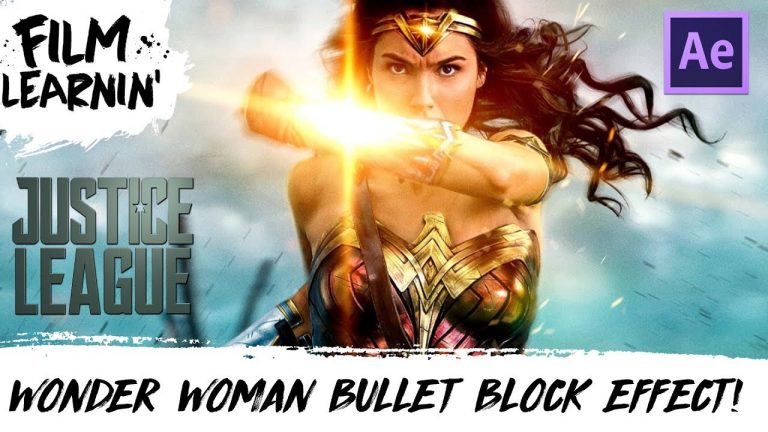
Today we recreate the awesome bullet blocking effect from Wonder Woman and Justice League in Adobe After Effects!

Muzzle Flash tutorial: https://youtu.be/o4BFbbNll1E
Remove Orange tip tutorial: https://youtu.be/fXjTfPPnkpo

Download LINK: https://www.filmlearnin.com/downloads

SUPPORT US ON PATREON: http://bit.ly/2icZ4bS

Scored by Filmstro: https://www.filmstro.com/
20% Annual subscriptions code: MAHGAWD_ANN

► SUBSCRIBE HERE: https://www.youtube.com/user/filmlearnin

► TWITTER: https://twitter.com/lonearcherfilms

► FACEBOOK: https://www.facebook.com/filmlearnin

► WEBSITE: https://www.filmlearnin.com

Make Your Own Custom Flash Lightning Effect! | Film Learnin

0

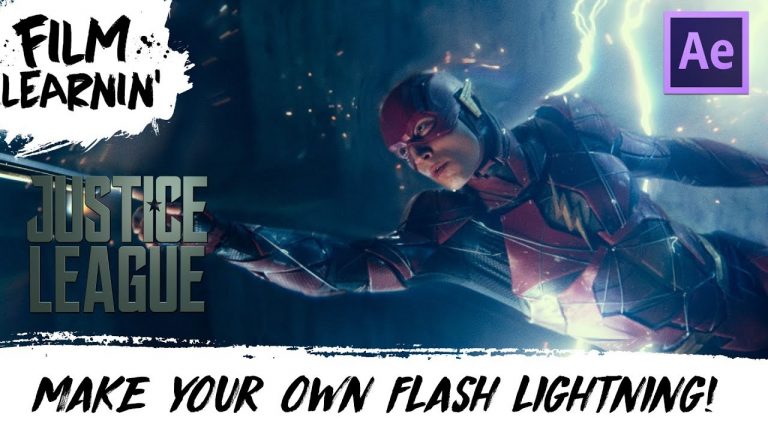
Today Grant shows you how to create your own custom Justice League and CW Flash Lightning within Adobe After Effects!

A big thanks to ActionVFX for the Spark Asset!
Check them out at: https://www.actionvfx.com/

Download LINK (includes CS4-CS6 users now): https://www.filmlearnin.com/downloads

SABER plugin: https://www.videocopilot.net/blog/2016/03/new-plug-in-saber-now-available-100-free/

Link to Flash example video: https://www.youtube.com/watch?v=xXHvn27LDRQ

SUPPORT US ON PATREON: http://bit.ly/2icZ4bS

Scored by Filmstro: https://www.filmstro.com/
20% Annual subscriptions code: MAHGAWD_ANN

► SUBSCRIBE HERE: https://www.youtube.com/user/filmlearnin

► TWITTER: https://twitter.com/lonearcherfilms

► FACEBOOK: https://www.facebook.com/filmlearnin

► WEBSITE: https://www.filmlearnin.com

Animated Typography | After Effects Motion Graphics Tutorial

0

We all know typography is an expansion art form. You have to look at size, leading, spacing, caps, and endless amounts of typefaces. When we talk about animated typography, we take standard type to a whole new level. Not only do we have to be precise with our layout decisions, we have to consider every animation variable. This After Effects tutorial will help guide you in the animated typography process.

Like the music? Get your royalty free music at Artlist.io.
http://bit.ly/2t7xrrP

Social Media:
Drop a like on Facebook: https://www.facebook.com/sonduckfilm
Hit me up on Instagram: http://instagram.com/sonduckfilm
Follow me on Twitter: https://twitter.com/SonduckFilm
Connect with me on Linkedin: https://www.linkedin.com/in/joshnoel

Visit our website https://www.sonduckfilm.com for more tutorials, giveaways and film and photo gear!

Photo Enhancement Zoom Like In The Movies | After Effects Tutorials

0

Zoom in. Enhance this region. Zoom into the reflection. Can you enhance this? Ugh! Here’s an After Effects tutorial on creating the impossible photo enhancement that we see in the movies and on TV. What you will need for this effect to work are two images (one wide and one close-up) of the object or subject you want to zoom into. One image isn’t going to pull off the effect. We have to cheat it with two pictures.

Like the music? Get your royalty free music at Artlist.io.
http://bit.ly/2t7xrrP

Social Media:
Drop a like on Facebook: https://www.facebook.com/sonduckfilm
Hit me up on Instagram: http://instagram.com/sonduckfilm
Follow me on Twitter: https://twitter.com/SonduckFilm
Connect with me on Linkedin: https://www.linkedin.com/in/joshnoel

Visit our website https://www.sonduckfilm.com for more tutorials, giveaways and film and photo gear!

How to Make a Ghost Effect in Premiere Pro | Adobe Creative Cloud

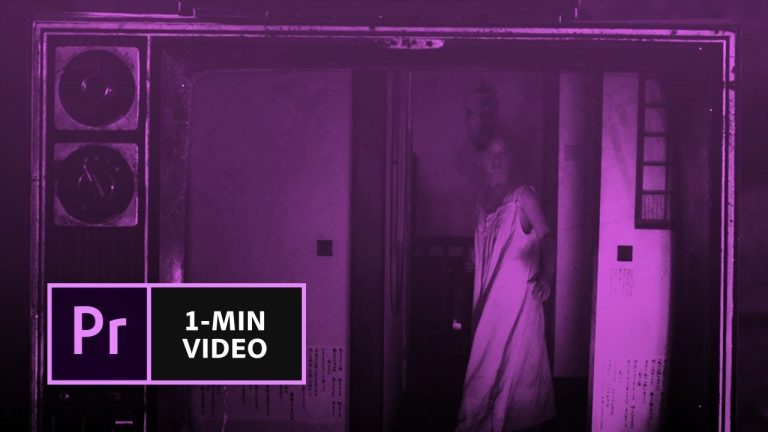
Learn how to adjust a few settings to create a ghostly effect on a video clip.

Start from scratch, or download practice files [https://adobe.ly/2ia1o21] for a head start. Steps below.

1. Create a new project in Premiere Pro (File – New – Project), add a Name, and click OK.
2. Search Adobe Stock [https://stock.adobe.com/] for a spooky video clip, or use the Ghost.mov file from our practice files.
3. Import the video clip file (File – Import).

Note: Make sure you are in the Graphics workspace (Window – Workspaces – Graphics).

4. Drag the Ghost Clip in the Project panel to the V1 channel on the Timeline.

Note: If the Timeline is empty, Premiere Pro automatically adds the clip to the V1 channel when you drag it over.

5. Advance the playhead on the timeline just before the subject appears.
6. Select the Razor tool and make a slice where you stopped the playhead.
7. Select the Selection tool, click the portion of the clip after the slice, and drag it to the V2 channel.
8. Right click on the clip on the V1 channel and choose Add Frame Hold.
9. Drag the right side of the clip on V1 and extend it so it is the same length as the clip on V2.
10. Double click the clip on V2, click the Effect Controls tab, expand the Opacity property, and set the Opacity to 60%.
11. Adjust color settings: Click the Color workspace (Window – Workspaces – Color). Select the clip on V2, go to the Lumetri Color panel on the right, select the Look drop down, then select SF BLUE STEEL. Apply the SF BLUE STEEL look to the clip on V1 as well.

That’s it! Play your sequence to see the complete effect.

To learn more, visit our Premiere Pro Tutorials page: https://adobe.ly/2veGhET

Subscribe: https://www.youtube.com/user/adobecreativecloud?sub_confirmation=1

LET’S CONNECT
Facebook: http://facebook.com/adobecreativecloud
Twitter: http://twitter.com/creativecloud
Instagram: http://www.instagram.com/adobecreativecloud/

Adobe Creative Cloud gives you the world’s best creative apps so you can turn your brightest ideas into your greatest work across your desktop and mobile devices.

How to Make a Prototype in Adobe XD CC | Adobe Creative Cloud

0

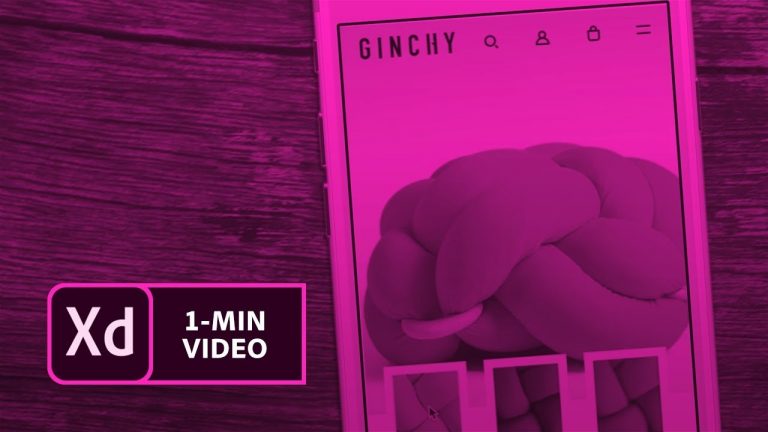
Learn how to design a simple, yet elegant mobile app layout. Then, wire interactions to simulate the user experience.

Start from scratch, or download practice files [https://adobe.ly/2mcm6DP] for a head start. Steps below.

Design your prototype:

1. Open an .xd document, or use ours (prototype.xd).
2. Click the gray thumbnail on the artboard, then click Repeat Grid. Drag the green handle to the right until 3 thumbnails appear.

Tip: If necessary, put the cursor between the thumbnails and drag the gutter in or out until the thumbnails are centered.

3. Open Finder on Mac, or Explorer on Windows, then drag the 3 images from the knots_details folder on to the thumbnail Repeat Grid.
4. Click the green border of the Repeat Grid and drag the 3 thumbnails below the artboard.
5. Make 2 copies of the artboard: Click the artboard name, select Edit – Duplicate. Do this twice to create 2 artboards.

Tip: you can also use Cmd+D on Mac, or Ctrl+D on Windows, to duplicate.

6. Click the gradient on the leftmost artboard, choose Edit – Copy, then Edit – Paste.
7. Click Repeat Grid and pull the green handle to create 3 copies of the rectangle. Place your cursor between images and drag until the margin is equal to the distance between artboards – in the example, the margins are 70px.
8. Drag the 3 images from the knots_full folder on to the Repeat Grid, then click the pasteboard (the gray area) to deselect the Repeat Grid.
9. Click the Repeat Grid to reselect it, right click and choose Ungroup Grid, then right click and choose Send to Back.
10. Cmd+click (on Mac), Ctrl+click on Windows, the product name, double click to highlight it and type “Mustard floor cushion”.
11. Right click the outer edge of the text box and select Update All Symbols. Double click the text in the 2nd artboard and change “Mustard” to “Royal Blue” and the 3rd artboard to “Red Wine”.

Wire your prototype:

1. Click Prototype at the top to change to the Prototype workspace.
2. Cmd+click, or Ctrl+click, on the thumbnail on the left, drag the little white arrow to the first artboard, and set the Transition to None. Repeat to connect the blue and red thumbnails to the corresponding artboards.
Tip: The Transition, Easing, and Duration default to the previous settings so you don’t have to change these each time.
3. Click the set of 3 thumbnails, select Edit – Cut.
4. Click the 1st artboard title and select Edit – Paste. Repeat for the remaining 2 artboards. Shift+click all 3 thumbnails and drag to align just below the large image on the artboards.
5. Click Desktop Preview and click each thumbnail to preview the prototype.

That’s it!

To learn, more visit our Adobe XD CC Tutorials page: https://adobe.ly/2Athprt

Subscribe: https://www.youtube.com/user/adobecreativecloud?sub_confirmation=1

LET’S CONNECT
Facebook: http://facebook.com/adobecreativecloud
Twitter: http://twitter.com/creativecloud
Instagram: http://www.instagram.com/adobecreativecloud/

Adobe Creative Cloud gives you the world’s best creative apps so you can turn your brightest ideas into your greatest work across your desktop and mobile devices.

5 Photoshop TRICKS in 90 SECONDS!! Useful Tricks That You Probably Don’t Know

In this Photoshop tutorial, you will learn 5 Photoshop tricks that you probably don’t know in 90 seconds.

? If you like this video, share, like, comment & don’t forget to subscribe for more content!

✅ Subscribe on YouTube Here: https://goo.gl/bwsW68

00:22 – Select Colors from Outside Photoshop
00:35 – Two Windows For The Same Document
01:00 – Bring Back The Refine Edge Dialog Box
01:16 – Black and White Adjustment for Luminosity
01:30 – Make Your Own Photoshop Templates – PSDT

? This tutorial’s page on our website:
https://photoshoptrainingchannel.com/5-photoshop-tricks-in-90-seconds/

Thank you for watching!

– – – – – – – – – – – – – – – – – – – – – – –
⚡ PTC NEWSLETTER

If you enjoyed this video be sure to subscribe to our newsletter to receive free weekly Photoshop tips and more!

➜ ✉️: http://ptcvids.com/subscribe

– – – – – – – – – – – – – – – – – – – – – – –
? PREMIUM TUTORIALS

For more in-depth Photoshop Tutorials be sure to check out our Premium tutorials.

➜ http://ptcvids.com/shop/

– – – – – – – – – – – – – – – – – – – – – – –
⚡ FOLLOW ON

– Facebook: https://fb.com/PhotoshopTrainingChannel

– Instagram: http://instagram.com/jrfromptc

– LinkedIn: http://linkedin.com/company/Photoshop-Training-Channel

– Pinterest: http://pinterest.com/ptcpins

– Behance: https://www.behance.net/JRfromPTC

– Twitter: https://twitter.com/JRfromPTC

– – – – – – – – – – – – – – – – – – – – – – –
⚡ CREDITS

– Stock Images provided by stock.adobe.com

– Photoshop video tutorials by Jesus Ramirez

– This Video’s Youtube Link: http://youtu.be/DezZVBHg88Q

How To Use PERSPECTIVE and VANISHING POINTS To Create AMAZING Composites In Photoshop

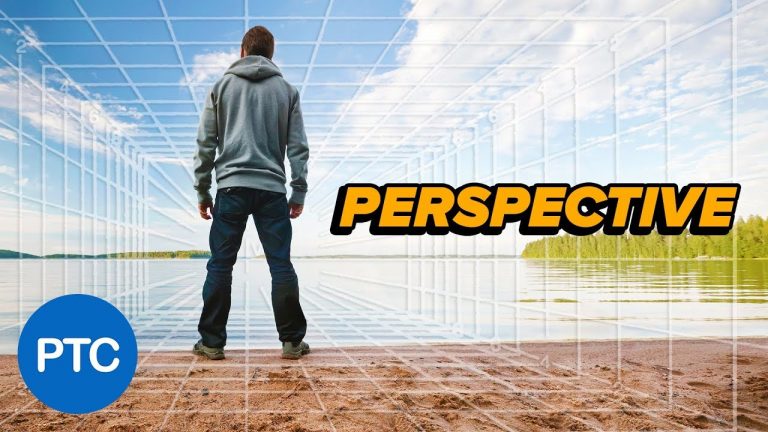
In this Photoshop tutorial, you will learn what is perhaps the most import thing about compositing images together: perspective.

⚡Photoshop Compositing Course:
https://photoshoptrainingchannel.com/product/photoshop-compositing/

The techniques that I’m going to teach you in this video, will make you a much better Photoshop user. They will make your compositions look much more realistic, and you’ll know what types of images you’ll need to complete a great composite.

You can get pretty much get everything else right, lighting, color, shadows, and extractions, but if the perspective is off, your viewer will know something is not right. They might not know exactly what it is, but they’ll know there’s something wrong with the image.

Don’t feel too bad if you’re making these perspective mistakes, I’ve seen movie posters and advertisements that are just horrible when it comes to perspective. Even some pros have problems with putting together multiple images from different sources.

✅ Subscribe on YouTube Here: https://goo.gl/bwsW68

? This tutorial’s page on our website:
https://photoshoptrainingchannel.com/

? Subscribe + Like + Share + Comment = More Video Tutorials!

Thank you for watching!

– – – – – – – – – – – – – – – – – – – – – – –
⚡ PTC NEWSLETTER

If you enjoyed this video be sure to subscribe to our newsletter to receive free weekly Photoshop tips and more!

➜ ✉️: http://ptcvids.com/subscribe

– – – – – – – – – – – – – – – – – – – – – – –
? PREMIUM TUTORIALS

For more in-depth Photoshop Tutorials be sure to check out our Premium tutorials.

➜ http://ptcvids.com/shop/

– – – – – – – – – – – – – – – – – – – – – – –
⚡ FOLLOW ON

– Facebook: https://fb.com/PhotoshopTrainingChannel

– Instagram: http://instagram.com/jrfromptc

– LinkedIn: http://linkedin.com/company/Photoshop-Training-Channel

– Pinterest: http://pinterest.com/ptcpins

– Behance: https://www.behance.net/JRfromPTC

– Twitter: https://twitter.com/JRfromPTC

– – – – – – – – – – – – – – – – – – – – – – –
⚡ CREDITS

– Stock Images provided by stock.adobe.com

– Photoshop video tutorials by Jesus Ramirez

– This Video’s Youtube Link: http://youtu.be/OoHfZFl65fo
Design Action Movie Poster | Photoshop Tutorial

0

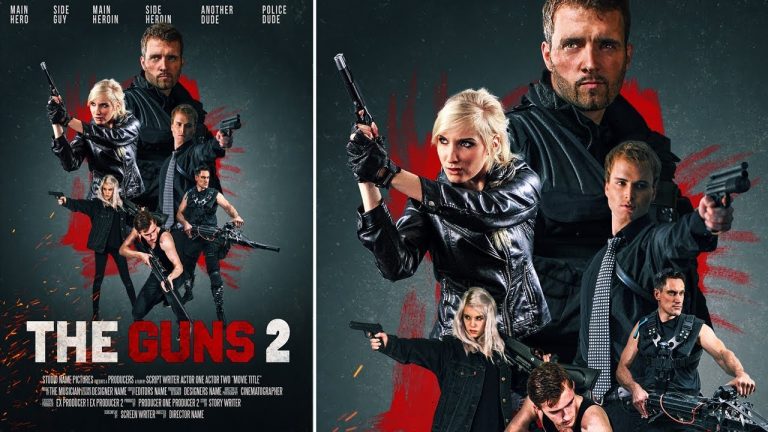
in this photoshop poster design tutorial i will show you how create your own action movie style poster. I have kept design pretty simple so you can follow without any problem.

First we will create background to the poster and then will add action characters, text and for final touch some color correction.

This poster tutorial is more about tools in photoshop and less about designing it self. so keep that in mind. Feel free design any type of poster you want using photoshop.

And now i am seeing there are some spelling errors in poster. can’t do anything about that.

So i hope you learned something from this photoshop tutorial, if you did share you thoughts in comments. good bye, take care and have some fun with photoshop 🙂

Subscribe to Tutorials junction: http://bit.ly/1Q8u7Op

FOLLOW
Instagram: https://www.instagram.com/tutorialjunction
Facebook: https://www.facebook.com/tutorialsjunction

DOWNLOAD Images & Fonts
http://bit.ly/2fb8d2W

zdroj: YouTube

Torn Paper Effect | Photoshop Tutorial

0

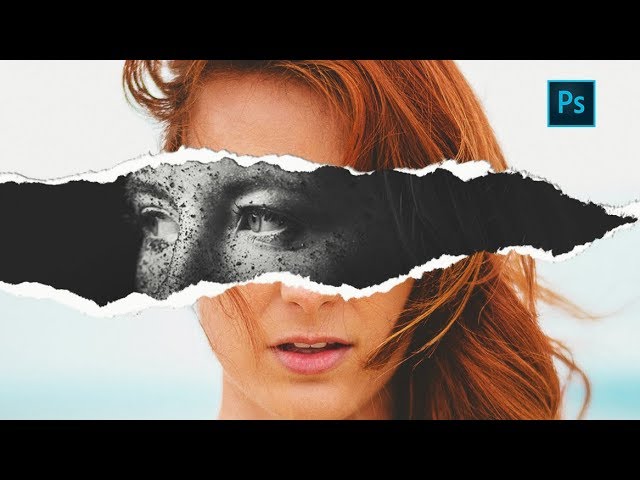
In this photoshop photo effect tutorial we will see how to create this somewhat popular torn paper effect.

The effect is actually very simple to create compare to how good it looks. All we have to do is apply some layers masks and use good quality torn paper brushes.

you will need two portrait photos with slightly different poses to get the best effect.we will keep one in black and white and one is color to make effect more impactful.

In the end we’ll add some contact shadows and color correction to finish the effect.

So i hope you learned something from this photoshop tutorial, if you did, share you thoughts in comments. good bye, take care and have some fun with photoshop 🙂

Subscribe to Tutorials junction: http://bit.ly/1Q8u7Op

FOLLOW
Instagram: https://www.instagram.com/tutorialjunction
Facebook: https://www.facebook.com/tutorialsjunction

DOWNLOAD Images & Brush
http://bit.ly/2yszHrP

zdroj: YouTube