Home Blog Page 106

3 Ways to Create Subtle Animated Typography | After Effects Tutorial

0

Animated Typography is perhaps one of my favorite things to create with After Effects. No matter, if you like VFX, compositing, working with particles, or anything else, users of After Effects will have to create titles, In this Tutorial, we look at three subtle ways to take animated typography to the next level.

Save time or get inspired from these typography templates: TYPOGRAPHY with 75+ examples: http://bit.ly/2BQTqEw
FASHION Styled Typography: http://bit.ly/2BkuAvL
TONS OF TYPOGRAPHY WORK: http://bit.ly/2BQo2G7

Like the music? Get your royalty free music at Artlist.io.
http://bit.ly/2t7xrrP

Social Media:
Drop a like on Facebook: https://www.facebook.com/sonduckfilm
Hit me up on Instagram: http://instagram.com/sonduckfilm
Follow me on Twitter: https://twitter.com/SonduckFilm
Connect with me on Linkedin: https://www.linkedin.com/in/joshnoel

Visit our website https://www.sonduckfilm.com for more tutorials, giveaways and film and photo gear!

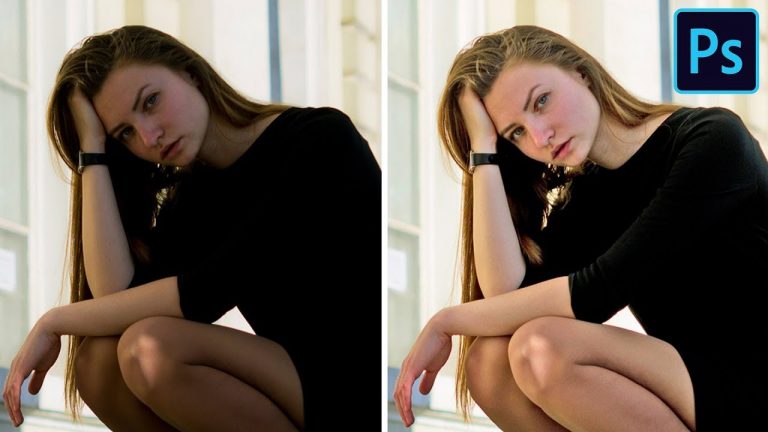
How to Brighten Portraits in Only 2 Minutes in Photoshop

0

Today we teach you a quick, effective way to brighten your portraits. Never again worry about the desaturated, unnatural skin tone that can come with brightening shadows!

**Download the Sample Image Here: https://phlearn.com/tutorial/pure-white-bg-2/

VISIT PHLEARN.COM FOR MORE FREE TUTORIALS

Homepage

SUBSCRIBE NOW FOR MORE FREE TIPS AND TRICKS
http://www.youtube.com/subscription_center?add_user=phlearnllc

LET’S BE FRIENDS!
Instagram ► https://www.instagram.com/phlearn/
Facebook ► https://facebook.com/phlearn
Twitter ► https://twitter.com/phlearn
Google+ ► https://plus.google.com/116791098059215639405
Phlearn ► https://phlearn.com

Turn a Photo into a Moving 3D Image | Premiere Pro Tutorial

0

Working with 2D still photos can be a dread from time to time, as there is no real motion. In this Adobe Premiere Tutorial, we will turn a photo into a moving image. This effect is very easy and use parallex techniques to make our photo come to life. We make a specific focus into creating depth and adding multiple layers. We talk able animation and 3D effects to add dimensional rotation. Finally, we look at how to separate objects from the background.

Like the music? Get your royalty free music at Artlist.io.
http://bit.ly/2t7xrrP

Social Media:
Drop a like on Facebook: https://www.facebook.com/sonduckfilm
Hit me up on Instagram: http://instagram.com/sonduckfilm
Follow me on Twitter: https://twitter.com/SonduckFilm
Connect with me on Linkedin: https://www.linkedin.com/in/joshnoel

Visit our website https://www.sonduckfilm.com for more tutorials, giveaways and film and photo gear!

How to Make It Snow in After Effects | Adobe Creative Cloud

0

Learn how to simulate snowfall in your videos. Add depth by changing the amount of snow and rate of snowfall in the foreground and background.

Artwork by Erik Johansson

Note: The video clip in the practice files is different than what is shown in the tutorial, but the steps are the same.

Start from scratch, or download practice files [https://learndownload.adobe.com/pub/learn/aftereffects/field_mp4.zip] for a head start. Steps below.

Prep your project:
1. Create a new project in Adobe After Effects (File – New – New Project).
2. Import the Field.mp4 file (File – Import – File).
3. Drag the field footage in the Project panel to the Create a New Composition button at the bottom of the panel.
4. Rename the layer: Select it, right-click and choose Rename, and type “Foreground plate”.

Tip: If the column header displays “Source Name”, click it to switch it to “Layer Name”.

Create the snow effect:
1. Choose Layer – New – Solid. Name it “Foreground snow”. Click the chip color, set it to black (#000000), and click OK.
2. Click the Toggle Switches/Modes button at the bottom of the Timeline to show the Mode column. Switch the mode setting for the top (snow) layer from Normal to Screen.
3. Go to the Effects & Presets panel (Window – Effects & Presets) and type “snow” in the Search field.
4. Drag the CC Snowfall effect on to the Foreground Snow layer.
5. Set the following values in the Effect Controls panel:
• Flakes: 1000
• Size: 15
• Scene Depth: 2000
• Speed: 700
• Opacity: 70
• Background illumination – influence %: 70

Tip: Click the arrow next to Background Illumination to reveal more settings.

6. Duplicate the Foreground Plate layer (Edit – Duplicate) and rename it to “Background plate”.
7. Duplicate the Foreground Snow layer and rename it to “Background snow”. Drag the layers so they are in this order from top down: (1) [Foreground snow], (2) Foreground plate, (3) Background snow, (4) Background plate.

Direct the snowfall:
1. Select the Foreground Plate layer in the Timeline.
2. Choose the Pen tool and click around the woman’s body to draw a mask around her.

Note: This creates Mask 1, which you’ll use to ensure that the background snow won’t fall in front of the woman in the foreground.

3. Draw another mask (four-point rectangle) around the lower third of the entire scene to create Mask 2.
4. Optional: Select the Foreground Plate layer and press M twice quickly to show all Mask properties.
Set values for Mask 1:
• Blend Mode: Add
• Mask Feather: 40, 40
• Mask Expansion: 5

Set values for Mask 2:
• Blend Mode: Add
• Mask Feature: 40, 40
• Mask Expansion: 5

5. Select the Background Snow layer and set the following values in the Effect Controls panel:
• Flakes: 30000
• Size: 5
• Scene Depth: 5000
• Speed: 350
• Opacity: 70
• Background illumination – influence %: 70

Note: You’ll see a lot of snow falling slowly in the background behind the woman — and less, but larger, snow falling in the foreground in front of the woman.

6. Press the spacebar to preview the effect.

That’s it!

To learn more, visit our After Effects Tutorials page: https://adobe.ly/2jUyqoN

Subscribe: https://www.youtube.com/user/adobecreativecloud?sub_confirmation=1

LET’S CONNECT
Facebook: http://facebook.com/adobecreativecloud
Twitter: http://twitter.com/creativecloud
Instagram: http://www.instagram.com/adobecreativecloud/

Adobe Creative Cloud gives you the world’s best creative apps so you can turn your brightest ideas into your greatest work across your desktop and mobile devices.
Motion Graphics Workflow from After Effects to Premiere

0

In this Adobe After Effects and Premiere tutorial, we will look at how to easily create motion graphics between the two programs. Thanks to Essential Graphics, correcting typos or making graphic adjustments have never been easier. You no longer have to render graphics from After Effects and bring them into Premiere and realize that the graphics have typos.

Like the music? Get your royalty free music at Artlist.io.
http://bit.ly/2t7xrrP

Social Media:
Drop a like on Facebook: https://www.facebook.com/sonduckfilm
Hit me up on Instagram: http://instagram.com/sonduckfilm
Follow me on Twitter: https://twitter.com/SonduckFilm
Connect with me on Linkedin: https://www.linkedin.com/in/joshnoel

Visit our website https://www.sonduckfilm.com for more tutorials, giveaways and film and photo gear!

Quickly Create Snow Particles | After Effects Tutorial

0

Like the music? Get your royalty free music at Artlist.io.
http://bit.ly/2t7xrrP

Social Media:
Drop a like on Facebook: https://www.facebook.com/sonduckfilm
Hit me up on Instagram: http://instagram.com/sonduckfilm
Follow me on Twitter: https://twitter.com/SonduckFilm
Connect with me on Linkedin: https://www.linkedin.com/in/joshnoel

Visit our website https://www.sonduckfilm.com for more tutorials, giveaways and film and photo gear!

How to Make a Parallax Motion Effect in Photoshop | Adobe Creative Cloud

0

Learn how to make your photos come to life.

Start from scratch, or download practice files
[https://learndownload.adobe.com/pub/learn/photoshop/parallax_effect.zip] then proceed to following the steps below.
Prep your project:
1. Open parallax_effect.psd in Photoshop.
2. In the Layers panel, hide the Sky layer and click the Buildings layer to select it.
3. Select the Quick Selection tool. Set your brush to the following:
– Size: 10px
– Hardness: 100%
– Spacing: 1%
4. Delete the sky: Click and drag from the upper right corner until the entire sky is selected. Press Delete.
5. Click the Sky layer to select it, then unhide it. Hide the Buildings layer.
6. Select the buildings: Select the Lasso tool and drag around the buildings to select them.
Tip: Drag outside the edges of the buildings, then drag in the sky close to the buildings until you complete the selection.
7. Select Edit – Fill. Choose Content Aware, and click OK. Click outside the area to deselect the Lasso tool selection and select the Move tool.
8. In the Layers panel, right click the Sky layer and select Convert to Smart Object.
9. Select the Buildings layer, unhide it, right click and select Convert to Smart Object.
10. Select Edit – Transform – Scale and drag the corners to make the buildings layer a little larger, then press Return (or Enter).
Set it in motion:
1. Select Window – Timeline. Click Create Video Timeline.
2. Zoom in on the buildings: Expand the Buildings layer in the timeline, click the “Enable keyframe animation” icon next to Transform to create a keyframe. Then, move the playhead to the end of the timeline and scale the Buildings (Edit – Transform) back to their original size. This automatically creates a keyframe.
3. Make the clouds move: Move the playhead to the beginning of the timeline. Expand the Sky layer in the timeline and create a keyframe. Then, move the playhead to the end of the timeline and move the sky directly up. This automatically creates a keyframe.
4. Preview the effect: Press the Play button in the timeline to view the effect. Adjust as necessary.
5. Export the video: Click the Render View button at the bottom of the timeline. Choose the export location, size, quality, format, and other render settings as needed, then click Render.

Note: You can also accept the default render output settings.

That’s it!

Visit our Photoshop Tutorials page to learn more: https://adobe.ly/2wmhivZ

Subscribe: https://www.youtube.com/user/adobecreativecloud?sub_confirmation=1

LET’S CONNECT
Facebook: http://facebook.com/adobecreativecloud
Twitter: http://twitter.com/creativecloud
Instagram: http://www.instagram.com/adobecreativecloud/

Adobe Creative Cloud gives you the world’s best creative apps so you can turn your brightest ideas into your greatest work across your desktop and mobile devices.

Learn How to Edit 360/VR Video in Premiere Pro | Adobe Creative Cloud

0

To follow along with this tutorial, download the 360/VR assets: https://adobe.ly/2iRPzyo.

View and edit 360/VR footage directly in Adobe Premiere Pro CC by placing logos and text properly in your scene and applying effects and transitions designed specifically for equirectangular media.

Learn more about Premiere Pro: https://adobe.ly/2jyGJJY

Subscribe: https://www.youtube.com/user/adobecreativecloud?sub_confirmation=1

LET’S CONNECT
Facebook: http://facebook.com/adobecreativecloud
Twitter: http://twitter.com/creativecloud
Instagram: http://www.instagram.com/adobecreativecloud/

Adobe Creative Cloud gives you the world’s best creative apps so you can turn your brightest ideas into your greatest work across your desktop and mobile devices.
Justice League Batman Voice Effect Tutorial! | Film Learnin

0

Today we recreate the Justice League Batman Voice Effect from Justice League with Icram Trax V3 and Adobe Audition!

Get the Icram Trax V3 Demo here: https://fluxhome.com/project/ircam-trax-v3/

Download LINK: https://www.filmlearnin.com/downloads

SUPPORT US ON PATREON: http://bit.ly/2icZ4bS

Scored by Filmstro: https://www.filmstro.com/
20% Annual subscriptions code: MAHGAWD_ANN

► SUBSCRIBE HERE: https://www.youtube.com/user/filmlearnin

► TWITTER: https://twitter.com/lonearcherfilms

► FACEBOOK: https://www.facebook.com/filmlearnin

► WEBSITE: https://www.filmlearnin.com

Transformers Quintessa Voice Effect Tutorial!| Film Learnin

0

Today we recreate the Quintessa Voice Effect from Tranformers: The Last Knight by changing our voice from male to female in Adobe Audition!

Get the Icram Trax V3 Demo here: https://fluxhome.com/project/ircam-trax-v3/

XTREMEGAMPLAYS Transformers Cinema 4D template: https://www.youtube.com/watch?v=UP9O6iTm1F0

Transformers Movie font: https://www.dafont.com/transformers-movie.font

Download LINK: https://www.filmlearnin.com/downloads

SUPPORT US ON PATREON: http://bit.ly/2icZ4bS

Scored by Filmstro: https://www.filmstro.com/
20% Annual subscriptions code: MAHGAWD_ANN

► SUBSCRIBE HERE: https://www.youtube.com/user/filmlearnin

► TWITTER: https://twitter.com/lonearcherfilms

► FACEBOOK: https://www.facebook.com/filmlearnin

► WEBSITE: https://www.filmlearnin.com