Home Blog Page 13

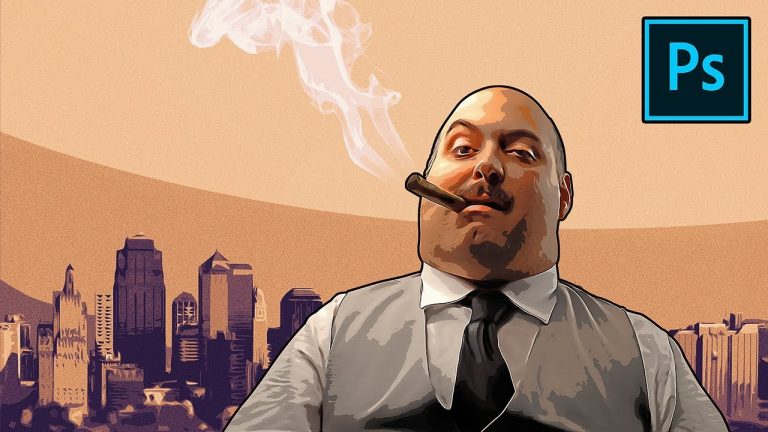
Transform Portraits to GTA Characters in Photoshop!

0

Ever played Grand Theft Auto? Give Your Images The GTA Look in Photoshop! Learn how to transform your photos to GTA themed cartoons by exploring the Filters in Photoshop.

In this tutorial, we will learn how to extensively use the “Filter Gallery” to achieve the cartoon effect on our portraits. In Addition, we will be learning how to best use blend modes and color grading to add that extra punch and drama it needs.

Hope this tutorial helps. Thank you for watching 🙂

â–º RECOMMENDED TUTORIALS:
1. Mastering Curves: https://youtu.be/Bvyiydd2dMc
2. Mastering the Pen Tool: https://youtu.be/5kAQUNFZJXY
3. Painterly Effect: https://youtu.be/AaWuykWBogk

â–º DOWNLOADS:
1. Sample Images: http://bit.ly/2Stf1tS
2. Finished PSD: http://bit.ly/2BSHYKg (Only for our Patreon Family)

â–º HELP US CREATE MORE FREE VIDEOS:
Support us at Patreon: https://www.patreon.com/piximperfect

â–º SHARE: https://goo.gl/IUhnUl

â–ºLET’S CONNECT:
Facebook: http://facebook.com/piximperfect
Twitter: https://twitter.com/piximperfect
Instagram: https://www.instagram.com/piximperfect
Google+: https://plus.google.com/+UnmeshDinda
1-Minute Photoshop – Wrap Text Around Any Image

0

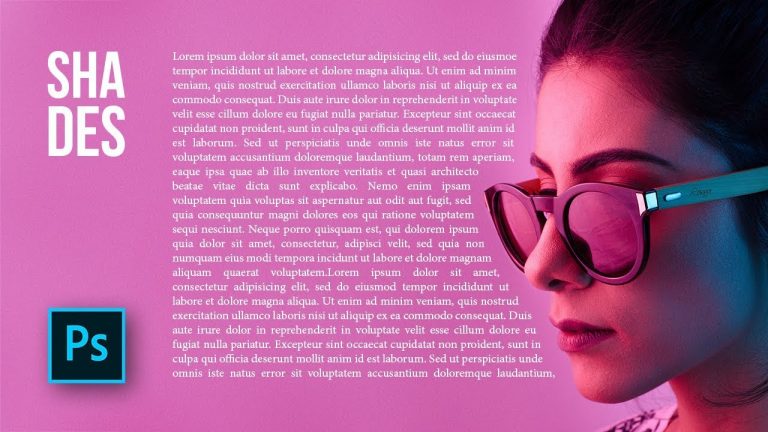
Easily Wrap Text Around Any Object, Image, or Shape with Photoshop! Learn how to draw a custom path using the pen tool and confine the text within.

Hope this tutorial helps. Thank you for watching 🙂

â–º DOWNLOADS:
1. Sample Image: http://bit.ly/2E7K4aD

â–º HELP US CREATE MORE FREE VIDEOS:
Support us at Patreon: https://www.patreon.com/piximperfect

â–º SHARE: https://goo.gl/IUhnUl

â–ºLET’S CONNECT:
Facebook: http://facebook.com/piximperfect
Twitter: https://twitter.com/piximperfect
Instagram: https://www.instagram.com/piximperfect
Google+: https://plus.google.com/+UnmeshDinda
EXTREME Color Correction Using 3 Points in Photoshop!

0

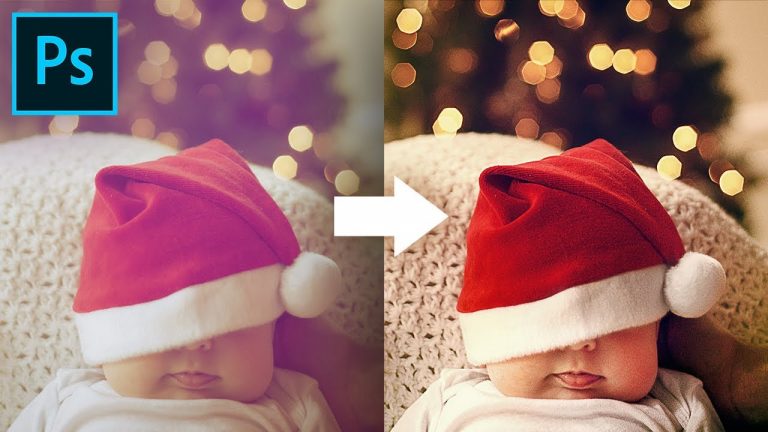
A Simple 3-Point Color Correction Technique to Nail the Colors in Any Image with Photoshop! Learn the concept of “Compensation” to avoid any kind of color shifts and unwanted tints.

In this tutorial, we will extensively use the Curves Adjustment Layer along with Hue/Saturation to get pleasing tones and also use masks and special effects to make the entire image pop.

We will go in-depth into understanding the approach of both color correction and color grading and gradually build upon Adjustment Layers to get the desired result.

Hope this tutorial helps. Thank you for watching 🙂

â–º DOWNLOADS:
1. Sample Image: http://bit.ly/2ruUbPn
2. Finished PSD: http://bit.ly/2SCNAOi (Only for our Patreon Family)

â–º HELP US CREATE MORE FREE VIDEOS:
Support us at Patreon: https://www.patreon.com/piximperfect

â–º SHARE: https://goo.gl/IUhnUl

â–ºLET’S CONNECT:
Facebook: http://facebook.com/piximperfect
Twitter: https://twitter.com/piximperfect
Instagram: https://www.instagram.com/piximperfect
Google+: https://plus.google.com/+UnmeshDinda
A Secret Auto Color Grading Feature in Photoshop!

0

Discover An Amazing Technique to Color Grade Automatically in Photoshop! Just pick whatever color you wish and make few clicks! Learn how to set the highlights, shadows, and mid-tones of any area to your desired colors using Curves.

In this video, we will learn a hidden feature of the Curves Adjustment Layer to shape the colors and stylize our images. Hope this tutorial helps, thank you for watching 🙂

â–º DOWNLOADS:
1. Sample Images: http://bit.ly/2Ebl7et
2. Finished PSD: http://bit.ly/2rsYBq1 (Only for our Patreon Family)

â–º HELP US CREATE MORE FREE VIDEOS:
Support us at Patreon: https://www.patreon.com/piximperfect

â–º SHARE: https://goo.gl/IUhnUl

â–ºLET’S CONNECT:
Facebook: http://facebook.com/piximperfect
Twitter: https://twitter.com/piximperfect
Instagram: https://www.instagram.com/piximperfect
Google+: https://plus.google.com/+UnmeshDinda
Colorize Black and White with Realism in Photoshop

0

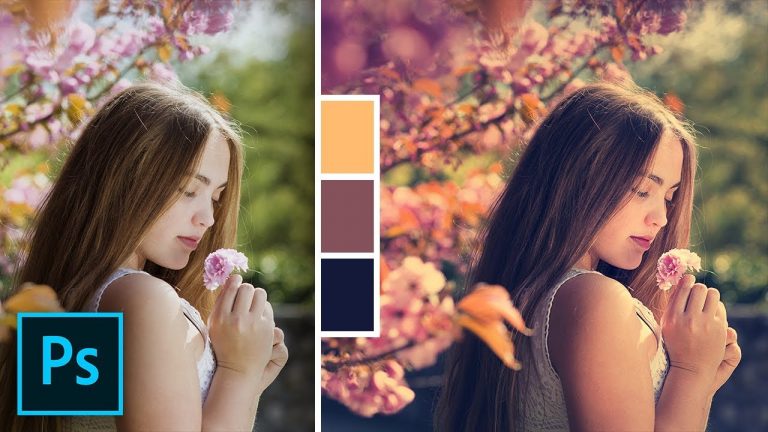
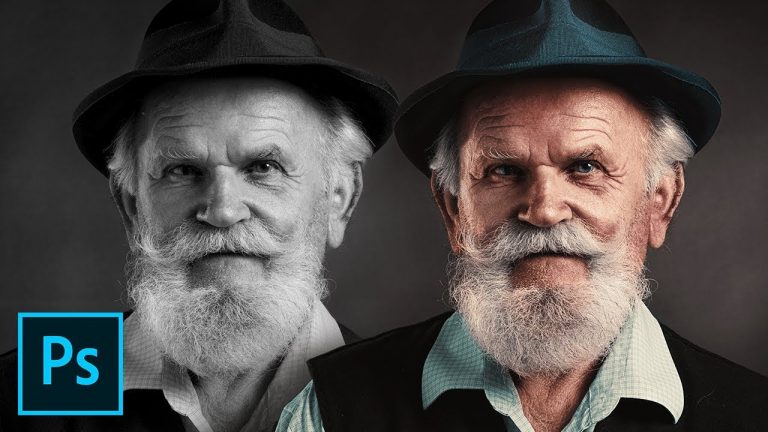
The Most Realistic Way to Colorize Black and White Images and Create Natural Skin Tones in Photoshop! Using Color Palettes, in this tutorial, we will learn how to mimic the colors from real skin and apply it to our image.

Also, we will learn how to use the Hue/Saturation adjustment Layer along with Blend-If to apply a natural color all throughout the image. Hope this tutorial helps. Thank you for watching 🙂

â–º DOWNLOADS:
1. Sample Image: http://bit.ly/2EkjQSe
2. Finished PSD: http://bit.ly/2zU63z8 (Only for our Patreon Family)

â–º HELP US CREATE MORE FREE VIDEOS:
Support us at Patreon: https://www.patreon.com/piximperfect

â–º SHARE: https://goo.gl/IUhnUl

â–ºLET’S CONNECT:
Facebook: http://facebook.com/piximperfect
Twitter: https://twitter.com/piximperfect
Instagram: https://www.instagram.com/piximperfect
Google+: https://plus.google.com/+UnmeshDinda
Trick the Photo Filter to Add Drama & Color in Photoshop!

0

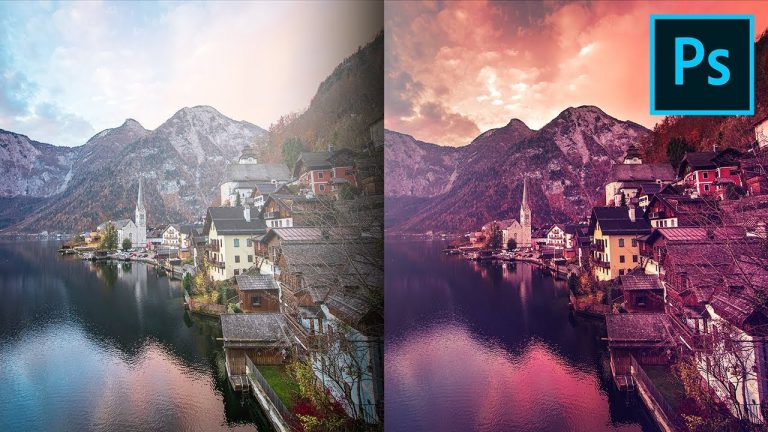
The Easy Way to Create Dramatic and Vibrant Filters in Photoshop! Combine the power of Photo Filters, Blend Modes, and Blend if, to add a punch of color, create contrast, and extract details in a very simple way.

Hope this tutorial helps. Thank you for watching 🙂

â–º DOWNLOADS:
Sample Image: http://bit.ly/2UJE4eg

â–º HELP US CREATE MORE FREE VIDEOS:
Support us at Patreon: https://www.patreon.com/piximperfect

â–º SHARE: https://goo.gl/IUhnUl

â–ºLET’S CONNECT:
Facebook: http://facebook.com/piximperfect
Twitter: https://twitter.com/piximperfect
Instagram: https://www.instagram.com/piximperfect
Google+: https://plus.google.com/+UnmeshDinda
Run Photoshop FAST with 1000+ Layers! Easy Trick

0

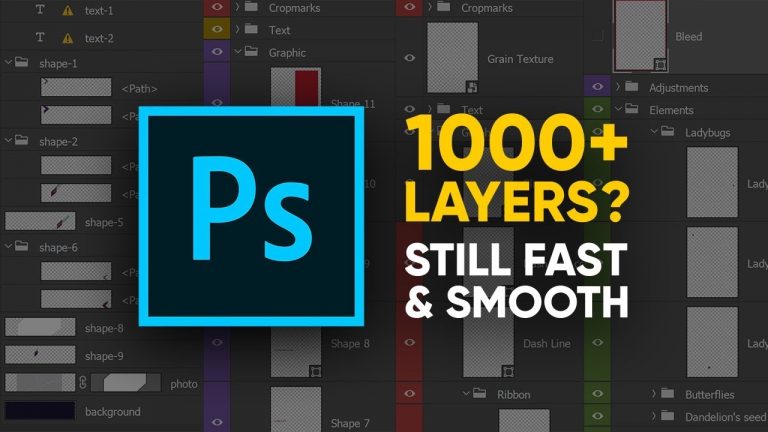
Is Photoshop Lagging Due to a Ton of Layers? Here’s an easy fix to run Photoshop super fast and buttery smooth, still keeping all of the layers. In this tutorial, learn the basic concepts of document sizes and how they work.

Whether you are working on a composite or retouching an image, along the way, we might create a massive amount of layers which may lead to lagging and slowing down of Photoshop. This fix allows you to get the speed back without merging or rasterizing the layers. Thus, keeping it all non-destructive!

Hope this tutorial helps. Thank you for watching 🙂

â–º HELP US CREATE MORE FREE VIDEOS:
Support us at Patreon: https://www.patreon.com/piximperfect

â–º SHARE: https://goo.gl/IUhnUl

â–ºLET’S CONNECT:
Facebook: http://facebook.com/piximperfect
Twitter: https://twitter.com/piximperfect
Instagram: https://www.instagram.com/piximperfect
Google+: https://plus.google.com/+UnmeshDinda
Add Shine & Glamour to Your Portraits in Photoshop

0

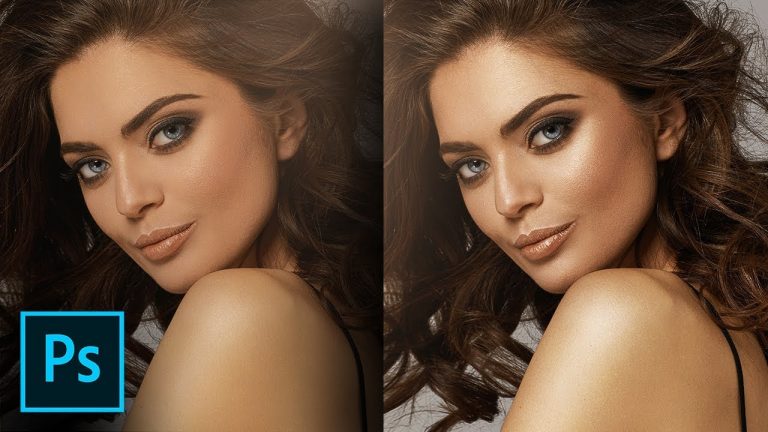
Discover the Simplest Ways to Create Dimension by Adding Shine and Glamour to Your Portraits in Photoshop! Learn how to make your flat portraits have more depth and form, just by utilizing the fundamental concepts of Curves, Blend-If, and Masking.

In this tutorial, learn how to use Blend-If to enhance the highlights and the shadows of the skin and hair, and use masks to locally adjust the values for specific areas. Hope this tutorial helps. Thank you for watching 🙂

â–º DOWNLOADS:
1. Sample Images: http://bit.ly/2Ciw50q
2. Finished PSD: http://bit.ly/2S7pbk9 (Only for our Patreon Family)

â–º HELP US CREATE MORE FREE VIDEOS:
Support us at Patreon: https://www.patreon.com/piximperfect

â–º SHARE: https://goo.gl/IUhnUl

â–ºLET’S CONNECT:
Facebook: http://facebook.com/piximperfect
Twitter: https://twitter.com/piximperfect
Instagram: https://www.instagram.com/piximperfect
Google+: https://plus.google.com/+UnmeshDinda
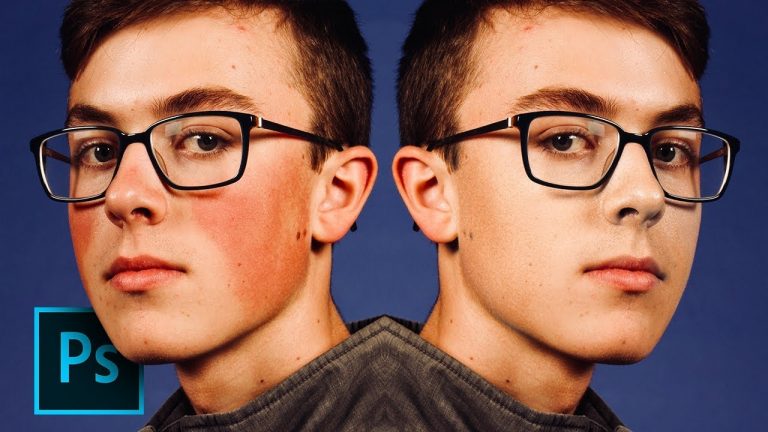
1-Minute Photoshop – Remove Red Patches from Skin

0

The Easiest Way to Fix Red Patches on Skin with Photoshop in Just One Minute! Using the power of Hue/Saturation Adjustment, learn how to selectively target and manipulate skin tones.

Hope this tutorial helps. Thank you for watching 🙂

â–º DOWNLOADS:
1. Sample Image: http://bit.ly/2QHd9RN
2. Finished PSD: http://bit.ly/2EvFBil (Only for our Patreon Family)

â–º HELP US CREATE MORE FREE VIDEOS:
Support us at Patreon: https://www.patreon.com/piximperfect

â–º SHARE: https://goo.gl/IUhnUl

â–ºLET’S CONNECT:
Facebook: http://facebook.com/piximperfect
Twitter: https://twitter.com/piximperfect
Instagram: https://www.instagram.com/piximperfect
Google+: https://plus.google.com/+UnmeshDinda

The Power of “Horizontal Curve” in Photoshop!

0

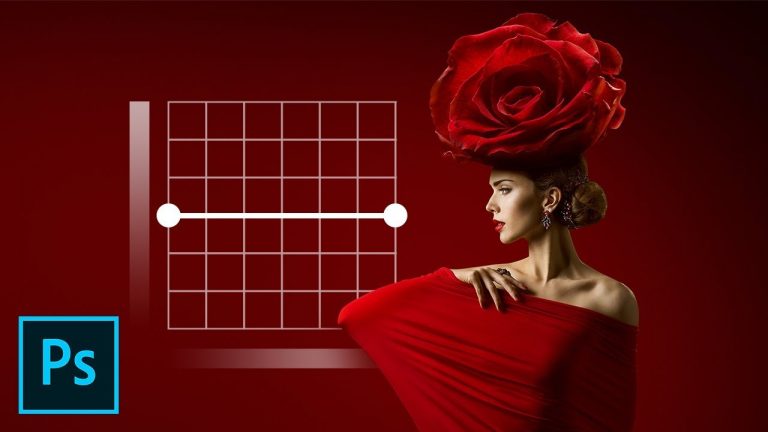
Control the Light with the Amazing “Horizontal Curve” Technique in Photoshop! Discover the most natural way to adjust the brightness of any area without disturbing the colors, using a simple straight Curve.

In this tutorial, we will use a Hue/Saturation adjustment layer and combine with a Curves adjustment layer to create a “Light Map” that would allow us to control the amount of light all throughout the image. Hope this video helps. Thank you for watching 🙂

â–º DOWNLOADS:
1. Sample Image: http://bit.ly/2BzIKKP
2. Horizontal Curve Action: http://bit.ly/hcurvepix

â–º HELP US CREATE MORE FREE VIDEOS:
Support us at Patreon: https://www.patreon.com/piximperfect

â–º SHARE: https://goo.gl/IUhnUl

â–ºLET’S CONNECT:
Facebook: http://facebook.com/piximperfect
Twitter: https://twitter.com/piximperfect
Instagram: https://www.instagram.com/piximperfect
Google+: https://plus.google.com/+UnmeshDinda’