Home Blog Page 148

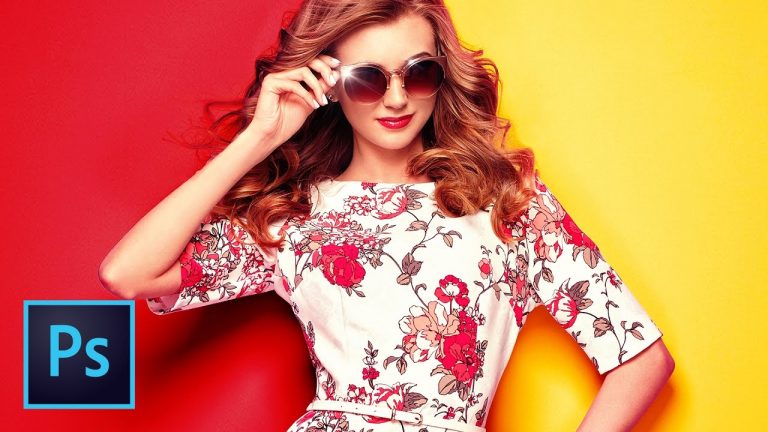
ADVANCED: Change Background Colors & Change the Color of ANYTHING in Photoshop with LAB Color Trick

0

USE LAB AND RGB COLOR AT THE SAME TIME! | Learn the quick and dirty way to change color and look at the more flexible and advanced way to change and create color in Photoshop as well! | We will cover adjustment layers, reading data, Curves, how LAB works, and so much more!

? ↓ VIDEO GUIDE ↓ ?
01:27 Get right to the tutorial (skip the intro banter)
02:07 Creating and refining a selection
04:48 The “basic” background color change
07:28 The full Photoshop Retouching Course link
07:49 Tweaking the “basic” color change and trying different blend modes
09:25 Correcting a color fringe/reflection with masks and Hue/Saturation
11:15 The ADVANCED technique starts here (explanation of LAB color)
13:17 Gathering data and displaying in our Info panel
14:54 Adding the first Adjustment Layer
15:17 Building and matching the yellow color
18:26 Masking the effect into just the background
19:06 Building and matching the red color (more difficult!)
21:38 Examining some issues with the red color and tweaking the Curve
22:31 Splitting the color in the background. (Half red, half yellow!)
24:01 Checking the color and tweaking the red a little more
24:52 Explanation of why we worked in RGB and not LAB
25:57 Wrapping it up!

? Subscribe for Daily Tutorials → https://goo.gl/DN4Nln

? Buy the Photoshop Course and Support the Channel → http://bit.ly/28NuwFy

In this Photoshop CC tutorial, we’ll use the LAB readouts in the Info panel to sample a color swatch and use those numbers to guide our RGB Curves Adjustment Layer to get a perfect background color. We’ll have some fun with a simple colorization technique and then take a deeper dive into the advanced stuff and how to make the background any color you would ever want. This technique works with ANY object you would ever want to colorize in Photoshop.

Stock I used: https://www.dreamstime.com/stock-photo-blonde-young-woman-floral-spring-summer-dress-girl-posing-pink-background-outfit-stylish-wavy-hairstyle-image90343848

⚡️ written tutorial is here: http://bit.ly/2pLOidG

INSTAGRAM: http://instagram.com/tutvid
TWITTER: http://twitter.com/tutvid
FACEBOOK: https://www.facebook.com/tutvid
SNAPCHAT: tutvid.com

tutvid is a YouTube channel dedicated to creating the best Adobe Photoshop, Premiere Pro, Lightroom, and Illustrator tutorials. My goal is to create the best, most informative, and entertaining tutorials on the web. If you enjoy my videos, the best way to support what I do here is to purchase my course linked above or simply subscribe to the YouTube channel by pressing the red button.

✉️ business inquiries: nate@tutvid.com

CREDITS:
Social Icons in outro: http://www.freepik.com/free-vector/six-social-networking-icons-with-infographic-resources_982300.htm
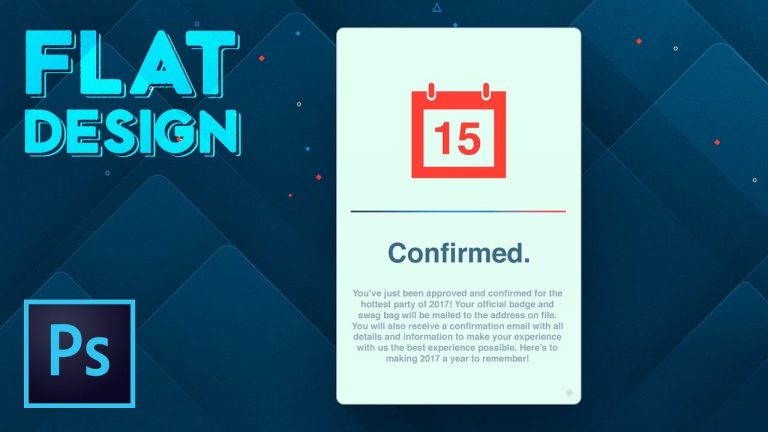
10 Flat Design Tips & Techniques Photoshop Tutorial

0

10 THINGS AND MORE EVERY DESIGNER SHOULD KNOW ABOUT PHOTOSHOP! | We’re going to build an entire confirmation pop up badge user interface as we work through ten steps of flat design techniques in Photoshop.

? Subscribe for Daily Tutorials → https://goo.gl/DN4Nln

? Buy the Photoshop Course and Support the Channel → http://bit.ly/28NuwFy

In this Photoshop tutorial, we will work our way through ten different flat design techniques that every graphic designer should know about. We’ll build a simple UI using shape layers, masking, layers styles, custom color schemes, textures, transparency effects, gradients, subtle effects, retina graphics, exporting and saving layers as graphics, and so much more! You’re going to love it!

⚡️ written tutorial here: http://bit.ly/2oKFib5

INSTAGRAM: http://instagram.com/tutvid
TWITTER: http://twitter.com/tutvid
FACEBOOK: https://www.facebook.com/tutvid
SNAPCHAT: tutvid.com

tutvid is a YouTube channel dedicated to creating the best Adobe Photoshop, Premiere Pro, Lightroom, and Illustrator tutorials. My goal is to create the best, most informative, and entertaining tutorials on the web. If you enjoy my videos, the best way to support what I do here is to purchase my course linked above or simply subscribe to the YouTube channel by pressing the red button.

✉️ business inquiries: nate@tutvid.com

CREDITS:
Social Icons in outro: http://www.freepik.com/free-vector/six-social-networking-icons-with-infographic-resources_982300.htm
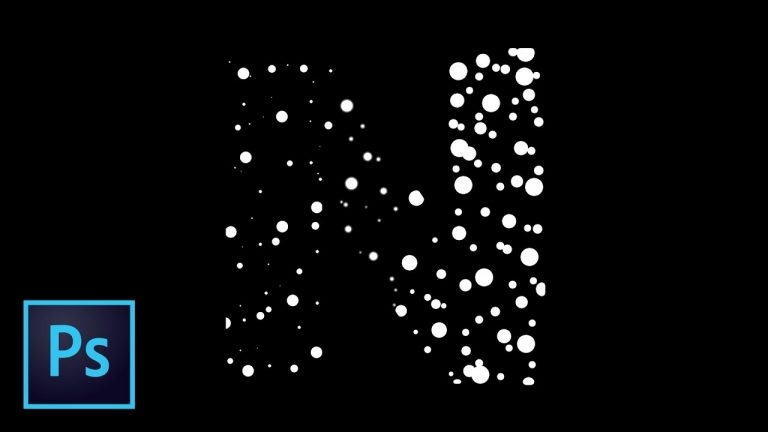
Pulsing Sparkle GLOW Typography Animation Effect Photoshop Tutorial

0

CHECK OUT THE EFFECT BEFORE SKIPPING OVER THIS VIDEO! | We will use a typeface to create a pulsing circle animation effect. | We will cover using vector shapes, animating vector shapes, and a ton about animating and exporting a video from Photoshop.

Tutorial inspired by: https://dribbble.com/shots/3264414-Glo-W (really cool!)

? Subscribe for Daily Tutorials → https://goo.gl/DN4Nln

? Buy the Photoshop Course and Support the Channel → http://bit.ly/28NuwFy

In this Photoshop tutorial, we will take a look at creating a glowing wave animation that passes over a piece of text to make it bulge larger and fade back to being smaller by using Layer Styles mixed with Vector Shape Layers that have been converted to Smart Objects and animated using the Timeline panel in Photoshop. You’ll learn how to create and mask Vector Shapes, how to work with Fill Opacity, how to Unite multiple vector shapes by where they are positioned on the Photoshop document, how to keyframe and animate multiple shapes at once to create an effect where shapes of different sizes can scale upward in unison, how to work with the Photoshop animation timeline in general, and how to export a nice video at the end of the whole thing. Long story short, you’re going to really enjoy this tutorial. I guarantee it.

⚡️ written tutorial here: http://bit.ly/2q0f1qA

INSTAGRAM: http://instagram.com/tutvid
TWITTER: http://twitter.com/tutvid
FACEBOOK: https://www.facebook.com/tutvid
SNAPCHAT: tutvid.com

tutvid is a YouTube channel dedicated to creating the best Adobe Photoshop, Premiere Pro, Lightroom, and Illustrator tutorials. My goal is to create the best, most informative, and entertaining tutorials on the web. If you enjoy my videos, the best way to support what I do here is to purchase my course linked above or simply subscribe to the YouTube channel by pressing the red button.

✉️ business inquiries: nate@tutvid.com

CREDITS:
Social Icons in outro: http://www.freepik.com/free-vector/six-social-networking-icons-with-infographic-resources_982300.htm
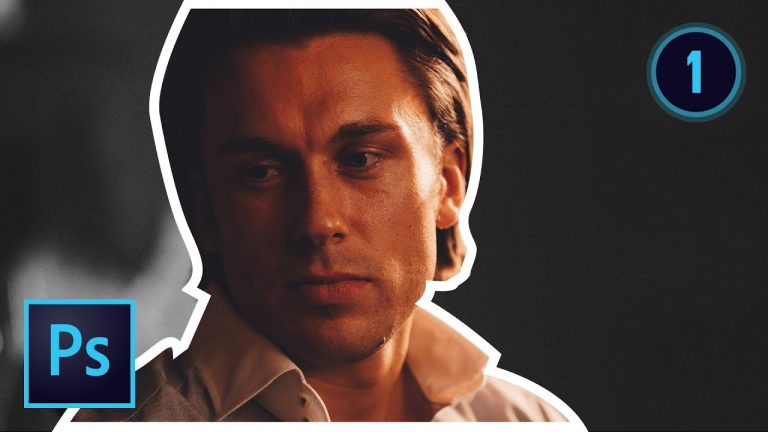
30 Techniques Every Photographer/Retoucher Needs to Know! (Pt. 1 of 4)

0

4-PART FREE MINI-COURSE ABOUT RETOUCHING AND LEARNING THE BASICS OF PHOTOSHOP! | We cover the first 9 techniques that you just have got to know as a retoucher in Photoshop.

Part 1: https://youtu.be/dk-GA1h4J4s
Part 2: https://youtu.be/y91ld8GKg9U
Part 3: https://youtu.be/Bh36v-FyZkw
Part 4: https://youtu.be/dfjVHyQa5Fs

? ↓ VIDEO GUIDE ↓ ?
01:28 1.) Editing ANY Photo in the Camera RAW Editor
07:51 2.) 8-bit vs. 16-bit Images
14:59 3.) Lens Correction and the Transform Tool
19:02 4.) White Balance and Chromatic Aberration Corrections
22:59 5.) Slimming a Figure with Liquify
30:59 6.) Healing Skin Blemishes
35:46 7.) Get Rid of Flyaway Hairs
38:35 8.) Making Simple and Complex Selections with Select & Mask
47:17 9.) The Power of Adjustment Layers

? Subscribe for Daily Tutorials → https://goo.gl/DN4Nln

? Buy the Photoshop Course and Support the Channel → http://bit.ly/28NuwFy

In this Photoshop tutorial, we’ll tackle the first 9 techniques of about 30 techniques in this first of a 4-part mini-course on the basics of getting started retouching your photos in Photoshop today! We’ll talk about Camera RAW, bit depth and the geeky numbers behind what makes bit depth so important (even I can admit that it’s kinda boring,) lens corrections, white balance, chroma aberration corrections, slimming a figure and transforming a body shape with liquify, healing skin blemishes, the power of adjustment layers, selecting hair and other complex stuff with the power of Select and Mask, and tons of other things in between.

⚡️ written tutorial: http://bit.ly/2qddFpV

INSTAGRAM: http://instagram.com/tutvid
TWITTER: http://twitter.com/tutvid
FACEBOOK: https://www.facebook.com/tutvid
SNAPCHAT: tutvid.com

tutvid is a YouTube channel dedicated to creating the best Adobe Photoshop, Premiere Pro, Lightroom, and Illustrator tutorials. My goal is to create the best, most informative, and entertaining tutorials on the web. If you enjoy my videos, the best way to support what I do here is to purchase my course linked above or simply subscribe to the YouTube channel by pressing the red button.

✉️ business inquiries: nate@tutvid.com

CREDITS:
Social Icons in outro: http://www.freepik.com/free-vector/six-social-networking-icons-with-infographic-resources_982300.htm
CRASH COURSE on Color Correction in Lightroom! (& How To Get Rid of Sunburn!)

0

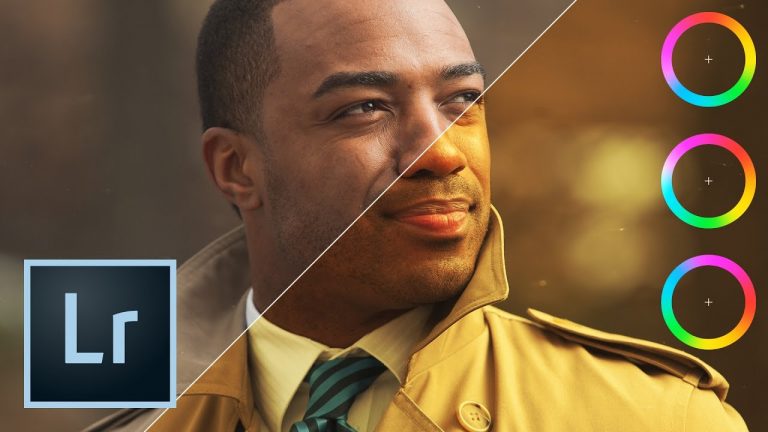
LEARN TO COLOR CORRECT AMAZINGLY! | Harness the power of tools like the White Balance tool and Curves to get amazing color in your photographs!

? Subscribe for Daily Tutorials → https://goo.gl/DN4Nln

? Buy the Photoshop Course and Support the Channel → http://bit.ly/28NuwFy

In this Lightroom tutorial, we will talk about how to get great color correction in your photos by the numbers or just color correcting until it looks the way that you want it to look. We’ll use some tricks of the White Balance tool, check out the Histogram, and even break it all down by channel suing a point Curves adjustment. You’re going to love this video!

⚡️ written tutorial here: http://bit.ly/2mP5oFv

INSTAGRAM: http://instagram.com/tutvid
TWITTER: http://twitter.com/tutvid
FACEBOOK: https://www.facebook.com/tutvid
SNAPCHAT: tutvid.com

tutvid is a YouTube channel dedicated to creating the best Adobe Photoshop, Premiere Pro, Lightroom, and Illustrator tutorials. My goal is to create the best, most informative, and entertaining tutorials on the web. If you enjoy my videos, the best way to support what I do here is to purchase my course linked above or simply subscribe to the YouTube channel by pressing the red button.

✉️ business inquiries: nate@tutvid.com

CREDITS:
Social Icons in outro: http://www.freepik.com/free-vector/six-social-networking-icons-with-infographic-resources_982300.htm
The Scary Power of Facial Recognition in Lightroom CC

0

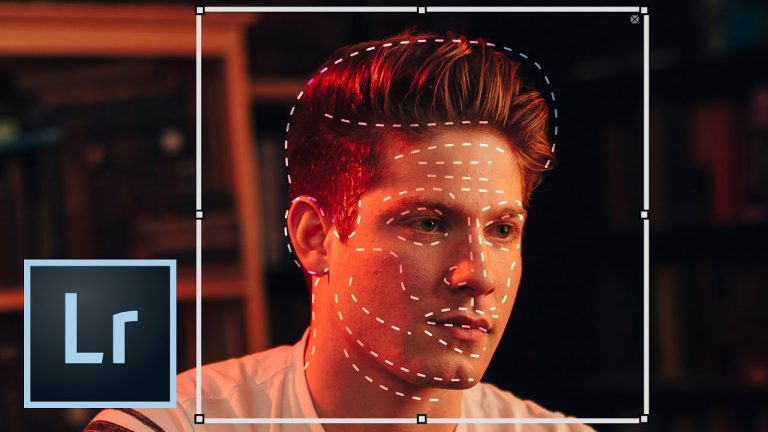
LIGHTROOM FACE MODE: AUTOMATIC FACE DETECTION, FINDING FACES, ORGANIZE YOUR PHOTOS! | Learn to use the “Face” Mode in Lightroom | We will cover quickly breaking down folders and batches of photos and assigning all the faces to Lightroom for fast sorting and automatic face detection for future imports and other untagged images.

? Subscribe for Daily Tutorials → https://goo.gl/DN4Nln

? Buy the Photoshop Course and Support the Channel → http://bit.ly/28NuwFy

In this Lightroom tutorial, we’ll talk about setting up the Face Mode in Lightroom to scan photos in your library and start assigning names to the faces which Lightroom will then automatically detect. You can use this feature with keywords, build a custom filter to find only certain people, add additional photos of people to the face library that you’ve already built in Lightroom. We’ll cover so much of the coolness of this feature and we’ll see the borderline scary power of this feature as we watch Lightroom automatically “recognize” people in other photos once we’ve tagged that person in one photo. You’re going to love it!

⚡️ written tutorial here: http://bit.ly/2ocTUB2

INSTAGRAM: http://instagram.com/tutvid
TWITTER: http://twitter.com/tutvid
FACEBOOK: https://www.facebook.com/tutvid
SNAPCHAT: tutvid.com

tutvid is a YouTube channel dedicated to creating the best Adobe Photoshop, Premiere Pro, Lightroom, and Illustrator tutorials. My goal is to create the best, most informative, and entertaining tutorials on the web. If you enjoy my videos, the best way to support what I do here is to purchase my course linked above or simply subscribe to the YouTube channel by pressing the red button.

✉️ business inquiries: nate@tutvid.com

CREDITS:
Social Icons in outro: http://www.freepik.com/free-vector/six-social-networking-icons-with-infographic-resources_982300.htm
How to Import and Export Presets from Lightroom

0

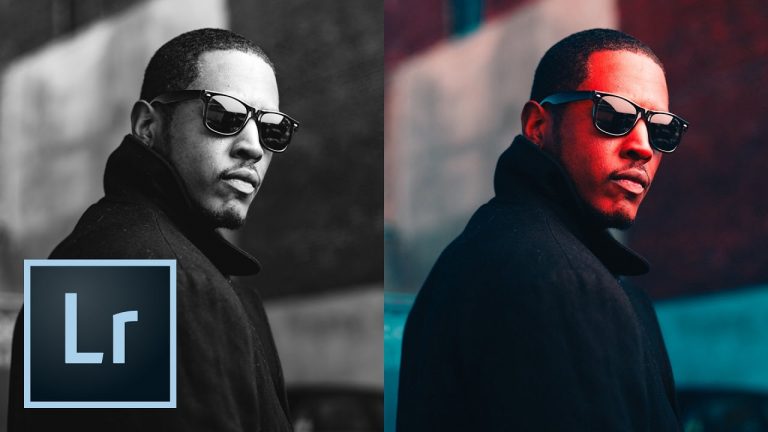
HOW TO CREATE, IMPORT, AND EXPORT LIGHTROOM PRESETS! | Learn how to create a customizable preset in this tutorial!

⚡️ download the free FAMOUS TUTVID EMULATE lightroom preset here: http://bit.ly/2oABiL8

? Subscribe for Daily Tutorials → https://goo.gl/DN4Nln

? Buy the Photoshop Course and Support the Channel → http://bit.ly/28NuwFy

In this Lightroom tutorial, we’ll talk about how I like to approach creating presets in Lightroom to give the person using the preset plenty of options when it comes to them being able to edit the photo a little bit more. We’ll cover using Curves and the color channels in Curves as well as the HSL sliders and even touch on the Camera Calibration panel in Lightroom. Lastly, we’ll cover how to quickly import new preset(s) into Lightroom and how to export a single preset, or export an entire folder of presets to share online or with your other computers. Thanks for checking out this video!

⚡️ download the presets here: http://bit.ly/2oABiL8

INSTAGRAM: http://instagram.com/tutvid
TWITTER: http://twitter.com/tutvid
FACEBOOK: https://www.facebook.com/tutvid
SNAPCHAT: tutvid.com

tutvid is a YouTube channel dedicated to creating the best Adobe Photoshop, Premiere Pro, Lightroom, and Illustrator tutorials. My goal is to create the best, most informative, and entertaining tutorials on the web. If you enjoy my videos, the best way to support what I do here is to purchase my course linked above or simply subscribe to the YouTube channel by pressing the red button.

✉️ business inquiries: nate@tutvid.com

CREDITS:
Social Icons in outro: http://www.freepik.com/free-vector/six-social-networking-icons-with-infographic-resources_982300.htm
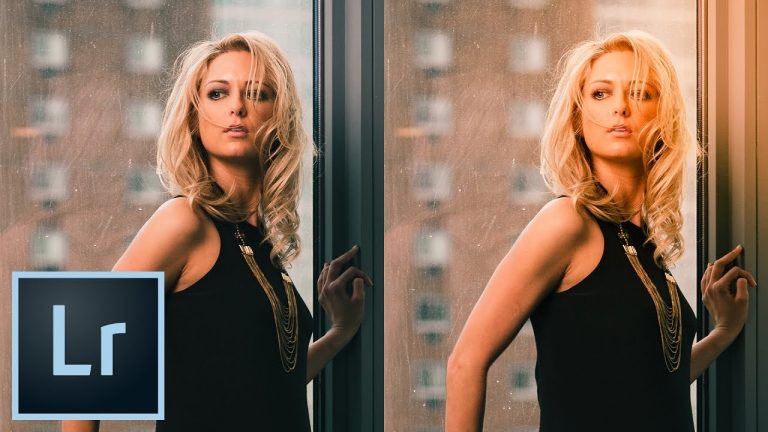
Getting Started with Lightroom: 10 Essential Tips and Techniques

0

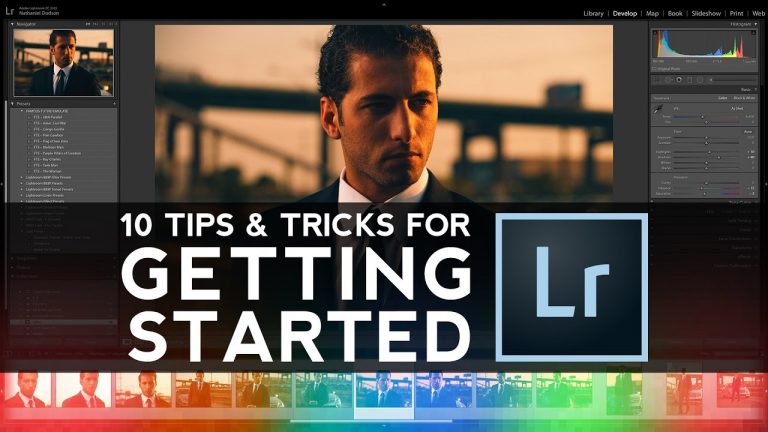
GET STARTED EVEN WITH ZERO KNOWLEDGE OF LIGHTROOM! | We will cover everything from importing straight to exporting photos!

? Subscribe for Daily Tutorials → https://goo.gl/DN4Nln

? Buy the Photoshop Course and Support the Channel → http://bit.ly/28NuwFy

In this Lightroom tutorial, we will talk about how to get started in Lightroom even if you’ve never used Lightroom before. You will learn how to import and convert images to DNG file format, how to sort and view images effectively, marking and labeling images as well as setting up filters to quickly view those tagged images, how to delete images a few different ways, how to build a collection to effectively track different shoots and projects in Lightroom, how to perform different color and tonal adjustments, using the Adjustment Brush tool, how to crop and recompose images in Lightroom, syncing settings between multiple images, exporting your photos, and much much more along the way!

⚡️ written tutorial here: http://bit.ly/2owCmz5

INSTAGRAM: http://instagram.com/tutvid
TWITTER: http://twitter.com/tutvid
FACEBOOK: https://www.facebook.com/tutvid
SNAPCHAT: tutvid.com

tutvid is a YouTube channel dedicated to creating the best Adobe Photoshop, Premiere Pro, Lightroom, and Illustrator tutorials. My goal is to create the best, most informative, and entertaining tutorials on the web. If you enjoy my videos, the best way to support what I do here is to purchase my course linked above or simply subscribe to the YouTube channel by pressing the red button.

✉️ business inquiries: nate@tutvid.com

CREDITS:
Social Icons in outro: http://www.freepik.com/free-vector/six-social-networking-icons-with-infographic-resources_982300.htm
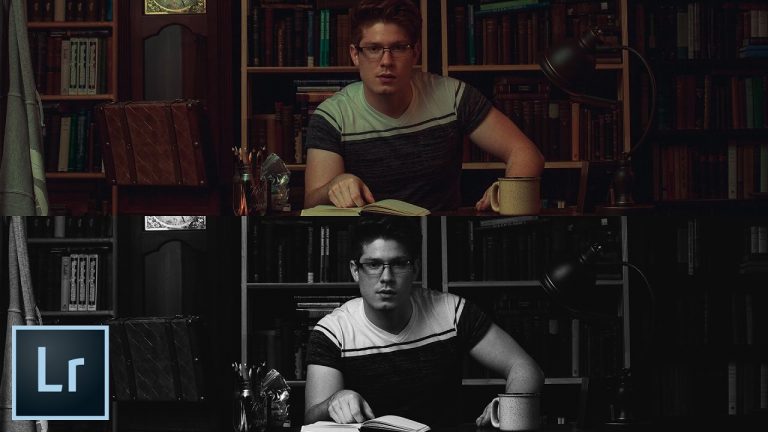
Custom Light Leaks and Sun Flares Lightroom Tutorial

0

FULLY EDITABLE COLORFUL LIGHT LEAKS IN LIGHTROOM! | We’ll cover just how easy it can be to use the Adjustment Brush to create a lens flare in Lightroom!

? Subscribe for Daily Tutorials → https://goo.gl/DN4Nln

? Buy the Photoshop Course and Support the Channel → http://bit.ly/28NuwFy

In this Lightroom tutorial, we’ll break out the Adjustment Brush and look at the brush settings and tonal adjustments to create a flare that can be all sorts of different colors and blends with the image in a much more natural way as you would expect a flare to attack your image if it was a flare captured in camera. This is a quick tutorial, but it covers some techniques that will be very useful for you to have in a myriad of situations.

⚡️ written tutorial here: http://bit.ly/2pzlnNA

INSTAGRAM: http://instagram.com/tutvid
TWITTER: http://twitter.com/tutvid
FACEBOOK: https://www.facebook.com/tutvid
SNAPCHAT: tutvid.com

tutvid is a YouTube channel dedicated to creating the best Adobe Photoshop, Premiere Pro, Lightroom, and Illustrator tutorials. My goal is to create the best, most informative, and entertaining tutorials on the web. If you enjoy my videos, the best way to support what I do here is to purchase my course linked above or simply subscribe to the YouTube channel by pressing the red button.

✉️ business inquiries: nate@tutvid.com

CREDITS:
Social Icons in outro: http://www.freepik.com/free-vector/six-social-networking-icons-with-infographic-resources_982300.htm

Create Cinematic Movie Still Look in Lightroom (Tutorial)

0

USE CROPPING AND CURVES TO CREATE THIS EFFECT! | Use the techniques I use in this Lightroom tutorial to create a cool cinematic effect for any photo.

? Subscribe for Daily Tutorials → https://goo.gl/DN4Nln

? Buy the Photoshop Course and Support the Channel → http://bit.ly/28NuwFy

In this Lightroom tutorial, we’ll use a bunch of the features in Lightroom to quickly create a cinematic movie still-like image by flattening the tones in the image to increase the dynamic range and then selectively add contrast back into the image. We’ll also use a cinematic 2.39:1 crop to give the photo a real wide screen look. As a bonus, we’ll also create a creamy black and white shot at the very end of the tutorial as well. Check out the whole video and I hope that you love it!

⚡️ written tutorial here: http://bit.ly/2q7Yi20

INSTAGRAM: http://instagram.com/tutvid
TWITTER: http://twitter.com/tutvid
FACEBOOK: https://www.facebook.com/tutvid
SNAPCHAT: tutvid.com

tutvid is a YouTube channel dedicated to creating the best Adobe Photoshop, Premiere Pro, Lightroom, and Illustrator tutorials. My goal is to create the best, most informative, and entertaining tutorials on the web. If you enjoy my videos, the best way to support what I do here is to purchase my course linked above or simply subscribe to the YouTube channel by pressing the red button.

✉️ business inquiries: nate@tutvid.com

CREDITS:
Social Icons in outro: http://www.freepik.com/free-vector/six-social-networking-icons-with-infographic-resources_982300.htm