Home Blog Page 149

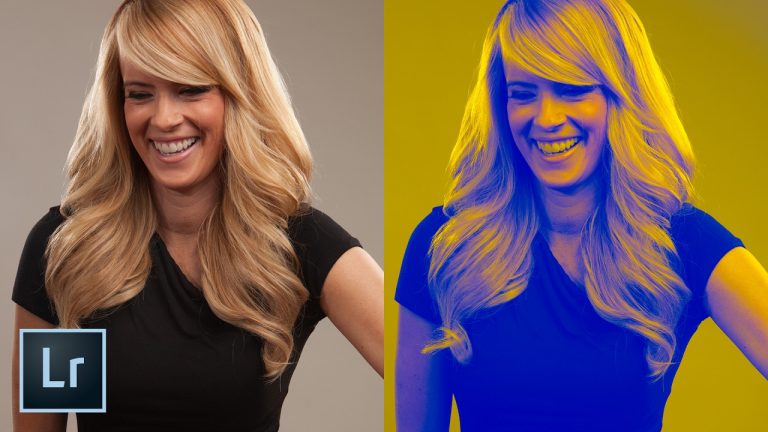
Create a Unique Duotone Effect in Lightroom

0

DUOTONE WITH CURVES! | Mix and match any colors you want!

This is a quick Lightroom effect that will transform any photo into a piece of pop art in no time flat.

? Subscribe for Daily Tutorials → https://goo.gl/DN4Nln

? Buy the Photoshop Course and Support the Channel → http://bit.ly/28NuwFy

Typically something reserved for Photoshop, applying a great duotone effect is possible in Lightroom as well. We’ll use the Curves panel here and play with the color channels to create an awesome array of colorful duotone effects to our images.

? ↓ VIDEO GUIDE ↓ ?
00:49 Getting started
01:15 Working with the Red Channel
01:50 Making the black and white
02:14 Working with the green channel
02:38 Working with the blue channel

⚡️ written tutorial here: http://bit.ly/2l78sQk

INSTAGRAM: http://instagram.com/tutvid
TWITTER: http://twitter.com/tutvid
FACEBOOK: https://www.facebook.com/tutvid
SNAPCHAT: tutvid.com

tutvid is a YouTube channel dedicated to creating the best Adobe Photoshop, Premiere Pro, Lightroom, and Illustrator tutorials. My goal is to create the best, most informative, and entertaining tutorials on the web. If you enjoy my videos, the best way to support what I do here is to purchase my course linked above or simply subscribe to the YouTube channel by pressing the red button.

✉️ business inquiries: nate@tutvid.com

CREDITS:
Social Icons in outro: http://www.freepik.com/free-vector/six-social-networking-icons-with-infographic-resources_982300.htm
Export a PDF Contact Sheet from Lightroom CC – How to add a Watermark, Captions, & More

0

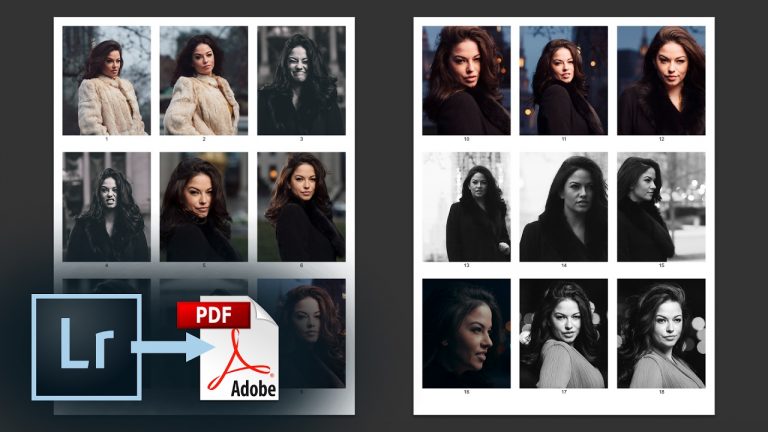
CONTACT SHEETS CAN BE EASY | Printing or Slideshowing Contact Sheets | We’ll cover three different ways to export contact sheets

Use the Printing functionality or slideshow capability of Lightroom to quickly create contact sheets to send off to clients with maximum control over quality, watermarking, “stylish” backgrounds, and much more!

? Subscribe for Daily Tutorials → https://goo.gl/DN4Nln

? Buy the Photoshop Course and Support the Channel → http://bit.ly/28NuwFy

? ↓ VIDEO GUIDE ↓ ?
00:34 Exporting JPEG contact sheets
05:52 Exporting the PDF contact sheet
07:48 Exporting a Slideshow PDF contact sheet

In this Adobe Lightroom tutorial, I’ll talk all about how to create Contact sheets using the Print functionality and a little export PDF trick, how to export a series of JPEG contact sheets in case you ever wanted to do that, and also how to create a more luxurious type of single-image contact sheet that can have music added (probably don’t want to do that,) and all kinds of other graphical or data based options. You’ve got to check it out to see all the features and options!

⚡️ written Lightroom tutorial here: http://bit.ly/2m5LXJl

INSTAGRAM: http://instagram.com/tutvid
TWITTER: http://twitter.com/tutvid
FACEBOOK: https://www.facebook.com/tutvid
SNAPCHAT: tutvid.com

tutvid is a YouTube channel dedicated to creating the best Adobe Photoshop, Premiere Pro, Lightroom, and Illustrator tutorials. My goal is to create the best, most informative, and entertaining tutorials on the web. If you enjoy my videos, the best way to support what I do here is to purchase my course linked above or simply subscribe to the YouTube channel by pressing the red button.

✉️ business inquiries: nate@tutvid.com

CREDITS:
Social Icons in outro: http://www.freepik.com/free-vector/six-social-networking-icons-with-infographic-resources_982300.htm
Add Incredible Dramatic Color and Light to Photos in Lightroom CC (RAW Photo Color/Tone Retouching)

0

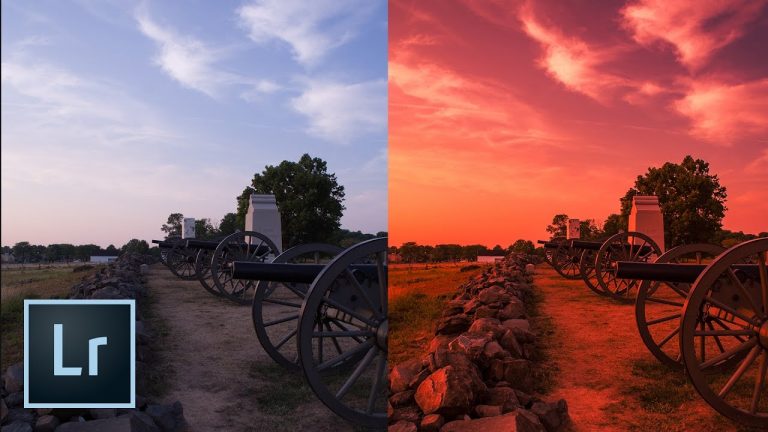
PUMP UP THE COLORS NON-DESTRUCTIVELY! | Using the many tools Lightroom has to offer to get an awesome effect | We’re taking an old RAW photo and still getting insane results

? ↓ VIDEO GUIDE ↓ ?
00:57 Getting started
01:38 Sharpening
02:24 White Balance and general tones
04:17 Tones and color with Curves
06:52 HSL editing
08:47 Lens distortion
09:17 Dehazing
09:39 Camera Calibration
11:06 Graduated filter to pump the sky
11:43 Adjustment brush to make the rocks the perfect
12:36 Before/after and copying the effect to another image

? Subscribe for Daily Tutorials → https://goo.gl/DN4Nln

? Buy the Photoshop Course and Support the Channel → http://bit.ly/28NuwFy

In this Adobe Lightroom tutorial, we’ll take a RAW photo shot on an old DSLR in 2007 (OLD!) and transform it using the powerful light and color retouching tools of Lightroom to get a rich, dramatic sunset photo along Cemetery Ridge in Gettysburg National Park. We will cover everything from basic white balance and contrast to Curves, Lens Correction, and Camera Calibration features. If you take pictures, you’re going to love this tutorial!

⚡️ download the RAW file here and see written tutorial: http://bit.ly/2mzrXzn

INSTAGRAM: http://instagram.com/tutvid
TWITTER: http://twitter.com/tutvid
FACEBOOK: https://www.facebook.com/tutvid
SNAPCHAT: tutvid.com

tutvid is a YouTube channel dedicated to creating the best Adobe Photoshop, Premiere Pro, Lightroom, and Illustrator tutorials. My goal is to create the best, most informative, and entertaining tutorials on the web. If you enjoy my videos, the best way to support what I do here is to purchase my course linked above or simply subscribe to the YouTube channel by pressing the red button.

✉️ business inquiries: nate@tutvid.com

CREDITS:
Social Icons in outro: http://www.freepik.com/free-vector/six-social-networking-icons-with-infographic-resources_982300.htm
5 Different Styles of Wedding Photos – Lightroom Tutorial

0

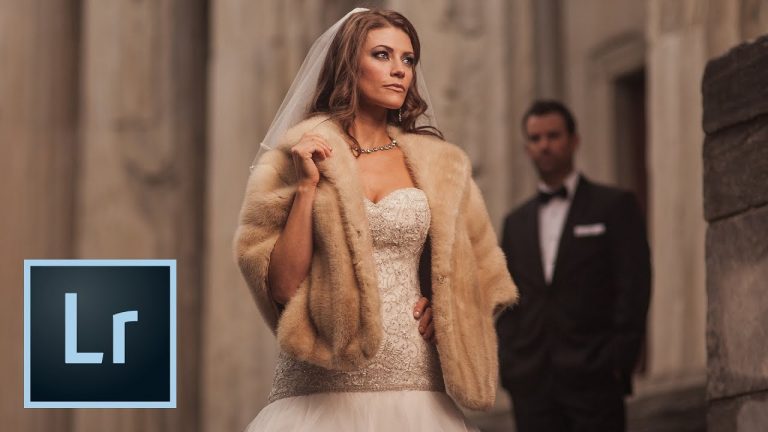
FAST RETOUCHING WORKFLOW WEDDING PHOTOS | Retouch indoor, outdoor, and low-light pictures | This tutorial will cover five different image styles that work very well with wedding photos

? ↓ VIDEO GUIDE ↓ ?
00:49 Creating a sharp black and white candid photo
04:56 Creating a rich, colorful graded portrait look
09:45 Creating a “VSCO” faded look for outdoor portraits
15:13 Creating a colorful low-light shot for photos of the venue
19:42 Creating mood with a faded black and white photo (low-light, as well)

? Subscribe for Daily Tutorials → https://goo.gl/DN4Nln

? Buy the Photoshop Course and Support the Channel → http://bit.ly/28NuwFy

In this Lightroom tutorial we’ll look at five different retouching workflows in Lightroom that work particularly well with wedding photos. The types of images we’ll cover are:

#1. Crisp, sharp, high contrast black and white.
#2. Rich and cinematic environmental bridal portrait.
#3. Lite “VSCO” faded style.
#4. Colorful low-light venue shot retouch.
#5. Faded black and white effect.

Enjoy the tutorial and let me know what styles you love most in wedding photography!

⚡️ check out the written tutorial here: http://bit.ly/2mClEOc

INSTAGRAM: http://instagram.com/tutvid
TWITTER: http://twitter.com/tutvid
FACEBOOK: https://www.facebook.com/tutvid
SNAPCHAT: tutvid.com

tutvid is a YouTube channel dedicated to creating the best Adobe Photoshop, Premiere Pro, Lightroom, and Illustrator tutorials. My goal is to create the best, most informative, and entertaining tutorials on the web. If you enjoy my videos, the best way to support what I do here is to purchase my course linked above or simply subscribe to the YouTube channel by pressing the red button.

✉️ business inquiries: nate@tutvid.com

CREDITS:
Social Icons in outro: http://www.freepik.com/free-vector/six-social-networking-icons-with-infographic-resources_982300.htm
How to Retouch Eyes in 5 Minutes! Adobe Lightroom Tutorial Using the Adjustment Brush

0

RETOUCH EYES PROFESSIONALLY IN 5 MINUTES! | Learn to retouch eyes quickly and nondestructively | We will cover using multiple Adjustment Brushes and many tips and tricks of using the Adjustment Brush tool

? Subscribe for Daily Tutorials → https://goo.gl/DN4Nln

? Buy the Photoshop Course and Support the Channel → http://bit.ly/28NuwFy

In this Adobe Lightroom tutorial, we’ll cover using the Adjustment Brush tool to target and retouch each part of the eye of our model. This technique is fast, easy, and something that will help your portraits looks much better! Check out the quick video and enjoy!

⚡️ tutvid.com Lightroom post here: http://bit.ly/2nGuJT3

INSTAGRAM: http://instagram.com/tutvid
TWITTER: http://twitter.com/tutvid
FACEBOOK: https://www.facebook.com/tutvid
SNAPCHAT: tutvid.com

tutvid is a YouTube channel dedicated to creating the best Adobe Photoshop, Premiere Pro, Lightroom, and Illustrator tutorials. My goal is to create the best, most informative, and entertaining tutorials on the web. If you enjoy my videos, the best way to support what I do here is to purchase my course linked above or simply subscribe to the YouTube channel by pressing the red button.

✉️ business inquiries: nate@tutvid.com

CREDITS:
Social Icons in outro: http://www.freepik.com/free-vector/six-social-networking-icons-with-infographic-resources_982300.htm
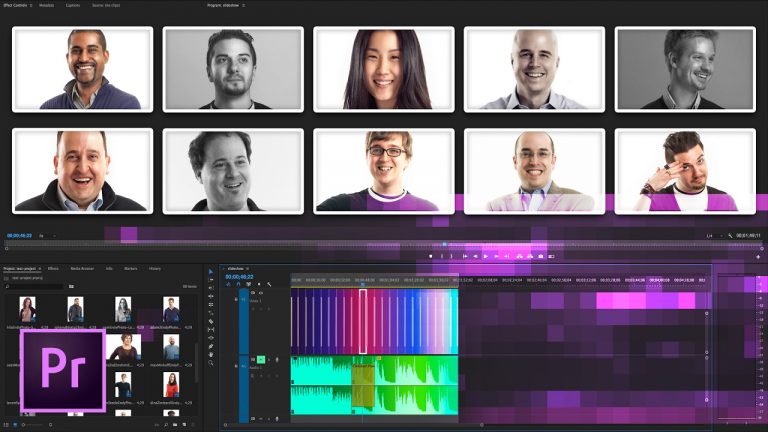
Create a Simple and Professional Slideshow in Premiere Pro

0

MAKE A SIMPLE ELEGANT SLIDESHOW | Create a slideshow with hundreds of images fast! | Work with default settings to work fast with images

This tutorial will help you create complex slideshows with hundreds of images in no time flat in Premiere Pro! No more frustrating hours spent building long multi-image slide shows that take forever!

? Subscribe for Daily Tutorials → https://goo.gl/DN4Nln

? Buy the Photoshop Course and Support the Channel → http://bit.ly/28NuwFy

In this Adobe Premiere tutorial, we’ll create a photo slideshow and quickly import multiple images and place transitions in less than 5 seconds and we’ll also cover how you can animate photos, resize hundreds of photos automatically at once, blend music together, boost levels, and export your video slideshow so it looks amazing and is ready to be shared on Facebook, Youtube, or any video sharing website that you would like.

? ↓ VIDEO GUIDE ↓ ?
00:45 Getting started w/ new sequence and importing the photos
01:50 Learning the place photos the smart way
04:48 Auto resizing all images at once
05:45 Adding transitions the better way
08:28 Adding and blending songs to use in your slideshow
12:09 Adding a little Ken Burns type animation to an image in the slideshow
14:37 Creating titles/lower thirds to have a text marker for different images
16:07 Exporting the video for facebook, vimeo, or YouTube

⚡️ written tutorial is here: http://bit.ly/2lxgF16

INSTAGRAM: http://instagram.com/tutvid
TWITTER: http://twitter.com/tutvid
FACEBOOK: https://www.facebook.com/tutvid
SNAPCHAT: tutvid.com

tutvid is a YouTube channel dedicated to creating the best Adobe Photoshop, Premiere Pro, Lightroom, and Illustrator tutorials. My goal is to create the best, most informative, and entertaining tutorials on the web. If you enjoy my videos, the best way to support what I do here is to purchase my course linked above or simply subscribe to the YouTube channel by pressing the red button.

✉️ business inquiries: nate@tutvid.com

CREDITS:
Social Icons in outro: http://www.freepik.com/free-vector/six-social-networking-icons-with-infographic-resources_982300.htm
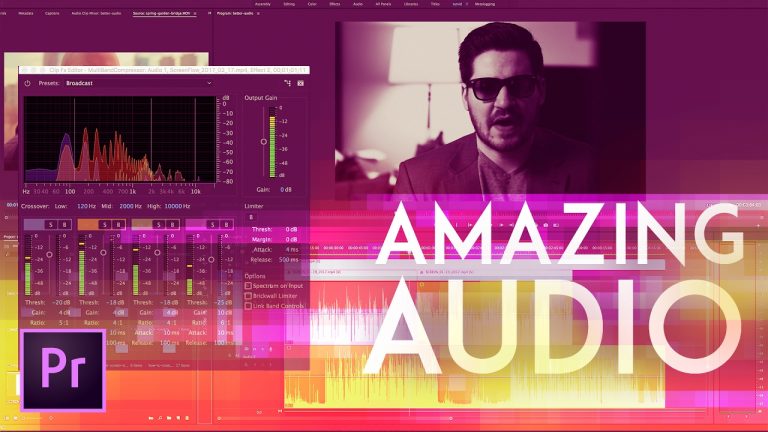
How to Get Amazing Audio in Premiere Pro 2017 (New Audio Effects) Advanced Multiband Compressor!

0

HOW AND WHY OF AMAZING AUDIO! | Quickly learn to use advanced effects in Premiere Pro | We will cover Adaptive Noise Reduction, Mastering, and Multiband Compressor

Did you know that the powerful Adobe Audition feature Adaptive Noise Reduction has been moved into Premiere Pro? You can use it to quickly and smartly find the “bad” noise in your audio track and neutralize it in an intelligent manner.

? Subscribe for Daily Tutorials → https://goo.gl/DN4Nln

? Buy the Photoshop Course and Support the Channel → http://bit.ly/28NuwFy

? ↓ VIDEO GUIDE ↓ ?
01:14 Looking at a few microphones
02:30 Getting started
03:04 Checking the audio levels and boosting gain
04:25 Adaptive Noise Reduction for getting rid of background noise
05:37 Boosting crispness with Mastering effect
06:41 Multiband Compressor
15:23 Before/After audio check
15:56 Saving a preset and applying effect to multiple clips

We will also talk a little bit about the Mastering effect, but the bulk of this tutorial will be spent covering the ultra powerful and very useful Multiband Compressor which we can use to really add that element of “radio voice” to our vocal recordings, or just selectively boost or enhance very specific ranges of frequency in voice or music tracks. The more you learn about Multiband Compressor, the more I’m sure you will love it! Check out the video and drop a like on it if you feel so inclined! Thanks for watching!

⚡️ find written Premiere tutorial here: http://bit.ly/2kS7yU2

INSTAGRAM: http://instagram.com/tutvid
TWITTER: http://twitter.com/tutvid
FACEBOOK: https://www.facebook.com/tutvid
SNAPCHAT: tutvid.com

tutvid is a YouTube channel dedicated to creating the best Adobe Photoshop, Premiere Pro, Lightroom, and Illustrator tutorials. My goal is to create the best, most informative, and entertaining tutorials on the web. If you enjoy my videos, the best way to support what I do here is to purchase my course linked above or simply subscribe to the YouTube channel by pressing the red button.

✉️ business inquiries: nate@tutvid.com

CREDITS:
Social Icons in outro: http://www.freepik.com/free-vector/six-social-networking-icons-with-infographic-resources_982300.htm
Cinematic Color Grading – Make LUTs in Photoshop & Premiere Pro (Color Lookup Tables in Photoshop!)

0

USE PHOTOSHOP TO COLOR YOUR FOOTAGE! | Export Lookup Tables from Photoshop for Powerful Options | Learn to work with Lookup Tables and how easy it can be!

? ↓ VIDEO GUIDE ↓ ?
00:47 Grabbing a still and exporting instantly
01:41 Opening the JPEG and creating the LUT adjustment in Photoshop
03:31 Exporting the LUT from Photoshop
04:18 Applying the LUT in Premiere Pro

? Subscribe for Daily Tutorials → https://goo.gl/DN4Nln

? Buy the Photoshop Course and Support the Channel → http://bit.ly/28NuwFy

In this Adobe Premiere Pro tutorial we’ll take a look at how to quickly and precisely color grade your footage and movies by exporting custom color lookup tables from Photoshop. This technique is particularly useful if you are comfortable working with Photoshop and the adjustment layers and color tools in Photoshop but haven’t yet wrapped your mind entirely around the Lumetri tools in Premiere. You can export your looks from Photoshop and have them adjusting your footage in Premiere in LITERALLY SECONDS! You’re going to love this tutorial if you’ve been looking to take the next step with the color in your videos!

⚡️ written Premiere Pro tutorial: http://bit.ly/2m6Mf5L

INSTAGRAM: http://instagram.com/tutvid
TWITTER: http://twitter.com/tutvid
FACEBOOK: https://www.facebook.com/tutvid
SNAPCHAT: tutvid.com

tutvid is a YouTube channel dedicated to creating the best Adobe Photoshop, Premiere Pro, Lightroom, and Illustrator tutorials. My goal is to create the best, most informative, and entertaining tutorials on the web. If you enjoy my videos, the best way to support what I do here is to purchase my course linked above or simply subscribe to the YouTube channel by pressing the red button.

✉️ business inquiries: nate@tutvid.com

CREDITS:
Social Icons in outro: http://www.freepik.com/free-vector/six-social-networking-icons-with-infographic-resources_982300.htm
Glitch Transition Effect – Premiere Pro Tutorial w/ Glitch Preset Download!

0

FREE GLITCH PRESET INCLUDED! | Learn to split the glitch colors form the video | This tutorial will cover Channel Mixer effects, Wave Distortion, Mosaic block effects, Adjustment Layers, Adding Fade and Grain, Nesting Video tracks, Working with Blend Modes, and creating a custom transition with cuts and vertical flip transforms.

⚡️ download the free presets here: http://bit.ly/2mydxSv

? ↓ VIDEO GUIDE ↓ ?
00:38 Getting started
01:22 The free preset
02:16 Splitting the Red, Green, and Blue channels
03:45 Blend Modes and the Warp Distortion
06:47 Adding color blocks
07:59 Washing out the color, adding grain, and more
09:38 Nesting the object and playing with cuts to create the transition

? Subscribe for Daily Tutorials → https://goo.gl/DN4Nln

? Buy the Photoshop Course and Support the Channel → http://bit.ly/28NuwFy

In this Premiere Pro tutorial, we’ll create a custom glitch effect that can be used as a simple effect or a transition. We split the video out into it’s Red, Green, and Blue channels, and heap on a bunch of addition goodness to create a super cool and totally customizable glitch effect transition.

⚡️ download the free presets here: http://bit.ly/2mydxSv

INSTAGRAM: http://instagram.com/tutvid
TWITTER: http://twitter.com/tutvid
FACEBOOK: https://www.facebook.com/tutvid
SNAPCHAT: tutvid.com

tutvid is a YouTube channel dedicated to creating the best Adobe Photoshop, Premiere Pro, Lightroom, and Illustrator tutorials. My goal is to create the best, most informative, and entertaining tutorials on the web. If you enjoy my videos, the best way to support what I do here is to purchase my course linked above or simply subscribe to the YouTube channel by pressing the red button.

✉️ business inquiries: nate@tutvid.com

CREDITS:
Social Icons in outro: http://www.freepik.com/free-vector/six-social-networking-icons-with-infographic-resources_982300.htm

5 Cinematic Camera Movements You Can Create in Premiere Pro – Animation, Keyframes, and 3D Camera

0

CINEMATIC PANS, TILTS, ZOOMS, ROTATIONS, TRACKING, MORE! | Simple Subtle Keyframe Animations Can Be Golden | We will cover animating using keyframes, positioning, scaling, zooming, 3D rotations, and more!

? ↓ VIDEO GUIDE ↓ ?
00:49 The Pan/Slide Movement
03:13 Cinematic Zoom Technique
06:26 Rotation Zoom Effect
07:54 Tracking/Counter-Tracking Technique
10:21 3D Camera Movement

? Subscribe for Daily Tutorials → https://goo.gl/DN4Nln

? Buy the Photoshop Course and Support the Channel → http://bit.ly/28NuwFy

In this Premiere Pro video editing tutorial, we’ll talk about how to create five different types of subtle and beautiful camera movements in Premiere Pro. We’ll cover a simple pan/slide movement, a zoom with or without movement, an aerial rotation shot, a simple tracking/counter tracking style animation, and a 3D camera zoom through 3D space to add an additional dimension of visual awesomeness.

⚡️ check out the written Premiere Pro tutorial here: http://bit.ly/2mpZP0a

INSTAGRAM: http://instagram.com/tutvid
TWITTER: http://twitter.com/tutvid
FACEBOOK: https://www.facebook.com/tutvid
SNAPCHAT: tutvid.com

tutvid is a YouTube channel dedicated to creating the best Adobe Photoshop, Premiere Pro, Lightroom, and Illustrator tutorials. My goal is to create the best, most informative, and entertaining tutorials on the web. If you enjoy my videos, the best way to support what I do here is to purchase my course linked above or simply subscribe to the YouTube channel by pressing the red button.

✉️ business inquiries: nate@tutvid.com

CREDITS:
Social Icons in outro: http://www.freepik.com/free-vector/six-social-networking-icons-with-infographic-resources_982300.htm