Home Blog Page 150

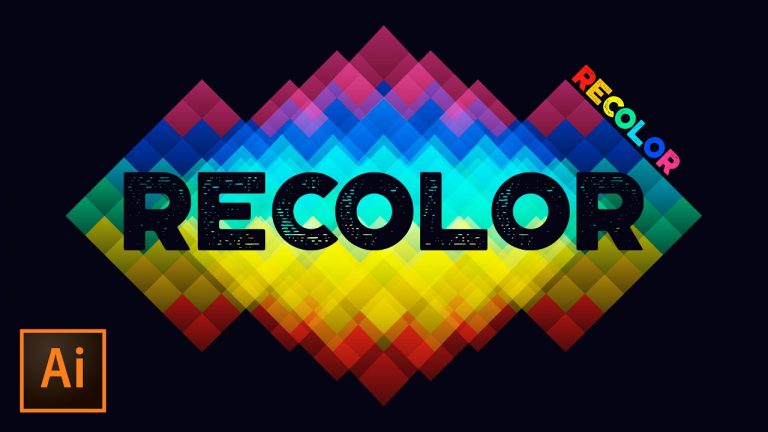
How to Use Recolor Artwork in Adobe Illustrator

0

CHANGE MULTIPLE COLORS AT ONCE! | Changing an entire color scheme is easy | Create and import color groups w/ Illustrator

If you create any kind of artwork in Adobe Illustrator or if you work with clients (who have been known to request modifications or change their mind,) this tutorial is must-see Adobe Illustrator action.

Check out the free font “Sonder” that I used in this tutorial: https://www.behance.net/gallery/41199179/Sonder-Free-Type-Family

? Subscribe for Daily Tutorials → https://goo.gl/DN4Nln

? Buy the Photoshop Course and Support the Channel → http://bit.ly/28NuwFy

In this Adobe Illustrator tutorial, I will walk you through and around the Recolor Artwork feature set and how I use it to adjust and change the colors of multiple pieces of complex artwork in Illustrator. We’ll talk about applying brand new colors, changing the way the color is displayed, desaturation all the color, and so much more! You will save so much time by learning how to use Recolor Artwork properly and effectively! I hope you enjoy the video!!

⚡️ Check out the written Illustrator tutorial here: http://bit.ly/2jUYRaQ

INSTAGRAM: http://instagram.com/tutvid
TWITTER: http://twitter.com/tutvid
FACEBOOK: https://www.facebook.com/tutvid
SNAPCHAT: tutvid.com

tutvid is a YouTube channel dedicated to creating the best Adobe Photoshop, Premiere Pro, Lightroom, and Illustrator tutorials. My goal is to create the best, most informative, and entertaining tutorials on the web. If you enjoy my videos, the best way to support what I do here is to purchase my course linked above or simply subscribe to the YouTube channel by pressing the red button.

✉️ business inquiries: nate@tutvid.com

CREDITS:
Social Icons in outro: http://www.freepik.com/free-vector/six-social-networking-icons-with-infographic-resources_982300.htm
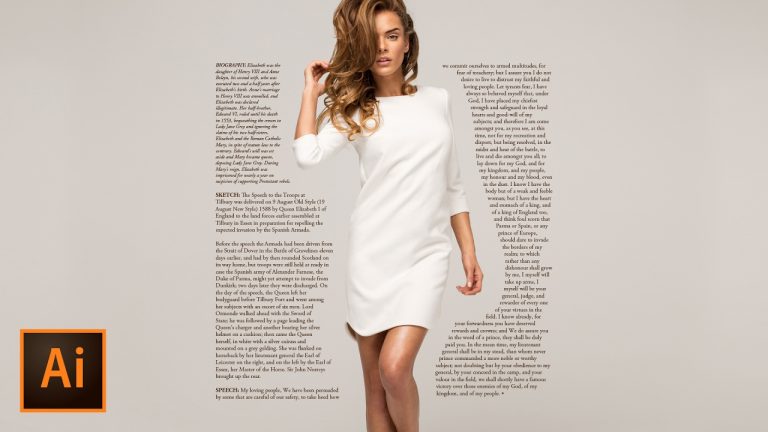
Wrapping Text Around Graphics and Photos in Illustrator CC

0

WRAPPING AND FLOWING TEXT ANYWHERE! | Quickly learn this amazing technique | Use masks or use paths to create this effect

You can create a sort of live mask effect to wrap text around any graphic, object, or photo in Illustrator and it will automatically update when the text is changed, rescaled, styled, move, or more.

? ↓ VIDEO GUIDE ↓ ?
00:26 Checking out an example and getting started
01:19 How to import text from a text editor
03:14 Breaking out, colorizing, and masking the header text
07:30 Creating the divider line
09:30 Building the 2-column text box
12:54 Creating the text wrap to make the text flow smoothly
16:00 Adding a final • touch

? Subscribe for Daily Tutorials → https://goo.gl/DN4Nln

? Buy the Photoshop Course and Support the Channel → http://bit.ly/28NuwFy

In this Adobe Illustrator tutorial, we’ll cover the Text Wrap feature and how to split a text field into multiple columns and then use a second path to wrap it around virtually any object in Illustrator you could imagine. As a bonus, we’ll also cover a little masking to make text look like it’s hiding behind an object on a magazine layout, using the eyedropper to quickly match and style text in a page layout, aligning tricks, and more! Make sure you LIKE & SUBSCRIBE! Thanks!

⚡️ written tutorial is located here: http://bit.ly/2kjVFpn

INSTAGRAM: http://instagram.com/tutvid
TWITTER: http://twitter.com/tutvid
FACEBOOK: https://www.facebook.com/tutvid
SNAPCHAT: tutvid.com

tutvid is a YouTube channel dedicated to creating the best Adobe Photoshop, Premiere Pro, Lightroom, and Illustrator tutorials. My goal is to create the best, most informative, and entertaining tutorials on the web. If you enjoy my videos, the best way to support what I do here is to purchase my course linked above or simply subscribe to the YouTube channel by pressing the red button.

✉️ business inquiries: nate@tutvid.com

CREDITS:
Social Icons in outro: http://www.freepik.com/free-vector/six-social-networking-icons-with-infographic-resources_982300.htm
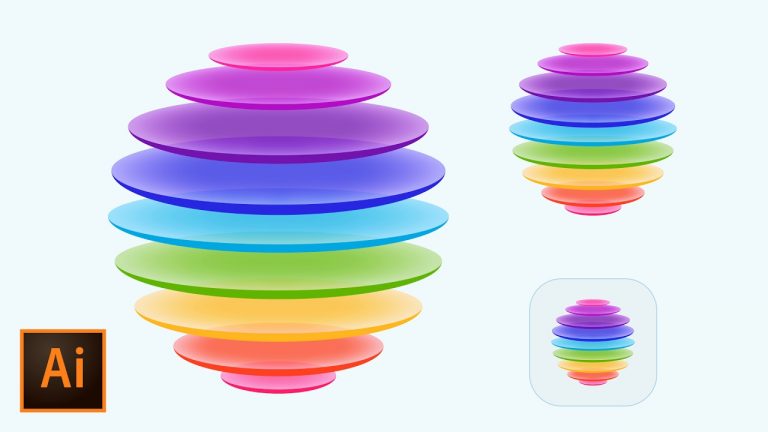
Colorful iOS Style App Icon in Adobe Illustrator CC (How to Create an Icon for an App)

0

COLORFUL 3D STYLE ICON | Build, Color, Stylize a cool icon | Learn to use the transform and shape tools effectively

We’ll use the transform tools in Illustrator to duplicate a series of shapes to quickly and precisely build a floating 3D shape for our iOS icon.

Inspiration for this tutorial: http://iosicongallery.com/2015/colors-1000-filters-within

? Subscribe for Daily Tutorials → https://goo.gl/DN4Nln

? Buy the Photoshop Course and Support the Channel → http://bit.ly/28NuwFy

? ↓ VIDEO GUIDE ↓ ?
01:01 Getting started
01:39 Creating the new document
02:47 Creating the circle layered shapes
06:29 Duplicating and scaling the floating circles and repeating the process
10:50 Adding inner glows to add depth and shape
13:05 Reducing opacity of the disk faces
13:46 Adding the color
17:16 Adding the rounded rectangle background
18:51 Scaling a shape with effects and strokes tip

In this Adobe Illustrator tutorial, we’ll create a simple disk shape with edges and light glow to build depth in our object and then we’ll use Move and Scale transform tools to duplicate and scale our floating disks exactly as we need them to be. I’ll also show you how to quickly reduce opacity of multiple objects and then apply an entire color scheme across multiple objects while preserving the transparency of those objects using custom settings and the Eyedropper tool. You’re going to learn a bunch in this tutorial so check it out and make you sure Like, Comment, and Subscribe!

⚡️ download the finished .ai icon here: http://bit.ly/2lF0oqB

INSTAGRAM: http://instagram.com/tutvid
TWITTER: http://twitter.com/tutvid
FACEBOOK: https://www.facebook.com/tutvid
SNAPCHAT: tutvid.com

tutvid is a YouTube channel dedicated to creating the best Adobe Photoshop, Premiere Pro, Lightroom, and Illustrator tutorials. My goal is to create the best, most informative, and entertaining tutorials on the web. If you enjoy my videos, the best way to support what I do here is to purchase my course linked above or simply subscribe to the YouTube channel by pressing the red button.

✉️ business inquiries: nate@tutvid.com

CREDITS:
Social Icons in outro: http://www.freepik.com/free-vector/six-social-networking-icons-with-infographic-resources_982300.htm
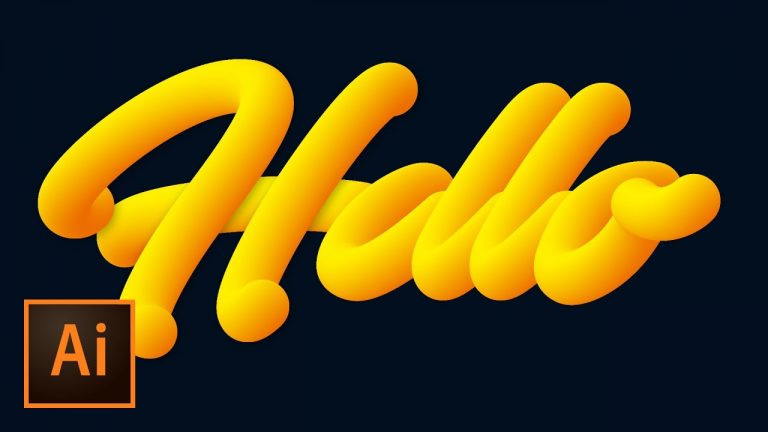
Create Advanced 3D Vector Tube Script Text in Illustrator with Custom Text & Blend Tool

0

CREATE THIS EFFECT IN 5 MINUTES! | Break a Typeface Down and Convert it to this Effect | We will cover the Pencil Tool, Type Tool, Blend Tool, Pathfinder, Gradients, and so much more!

? ↓ VIDEO GUIDE ↓ ?
00:53 Getting started
02:30 Creating the blend
04:23 Creating a path to twist the effect onto
06:55 Creating the 3D text effect with a font
08:13 Finding the center of each letter
08:29 Working on the letter “L”
11:07 Working on the letter “O”
12:39 Working on the letter “E”
15:54 Working on the letter “H”
19:54 Creating multiple blends and replacing the spines
22:15 Adjusting the spacing and depth of the letters
23:33 Quickly adjusting all the colors across the artwork

? Subscribe for Daily Tutorials → https://goo.gl/DN4Nln

? Buy the Photoshop Course and Support the Channel → http://bit.ly/28NuwFy

In this Illustrator tutorial, we’ll create this text effect using the power of the blend features in Illustrator. We can create custom text using the Pen or Pencil tool in mere moments or, in the second half of this tutorial, we’ll take a typeface and split the letters apart and find the center of each letter and apply this 3D tube effect letter-by-letter. If you like type and you like Illustrator, you’ll love this tutorial!

⚡️ check out the written Illustrator tutorial here: http://bit.ly/2mykO4K

INSTAGRAM: http://instagram.com/tutvid
TWITTER: http://twitter.com/tutvid
FACEBOOK: https://www.facebook.com/tutvid
SNAPCHAT: tutvid.com

tutvid is a YouTube channel dedicated to creating the best Adobe Photoshop, Premiere Pro, Lightroom, and Illustrator tutorials. My goal is to create the best, most informative, and entertaining tutorials on the web. If you enjoy my videos, the best way to support what I do here is to purchase my course linked above or simply subscribe to the YouTube channel by pressing the red button.

✉️ business inquiries: nate@tutvid.com

CREDITS:
Social Icons in outro: http://www.freepik.com/free-vector/six-social-networking-icons-with-infographic-resources_982300.htm
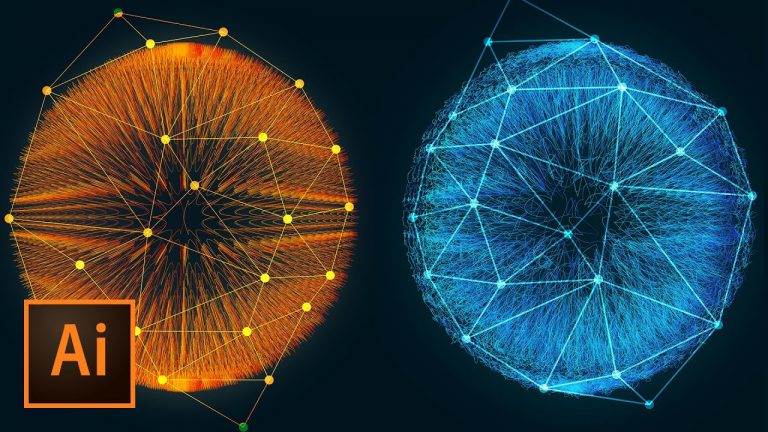
Incredible 3D Dots and Lines Glowing Fiber Effect in Illustrator

0

I DON’T EVEN KNOW WHAT TO CALL THIS EFFECT! | Use a pattern brush and blending to create this effect | We will cover how to build a pattern brush, create a custom blend, tweak the blend, add gradients to a stroke within an object, work with transforming tools to layer on effects to create a crazy looking shape, and so much more!

❤️ The inspiration for this tutorial can be found here: https://www.behance.net/gallery/3531797/Radiolarians-(Ilustrator-tutorial)

⚡️ Download the Dub at Selected Anchors Script Here: http://bit.ly/2nJg9tU

Installation Instructions: place the script “Dup At Selected Anchors.js” in this folder:

On Windows:
C:Program FilesAdobeAdobe Illustrator CC 2017Presetsen_USScripts

On Mac:
/Applications/Adobe Illustrator CC 2017/Presets/en_US/Scripts

? Subscribe for Daily Tutorials → https://goo.gl/DN4Nln

? Buy the Photoshop Course and Support the Channel → http://bit.ly/28NuwFy

In this Adobe Illustrator tutorial, we’ll talk about how to create this dots and lines effect in Illustrator. I couldn’t come up with a good name for this effect, but rest assured, it’s really, really cool. We’ll talk about using a bunch of different tools as well as a script to create this crazy shape, color, and line effect in Illustrator! You’re going to love this one, if for nothing else, just because it’s so different!

⚡️ free download & written tutorial here: http://bit.ly/2nJg9tU

INSTAGRAM: http://instagram.com/tutvid
TWITTER: http://twitter.com/tutvid
FACEBOOK: https://www.facebook.com/tutvid
SNAPCHAT: tutvid.com

tutvid is a YouTube channel dedicated to creating the best Adobe Photoshop, Premiere Pro, Lightroom, and Illustrator tutorials. My goal is to create the best, most informative, and entertaining tutorials on the web. If you enjoy my videos, the best way to support what I do here is to purchase my course linked above or simply subscribe to the YouTube channel by pressing the red button.

✉️ business inquiries: nate@tutvid.com

CREDITS:
Social Icons in outro: http://www.freepik.com/free-vector/six-social-networking-icons-with-infographic-resources_982300.htm
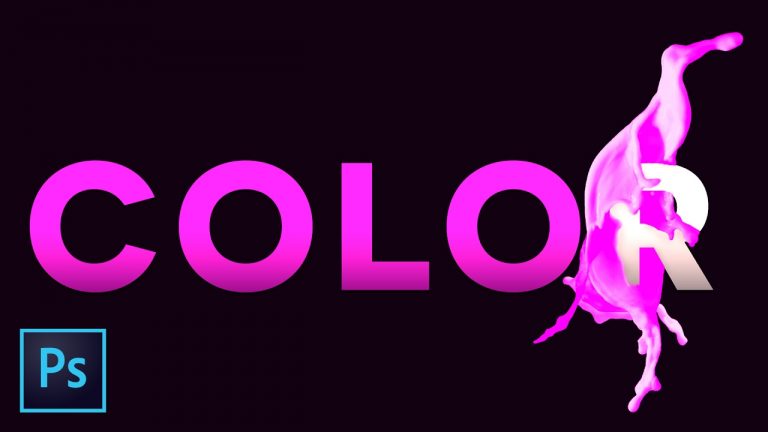
How to Create a Color Splash Text Effect | Photoshop Tutorial

0

COLOR SPLASHING ACROSS TEXT! | Create this text that is changing color before your very eyes | Using milk to create a custom splash effect

In this tutorial, we’ll use a stock photo of splashing milk from Adobe Stock to create an effect that has a wash of color transforming simple white text to a colorful type effect.

? Subscribe for Daily Tutorials → https://goo.gl/DN4Nln

? Buy the Photoshop Course and Support the Channel → http://bit.ly/28NuwFy

In this Adobe Photoshop tutorial, we’ll use Select and Mask to make a perfect cut to get splashing milk from its photo to our text and then transform that milk splash to blend and flow around a letter and then colorize the milk splash and complete the color splash effect using a couple text and Adjustment Layers. Check out the tutorial and see exactly what I do. I hope you enjoy it! Leave a like and drop a comment on this video as well!

⚡️ Check out the written Photoshop tutorial here: http://bit.ly/2lheEma

INSTAGRAM: http://instagram.com/tutvid
TWITTER: http://twitter.com/tutvid
FACEBOOK: https://www.facebook.com/tutvid
SNAPCHAT: tutvid.com

tutvid is a YouTube channel dedicated to creating the best Adobe Photoshop, Premiere Pro, Lightroom, and Illustrator tutorials. My goal is to create the best, most informative, and entertaining tutorials on the web. If you enjoy my videos, the best way to support what I do here is to purchase my course linked above or simply subscribe to the YouTube channel by pressing the red button.

✉️ business inquiries: nate@tutvid.com

CREDITS:
Social Icons in outro: http://www.freepik.com/free-vector/six-social-networking-icons-with-infographic-resources_982300.htm
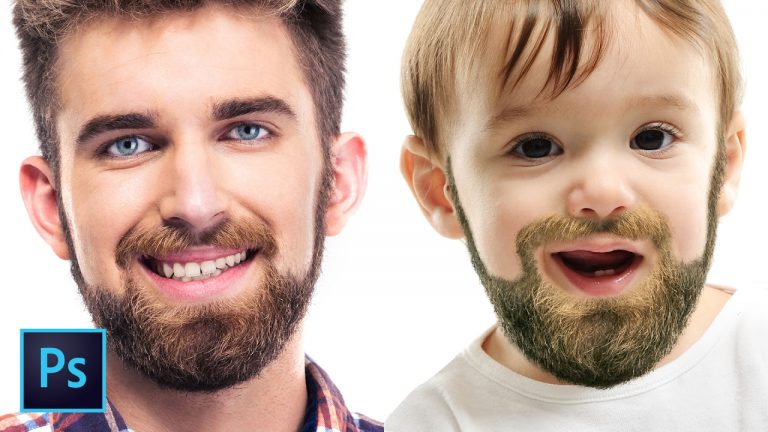
How to Create & Retouch Facial Hair | Photoshop Tutorial

0

ADD FACIAL HAIR TO EVEN A BABY! | Use this technique to add or enhance facial hair anywhere | Using brushes, beards, and clone stamp

If you’re interested in adding a full-fledged beard to any person, you can use the technique in this tutorial and even download the free brush pack I created to quickly and effectively create realistic facial hair in Photoshop CC.

? Subscribe for Daily Tutorials → https://goo.gl/DN4Nln

? Buy the Photoshop Course and Support the Channel → http://bit.ly/28NuwFy

In this Photoshop tutorial, I’ll cover cutting a beard off of one face and blending it into a new face whether that is a fully grown man’s face or a baby’s face. We’ll create a custom brush, building facial hair from scratch, using Select and Mask to fine tune (sort of) the selection, masking, matching color, and much more!

? ↓ VIDEO GUIDE ↓ ?
01:15 Getting started
02:24 Extract the beard from a different photo
03:44 Matching the color
06:47 Select and Mask to extract the beard more perfectly
11:38 Cleaning up the beard’s mask
17:21 Creating the beard brush to paint a beard onto anybody!
24:13 Dodging and burning
25:15 Colorizing the beard to help match the photo
26:40 Smart Grain to finish the manipulation work

⚡️ download the facial hair/beard brush pack here: http://bit.ly/2kgevTi

INSTAGRAM: http://instagram.com/tutvid
TWITTER: http://twitter.com/tutvid
FACEBOOK: https://www.facebook.com/tutvid
SNAPCHAT: tutvid.com

tutvid is a YouTube channel dedicated to creating the best Adobe Photoshop, Premiere Pro, Lightroom, and Illustrator tutorials. My goal is to create the best, most informative, and entertaining tutorials on the web. If you enjoy my videos, the best way to support what I do here is to purchase my course linked above or simply subscribe to the YouTube channel by pressing the red button.

✉️ business inquiries: nate@tutvid.com

CREDITS:
Social Icons in outro: http://www.freepik.com/free-vector/six-social-networking-icons-with-infographic-resources_982300.htm
Create a Neon Nightclub Music Poster in Photoshop CC

0

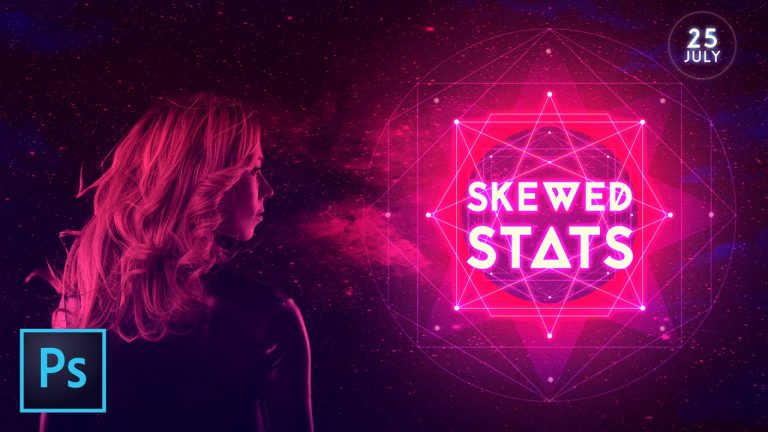
CREATE A COMPLEX NEON GRAPHIC | Creating a cool space themed disco club poster | Mixing photos, glows, artwork, lines, and more!

Adobe Stock used in this tutorial: https://stock.adobe.com/stock-photo/beautiful-and-sexy-blonde-woman-with-helmet/69468799

Project inspiration: https://www.pinterest.com/pin/407505466266298767/

If you create graphics for print or the web, you’ll find lots of useful techniques for graphic design in this tutorial. We will cover everything from building a background and blending images together to importing artwork from Illustrator.

? ↓ VIDEO GUIDE ↓ ?
00:37 Getting started and creating a new document
01:43 Gathering my images from Adobe Stock
3:00 Opening the girl, masking her, and dragging her into the poster
05:06 Starting the colorize with a gradient map
07:43 Brushing to add color and texture
09:19 Creating the lines in Illustrator (free download, also!)
22:46 Copying the lines into Photoshop as smart objects
26:58 Moving the group of lines into place
27:50 Creating the central pink star
29:44 Creating the glowing center
34:41 Creating the glowing center shape lines
37:04 Creating the glowing accent dots
40:54 Adding clouds textures
42:24 Adding the title text
45:29 Adding accent text at the top of the poster
48:37 Moving the info text into the poster
49:19 Adding “smart” grain
50:21 Adding the final enriching color enhancement

Powder brush pack: https://www.brusheezy.com/brushes/58016-free-powder-photoshop-brushes
Clouds by Mila Brush Pack: https://www.brusheezy.com/brushes/2187-24-clouds

? Subscribe for Daily Tutorials → https://goo.gl/DN4Nln

? Buy the Photoshop Course and Support the Channel → http://bit.ly/28NuwFy

In this Adobe Photoshop tutorial, we’ll use a ton of different techniques to create a space themed and color poster for a club scene. We’ll build the lines for the complex artwork in Illustrator, bring it over to Photoshop, using layer styles, gradient maps, glows, opacity, text, masking, adjustment layers and much, much more! Enjoy the tutorial!

⚡️ download is located here: http://bit.ly/2lx74HE

INSTAGRAM: http://instagram.com/tutvid
TWITTER: http://twitter.com/tutvid
FACEBOOK: https://www.facebook.com/tutvid
SNAPCHAT: tutvid.com

tutvid is a YouTube channel dedicated to creating the best Adobe Photoshop, Premiere Pro, Lightroom, and Illustrator tutorials. My goal is to create the best, most informative, and entertaining tutorials on the web. If you enjoy my videos, the best way to support what I do here is to purchase my course linked above or simply subscribe to the YouTube channel by pressing the red button.

✉️ business inquiries: nate@tutvid.com

CREDITS:
Social Icons in outro: http://www.freepik.com/free-vector/six-social-networking-icons-with-infographic-resources_982300.htm
Advanced 3D Typography Effects PART 1 Photoshop CC (How to Create Amazing Text with Mixer Brush)

0

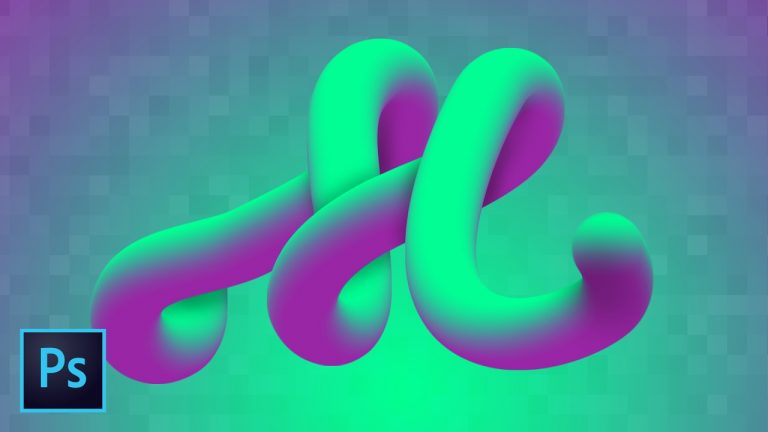
AMAZING EFFECT USING A MIXER BRUSH! | Impress your friends and dazzle your clients | Mix paths, hand brushing, and shapes

This is one of those effects that when people first see you making it they’ll wonder how you can create something that looks so cool with such ease. You’ll learn so many different facets of working with the Mixer Brush and paths in Photoshop in this tutorial.

? Subscribe for Daily Tutorials → https://goo.gl/DN4Nln

? Buy the Photoshop Course and Support the Channel → http://bit.ly/28NuwFy

? ↓ VIDEO GUIDE ↓ ?
01:00 Getting started
01:59 The important gradient samplers
02:46 The complicated (somewhat) Mixer Brush tool
07:31 Applying the 3D effect to a path
08:19 More gradient samplers for more effects
09:34 Using the Freeform Pen tool for custom type
13:26 Adding a simple shadow
14:14 Convert a typeface to custom 3D text
16:53 Simulating brush pressure for even more effects

We will cover how to create custom samples from gradients and turn them into handwritten 3D typography effect. Learn to use and control the Mixer Brush, use Paths to create precise shapes with ease, use the Freeform Pen Tool, work with multiple gradients, simulate pressure when stroking a path, and learn more about working with this false 3D effect than you may have ever thought possible!

⚡️ find the download here: http://bit.ly/2m5nu6Y

INSTAGRAM: http://instagram.com/tutvid
TWITTER: http://twitter.com/tutvid
FACEBOOK: https://www.facebook.com/tutvid
SNAPCHAT: tutvid.com

tutvid is a YouTube channel dedicated to creating the best Adobe Photoshop, Premiere Pro, Lightroom, and Illustrator tutorials. My goal is to create the best, most informative, and entertaining tutorials on the web. If you enjoy my videos, the best way to support what I do here is to purchase my course linked above or simply subscribe to the YouTube channel by pressing the red button.

✉️ business inquiries: nate@tutvid.com

CREDITS:
Social Icons in outro: http://www.freepik.com/free-vector/six-social-networking-icons-with-infographic-resources_982300.htm