Home Blog Page 176

Copying effects (Paste Attributes) to multiple frames in Premiere Pro

0

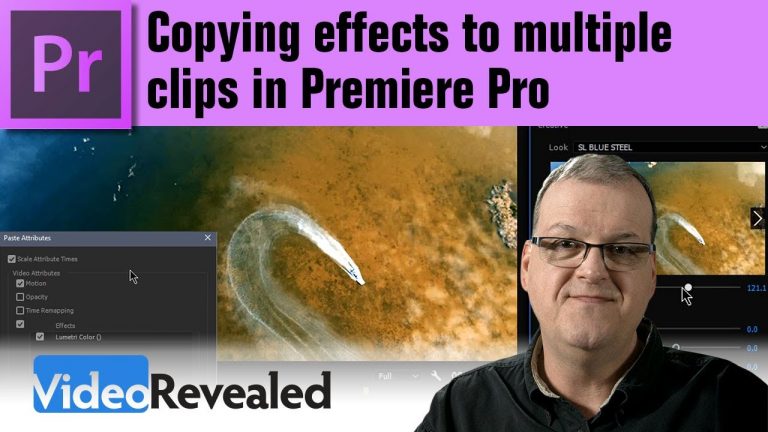
Copying effects (Paste Attributes) to multiple frames in Premiere Pro

Copying the same effects settings to multiple clips is very easy when using the Paste Attributes command in Premiere Pro. You can also copy the keyframes and have them automatically scaled based on clip duration.

Please support us on Patreon so we can continue to create the content you want!
http://patreon.com/VideoRevealed

Stay connected with VideoRevealed on Facebook:
https://www.facebook.com/VideoRevealed

Download your FREE trial of Adobe Creative Cloud
http://adobe.ly/1S3mZW3

Stop from using the same B-Roll in Adobe Premiere Pro

0

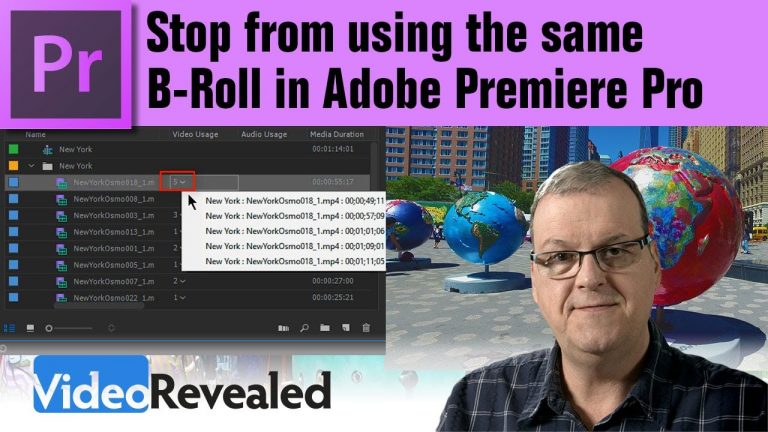
Stop from using the same B-Roll in Adobe Premiere Pro

This tutorial shows how to enable “hidden” Metadata that will tell you how many times you’ve used media in your Timeline. Combining this with Subclips, makes working with B-Roll so much easier.

Please support us on Patreon so we can continue to create the content you want!
http://patreon.com/VideoRevealed

Stay connected with VideoRevealed on Facebook:
https://www.facebook.com/VideoRevealed

Download your FREE trial of Adobe Creative Cloud
http://adobe.ly/1S3mZW3

How I created the VideoRevealed show opening in Premiere Pro & After Effects

0

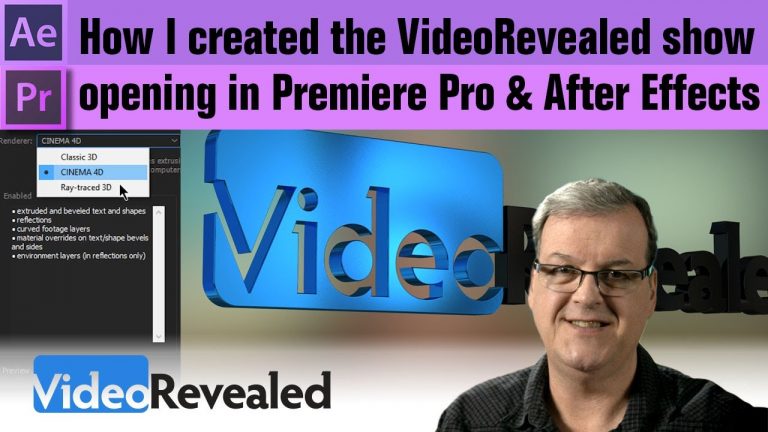
How I created the VideoRevealed show opening in Premiere Pro & After Effects

After several requests I finally put together a deep tutorial on how I created my show opening. Included are extruding an Illustrator file into 3D, animating in After Effects, rendering using the Cinema 4D renderer, combining Rampant Design lens flares and finally, blurry Adjustment Layers.

Please support us on Patreon so we can continue to create the content you want!
http://patreon.com/VideoRevealed

Stay connected with VideoRevealed on Facebook:
https://www.facebook.com/VideoRevealed

Download your FREE trial of Adobe Creative Cloud
http://adobe.ly/1S3mZW3

Fill a frame with NO EDGES in Adobe Premiere Pro

0

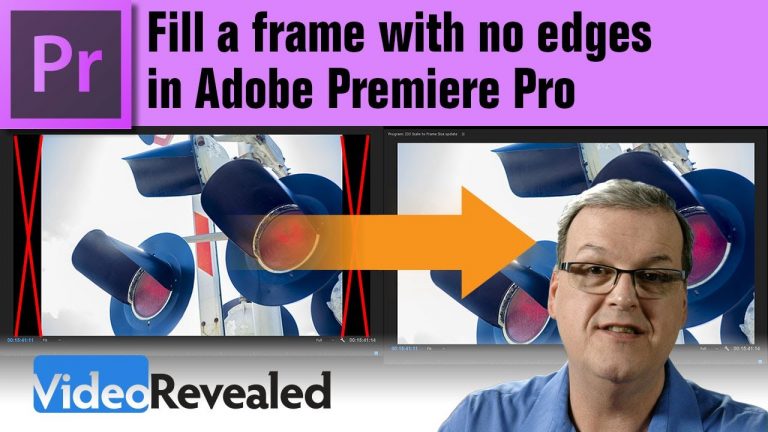
Fill a frame with NO EDGES in Adobe Premiere Pro

It’s very common for users to want to fill the whole frame with a still image or video in a Timeline. This tutorial will show you how to a fill to frame and also why it’s not an option in Adobe Premiere Pro.

Please support us on Patreon so we can continue to create the content you want!
http://patreon.com/VideoRevealed

Stay connected with VideoRevealed on Facebook:
https://www.facebook.com/VideoRevealed

Download your FREE trial of Adobe Creative Cloud
http://adobe.ly/1S3mZW3

Sound Design techniques in Adobe Premiere Pro

0

Sound Design techniques in Adobe Premiere Pro

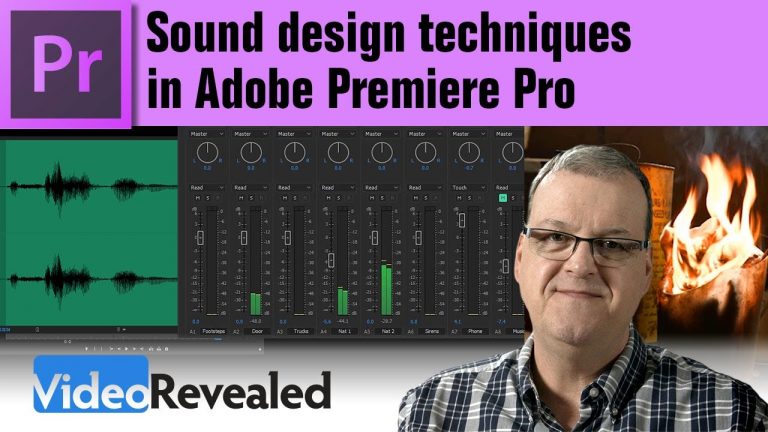
This is a very detailed (22 min) tutorial on using sound design techniques to add more realistic sound to your videos. It includes blending ambient and man made sounds and how to use audio crossfades to combine looped files and as natural volume fades.

You can download the sound effects mentioned at the end of the tutorial here: https://offers.adobe.com/en/na/audition/offers/audition_dlc.html

Here are my go to sites for more SFX:
http://www.freesfx.co.uk/
http://soundbible.com/

Please support us on Patreon so we can continue to create the content you want!
http://patreon.com/VideoRevealed

Stay connected with VideoRevealed on Facebook:
https://www.facebook.com/VideoRevealed

Download your FREE trial of Adobe Creative Cloud
http://adobe.ly/1S3mZW3

Art Makers: Daniele De Nigris Creates Geometric Designs in Illustrator | Adobe Creative Cloud

To learn more about how Daniele created this piece, visit the 3/4 Decorative tutorial: https://adobe.ly/2wTWb5b

Italian artist Daniele De Nigris adds, subtracts, and repeats shapes, colors, and gradients to create mosaic masterpieces. See how he created the image that Adobe selected for the Animate CC 2017 splash screen.

Map data: Google
Music: “sombre, green” by Birocratic, http://birocratic.lnk.to/allYL

Subscribe: https://www.youtube.com/user/adobecreativecloud?sub_confirmation=1

LET’S CONNECT
Facebook: http://facebook.com/adobecreativecloud
Twitter: http://twitter.com/creativecloud
Instagram: http://www.instagram.com/adobecreativecloud/

Adobe Creative Cloud gives you the world’s best creative apps so you can turn your brightest ideas into your greatest work across your desktop and mobile devices.
How to Make Op Art in Adobe Photoshop | Adobe Creative Cloud

0

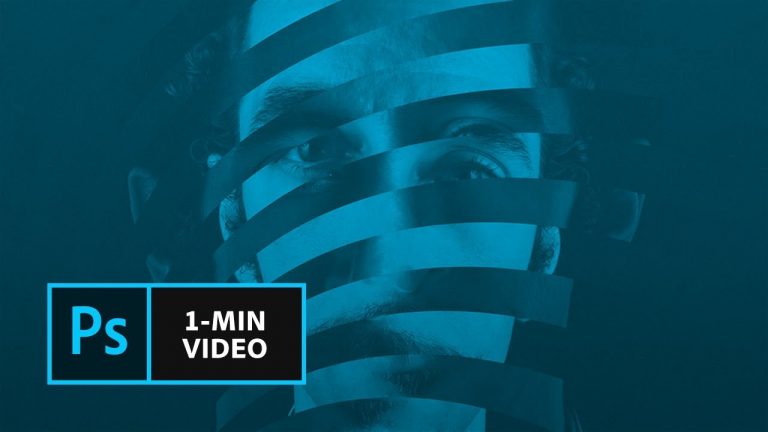
Learn how to create an optical illusion using a portrait and a pattern.

Start from scratch, or download practice files [https://adobe.ly/2uYIGzE] for a head start. Steps below.

Prep your project

1. Open op-art.psd.
a. Open the Libraries panel (Window – Libraries), search Adobe Stock for an op art image (e.g., “op art whirlpool”). Or, use “whirlpool.ai” from our practice files (File – Open – whirlpool.ai, click OK, then drag to your Libraries panel).

Tip: Click the down arrow next to “Results from Adobe Stock” and check Vectors to show vector graphics.

2. Hover over the image you’d like to use and click the shopping cart icon to license it.

Optional: You can also click the cloud icon to preview with a watermark to try the image before you buy it.

Create an op art effect
1. Drag the op art image from Libraries on to the canvas, press Return (or Enter) to place the image.

Tip: If you create your own file, delete the background layer.

2. With the whirlpool layer selected, choose ‘Screen’ blend mode.
3. Nudge the portrait layer into position as desired.

Tip: Use the Selection tool and Shift + Command (or Ctrl) + arrow keys.

4. Select the whirlpool layer, choose Select – All from the menu, then Edit – Copy.
5. Click the eye icon to hide the whirlpool layer.
6. Click the portrait layer, then choose Add layer mask. Option + click on the mask (white square) on the portrait layer, then choose Edit – Paste to display the whirlpool pattern in the layer mask.
7. Click the eye icon on the portrait layer to see it through the pattern mask.
8. Choose Image – Adjustment – Invert from the menu to invert the mask thumbnail.
9. Drag the portrait layer on to the New Layer icon to duplicate the layer.

Tip: Make sure the portrait copy layer is below the original portrait layer.

10. Click the layer mask on the portrait copy and drag it to the trash can. Click “Delete” (not “Apply”) from the dialog that asks if you’d like to apply the mask before removing.
11. On the portrait copy layer, choose Edit – Transform – Flip Horizontal so the portrait copy appears flipped in alternating bands behind the original portrait layer.
12. Nudge the portrait copy into position until you like the composition.
13. Select the Crop tool, click and drag to define the crop area, press Return (or Enter) to execute the crop.

That’s it!

To learn, more visit our Photoshop Tutorials page: https://adobe.ly/2wY30CX

Subscribe: https://www.youtube.com/user/adobecreativecloud?sub_confirmation=1

LET’S CONNECT
Facebook: http://facebook.com/adobecreativecloud
Twitter: http://twitter.com/creativecloud
Instagram: http://www.instagram.com/adobecreativecloud/

Adobe Creative Cloud gives you the world’s best creative apps so you can turn your brightest ideas into your greatest work across your desktop and mobile devices.
Photoshop Your Way! Customize the Photoshop CC Interface to Your Liking

0

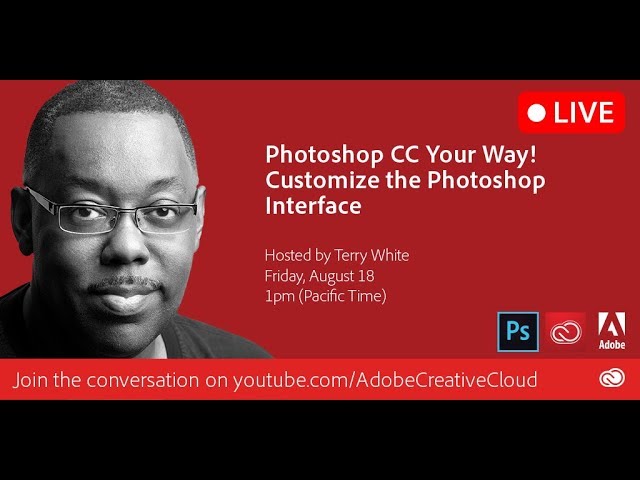
Adobe Evangelist Terry White is on hand to show you how to customize the Photoshop CC interface to your liking.

Subscribe: https://www.youtube.com/user/adobecreativecloud?sub_confirmation=1

LET’S CONNECT
Facebook: http://facebook.com/adobecreativecloud
Twitter: http://twitter.com/creativecloud
Instagram: http://www.instagram.com/adobecreativecloud/

Adobe Creative Cloud gives you the world’s best creative apps so you can turn your brightest ideas into your greatest work across your desktop and mobile devices.
Free Dust Waves – ActionVFX Stock Footage Pack

0

Download free here: https://www.actionvfx.com/collections/free-dust-wave-stock-footage

ActionVFX provides the best stock footage for realistic Visual Effects. View our collections at: https://www.actionvfx.com/

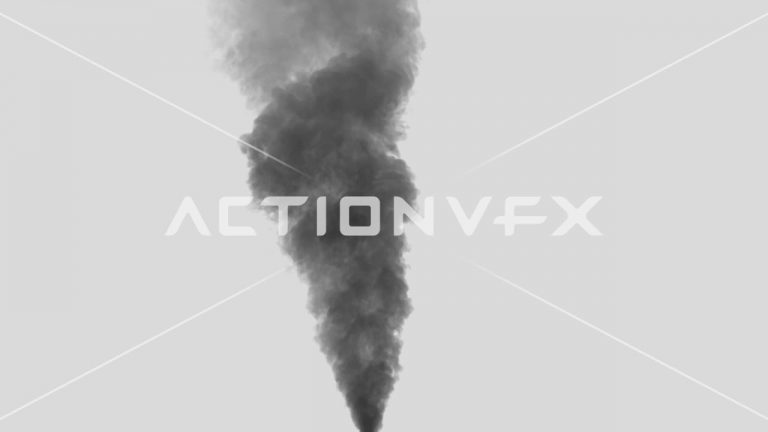
Free Smoke Plumes – ActionVFX Stock Footage Pack

0

Download free here: https://www.actionvfx.com/collections/free-smoke-plumes-stock-footage

ActionVFX provides the best stock footage for realistic Visual Effects. View our collections at: https://www.actionvfx.com/