Home Blog Page 379

How to Use Liquify in Photoshop CC

0

Check out another of my videos: “BREAKDOWN: Select and Mask vs. Refine Edge – Photoshop CC”

-~-~~-~~~-~~-~-

Pick up my image retouching tutorial package ($27) right here: http://bit.ly/support-tutvid

Find the written tutorial on the site: http://tutvid.com/photoshop-tutorials/how-to-use-liquify-in-photoshop-cc/

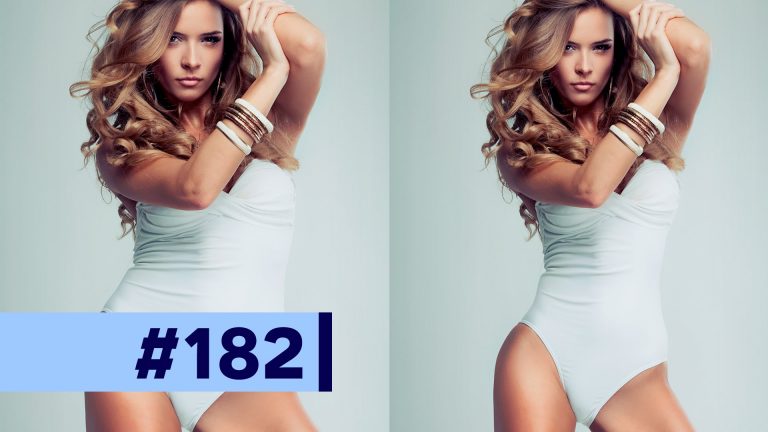
Well, you know it had to happen. Fat-shaming or not, we had to talk about making a girl thin in Photoshop using the Liquify filter. Ladies, I know you always want to look skinnier and this is the latest and greatest tutorial on losing 10, 20, or 50lbs in Photoshop fast! We will look at how I use Liquify to makes a girl’s eyes and lips larger and then how we work with a plus-sized model and reduce her to a typical-sized model using the smudging and puckering and masking tools in Liquify. You’re going to love this tutorial if you’re a portrait, fashion, or commercial photographer, or if you’re just looking to shed some pounds digitally in preparation for that dating profile.

VIDEO GUIDE:
1:16 Convert to Smart Object
1:32 Opening Liquify
1:57 Correcting the 16-bit image glowing box problem
2:59 Liquify to change her face
4:48 Weight loss with Liquify
5:24 Squeeze with transform
6:19 Liquify Mask Tool
7:31 Pucker Tool to being manipulating the body
7:59 Smudge Tool to adjust her figure
9:49 Adjusting smaller details
10:21 More of the Pucker Tool
11:14 Before/After Results
11:41 Adjusting Liquify
12:25 Real life example of Liquify mask tool usefulness
14:20 Outro

SNAPCHAT & MORE:
http://instagram.com/tutvid

https://www.facebook.com/tutvid
? tutvid.com
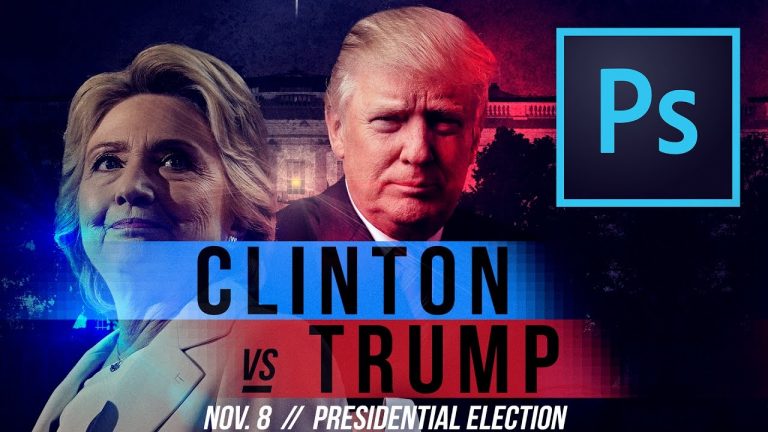
Hillary vs. Trump UFC/Boxing Style Poster in Photoshop CC

0

Check out another of my videos: “BREAKDOWN: Select and Mask vs. Refine Edge – Photoshop CC”

-~-~~-~~~-~~-~-

In this Photoshop tutorial we’ll talk about creating a dramatic battle style poster stealing some of the style of UFC and traditional boxing posters which will give us a dramatic and very colorful poster showing the head-to-head election battle between Hillary Clinton and Donald Trump. Who will win!?

Download the finished PSD and the RAW file here: http://bit.ly/2esNbN4
Download concrete texture here: https://www.brusheezy.com/textures/11481-concrete-grunge

Here is a list of what we’ll cover:
Using the Camera RAW editor.
Smoothing tones in our image with Reduce Noise.
How I use Google Images to find suitable photos. (for personal projects)
Using Select and Mask to cut out Hillary and Trump.
Dodge and Burn with a 50% gray layer.
Adjustment layers to create color and tone.
Adding texture with a picture of concrete.
Masking.
Color grade with a Gradient Map.
Adding text and creating the glowing cutout effect.
Smoothing and sharpening the image with High Pass and grain.
And much more!!

Pick up my image retouching tutorial package ($27) right here: http://tutvid.com/retouching-photos-photoshop/

SNAPCHAT & MORE:
http://instagram.com/tutvid

https://www.facebook.com/tutvid
? tutvid.com
Create a Sleek Countdown Timer — Photoshop Tutorial

0

Check out another of my videos: “BREAKDOWN: Select and Mask vs. Refine Edge – Photoshop CC”

-~-~~-~~~-~~-~-

Check out the written tutorial! http://tutvid.com/create-sleek-countdown-timer-photoshop-tutorial/

Like Tutvid on Facebook: http://www.facebook.com/tutvidFan
Follow me on Twitter: http://www.twitter.com/tutvid

Tutorial Inspiration: http://365psd.com/day/2-218/

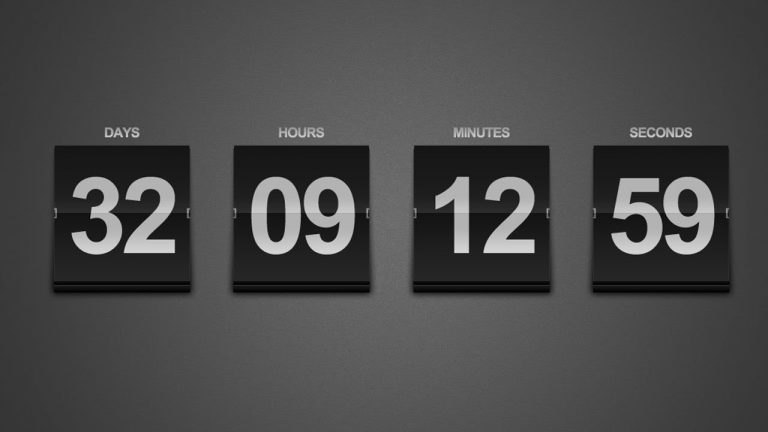
We’re going to create this slick little flip clock using Shape layers, Layer Styles, and Text in Photoshop. This is a great graphic for any number of different countdown or date timers.

This tutorial is one in the continued series the Howard from http://www.IceflowStudios.com and I are creating. Inspiration is draw from the amazing http://www.365psd.com and any number of the quality, free PSD downloads they provide! Check them out now!

How to Create a Smoke Dispersion Effect in Photoshop CC

0

Check out another of my videos: “BREAKDOWN: Select and Mask vs. Refine Edge – Photoshop CC”

-~-~~-~~~-~~-~-

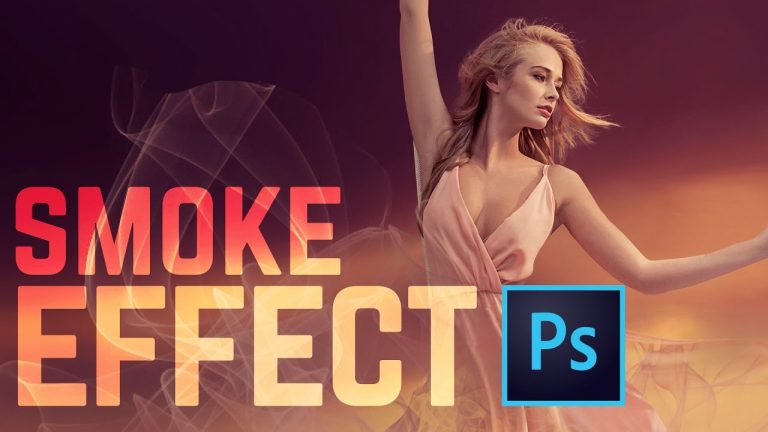
In this tutorial we’ll create a cool smoke dispersion effect that makes our model look like she’s disappearing into thin air! The meat of this tutorial is really the deep dive into creating a selection with the new Select and Mask feature in Photoshop and how you can change your workflow to adjust to the quirks and differences this tool brings to the table. We’ll also, of course, cover working with multiple masks, brushes, and customizing brushes to create the perfect smoke dispersion effect complete with a little color grading thanks to a Gradient Map Adjustment Layer. If you like Photoshop, you’re going to love this tutorial.

DOWNLOAD Smoke Brushes:
https://www.brusheezy.com/brushes/58394-20-smoke-ps-brushes-abr-vol-10

Pick up my image retouching tutorial package ($27) right here: http://tutvid.com/retouching-photos-photoshop/

Link to the tutorial article: http://tutvid.com/photoshop-tutorials/how-to-create-a-smoke-dispersion-effect-in-photoshop-cc/

SNAPCHAT & MORE:
http://instagram.com/tutvid

https://www.facebook.com/tutvid
SNAP ? tutvid.com

The Most Interesting Sky Replacement in Photoshop (Grow + Similar)

0

Check out another of my videos: “BREAKDOWN: Select and Mask vs. Refine Edge – Photoshop CC”

-~-~~-~~~-~~-~-

Pick up my image retouching tutorial package ($27) right here: http://bit.ly/support-tutvid

Find the written tutorial here: http://tutvid.com/photoshop-tutorials/most-interesting-way-to-replace-a-sky-in-photoshop/

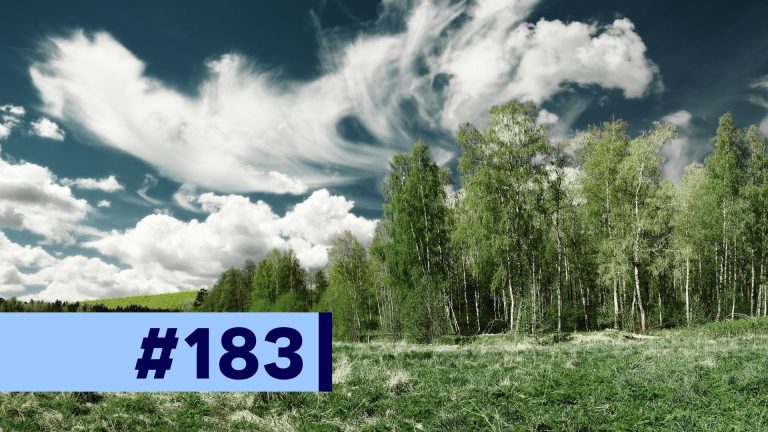
It’s all about Grow and Similar today in this tutorial about putting a new sky into your photo. We’ll talk about how to select a sky that has tree tips sticking up into it and replacing the sky as perfectly as we can by combining our selection with the Refine Edge command and then tweaking the mask with the Brush tool after we have our initial mask. You will know how to replace almost any sky by the end of this tutorial!

VIDEO GUIDE:
1:09 Lasso Tool + Grow
1:56 Using Similar
3:08 Refining the edge
5:16 Drag in the new sky
5:46 Tweaking the mask
6:57 Thoughts on replacing difficult skies
8:07 Outro

SNAPCHAT & MORE:
http://instagram.com/tutvid

https://www.facebook.com/tutvid
? tutvid.com
Adobe Camera RAW 7.0 for Photographers

0

Check out another of my videos: “BREAKDOWN: Select and Mask vs. Refine Edge – Photoshop CC”

-~-~~-~~~-~~-~-

Whether you’re a seasoned pro or fresh out of the gate with your first quality digital camera, shooting your photographs in RAW is an absolute must to achieve higher quality results with your photographs.

In the following tutorial and Photoshop CS6 feature run-down, we’re going to cover all the new features in Camera RAW 7.0 that I think are the best and ones that you’re going to use the most!

Drop a comment if you have additional questions or suggestions!

Like Tutvid on Facebook: http://www.facebook.com/tutvidFan

Follow me on Twitter: http://www.twitter.com/tutvid

BREAKDOWN: Select and Mask vs. Refine Edge – Photoshop CC

0

What is wrong with Select and Mask? Why doesn’t it seem to work like we all wish it would? Are you not using it right, or is it just a broken tool? The answer is that it’s probably a little of both. The tool is deeply flawed in a number of ways and can be incredibly frustrating to work with, but there are some tips and tricks to be able to work with Select and Mask a little more effectively.

In this video I’ll compare four different photos head-to-head cutting out the subject with Select and Mask and then cutting out the subject with Refine Edge. I really want to love Select and Mask, but it breaks my heart over and over again. It’s just not quite where it needs to be for a professional application. It shows great promise, but I really wish Adobe had left the Refine Edge command in place. At least we could pick or choose what works best for us in that case. All things considered, my hope is that this tool will get better and better as new versions of Photoshop arrive.

Written Photoshop tutorial: http://bit.ly/2ghIvLk

Pick up my image retouching tutorial package ($27) right here: http://tutvid.com/retouching-photos-photoshop/

SNAPCHAT & MORE:
http://instagram.com/tutvid

https://www.facebook.com/tutvid
? tutvid.com
How to Use Color Range in Photoshop CC

0

Check out another of my videos: “BREAKDOWN: Select and Mask vs. Refine Edge – Photoshop CC”

-~-~~-~~~-~~-~-

Pick up my image retouching tutorial package ($27) right here: http://bit.ly/support-tutvid

Find the written tutorial here: http://tutvid.com/photoshop-tutorials/how-to-use-color-range-in-photoshop-cc/

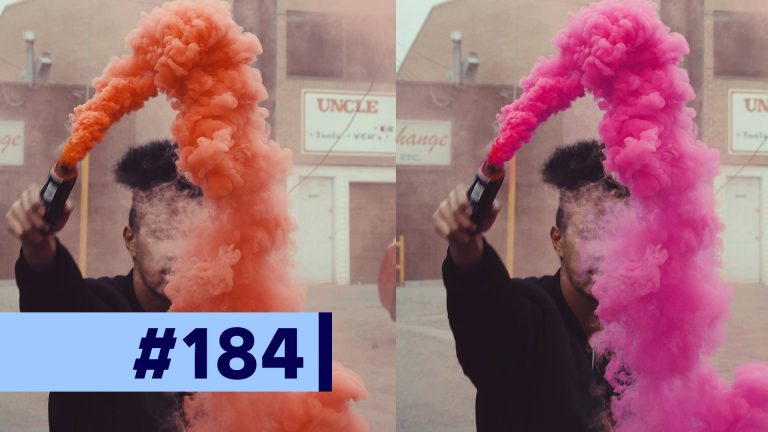
In this Photoshop CC tutorial we’ll take a look at the power of the Color Range tool in Photoshop. We will look at selecting entire swatches of color, specific tones, how to refine a color range selection, how to make a difficult selection and use it as a mask for an Adjustment Layer, and much more! If you use Photoshop and you ever create selections, this tutorial might be just for you.

VIDEO GUIDE:
0:27 Basics of Color Range
1:54 Selecting tones with Color Range
2:42 Skin Tones and Out of Gamut with Color Range
3:55 Custom Color Range selections
5:38 First smoke color change
7:05 Creating a much better Color Range selection
9:21 Outro

SNAPCHAT & MORE:
http://instagram.com/tutvid

https://www.facebook.com/tutvid
? tutvid.com
Create Stunning Black & White Photos

0

Check out another of my videos: “BREAKDOWN: Select and Mask vs. Refine Edge – Photoshop CC”

-~-~~-~~~-~~-~-

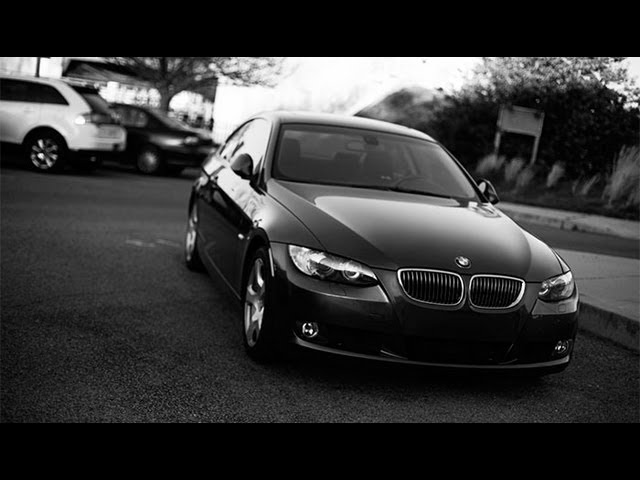
The black and white image is a medium which has conveyed thousands of emotions and ideas to millions of people over the past 100+ years. The ability to create a beautiful black and white image is a building block of any photographer.

Black and white simplifies and beautifies photographs; it allows the photographer and casual viewer to focus on the subject the story, the light, and the real beauty of the photograph.

In the following tutorial we will talk about photographing and creating black and white images in Photoshop.

Like Tutvid on Facebook: https://www.facebook.com/tutvid

Follow me on Twitter: http://www.twitter.com/tutvid

Photoshop CC 3D Animation Parallax Effect Tutorial (Very cool!)

0

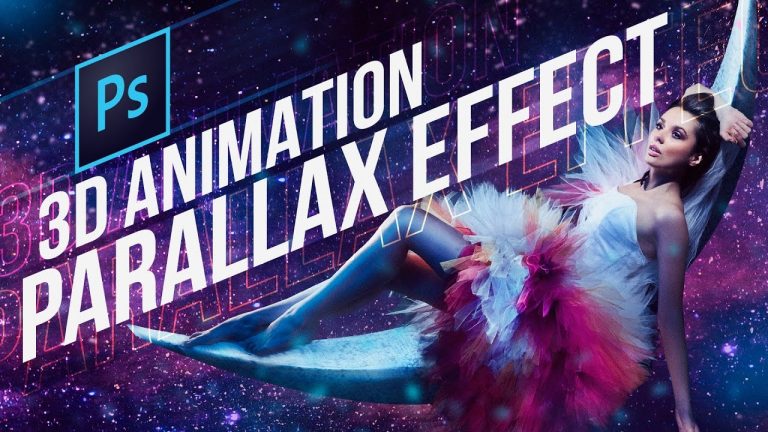
Have you seen just how cool the 3D Parallax Effect is? In this Photoshop tutorial, we’ll talk about using the 3D and animation tools in Photoshop CC 2017 to create an animated 3D (2.5k) parallax effect to an image. This is an effect you can use to transform still images and almost make them look like very short cinematic video clips. It adds a false depth and sense of shape to your flat, still images or graphic. A very cool effect indeed! Make sure you grab the PSD so you can follow along as closely as possible!

Written Photoshop tutorial: http://bit.ly/2h7HKm7

Pick up my image retouching tutorial package ($27) right here: http://tutvid.com/retouching-photos-photoshop/

INSTAGRAM, SNAPCHAT, & MORE:
http://instagram.com/tutvid

https://www.facebook.com/tutvid
? tutvid.com
CREDITS:
Social Icons in outro: http://www.freepik.com/free-vector/six-social-networking-icons-with-infographic-resources_982300.htm