Home Blog Page 380

15 Steps to Mastering Vanishing Point in Photoshop

0

Check out another of my videos: “BREAKDOWN: Select and Mask vs. Refine Edge – Photoshop CC”

-~-~~-~~~-~~-~-

Pick up my advanced Photoshop tutorial package ($21) right here: http://bit.ly/support-tutvid-2

Find the written tutorial here: http://tutvid.com/photoshop-tutorials/15-steps-to-mastering-vanishing-point-in-photoshop-cc/

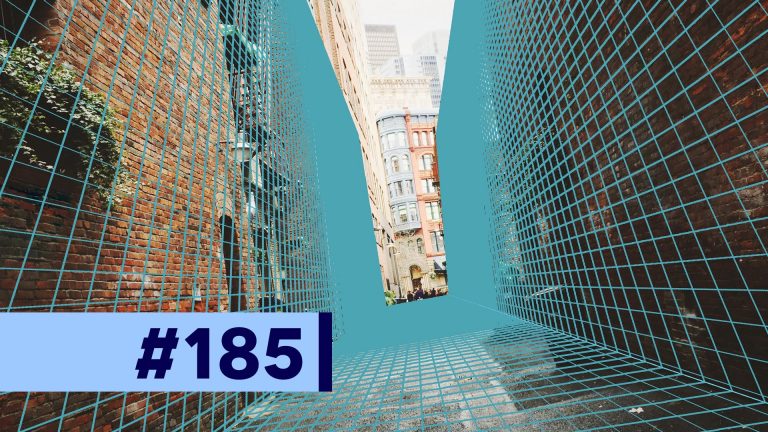
Vanishing Point in Photoshop is an amazing set of tools that allows us to determine the perspective of an image and then build a more complex set of perspective grids from our initial grid to then be able to retouch surfaces in perspective. We’ve got lots of brick in the image that I’m using in this tutorial and we can clone brick that is “closer” to us and use it to correct brick that is “further away” and Vanishing Point will ensure everything is in proper perspective (as long as we made an accurate grid!) and looking great.
Alley Image: https://unsplash.com/photos/bIQiMWxX_WU

VIDEO GUIDE:
00:31 How to draw planes
02:30 Create additional grids
03:09 Edit a new or old plane
04:02 Tear off new plane (extend the grid)
05:24 Select overlapping grids
06:03 Change angle of perspective grid
07:26 Clone stamp in perspective
10:11 Selections and moving in perspective
15:36 Paste in outside graphics
17:03 Selections across multiple planes
17:52 Render grids
19:14 Measurements
21:52 Render measurements or return 3D layer to Photoshop
22:30 Export 3D assets
23:05 Menu glitch fix/workaround

SNAPCHAT & MORE:
http://instagram.com/tutvid

https://www.facebook.com/tutvid
? tutvid.com
Create and Animate an Amazing 3D Photo in Photoshop CC!

0

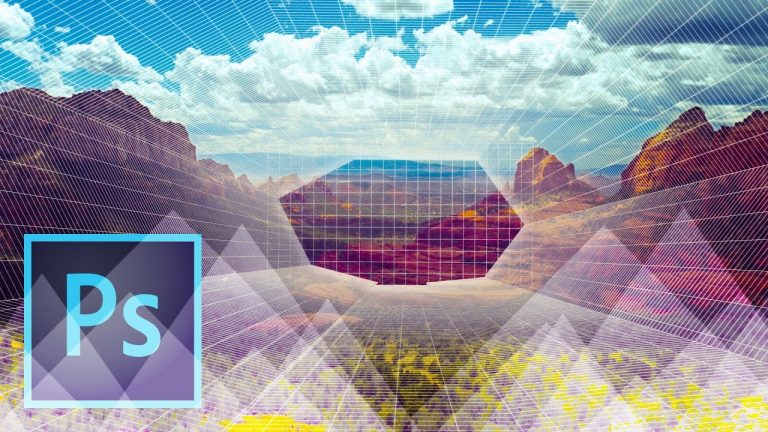
This video tutorial is a little different than most of the videos that I make. Here we will take a look at how to transform a simple 2-dimensional photo into a full 3D space that we can float through and even animate in Photoshop. It’s pretty incredible to see the first time you do see it happen, but it’s definitely unforgettable! We will cover working with Vanishing Point, Creating 3D Planes, Creating a 3D layer from Vanishing Point, Positioning the 3D Camera in that space, Animating the 3D camera, Adding a second movement to the 3D camera, Adjusting depth of field with the 3D camera, and exporting the video as a 1080p HD video.

Photo used in this tutorial: Canyon. https://unsplash.com/search/canyon?photo=7-xbbchQPaQ

Written Photoshop tutorial: http://bit.ly/2gG44St

Pick up my image retouching tutorial package ($27) right here: http://tutvid.com/retouching-photos-photoshop/

INSTAGRAM, SNAPCHAT, & MORE:
http://instagram.com/tutvid

https://www.facebook.com/tutvid
? tutvid.com

CREDITS:
Social Icons in outro: http://www.freepik.com/free-vector/six-social-networking-icons-with-infographic-resources_982300.htm

Change Hair Color – Photoshop CS5 Tutorial

0

Check out another of my videos: “BREAKDOWN: Select and Mask vs. Refine Edge – Photoshop CC”

-~-~~-~~~-~~-~-

http://www.facebook.com/tutvidFan | http://www.twitter.com/tutvid

Change Hair Color – Photoshop CS5 Tutorial

Not happy with the way my older version of this tutorial came out, I’ve redo it with better results and more detailed explanation. With some detail in the hair, this technique will work on any hair color!

How to Composite a Car onto a New Background

0

Check out another of my videos: “BREAKDOWN: Select and Mask vs. Refine Edge – Photoshop CC”

-~-~~-~~~-~~-~-

Pick up my image retouching tutorial package ($27) right here: http://bit.ly/support-tutvid

Find the written tutorial here: http://tutvid.com/photoshop-tutorials/how-to-composite-a-car-onto-a-new-background/

In this tutorial we will take a photo of a car on the street and cut it out and move it over to a different background and make it look as realistic as we can. We’re going to cover how to choose images that can work together, how to adjust the perspective of the background image with Perspective Warp, how to cut out the car with the Pen Tool, how to find the correct perspective to make the car look like it is in the correct place, how to clone away reflective details, how to add the reflection of the sky to the car windows, and a bunch more! This is a pretty deep tutorial and there is a bunch to learn. I hope you love it! Thanks for watching!

VIDEO GUIDE:
01:16 Finding the right image
03:37 Cut out the car
06:02 Drag the car into new background scene
06:24 Adjusting the perspective of the car
07:25 Cleaning up the background
08:35 Adjust background perspective
16:02 Build the car shadow
22:28 Finding the correct perspective
31:17 Cropping it down
31:29: Cleaning up the windshield/reflections
36:35 Dragging in all the color grading effects

SNAPCHAT & MORE:
http://instagram.com/tutvid

https://www.facebook.com/tutvid
? tutvid.com
Convert Day to Night (Space Attack Composite Scene) – Photoshop CC Tutorial

0

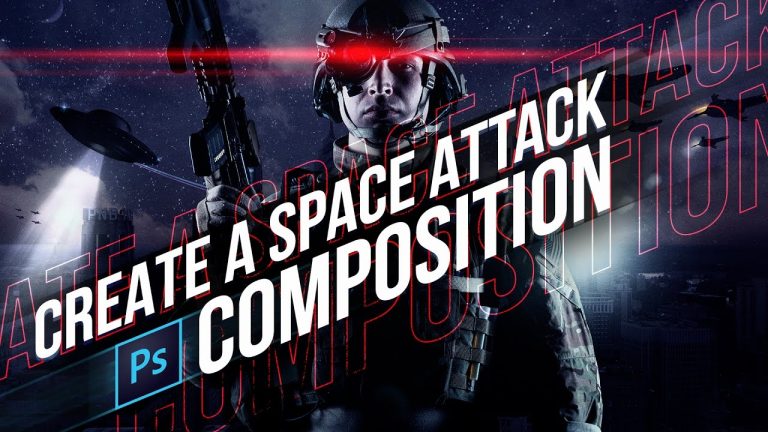
We will convert a daytime photo to a starry night scene in Photoshop and build a space battle scene, including compositing a soldier in place to complete the scene. We will learn about Masking, Blend Modes, Creating a Lens Flare, Using Color Range, Multiple Adjustment Layers, Levels, Curves, Selective Color, Color Balance, Extensive Brush Use, Custom Brushes, Editing Brushes, Working with Paths, Building Glows, Smart Objects, Building Mood and Drama in a Photo with Blend Modes, Black and White, Color Effects, Matching a model with the color of a background, adding noise, and so much more!

DOWNLOADS:

Download Assets for this tutorial here: http://bit.ly/2he0XEX

Brushes: https://www.brusheezy.com/brushes/57637-20-spaceship-ps-brushes-abr-vol-1

https://www.brusheezy.com/brushes/49882-space-brushes-collection

https://www.brusheezy.com/brushes/56996-lens-flares-ps-brushes

https://www.dreamstime.com/stock-image-astronaut-spaceship-aircraft-helmet-fashion-woman-image15429951

Pick up my image retouching tutorial package ($27) right here: http://tutvid.com/retouching-photos-photoshop/

INSTAGRAM, SNAPCHAT, & MORE:
http://instagram.com/tutvid

https://www.facebook.com/tutvid
? tutvid.com
CREDITS:
Social Icons in outro: http://www.freepik.com/free-vector/six-social-networking-icons-with-infographic-resources_982300.htm

The Healing Brush – Photoshop CS6 Tutorial

0

Check out another of my videos: “BREAKDOWN: Select and Mask vs. Refine Edge – Photoshop CC”

-~-~~-~~~-~~-~-

Link to written tutorial: http://tutvid.com/the-healing-brush-photoshop-cs6-tutorial/

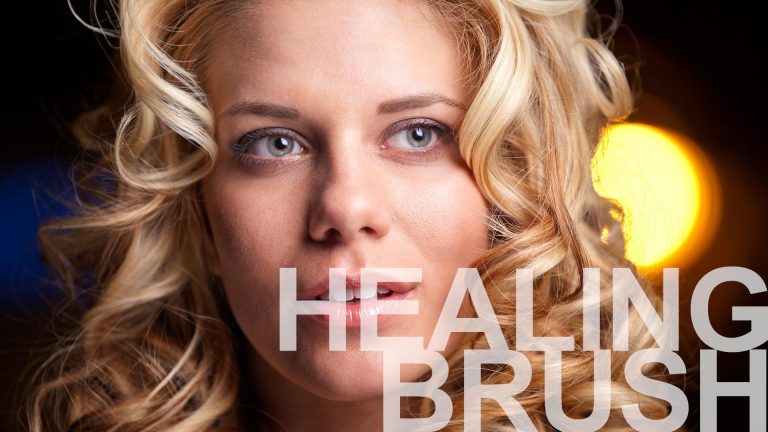
The Healing Brush, Spot Healing Brush, and Patch tool are are healing options that I use very much when retouching photographs. These tools are very much “touch and feel” tools that you really want to start using to figure out how best they work for you. There is no better set of tools in Photoshop for cleaning up spots and unwanted objects in a picture than this set of healing tools. Today we’re going to focus on the Healing Brush.

Model -Sarah Harley: http://www.modelmayhem.com/2391971

GET MORE FROM TUTVID.COM

Facebook
https://www.facebook.com/tutvid

Twitter

Google+
http://gplus.to/tutvid

Website
http://tutvid.com

Please subscribe if you enjoyed this video!

Photoshop: Perspective Technique For Awesome Composite Images!

0

Check out another of my videos: “BREAKDOWN: Select and Mask vs. Refine Edge – Photoshop CC”

-~-~~-~~~-~~-~-

Pick up my image retouching tutorial package ($27) right here: http://bit.ly/support-tutvid

Find the written tutorial here: http://tutvid.com/photoshop-tutorials/getting-perspective-right-for-incredible-photoshop-composite-images/

When you are building a composite image, you have to ensure that each of the objects in your composite have a perspective that matches the image into which they are being placed. In this tutorial, we’re going to talk about how to find the horizon of your image and then how to find the vanishing point of objects you drag into your background and then how to line the objects up along the horizon and match the perspective of both the background image and the element dragged into the photo. We’re using two different cars for this example, but this technique works for people, buildings, animals, still life, and more. Once you know it, you’ll love it!

VIDEO GUIDE:
01:16 How to find the horizon line
03:00 Working with the image to draw the horizon line
05:40 Find the vanishing point of the car
07:30 Finding out where the car belongs in the background image
08:06 Resizing an object in perspective
09:27 Doing it all to a second car

SNAPCHAT & MORE:
http://instagram.com/tutvid

https://www.facebook.com/tutvid
? tutvid.com
Realistic Motion Blur to Create a Speeding Car Effect in Photoshop

0

Check out another of my videos: “BREAKDOWN: Select and Mask vs. Refine Edge – Photoshop CC”

-~-~~-~~~-~~-~-

Pick up my image retouching tutorial package ($27) right here: http://bit.ly/support-tutvid

Find the written tutorial here: http://tutvid.com/photoshop-tutorials/realistic-motion-blur-create-speeding-car-effect-photoshop/

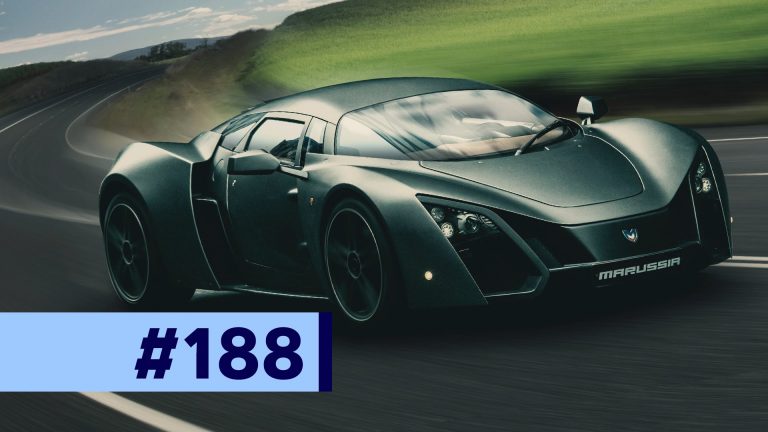
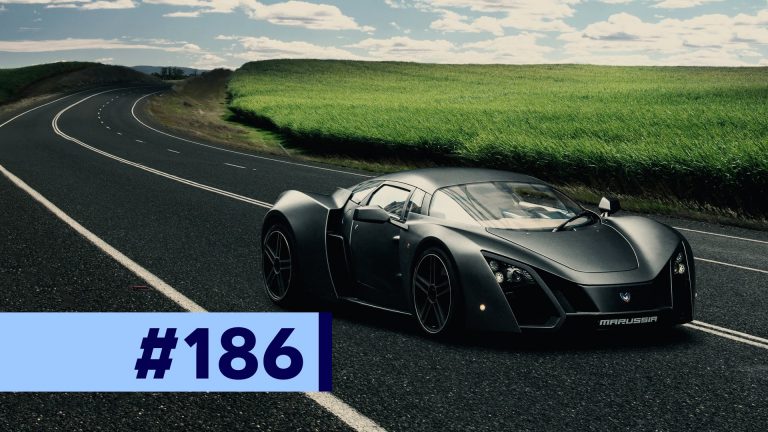
One of the more difficult tasks in Photoshop has long been to make a car look like it is moving at a significant rate of speed. There are some third party applications that are typically used to get a really great look (and they do a pretty awesome job,) but with the addition of the Path and Spin blurs to Photoshop back in Photoshop CC 2014 we can now fairly effectively create a great speeding car effect in Photoshop. In this tutorial I’m going to cover how to work with the Path Blur and masking to create a blur that follows the road and is super intense very close to the camera position, but virtually nonexistent for the clouds in the sky and other far-away objects. There is so much to check out in this tutorial, you’re going to love it!

VIDEO GUIDE:
01:43 Resize the car a little
04:14 Stretching the image a little bit
05:00 Blurring the background
14:12 Spinning the car wheels
16:32 This is why Smart Objects are better
16:59 Blurring the sky/windows
17:49 Streaking car effect

SNAPCHAT & MORE:
http://instagram.com/tutvid

https://www.facebook.com/tutvid
? tutvid.com

Shattered Text Effect – Photoshop CS6 Tutorial

0

Check out another of my videos: “BREAKDOWN: Select and Mask vs. Refine Edge – Photoshop CC”

-~-~~-~~~-~~-~-

Join the discussion and view the tutorial on Tutvid.com here: http://tutvid.com/photoshop/shattered-broken-text-effect-photoshop-tutorial/

||||
||||
Follow this simple and fast tutorial to learn an amazing way to create vector type in Photoshop with a beautiful and highly editable shattered text effect. We’ll run over creating shapes from type layers, converting complex selections into paths, working with a mask and custom brushes, and a whole lot more. Jump in and check it out!

Brush #1: http://perpetualstudios.deviantart.com/art/Broken-Glass-Brushes-Eight-142202161

Brush #2: http://www.brusheezy.com/brushes/2033-distressed-grunge-pack-26-brushes

Typography: http://www.fontsquirrel.com/fonts/novecento-wide

||||
||||


https://www.facebook.com/tutvid
https://plus.google.com/+NathanielDodson
http://instagram.com/endyphoto

Content-Aware Move Tool Tutorial — Photoshop CS6 Beta

0

Check out another of my videos: “BREAKDOWN: Select and Mask vs. Refine Edge – Photoshop CC”

-~-~~-~~~-~~-~-

Download Photoshop CS6 Beta here: http://labs.adobe.com/technologies/photoshopcs6/

One of the more cutting-edge features delivered in Photoshop CS6 Beta is the brand new Content-Aware Move Tool. The concept of this tool is that you will be able to select objects in your image and move them around and Photoshop will do all the edge work and re-blend your object (face, person, building, car, etc… etc…) into whatever part of the image you move it to. The tool is a far cry from being perfect and often time’s takes a little tweaking and playing with to get a great result.

Like Tutvid on Facebook: http://www.facebook.com/tutvidFan
Follow me on Twitter: http://www.twitter.com/tutvid

We’re going to take a look at the tool and its features so you have an understanding of how it works and how it will be able to work for you. We’ll also run over a few less-than-optimum situations to help you get accustomed to dealing with some of the rougher edges where this tool probably will not do much good for you. Let’s get started and take a look at this exciting new feature of Photoshop! It’s super cool!